

Note: The In-Transfer tab is read-only. It does not affect any inventory calculations — On Hand, Available, and Allocated quantities are unchanged.
Prerequisites
- At least one transfer-based fulfillment flow in use: BOPIS transfersor STH and Delivery Consolidation.
- No additional configuration is required. The tab is visible to any user who can view inventory records
View In-Transfer Quantities
- Go to Main > Supply > Inventory > Supply Demand
- Search for the product-location record whose inbound transfers you want to review.
- Click View (or Edit) in the row actions to open the inventory record drawer.
- Select the In-Transfer tab. Unlike the Future tab, the In-Transfer tab is always available .
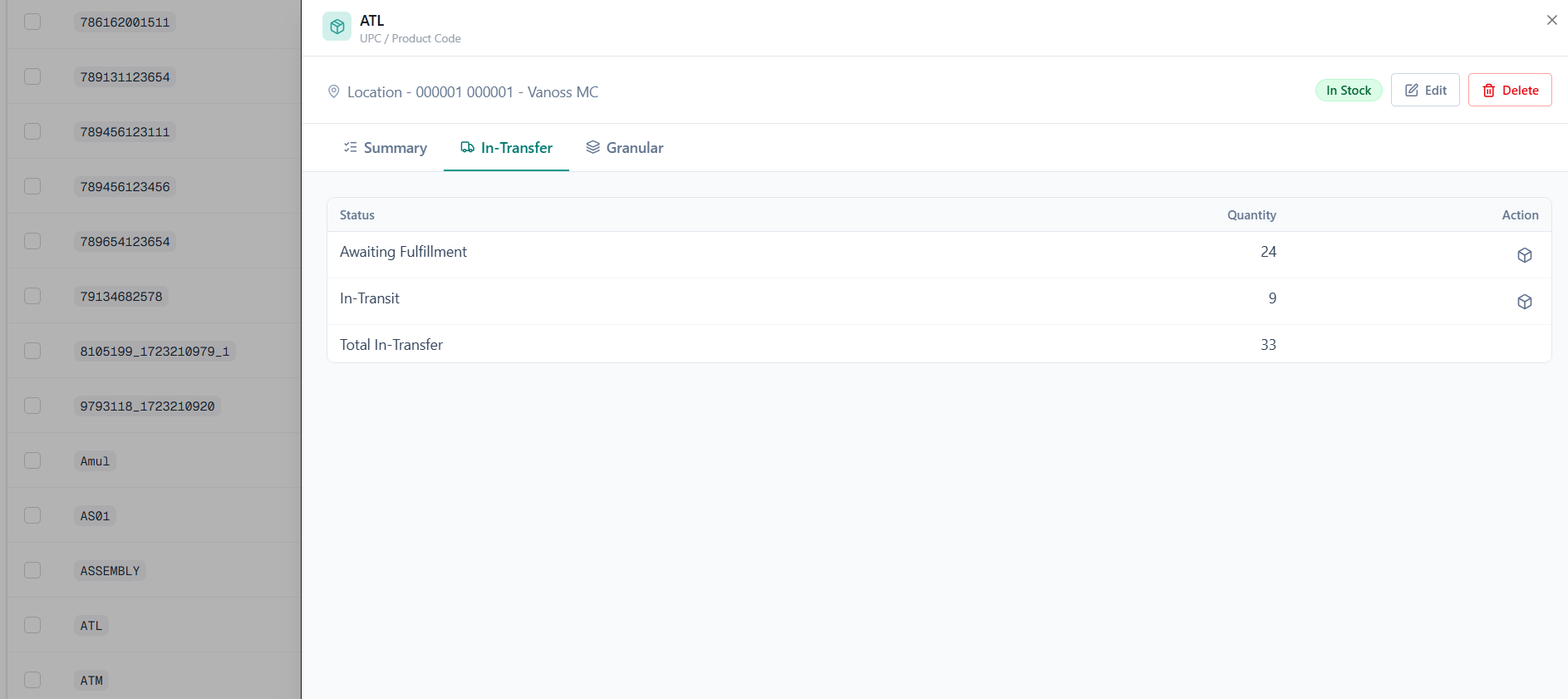
When no active transfers exist, the tab displays: “No active transfers for this UPC at this location.”
View the Transfers Shipments Behind the Numbers
Click Allocation icon under action column on the Awaiting Fulfillment or In-Transit row. The Shipments page opens in a new browser tab, pre-filtered to the transfer shipments behind that quantity for the selected product and destination location. Total In-Transfer does not carry a drill-through button.Transfer To Location on Shipment Details
The detail view of a Transfer-type shipment shows both ends of the route:- Transfer From — the source location shipping the stock.
- Transfer To — the destination location receiving it.