Fulfillment Concepts
Understand the broader fulfillment architecture and workflows
Ship-to-Home Concepts
Understand ship-to-home fulfillment workflows
Fulfillment SLA Concepts
Understand service level agreements for fulfillment
Developer Reference
See the Shipments API documentation for programmatic access
Watch: Ship-to-Home Fulfillment
See an overview of the ship-to-home fulfillment process
Watch: Fulfiller Overview
Get an introduction to the Fulfiller application
Hold Shipment Creation
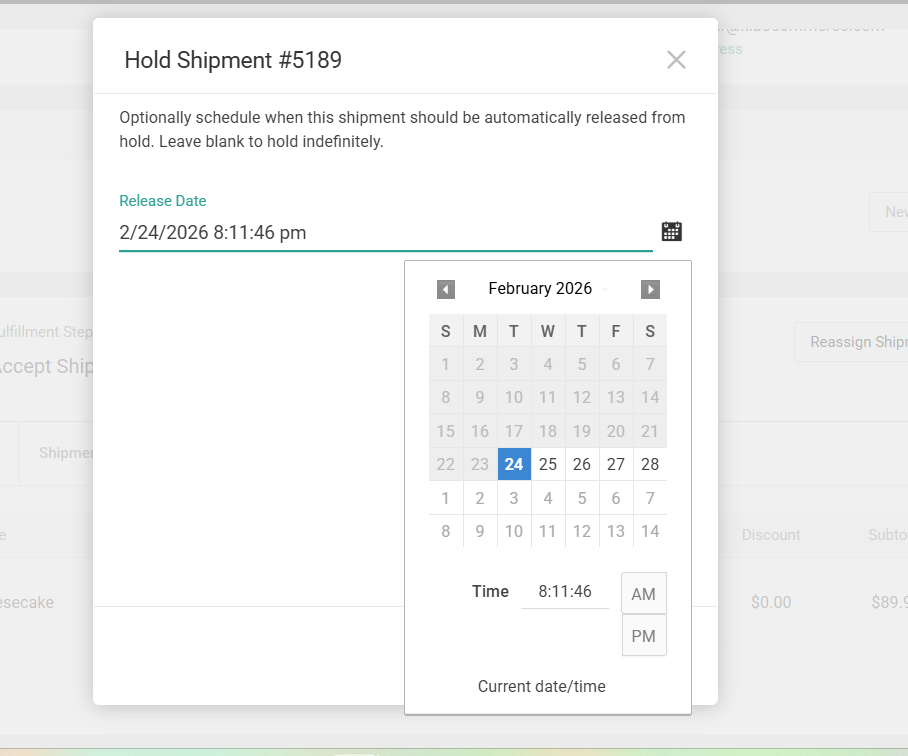
You can place shipments in Hold status either during shipment creation through APIs or later from the Order Admin UI or directly from the Fulfiller UI shipment details page, depending on your business needs. When a shipment is on hold, its associated inventory remains reserved. Providing a Hold Release Date and Time is optional. If no release date is specified, the shipment will remain on hold until you manually release it. Hold status is supported for all shipment types, including BOPIS, Ship to Home (STH), Delivery, and Transfers.Create Shipments Directly in Hold (API)
You can configure shipments to be created directly in Hold status during the shipment creation process using Shipment API extensions. This allows you to apply custom business rules to determine when shipments should start in Hold. You can also move an existing Ready shipment to Hold status using the Hold API.Place a Ready Shipment on Hold from Order Admin
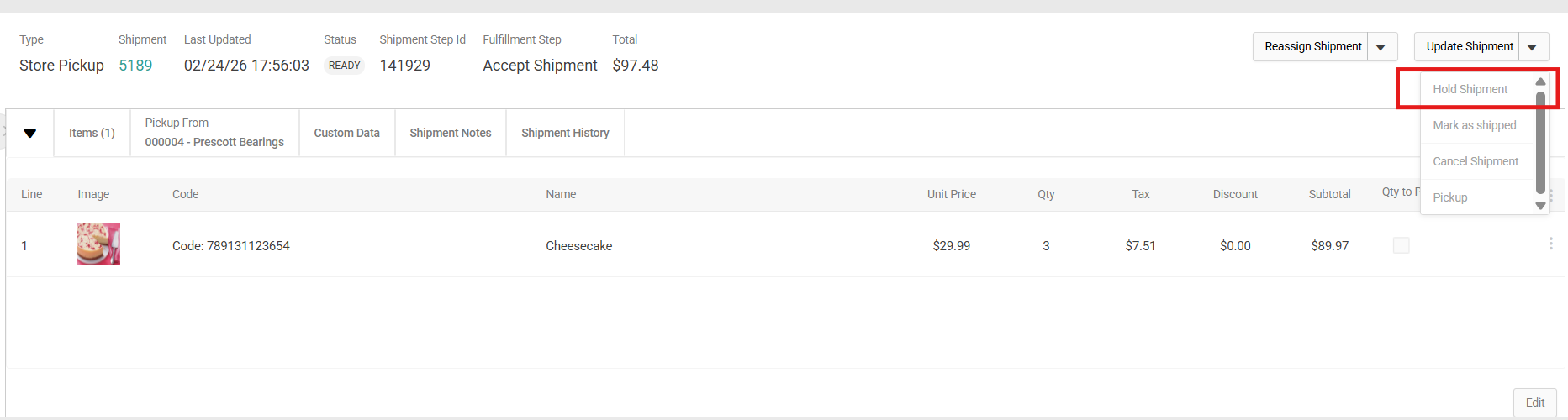
You can place a shipment that is currently in Ready status on hold directly from the Order Admin UI without using the API. The Hold Shipment option appears in the Update Shipment dropdown on the Shipments tab and is only visible when the shipment status is Ready. This option is hidden for all other statuses (Cancelled, Fulfilled, Backordered, etc.) and is only available when the Shipment on Hold toggle is enabled in Site Settings.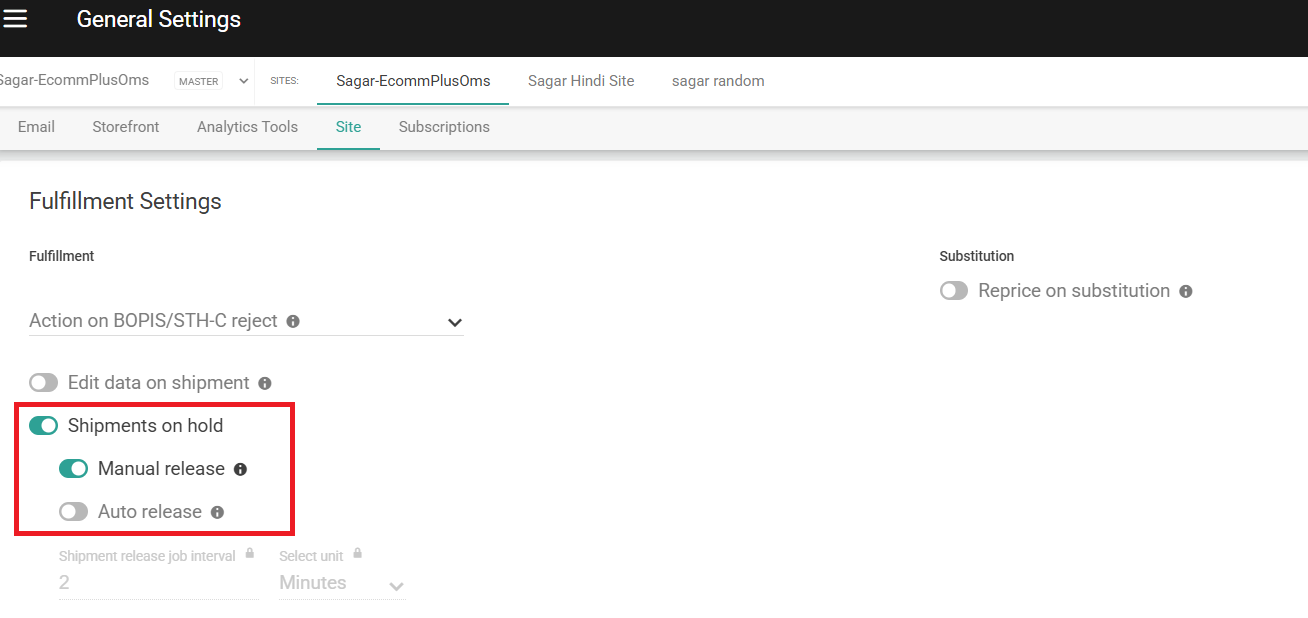
Place a Ready Shipment on Hold from Fulfiller UI
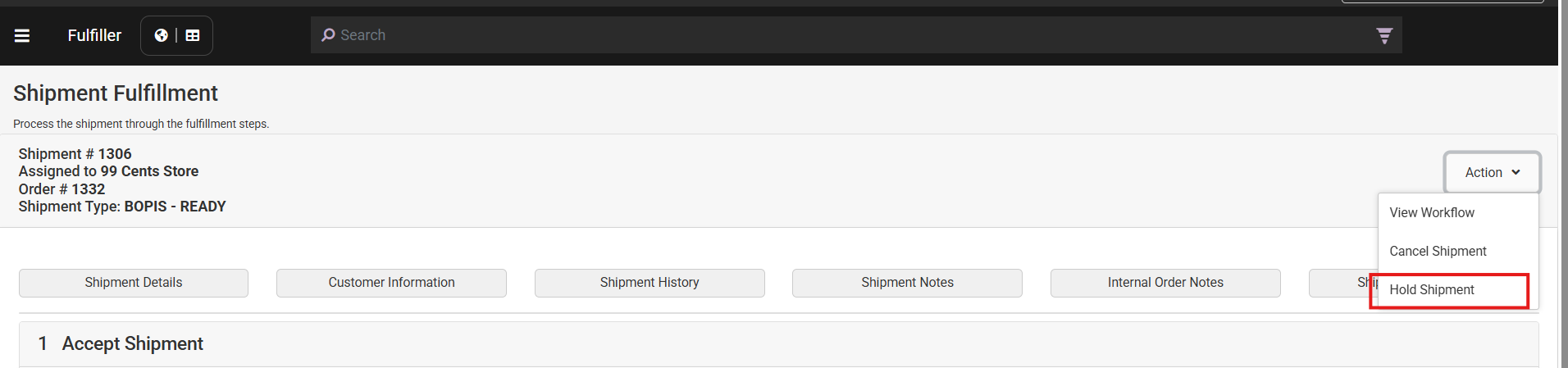
Fulfillment users can place a shipment on hold directly from the Actions dropdown on the Shipment Details page in the Fulfiller UI, without needing to switch to Order Admin.- The “Hold Shipment” link is visible in the Actions dropdown only when the shipment status is Ready.
- This option is hidden for all other statuses (e.g., Fulfilled, Cancelled, Future, Backordered etc).
- The option is only available when the Shipment on Hold setting is enabled at the site level.
Release Shipments on Hold
Hold shipments can be released manually or automatically.Manual Release
When the Manual Release option is enabled in Site Settings, the Release for Fulfillment button appears on the Shipments tab in Order Admin. This button is only available for shipments in Hold status.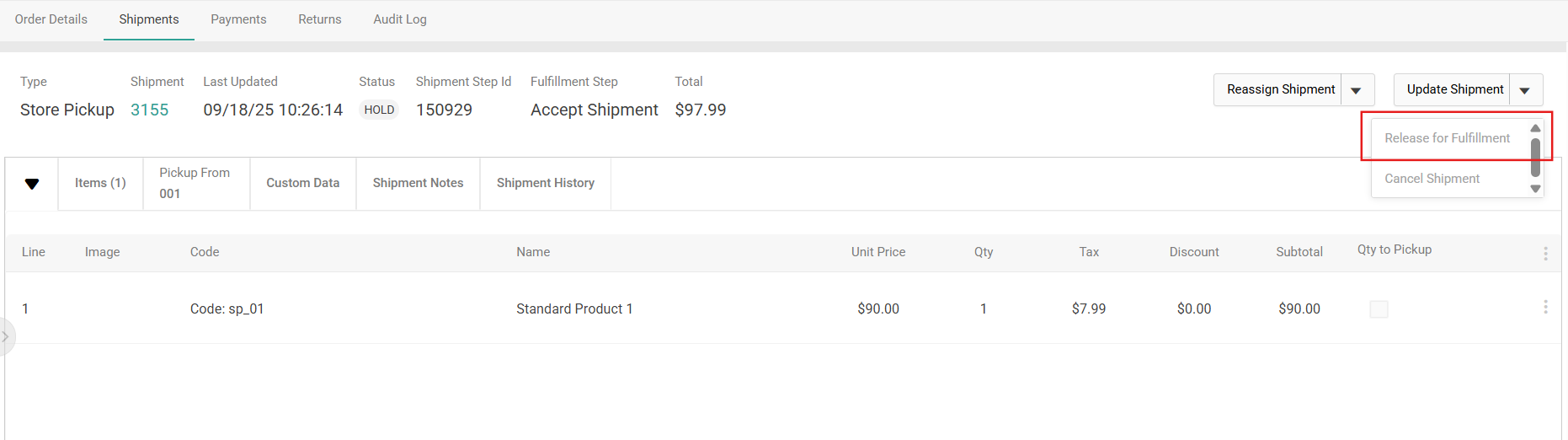
- Clicking Release for Fulfillment changes the shipment status from Hold to Ready, allowing shipment to continue through the normal fulfillment workflow.
- Fulfillment users can also release a shipment directly from the Fulfiller UI. When the shipment status is Hold, a “Release for Fulfillment” link appears in the Actions dropdown on the Shipment Details page. Clicking this transitions the shipment status from Hold to Ready.
Automatic Release
When the Automatic Release option is enabled and configured with an interval, a Kibo background jobReleaseHoldShipment runs at the specified frequency.
- The job scans all shipments in Hold status.
- Any shipment whose Shipment Release Date is less than or equal to the current timestamp is automatically released and moved to Ready.
Update Shipment Release Date
If a shipment is in Hold status and has a Shipment Release Date, Users can update the Shipment Release Date and Time from the Shipments tab in Order Admin (for shipments currently in Hold). When clicking the pencil/edit icon next to the field, a date-time picker opens allowing selection of both date and time.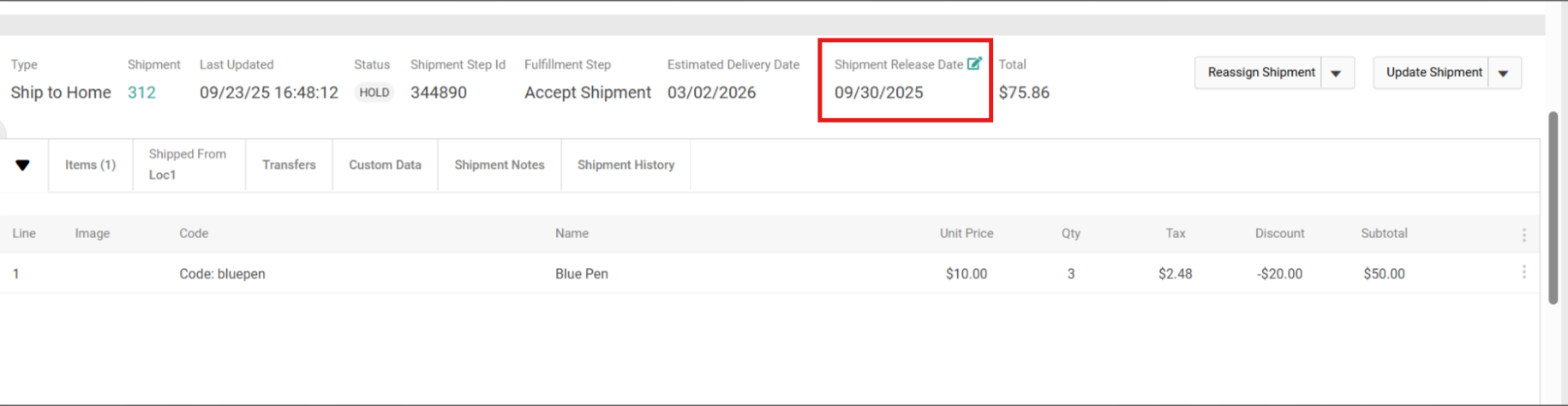
holdReleaseDate API.
Viewing and Filtering Hold Shipments in Fulfiller UI
Viewing Shipment Release Date
Fulfillment operators can view the Shipment Release Date directly on the FFUI workflow page for shipments currently in Hold status. The field appears below the Shipment Status field and displays the date and time in the user’s local timezone. The field is read-only — it cannot be edited from FFUI. It is only displayed when both of the following conditions are true:- The shipment status is Hold
- A
holdReleaseDatevalue is set on the shipment.
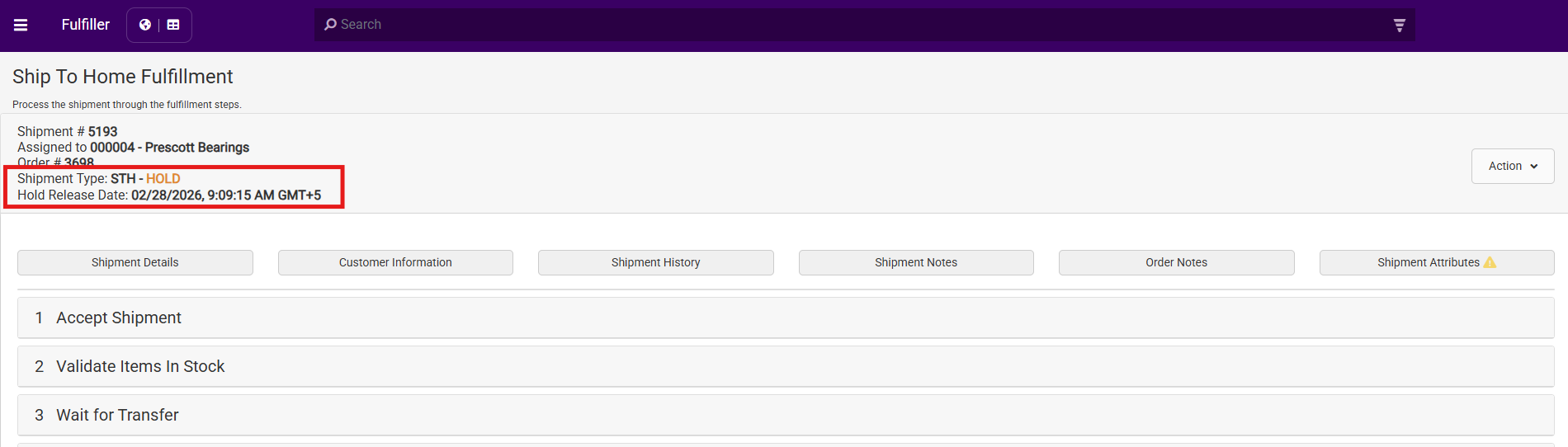
holdReleaseDate value is cleared, the field is automatically removed from the view.
Filtering and Searching for Hold Shipments
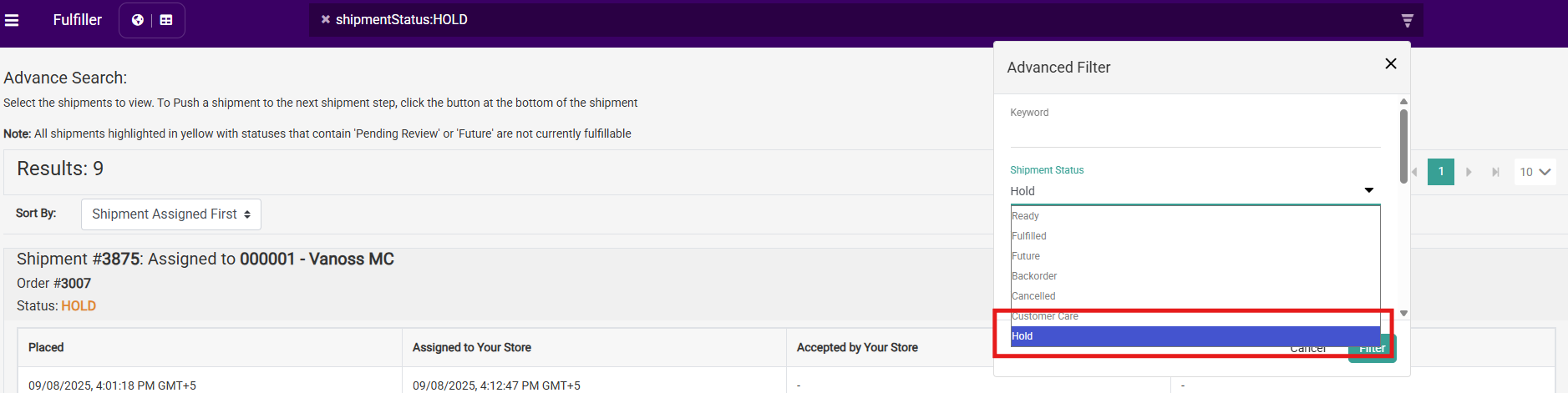
Fulfillment users can filter and search for shipments in Hold status in the Fulfiller UI to monitor, plan, and manage held shipments. Using Advanced Filter To filter shipments by Hold status:- Navigate to the shipments page in Fulfiller UI
- Click on Advanced Filter to expand the filter options
- Open the Shipment Status dropdown
- Select Hold from the available status options
- Click Apply Filter