Watch: Mapping Attributes
See how to create and configure mapping attributes
How Mapping Works
There are some constraints to be aware of before configuring mapping attributes:- A mapped attribute cannot point to another mapped attribute.
- A mapping attribute and any of its associated attributes must be of type string for the input and display type and a predefined type list.
- An attribute and its mapping attribute should not both be options on the same product (for example, “Forest Green” should not be mapped to a generic-Color called “Forest Green”).
- A mapping attribute should not be a property on the same product as an attribute that is using the mapping attribute.
Configure Mapping Attributes
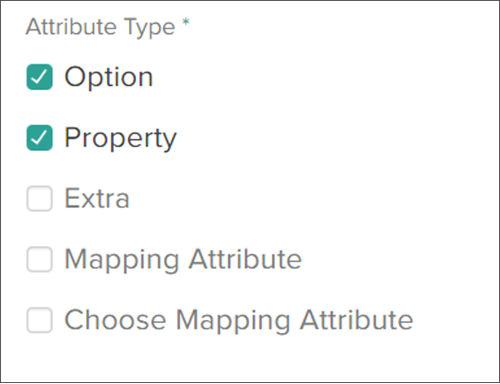
A generic attribute must be enabled as a mapping attribute before any other attribute values can be mapped to it. There is a checkbox in a product attribute’s details page that allows an existing attribute to be identified as a generic mapping attribute.- Go to System > Schema > Product Attributes.
- Locate the attribute that you want to configure as the generic mapping attribute (or create a new attribute). Expand the drop-down menu on the right side of the entry in the table and click Edit.
- Click the checkbox for Mapping Attribute. Note that the option for Choose Mapping Attribute will disappear once this is selected (and vice versa), because a mapping attribute cannot point to another mapping attribute.
- Click Save in the top right.
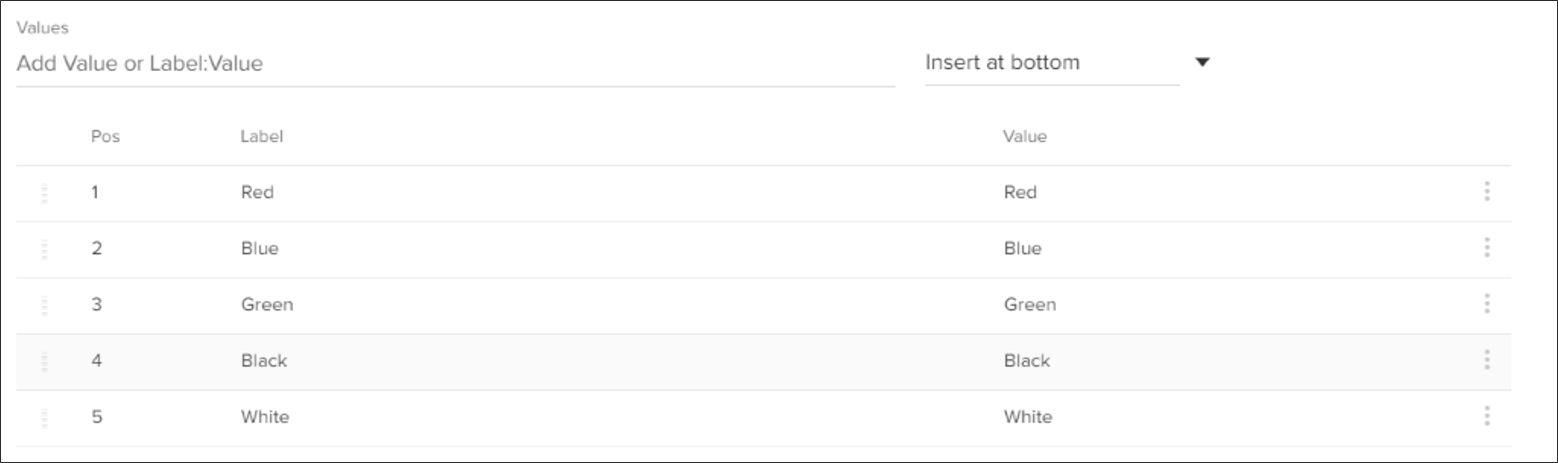
- As with any standard option or extra attribute, you can add a new option by typing it into the Values text field and inserting it into the table.
- Change the label or value of the option by clicking the cell in the table.
- Reorder the values with the drop-down menus on the far right of each table entry.
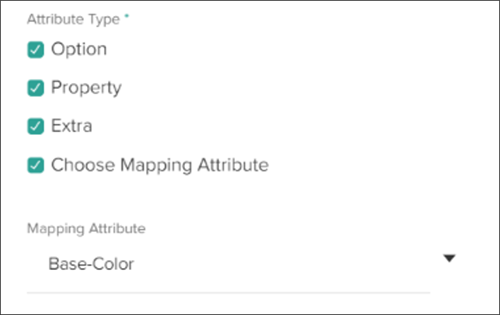
- Locate the attribute that you want to map to the generic attribute (or create a new attribute). Expand the drop-down menu on the right side of the entry in the table and click Edit.
- Click the checkbox for Choose Mapping Attribute.
- Select the mapping attribute in the first drop-down.
- An additional column in the value options table, called Mapped Values, indicates whether any of the existing values have been mapped to a generic attribute or not.
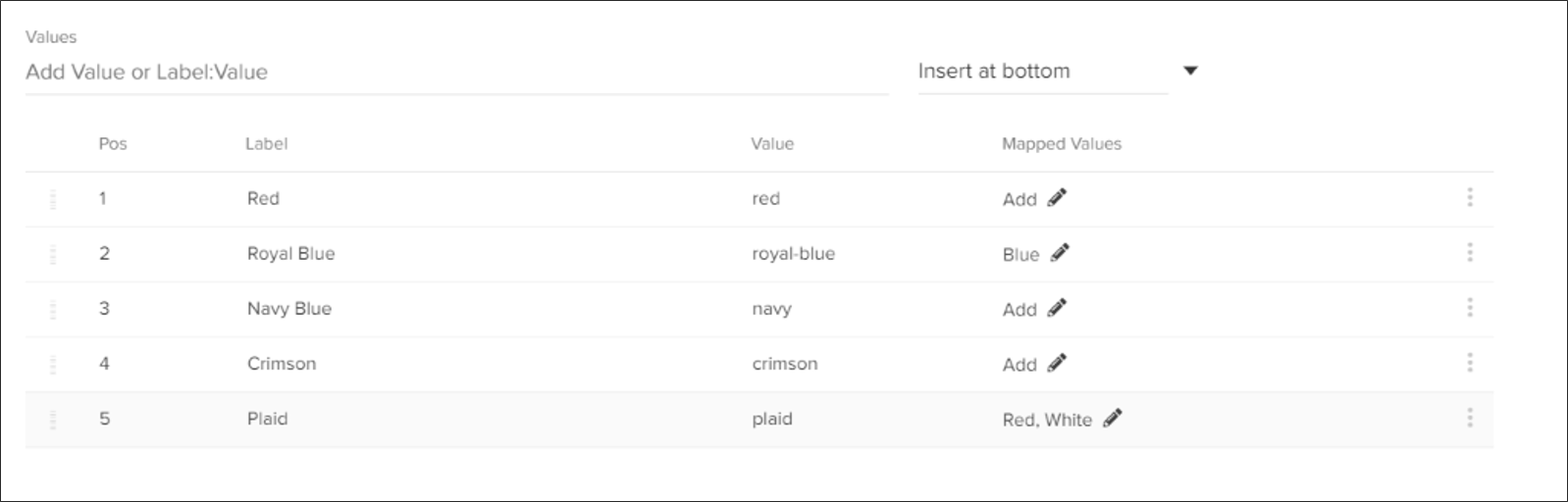
- As with any standard option or extra attribute, you can add a new option by typing it into the Values text field and inserting it into the table.
- Change the label or value of the option by clicking the cell in the table.
- Reorder the values with the drop-down menus on the far right of each table entry.
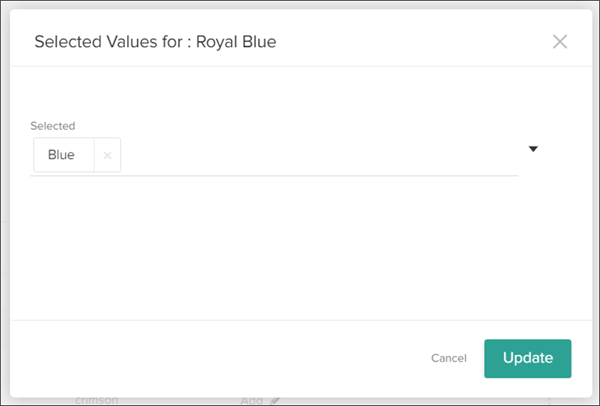
- Click the pencil icon in the Mapped Values column of any option in the table. A popup will be displayed with a drop-down menu displaying any mapped values.
- To add a new generic value that this value will be mapped to, expand the drop-down. The only options that are displayed are the values of the mapping attribute that you selected.
- Click a generic value and it will be displayed in the list of selected values. Click the X to remove any undesired values.
- Click Update to close the modal and view the updated values table.
- Click Save in the top right of the attributes details page to confirm the mapping configurations.