Watch: Configurable Products
Learn how to create products with configurable options
Product Variant Codes
When you generate variations for a product, Kibo eCommerce assigns each variant a unique product code that maintains an association with the base product code. Kibo eCommerce also generates a variation key that represents the option values that identify the product variant. You can assign your own unique product codes for each product variant. This should be a minimum of 3 characters, up to a maximum of 30. If you already have some product codes for variants and then decide to add new options, the existing codes will no longer be maintained. Kibo recommends fully planning for all possible configurable options for your products before creating unique codes for variants. For example, if the product code for a base tennis shoe product is SNEAKER0001, when you generate a product variation to offer the shoe with the options of light blue in size 7, Kibo eCommerce automatically assigns the following values based on the sequence of the variation and the selected option values:- Variation product code: SNEAKER0001-4
- Variation key: 15-21
www.yourSite.com/productSlug/p/productCode?vpc=variationProductCode. For example, www.yourSite.com/amazing-pants/p/amz-pants-007?vpc=green-large.
Product Variant Deviations
Each product variant can have a delta price or delta weight, which deviates from the base product definition. For example, if the base price for the tennis shoe is $89.00 but you want to charge an extra $5 for shoe sizes greater than 10, you can define a delta price of $5 for each variant associated with size options greater than 10. As another example, if the base weight of the shoe is two pounds, but shoe sizes under 7 weigh half a pound less, you can define a delta weight of -0.5 for each variant associated with size options less than 7.Product Variants on Sites
When you create product variants, they appear on your site as configurable options that shoppers must configure. For example, you sell a size 7 tennis shoe in light blue on your site. In order for a shopper to order this product variant, they must first select the light blue color and also the size 7 on your site. The base product itself doesn’t appear on your site, because it only exists for Kibo eCommerce to associate the product variants with. However, product variant details that do not deviate from the base product are shown on the site as part of the product variant, such as product properties and extras. If you want to hide product variants that are out of stock on your site, you can configure the base product to be hidden on the site when out of stock. Then, whenever a product variant associated with this base product becomes out of stock, you can either make the product variant unselectable or hidden on your site, depending on your theme. Additionally, the Dynamic Imaging feature now supports image groups at the product option level, allowing only specific images to be displayed depending on the variant that the customer has selected.Product Variant Pricing and Weight
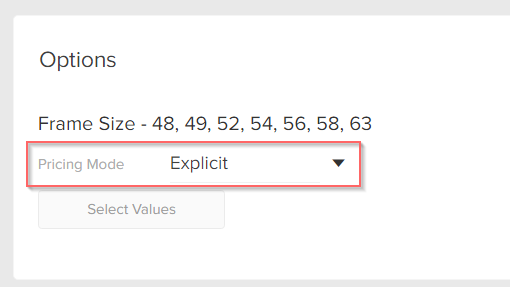
You can specify the pricing mode for your products, which controls how you specify the price and weight of product variants. Products support the following pricing modes:- Relative: Allows you to reference the variant pricing and weight off of the base product, and specify a delta value for each.
For example, if the base price for a tennis shoe is $89.00 but you want to charge an extra $5 for shoe sizes greater than 10, you can define a delta price of $5 for each variant associated with size options greater than 10. - Explicit: Allows you to explicitly define the pricing and weight for the product variant, completely separate from the base product.
For example, you want to charge exactly $65.99 for a specialty color tennis shoe, regardless of the base price for the tennis shoe.