

View Tags in Order Details
To view the tags:- Go to Main > Demand > Orders.
- Click on an order to view its details.
- Click View # Inventory tags under a line item.
- In the pop-up, the current tags and values will be displayed. If the order is in Pending status, then a message will direct you to edit the tags via the “Edit Details” button.
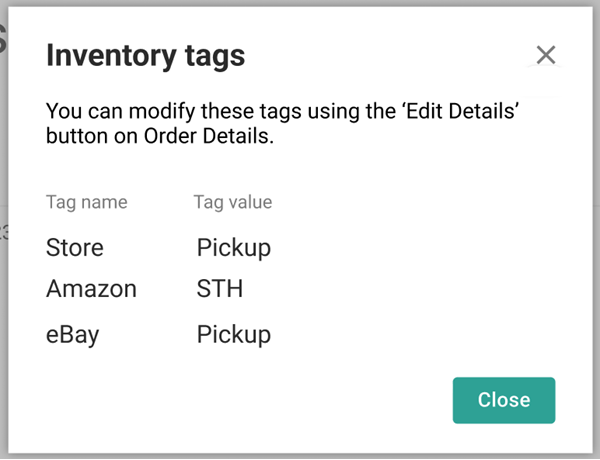
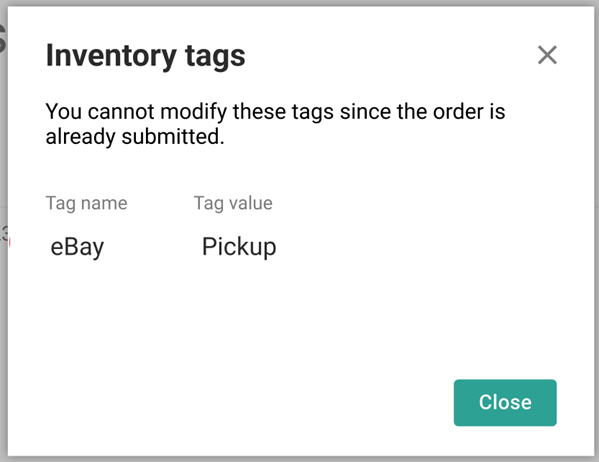
Edit Order Item Tags
If the order is Pending, return to the order details to edit the tags:- Click Edit Details on the order, where you will be able to edit and add order items.
- Click the Add/Edit Inventory Tags link underneath a line item.
- A pop-up with the editable tags will appear, displaying the first three tags on the item. Select new names/values or add new tags as necessary. Remove tags by clicking Clear.
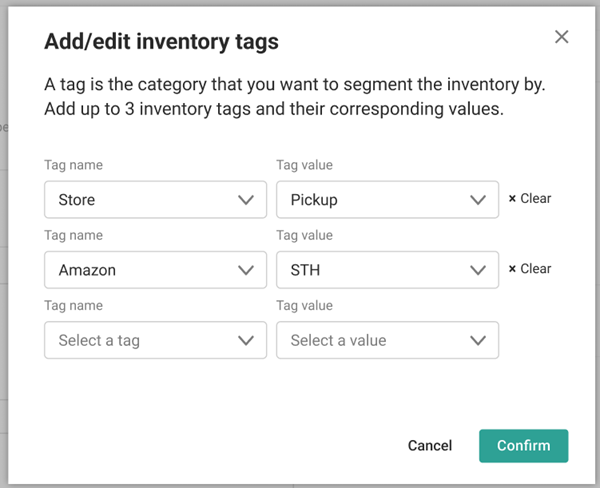
- Click Confirm.
Tags with Reserve Inventory
Whenever inventory tags are set or updated on an item in a Pending order, cart, or checkout that includes reserve inventory, then the entire line item and quantity combination will be reevaluated and allocated or deallocated appropriately. You can also use the Update Reservation Item API to manually update a specific reserved item and its fulfillment location code, fulfillment type and inventory tags. For STH shipments without a location code:- If any of these fields are updated, then new suggestions will be fetched from Order Routing. Any errors will block the new values from being updated on the item.
- If the call succeeds, the existing inventory will be deallocated and reallocated for the complete quantity.
- If any of these fields are updated, the existing inventory will be deallocated.
- A new inventory call will be made to allocate the complete quantity with the updated fields.
- If any of these fields are updated, an inventory check will be done.
- If no inventory is available at the pickup location, the values will not be updated on the item.
- If inventory is available, then the complete quantity will be deallocated and reallocated.
- If any of these fields are updated, an inventory check will be done.
- If there is no inventory for the entire quantity, new Order Routing suggestions will be retrieved and the existing quantity will be deallocated. It will be reallocated with the complete quantity.
- If partial inventory is unavailable at a pickup location, order routing will be called for partial quantity and the remaining quantity will be deallocated and reallocated.
- If no inventory/partial inventory and no valid routing suggestions, the new values will not be updated on the items.
- If there is full inventory, then the complete quantity will be deallocated and reallocated.