

Access
Open Support from the Main menu in Kibo Admin.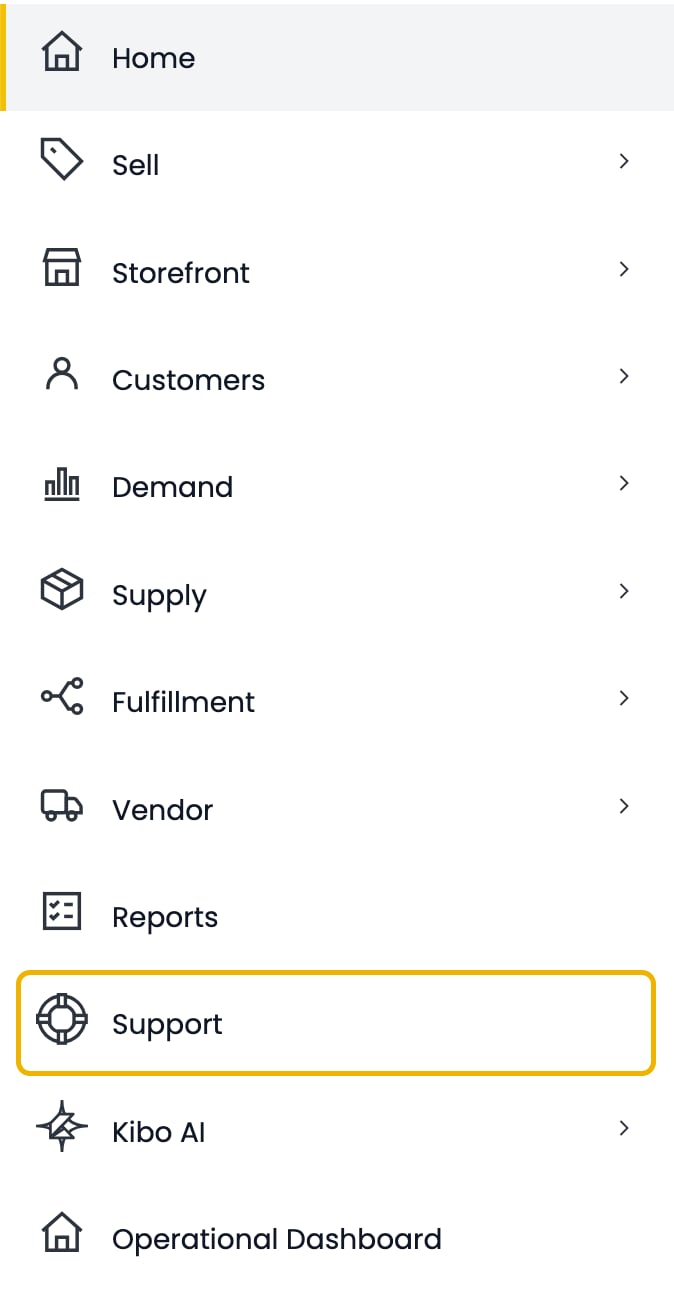
- Users with the Admin role can use Support.
- Any other user needs a role with the Support Ticket Access behavior. Your administrator can add this behavior to a role under System > Permissions > Roles. See User Roles for how to edit a role. In some tenants this behavior is still listed under its previous name, Account View Statement.
Limit Who Can Use Support
By default, every user who meets the requirements above can use Support. If you want fewer people to see your company’s tickets, ask your CDM or Kibo Support to limit Support to a list of people. The list can name individual email addresses, such asjane@example.com, and whole email domains, such as @example.com. A domain entry covers that domain exactly, not its subdomains. Kibo keeps the list for you, so contact your CDM or Kibo Support whenever someone should be added or removed.
When Support is limited to a list:
- Only the people on the list can open Support, view tickets, or create and reply to tickets. This applies to everyone, including Kibo staff using your tenants.
- People who aren’t on the list are refused on every tenant your company uses. They see the message Support isn’t set up for this tenant yet.
- Removing someone takes effect immediately. They stop receiving Kibo AI’s reply emails, and the tickets they opened stay visible to the people still on the list.
Support Isn’t Set Up for This Tenant Yet
If Support opens with the message Support isn’t set up for this tenant yet, either Kibo hasn’t finished linking that tenant to your company’s account, or your company limits Support to a list of people and you aren’t on it. Contact your CDM (Client Delivery Manager) or Kibo Support to complete the setup or to be added to the list.The Ticket List
The ticket list shows your team’s tickets with their severity, status, who opened them, and who at Kibo has them. A dot next to a subject marks an unread reply.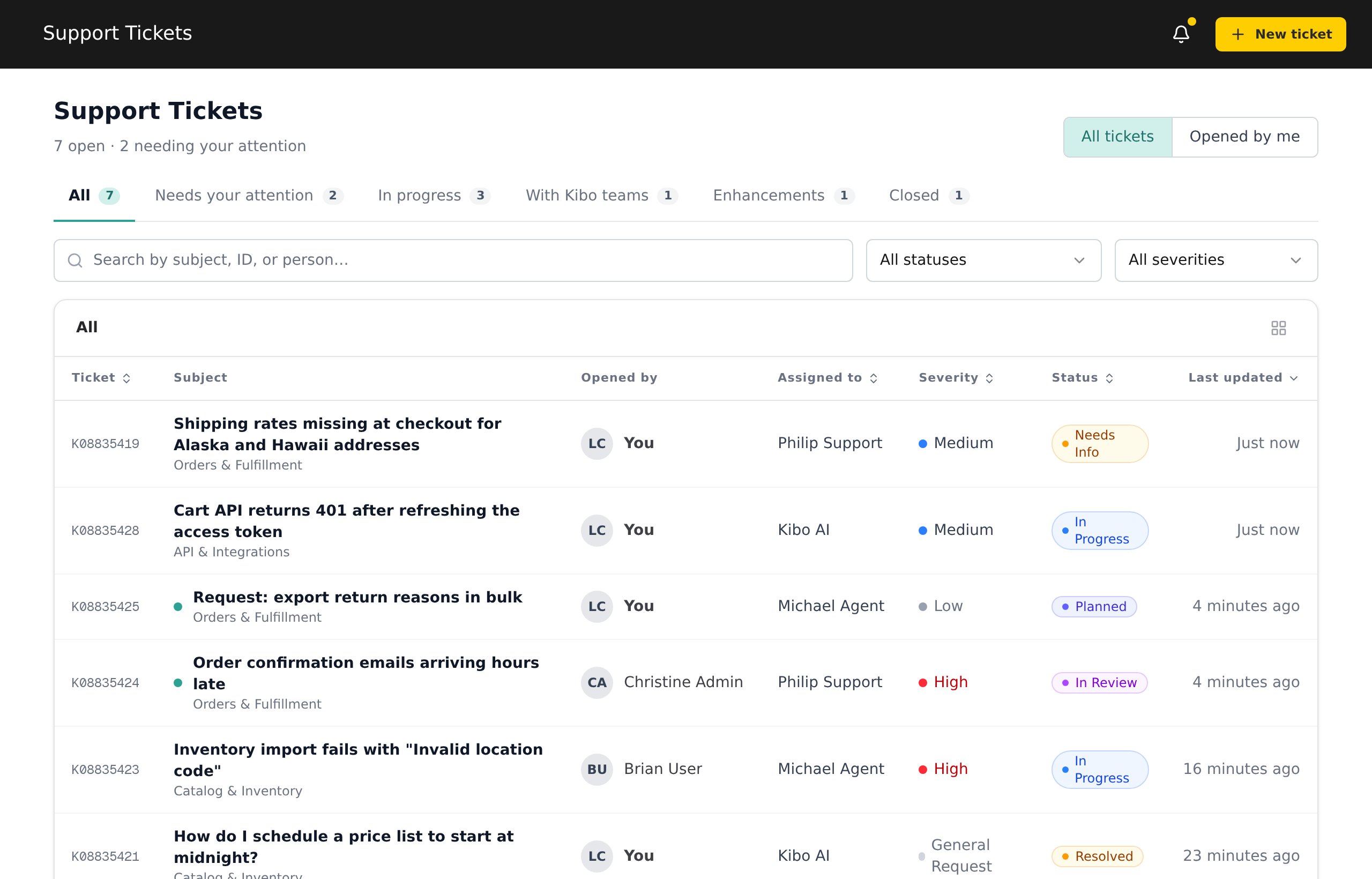
Use All tickets or Opened by me to switch between your team’s tickets and your own. You can also search by subject, ticket number, or person, and filter by status or severity. The bell icon in the header filters the list to tickets with unread replies.
The page address changes as you filter and open tickets, so you can copy it to share a ticket or a filtered view with a teammate.
Open a Ticket
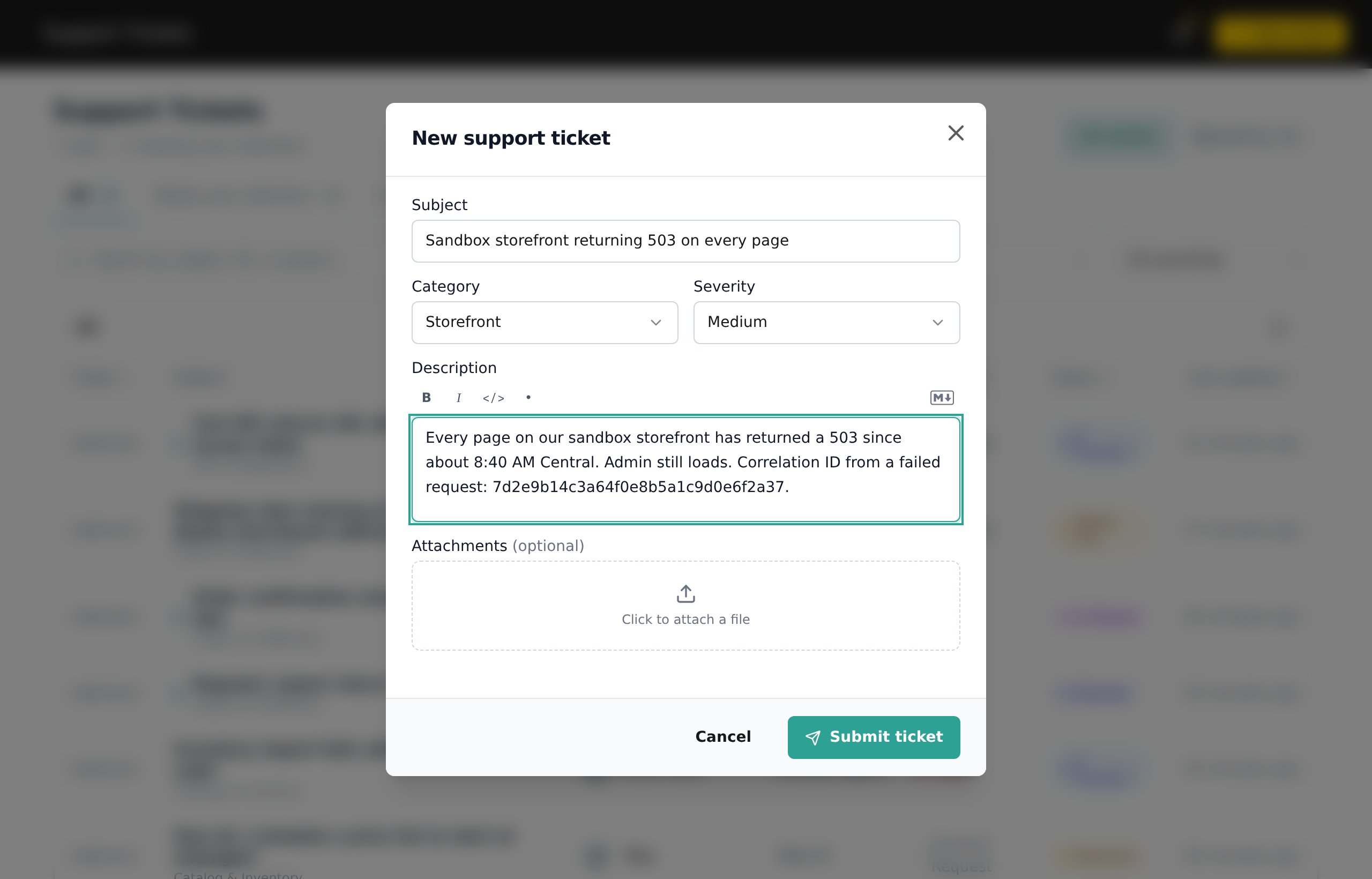
- In the Support area, click New ticket.
- Enter a Subject that briefly summarizes the issue.
- Choose a Category: Orders & Fulfillment, Catalog & Inventory, Payments, API & Integrations, Storefront, or Account & Billing.
- Choose a Severity (see Severity below). Medium is selected by default.
- In Description, explain what is happening. Include order numbers, error messages, the steps to reproduce the problem, and a Correlation ID if you have one. The more detail you give, the faster Kibo AI or Kibo Support can help.
- Optionally, attach files such as screenshots, logs, or the file that failed to import.
- Click Submit ticket.
Severity
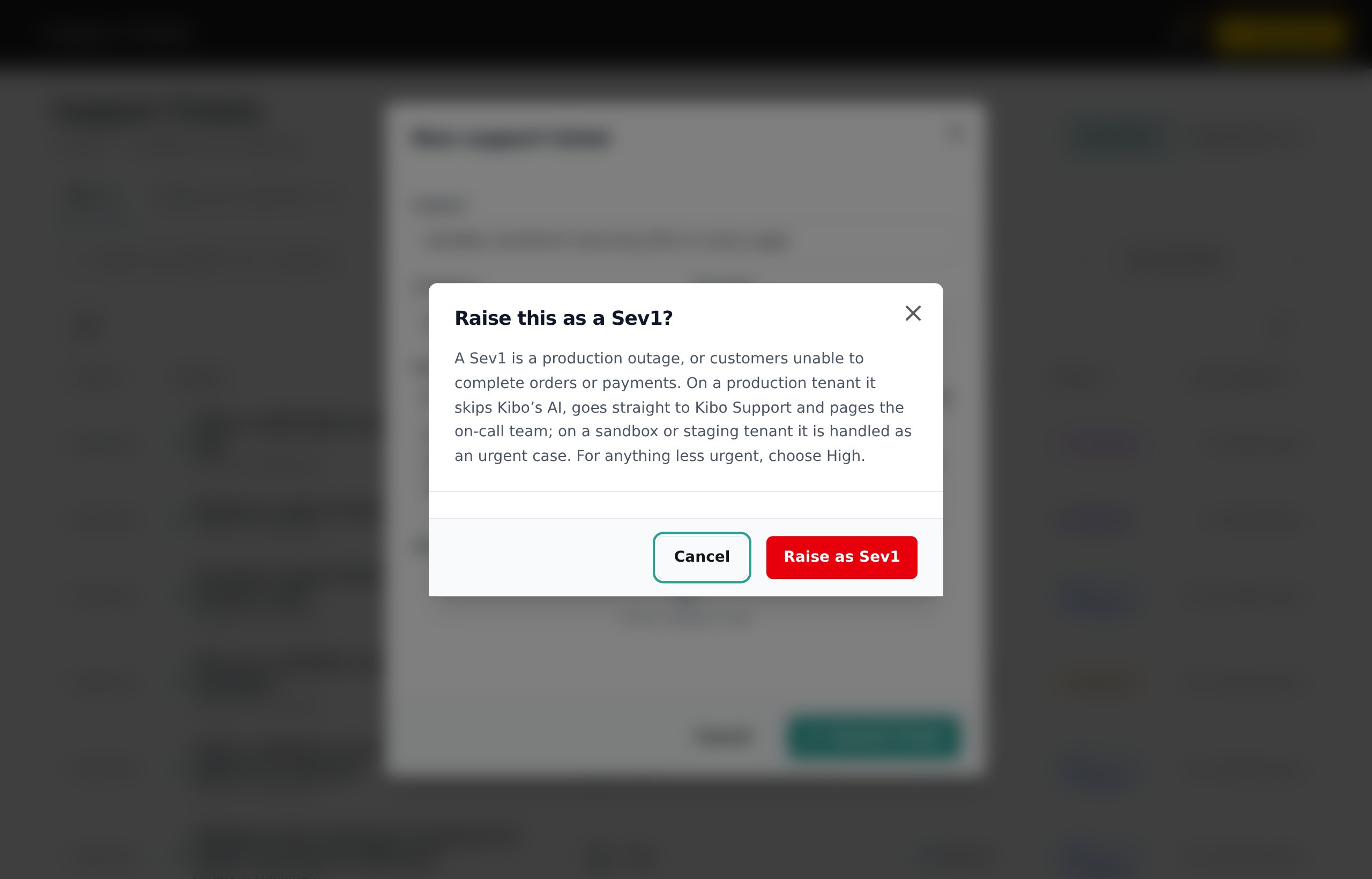
Choosing Emergency raises the ticket as a Sev1, and Support asks you to confirm first. On a production tenant, a Sev1 skips Kibo AI, goes straight to Kibo Support, and pages Kibo’s on-call team. On a sandbox or staging tenant, it is handled as an urgent case. For anything less urgent, choose High.
How Kibo AI Works
As soon as you submit a ticket, Kibo AI acknowledges it with your ticket number and starts working on it. While it works, the ticket shows Kibo AI is composing a reply. A reply can take several minutes, because Kibo AI researches before it answers: it checks Kibo’s documentation, known issues, and public status pages for anything related to your problem.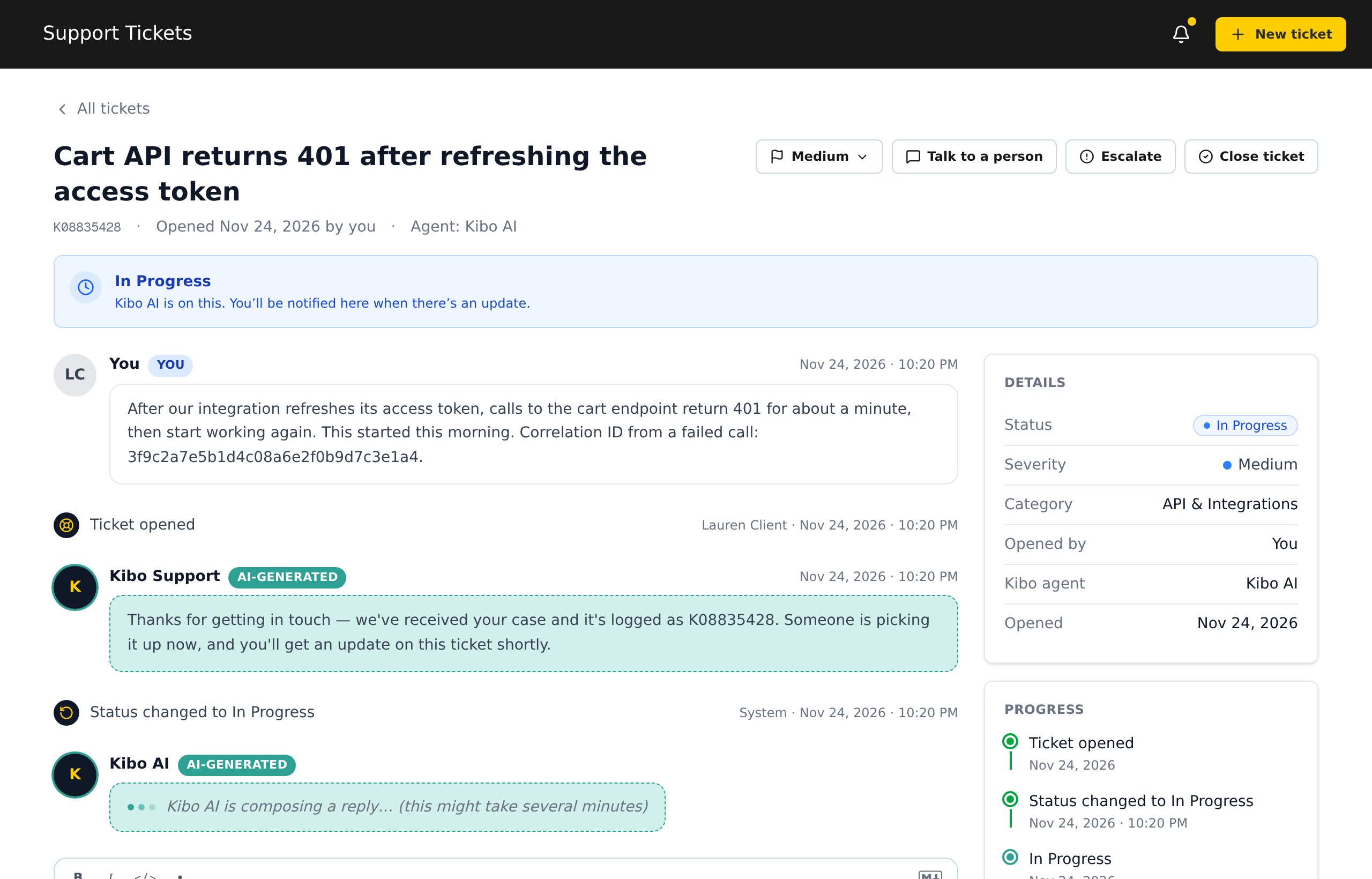
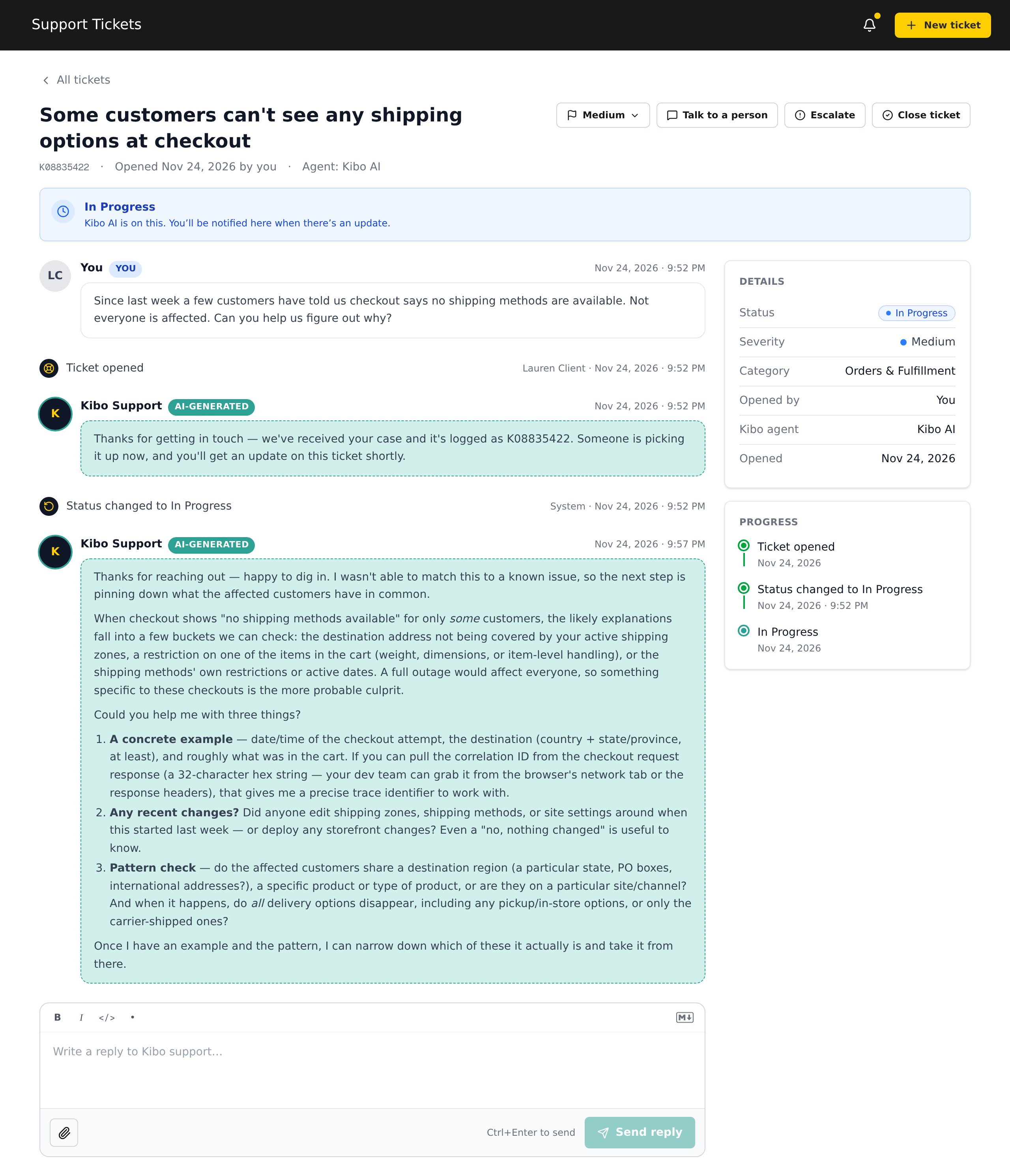
- Asks for details. If Kibo AI needs more information to understand the problem, it asks one or two targeted questions. Reply in the ticket, and Kibo AI picks it up from there.
- Answers the question. If the answer is in Kibo’s documentation or is a configuration change you can make, Kibo AI explains it and cites where the information comes from. When you confirm it worked, Kibo AI proposes a resolution (see Confirm a Resolution).
- Passes the ticket to the right team. If the ticket needs a person, Kibo AI hands it to Kibo Support, or to the right Kibo team for a platform defect, an infrastructure issue, a feature request, or custom development work. It tells you when it does. The person who picks the ticket up sees the whole conversation, so you don’t need to repeat anything.
Talk to a Person
While Kibo AI holds a ticket, you can click Talk to a person at any time. The ticket goes straight to Kibo Support, Kibo AI stops replying, and a person picks it up from there. You don’t need to convince Kibo AI first.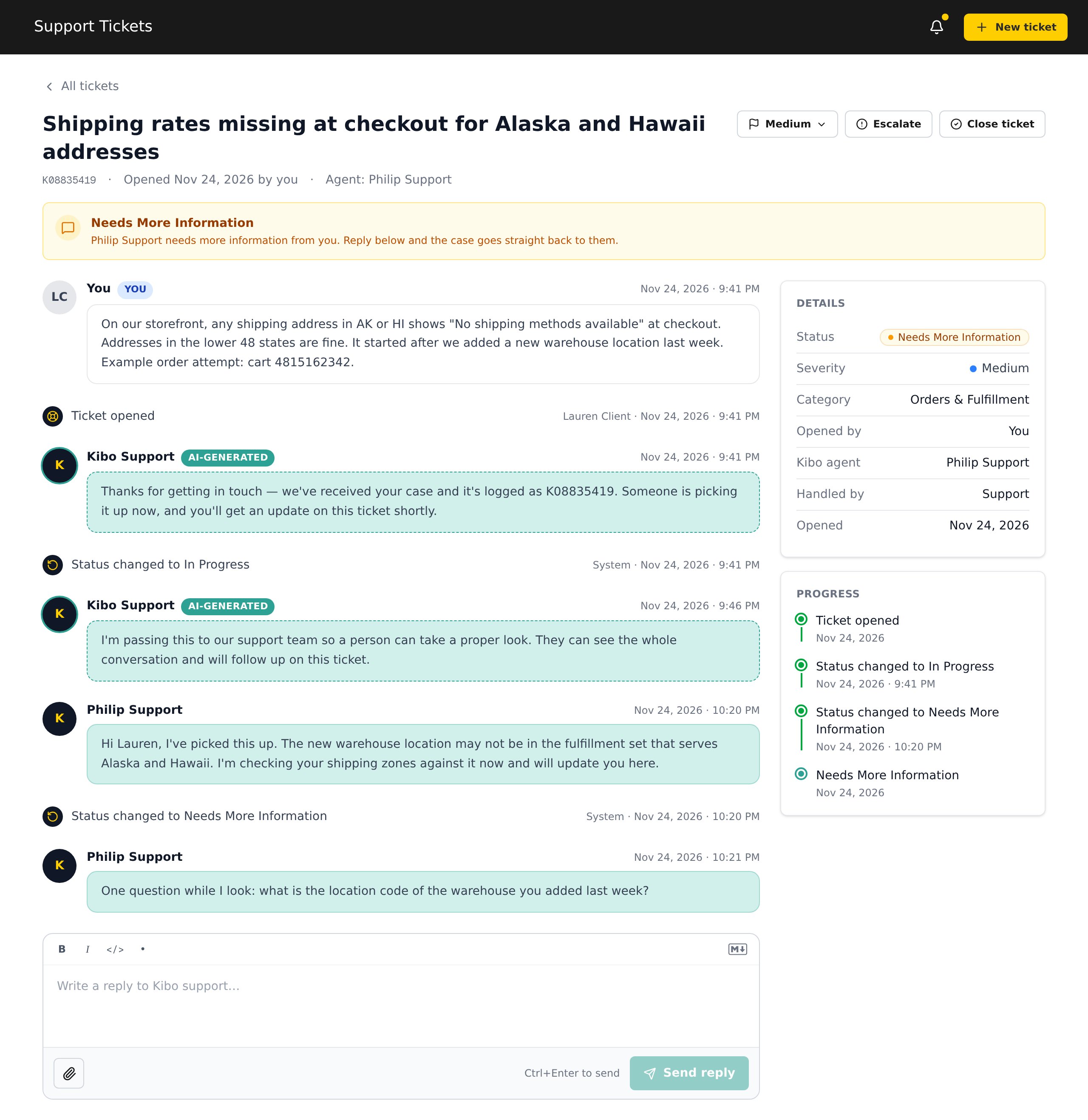
Reply to a Ticket
Write your reply in the box at the bottom of the ticket and click Send reply, or press Ctrl+Enter (Cmd+Return on a Mac). You can attach files to a reply. When a ticket is in Needs More Information, Kibo is waiting on you. Replying sends the ticket straight back to whoever asked.Confirm a Resolution
When Kibo proposes a resolution, the ticket shows Kibo has proposed a resolution and moves to Needs your attention.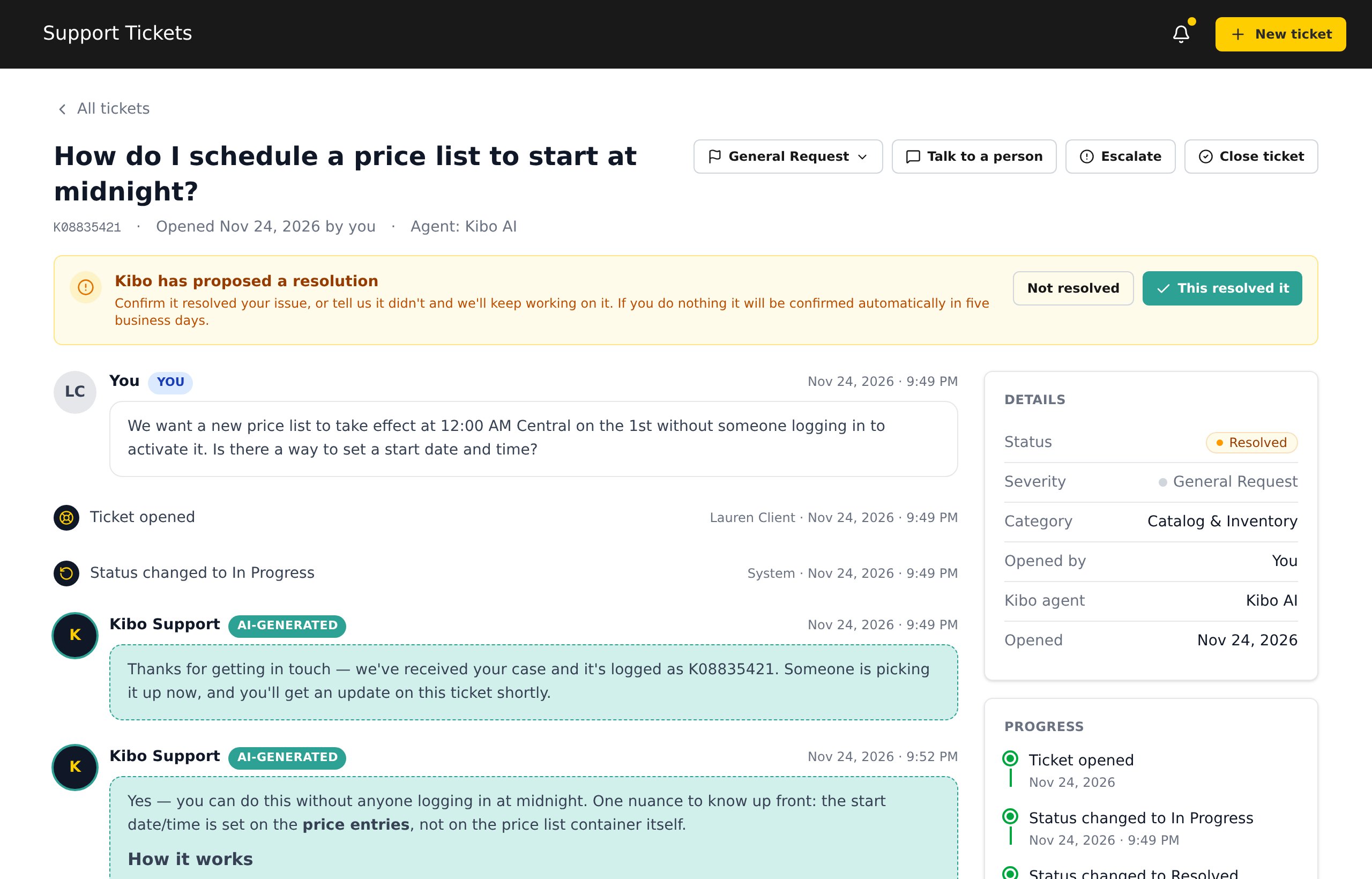
- Click This resolved it to confirm and close the ticket.
- Click Not resolved if the problem isn’t fixed. The ticket goes back to whoever proposed the resolution, and work continues.
Escalate a Ticket
If a ticket is blocking your business, click Escalate at the top of the ticket and say what it is blocking and by when you need it. Escalating notifies Kibo Support leadership, and if Kibo AI holds the ticket, it moves to a person. Your reason is added to the conversation.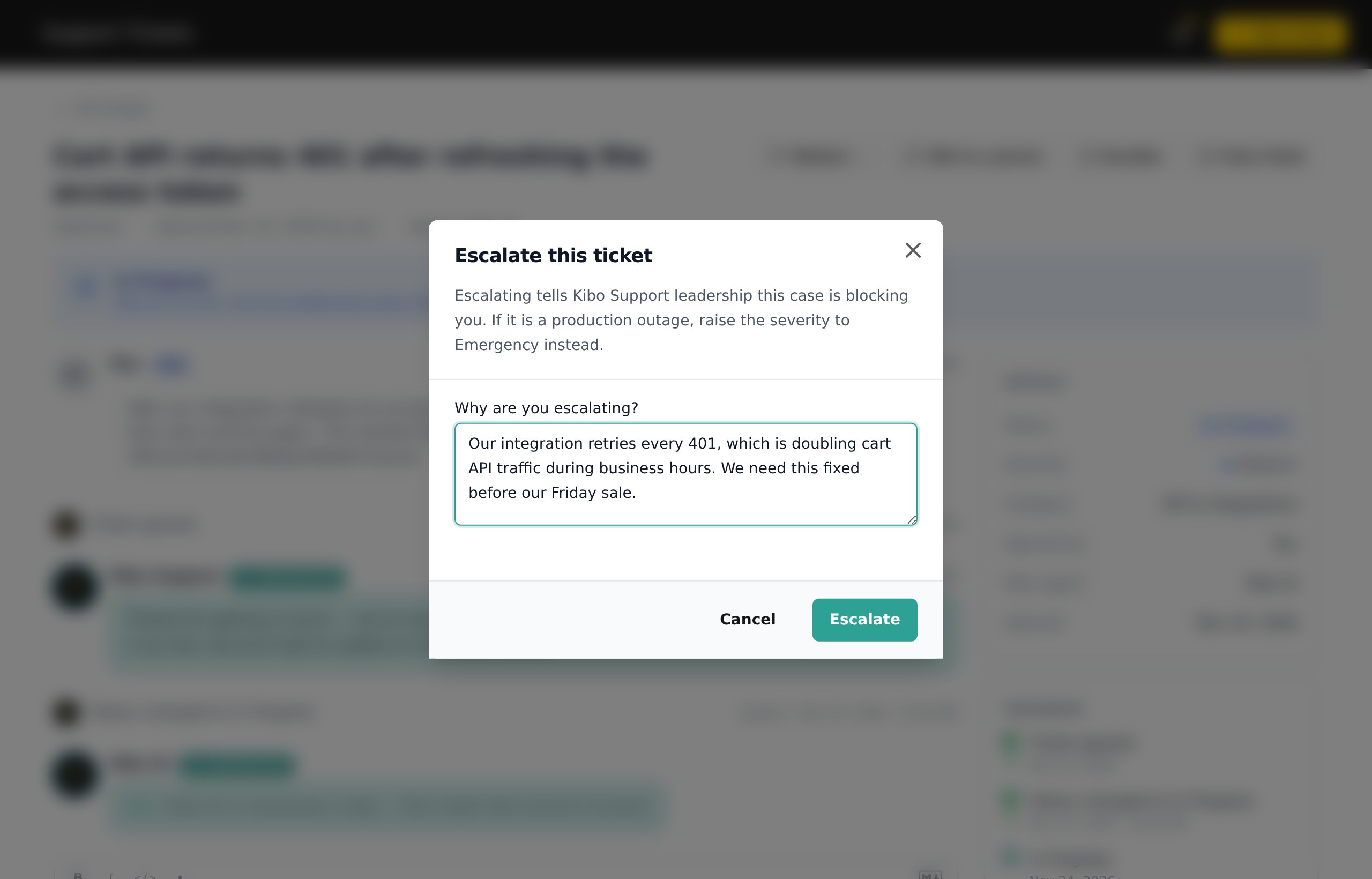
Close or Reopen a Ticket
To close a ticket you no longer need, click Close ticket and optionally tell Kibo why. A closed ticket can be reopened for five business days after it closes: reply to it, or click Reopen ticket. After that, replies are closed and the ticket is kept for reference. Open a new ticket if you need more help.Related Topics
- Troubleshooting Your Implementation: how to find a Correlation ID or capture a HAR file to include in a ticket.
- User Roles: how to give a role the Support Ticket Access behavior.