

Introduction to Import/Export
Understand import workflows and file formats
Understanding Import/Export in Kibo
In Kibo, the Import/Export domain is the primary tool for asynchronous, bulk data management. Unlike standard REST API calls that create or update a single record in real-time, the Import/Export system is designed to handle thousands or even millions of records at once from a file (like a CSV). What makes Kibo’s approach different is its job-based, asynchronous workflow. You don’t just “upload data”; you follow a distinct, multi-step process:- Upload a file to a secure, temporary storage location in Kibo.
- Create an Import Job, telling Kibo to process that file.
- Monitor the job’s status as it runs in the background.
How This Domain Fits Into Kibo
The Import/Export domain is a utility that supports almost every other part of the Kibo platform. It’s the backbone for large-scale data operations.- Catalog: Used to import new products, update pricing for thousands of SKUs, or add inventory information from a supplier’s feed.
- Customers: Used for migrating customer lists from a previous e-commerce platform.
How It Works
The import and export APIs use a series of API calls to coordinate the process of getting data in and out of Kibo. File upload and download is handled separately from the creation of the jobs themselves. The API calls for the jobs are asynchronous — none of the API calls will block for the jobs to complete, you must poll for the results. The system is built around a few core concepts:- File: A data file (usually CSV or ZIP containing CSVs) that you upload to Kibo’s temporary storage. The key piece of information you get back after an upload is the
fileId. ImportJob/ExportJob: A record that tracks the status of your bulk data operation. It has a uniqueidand astatusfield (e.g.,Pending,Processing,Succeeded,Failed). This is the central object you’ll interact with to monitor your operation.ImportSettings/ExportSettings: A JSON object you provide when creating a job. It tells Kibo what type of data you’re working with (e.g.,Products,Orders), where to find the input file (for imports), and other configuration details.
API Workflow
The following diagrams show the general process of the series of API calls needed for both export and import:Export Process
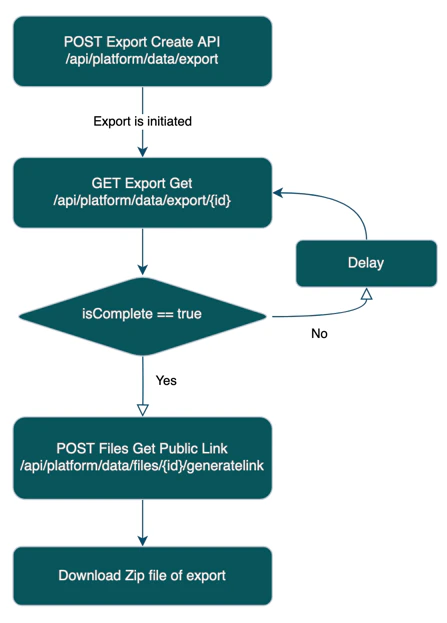
- Form a JSON payload describing the export that you want to perform, then POST it to the Export Create API.
- The Export Create API returns an ID which is used to track the export process.
- Poll the Export Get API until you see that the
isCompletefield istrue. (typically every few seconds) When it is true, inside thefileskey in the JSON there will be an object where"fileType": "export", then take that ID. - Use the POST Files Get Public Link API with that ID, which gives you the contents of the export.
Import Process
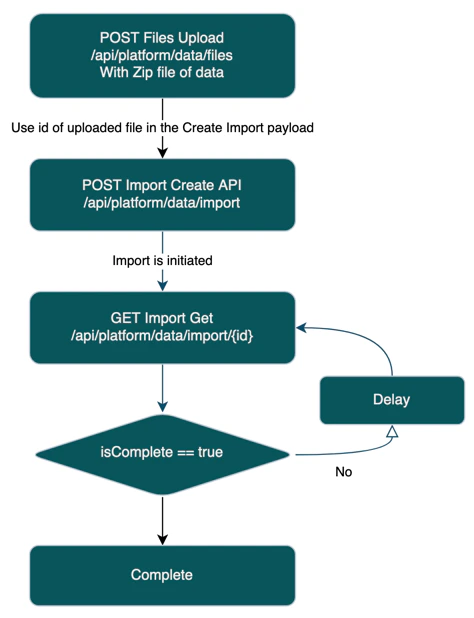
- Create a ZIP file containing the CSV files you want to import. Then POST it to the Files Upload API. This returns an ID.
- Call the Import Create API, referencing the file that you uploaded in the previous step. You will then receive an ID that you can use to track the import.
- Poll the Import Get API until you see that the
isCompletefield istrue. Once this field returns as true, then the import is complete.
Configuration object containing your credentials (Client ID, Shared Secret, etc.). This object is then passed to the constructor of specific API clients (e.g., new ImportExportApi(configuration)).
Request/Response Structure:
When you request the status of a job, you get back the complete job object. When requesting a list of jobs, the response is paginated with the data in an items array.
getImportJob will succeed (HTTP 200), but the status field in the response will be Failed. You must check this field to determine the outcome of the operation.
A First Example in Postman
First, make sure that you have the autogenerated Postman collection set up. See Getting Started with your API for details.-
POST this payload to the Export Create API:
-
Call the Export List API to see all of the recent exports. Refresh until
isCompleteis true. You will receive a result like this: -
Then call Files Get Public Link on the ID of the export, in this case
cbcfbbfb-bc4c-4132-ab0a-8a6fe1e2a9cb. This will return a pre-signed URL which you can paste in a web browser to retrieve the product data of the tenant that you just exported.
Catalog Import/Export
Supported Resources
The catalog domain supports importing and exporting the following resources:- Attributes
- AttributeValues
- ProductTypes
- ProductTypeAttributes
- ProductTypeAttributeValues
- Categories
- CategoryImages
- SortDefinitions
- ProductRankings
- Products
- ProductPropertyLocale
- ProductCatalog
- ProductBundles
- ProductOptions
- ProductExtras
- ProductOptionsLocale
- ProductImages
- LocationTypes
- Locations
- LocationInventory
- Images
- LocationGroup
- LocationGroupConfiguration
- LocationGroupBoxTypeConfig
- LocationGroupCarrierConfig
- Pricelists
- PricelistEntries
- PricelistEntryPrices
- PricelistEntryExtras
CSV File Format
The format of the CSV files follows the standard conventions for CSV file formats.- The file encoding should be UTF-8.
- Use double quotes to wrap single quotes.
- Quotes capture new lines.
- To represent multiple values in a single field, separate by carriage returns (0xD in ASCII).
- Accidental removal of leading zeros
- Numbers that can be represented by scientific notation
deleteOmitted Field
The resources field of the Create Import API contains a fielddeleteOmitted. By default, the import process will not delete any Kibo data if that data does not exist in the import. So, for example, if your import file contains only product 1001, and you already have products 1001 and 1002, 1002 will remain unchanged.
The deleteOmitted flag lets you specify that you have a full data import, and to wipe any data that does not exist as part of the CSV file for that resource. This lets you specify full updates.
Removing Product Properties
By default, if you leave a product property blank, it will not clear the property in KCCP to prevent deletion of data. If you really need to clear a product property, use the~delete~ sentinel as the value of the property to remove the property in the product in KCCP.
Exporting Optional Fields
Note that by default, all fields of resource are not exported. So for example, there is aDescription field on the Attribute resource, but it is not exported by default, you must include it in the fields array. The full list of optional fields is specified in the Field List JSON below.
Using Context Override
You can use thecontextOverride field in an import to specify which catalogs or sites the data should be uploaded to:
ProductImages upload.
End of Central Directory Issues
If you ever receive errors about “End of Central directory”, this is most likely related to the file that was uploaded. It must be of zip file format, even if there is a single file. So for example, if you only want to update the Products resource, you need to take your fileproducts.csv, zip it, and then upload the resulting zip file.
Example file structure for a single resource:
Product Images
In order to generate aProductImages import file, it is recommended that as part of the image import process, a mapping is generated between the cms-id generated from upload and the product code it should apply to. This association can be used to generate an import CSV.
productimages.zip
Catalog Field List Specification
The following is a full JSON listing of the fields, which can be used for reference for what resources are available, and for those resources, what fields are required and optional.Sample Data
sample.zipCustomer Import/Export
Customer data can be imported and exported using the Import/Export API with"domain": "customer".
Important caveats:
- Customer import/export is API-only.
- It is recommended to import in batches of 100,000 records at a time.
Supported Resources
The customer domain supports importing and exporting the following resources:Import Processing Order
When importing customer data, resources must be processed in the following order to satisfy foreign key dependencies:- CustomerSegments
- CustomerAccounts
- CustomerContacts
- PurchaseOrderAccounts
- PurchaseOrderPaymentTerms
- PurchaseOrderTransactions
- StoreCredits
- StoreCreditTransactions
- CustomerAttributes
Example Customer Import Job Payload
ZIP File Structure
Customer Field List Specification
CustomerSegmentsvalues are pipe-separated or carriage-return-separated.AccountTypeIddefaults to1if not specified.
ExternalIdis used to look up the customer account.SiteNamemust match a site name known to Kibo.
- The attribute identified by
AttributeFQNmust already exist as a defined customer attribute in Kibo. - Either
AccountIdorExternalIdmust be provided to identify the account. - For vocabulary (list) attributes,
Valuemust match an existing vocabulary value’s internal value exactly.
Developer Guide
Creating an Import Job
The import process is a two-part process: you first upload the file, then you create the job.Part 1: Uploading the Data File
Endpoint:POST /platform/data/files — Upload Files
Kibo intentionally separates the file upload from the job creation. You upload your file to a dedicated, temporary storage service. Once the upload is complete, Kibo gives you back a unique fileId. This ID links your file to the import job you’re about to create.
Part 2: Creating and Monitoring the Import Job
Endpoint:POST /platform/data/import — Create Import Job
Once the file is uploaded, you create the import job. This call is lightweight and returns almost instantly. Kibo returns a jobId. Poll the status of this job until it is complete.
Downloading an Exported File
Getting a List of Recent Import Jobs
Troubleshooting
Reading Job Status
Remember, the API call to get a job’s status might succeed (HTTP 200), but the job itself could have failed. Always check thestatus property in the response body. If the status is Failed, you must log into the Kibo Admin UI, navigate to System > Import/Export, and view the job details to see the specific row-by-row errors.
Common Error Codes for the API calls themselves:
JOB_NOT_FOUND: TheimportJobIdorexportJobIdyou provided is incorrect.VALIDATION_ERROR: The settings object you provided when creating the job was malformed or missing required fields.UNAUTHORIZED: Your API credentials do not have permission to access the Import/Export system.
Common Development Issues
Issue: My import job failed, but the API call didn’t throw an error.- Why it happens: This is the expected behavior of an asynchronous system. The API call to create the job was successful, but the job failed later during processing.
- How to fix it: Your monitoring logic must check for
jobStatus.status === "errored". When this happens, the root cause is almost always a problem with the data file itself. - How to avoid it: Before attempting an API-based import, try uploading your CSV file manually in the Kibo Admin UI. The UI provides direct feedback on formatting errors. Ensure your file’s columns and data types perfectly match the templates provided by Kibo.
- Why it happens: The uploaded file must be a compressed ZIP file. Another common reason is that the file content (
body) is not being sent correctly as a stream or buffer. - How to fix it: Double-check the construction of your remote
filePath. Ensure you are using a library like Node.js’sfs.createReadStream()to provide the file content to the SDK method.