> ## Documentation Index
> Fetch the complete documentation index at: https://docs.kibocommerce.com/llms.txt
> Use this file to discover all available pages before exploring further.
# Vendor Settings
Configure the rules that govern how vendor performance is scored and categorized, and define the documents vendors must submit during onboarding.
## **Overview**
Vendor Settings is the central configuration page for two areas that drive the Vendor Analytics experience and the vendor onboarding flow:
* **Carrier Configuration -** controls how your vendors record shipments across the tenant.
* **Performance Configuration** — define the weights used to calculate each vendor's Performance Score and the thresholds that determine their Performance Category (High, Medium, or Low).
* **Onboarding Configuration** — manage the document checklist vendors must complete during dropshipper registration.
Changes to these settings take effect for all vendors under your tenant.
## **How to Access**
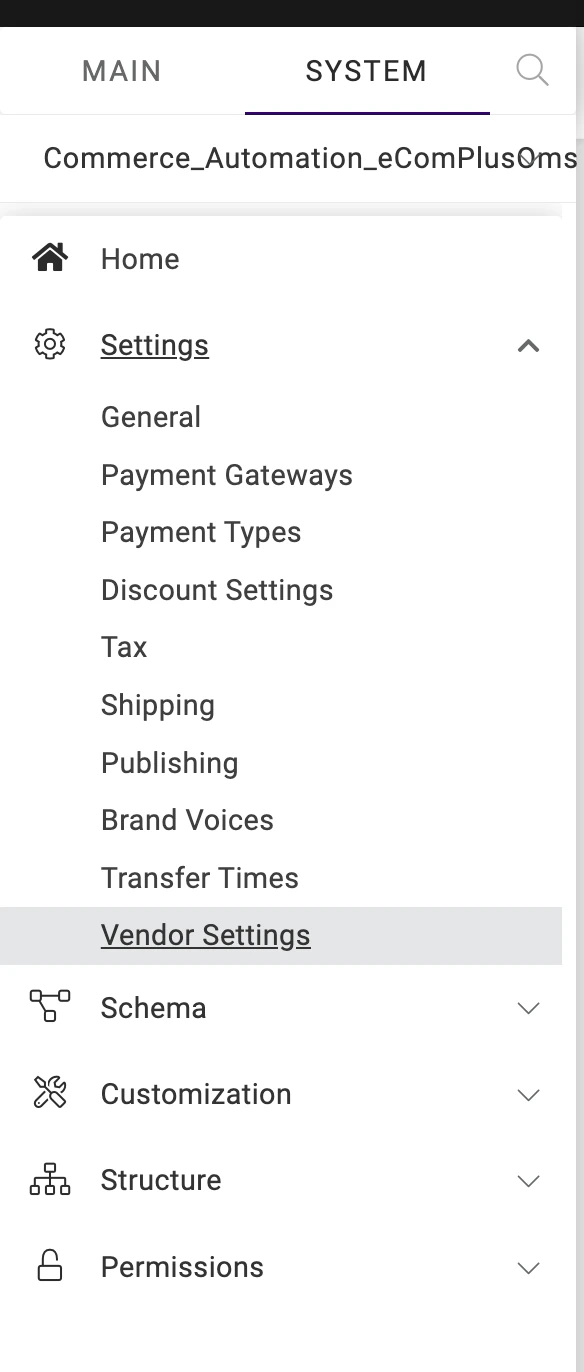
**Path:** Operator Portal/Kibo Admin → System tab → Settings → Vendor Settings
 ## **Carrier Configuration**
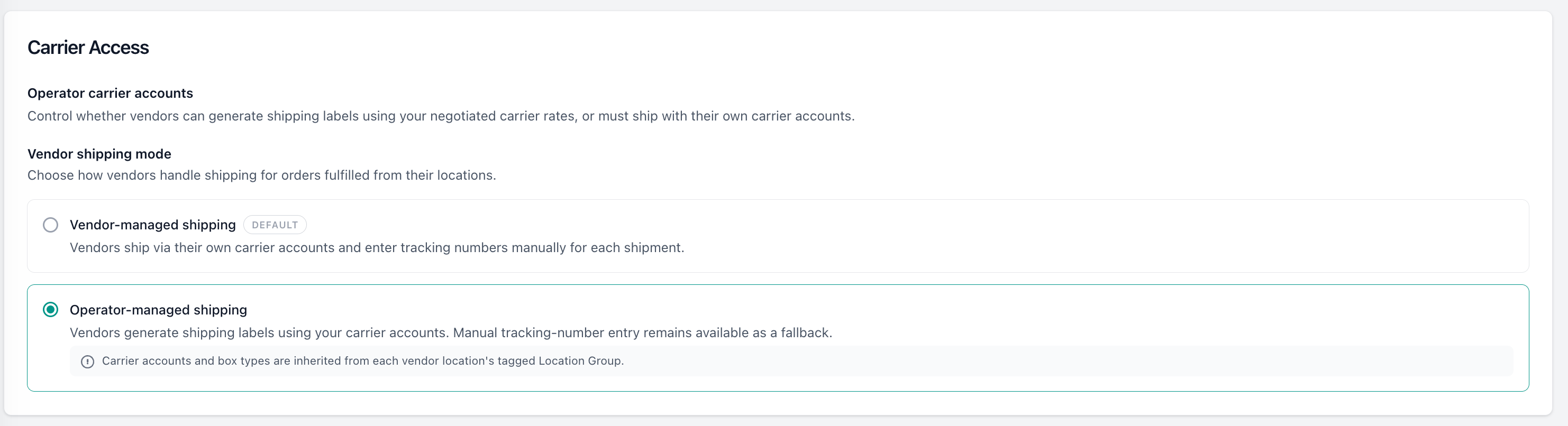
Carrier Configuration controls how your vendors record shipments across the tenant.
### **Vendor Shipping Mode**
The **Allow vendors to use operator carrier accounts** toggle selects the tenant-wide vendor shipping mode. It is stored once per tenant and defaults to **OFF**.
| **Toggle** | **Mode** | **Vendor experience in Step 2** |
| :------------ | :------------------------ | :------------------------------------------------------------------------------------------------------------------ |
| OFF (default) | Vendor-managed shipping | Vendors enter their own tracking number per packing slip. |
| ON | Operator-managed shipping | Vendors can **Print Shipping Label** using your carrier accounts (manual tracking remains available as a fallback). |
When operator-managed shipping is ON, label generation reads the **carrier accounts, predefined packages, and unit type** from the **Location Group** tagged to each vendor location — this setting does not store carriers or packages itself. A vendor location with no location group tag follows existing SOP.
Changing the mode takes effect on the next order; existing in-progress orders are unaffected. Only an operator admin can change this setting.
## **Carrier Configuration**
Carrier Configuration controls how your vendors record shipments across the tenant.
### **Vendor Shipping Mode**
The **Allow vendors to use operator carrier accounts** toggle selects the tenant-wide vendor shipping mode. It is stored once per tenant and defaults to **OFF**.
| **Toggle** | **Mode** | **Vendor experience in Step 2** |
| :------------ | :------------------------ | :------------------------------------------------------------------------------------------------------------------ |
| OFF (default) | Vendor-managed shipping | Vendors enter their own tracking number per packing slip. |
| ON | Operator-managed shipping | Vendors can **Print Shipping Label** using your carrier accounts (manual tracking remains available as a fallback). |
When operator-managed shipping is ON, label generation reads the **carrier accounts, predefined packages, and unit type** from the **Location Group** tagged to each vendor location — this setting does not store carriers or packages itself. A vendor location with no location group tag follows existing SOP.
Changing the mode takes effect on the next order; existing in-progress orders are unaffected. Only an operator admin can change this setting.
 ## **Performance Configuration**
### **Performance Score Formula Weights**
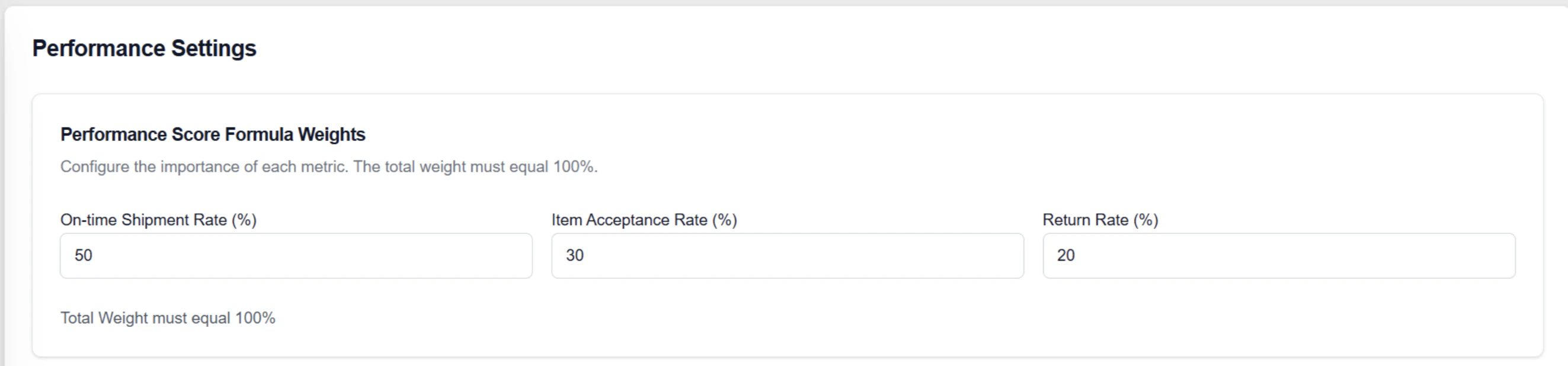
The Performance Score for each vendor is a weighted combination of three fulfillment metrics. Use this section to assign the relative importance of each metric.
*Configure the importance of each metric. The total weight must equal 100%.*
| **Field** | **Description** |
| :------------------------ | :---------------------------------------------------------------------- |
| On-time Shipment Rate (%) | Weight assigned to the percentage of shipments fulfilled within SLA |
| Item Acceptance Rate (%) | Weight assigned to the percentage of purchase order line items accepted |
| Return Rate (%) | Weight assigned to the percentage of fulfilled items returne |
The page displays a **Total Weight** indicator. The weights must sum to exactly 100% before the form can be saved.
## **Performance Configuration**
### **Performance Score Formula Weights**
The Performance Score for each vendor is a weighted combination of three fulfillment metrics. Use this section to assign the relative importance of each metric.
*Configure the importance of each metric. The total weight must equal 100%.*
| **Field** | **Description** |
| :------------------------ | :---------------------------------------------------------------------- |
| On-time Shipment Rate (%) | Weight assigned to the percentage of shipments fulfilled within SLA |
| Item Acceptance Rate (%) | Weight assigned to the percentage of purchase order line items accepted |
| Return Rate (%) | Weight assigned to the percentage of fulfilled items returne |
The page displays a **Total Weight** indicator. The weights must sum to exactly 100% before the form can be saved.
 ### **Performance Category Thresholds**
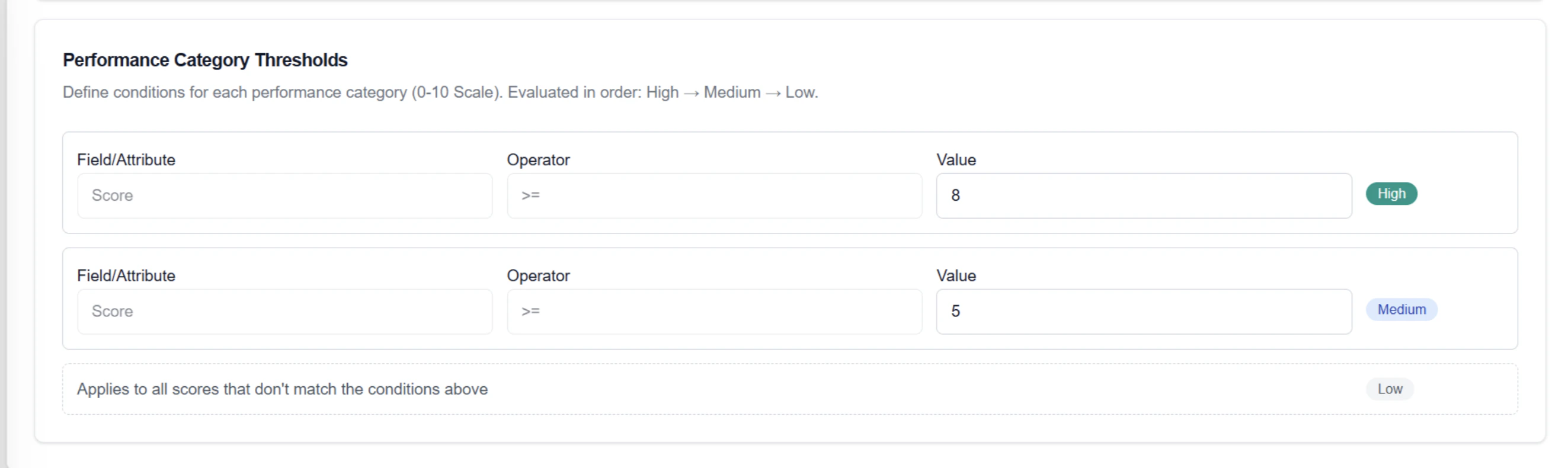
Use this section to define the score boundaries that determine each vendor's Performance Category. Scores are evaluated on a **0–10 scale**, and categories are applied in order: **High → Medium → Low**.
*Define conditions for each performance category (0-10 Scale). Evaluated in order: High → Medium → Low.*
| **Category** | **Condition** | **Behavior** |
| :----------- | :--------------------------- | :---------------------------------------------------------------------------- |
| High | Score >= \[configured value] | Vendors at or above this score are categorized as High |
| Medium | Score >= \[configured value] | Vendors at or above this score (but below High) are categorized as Medium |
| Low | All remaining | Vendors that do not meet the High or Medium conditions are categorized as Low |
The **Field/Attribute** is fixed to "Score" and the **Operator** is fixed to >= for both High and Medium conditions — overlapping ranges are prevented by design. Only the **Value** field is editable for each category. The Low condition has no editable threshold; it automatically applies to all vendors that don't match the conditions above.
### **Performance Category Thresholds**
Use this section to define the score boundaries that determine each vendor's Performance Category. Scores are evaluated on a **0–10 scale**, and categories are applied in order: **High → Medium → Low**.
*Define conditions for each performance category (0-10 Scale). Evaluated in order: High → Medium → Low.*
| **Category** | **Condition** | **Behavior** |
| :----------- | :--------------------------- | :---------------------------------------------------------------------------- |
| High | Score >= \[configured value] | Vendors at or above this score are categorized as High |
| Medium | Score >= \[configured value] | Vendors at or above this score (but below High) are categorized as Medium |
| Low | All remaining | Vendors that do not meet the High or Medium conditions are categorized as Low |
The **Field/Attribute** is fixed to "Score" and the **Operator** is fixed to >= for both High and Medium conditions — overlapping ranges are prevented by design. Only the **Value** field is editable for each category. The Low condition has no editable threshold; it automatically applies to all vendors that don't match the conditions above.
 ## **Onboarding Configuration**
### **Dropshipper Registration Document Configuration**
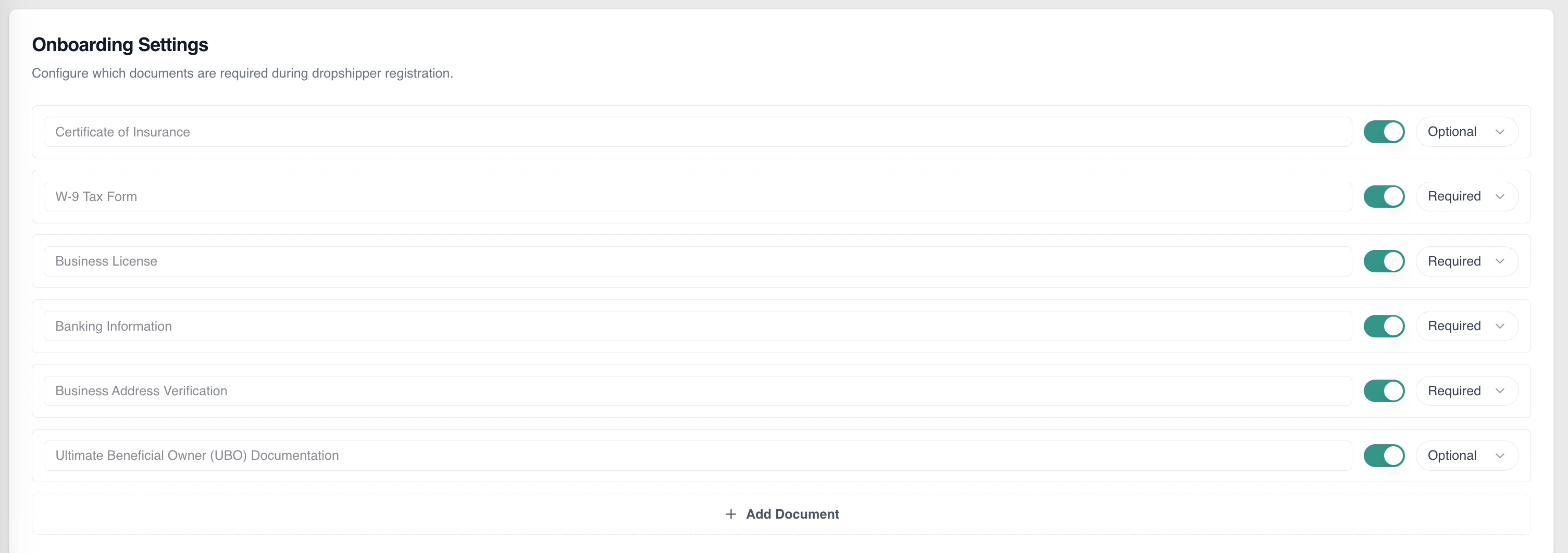
Use this section to manage the documents vendors are required to submit during the dropshipper registration process.
*Configure which documents are required during dropshipper registration.*
#### ***Adding Custom Documents***
Click **Add Document** to open the file upload dialog. Select a file to upload — on confirmation:
* The uploaded file name is auto-populated as the document name in a new row.
* The new row includes: a document name field (editable), an active/inactive toggle, and a required/optional dropdown.
## **Onboarding Configuration**
### **Dropshipper Registration Document Configuration**
Use this section to manage the documents vendors are required to submit during the dropshipper registration process.
*Configure which documents are required during dropshipper registration.*
#### ***Adding Custom Documents***
Click **Add Document** to open the file upload dialog. Select a file to upload — on confirmation:
* The uploaded file name is auto-populated as the document name in a new row.
* The new row includes: a document name field (editable), an active/inactive toggle, and a required/optional dropdown.