> ## Documentation Index
> Fetch the complete documentation index at: https://docs.kibocommerce.com/llms.txt
> Use this file to discover all available pages before exploring further.
# Vendor Inventory
Bulk-update inventory quantities across your fulfillment locations by uploading a CSV file.
See how vendors upload inventory via CSV so it is available to the order routing engine
## **Overview**
The Inventory Upload feature lets vendors submit a CSV file that sets or updates stock quantities for any number of SKU and location combinations in a single operation. Uploads run as background jobs, so vendors can navigate away from the page once a file is submitted without canceling the operation.
Each upload is governed by the **Inventory Upload Mode** configured by the operator on the vendor's profile — either **Partial update** (default) or **Full replacement**. This mode determines how submitted quantities are reconciled against existing inventory and is shown to vendors as a confirmation note before they submit.
**Who does what:**
| **Role** | **Action** |
| :------- | :----------------------------------------------------------------------------------- |
| Operator | Configures the Inventory Upload Mode per vendor (Partial update or Full replacement) |
| Vendor | Uploads a CSV from the Vendor Portal to update inventory quantities across locations |
## **Operator Portal: Configuring Inventory Upload Mode**
### **What is Inventory Upload Mode?**
Inventory Upload Mode is a per-vendor setting that controls how the backend reconciles quantities when a vendor submits an inventory CSV.
| **Mode** | **Behavior** |
| :----------------------- | :-------------------------------------------------------------------------------------------- |
| Partial update (default) | Updates only the SKU/location pairs in the uploaded file. SKUs not included remain unchanged. |
| Full replacement | Updates all inventory based on the uploaded file. SKUs not included are set to zero quantity. |
Note: The default for all new vendors is **Partial update** — a safe starting point that prevents accidental stock zero-outs during onboarding or routine restocks.
### **Where to Find It**
**Path:** Operator Portal → Vendor Management → \[Vendor Name] → Overview → Vendor Settings card
The **Inventory Upload Mode** dropdown appears in the Vendor Settings card on the vendor's Overview tab, positioned after Vendor Type and Vendor Status.
 ### **Changing the Mode**
1. Open the vendor record and navigate to the **Overview** tab.
2. In the **Vendor Settings** card, locate the **Inventory Upload Mode** dropdown.
3. Select **Partial update** or **Full replacement**.
4. Inline confirm (✓) and cancel (✗) controls appear to the right of the field — the new value is not yet saved.
5. Click ✓ to save. Click ✗ to revert to the previously saved value without making an API call.
### **Changing the Mode**
1. Open the vendor record and navigate to the **Overview** tab.
2. In the **Vendor Settings** card, locate the **Inventory Upload Mode** dropdown.
3. Select **Partial update** or **Full replacement**.
4. Inline confirm (✓) and cancel (✗) controls appear to the right of the field — the new value is not yet saved.
5. Click ✓ to save. Click ✗ to revert to the previously saved value without making an API call.
 On a successful save, a green **"Settings updated"** toast appears top-center of the screen:
"Inventory upload mode has been set to \[Partial update | Full replacement]."
The toast auto-dismisses after 3.5 seconds or can be closed manually. If the save fails, a red **"Could not save"** toast appears and the dropdown stays in its dirty state for retry.
Note: Vendor activation is never blocked by this field — Inventory Upload Mode always has a default value.
## **Vendor Portal: Uploading Inventory**
### **CSV Format**
The accepted file format is .csv with exactly three columns:
| **Column** | **Description** |
| :------------- | :------------------------------------------------------- |
| `SKU` | Your vendor SKU for the product |
| `LocationCode` | The unique code for the fulfillment location |
| `Quantity` | The inventory quantity to set for that SKU/location pair |
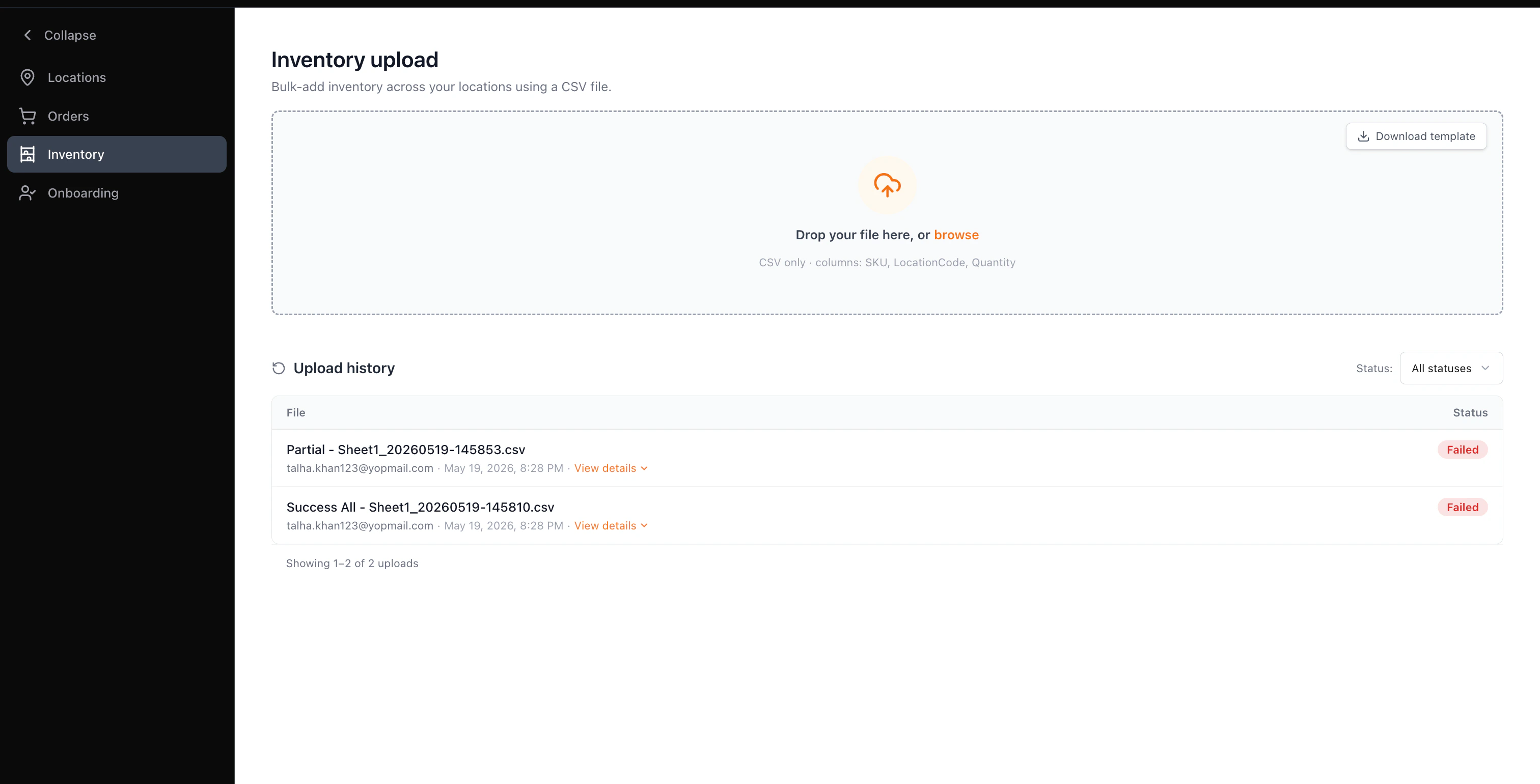
A downloadable template containing only the header row is available directly on the upload screen. Click **Download template** in the top-right corner of the drop zone to save it.
### **How to Upload Inventory**
#### **Step 1 — Drop or select your file**
On the Inventory Upload screen, drag your CSV onto the drop zone or click anywhere in the zone to open the file picker. Only .csv files are accepted — any other file type is rejected inline without proceeding.
On a successful save, a green **"Settings updated"** toast appears top-center of the screen:
"Inventory upload mode has been set to \[Partial update | Full replacement]."
The toast auto-dismisses after 3.5 seconds or can be closed manually. If the save fails, a red **"Could not save"** toast appears and the dropdown stays in its dirty state for retry.
Note: Vendor activation is never blocked by this field — Inventory Upload Mode always has a default value.
## **Vendor Portal: Uploading Inventory**
### **CSV Format**
The accepted file format is .csv with exactly three columns:
| **Column** | **Description** |
| :------------- | :------------------------------------------------------- |
| `SKU` | Your vendor SKU for the product |
| `LocationCode` | The unique code for the fulfillment location |
| `Quantity` | The inventory quantity to set for that SKU/location pair |
A downloadable template containing only the header row is available directly on the upload screen. Click **Download template** in the top-right corner of the drop zone to save it.
### **How to Upload Inventory**
#### **Step 1 — Drop or select your file**
On the Inventory Upload screen, drag your CSV onto the drop zone or click anywhere in the zone to open the file picker. Only .csv files are accepted — any other file type is rejected inline without proceeding.
 #### **Step 2 — Review the confirmation panel**
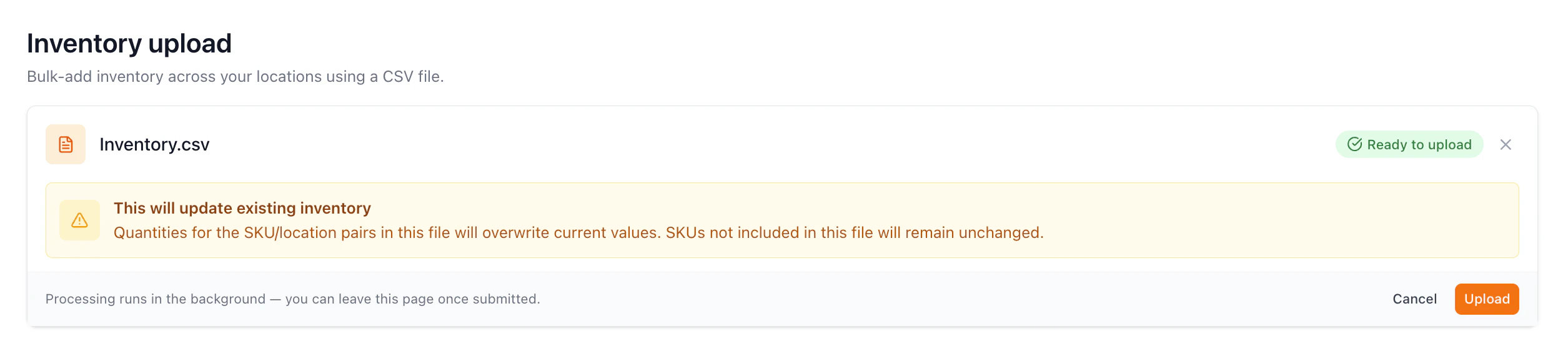
After selecting a file, a confirmation panel appears showing the file name and a note describing what the upload will do, based on your operator-configured Inventory Upload Mode:
| **Mode** | **Confirmation note** |
| :--------------- | :------------------------------------------------------------------------------------------------------------------------------------------------------------------------------------- |
| Partial update | "This will update existing inventory. Quantities for the SKU/location pairs in this file will overwrite current values. SKUs not included in this file will remain unchanged." |
| Full replacement | "This will replace existing inventory. Quantities for the SKU/location pairs in this file will overwrite current values. SKUs not included in this file will be set to zero quantity." |
Review the confirmation note carefully — a **Full replacement** upload will zero out any SKU not present in the file.
Click **Upload** to submit, or **Cancel** to discard the file and return to the drop zone.
#### **Step 2 — Review the confirmation panel**
After selecting a file, a confirmation panel appears showing the file name and a note describing what the upload will do, based on your operator-configured Inventory Upload Mode:
| **Mode** | **Confirmation note** |
| :--------------- | :------------------------------------------------------------------------------------------------------------------------------------------------------------------------------------- |
| Partial update | "This will update existing inventory. Quantities for the SKU/location pairs in this file will overwrite current values. SKUs not included in this file will remain unchanged." |
| Full replacement | "This will replace existing inventory. Quantities for the SKU/location pairs in this file will overwrite current values. SKUs not included in this file will be set to zero quantity." |
Review the confirmation note carefully — a **Full replacement** upload will zero out any SKU not present in the file.
Click **Upload** to submit, or **Cancel** to discard the file and return to the drop zone.
 #### **Step 3 — Validation**
After clicking **Upload**, the panel transitions to a **Validating** state. All validation is handled by the backend — you cannot cancel an upload once validation has started.
#### **Step 3 — Validation**
After clicking **Upload**, the panel transitions to a **Validating** state. All validation is handled by the backend — you cannot cancel an upload once validation has started.
 #### **Step 4 — Review the result**
When validation completes, the panel displays a per-location result for every location in the file.
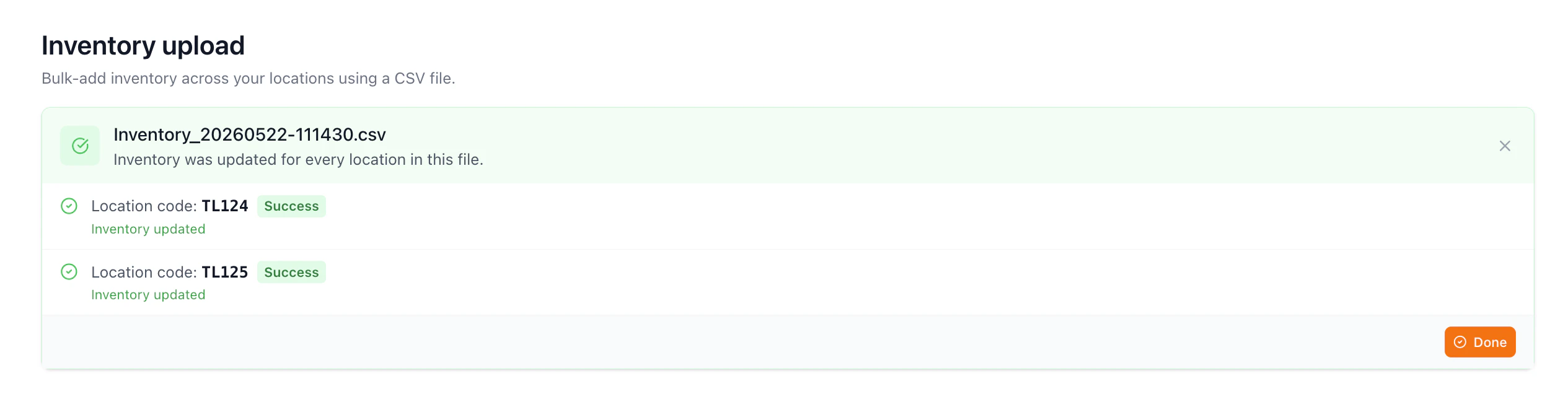
**All locations passed** — a green success panel confirms inventory was updated for every location. Click **Done** to return to the drop zone. A new **Processing** row is added to Upload history and transitions to **Success** once the background job finishes.
#### **Step 4 — Review the result**
When validation completes, the panel displays a per-location result for every location in the file.
**All locations passed** — a green success panel confirms inventory was updated for every location. Click **Done** to return to the drop zone. A new **Processing** row is added to Upload history and transitions to **Success** once the background job finishes.
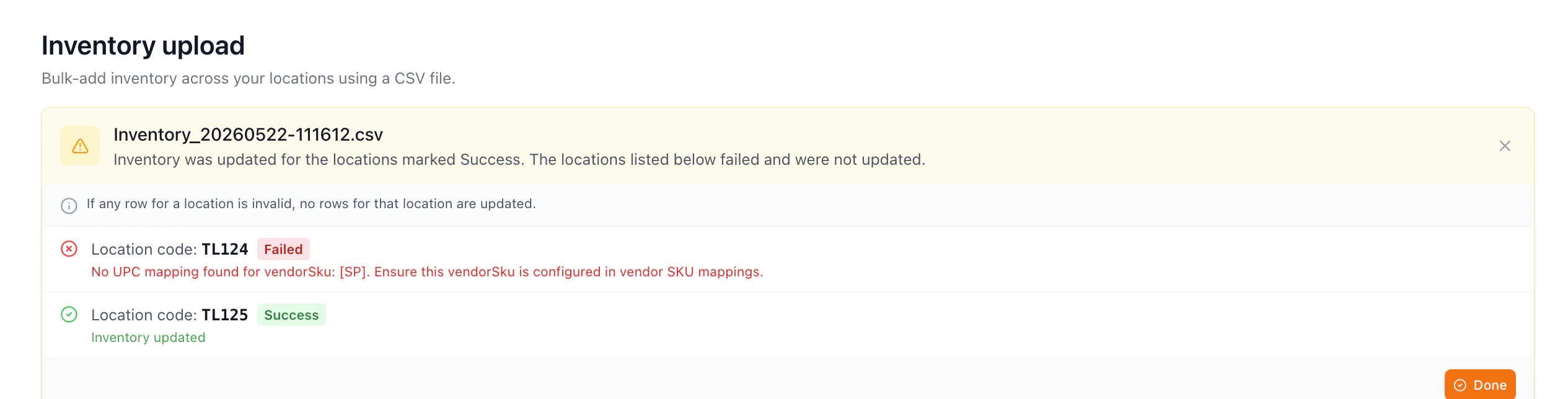
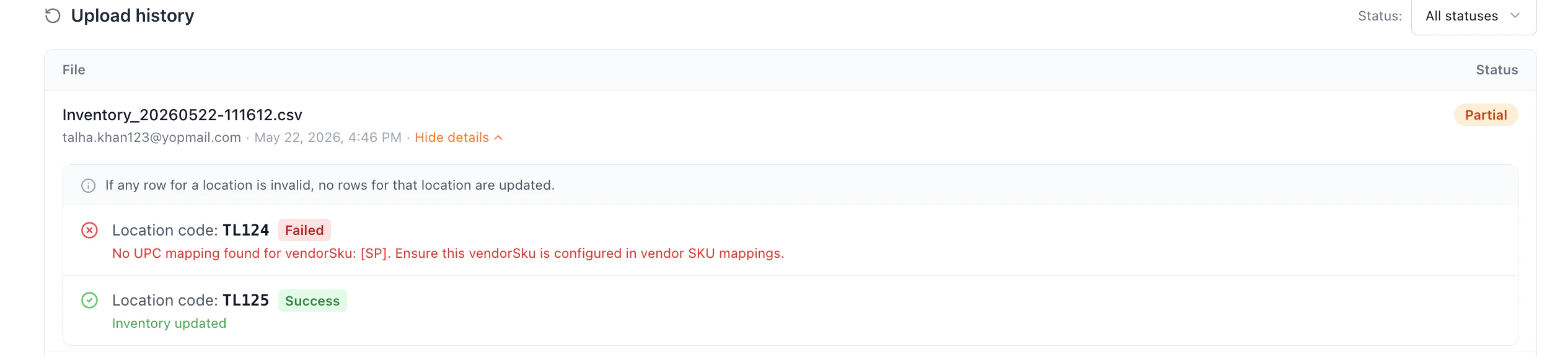
 **Partial (some passed, some failed)** — an amber warning panel lists which locations were updated and which failed. Correct the issues in your CSV and re-upload. Click **Done** to dismiss.
 **All locations failed** — a red error panel confirms no inventory was updated. Review the failure reasons, fix your CSV, and click **Try another file** to start over.
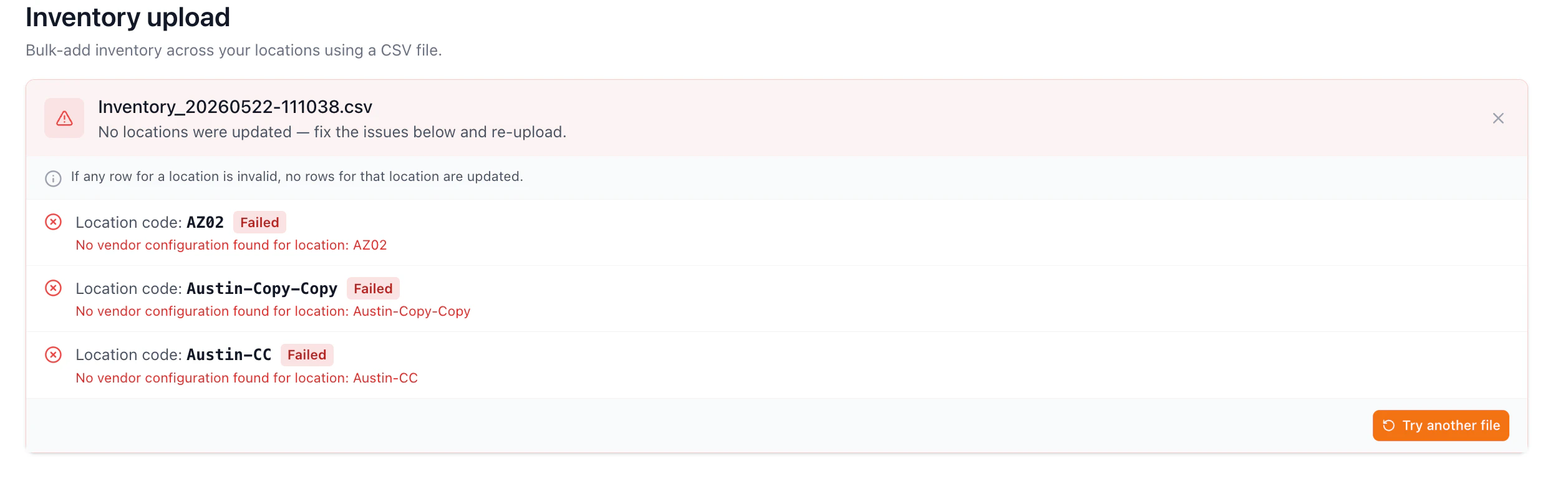 **Per-location result rows** show:
* A pass (✓) or fail (✗) icon
* The location code
* A **Success** or **Failed** status badge
* For passed: "Inventory updated"
* For failed: the specific reason returned by the backend
Note: Validation is atomic per location — if any row for a location is invalid, no rows for that location are updated.
### **Upload History**
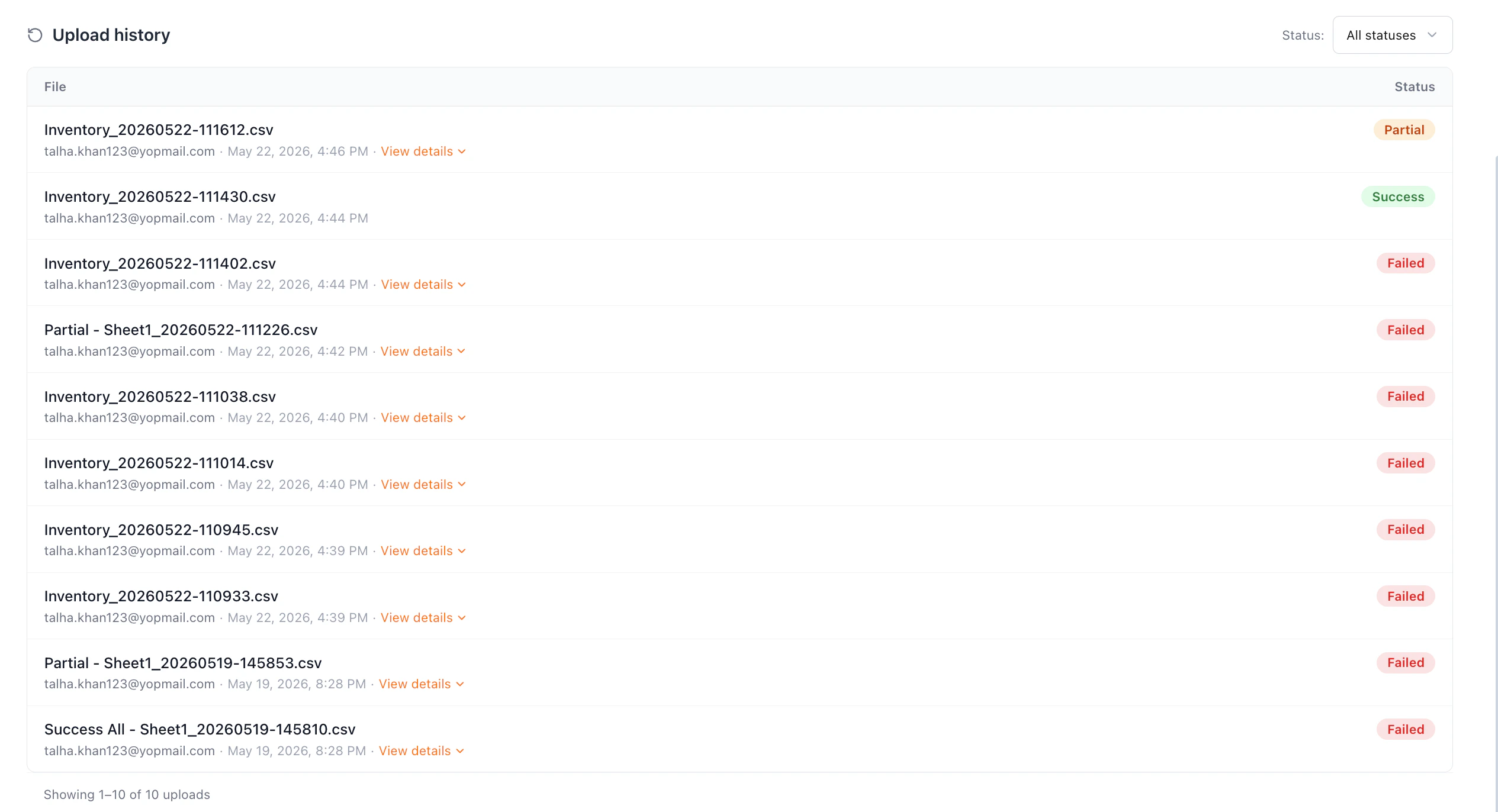
The **Upload history** table records every submitted upload with: file name, uploading user's email, submission timestamp, and a status chip.
**Per-location result rows** show:
* A pass (✓) or fail (✗) icon
* The location code
* A **Success** or **Failed** status badge
* For passed: "Inventory updated"
* For failed: the specific reason returned by the backend
Note: Validation is atomic per location — if any row for a location is invalid, no rows for that location are updated.
### **Upload History**
The **Upload history** table records every submitted upload with: file name, uploading user's email, submission timestamp, and a status chip.
 #### **Filtering**
Use the **Status** dropdown to the right of the heading to filter rows. Options: All statuses, Success, Partial, Failed. The footer shows a count of visible rows.
#### **Filtering**
Use the **Status** dropdown to the right of the heading to filter rows. Options: All statuses, Success, Partial, Failed. The footer shows a count of visible rows.
 #### **Viewing details for Partial or Failed uploads**
Rows with a **Partial** or **Failed** status include a **View details** link. Clicking the row or the link expands a per-location breakdown directly beneath it — using the same location result format as the in-page result panel. Click **Hide details** to collapse.
#### **Viewing details for Partial or Failed uploads**
Rows with a **Partial** or **Failed** status include a **View details** link. Clicking the row or the link expands a per-location breakdown directly beneath it — using the same location result format as the in-page result panel. Click **Hide details** to collapse.
 ### **Status Reference**
| **Status** | **Meaning** |
| :--------- | :----------------------------------------------------------------- |
| Processing | Background job is running. No action needed. |
| Success | All locations updated successfully. |
| Partial | Some locations updated; others failed. View details for reasons. |
| Failed | No locations updated. View details and re-upload with corrections. |
### **Status Reference**
| **Status** | **Meaning** |
| :--------- | :----------------------------------------------------------------- |
| Processing | Background job is running. No action needed. |
| Success | All locations updated successfully. |
| Partial | Some locations updated; others failed. View details for reasons. |
| Failed | No locations updated. View details and re-upload with corrections. |