> ## Documentation Index
> Fetch the complete documentation index at: https://docs.kibocommerce.com/llms.txt
> Use this file to discover all available pages before exploring further.
# Vendor User Management
The User Management page in the Vendor Portal lets a Vendor Admin control who has access to the portal after onboarding — invite teammates, resend pending invitations, change a user's role, and remove users.
**Note:** User Management is available to Vendor Admins. A Vendor User does not see this page or its actions.
### Open User Management
In the Vendor Portal left navigation, click User Management (below Onboarding). The Users page lists everyone with access to your vendor account.
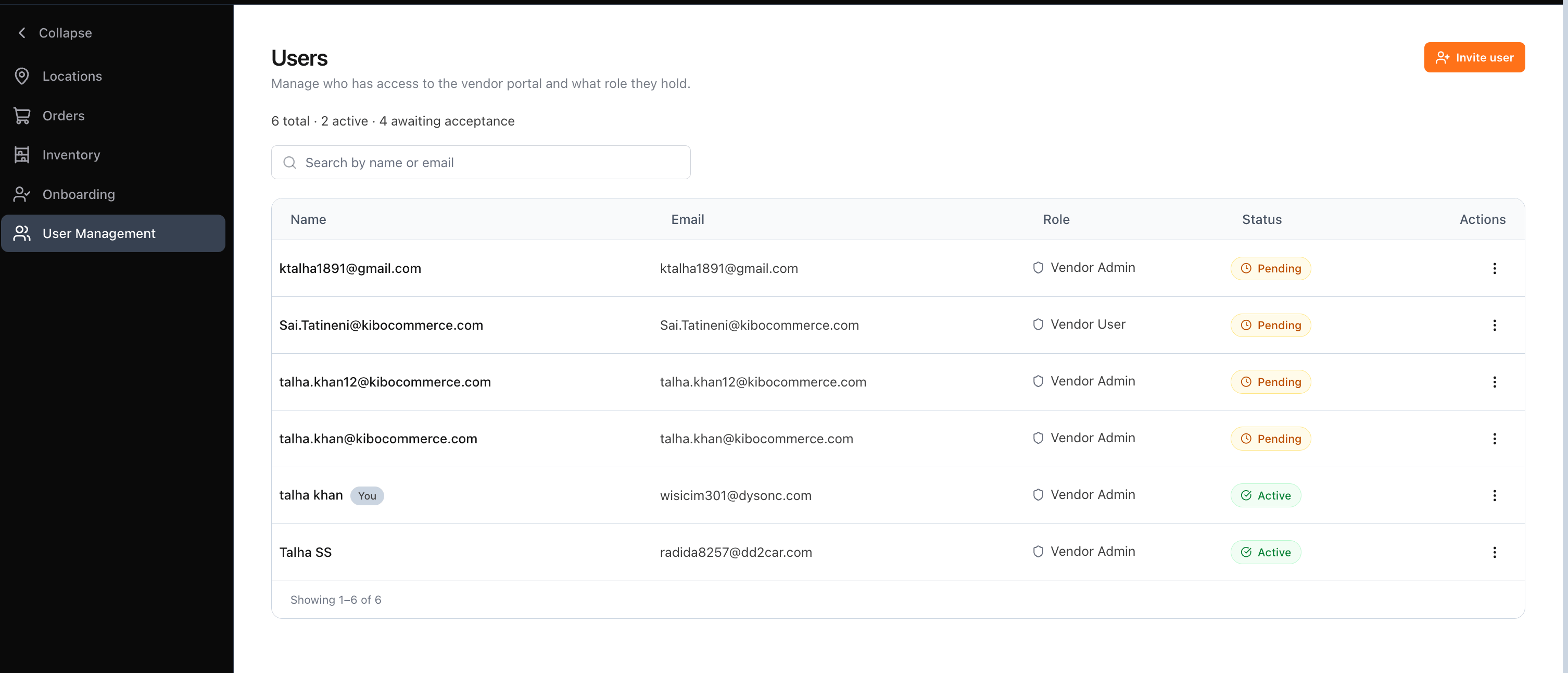 ### The Users List
The list shows one row per user with:
1. Name — the user's display name. Your own row is tagged You.
2. Email — the user's login email.
3. Role — Vendor Admin or Vendor User.
4. Status — a badge showing Active, Pending, Expired, or Declined.
5. Actions — a row menu whose options depend on the user's status (see below).
A summary above the list shows the total number of users, how many are active, and how many are awaiting acceptance. Use the Search by name or email box to filter the list; the search is case-insensitive and resets to the first page. The list shows 10 users per page.
### Invite a User
Click **Invite user** in the top-right to add a teammate. The invite flow — select a role, then enter the user's details — is the same one used during onboarding; see Vendor Onboarding → Add Users for the step-by-step. The invited user appears at the top of the list with a **Pending** status.
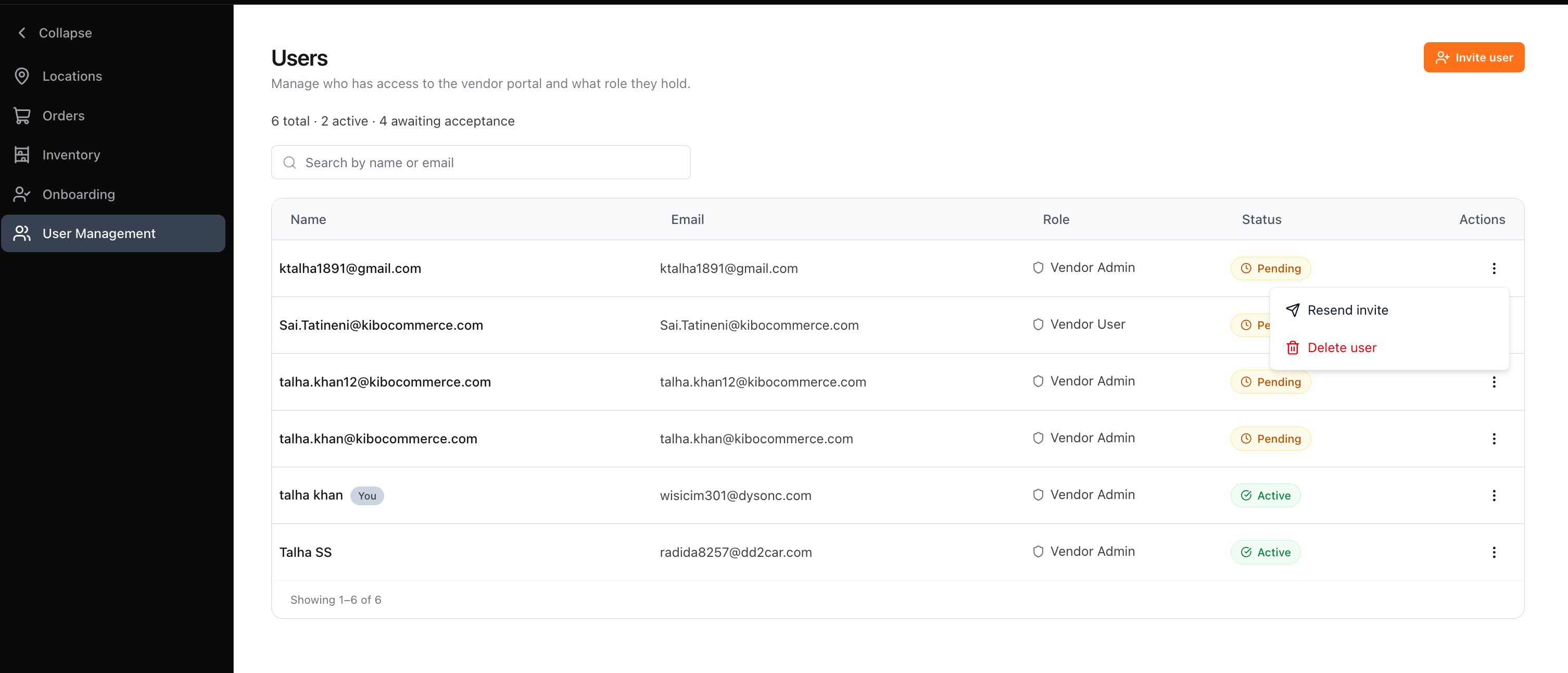
## **Resend an Invitation**
Use this when a user's invitation is still **Pending** and they haven't signed in yet.
1. On the user's row, open the **Actions** menu (⋮) and click **Resend invite**.
2. A **Success** dialog confirms "The invite has been resent to \[email]." Click **OK** to close it.
### The Users List
The list shows one row per user with:
1. Name — the user's display name. Your own row is tagged You.
2. Email — the user's login email.
3. Role — Vendor Admin or Vendor User.
4. Status — a badge showing Active, Pending, Expired, or Declined.
5. Actions — a row menu whose options depend on the user's status (see below).
A summary above the list shows the total number of users, how many are active, and how many are awaiting acceptance. Use the Search by name or email box to filter the list; the search is case-insensitive and resets to the first page. The list shows 10 users per page.
### Invite a User
Click **Invite user** in the top-right to add a teammate. The invite flow — select a role, then enter the user's details — is the same one used during onboarding; see Vendor Onboarding → Add Users for the step-by-step. The invited user appears at the top of the list with a **Pending** status.
## **Resend an Invitation**
Use this when a user's invitation is still **Pending** and they haven't signed in yet.
1. On the user's row, open the **Actions** menu (⋮) and click **Resend invite**.
2. A **Success** dialog confirms "The invite has been resent to \[email]." Click **OK** to close it.
 ## **Edit a User's Role**
You can change the role of an **Active** user.
1. On the user's row, open the **Actions** menu (⋮) and click **Edit user**.
## **Edit a User's Role**
You can change the role of an **Active** user.
1. On the user's row, open the **Actions** menu (⋮) and click **Edit user**. 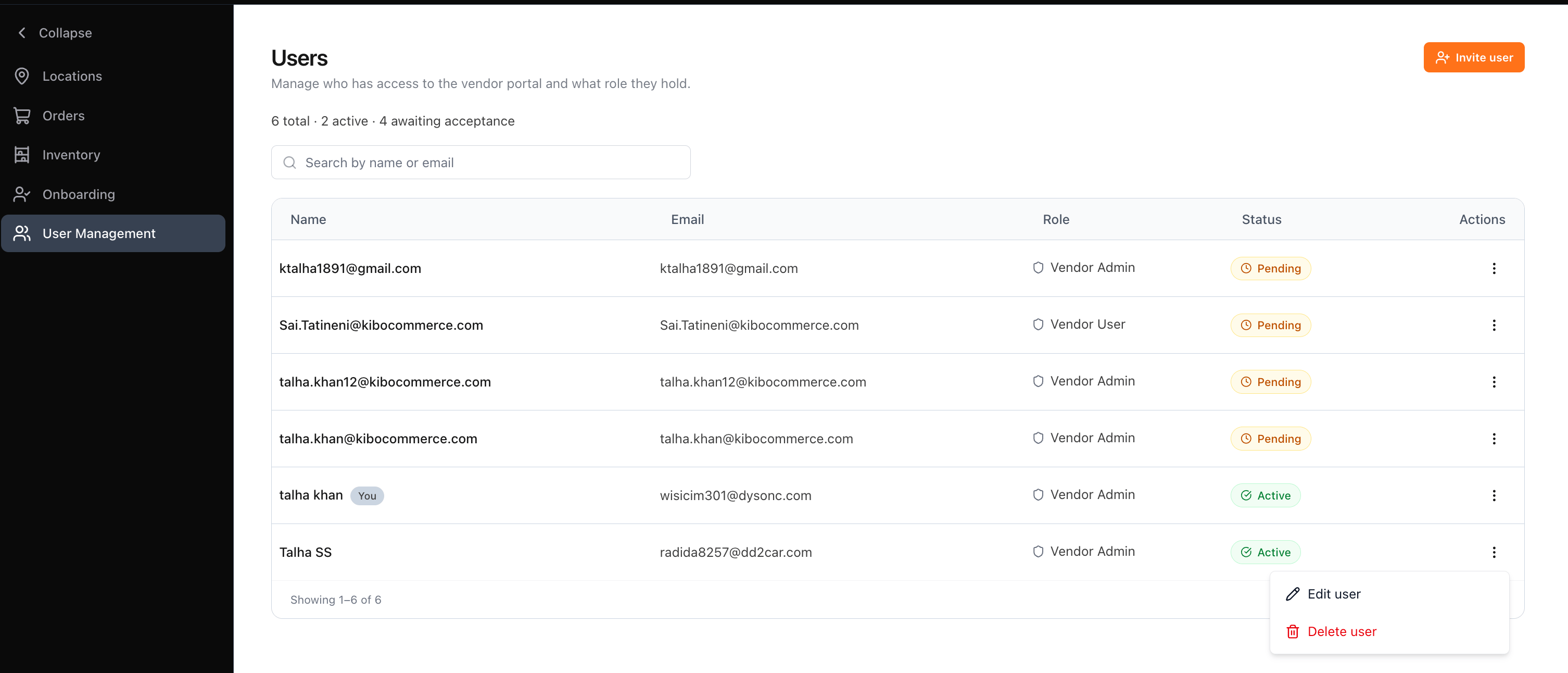 2. In the dialog, the user's **Name**, **Username**, and **Email** are read-only. Select a new **Role** — **Vendor Admin** or **Vendor User**. The selected role's access summary is shown as a hint.
 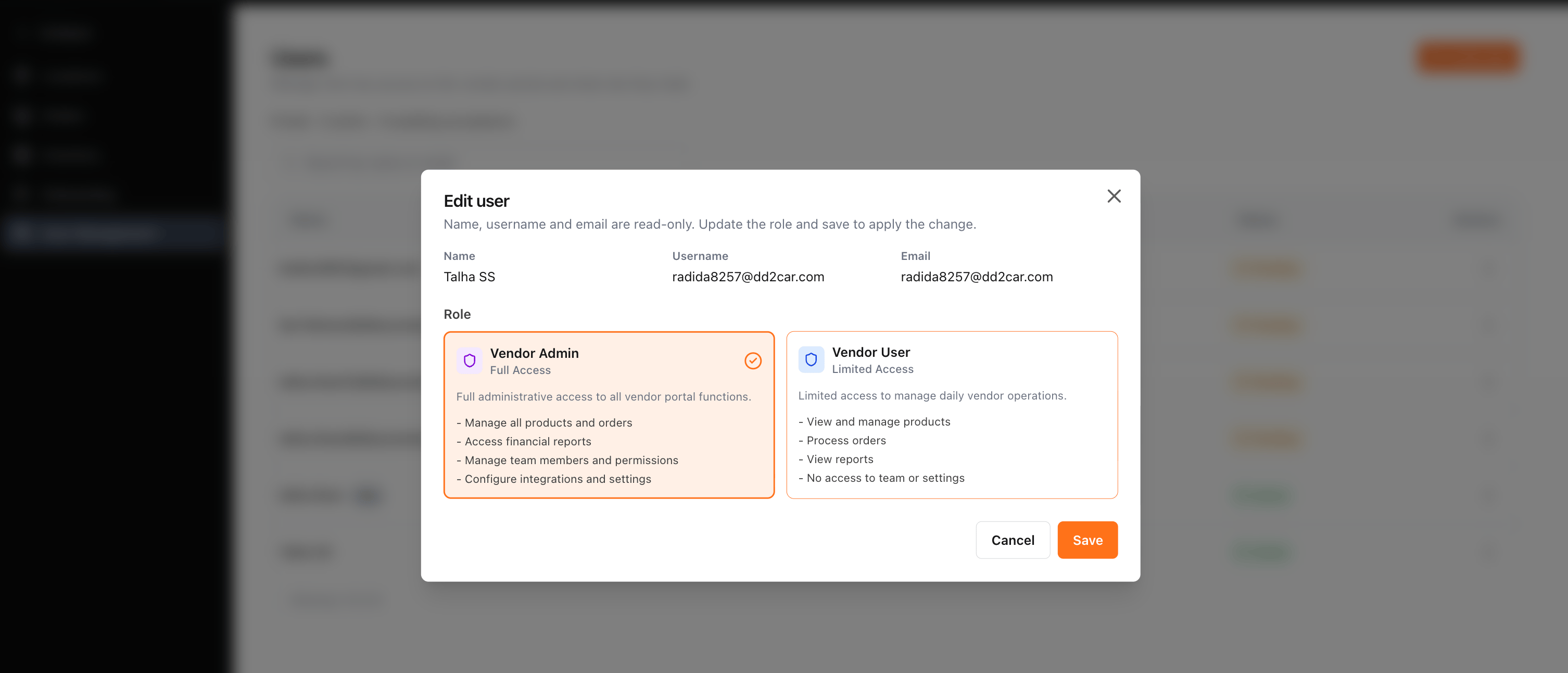 3. Click **Save**. A **Success** dialog confirms the new role and the row updates. Saving without changing the role simply closes the dialog.
## **Delete a User**
You can remove a user whose status is **Pending** or **Active**.
1. On the user's row, open the **Actions** menu (⋮) and click **Delete user**
2. A confirmation dialog names the user — "Are you sure you want to delete \[name] (\[email])? This action cannot be undone." For a user who hasn't accepted yet, the dialog also notes that their pending invitation will be canceled and the link will stop working.
3. Click **Delete user** to confirm, or **Cancel** to keep the user. On confirmation, the row is removed and a **Success** dialog is shown.
## **Account Safeguards**
Two protections apply to every user action:
* **You can't act on your own account.** On your own row (tagged **You**), **Edit user** and **Delete user** are disabled — "You can't change your own role." and "You cannot delete your own account."
* **The last admin can't be removed.** At least one active **Vendor Admin** must always remain. Deleting the last remaining admin is blocked: the confirmation warns that you would need to contact Kibo Support to restore access, and you must tick an acknowledgement checkbox before the action is allowed.
3. Click **Save**. A **Success** dialog confirms the new role and the row updates. Saving without changing the role simply closes the dialog.
## **Delete a User**
You can remove a user whose status is **Pending** or **Active**.
1. On the user's row, open the **Actions** menu (⋮) and click **Delete user**
2. A confirmation dialog names the user — "Are you sure you want to delete \[name] (\[email])? This action cannot be undone." For a user who hasn't accepted yet, the dialog also notes that their pending invitation will be canceled and the link will stop working.
3. Click **Delete user** to confirm, or **Cancel** to keep the user. On confirmation, the row is removed and a **Success** dialog is shown.
## **Account Safeguards**
Two protections apply to every user action:
* **You can't act on your own account.** On your own row (tagged **You**), **Edit user** and **Delete user** are disabled — "You can't change your own role." and "You cannot delete your own account."
* **The last admin can't be removed.** At least one active **Vendor Admin** must always remain. Deleting the last remaining admin is blocked: the confirmation warns that you would need to contact Kibo Support to restore access, and you must tick an acknowledgement checkbox before the action is allowed.