> ## Documentation Index
> Fetch the complete documentation index at: https://docs.kibocommerce.com/llms.txt
> Use this file to discover all available pages before exploring further.
# Users and User Groups
You must create Admin accounts in order for admins, customer service representatives, sales representatives, and other users to access the Kibo Composable Commerce Platform. This guide explains how to create and invite users, as well as organize them into user groups and block IPs.
For more information about roles and the behavior permissions that control each user's access level, see the [User Roles guide](/pages/user-roles).
## View and Invite Users
Once you define your organization's roles, you can invite specific users to your account. Go to **System** > **Permissions** > **Users** to view the list of current users. If searching for an existing user, use the search bar or expand the drop-down menu to filter the results by first name, last name, or email address.
 To invite a new user:
1. Click **Add User**.
2. Enter an email address.
3. In **Access Level**, select one or more roles.
4. Click **Invite User**.
To invite a new user:
1. Click **Add User**.
2. Enter an email address.
3. In **Access Level**, select one or more roles.
4. Click **Invite User**.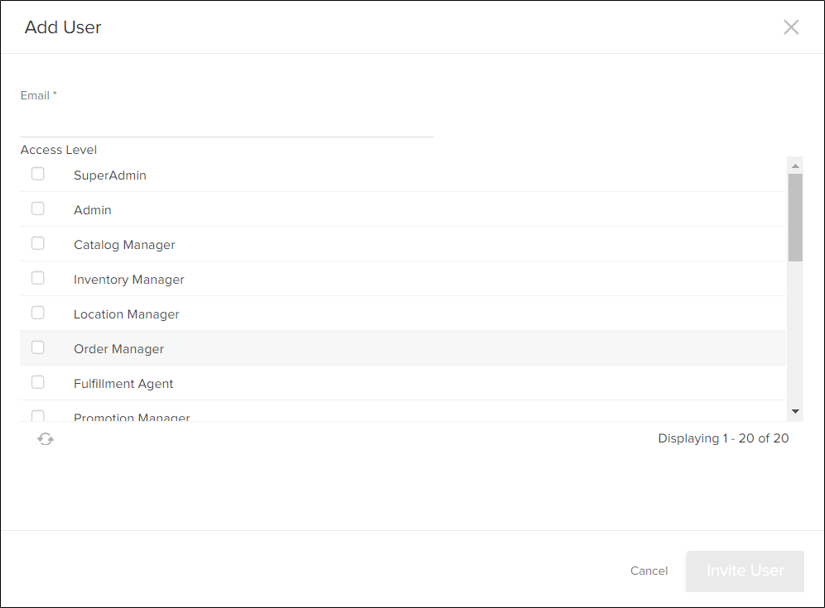 5. When the user accepts the invitation, they will register their account and can begin working in Admin.
All registered users' passwords must be at least six characters in length and include at least one number and one letter.
## Edit Users
You can edit an existing user's email, username, and access level.
1. Go to **System** > **Permissions** > **Users**.
2. Click a user in the table whose account you want to edit, or expand the drop-down action menu on the right of the table row and click **Edit**.
3. Edit their **Email** and/or **Username** as needed.
4. Select and/or deselect roles as needed under the user's **Access Level.**
5. Click **Save**.
5. When the user accepts the invitation, they will register their account and can begin working in Admin.
All registered users' passwords must be at least six characters in length and include at least one number and one letter.
## Edit Users
You can edit an existing user's email, username, and access level.
1. Go to **System** > **Permissions** > **Users**.
2. Click a user in the table whose account you want to edit, or expand the drop-down action menu on the right of the table row and click **Edit**.
3. Edit their **Email** and/or **Username** as needed.
4. Select and/or deselect roles as needed under the user's **Access Level.**
5. Click **Save**.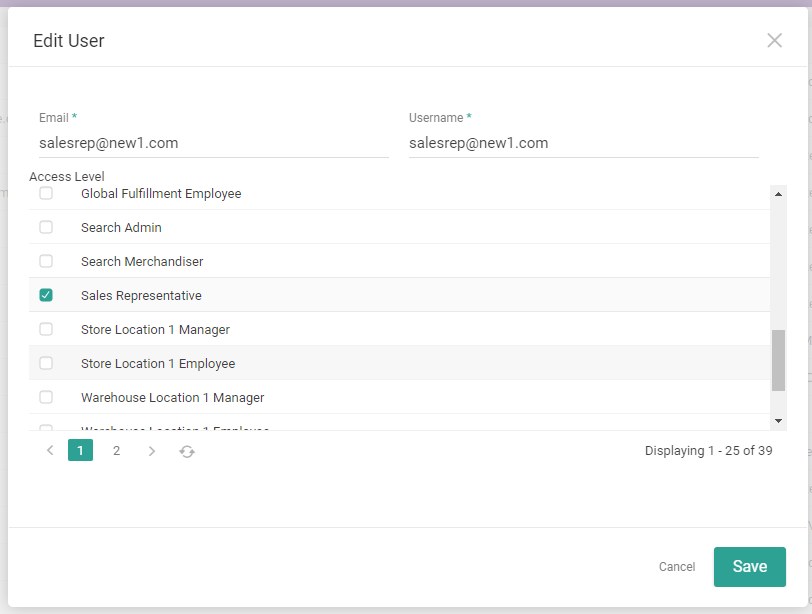 ## User Groups
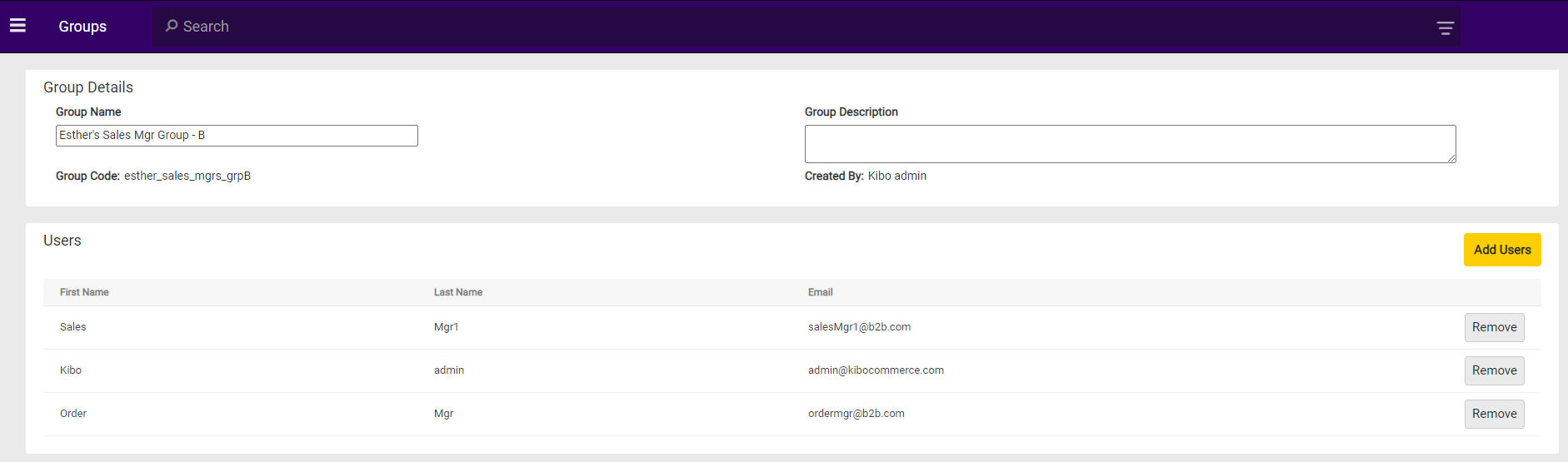
Users can be organized into groups at **Settings** > **Permissions** > **Groups**. Create groups and assign existing users to them in order to create sets of similar users such as regional administrators, sales managers, etc. depending on your needs.
## User Groups
Users can be organized into groups at **Settings** > **Permissions** > **Groups**. Create groups and assign existing users to them in order to create sets of similar users such as regional administrators, sales managers, etc. depending on your needs.
 To create a new group:
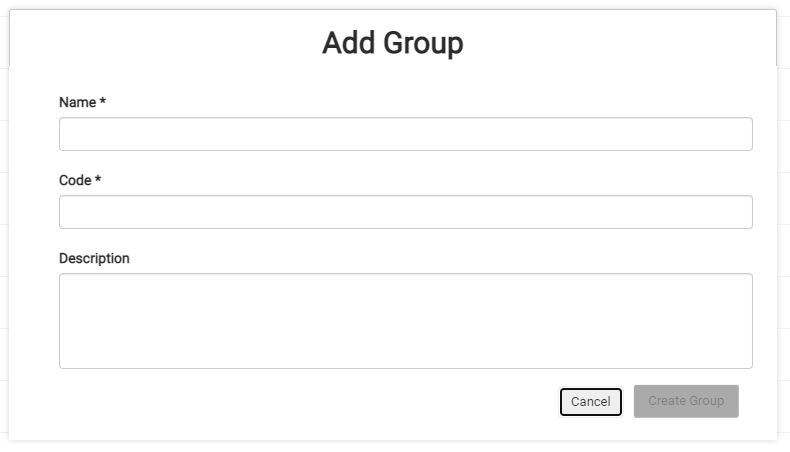
1. Click **Add Group**.
2. Enter a required name and a shorthand code for the group.
3. Enter an description if desired.
4. Click **Create Group** to confirm.
To create a new group:
1. Click **Add Group**.
2. Enter a required name and a shorthand code for the group.
3. Enter an description if desired.
4. Click **Create Group** to confirm.
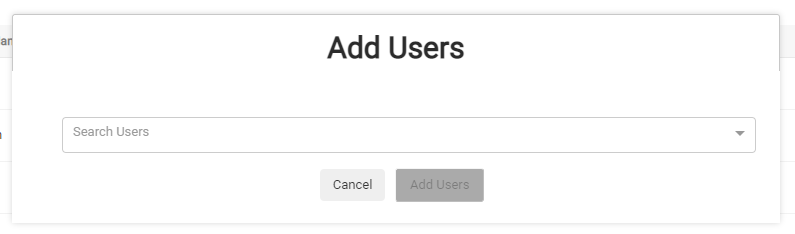
 5. Begin adding users by selecting them from the drop-down. You may begin typing the user's name and they will appear as the suggested result.
6. Click **Add Users** when complete.
5. Begin adding users by selecting them from the drop-down. You may begin typing the user's name and they will appear as the suggested result.
6. Click **Add Users** when complete.
 Once created, the group will be displayed in the table. Click any group in the table to view its details and edit the name, description, or user list.