> ## Documentation Index
> Fetch the complete documentation index at: https://docs.kibocommerce.com/llms.txt
> Use this file to discover all available pages before exploring further.
# User Management
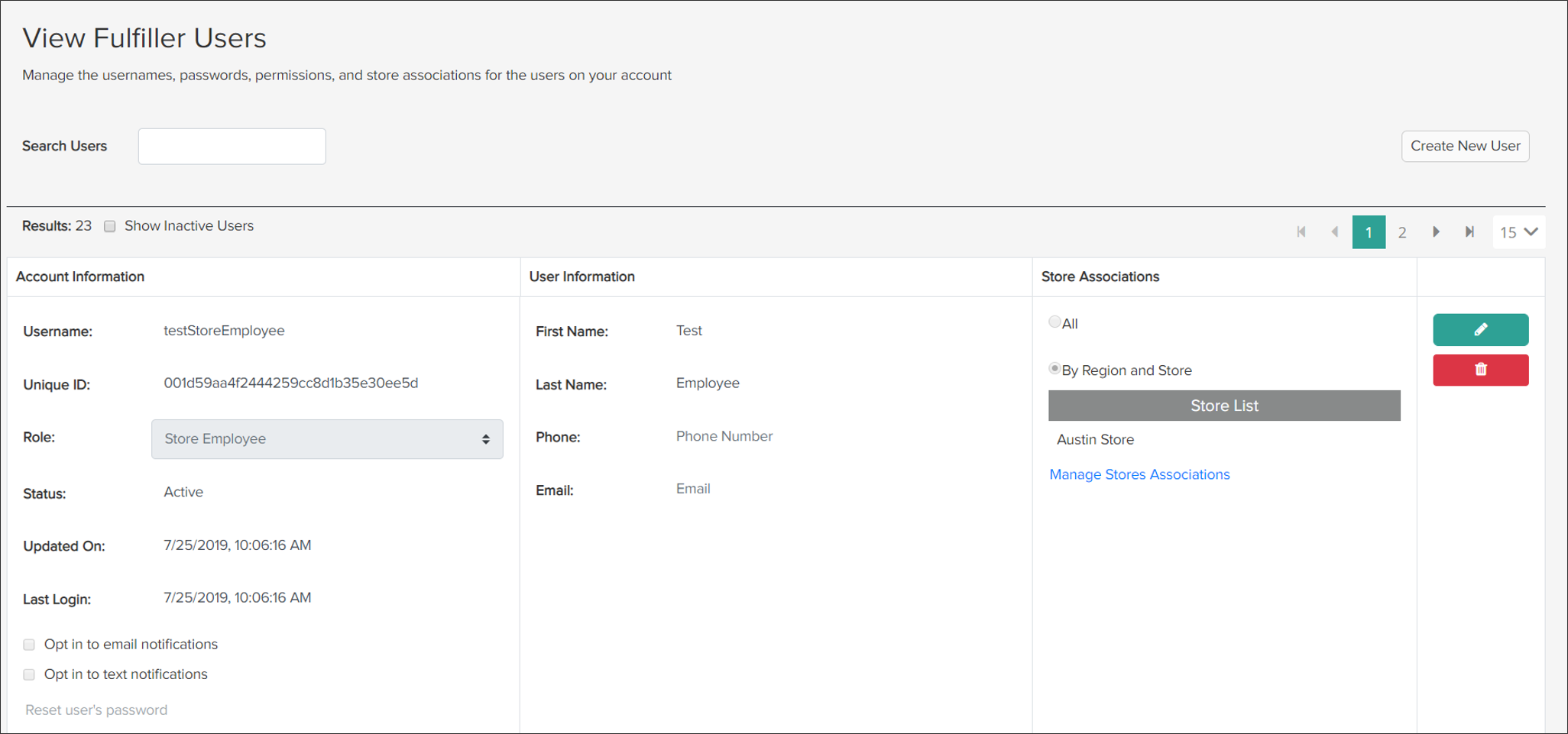
The Settings tab of the Fulfiller UI contains all the user management functions that are available to fulfiller administrators. This page lists all fulfiller account information, user contact details, and the store associations for the user – the locations that they belong to and whose orders they can access when using the interface.
 ## Add a User
To create a new fulfiller user:
1. Go to **Main** > **Fulfiller** > **Settings**.
2. Click **Create New User** in the top right above the user listings.
3. Configure the required **Username**, **Password**, **First Name**, and **Last Name**.
4. Configure the optional **Phone** and **Email**.
5. Click **Save** when all details have been provided to finish creating the user account and manage their store associations.
## Edit Existing Users
To update an existing fulfiller user:
1. Go to **Main** > **Fulfiller** > **Settings** to view a list of fulfiller users across all stores.
2. Click the green pencil icon to the right of an existing user listing.
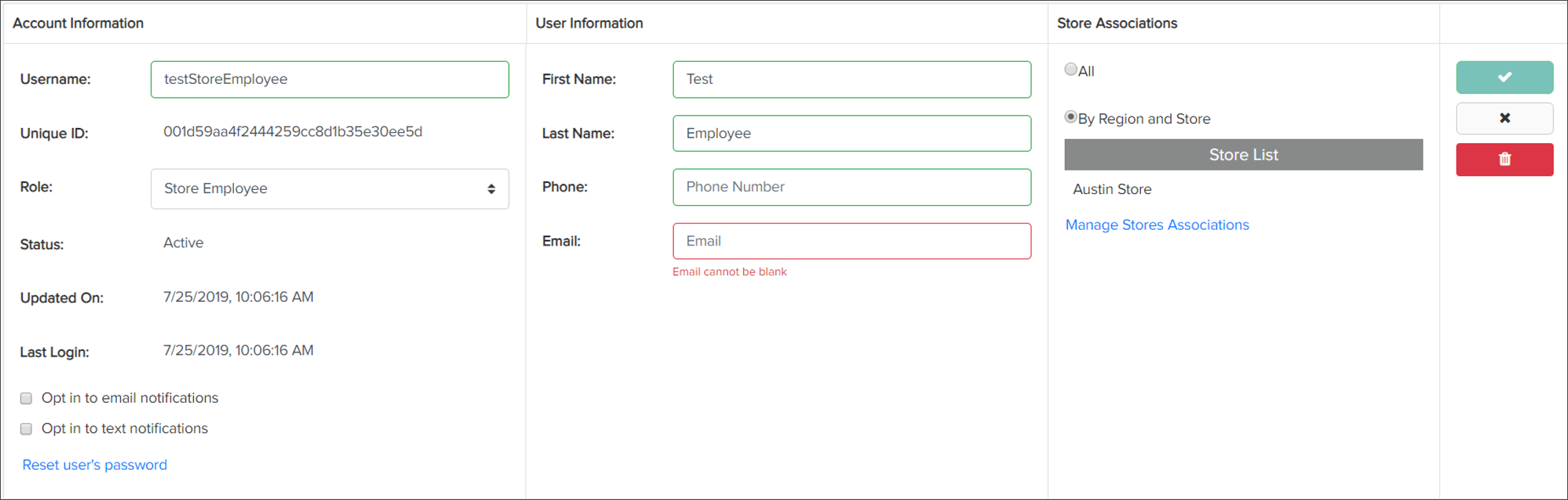
3. This will enable editing on **Username**, **Role**, **First Name**, **Last Name**, **Phone**, and **Email**.
* Changing the option under **Role** will display what locations the user can access under either a manager or employee role, so a user can be assigned as a manager at some locations and an employee at others.
4. Clicking **All** instead of **By Region and Store** above the store list will set the user to a Global Fulfillment Manager/Employee instead of location-specific. See the [User Settings guide](/pages/user-roles) for more information about fulfiller roles.
5. Click the green checkmark to save or use the red trash can to delete the user account from the fulfiller interface.
## Update Store Associations
Store associations can also be removed or added by clicking **Manage Store Associations** while editing a user.
## Add a User
To create a new fulfiller user:
1. Go to **Main** > **Fulfiller** > **Settings**.
2. Click **Create New User** in the top right above the user listings.
3. Configure the required **Username**, **Password**, **First Name**, and **Last Name**.
4. Configure the optional **Phone** and **Email**.
5. Click **Save** when all details have been provided to finish creating the user account and manage their store associations.
## Edit Existing Users
To update an existing fulfiller user:
1. Go to **Main** > **Fulfiller** > **Settings** to view a list of fulfiller users across all stores.
2. Click the green pencil icon to the right of an existing user listing.
3. This will enable editing on **Username**, **Role**, **First Name**, **Last Name**, **Phone**, and **Email**.
* Changing the option under **Role** will display what locations the user can access under either a manager or employee role, so a user can be assigned as a manager at some locations and an employee at others.
4. Clicking **All** instead of **By Region and Store** above the store list will set the user to a Global Fulfillment Manager/Employee instead of location-specific. See the [User Settings guide](/pages/user-roles) for more information about fulfiller roles.
5. Click the green checkmark to save or use the red trash can to delete the user account from the fulfiller interface.
## Update Store Associations
Store associations can also be removed or added by clicking **Manage Store Associations** while editing a user.
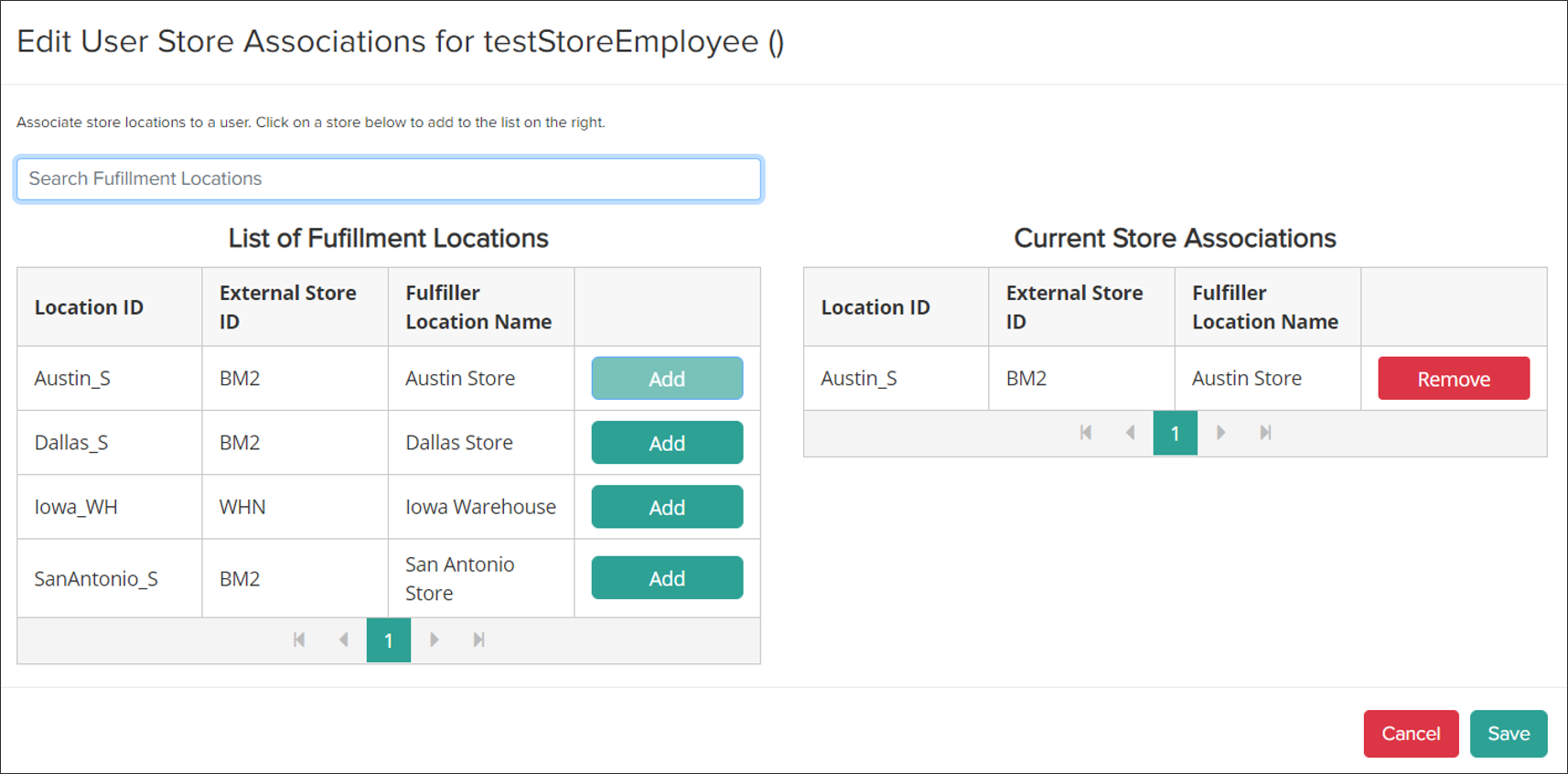
 When managing a user’s store associations, a module will appear that displays a list of all possible fulfillment locations that the user could be associated with. The Current Store Associations table shows all stores that the user is already associated with.
1. Click **Add** next to a location to associate it to the user.
2. Clicking **Remove** will take a location off this list.
3. Click **Save** when all changes have been made.
When managing a user’s store associations, a module will appear that displays a list of all possible fulfillment locations that the user could be associated with. The Current Store Associations table shows all stores that the user is already associated with.
1. Click **Add** next to a location to associate it to the user.
2. Clicking **Remove** will take a location off this list.
3. Click **Save** when all changes have been made.