> ## Documentation Index
> Fetch the complete documentation index at: https://docs.kibocommerce.com/llms.txt
> Use this file to discover all available pages before exploring further.
# Transfer Shipments
Transfer shipments allow other locations to provide items to a fulfillment location that does not have those items in stock. When this happens, Kibo creates a child shipment that is assigned to a transfer location. These items will be shipped to the fulfillment location while the parent shipment is put into a Waiting for Transfer state.
Learn how transfer shipments work to fulfill orders from alternative locations
Transfers can be used with either Buy Online Pickup in Store (BOPIS) or [Consolidation](/pages/sth-and-delivery-consolidation "STH and Delivery Consolidation") shipments. BOPIS transfers provide items to a customer pickup location when it doesn't have those items in stock, while consolidation transfers combine all items at a centralized location to be shipped to the customer together instead of splitting the shipment. This guide covers the basic transfer shipment process.
## Transfer Shipment Process
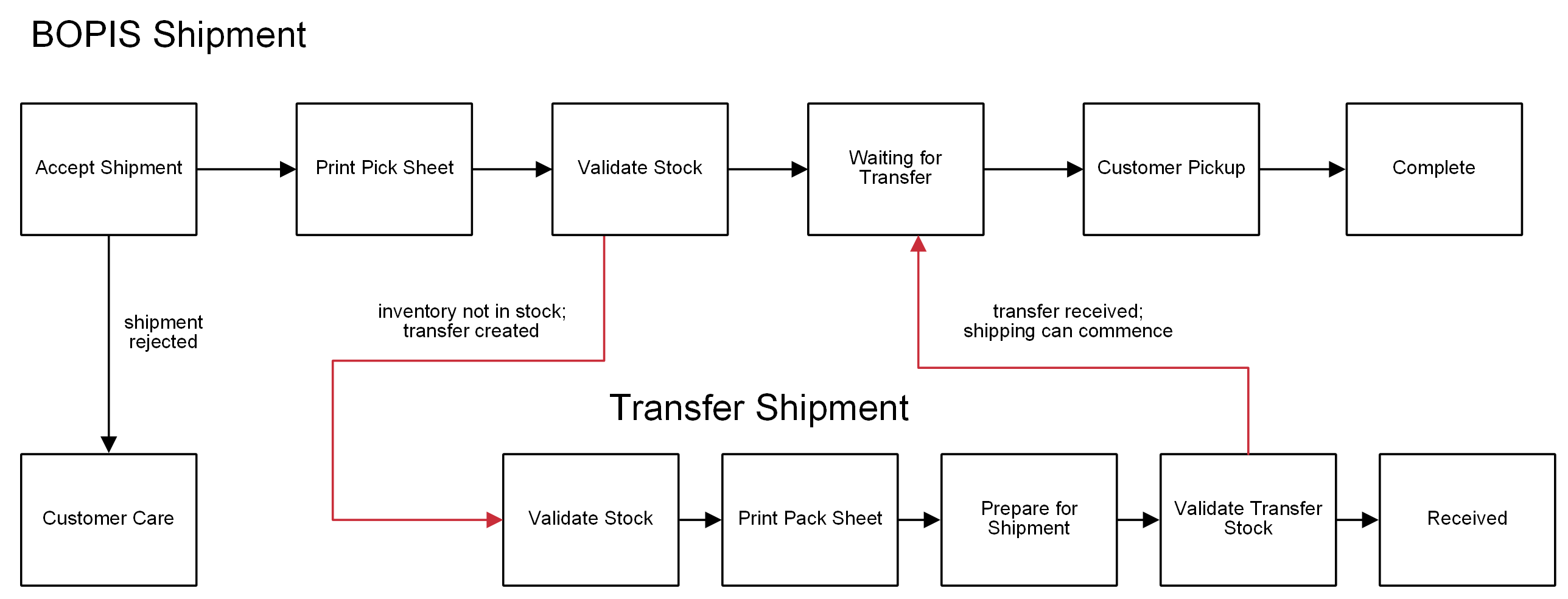
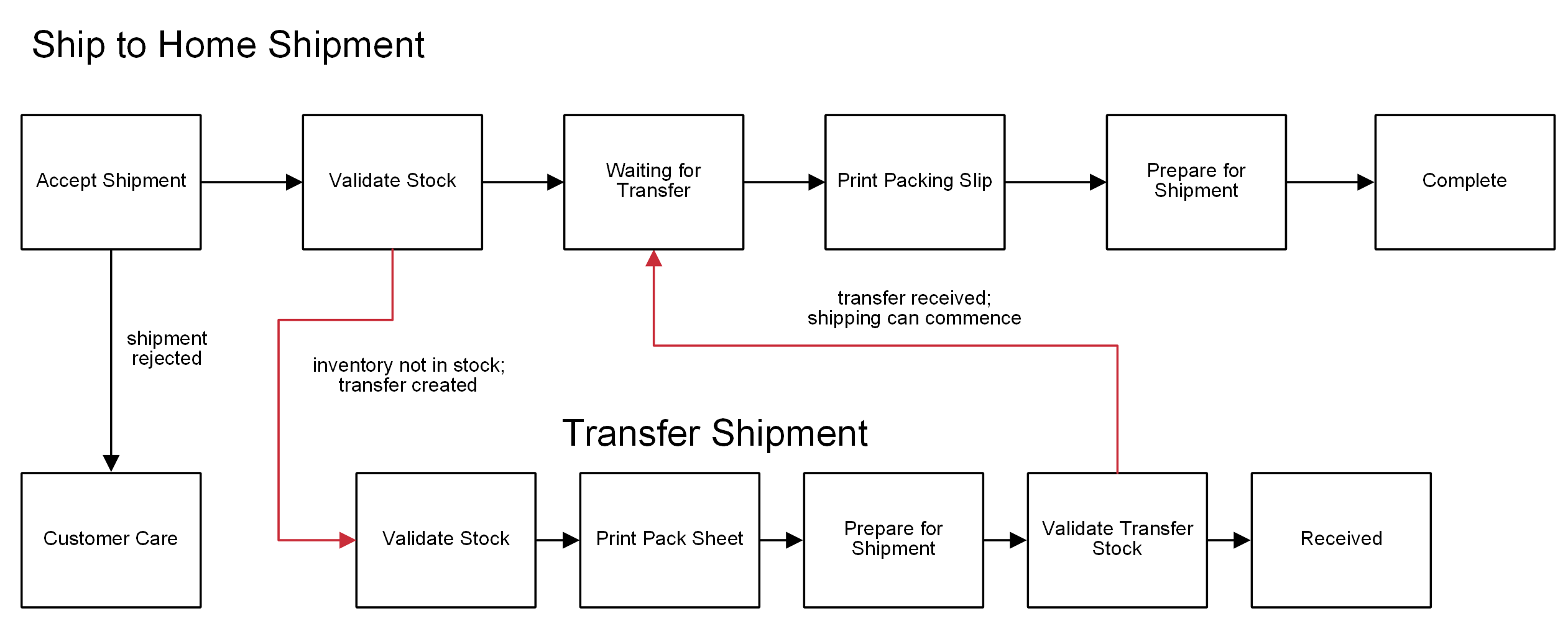
When a transfer is created, the parent shipment will go into Waiting for Transfer step after validating stock and can only move on to finish fulfillment once all associated transfers have been received by the location. Transfer shipments will go through their own process of validating stock, being shipped, and validated by the recipient location.
The diagrams below show how transfer shipments fit into their parent shipments' fulfillment flows. For more details about all shipment processes, reference the [Fulfillment Method Types](/pages/fulfillment-method-types "Fulfillment Method Types") guide.
 ### Select Transfer BPM
If you want to use a different BPM for transfer shipments than the default one, you can change it at the location group level. This will determine the steps that all transfers go through.
1. Go to **Main** > **Orders** > **Location Groups**.
2. Click a group in the main Location Groups table to open a similar location selection screen.
3. Click **Config Settings** in the header to switch to another configuration screen, which displays other options that are applied to all locations in the group.
### Select Transfer BPM
If you want to use a different BPM for transfer shipments than the default one, you can change it at the location group level. This will determine the steps that all transfers go through.
1. Go to **Main** > **Orders** > **Location Groups**.
2. Click a group in the main Location Groups table to open a similar location selection screen.
3. Click **Config Settings** in the header to switch to another configuration screen, which displays other options that are applied to all locations in the group.  4. Select a site in the left-hand navigation bar.
5. In the BPM Configurations section, select your preferred BPM from the **Transfer** drop-down menu.
4. Select a site in the left-hand navigation bar.
5. In the BPM Configurations section, select your preferred BPM from the **Transfer** drop-down menu.  6. Click **Save**.
## BOPIS Transfers
Transfer shipments for BOPIS get created when one of the following two scenarios occur:
* If there is not enough inventory at the selected pickup location but there is inventory available at transfer-enabled locations, then Order Routing automatically creates transfer shipments to transfer inventory to the pickup location.
* While fulfilling the order, the fulfiller at the pickup location finds that there is not enough quantity at the location and [requests a transfer](#request-a-transfer) for the quantity that isn't available. Order Routing determines the optimal qualifying locations to transfer inventory to the parent location.
### Configure BOPIS Transfers
In order for fulfillment locations to provide pickup location with missing inventory via transfers, you must first enable BOPIS transfers in the site settings:
1. Go to **System** > **Settings** > **General** > **Site** and locate [the Transfer settings](/pages/general-settings#site "General Settings").
2. Toggle on **BOPIS transfer**.
6. Click **Save**.
## BOPIS Transfers
Transfer shipments for BOPIS get created when one of the following two scenarios occur:
* If there is not enough inventory at the selected pickup location but there is inventory available at transfer-enabled locations, then Order Routing automatically creates transfer shipments to transfer inventory to the pickup location.
* While fulfilling the order, the fulfiller at the pickup location finds that there is not enough quantity at the location and [requests a transfer](#request-a-transfer) for the quantity that isn't available. Order Routing determines the optimal qualifying locations to transfer inventory to the parent location.
### Configure BOPIS Transfers
In order for fulfillment locations to provide pickup location with missing inventory via transfers, you must first enable BOPIS transfers in the site settings:
1. Go to **System** > **Settings** > **General** > **Site** and locate [the Transfer settings](/pages/general-settings#site "General Settings").
2. Toggle on **BOPIS transfer**.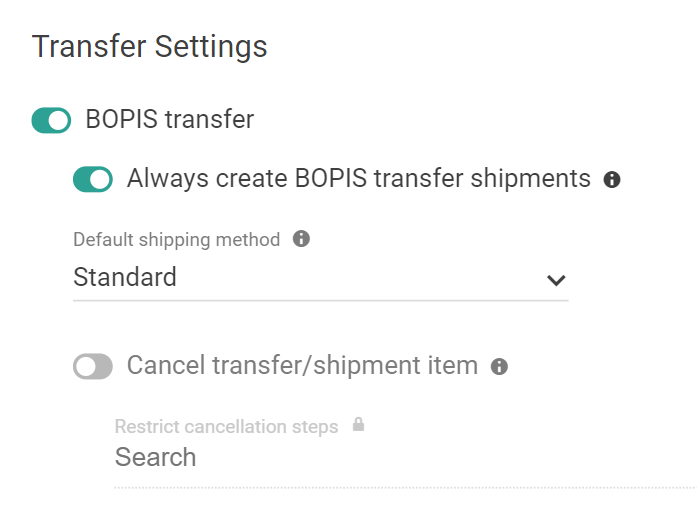 3. If desired, toggle on **Always create BOPIS transfer shipments** to allow creation of a transfer shipment regardless of inventory availability. Then select a default shipping method.
4. If desired, toggle on **Cancel transfer/shipment item** to cancel transfer shipments or items whenever a cancellation occurs on the parent BOPIS shipment or item. You can also restrict selected cancellation steps for the fulfillment process.
5. Click **Save**.
Then, you must enable individual locations to perform transfers:
1. Go to **Main** > **Orders** > **Locations**.
2. Select a location from the table.
3. In the Transfer settings section, toggle on **Transfer Enabled**.\\
3. If desired, toggle on **Always create BOPIS transfer shipments** to allow creation of a transfer shipment regardless of inventory availability. Then select a default shipping method.
4. If desired, toggle on **Cancel transfer/shipment item** to cancel transfer shipments or items whenever a cancellation occurs on the parent BOPIS shipment or item. You can also restrict selected cancellation steps for the fulfillment process.
5. Click **Save**.
Then, you must enable individual locations to perform transfers:
1. Go to **Main** > **Orders** > **Locations**.
2. Select a location from the table.
3. In the Transfer settings section, toggle on **Transfer Enabled**.\\
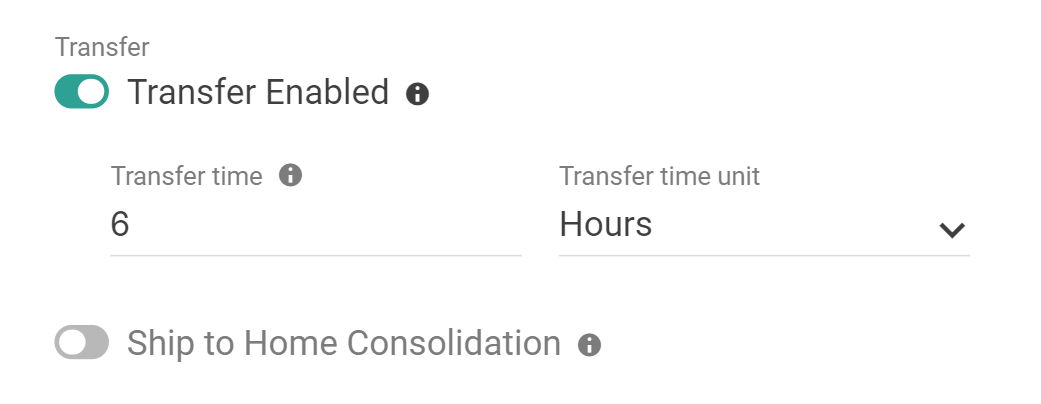 4. Enter the usual transfer time and units.
5. Click **Save**.
### Customer Emails
There are two email messages that can be sent during the BOPIS transfer process to keep the customer up-to-date on the progress of their order and communicate with them that there are some items that must be waited on before the pickup is ready. Enable these emails in [your site settings](/pages/general-settings#email "General Settings").
* **Transfer Shipment Created** informs the customer that some inventory in their order was not available and is being transferred to their pickup location. This is triggered upon the creation of a transfer shipment.
* **Transfer Shipment Shipped** informs the customer that their transferred items have been shipped and they should be on the lookout for a pickup email soon. This is triggered upon completion of the transfer shipment's fulfillment, before it is received by the pickup location.
## Request a Transfer
Transfers can be requested during the Validate Stock step of the fulfillment process.
1. During Validate Stock, enter the **In Stock** quantity.
2. Click **Transfer Shipment** to request a transfer for the remaining items. This button will appear as long as the available quantity is less than the target quantity of the shipment.
4. Enter the usual transfer time and units.
5. Click **Save**.
### Customer Emails
There are two email messages that can be sent during the BOPIS transfer process to keep the customer up-to-date on the progress of their order and communicate with them that there are some items that must be waited on before the pickup is ready. Enable these emails in [your site settings](/pages/general-settings#email "General Settings").
* **Transfer Shipment Created** informs the customer that some inventory in their order was not available and is being transferred to their pickup location. This is triggered upon the creation of a transfer shipment.
* **Transfer Shipment Shipped** informs the customer that their transferred items have been shipped and they should be on the lookout for a pickup email soon. This is triggered upon completion of the transfer shipment's fulfillment, before it is received by the pickup location.
## Request a Transfer
Transfers can be requested during the Validate Stock step of the fulfillment process.
1. During Validate Stock, enter the **In Stock** quantity.
2. Click **Transfer Shipment** to request a transfer for the remaining items. This button will appear as long as the available quantity is less than the target quantity of the shipment.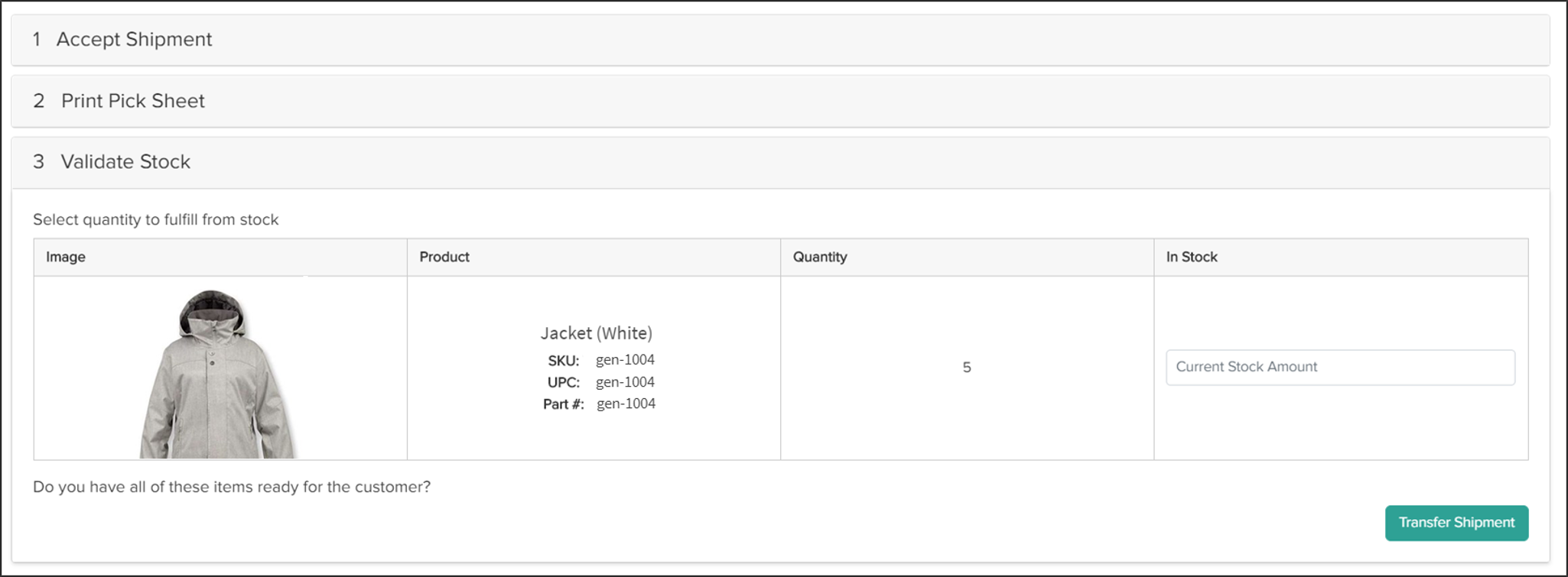 3. A pop-up will appear to confirm the transfer request. Enter a reason such as "Item Not Available." These reasons may be customized for the implementation, and not the exact same list as shown here.
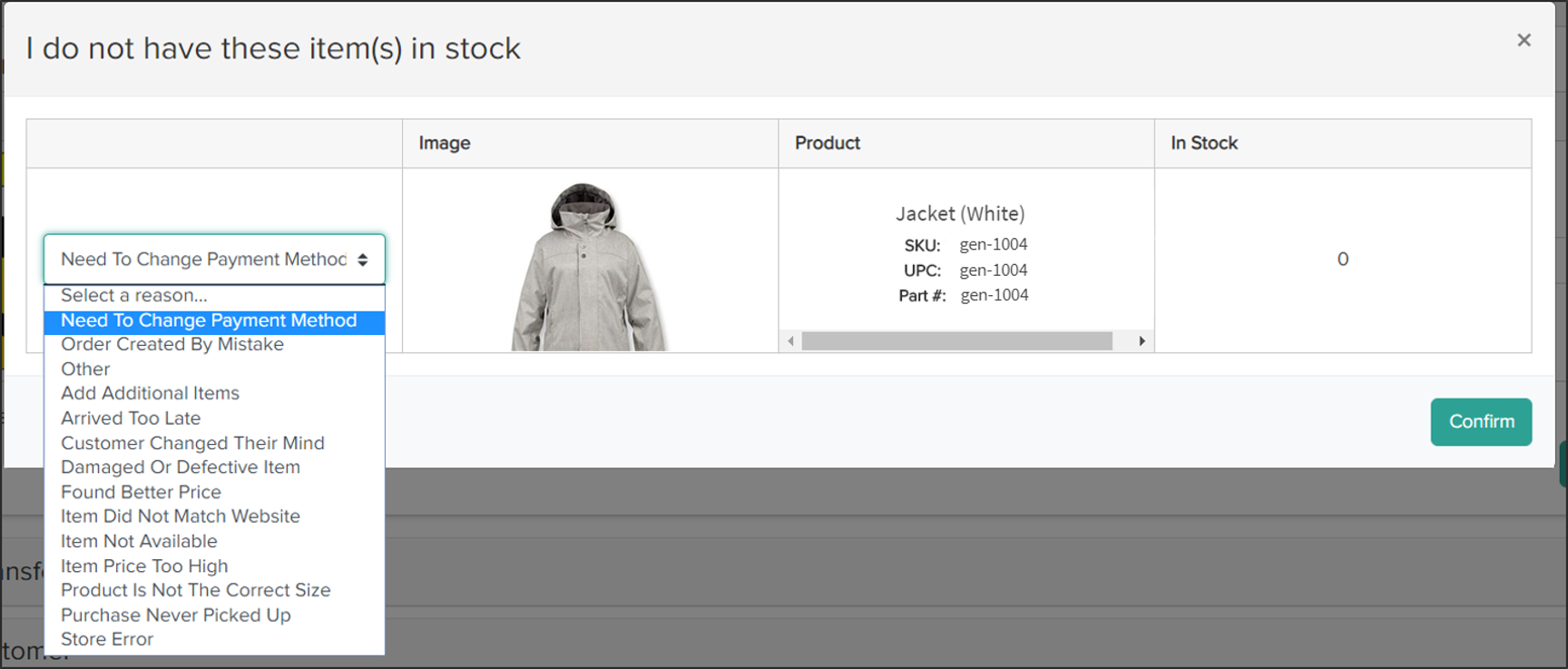 4. Click **Confirm**. This will submit the request and the parent shipment will be placed into Waiting For Transfer.
## Fulfill a Transfer
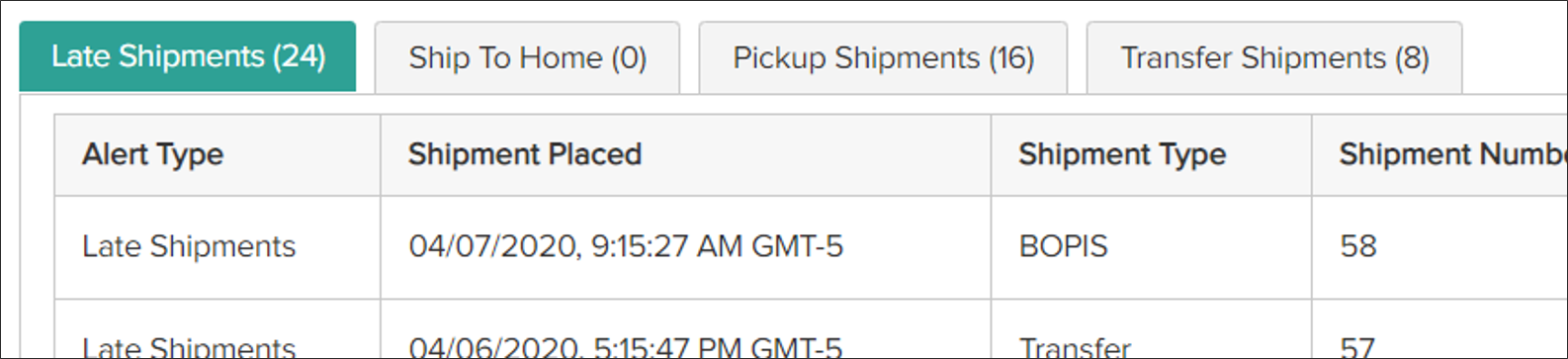
On the fulfiller interface dashboard, the user can see all transfer shipments that are assigned to the location in either the Shipment Quick View at the top of the screen (shown below) or the Assigned Shipments table below the quick view.
4. Click **Confirm**. This will submit the request and the parent shipment will be placed into Waiting For Transfer.
## Fulfill a Transfer
On the fulfiller interface dashboard, the user can see all transfer shipments that are assigned to the location in either the Shipment Quick View at the top of the screen (shown below) or the Assigned Shipments table below the quick view.
 To ship an assigned transfer:
1. The first step is to validate stock by selecting the **In Stock** quantity.
2. If there is enough available stock, click **Proceed To Print Packing List**. If not, request another transfer.
3. Pack the shipment and send it to the fulfiller that requested it, much like a regular shipment.
To ship an assigned transfer:
1. The first step is to validate stock by selecting the **In Stock** quantity.
2. If there is enough available stock, click **Proceed To Print Packing List**. If not, request another transfer.
3. Pack the shipment and send it to the fulfiller that requested it, much like a regular shipment.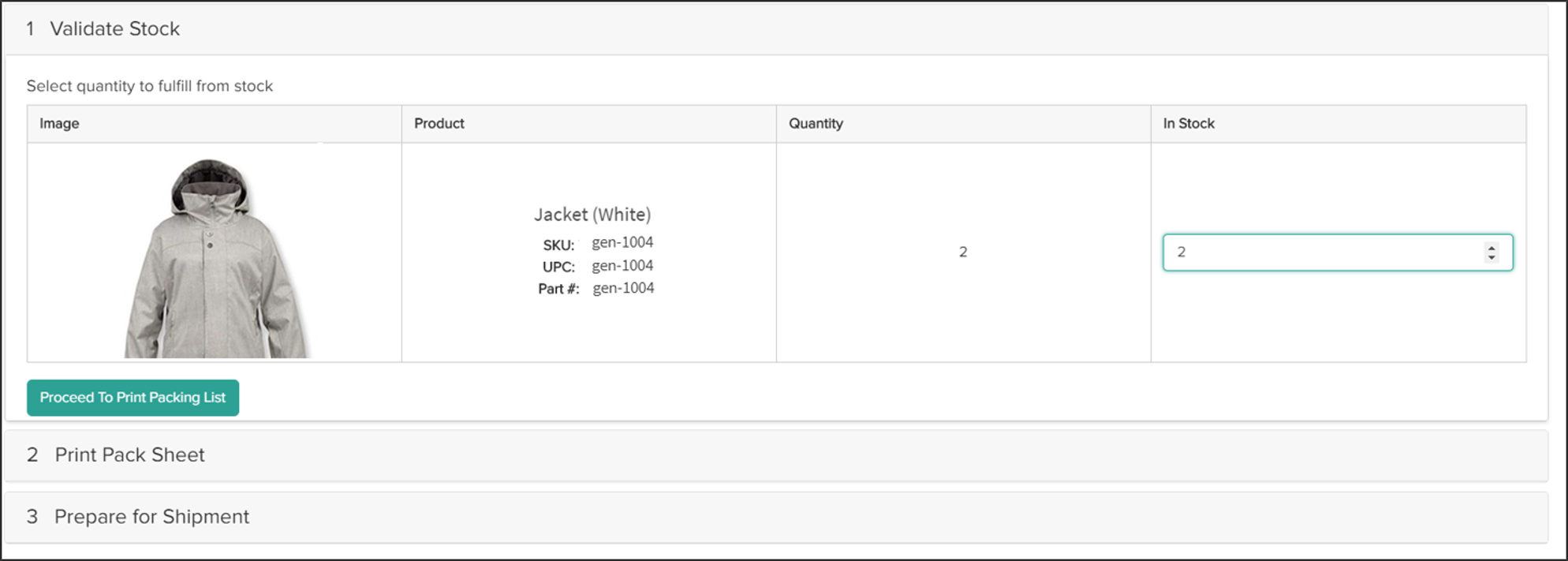 After the transfer is shipped, it will be listed in the Validate Incoming Transfer section of the receiving fulfiller's Assigned Shipments table. The receiving fulfiller must acknowledge that they have received it:
1. Select an incoming transfer shipment to open the Validate Transfer Stock step.
2. Indicate the available quantity that is now in stock from the transfer.
3. Click **Receive Incoming Items** to mark the transfer as Received.
After the transfer is shipped, it will be listed in the Validate Incoming Transfer section of the receiving fulfiller's Assigned Shipments table. The receiving fulfiller must acknowledge that they have received it:
1. Select an incoming transfer shipment to open the Validate Transfer Stock step.
2. Indicate the available quantity that is now in stock from the transfer.
3. Click **Receive Incoming Items** to mark the transfer as Received.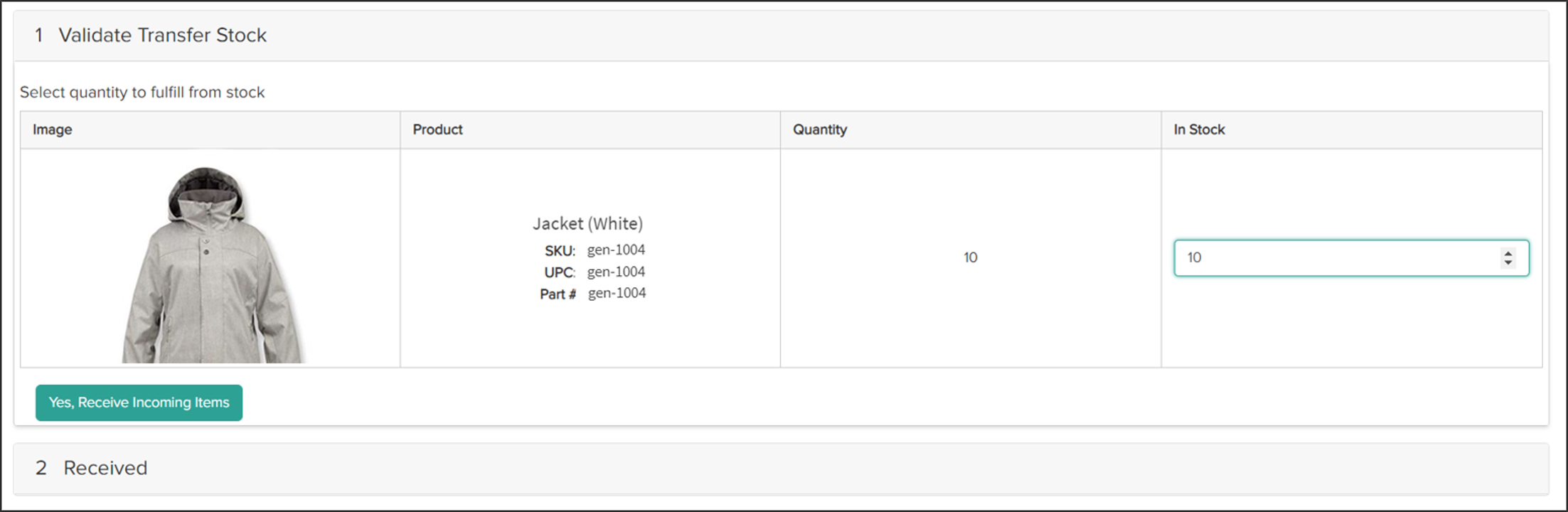 When that is done, the parent shipment is released to continue its fulfillment process.
## Transfer Event Notifications
As transfer shipments are fulfilled, event notifications will be triggered in addition to the standard STH and BOPIS fulfillment notifications. Notifications will be sent for the following transfer shipment events:
* Transfer Shipment Created
* Transfer Shipment Assigned
* Transfer Shipment Shipped
* Transfer Shipment Sent to Customer Care
See [Event Notifications](/pages/event-notifications-overview) for the template that these shipment status change events follow.
When that is done, the parent shipment is released to continue its fulfillment process.
## Transfer Event Notifications
As transfer shipments are fulfilled, event notifications will be triggered in addition to the standard STH and BOPIS fulfillment notifications. Notifications will be sent for the following transfer shipment events:
* Transfer Shipment Created
* Transfer Shipment Assigned
* Transfer Shipment Shipped
* Transfer Shipment Sent to Customer Care
See [Event Notifications](/pages/event-notifications-overview) for the template that these shipment status change events follow.