> ## Documentation Index
> Fetch the complete documentation index at: https://docs.kibocommerce.com/llms.txt
> Use this file to discover all available pages before exploring further.
# Third-Party Search Tools
## Splainer
Learn how to use Splainer.io for debugging and analyzing search results
Splainer is an open-source, third-party tool from OpenSource Connections. It has been integrated with the Kibo Composable Commerce Platform in order to provide insight into search relevancy and results.
1. To access, click the **Splainer.io** button. A unique URL is generated with parameters from the search configuration.\\
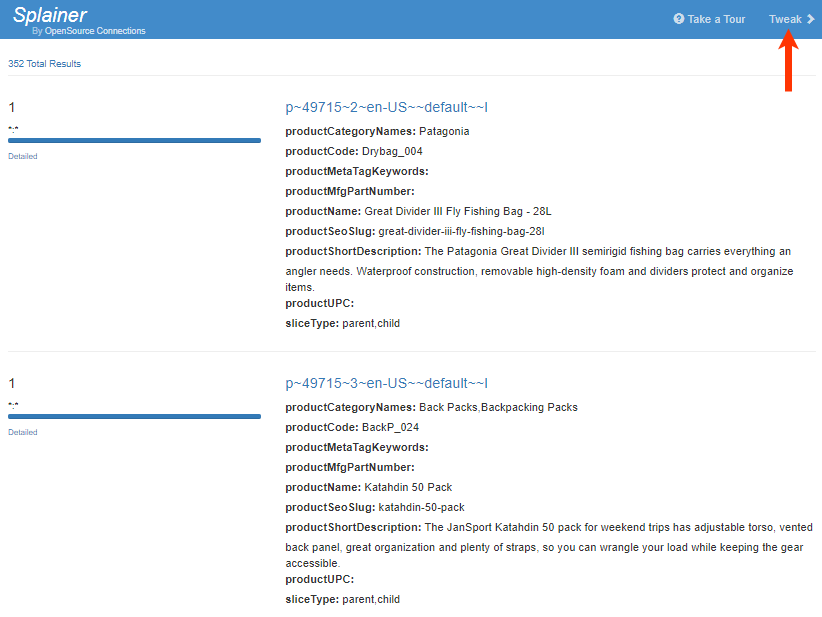
 2. Clicking the button will open Splainer with those parameters in a new browser tab. Since this is generated from a configuration, no search term is populated. To enter and see the results of a specific term, click **Tweak** in the top right of the screen.\\
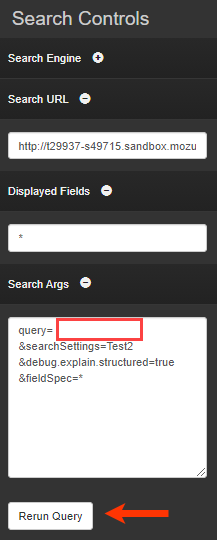
 3. Enter the desired search term after `query=` and then click **Rerun Query**.\\
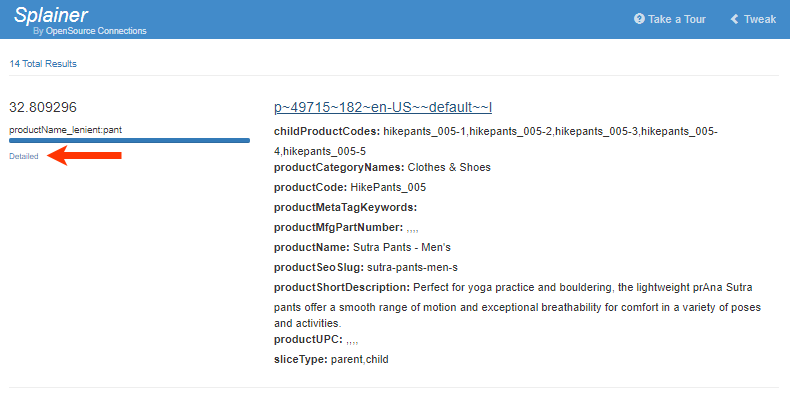
 4. The results on the left will refresh based on the search term. Click **Details** to see an explanation of what makes the relevancy score.\\
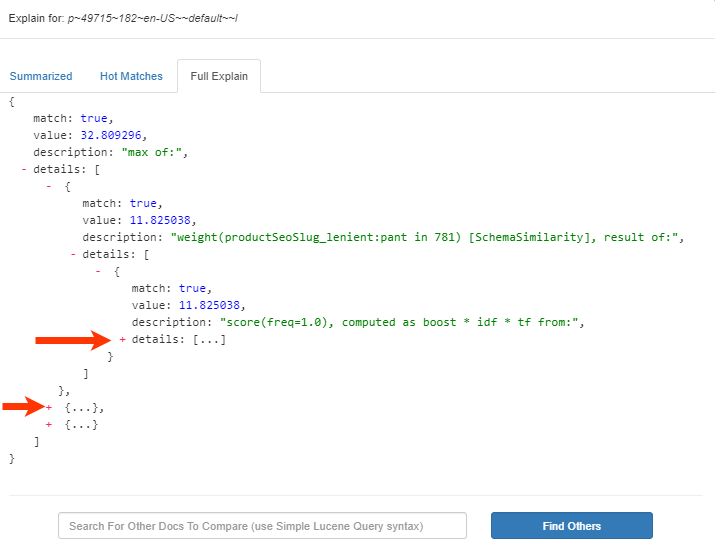
 5. Within the Detailed modal, click **Full Explain** to see what exactly causes an item to have a particular relevancy score.\\
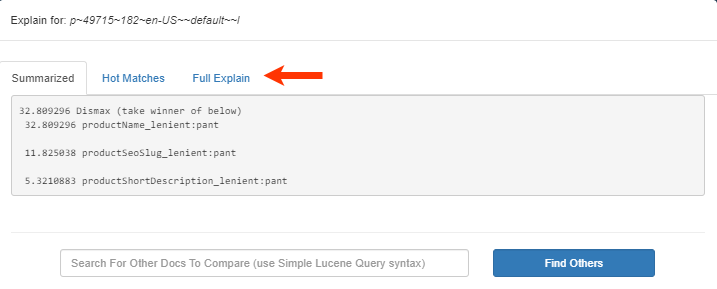 6. This list can be expanded to see as many or as few details as needed.\\
 More information about using Splainer can be found by clicking **Take a Tour** at the top of the Splainer UI.
## Quepid
Quepid is an open-source, third-party application from OpenSource Connections. It has been integrated with KCCP in order to help merchandisers and search relevancy engineers view search results without changing settings and checking results on a live retail site. Quepid provides visibility into how changes affect the site globally, while Splainer provides deeper details about individual relevancy scores.
You must create a free account with Quepid in order to use it.
1. Visit the [Quepid application](https://www.quepid.com/).
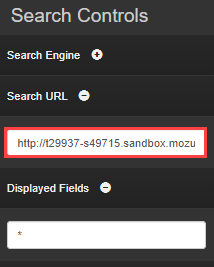
2. Copy the URL generated when clicking the Splainer.io button.\\
More information about using Splainer can be found by clicking **Take a Tour** at the top of the Splainer UI.
## Quepid
Quepid is an open-source, third-party application from OpenSource Connections. It has been integrated with KCCP in order to help merchandisers and search relevancy engineers view search results without changing settings and checking results on a live retail site. Quepid provides visibility into how changes affect the site globally, while Splainer provides deeper details about individual relevancy scores.
You must create a free account with Quepid in order to use it.
1. Visit the [Quepid application](https://www.quepid.com/).
2. Copy the URL generated when clicking the Splainer.io button.\\
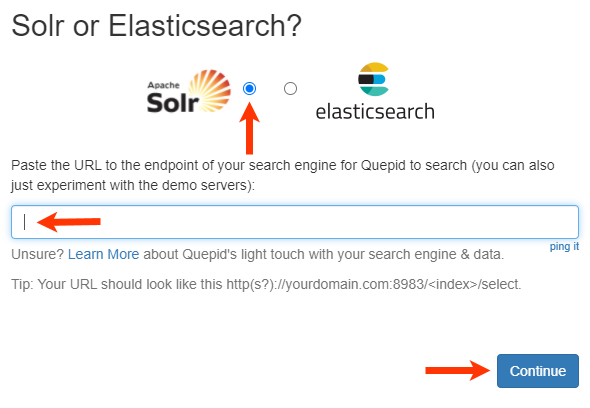
 3. On the initial screen, choose SOLR, insert the copied URL, and click **Continue**.\\
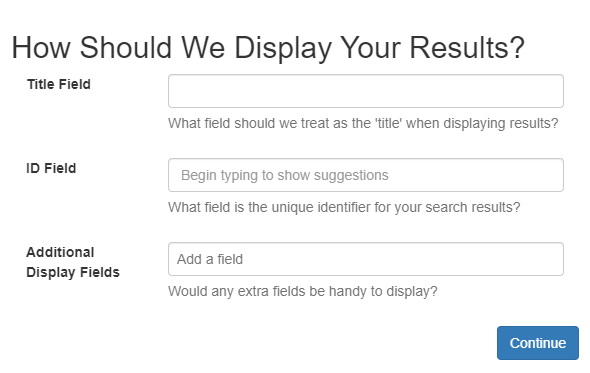
 4. Enter the fields to display. The list of available options for each field is generated by your uploaded catalog schema.\\
 5. Add one or more search terms, then click **Continue**.\\
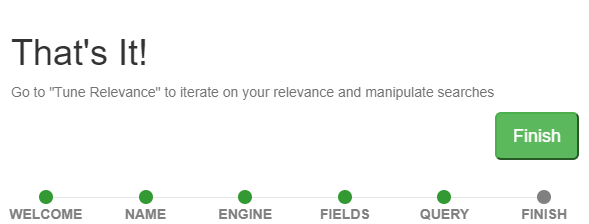
 6. Click **Finish** to close the modal and view the results.\\
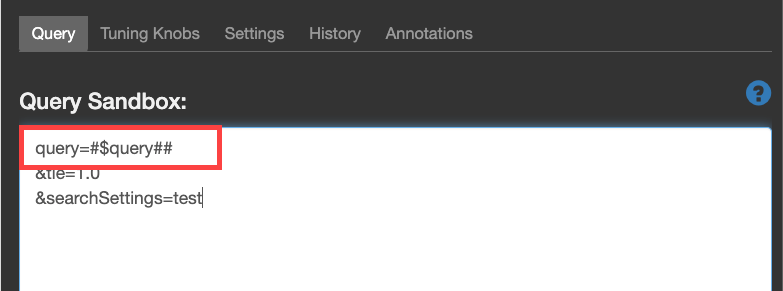
 7. By default, the results will contain all products instead of those specific to your search terms. To adjust the accuracy of the results by restricting them to your search terms, click **Tune Relevance** and then change `q=#$query##` to `query=#$query##`.
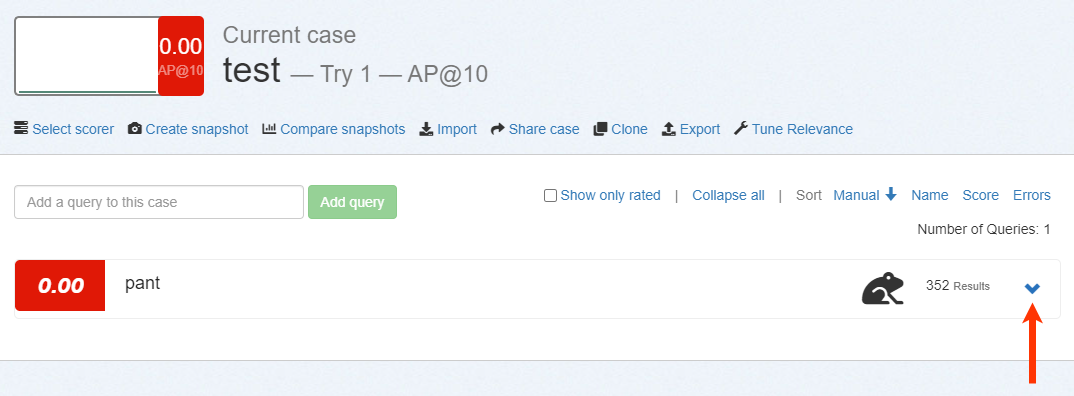
 8. Then, you can further expand a query by clicking the down arrow on the results page.\\
 9. For each result, click the drop-down option to the left and select a relevance score. In this example for the search term *pants*, the deck bag has been scored as Irrelevant, while the cargo crop pants have been scored as Relevant.\\
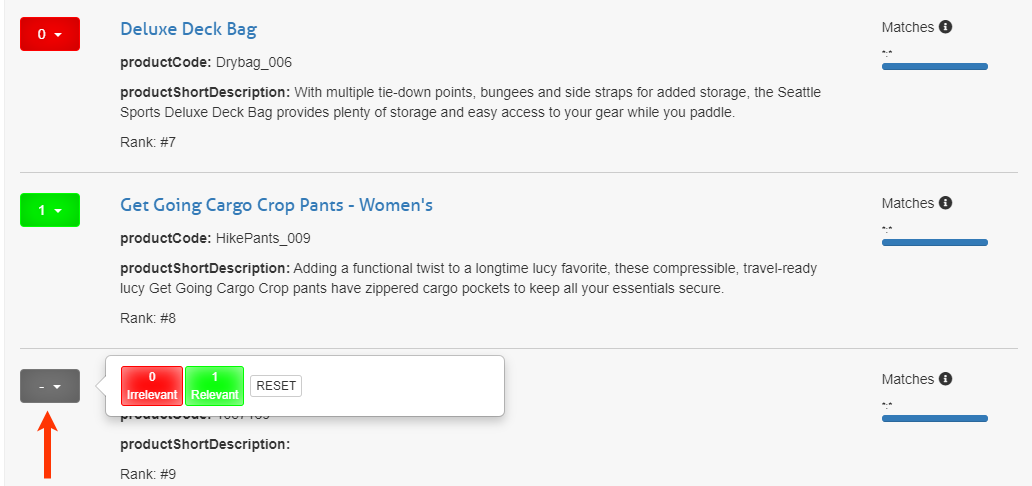 10. As each item is scored, the overall score for the query is automatically adjusted. This provides the ability to see if various search configuration changes improve search results or not.
More information about using Quepid may be found on the [Quepid Knowledge Base](https://quepid.com/docs/).
10. As each item is scored, the overall score for the query is automatically adjusted. This provides the ability to see if various search configuration changes improve search results or not.
More information about using Quepid may be found on the [Quepid Knowledge Base](https://quepid.com/docs/).