> ## Documentation Index
> Fetch the complete documentation index at: https://docs.kibocommerce.com/llms.txt
> Use this file to discover all available pages before exploring further.

# The Structure of an API Extension Application

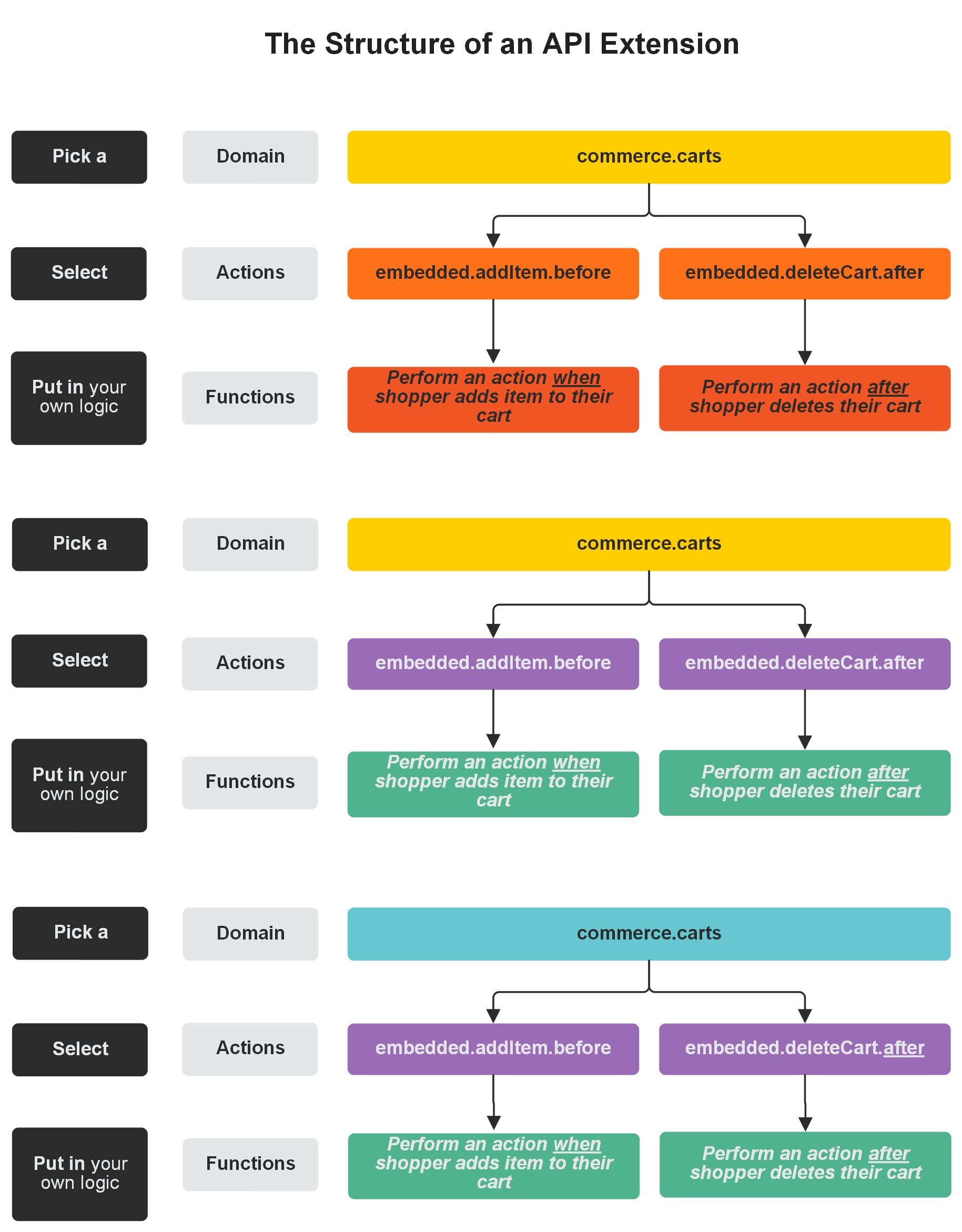
API Extension applications contain JavaScript files that run custom functions before or after a specific action occurs in Kibo. The available actions are organized into domains that relate to the component they interact with. The following diagram provides a visual demonstration of this structure. Note that while most actions run only one function, some actions can run multiple functions.

<img src="https://mintcdn.com/kibocommerce-59e68a4a/1Nyrd7MBmKOhtK96/img/product-certification-diagrams-doodles.png?fit=max&auto=format&n=1Nyrd7MBmKOhtK96&q=85&s=02f7cc84b09d0ef9bdd29407a8052828" alt="Chart showing the hierarchy of a domain, its actions, and their function" width="1829" height="2342" data-path="img/product-certification-diagrams-doodles.png" />

## API Extension Project Files

The project files in which you develop API Extension applications have the structure shown in the following image. You can use the [Yeoman Generator](https://www.npmjs.com/package/generator-mozu-actions) to automatically scaffold these files.

### Root
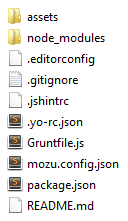
<img src="https://mintcdn.com/kibocommerce-59e68a4a/J4w9KvWH3YVo4Mms/img/api-extensions-folders-d51cde.png?fit=max&auto=format&n=J4w9KvWH3YVo4Mms&q=85&s=e92027ace1c11be01da235f7eec187bd" alt="Example of a root folder showing the project files" width="128" height="221" data-path="img/api-extensions-folders-d51cde.png" />

<table><colgroup><col /> </colgroup><colgroup><col /></colgroup><tbody><tr><td><strong>assets</strong></td><td>This folder contains the subfolders where you code your custom functions and design your tests. When you run Grunt, all the files in the assets folder are uploaded to your application in Dev Center.</td></tr><tr><td><strong>Gruntfile.js</strong></td><td>This file defines Grunt task configurations and loads Grunt plugins. Grunt tasks automate the repetitive aspects of API Extensions development and are invoked through the command line. You can add custom Grunt tasks to this file if you wish. The default Grunt commands include:<ul><li><code>grunt</code>: Runs <code>grunt build</code>. In addition, asks for your developer account password in order to upload your assets to Dev Center. If your tests fail, you can append <code>--force</code> to the command to force the upload.</li><li><code>grunt build</code>: Lints your code, bundles your dependencies, runs tests, and creates the <code>dist</code> folder and <code>functions.json</code> file, but does not upload the assets to Dev Center (making this command useful for development). If your tests fail, you can append <code>--force</code> to the command to force the build.</li><li><code>grunt test</code>: Runs the tests associated with your action files (you can edit these tests in the <code>assets/test</code> directory).</li><li><code>grunt reset</code>: Deletes all assets from your project folder and from Dev Center.</li><li><code>grunt w</code>: Enables a watch that runs <code>grunt</code> every time you save a change to a project file. Unlike in theme development, where you can refresh a browser page to test most changes, setting a watch is normally not useful for API Extensions development, where you are more likely to test your changes across larger intervals. An exception when you might want to set a watch is if you are using API Extensions to alter view data for the theme.</li></ul></td></tr><tr><td><strong>mozu-config.json</strong></td><td>This file stores authentication credentials for the application, sync app, and your Dev Center account.</td></tr><tr><td><strong>package.json</strong></td><td>This file stores npm module metadata (like the package name and version number) and includes a list of dependencies for the application (for example, Grunt dependencies, development tools, and any external Node.js libraries that the application leverages).</td></tr></tbody></table>

### assets folder

<table><colgroup><col /> </colgroup><colgroup><col /></colgroup><tbody><tr><td><strong>dist</strong></td><td>This folder contains built and optimized assets that result from the Grunt build task.</td></tr><tr><td><strong>src</strong></td><td>This folder contains a list of domain folders. Each domain folder contains JavaScript files that pertain to specific actions. The Grunt build task creates optimized versions of the files in the <code>src</code> folder and places them in the <code>dist</code> folder.</td></tr><tr><td><strong>test</strong></td><td>This folder contains JavaScript files where you can design simulations and tests for your application. Each file corresponds to a source code file in the <code>src/domains</code> folder.</td></tr><tr><td><strong>functions.json</strong></td><td>This file specifies how the custom functions in your JavaScript files (within the <code>src</code> folder) map to actions for your application to implement.</td></tr></tbody></table>

### src folder

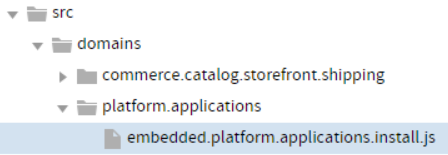
<table><colgroup><col /> </colgroup><colgroup><col /></colgroup><tbody><tr><td><strong>domains</strong></td><td>This folder contains the JavaScript files where you code your custom functions. The files are named for the action they bind to and are organized by the domain to which the action pertains. For example, the <code>embedded.platform.applications.install.js</code> file, in the <code>platform.applications</code>domain folder, is where you code the custom function that binds to the action that occurs when the application is installed to a sandbox.<br /><img class="img-responsive fr-fil fr-dib" src="https://mintcdn.com/kibocommerce-59e68a4a/J4w9KvWH3YVo4Mms/img/api-extensions-javascript-file.png?fit=max&auto=format&n=J4w9KvWH3YVo4Mms&q=85&s=b953b98a5d238e4c8738a825aa159819" width="448" height="155" data-path="img/api-extensions-javascript-file.png" /></td></tr><tr><td><strong>manifest.js files</strong></td><td>These files define the relationship between custom functions and the actions they bind to. The build task autogenerates these files based on the settings you specify in the Yeoman scaffolding tool, and then leverages the manifest files to generate the <code>functions.json</code> file.</td></tr></tbody></table>

## The Structure of the Action Files

The action files are the Javascript files in which you code the custom functionality that you want to bind to actions. The naming and structure of these files follows the REST resource hierarchy.

### Filename Syntax

`Type.Domain.Action.Occurrence`

<table><tbody><tr><td><strong>Type</strong></td><td>Identifies the [type of action](/pages/types-of-actions).</td></tr><tr><td><strong>Domain</strong></td><td>Identifies the domain of the action, which specifies what part of the API hierarchy the action interacts with. For example, <code>commerce.carts</code> or <code>commerce.customer</code>.</td></tr><tr><td><strong>Action</strong></td><td>Identifies the HTTP or action that runs the custom function. For example, <code>updateItem</code>.</td></tr><tr><td><strong>Occurrence</strong></td><td><p>Specifies whether the custom function runs before or after the HTTP or Kibo action occurs. For example, for an HTTP action, <code>before</code> runs the function when the HTTP request occurs in Kibo but before Kibo executes the request, and <code>after</code> runs the function after Kibo executes the request and is ready to send the HTTP response. Not every action includes this element.</p></td></tr></tbody></table>

### Example

`embedded.commerce.orders.price.after`

This embedded action executes the custom functions associated with it after a price for an order is set.

To see the full list of actions available in API Extensions, refer to the [reference documentation](/pages/introduction-api-extensions-reference).