> ## Documentation Index
> Fetch the complete documentation index at: https://docs.kibocommerce.com/llms.txt
> Use this file to discover all available pages before exploring further.
# Substitutions in Fulfiller UI
If the [Substitutions feature](/pages/substitute-products-overview "Substitute Products Overview") is configured and a product is unavailable after an order has been placed, fulfillers can substitute a similar product during the fulfillment process.
See how to handle product substitutions during fulfillment
## View Pre-Fulfillment Substitutions
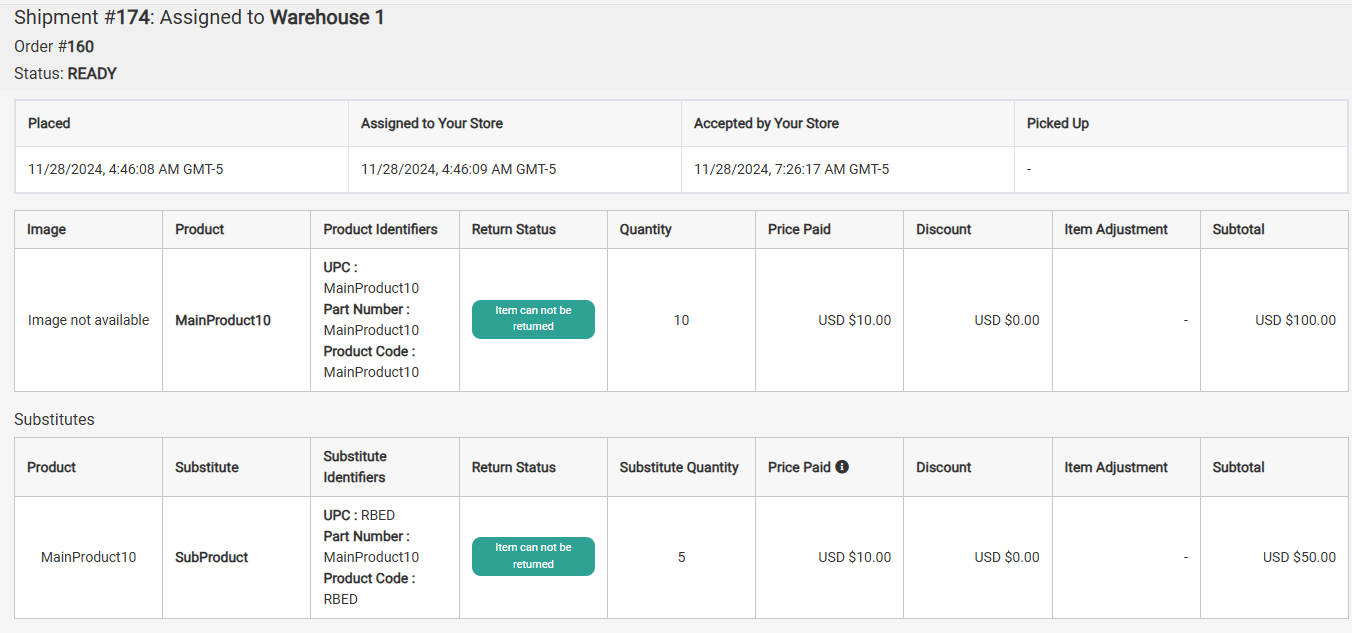
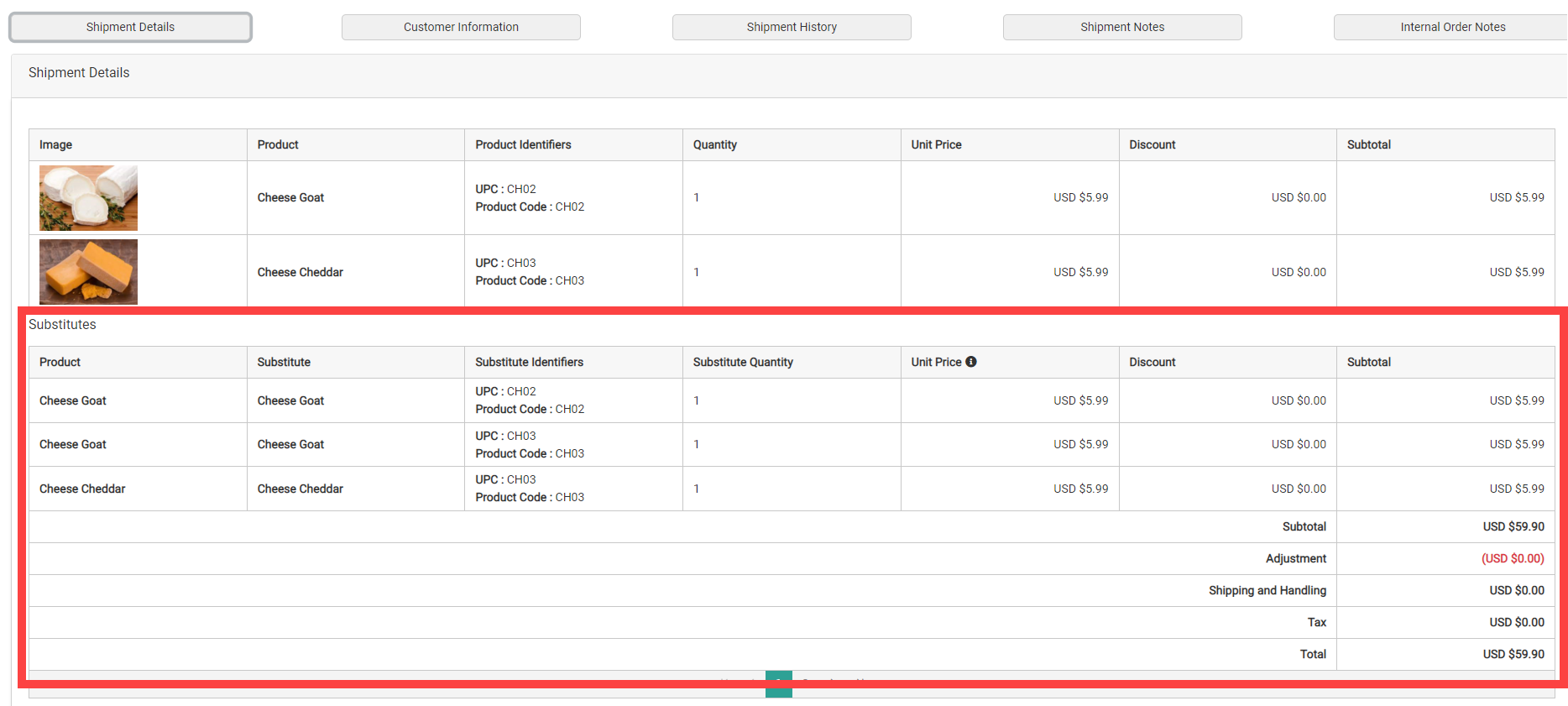
If a substitution was already performed on the shipment, (as either an automatic substitution or from the Admin UI), then the original line item and the substitute will be displayed in separate tables on the Fulfiller UI's shipment details.
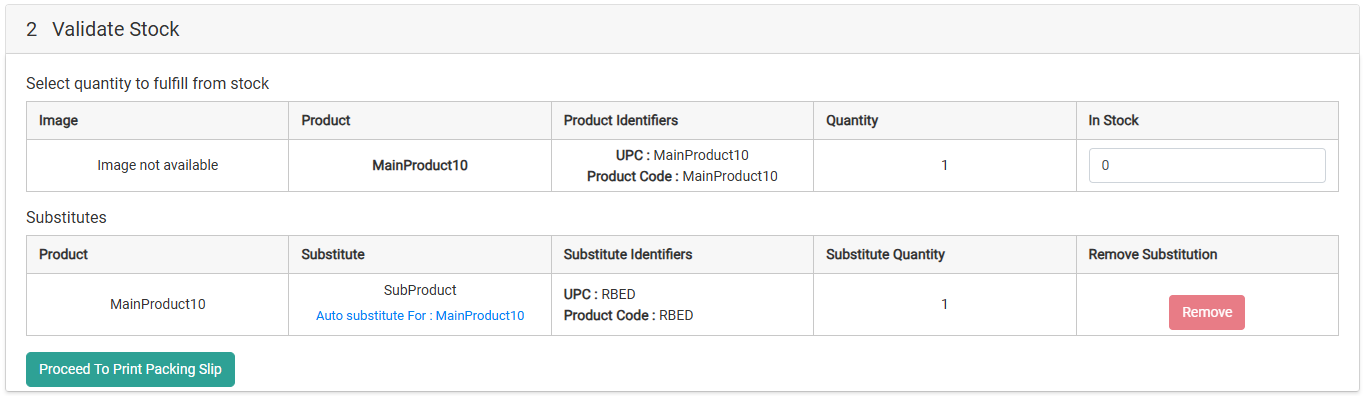
 This distinct line item will continue to be reflected in fulfillment steps such as Validate Stock, where you can update the item's In Stock quantity and remove the substitute if needed.
 If the substitute product was a bundle, each component product and their quantities will be displayed underneath the bundle name. Components cannot be removed individually.
 ## Perform a Manual Substitution
When an STH, BOPIS, or Delivery (not Assembly or Curbside) shipment item is eligible for substitution, the option to perform a manual substitution will be available during the Validate Stock step. To be eligible, substitutions must be configured for the product and the shopper must not have [opted out of substitutions](/pages/shopper-preferences "Shopper Preferences") while placing their order.
Manual substitutions will not be available if an automatic or Admin UI substitution has already occurred for that item. However, you can still validate stock, reject, or reassign it just like any other line item.
1. At the Validate Stock step, if the In Stock Quantity is less than the required Quantity then **Substitute** will appear next to that line item. Click this to begin the substitution process.
## Perform a Manual Substitution
When an STH, BOPIS, or Delivery (not Assembly or Curbside) shipment item is eligible for substitution, the option to perform a manual substitution will be available during the Validate Stock step. To be eligible, substitutions must be configured for the product and the shopper must not have [opted out of substitutions](/pages/shopper-preferences "Shopper Preferences") while placing their order.
Manual substitutions will not be available if an automatic or Admin UI substitution has already occurred for that item. However, you can still validate stock, reject, or reassign it just like any other line item.
1. At the Validate Stock step, if the In Stock Quantity is less than the required Quantity then **Substitute** will appear next to that line item. Click this to begin the substitution process.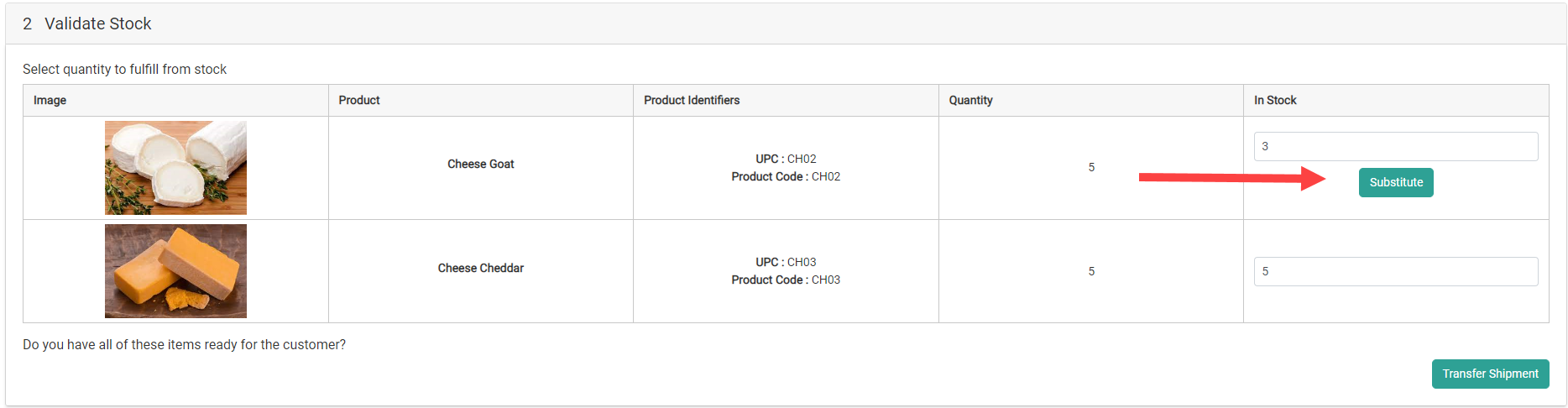 2. Eligible substitutes and their available inventory at the fulfillment location will be displayed. If the shopper [selected a preferred substitute product while placing the order](/pages/shopper-preferences "Shopper Preferences"), then their selection will be the only option displayed. **
 **
3. Enter a **Reason** for the substitution and the **Substitute Quantity** of each product you want to substitute with. If the product is a bundle, it will appear as one line item containing all components (such as the example shown in the previous section).
4. Click **Confirm**.
5. The substitutes will be displayed in a new table underneath the original line items, where you can click **Remove** to remove them from the shipment if desired.
**
3. Enter a **Reason** for the substitution and the **Substitute Quantity** of each product you want to substitute with. If the product is a bundle, it will appear as one line item containing all components (such as the example shown in the previous section).
4. Click **Confirm**.
5. The substitutes will be displayed in a new table underneath the original line items, where you can click **Remove** to remove them from the shipment if desired. 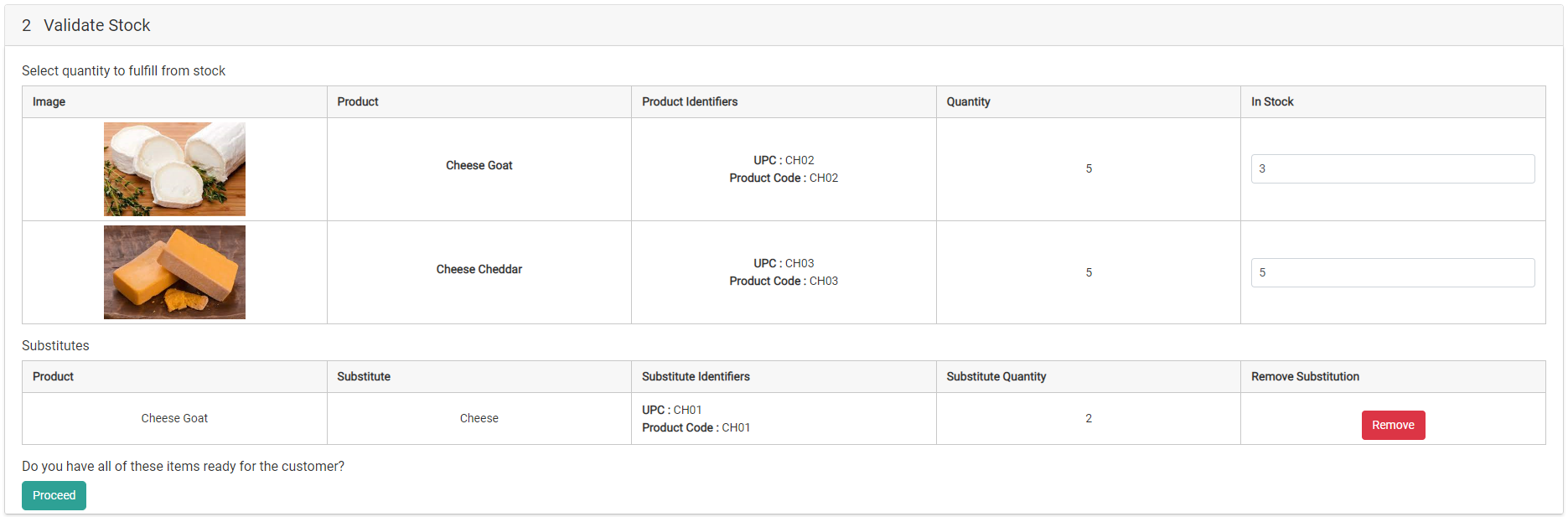 6. You can now continue with the fulfillment process as usual. The substitute item's inventory will be allocated while the original item's quantity will be deallocated. The substitutions will also be included on any packing slips and pick sheets.
Once a substitution has been made, information about the item and substituted quantity is listed on the shipment details and can be displayed in Shipment Confirmation notifications.
6. You can now continue with the fulfillment process as usual. The substitute item's inventory will be allocated while the original item's quantity will be deallocated. The substitutions will also be included on any packing slips and pick sheets.
Once a substitution has been made, information about the item and substituted quantity is listed on the shipment details and can be displayed in Shipment Confirmation notifications.
 ## Cancel and Return Substitutions
If the original line item is cancelled from the shipment, any associated substitute item(s) will be removed from the shipment as well.
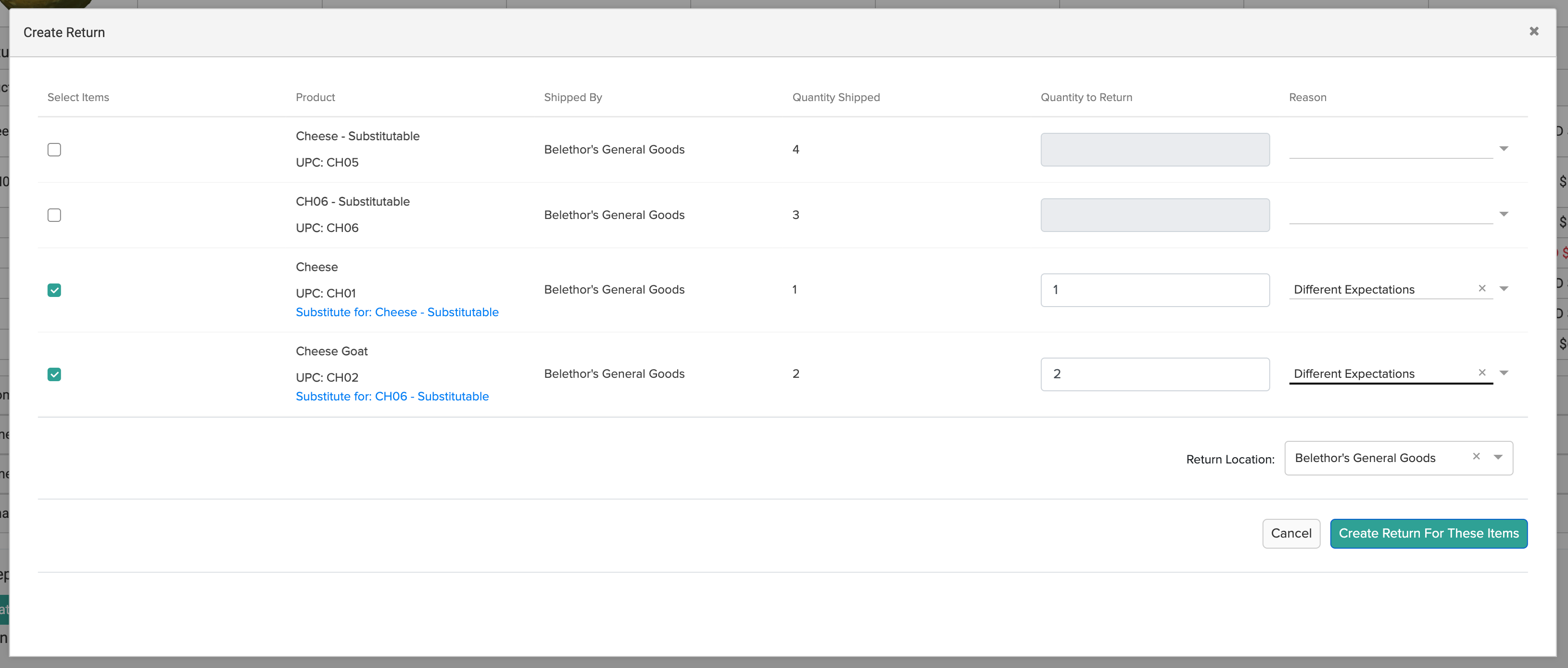
If a substitute item is returnable, then it will be listed in [the Create Return and Process Return modals](/pages/fulfiller-returns). Substitutes will be labelled to help identify them and which shipment item they were originally substituted for.
## Cancel and Return Substitutions
If the original line item is cancelled from the shipment, any associated substitute item(s) will be removed from the shipment as well.
If a substitute item is returnable, then it will be listed in [the Create Return and Process Return modals](/pages/fulfiller-returns). Substitutes will be labelled to help identify them and which shipment item they were originally substituted for.