> ## Documentation Index
> Fetch the complete documentation index at: https://docs.kibocommerce.com/llms.txt
> Use this file to discover all available pages before exploring further.
# Subscription Installments
Installment plans allow subscription orders to be paid for in multiple installment payments.
This feature is supported for [out-of-the-box payment gateways](/pages/payment-gateways "Payment Gateways"). If you want to use it with third-party payments, such as PayPal, then you must [write a custom application](/pages/get-started-with-applications "Get Started with Applications") integrating that gateway with installments.
## How Installments Work
When an order is created with an installment plan, it will capture the first payment amount and then begin charging installments according to the configured frequency. There are no restrictions requiring one continuity order to be paid off before the next order is placed— if some amount is still owed when the next order date arrives, the order will still be successfully placed and its installments will be due separately from the previous order.
The order should be moved to Fulfilled after that initial payment is made, where it will remain open until all installments have been collected and the cost is fully paid off. At that point, it is finally marked as Completed. If the order is cancelled at any point, no further installment payments will be made.
The order MUST be in the Fulfilled status for any further installment payments to be created after the first payment.
### Installment Payment Statuses
Installment payments have their own statuses to be aware of.
| Status | Description |
| ------------ | ------------------------------------------------------------------------------------------------------------------------------------------------------------ |
| Authorized | The payment has been authorized, but not yet captured. The first installment payment will always remain in the Authorized status, even after it is captured. |
| Pending | This is the initial state of payment on an installment. |
| PendingOrder | A payment action was attempted, but the order is not yet in a valid (Fulfilled) status. |
| Collected | The order is complete and the payment has been paid or captured. |
| Cancelled | The order associated with the installment has been cancelled. |
## Set Up Installments
This feature must be enabled on your tenant before you can configure installment plans in the Admin UI.
### Enable Installments
You must request [Kibo Support](https://help.kibocommerce.com/) to enable this feature in your tenant configurations, at which point the interface will become available.
Then, you must install an application in the Dev Center to handle the installment logic. Kibo provides a default application that you can install [here](https://developer.mozu.com/console/marketplace/mzint.installment_payment_arc) or by submitting a request to Kibo.
### Configure Installment Plans
1. Go to **System** > **Settings** > **Installment Plans**.
2. Click **Create New Installment Plan**. This will bring up a form with installment configurations. 3. Enter an **Installment Plan ID**.
4. Enter an **Installment Plan Code**. This should be unique, as it is used when assigning installment plans to subscriptions and creating payments on the initial order.
5. Enter a **Number of Installments** to determine how many installment payments should be made, including the initial payment.
6. Enter the **First Installment Amount** to determine how much the customer should pay for the first payment on the initial order. If the order total is less than this value, then the entire order total will be paid for with the initial payment. If the order total is greater than this value, the difference is divided evenly between the remaining installment payments.
* This does not persist to continuity orders of the subscription. For continuity orders, the tax, shipping cost (if Prorate Shipping Amount is disabled), and cost of any non-subscription items will be added to the first installment payment. The remaining amount is divided evenly amongst all payments including the first.
* If this field is left blank, then the initial order's first installment amount will be calculated the same way as continuity orders.
7. Enable the **Prorate Shipping Amount** option if you want to split shipping costs between payments. If enabled, the shipping total will be split amongst all installment payments. If disabled, the shipping total will be included in the first installment payment.
8. Enter the **Installment Frequency**, which is the number of days between each installment payment.
9. Click **Save**.
3. Enter an **Installment Plan ID**.
4. Enter an **Installment Plan Code**. This should be unique, as it is used when assigning installment plans to subscriptions and creating payments on the initial order.
5. Enter a **Number of Installments** to determine how many installment payments should be made, including the initial payment.
6. Enter the **First Installment Amount** to determine how much the customer should pay for the first payment on the initial order. If the order total is less than this value, then the entire order total will be paid for with the initial payment. If the order total is greater than this value, the difference is divided evenly between the remaining installment payments.
* This does not persist to continuity orders of the subscription. For continuity orders, the tax, shipping cost (if Prorate Shipping Amount is disabled), and cost of any non-subscription items will be added to the first installment payment. The remaining amount is divided evenly amongst all payments including the first.
* If this field is left blank, then the initial order's first installment amount will be calculated the same way as continuity orders.
7. Enable the **Prorate Shipping Amount** option if you want to split shipping costs between payments. If enabled, the shipping total will be split amongst all installment payments. If disabled, the shipping total will be included in the first installment payment.
8. Enter the **Installment Frequency**, which is the number of days between each installment payment.
9. Click **Save**.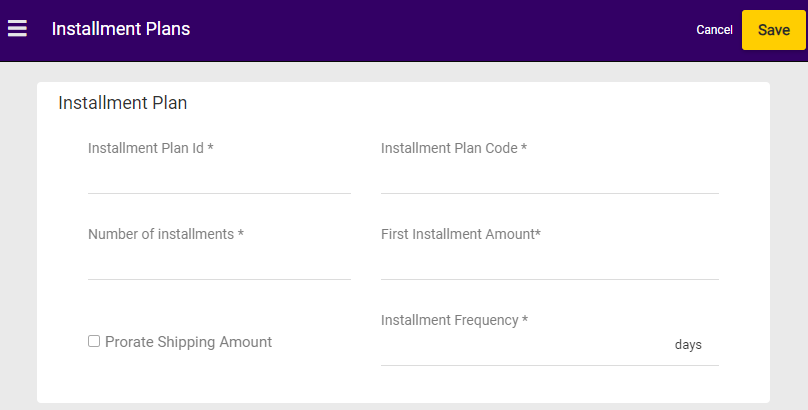 There is no restriction to how many installments you can set up, as long as their Installment Plan Codes are unique.
### Calculations
The below logic is used for calculating installment payments for initial orders based on the installment plan settings.
* If **First Installment Amount** is set:
* First payment amount = First Installment Amount
* Remaining total split evenly amongst remaining installment payments
* If **First Installment Amount** is not set and **Prorate Shipping Amount** is enabled:
* First payment amount = order.taxTotal + nonSubscribedItemsTotal + (order.total - order.taxTotal - nonSubscribedItemsTotal) / noOfPayments
* Remaining total split evenly amongst remaining installment payments
* If **First Installment Amount** is not set and **Prorate Shipping Amount** is disabled:
* First payment amount = order.taxTotal + order.shippingTotal + nonSubscribedItemsTotal + (order.total - order.taxTotal - order.shippingTotal - nonSubscribedItemsTotal) / noOfPayments
* Remaining total split evenly amongst remaining installment payments
The below logic is used for calculating installment payments for continuity orders based on the installment plan settings. Continuity orders do not factor in the First Installment Amount.
* If **Prorate Shipping Amount** is enabled:
* First payment amount = order.taxTotal + nonSubscribedItemsTotal + (order.total - order.taxTotal - nonSubscribedItemsTotal) / noOfPayments
* Remaining total split evenly amongst remaining installment payments
* If **Prorate Shipping Amount** is disabled:
* First payment amount = order.taxTotal + order.shippingTotal + nonSubscribedItemsTotal + (order.total - order.taxTotal - order.shippingTotal - nonSubscribedItemsTotal) / noOfPayments
* Remaining total split evenly amongst remaining installment payments
### Example
In this example, an order is placed with the following options:
* Order Total (including shipping and tax): \$25
* Shipping Total: \$10
* Tax Total: \$5
* Number of Installments: 3
* First Installment Amount: \$5
* Ship Amount Prorate: False
The initial order will have a first installment amount of \$5. The second and third installment payments will each be \$10.
Continuity orders will have a first payment amount of \$18.33 (which is the tax + shipping + remainder divided amongst all shipments). The second and third installments will be \$3.33 and \$3.34 (to account for penny rounding).
## Set Installment on Subscription
Installments should be added to initial orders via the Create Payment API, and then installment data will be passed on to the subscription and its continuity orders.
### Initial Order
When an initial order is placed, you must make a [Create Payment Action API](/api-reference/order/create-payment-action) request to create a payment with a valid `installmentPlanCode`. This must be set when an initial order is placed, otherwise the full amount will be charged immediately. The system will then adjust the payment amount in respect to the installment plan and create all necessary payment records, then pass the installment data to the subscription for use with future continuity orders. See the partial example below:
```
{
"ActionName": "CreatePayment",
"InstallmentPlanCode":"Installment_Plan1",
"CurrencyCode": "USD",
...
}
```
If an installment plan wasn't provided with the initial order payment when the subscription was activated, you can [add an installment to an existing subscription](#change-an-installment-plan) and it will go into effect with the next continuity order.
### Offline Orders
You cannot currently select an installment in the Admin UI when [creating an offline order.](/pages/create-offline-orders "Create Offline Orders") Instead, you should start the offline order process in the UI and then make the Create Payment API request as shown above. Then, you can return to the UI to finish placing the order.
### Continuity Orders
Continuity orders will automatically have the installment plan code passed to them from the subscription and their payments scheduled appropriately. However, you can always change an installment plan between continuity orders or add an installment to an existing subscription as detailed in [the Manage Installments section](#change-an-installment-plan).
Note that continuity orders will have an `installmentNumber` field in their order.payments.data that tracks all payments made on the order, allowing you to identify the sequence they were made in. For instance, an `installmentNumber` of 3 means that the payment is the third in the installment series.
```
"payments":[
{
"data": {
"orderType": "initialSubscription",
"isInstallmentOrder": true,
"networkTransactionId": null,
"isInstallmentJobInvocation": true,
"installmentNumber": 3
}
}
]
```
## Manage Installments
Installments are maintained separately per subscription order—for instance, if one continuity order is placed before the previous order is fully paid off and they both have installments due on the same day, those will not be combined into one payment.
### Change an Installment Plan
You can change a subscription's installment plan at any point and it will go into effect with the next continuity order. It won't change any payments still owed on an order placed with the previous installment plan.
1. Navigate to the subscription's details page.
2. In the Payment section, click **Switch Payment Plan** in the Payment Options drop-down.
There is no restriction to how many installments you can set up, as long as their Installment Plan Codes are unique.
### Calculations
The below logic is used for calculating installment payments for initial orders based on the installment plan settings.
* If **First Installment Amount** is set:
* First payment amount = First Installment Amount
* Remaining total split evenly amongst remaining installment payments
* If **First Installment Amount** is not set and **Prorate Shipping Amount** is enabled:
* First payment amount = order.taxTotal + nonSubscribedItemsTotal + (order.total - order.taxTotal - nonSubscribedItemsTotal) / noOfPayments
* Remaining total split evenly amongst remaining installment payments
* If **First Installment Amount** is not set and **Prorate Shipping Amount** is disabled:
* First payment amount = order.taxTotal + order.shippingTotal + nonSubscribedItemsTotal + (order.total - order.taxTotal - order.shippingTotal - nonSubscribedItemsTotal) / noOfPayments
* Remaining total split evenly amongst remaining installment payments
The below logic is used for calculating installment payments for continuity orders based on the installment plan settings. Continuity orders do not factor in the First Installment Amount.
* If **Prorate Shipping Amount** is enabled:
* First payment amount = order.taxTotal + nonSubscribedItemsTotal + (order.total - order.taxTotal - nonSubscribedItemsTotal) / noOfPayments
* Remaining total split evenly amongst remaining installment payments
* If **Prorate Shipping Amount** is disabled:
* First payment amount = order.taxTotal + order.shippingTotal + nonSubscribedItemsTotal + (order.total - order.taxTotal - order.shippingTotal - nonSubscribedItemsTotal) / noOfPayments
* Remaining total split evenly amongst remaining installment payments
### Example
In this example, an order is placed with the following options:
* Order Total (including shipping and tax): \$25
* Shipping Total: \$10
* Tax Total: \$5
* Number of Installments: 3
* First Installment Amount: \$5
* Ship Amount Prorate: False
The initial order will have a first installment amount of \$5. The second and third installment payments will each be \$10.
Continuity orders will have a first payment amount of \$18.33 (which is the tax + shipping + remainder divided amongst all shipments). The second and third installments will be \$3.33 and \$3.34 (to account for penny rounding).
## Set Installment on Subscription
Installments should be added to initial orders via the Create Payment API, and then installment data will be passed on to the subscription and its continuity orders.
### Initial Order
When an initial order is placed, you must make a [Create Payment Action API](/api-reference/order/create-payment-action) request to create a payment with a valid `installmentPlanCode`. This must be set when an initial order is placed, otherwise the full amount will be charged immediately. The system will then adjust the payment amount in respect to the installment plan and create all necessary payment records, then pass the installment data to the subscription for use with future continuity orders. See the partial example below:
```
{
"ActionName": "CreatePayment",
"InstallmentPlanCode":"Installment_Plan1",
"CurrencyCode": "USD",
...
}
```
If an installment plan wasn't provided with the initial order payment when the subscription was activated, you can [add an installment to an existing subscription](#change-an-installment-plan) and it will go into effect with the next continuity order.
### Offline Orders
You cannot currently select an installment in the Admin UI when [creating an offline order.](/pages/create-offline-orders "Create Offline Orders") Instead, you should start the offline order process in the UI and then make the Create Payment API request as shown above. Then, you can return to the UI to finish placing the order.
### Continuity Orders
Continuity orders will automatically have the installment plan code passed to them from the subscription and their payments scheduled appropriately. However, you can always change an installment plan between continuity orders or add an installment to an existing subscription as detailed in [the Manage Installments section](#change-an-installment-plan).
Note that continuity orders will have an `installmentNumber` field in their order.payments.data that tracks all payments made on the order, allowing you to identify the sequence they were made in. For instance, an `installmentNumber` of 3 means that the payment is the third in the installment series.
```
"payments":[
{
"data": {
"orderType": "initialSubscription",
"isInstallmentOrder": true,
"networkTransactionId": null,
"isInstallmentJobInvocation": true,
"installmentNumber": 3
}
}
]
```
## Manage Installments
Installments are maintained separately per subscription order—for instance, if one continuity order is placed before the previous order is fully paid off and they both have installments due on the same day, those will not be combined into one payment.
### Change an Installment Plan
You can change a subscription's installment plan at any point and it will go into effect with the next continuity order. It won't change any payments still owed on an order placed with the previous installment plan.
1. Navigate to the subscription's details page.
2. In the Payment section, click **Switch Payment Plan** in the Payment Options drop-down.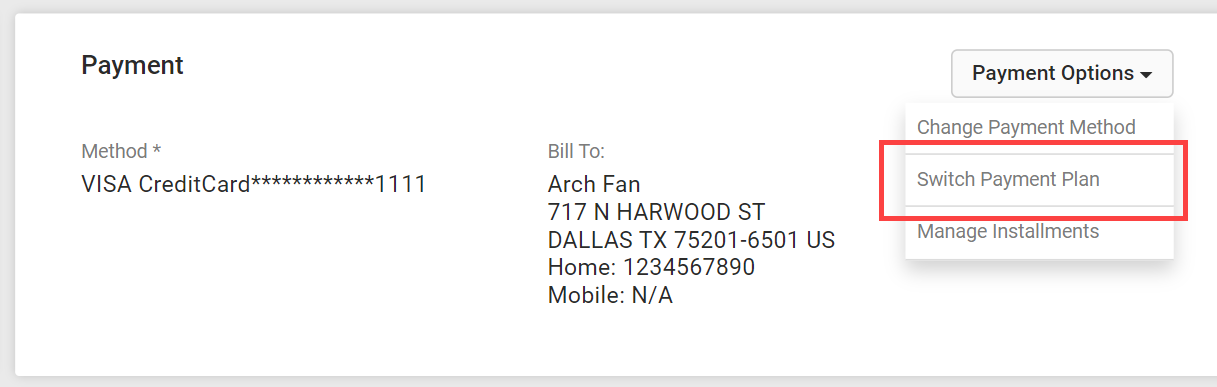 3. In the pop-up that appears, select an installment plan from the **Pay in installments** drop-down (which should already be toggled on).
 4. Click **Save**.
Instead of using the interface, you can also change a subscription's existing installment plan by calling `PUT .../commerce/subscriptions/id/installmentPlan?updateMode={updateMode)&responseFields={responseFields}` with the new `installmentPlanCode`.
Once a subscription order is set to collect payment via installments, you cannot change the payment amounts nor the number of scheduled payments. This information is determined by the system when the order is created.
### Cancel Installment Payments
You can cancel individual installment payments for orders:
1. Navigate to the subscription's details page.
2. In the Payment section, click **Manage Installments** in the Payment Options drop-down. This will take you to the Order History page. Alternatively, you can click the **Order History** tab at the top of the page.
4. Click **Save**.
Instead of using the interface, you can also change a subscription's existing installment plan by calling `PUT .../commerce/subscriptions/id/installmentPlan?updateMode={updateMode)&responseFields={responseFields}` with the new `installmentPlanCode`.
Once a subscription order is set to collect payment via installments, you cannot change the payment amounts nor the number of scheduled payments. This information is determined by the system when the order is created.
### Cancel Installment Payments
You can cancel individual installment payments for orders:
1. Navigate to the subscription's details page.
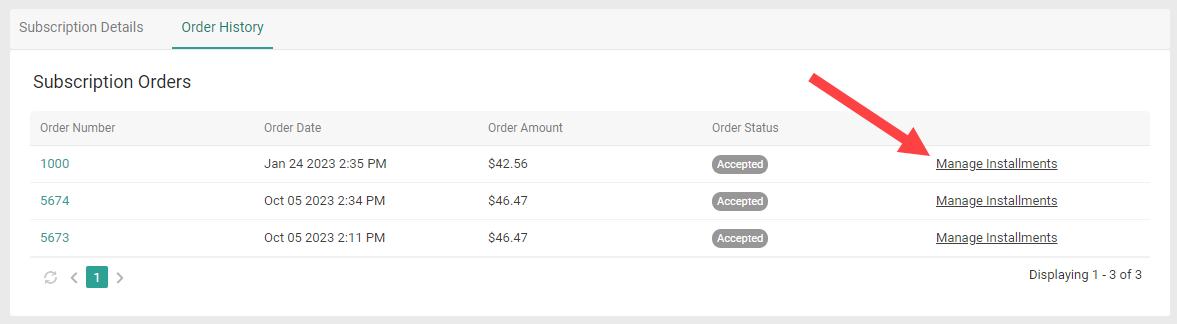
2. In the Payment section, click **Manage Installments** in the Payment Options drop-down. This will take you to the Order History page. Alternatively, you can click the **Order History** tab at the top of the page.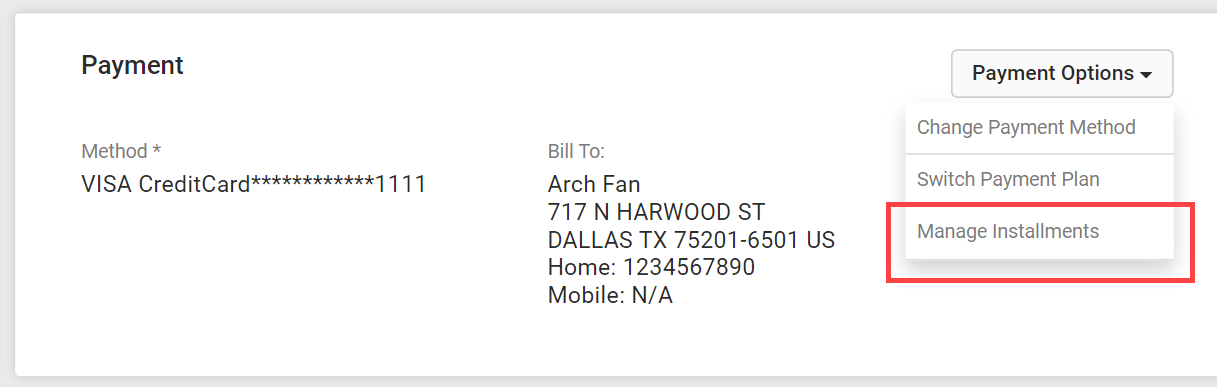 3. Click the **Manage Installments** link for the order you want to update. The pop-up that appears will display a list of all installment payments scheduled in that order's installment plan.
  4. Click the checkbox for the future payment(s) you want to cancel. Any payments that have already been made will be greyed out.\\
 5. Click **Cancel Installment**.
A cancelled installment payment will not be processed, but the system will not automatically do anything to rectify the amount due for the cancelled payment (such as redistributing the amount to other scheduled installments). It is up to the Admin user to handle this scenario and charge a new payment for balance that may still be required.
5. Click **Cancel Installment**.
A cancelled installment payment will not be processed, but the system will not automatically do anything to rectify the amount due for the cancelled payment (such as redistributing the amount to other scheduled installments). It is up to the Admin user to handle this scenario and charge a new payment for balance that may still be required.