> ## Documentation Index
> Fetch the complete documentation index at: https://docs.kibocommerce.com/llms.txt
> Use this file to discover all available pages before exploring further.

# Stripe Application

<table class="appcard"><tbody><tr><td><img src="https://mintcdn.com/kibocommerce-59e68a4a/ByE7VB0BBLbMBpJV/img/stripe-logo.png?fit=max&auto=format&n=ByE7VB0BBLbMBpJV&q=85&s=7cd15e30dd8257c0eaffa89effc1b387" alt="Stripe logo" class="fr-fic fr-dii img-responsive" width="544" height="259" data-path="img/stripe-logo.png" /></td></tr><tr><td><strong>Platforms:</strong> KCCP eCommerce and eCommerce+OMS</td></tr></tbody></table>

[Stripe](https://stripe.com/docs) is a digital payment processor currently supporting over 40 countries. Kibo's Stripe Integration application enables you to easily add Stripe's payment functionality to your existing eCommerce payment options.

## Setup Overview

The following steps are required before you can use Stripe on your site(s):

1. Reach out to your SI partner or Kibo's professional services and enablement team for assistance installing the application.
2. Kibo will install the application and configure your payment gateway adapter.
3. Create a Stripe gateway on your Payment Settings page.

## Enable the App

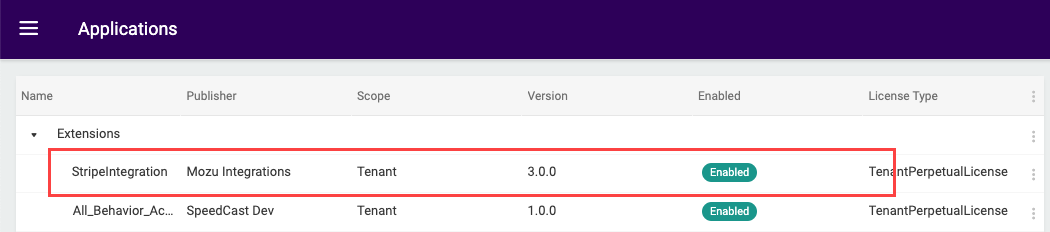
After configuration, you can go to **System** > **Customization** > **Applications** in the Admin UI and confirm that the Stripe Integration application is listed and enabled. You can disable it here if ever needed.

<img src="https://mintcdn.com/kibocommerce-59e68a4a/ByE7VB0BBLbMBpJV/img/stripe-application-enabled.png?fit=max&auto=format&n=ByE7VB0BBLbMBpJV&q=85&s=8f2b41914801c36342b8ac4f71ad59fa" alt="The Applications UI with a callout for the enabled StripeIntegration application" width="1050" height="232" data-path="img/stripe-application-enabled.png" />

## Configure Payment Gateway

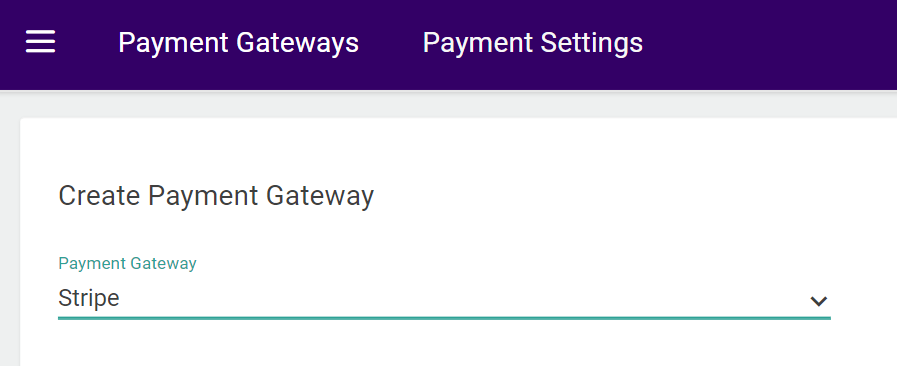
Create a new payment gateway for Stripe:

1. Go to **System** > **Settings** > **Payment Gateways**.
2. Click **Create New Payment Gateway**.
3. In the Payment Gateway drop-down menu, select the Stripe app.
4. Provide your **Secret API Key**.
5. Click **Save**. <img src="https://mintcdn.com/kibocommerce-59e68a4a/ByE7VB0BBLbMBpJV/img/stripe-gateway.png?fit=max&auto=format&n=ByE7VB0BBLbMBpJV&q=85&s=86e072dbc836e4cc39ddba17ed193e56" alt="The Payment Gateways page with a Stripe gateway being created" width="897" height="366" data-path="img/stripe-gateway.png" />