> ## Documentation Index
> Fetch the complete documentation index at: https://docs.kibocommerce.com/llms.txt
> Use this file to discover all available pages before exploring further.
# Search Term Redirects
## Overview
Learn how to configure search term redirects
This function allows merchandisers to redirect a user to a specific URL based on specific search terms. Search Term Redirects applies to Site Search only. The user will be redirected to the new URL when they press Enter or click the search button after typing in a search term.
## Navigation
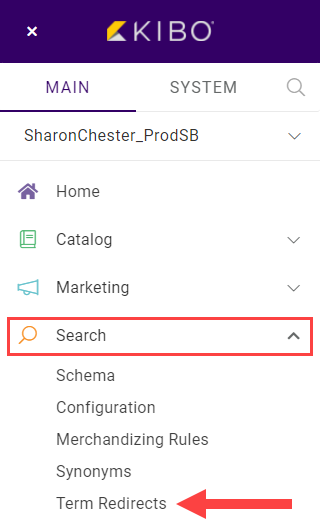
To access from the home page, click **MAIN** in the left-hand navigation, click the **Search** drop-down menu, and then click **Term** **Redirects**.\\
 ## List Entries
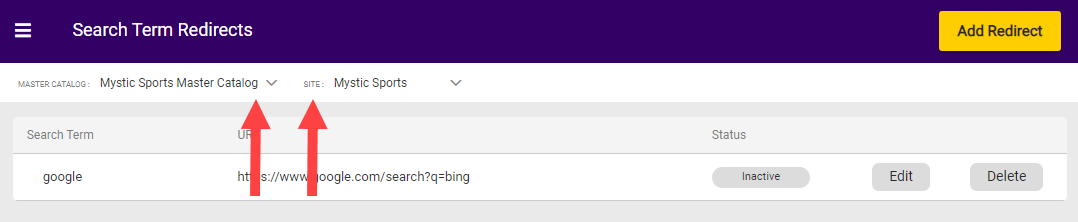
Like other configurations, Search Redirects are controlled inside of a catalog/site combination.
## List Entries
Like other configurations, Search Redirects are controlled inside of a catalog/site combination.
 Existing redirects are listed for each unique URL.
Redirects can be configured for a single term or multiple terms. When a single search term is used, that text is displayed in the list. When multiple search terms are used, they may be viewed by clicking the arrow to the left and expanding the list.
Existing redirects are listed for each unique URL.
Redirects can be configured for a single term or multiple terms. When a single search term is used, that text is displayed in the list. When multiple search terms are used, they may be viewed by clicking the arrow to the left and expanding the list.
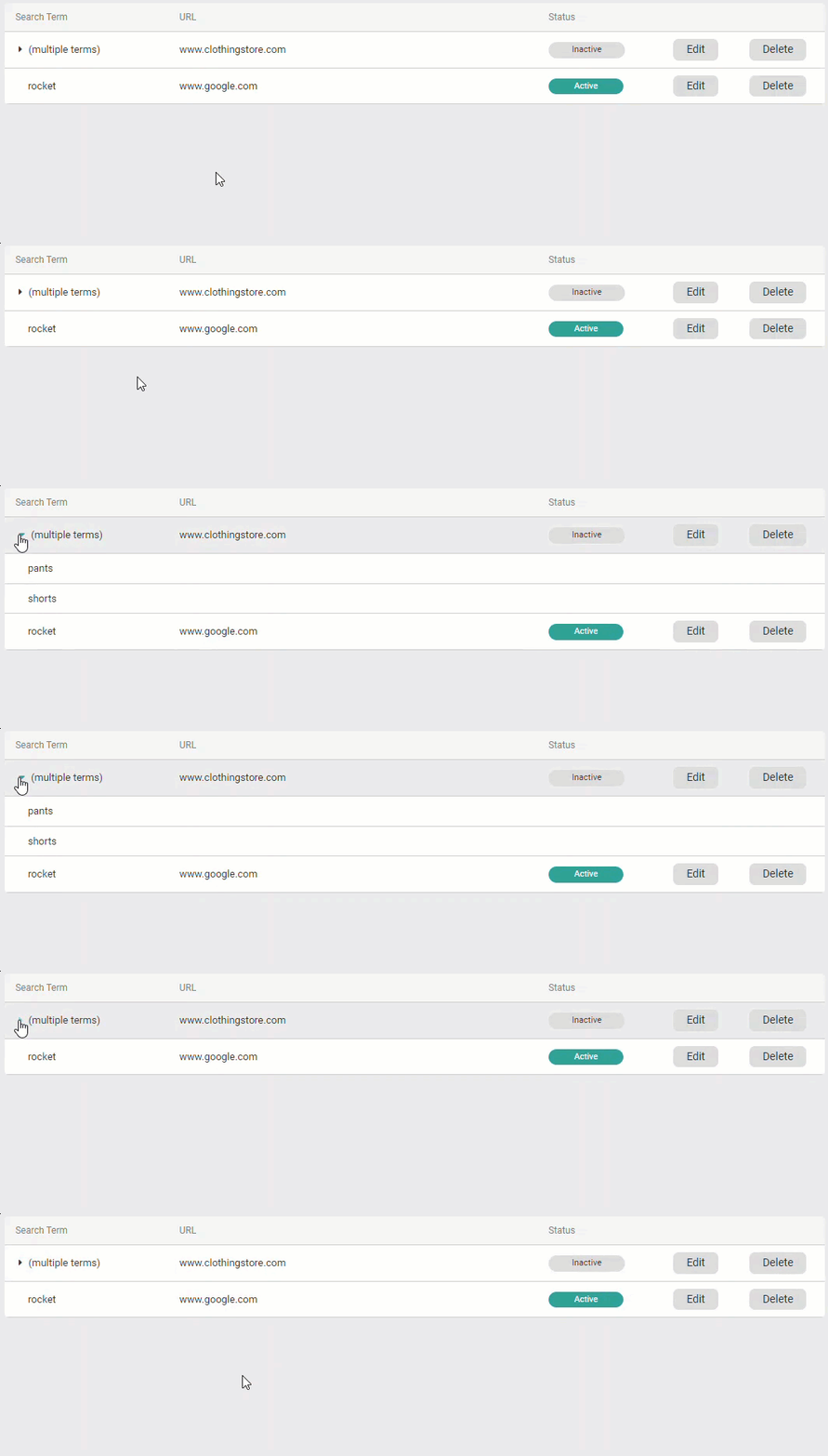 All redirects are created with an automatic status of Active. Click the button under Status to toggle a redirect entry between Active and Inactive.
 Additional options are found at the end of each row. Click **Edit** to adjust the terms or URL of a redirect. Click **Delete** to remove the redirect entirely.
 ## Creating Redirects
1. Click **Add Redirect**.\\
## Creating Redirects
1. Click **Add Redirect**.\\
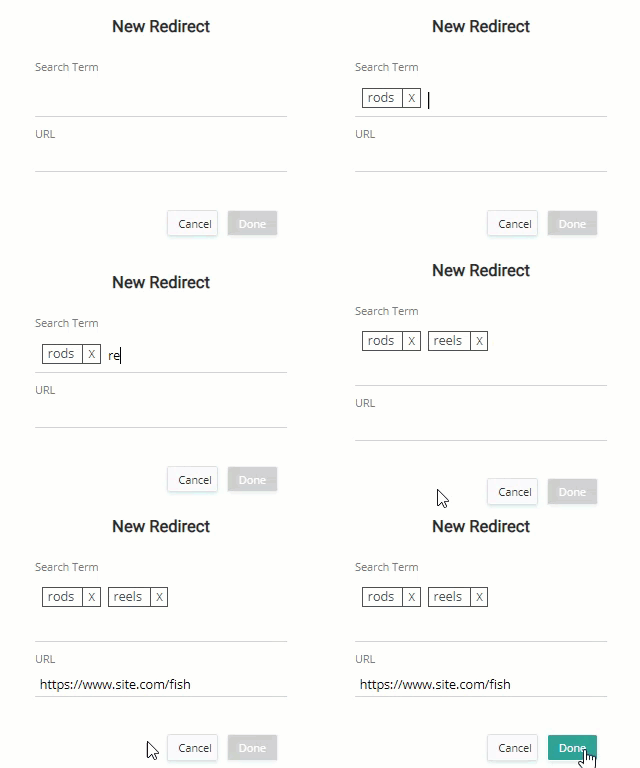
 2. Enter one or more search terms or phrases. Press **Enter** after each one. Enter the URL to which those terms should redirect. Click **Done**.\\
 The redirect URL is exact match and case insensitive.
3. To delete a search term, click the **X** next to it.\\
The redirect URL is exact match and case insensitive.
3. To delete a search term, click the **X** next to it.\\
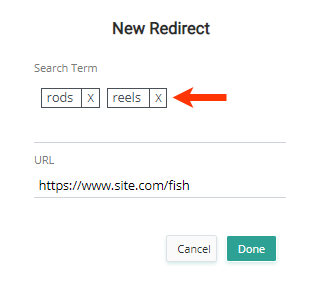 4. The modal will close and the new redirect entry will appear in the list.
Each redirect entry may have up to 100 terms added.
## Unique Redirects
Within the catalog and site configuration, search redirects must be unique. Search terms may not be duplicated in the same redirect. URLs cannot be used in more than one redirect. The following errors will be displayed for each case. The duplicated term(s) or URL will be shown at the end of the error message.
Repeating a search term:
4. The modal will close and the new redirect entry will appear in the list.
Each redirect entry may have up to 100 terms added.
## Unique Redirects
Within the catalog and site configuration, search redirects must be unique. Search terms may not be duplicated in the same redirect. URLs cannot be used in more than one redirect. The following errors will be displayed for each case. The duplicated term(s) or URL will be shown at the end of the error message.
Repeating a search term:
 Repeating a URL:
 ## Import/Export Redirects
You can use the Import/Export tool to update search term redirects by uploading a CSV file, or download a file with your current data. The CSV file should contain the following four columns:
* Site Name
* Redirect ID
* Populate this value to update an existing redirect, or leave it blank to insert a new entry.
* Search Term
* A list of search terms, with each term in quotes and separated by a comma.
* URL
* Status
* Either "active" or "inactive" to indicate the status of the redirect.
## Import/Export Redirects
You can use the Import/Export tool to update search term redirects by uploading a CSV file, or download a file with your current data. The CSV file should contain the following four columns:
* Site Name
* Redirect ID
* Populate this value to update an existing redirect, or leave it blank to insert a new entry.
* Search Term
* A list of search terms, with each term in quotes and separated by a comma.
* URL
* Status
* Either "active" or "inactive" to indicate the status of the redirect.
 ### Export Redirects
To perform an export:
1. Go to **Main** > **Marketing** > **Import/Export** if you have the application installed.
2. Select the **Export** tab in the modal that appears.
3. Select **Search Term Direct** from the Export type.
### Export Redirects
To perform an export:
1. Go to **Main** > **Marketing** > **Import/Export** if you have the application installed.
2. Select the **Export** tab in the modal that appears.
3. Select **Search Term Direct** from the Export type. 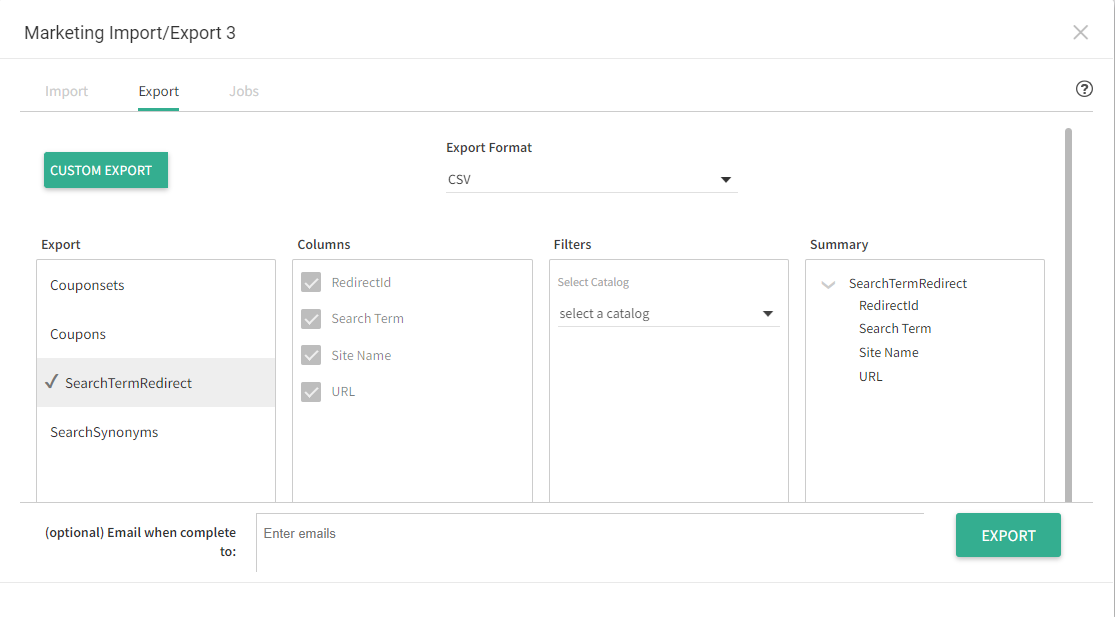 4. Optional: Select a catalog to filter your data by.
5. Optional: Enter one or more email addresses in the **Email when complete to:** section. If no email addresses are selected, then the file will be directly downloaded to your computer.
6. Click **Export** in the bottom right.
### Import Redirects
To perform an import:
1. Go to **Main** > **Marketing** > **Import/Export** if you have the application installed.
2. Select the **Import** tab in the modal that appears.
4. Optional: Select a catalog to filter your data by.
5. Optional: Enter one or more email addresses in the **Email when complete to:** section. If no email addresses are selected, then the file will be directly downloaded to your computer.
6. Click **Export** in the bottom right.
### Import Redirects
To perform an import:
1. Go to **Main** > **Marketing** > **Import/Export** if you have the application installed.
2. Select the **Import** tab in the modal that appears.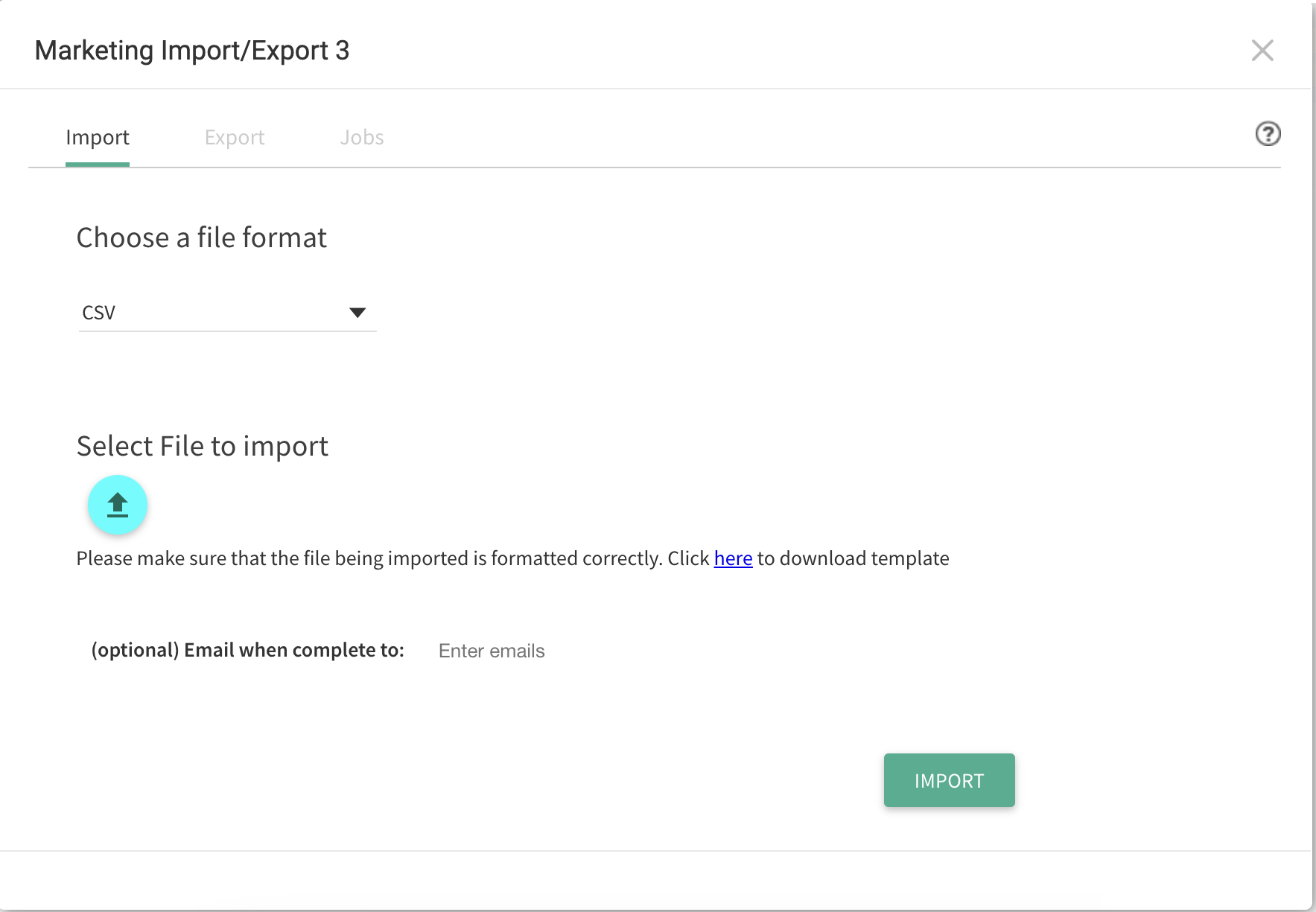 3. Select **CSV** as the file format.
4. Click the import icon to select a file from your file manager.
5. Optional: Enter one or more email addresses in the **Email when complete to:** section.
6. Click **Import** in the bottom right.
Your current redirects will not be deleted or replaced when importing a new file. Any new entries in the file will be added to your current redirects, and any existing redirects will be updated.
3. Select **CSV** as the file format.
4. Click the import icon to select a file from your file manager.
5. Optional: Enter one or more email addresses in the **Email when complete to:** section.
6. Click **Import** in the bottom right.
Your current redirects will not be deleted or replaced when importing a new file. Any new entries in the file will be added to your current redirects, and any existing redirects will be updated.