> ## Documentation Index
> Fetch the complete documentation index at: https://docs.kibocommerce.com/llms.txt
> Use this file to discover all available pages before exploring further.
# Search Configurations Overview
The Configurations Editor is the second step in your search configuration. This allows you to create a set of rules that applies to your site. Using the fields added in the Schema Editor, you can add additional parameters such as Product Slicing, MinMatch, Phrase Slop, Weight, Phrase Weight, Boost/Bury, and Whitespace.
Learn how to create and configure search settings
Learn how to create and manage merchandizing rules for search and categories
Learn how to create and manage search facets for filtering products
Learn how to use Splainer.io for debugging and analyzing search results
## Navigation
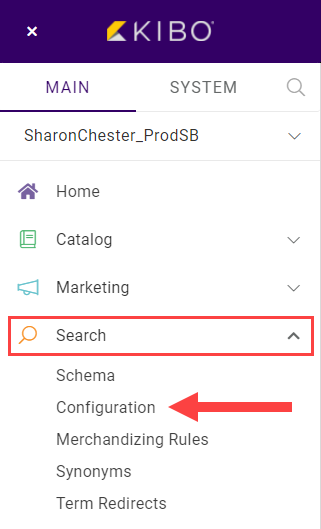
To access from the home page, click **MAIN** in the left-hand navigation, click the **Search** drop-down menu, and then click **Configuration**.
 ## List Entries
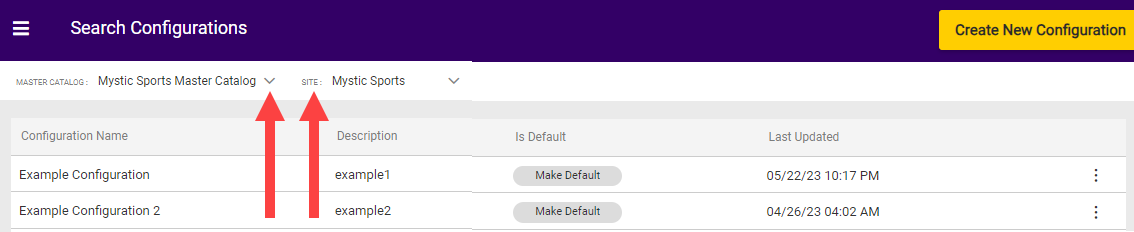
As with the Schema Editor, Search Configurations are controlled inside of a catalog/site combination. You can create various settings, but only a single setting can be marked as the Default and applied to your site at a time.
You can change the default setting at any time as needed if, for example, you create a setting for an event such as a promotion. In that case, set the promotion setting as the default during the appropriate time period, and then return to your standard default when it's over. Changes to existing settings can be started by clicking **Edit** or **Delete** at the end of the row. Any setting can be deleted except for the default.
## List Entries
As with the Schema Editor, Search Configurations are controlled inside of a catalog/site combination. You can create various settings, but only a single setting can be marked as the Default and applied to your site at a time.
You can change the default setting at any time as needed if, for example, you create a setting for an event such as a promotion. In that case, set the promotion setting as the default during the appropriate time period, and then return to your standard default when it's over. Changes to existing settings can be started by clicking **Edit** or **Delete** at the end of the row. Any setting can be deleted except for the default.