> ## Documentation Index
> Fetch the complete documentation index at: https://docs.kibocommerce.com/llms.txt
> Use this file to discover all available pages before exploring further.
# Reservations
Reservations are the soft inventory allocation mechanism within the Kibo B2B Wholesale OMS. When a buyer submits a Call-Off Order, inventory is not immediately committed to a shipment. Instead, the platform creates a **Reservation** — a soft claim on supply — that holds the right quantity of inventory against the buyer's order while the fulfillment lifecycle progresses. A reservation ensures that stock assigned to a B2B commitment is protected from being consumed by other order types, without locking it into a shipment prematurely.
Reservations sit between a Call-Off Order and a Sales Order in the B2B Wholesale OMS pipeline:
> **Blanket Order → Call-Off Order → Reservation → Sales Order**
>
> *(commitment ledger) → (draw-down request) → (soft allocation) → (fulfillment)*
The Reservation Service creates and manages reservations by working in conjunction with the [Reservation Rules Engine](/pages/call-off-reservation-rules). Rules determine which Call-Off Orders are eligible for reservation and in what priority order. Once a Call-Off Order line is matched by a rule, the Reservation Service soft-allocates inventory across one or more warehouse locations by calling Order Routing, constrained to a configurable time window around the line's requested ship date (see [Reservation Rules](/pages/reservation-rules) for time fence details).
## **Prerequisites**
Before working with Reservations, ensure the following are in place:
* The **B2B Wholesale OMS** feature is enabled for your tenant. Contact [Kibo Support](https://help.kibocommerce.com/) to enable this capability.
* Supply Demand UI(new Inventory UI) should be enabled for your tenant. Contact [Kibo Support](https://help.kibocommerce.com/) to enable this capability.
* At least one [Blanket Order](/pages/blanket-order) exists and is in **Open** status.
* At least one [**Call-Off Order**](/pages/call-off-orders) has been created against the Blanket Order and is in **Hold** status.
* At least one **Call Off** **Reservation Rule** is configured and enabled. See [Reservation Rules](/pages/call-off-reservation-rules) for configuration steps.
* The **Reservation batch job** is configured and scheduled at the site level. See [Batch Job Schedule](#batch-job-schedule) below.
## **How Reservations Work**
### **Reservation Lifecycle**
A Reservation is created and updated by the Reservation Service each time the batch job runs on its configured schedule. A Call-Off Order Line progresses through the following statuses based on the quantity reserved against the requested quantity:
| **Status** | **Condition** | **Description** |
| :--------------------- | :------------------------------- | :---------------------------------------------------------------------------------------------------------------------------------------------------- |
| **Hold** | `reservedQty = 0` | No inventory has been allocated yet. The line is awaiting the next batch run. |
| **Partially Reserved** | `0 < reservedQty < requestedQty` | Some inventory has been soft-allocated. The line will be re-evaluated in subsequent batch cycles as more inventory becomes available. |
| **Fully Reserved** | `reservedQty = requestedQty` | All requested inventory is soft-allocated. The line is eligible for evaluation by the [Call-Off Release Rules Engine](/pages/call-off-release-rules). |
Lines that are not fully reserved in a given cycle remain in **Partially Reserved** status and are automatically re-evaluated in the next batch run. Prior allocations are never lost — reservations accumulate incrementally across cycles.
### **Fill Rate**
Each Call-Off Order Line tracks a **fill rate**, calculated as `reservedQty ÷ requestedQty`. The fill rate is the shared data point between the Reservation Engine and the [Call-Off Release Rules Engine](/pages/call-off-release-rules): the Reservation Service writes the fill rate, and the Release Engine reads it to determine when a line is eligible to be converted into a Sales Order.
**Note:** A reservation never creates a Sales Order. Sales Order creation is handled exclusively by the Call-Off Release Rules Engine
### **Estimated Delivery Date**
Each time the Reservation Service allocates inventory against a Call-Off Order Line, it also calculates an **Estimated Delivery Date (EDD)** for that line. The EDD is a system-calculated, inventory-backed promise date representing when the reserved goods are expected to reach the buyer — distinct from the buyer's own **Requested Ship Date** input, which is used only to anchor the time fence window.
EDD is calculated and displayed at the **line-item level only**. There is no header-level EDD rollup on a Call-Off Order in this release.
#### **EDD Statuses**
The EDD on a Call-Off Order Line has two internal states:
| **EDD Status** | **When It Applies** | **Description** |
| :-------------- | :----------------------------------------------------- | :--------------------------------------------------------------------------------------------------------------------------------------------------------------------------------------------------------------------------------------------------------- |
| **Provisional** | Line is in Partially Reserved or Fully Reserved status | EDD has been calculated but may change. The system recalculates it on every batch cycle in which the line's reserved quantity increases. A cycle that produces no new allocation (delta = 0) does not trigger a recalculation — the prior EDD is retained. |
| **Final** | Line has been released (converted to a Sales Order) | EDD is locked at the moment of release. It is copied to the Sales Order Line Item and is no longer recalculated by the Reservation Service. Standard Sales Order EDD behavior governs the field from that point forward. |
**Example:**
A Call-Off Order Line has a requested quantity of 100 units.
* **Batch cycle 1 (Aug 1):** Reservation Service allocates 20 units → EDD calculated as **Aug 5**
* **Batch cycle 2 (Aug 10):** Reservation Service allocates the remaining 80 units → EDD recalculated as **Aug 20** (delta > 0, so recalculation triggers)
* **Released to Sales Order:** EDD locks at **Aug 20** and is copied to the Sales Order Line Item
#### **How EDD Is Calculated**
When the Reservation Service allocates inventory against a Call-Off Order Line in a batch cycle, it invokes Kibo's existing **EDD Suggestion API** for that line using the product code, quantity, fulfillment type, and the line's ship-to address.
The key distinction from standard EDD calculation is how the time fence is applied:
**When reservation drew from Future Inventory:** The EDD API's future-date reference is set to the lower bound of the line's time fence window (`requestedShipDate − timeFenceDays`) rather than the site's default Future Date Limit. This ensures the EDD search considers only the same inventory window the Reservation Rule was permitted to draw from — not a broader site-wide window — and returns the earliest attainable EDD within that fence. If the time fence overlaps with current on-hand inventory, current inventory is also considered.
**When reservation drew from Current Inventory only:** The EDD API is called without a future-date override. Standard current-inventory EDD calculation applies.
The resulting EDD reflects the Fulfillment Date at the reserved location plus the configured carrier shipping or delivery transit time for the line's fulfillment type.
#### **Multi-Location EDD**
A single Call-Off Order Line can accumulate reservations across multiple locations over successive batch cycles (see [Multi-Location Allocation](#multi-location-allocation)). When this occurs, the system calculates an EDD for each contributing location separately. The **line-level EDD displayed is the latest (maximum) EDD across all contributing locations** — consistent with Kibo's existing pattern for multi-location consolidation, where the latest fulfillment date across contributing sources determines the overall promise date.
**Example:**
| **Location** | **Reserved Qty** | **Calculated EDD** |
| :----------------- | :--------------- | :----------------- |
| Location A | 60 units | September 5 |
| Location B | 20 units | September 9 |
| **Line-level EDD** | **80 units** | **September 9** |
#### **EDD at Release — Finalization**
At the moment a Call-Off Order Line is released and converted into a Sales Order, the most recent Provisional EDD is **locked as Final** and copied onto the corresponding Sales Order Line Item. This is a one-time, one-directional copy at creation. Kibo's standard Sales Order and shipment EDD behavior — governs the field from that point forward.
### **Multi-Location Allocation**
A single Call-Off Order Line can accumulate reservations across multiple warehouse locations. If Order Routing identifies inventory at multiple locations to satisfy a line's quantity, the Reservation Service records individual allocations per location. In subsequent cycles, if the same location is recommended, the existing quantity at that location is incremented. If a new location is found, a new allocation entry is added.
**Example — Partial Reservation across multiple locations:**
| **UPC** | **Quantity Requested** | **Reservations** |
| :-------- | :--------------------- | :-------------------------------------------------------------- |
| ItemA-001 | 100 | Location A: 60 units, Location B: 20 units, Remaining: 20 units |
### **Multi-Ship-To Address Handling**
A single Call-Off Order can contain lines destined for multiple ship-to addresses. The Reservation Service groups lines by ship-to address and performs Order Routing separately for each group. Allocations from different locations may be assigned to different lines within the same order.
### **Inventory Segmentation**
If a segment tag is specified on a Call-Off Order, the Reservation Service restricts inventory allocation to the designated segment only. Inventory from outside the specified segment is not considered during Order Routing. For more information on inventory segmentation, see [Inventory Segmentation](/pages/inventory-segmentation-overview).
### **Impact on Available-to-Promise (ATP)**
Active Reservations reduce the Available-to-Promise (ATP) quantity for the reserved product and location combinations. Inventory soft-allocated for a B2B Call-Off Order is not available to other order types until the reservation is released or cancelled.
## **Reservation Statuses**
| **Status** | **Description** |
| :------------ | :----------------------------------------------------------------------------------------------------------------------------- |
| **Active** | The reservation has been created and inventory is soft-allocated. The reservation accumulates allocations across batch cycles. |
| **Closed** | The Release Engine has created a shipment and all line quantities have been consumed. |
| **Cancelled** | An admin has cancelled the reservation. Allocated inventory is immediately returned to ATP. |
**Important:** When a Call-Off Order Line is cancelled, the associated reservation is deallocated immediately. The system does not wait for the next batch run to release the inventory back to ATP.
## **Batch Job Schedule**
The Reservation batch job runs on a configurable interval at the site level. Each run evaluates all Call-Off Orders in **Hold** or **Partially Reserved** status. Lines that are already **Fully Reserved** are not re-evaluated.
To configure the batch job schedule:
1. Go to **Main** > **System** > **Settings** > **Site**.
2. Select the **B2B** tab.
3. Under **Reservation Settings**, enable the **Reservation Job** toggle.
4. Enter the **Run Frequency (Hours)** to specify how often the job should run.
5. Click **Save**.
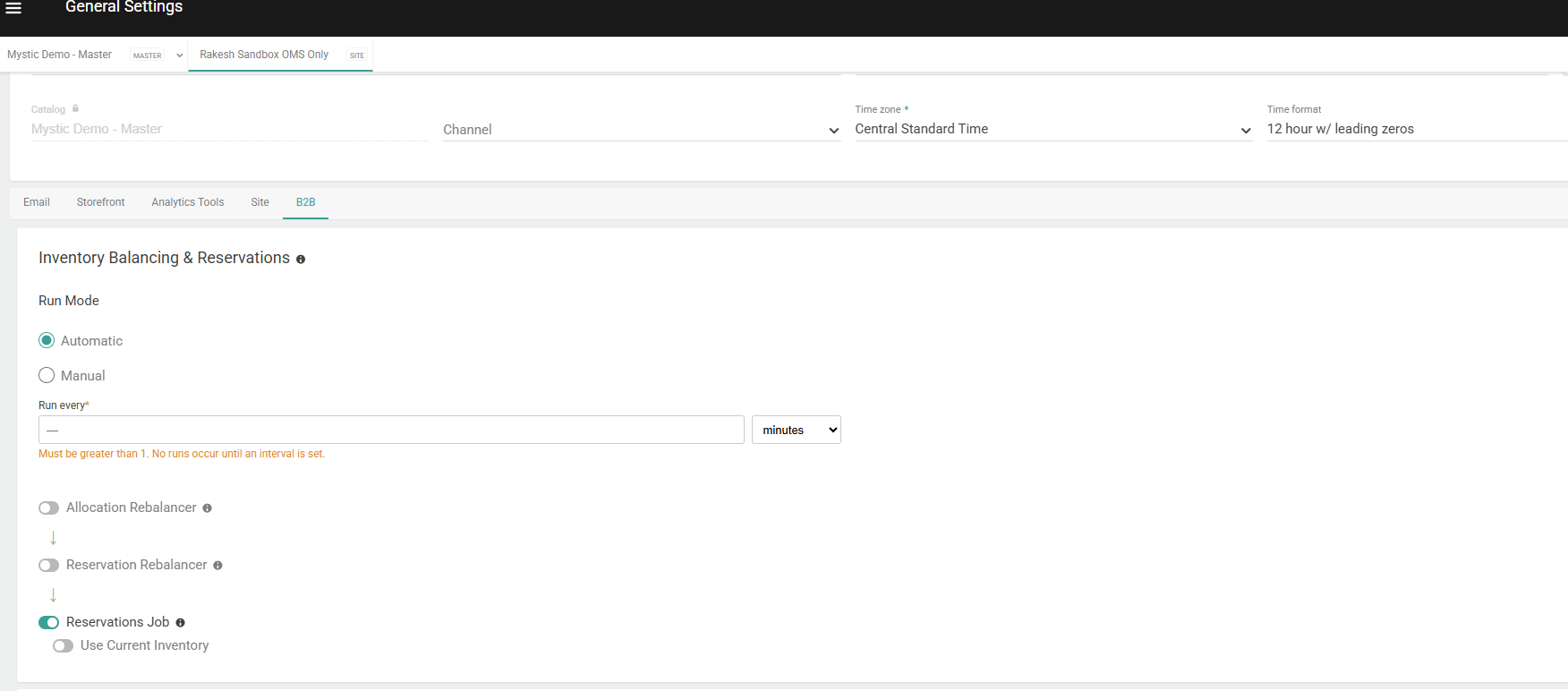 **Note:** The Reservation job, Reservation Rebalancer, and Allocation Rebalancer are orchestrated together as part of the site-level scheduling configuration. You can enable or disable each component independently. See [Inventory Balancing & Reservations Settings](/pages/general-settings#inventory-balancing-&-reservations) for details
## **View Reservations**
You can view B2B Wholesale OMS reservations associated with a product and location using the **Supply & Demand** modal in the Inventory UI. The modal provides a consolidated, real-time view of total supply, total demand, and net position for the selected items — and surfaces reservation records in a dedicated tab below the summary tiles.
To view reservations for a product and location:
* Go to **Main** > **Supply**> **Inventory** > **Supply Demand**
* Search for the item you want to inspect by entering a **Product Code**, **Product Name**, or selecting a **Location**. Results appear in the inventory grid below the search bar.
* Check the checkbox on the row (or rows) for the item and location combination you want to inspect.
* Click **View Supply & Demand**. The Supply & Demand modal opens.
* The modal header tiles display:
| **Tile** | **What It Shows** |
| :--------------- | :------------------------------------------------------------------------------------------------- |
| **Total Supply** | Current On Hand + Future Incoming Inventory (90-day default window) |
| **Total Demand** | Unfulfilled shipments (Ready, Future, On Hold, Backorder, Pending) + orders in remorse period |
| **Net Position** | Total Supply – Total Demand. Green = positive, Red = negative, Yellow = positive but less than 100 |
* Below the summary tiles, select the **Reservations** tab to view all active B2B Wholesale OMS reservations for the selected item and location.
**Note:** The Reservation job, Reservation Rebalancer, and Allocation Rebalancer are orchestrated together as part of the site-level scheduling configuration. You can enable or disable each component independently. See [Inventory Balancing & Reservations Settings](/pages/general-settings#inventory-balancing-&-reservations) for details
## **View Reservations**
You can view B2B Wholesale OMS reservations associated with a product and location using the **Supply & Demand** modal in the Inventory UI. The modal provides a consolidated, real-time view of total supply, total demand, and net position for the selected items — and surfaces reservation records in a dedicated tab below the summary tiles.
To view reservations for a product and location:
* Go to **Main** > **Supply**> **Inventory** > **Supply Demand**
* Search for the item you want to inspect by entering a **Product Code**, **Product Name**, or selecting a **Location**. Results appear in the inventory grid below the search bar.
* Check the checkbox on the row (or rows) for the item and location combination you want to inspect.
* Click **View Supply & Demand**. The Supply & Demand modal opens.
* The modal header tiles display:
| **Tile** | **What It Shows** |
| :--------------- | :------------------------------------------------------------------------------------------------- |
| **Total Supply** | Current On Hand + Future Incoming Inventory (90-day default window) |
| **Total Demand** | Unfulfilled shipments (Ready, Future, On Hold, Backorder, Pending) + orders in remorse period |
| **Net Position** | Total Supply – Total Demand. Green = positive, Red = negative, Yellow = positive but less than 100 |
* Below the summary tiles, select the **Reservations** tab to view all active B2B Wholesale OMS reservations for the selected item and location.
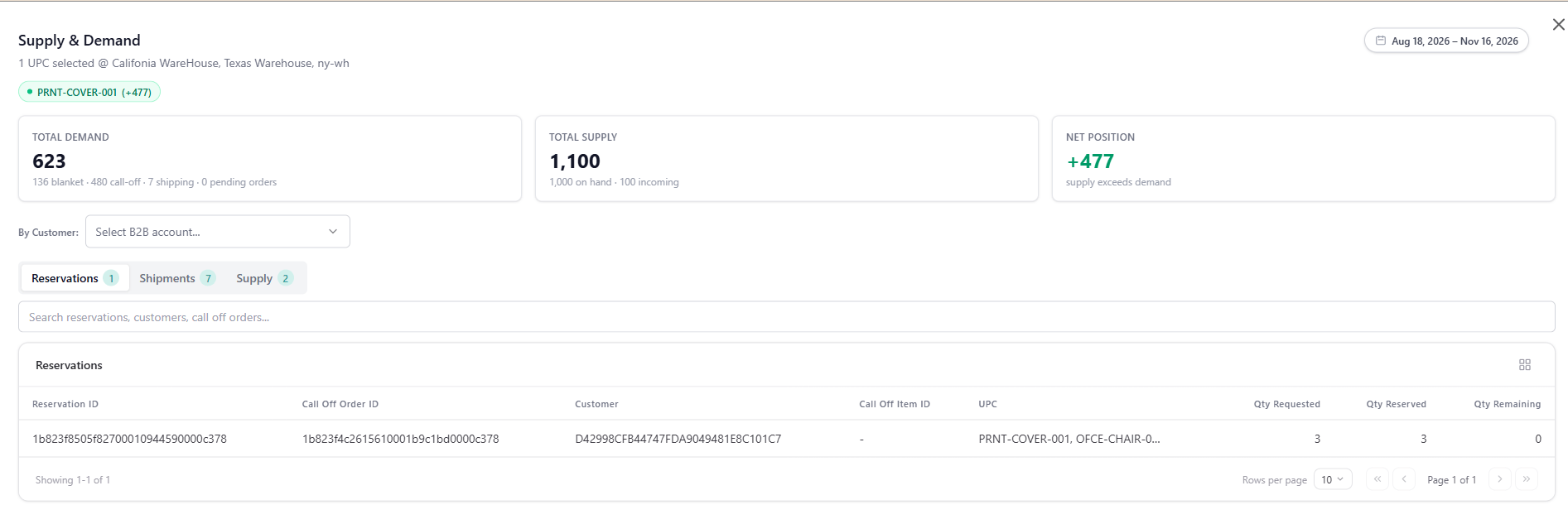 * Optionally, use the **B2B Account** filter in the modal header to scope the reservation data to a specific buyer account. Without a selection, reservation data across all accounts is shown.
**Note:** The **B2B Account** filter inside the modal scopes all demand and reservation data to the selected account. This is useful when you want to inspect how much inventory is reserved against a specific buyer's Call-Off Orders rather than viewing the aggregate across all accounts.
## **Fulfillment Types Supported**
| **Fulfillment Type** |
| :--------------------------------------- |
| **Direct Ship** |
| **Delivery** |
| **Buy Online, Pick Up In Store (BOPIS)** |
Reservations support standard Order Routing consolidation logic. No special treatment is required for consolidation scenarios.
## **Extensibility**
The Reservation APIs support API arc actions for extensibility. Clients can subscribe to public events emitted when a reservation is created, updated, or cancelled.
**Events:**
* Reservation Created
* Reservation Updated
* Reservation Cancelled
* Optionally, use the **B2B Account** filter in the modal header to scope the reservation data to a specific buyer account. Without a selection, reservation data across all accounts is shown.
**Note:** The **B2B Account** filter inside the modal scopes all demand and reservation data to the selected account. This is useful when you want to inspect how much inventory is reserved against a specific buyer's Call-Off Orders rather than viewing the aggregate across all accounts.
## **Fulfillment Types Supported**
| **Fulfillment Type** |
| :--------------------------------------- |
| **Direct Ship** |
| **Delivery** |
| **Buy Online, Pick Up In Store (BOPIS)** |
Reservations support standard Order Routing consolidation logic. No special treatment is required for consolidation scenarios.
## **Extensibility**
The Reservation APIs support API arc actions for extensibility. Clients can subscribe to public events emitted when a reservation is created, updated, or cancelled.
**Events:**
* Reservation Created
* Reservation Updated
* Reservation Cancelled