> ## Documentation Index
> Fetch the complete documentation index at: https://docs.kibocommerce.com/llms.txt
> Use this file to discover all available pages before exploring further.
# Publish Sets
You can use Publish Sets to publish a collection of product and content drafts at the same time, and you can also schedule when you want all the drafts in the Publish Set to publish.
For example, for an upcoming product sale you make several changes to your site, and you also make several changes to some products in your catalog. You want all the changes to publish on a specified date and time, so to accomplish this you place all the draft changes in a Publish Set and specify the Publish Set to publish on a date and time.
## Create a New Publish Set
To create a new Publish Set:
1. Go to **Main** > **Publishing** > **Publish Sets**.
2. On the **Publish Sets** grid, click **Create New Publish Set**. The **Create Publish Set** window opens.
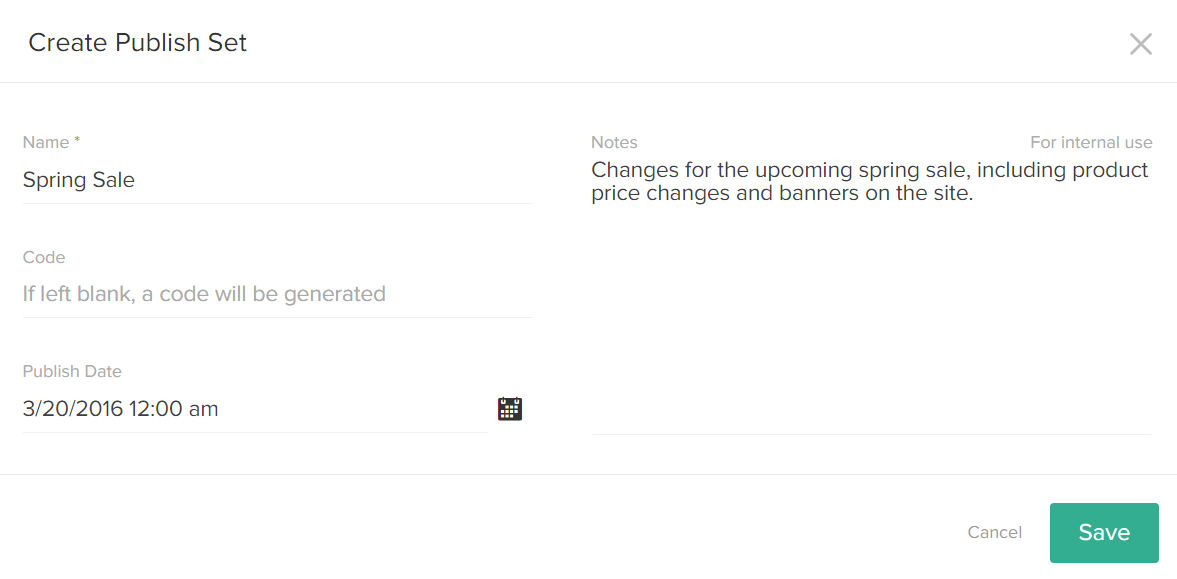 3. Enter a **Name** for the Publish Set.
4. (**Optional**) Enter **Notes** to help you identify the Publish Set.\
These notes are for internal use only.
5. (**Optional**) Enter a **Code** for the Publish Set.\
This code helps you identify the Publish Set. If you leave the **Code** field blank, Kibo eCommerce automatically creates one for you.
6. (**Optional**) Specific a date and time you wish the Publish Set to publish.
7. Click **Save**.
## Manage Publish Set Contents
You can access the contents of a Publish Set by selecting a Publish Set on the Publish Sets page, and then expanding the Publish Set Contents pane. You can also access the Publish Set Contents pane by expanding the actions menu for the Publish Set and selecting **Manage Drafts**.
### Add a Draft Change to a Publish Set
To add a draft change to a Publish Set:
1. Go to **Main** > **Publishing** > **Drafts**.
2. On the **Drafts** page, select either the Product or Content tab to view the drafts that pertain to each.
3. Select the draft change you wish to move.
4. Click **Move to Publish Set** in the selection list, and select your desired Publish Set.
3. Enter a **Name** for the Publish Set.
4. (**Optional**) Enter **Notes** to help you identify the Publish Set.\
These notes are for internal use only.
5. (**Optional**) Enter a **Code** for the Publish Set.\
This code helps you identify the Publish Set. If you leave the **Code** field blank, Kibo eCommerce automatically creates one for you.
6. (**Optional**) Specific a date and time you wish the Publish Set to publish.
7. Click **Save**.
## Manage Publish Set Contents
You can access the contents of a Publish Set by selecting a Publish Set on the Publish Sets page, and then expanding the Publish Set Contents pane. You can also access the Publish Set Contents pane by expanding the actions menu for the Publish Set and selecting **Manage Drafts**.
### Add a Draft Change to a Publish Set
To add a draft change to a Publish Set:
1. Go to **Main** > **Publishing** > **Drafts**.
2. On the **Drafts** page, select either the Product or Content tab to view the drafts that pertain to each.
3. Select the draft change you wish to move.
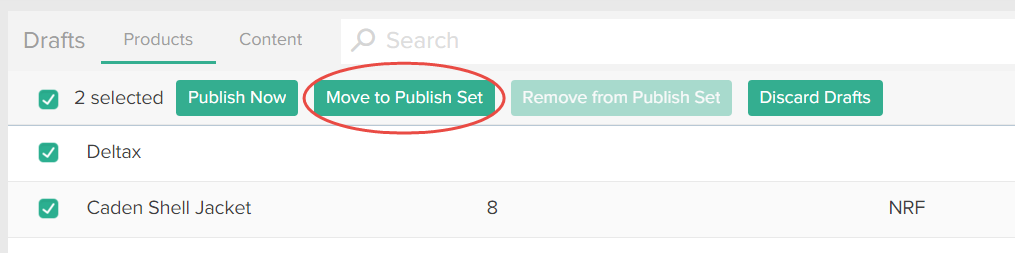
4. Click **Move to Publish Set** in the selection list, and select your desired Publish Set.
 ## Remove a Draft Change from a Publish Set
To remove a draft change from a Publish Set:
1. Go to **Main** > **Publishing** > **Publish Sets**.
2. On the Publish Sets page, click the Publish Set that contains the draft change.
3. If not already expanded, expand the Publish Set Contents pane on the right.
4. Select either the Product or Content tab to view the drafts that pertain to each.
5. Select the draft you wish to remove from the Publish Set.
6. Click **Remove from Publish Set** in the selection list.
## Remove a Draft Change from a Publish Set
To remove a draft change from a Publish Set:
1. Go to **Main** > **Publishing** > **Publish Sets**.
2. On the Publish Sets page, click the Publish Set that contains the draft change.
3. If not already expanded, expand the Publish Set Contents pane on the right.
4. Select either the Product or Content tab to view the drafts that pertain to each.
5. Select the draft you wish to remove from the Publish Set.
6. Click **Remove from Publish Set** in the selection list.
 ## Delete a Publish Set
Deleting a Publish Set deletes the Publish Set and moves any unpublished drafts in the Publish Set to unassigned.
To delete a Publish Set:
1. Go to **Main** > **Publishing** > **Publish Sets**.
2. On the Publish Sets page, expand the actions menu to the Publish Set and select **Delete**.
## Delete a Publish Set
Deleting a Publish Set deletes the Publish Set and moves any unpublished drafts in the Publish Set to unassigned.
To delete a Publish Set:
1. Go to **Main** > **Publishing** > **Publish Sets**.
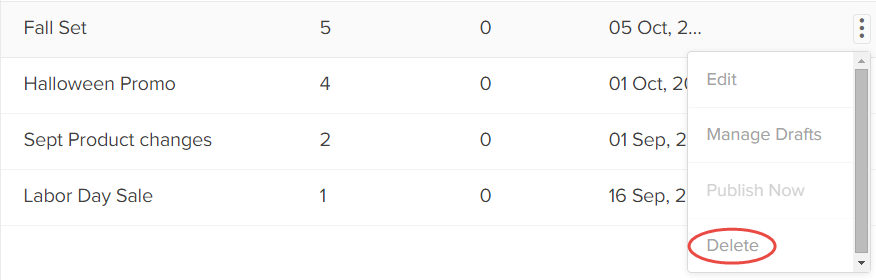
2. On the Publish Sets page, expand the actions menu to the Publish Set and select **Delete**.
 3. Click **Confirm** when prompted.
## Publish a Publish Set
Publishing a Publish Set immediately publishes all of the product and content drafts assigned to the Publish Set.
To publish a Publish Set:
1. Go to **Main** > **Publishing** > **Publish Sets**.
2. On the Publish Sets page, expand the actions menu next to the Publish Set and select **Publish Now**.
3. Click **Confirm** when prompted.
## Publish a Publish Set
Publishing a Publish Set immediately publishes all of the product and content drafts assigned to the Publish Set.
To publish a Publish Set:
1. Go to **Main** > **Publishing** > **Publish Sets**.
2. On the Publish Sets page, expand the actions menu next to the Publish Set and select **Publish Now**.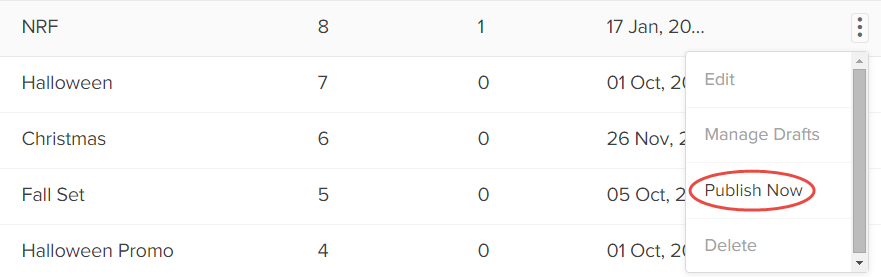 3. Click **Confirm** when prompted.