> ## Documentation Index
> Fetch the complete documentation index at: https://docs.kibocommerce.com/llms.txt
> Use this file to discover all available pages before exploring further.
# Payment Types
Payment types determine the exact method of payment that the customer is choosing to use. Payment types include credit cards, check by mail, or custom payment integrations such as Visa Checkout or PayPal Express. A payment gateway should be assigned to each enabled payment type. Additionally, select whether payment should be captured upon order submission or order fulfillment.
See how to manage payment types
* What payment gateways do you use?
* Which credit cards do you accept?
* Have you installed any custom payment integrations?
* Do you accept payment via check?
* How do you process orders?
Note that changes to these settings may not immediately take effect when processing orders. It may take up to 15 minutes for updates to be reflected in the system while the cache refreshes.
## Credit Cards
Kibo currently supports various credit card types that may be enabled for particular implementations depending on what payments they intend to use. For instance, Reward Points and Style Points may be configured for an eCommerce retailer that offers store credit points. Klarna, CrowdTwist, and Sezzle are other card types (processed through a [NoOp](/pages/payment-gateways#no-operation-gateways) gateway) that may be available for an upgraded implementation that supports those payment methods on a different storefront.
The five primary credit card types that are most commonly used are:
* Visa
* American Express
* Master Card
* Discover
* JCB (Japanese Credit Bureau)
* Other
* The Other category is used when a card cannot be identified as one of the other available types of cards. This can happen because of data validation issues (for example, if you import customer cards and label one "americanExpress" instead of "AMEX") or because the card cannot be identified as one of the accepted types. In that case, if the "Other" type is enabled, unidentified cards will be processed using the gateway associated with the "Other" card type.
### Enable a Credit Card
To enable a credit card:
1. Go to **System** > **Settings** > **Payment Types**.
2. Select the site you want to configure payments for at the top of the page. Payments are enabled and configured on a per-site basis, so you can support different payment options on different sites.
3. Scroll down to the **Credit Cards** section, or click the tab.
4. Click the **Enable** checkbox next to each card type you want to support.
5. In the **Payment Gateway** column next to each card type, select a gateway from the dropdown list.
* You can select any payment gateway that is configured from the dropdown list, regardless of whether that payment gateway can actually process that credit card type. There is no card type validation on the Payment Types settings page. Be sure to validate that your selected payment gateway can process the card type that has been enabled.
6. Specify your preferred **Order Processing** behavior:
* **Authorize and Capture on Order Placement:** The authorization and capture both occur when the order is placed.
* **Authorize on Order Placement and Capture on Order Shipment:** The authorization occurs when the order is placed, but the payment capture occurs when the order is shipped.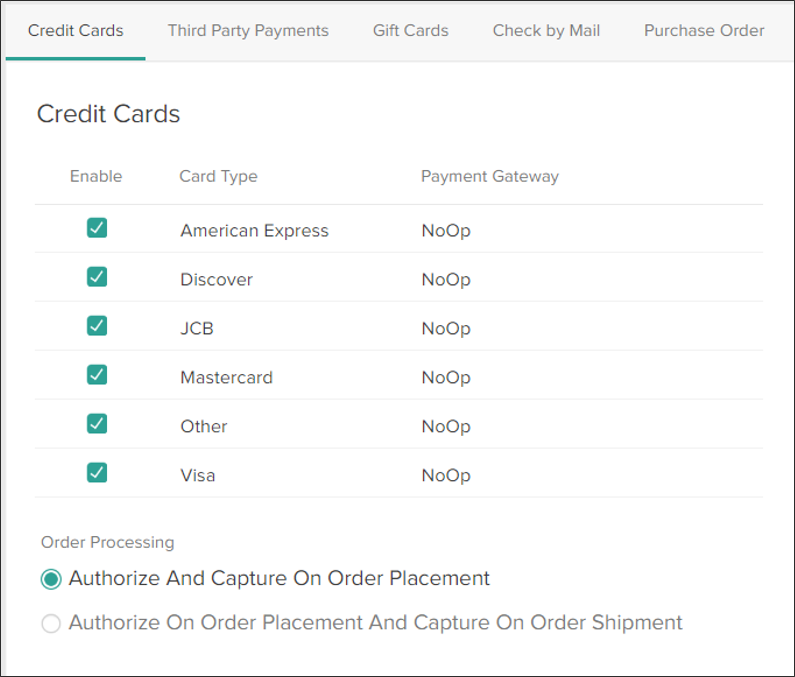 ## Check by Mail
To enable check by mail:
1. Go to **System** > **Settings** > **Payment Types**.
2. Select the site you want to configure payments for at the top of the page. Payments are enabled and configured on a per-site basis, so you can support different payment options on different sites.
3. Scroll down to the **Check by Mail** section, or click the tab.
4. Enable **Accept checks by mail**.
## Check by Mail
To enable check by mail:
1. Go to **System** > **Settings** > **Payment Types**.
2. Select the site you want to configure payments for at the top of the page. Payments are enabled and configured on a per-site basis, so you can support different payment options on different sites.
3. Scroll down to the **Check by Mail** section, or click the tab.
4. Enable **Accept checks by mail**.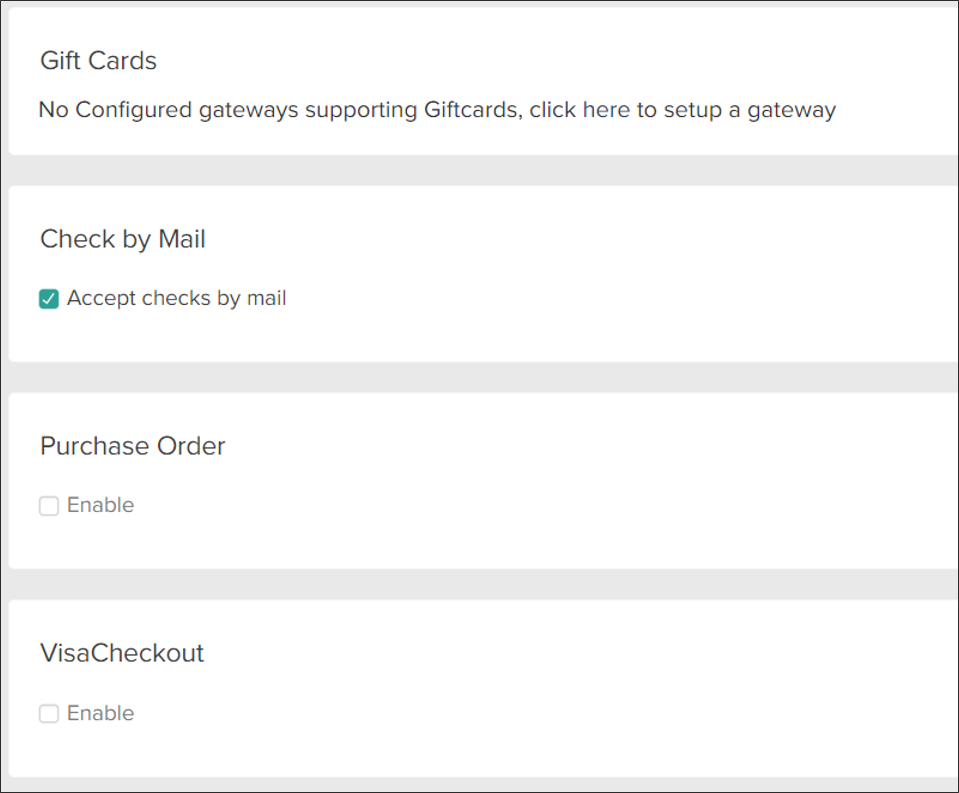 ## Gift Cards
To enable gift card payments:
1. Go to **System** > **Settings** > **Payment Types**.
2. Select the site you want to configure payments for at the top of the page. Payments are enabled and configured on a per-site basis, so you can support different payment options on different sites.
3. Scroll down to the **Gift Cards** section, or click the tab.
4. Click the **Enable** checkbox next to the gift card type.
5. In the **Payment Gateway** column next to the card type, select the payment gateway you want to use to process gift card payments.
* If you do not have a gift card payment gateway set up, Kibo does not display the previous two options and instead displays the message "There are no payment types available. Add a Payment Gateway before modifying payment types."
6. In **Refund/Credit Setting,** either click **Refund/Credit On New Gift Card** to generate new gift cards when performing those actions (in which case the system will perform a no-operation on the existing gift card while issuing the actual refund or credit to a new card) or click **Refund/Credit On Existing Gift Card** to perform those actions on the gift card used to pay for the order.
7. In **Order Processing**, either click **Redeem Gift Card on Order Submit** to authorize and capture gift cards on order placement or click **Redeem Gift Card upon Fulfillment** to authorize gift cards on order placement and capture when the order is shipped.
## Gift Cards
To enable gift card payments:
1. Go to **System** > **Settings** > **Payment Types**.
2. Select the site you want to configure payments for at the top of the page. Payments are enabled and configured on a per-site basis, so you can support different payment options on different sites.
3. Scroll down to the **Gift Cards** section, or click the tab.
4. Click the **Enable** checkbox next to the gift card type.
5. In the **Payment Gateway** column next to the card type, select the payment gateway you want to use to process gift card payments.
* If you do not have a gift card payment gateway set up, Kibo does not display the previous two options and instead displays the message "There are no payment types available. Add a Payment Gateway before modifying payment types."
6. In **Refund/Credit Setting,** either click **Refund/Credit On New Gift Card** to generate new gift cards when performing those actions (in which case the system will perform a no-operation on the existing gift card while issuing the actual refund or credit to a new card) or click **Refund/Credit On Existing Gift Card** to perform those actions on the gift card used to pay for the order.
7. In **Order Processing**, either click **Redeem Gift Card on Order Submit** to authorize and capture gift cards on order placement or click **Redeem Gift Card upon Fulfillment** to authorize gift cards on order placement and capture when the order is shipped.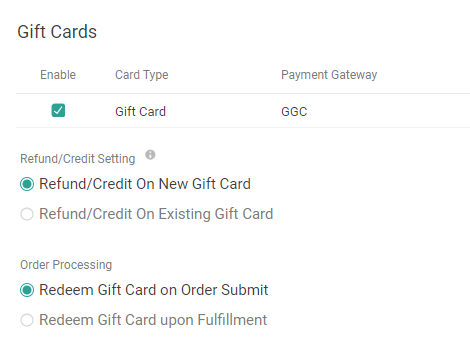 ## Purchase Orders
For a shopper to use purchase orders, the payment method must be [enabled on their individual customer account](/pages/purchase-orders) in addition to the site. To enable purchase orders:
1. Go to **System** > **Settings** > **Payment Types**.
2. Select the site you want to configure payments for at the top of the page. Payments are enabled and configured on a per-site basis, so you can support different payment options on different sites.
3. Scroll down to the **Purchase Order** section, or click the tab.
4. Click the **Enable** checkbox.
5. Enter the **Payment Terms Options** you want to offer.
6. Enter any **Custom Text Fields** you want to use to capture additional information from the shopper on the checkout page. The label entered below will be the label for the text fields displayed on the storefront and admin.
## Purchase Orders
For a shopper to use purchase orders, the payment method must be [enabled on their individual customer account](/pages/purchase-orders) in addition to the site. To enable purchase orders:
1. Go to **System** > **Settings** > **Payment Types**.
2. Select the site you want to configure payments for at the top of the page. Payments are enabled and configured on a per-site basis, so you can support different payment options on different sites.
3. Scroll down to the **Purchase Order** section, or click the tab.
4. Click the **Enable** checkbox.
5. Enter the **Payment Terms Options** you want to offer.
6. Enter any **Custom Text Fields** you want to use to capture additional information from the shopper on the checkout page. The label entered below will be the label for the text fields displayed on the storefront and admin. ## Other Payment Integrations
You can also enable third party payments and custom payment integrations such as Apple Pay, Google Pay, Pay With Amazon, Visa Checkout, and Paypal Express. See the linked documentation for Apple Pay and Google Pay for more details on how to configure those integrations.
To enable the other custom integrations:
1. Go to **System** > **Settings** > **Payment Types**.
2. Select the site you want to configure payments for at the top of the page. Payments are enabled and configured on a per-site basis, so you can support different payment options on different sites.
3. If there are custom payment integrations such as Visa Checkout, PayPal Express, or Pay With Amazon installed on your Kibo site then they will appear as additional sections of the page. (Apple Pay and Google Pay are enabled from Third Party Payments instead.)
4. Click the payment type you want to enable.
5. Click the **Enable** checkbox.
6. Continue to fill out the configuration fields in that section. These forms may vary depending on the payment type. For instance, Visa Checkout only requires your **Client ID**, **A\*\*\*\*PI Key,** and **Shared Secret** for authentication purposes:
## Other Payment Integrations
You can also enable third party payments and custom payment integrations such as Apple Pay, Google Pay, Pay With Amazon, Visa Checkout, and Paypal Express. See the linked documentation for Apple Pay and Google Pay for more details on how to configure those integrations.
To enable the other custom integrations:
1. Go to **System** > **Settings** > **Payment Types**.
2. Select the site you want to configure payments for at the top of the page. Payments are enabled and configured on a per-site basis, so you can support different payment options on different sites.
3. If there are custom payment integrations such as Visa Checkout, PayPal Express, or Pay With Amazon installed on your Kibo site then they will appear as additional sections of the page. (Apple Pay and Google Pay are enabled from Third Party Payments instead.)
4. Click the payment type you want to enable.
5. Click the **Enable** checkbox.
6. Continue to fill out the configuration fields in that section. These forms may vary depending on the payment type. For instance, Visa Checkout only requires your **Client ID**, **A\*\*\*\*PI Key,** and **Shared Secret** for authentication purposes: However, PayPal Express 2 requires you to select whether to enable it on your production or sandbox **Environment**, and provide your PayPal **Username** and **Password** in addition to your **Signature**, **Merchant Account ID**, and **Order Processing** behavior (which is the same as the Order Processing option used for credit cards).
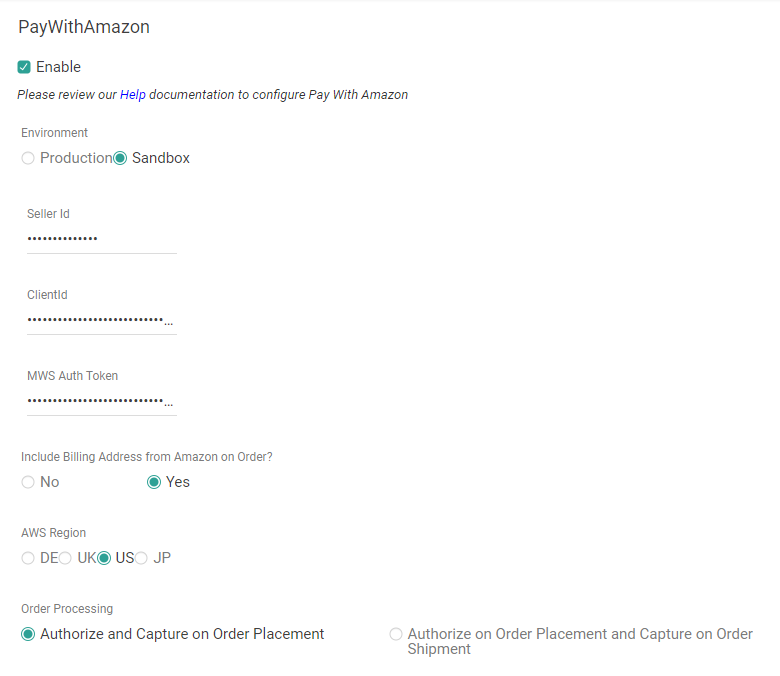
 Pay With Amazon also requires you to select an **Environment** as well as provide your **Seller** and **Client ID**, **MWS Auth Token**, your **AWS Region**, whether to include billing addresses from Amazon, and the **Order Processing** behavior.