> ## Documentation Index
> Fetch the complete documentation index at: https://docs.kibocommerce.com/llms.txt
> Use this file to discover all available pages before exploring further.
# Substitutions in Order Admin
If the [Substitutions feature](/pages/substitute-products-overview "Substitute Products Overview") is configured, then Admin users can substitute products on Pending orders, shipments in the Accept Shipment step, and when creating a new shipment on an order. For instance, a customer service representative can select a product and replace the original item with that substitute prior to fulfillment if they know in advance that the item will not be available.
## Substitute on Order or New Shipment
To perform a substitution on a Pending order or [when creating a new shipment](/pages/edit-order-shipments#create-new-shipment):
1. Go to **Main** > **Orders** > **Orders** and select the order you want to update.
2. Either click **Edit Details** or go to the Shipments tab and click **New Shipment**. The following steps will be similar for either case.
3. Whether you are editing an existing line item or adding a new one, the **Replace item** button will appear as long as all required details have been provided for the line item. This is available for both [subscription](/concept-guides/subscriptions "Product Subscriptions Overview") and one-time-purchase items.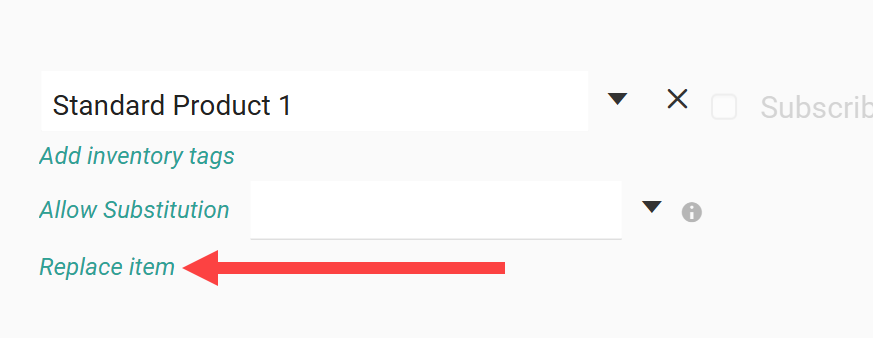 4. In the Add Replacements popup, check the item(s) you want to replace it with. Only substitutes with available inventory will be shown. Hover over the inventory values to view current and future inventory levels. BOPIS and Delivery items will show available inventory at the fulfillment location selected by the shopper, while STH will show aggregate inventory.
 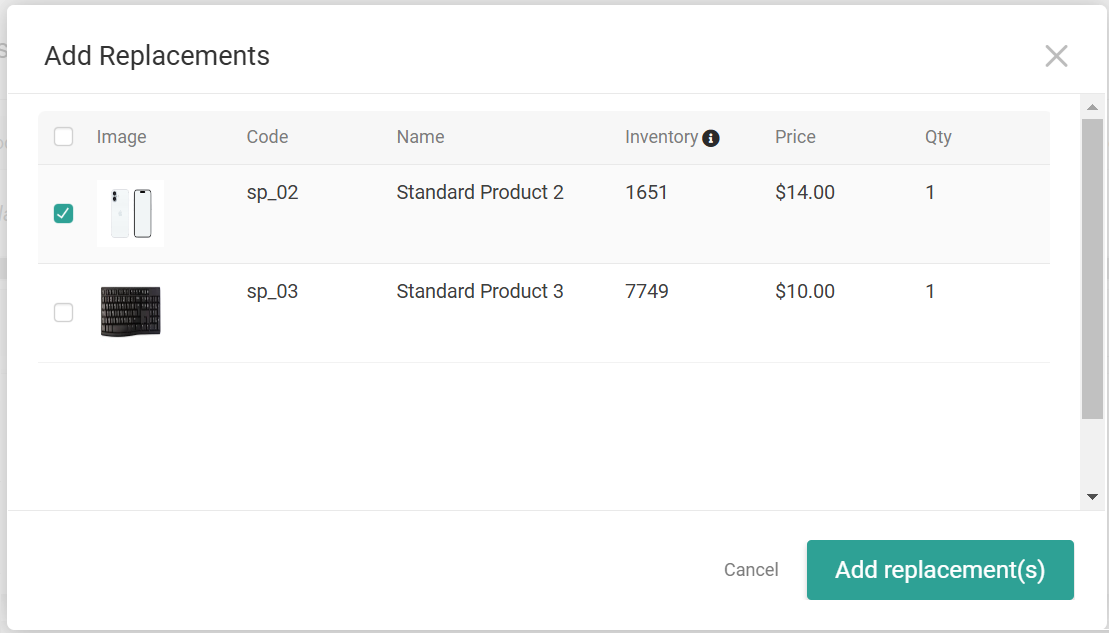 5. Click the **Qty** value to enter the substitute quantity.
6. Click **Add replacement(s)**.
7. This will add the substitute to the order as its own line item in place of the original item.
8. Click **Save**.
## Substitute on Existing Shipment
To substitute an item on an existing Ready shipment that has not yet been accepted by the fulfiller:
1. Go to **Main** > **Orders** > **Orders** and select the order whose shipment you want to update.
2. Go to the Shipments tab.
3. Expand the action menu for a shipment item and click **Substitute**.
5. Click the **Qty** value to enter the substitute quantity.
6. Click **Add replacement(s)**.
7. This will add the substitute to the order as its own line item in place of the original item.
8. Click **Save**.
## Substitute on Existing Shipment
To substitute an item on an existing Ready shipment that has not yet been accepted by the fulfiller:
1. Go to **Main** > **Orders** > **Orders** and select the order whose shipment you want to update.
2. Go to the Shipments tab.
3. Expand the action menu for a shipment item and click **Substitute**.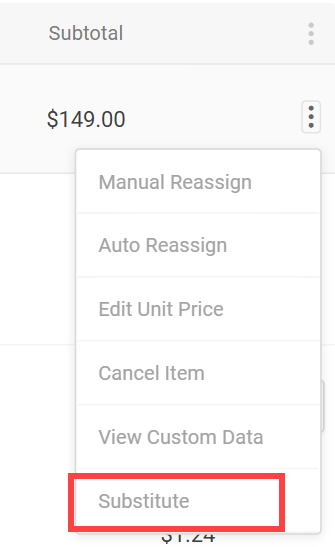 4. Check the substitute item(s) you want to use from the list of eligible substitutes available at the fulfillment location.
5. Select a **Reason** for the substitution and click the **Substitute** **Quantity** value to edit the quantity. If the product is a bundle (not shown below), it will appear as one line item containing all components underneath the bundle name.
4. Check the substitute item(s) you want to use from the list of eligible substitutes available at the fulfillment location.
5. Select a **Reason** for the substitution and click the **Substitute** **Quantity** value to edit the quantity. If the product is a bundle (not shown below), it will appear as one line item containing all components underneath the bundle name. 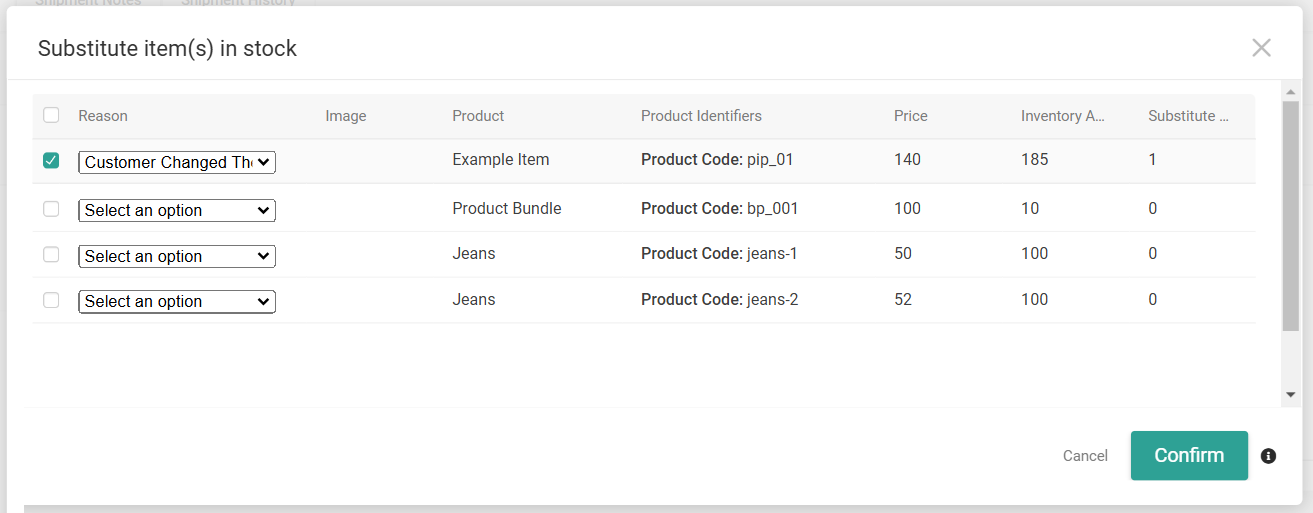 6. Click **Confirm**.
7. The substitute will be displayed as a new shipment line item. If inventory was already allocated for the original item, it will be deallocated and the substitute will be allocated instead. Any quantity of the original product that was not substituted will remain on the shipment.
## View Substitutes in Order Details
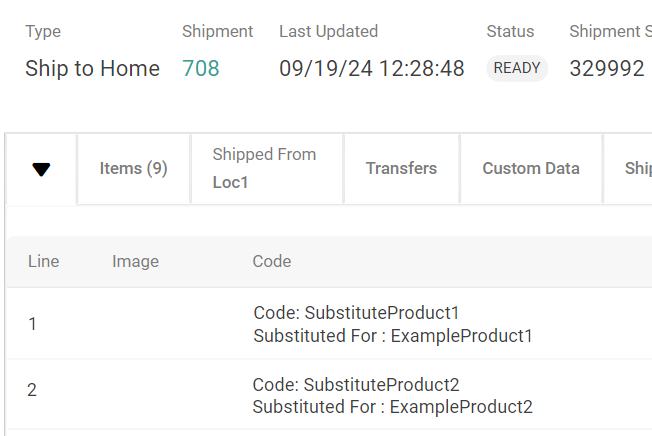
After a substitution has been made, the Admin UI's order details will display all substitute products as line items with a label indicating the original products as shown below. If the substitution was made using a product bundle, each component will be listed with an additional "Part of Bundle :" label identifying the name of the bundle.
6. Click **Confirm**.
7. The substitute will be displayed as a new shipment line item. If inventory was already allocated for the original item, it will be deallocated and the substitute will be allocated instead. Any quantity of the original product that was not substituted will remain on the shipment.
## View Substitutes in Order Details
After a substitution has been made, the Admin UI's order details will display all substitute products as line items with a label indicating the original products as shown below. If the substitution was made using a product bundle, each component will be listed with an additional "Part of Bundle :" label identifying the name of the bundle.