> ## Documentation Index
> Fetch the complete documentation index at: https://docs.kibocommerce.com/llms.txt
> Use this file to discover all available pages before exploring further.
# Multi-Locale Catalogs
Multiple locales can be used on a single master or child catalog. This allows you to easily localize the same product information across different languages. However, all locales of a catalog must use the same currency—different currencies require separate catalogs.
Each master catalog will have a default locale that all of the main configurations are made on, such as product pricing. Then, you can switch to any of the additional supported locales while configuring products, product attributes, categories, and discounts to change the settings for a specific locale.
## Enable Multi-Locale Catalogs
As of May 2024, this feature is available out-of-the-box for all new implementations. If your implementation was built prior to May 2024, then you are using the previous version of the Product API without localized content and will need to contact [Kibo Support](https://help.kibocommerce.com/) to be upgraded if you want to use it.
Once upgraded, calls to the Products, Attributes, Categories, and Discounts APIs will require `localizedContent` by default. If you need to manage older product data that hasn't been rewritten to the new model, include an `x-api-version` header set to "1" in your API request. This will call the original version of the API that supports your existing products without localization.
## Locale-Specific Configurations
Setting up multi-locale catalogs is done as part of your standard catalog and site settings:
1. When [creating a master catalog](/pages/catalog-and-site-structure-settings-2#create-master-catalogs "Catalog and Site Structure Settings"), select a default locale code and then indicate all other supported locales.
2. [Create a child catalog](/pages/catalog-and-site-structure-settings-2#create-a-child-catalog) and select one of the supported locales from the master catalog.
3. [Create a site](/pages/catalog-and-site-structure-settings-2#create-a-site) and select one of the supported locales from the master catalog.
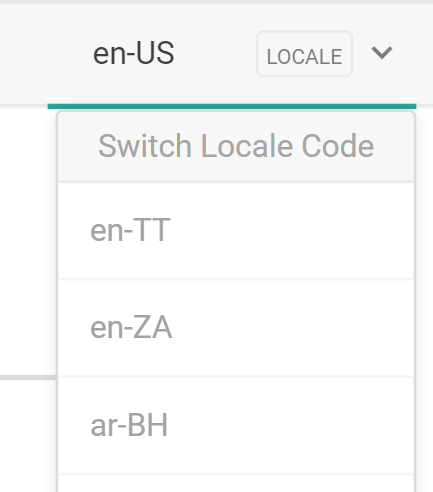
You can then switch to any of the supported locales when viewing a [product](/pages/configure-products "Configure Products"), [product attribute](/pages/product-attributes-overview "Product Attributes Overview"), [category](/pages/category-overview "Category Overview"), or [discount](/pages/configure-discounts "Configure Discounts") configuration page by using the drop-down menu in the top right. Then you can change the displayed language-specific fields (such as product names and descriptions) for that locale.
 When interfacing with APIs, a `localizedContent` object will contain these details for each locale. See the [Catalog Admin API documentation](/api-overviews/openapi_catalog_admin_overview) for product, attribute, category, and discount request models with this object.
## Locale Overrides
If you need two child catalogs within the same master catalog that are the same locale (such as en-US), you can use overrides to specify product and SEO content settings for each catalog.
1. Go to **System** > **Structure** > **Catalogs**.
2. Expand the drop-down menu for a master catalog and click **Edit**.
3. In **Supported Catalog Override Locales**, enter the locales you want to configure overrides for. This must be formatted as the language code followed by the child catalog ID, such as en-1 and en-12.
When interfacing with APIs, a `localizedContent` object will contain these details for each locale. See the [Catalog Admin API documentation](/api-overviews/openapi_catalog_admin_overview) for product, attribute, category, and discount request models with this object.
## Locale Overrides
If you need two child catalogs within the same master catalog that are the same locale (such as en-US), you can use overrides to specify product and SEO content settings for each catalog.
1. Go to **System** > **Structure** > **Catalogs**.
2. Expand the drop-down menu for a master catalog and click **Edit**.
3. In **Supported Catalog Override Locales**, enter the locales you want to configure overrides for. This must be formatted as the language code followed by the child catalog ID, such as en-1 and en-12.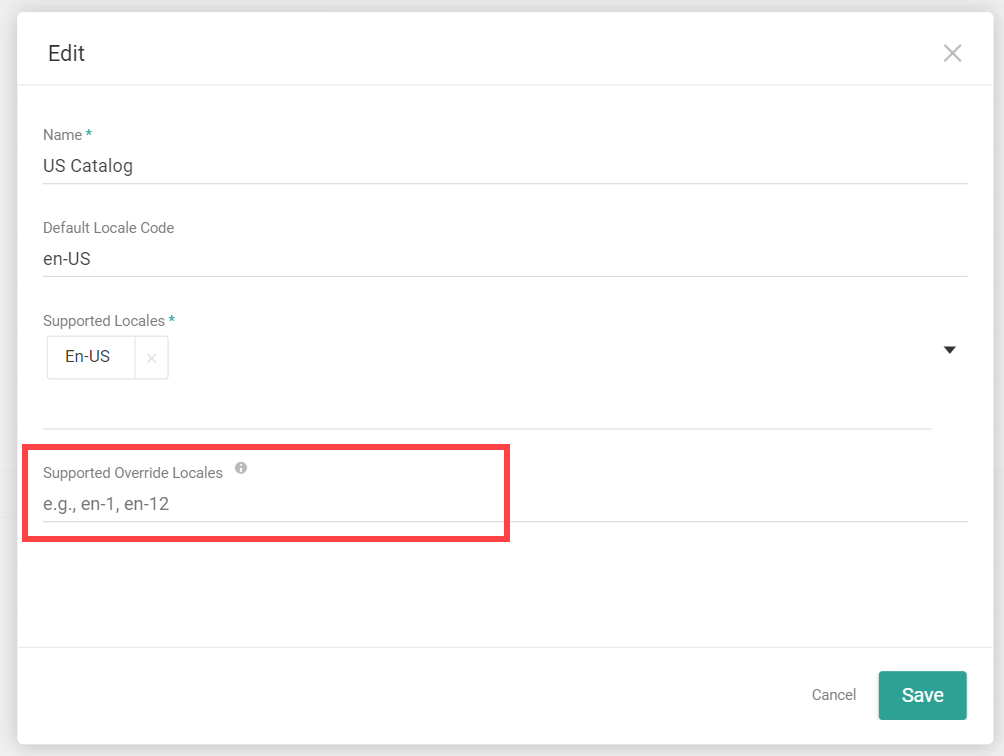 4. Click **Save**.
Then configure overrides at the product level:
1. Go to **Main** > **Catalog** > **Products**.
2. Ensure you have the appropriate master catalog selected at the top.
3. Click the product you want to edit.
4. Switch to the specific locale and catalog you want to override using the drop-down selector.
5. Toggle on **Override global** under the General and/or SEO settings header. You can toggle this off at any point to remove overrides.
4. Click **Save**.
Then configure overrides at the product level:
1. Go to **Main** > **Catalog** > **Products**.
2. Ensure you have the appropriate master catalog selected at the top.
3. Click the product you want to edit.
4. Switch to the specific locale and catalog you want to override using the drop-down selector.
5. Toggle on **Override global** under the General and/or SEO settings header. You can toggle this off at any point to remove overrides. 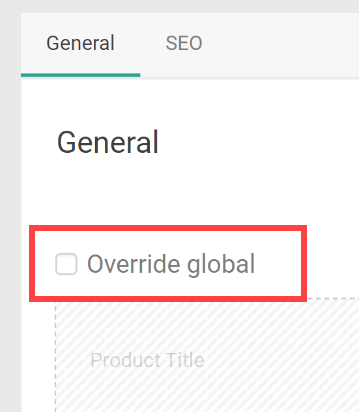 6. Click **Yes** when prompted to confirm. This will make that section editable.
7. Enter the product and/or SEO settings. Note that properties cannot be overridden, so they are hidden on the UI.
8. Click **Save**.
## Import/Export Localized Content
The [Catalogs template](/pages/catalogs-template "Catalogs Template") of the Import-Export V2 and V3 applications supports localization for multi-locale catalogs. Use the [Products](/pages/catalogs-template#products "Catalogs Template") and [Categories](/pages/catalogs-template#categories "Catalogs Template") sheets to define the default master catalog locale information, and then include the [ProductContent](/pages/catalogs-template#productcontent "Catalogs Template") and/or [CategoriesContent](/pages/catalogs-template#categoriescontent "Catalogs Template") sheets to set localized product, SEO, and category content on a non-default locale.
You can also provide additional columns with locale headers on certain sheets such as [ProductPropertyLocale](/pages/catalogs-template#productpropertylocale "Catalogs Template") and [Attributes](/pages/catalogs-template#attributes). The data within these columns will be the localized values of each attribute within that specific locale.
6. Click **Yes** when prompted to confirm. This will make that section editable.
7. Enter the product and/or SEO settings. Note that properties cannot be overridden, so they are hidden on the UI.
8. Click **Save**.
## Import/Export Localized Content
The [Catalogs template](/pages/catalogs-template "Catalogs Template") of the Import-Export V2 and V3 applications supports localization for multi-locale catalogs. Use the [Products](/pages/catalogs-template#products "Catalogs Template") and [Categories](/pages/catalogs-template#categories "Catalogs Template") sheets to define the default master catalog locale information, and then include the [ProductContent](/pages/catalogs-template#productcontent "Catalogs Template") and/or [CategoriesContent](/pages/catalogs-template#categoriescontent "Catalogs Template") sheets to set localized product, SEO, and category content on a non-default locale.
You can also provide additional columns with locale headers on certain sheets such as [ProductPropertyLocale](/pages/catalogs-template#productpropertylocale "Catalogs Template") and [Attributes](/pages/catalogs-template#attributes). The data within these columns will be the localized values of each attribute within that specific locale.