> ## Documentation Index
> Fetch the complete documentation index at: https://docs.kibocommerce.com/llms.txt
> Use this file to discover all available pages before exploring further.
# Multi-Currency Catalogs
A child catalog can use a different currency than its master catalog, which is how you sell the same master product set in more than one currency. Because a catalog has exactly one currency, each additional currency requires its own child catalog and its own site. This differs from locales, where [multiple locales can share a single catalog](/pages/multi-locale-catalogs "Multi-Locale Catalogs") as long as they all use the same currency.
If a child catalog's currency differs from the master catalog's currency, you must set a localized price for every product variation in that currency. Configurable products whose variations have no price in the child catalog's currency will not appear on that catalog's storefront. See [Localize Product Variation Prices](#localize-product-variation-prices).
Learn about product catalog architecture and management
See the Admin Catalog API documentation for programmatic access
## How Prices Resolve Across Currencies
Product prices are defined once on the master catalog in the master catalog's currency. Kibo does not convert those prices at runtime, so a child catalog on a different currency needs its own explicitly localized prices:
* **Base products** inherit the master catalog price unless you localize the price for the child catalog's currency.
* **Product extras** inherit the master catalog price unless you localize the price for the child catalog's currency.
* **Product variations** do not fall back to the master catalog price. A variation is only sellable in a currency for which it has a localized price.
Because a [configurable product](/pages/product-variations "Product Variations") is only purchasable through its variations, a configurable product with no priced variations has nothing to sell in that currency and is therefore excluded from the storefront entirely. Standard (non-configurable) products in the same catalog are unaffected, which is why this usually shows up as "some products are missing" rather than an empty storefront.
Variations must be priced in each currency regardless of the base product's [pricing mode](/pages/product-variations#product-variant-pricing-and-weight "Product Variations"). Relative (delta) pricing is expressed in the master catalog currency and is not applied against a localized price.
## Set Up a Multi-Currency Catalog
1. [Create or select a master catalog](/pages/catalog-and-site-structure-settings-2#create-master-catalogs "Catalog and Site Structure Settings") and note its **Currency Code**. This is the baseline currency for all product pricing.
2. [Create a child catalog](/pages/catalog-and-site-structure-settings-2#create-a-child-catalog) and select the **Currency Code** you want to sell in. This can differ from the master catalog's currency.
3. [Create a site](/pages/catalog-and-site-structure-settings-2#create-a-site) and associate it with the child catalog.
4. Add the products you want to sell to the child catalog.
5. **Localize prices for the child catalog's currency.** For configurable products, this step is required — see below.
6. Verify the storefront. Confirm that your configurable products appear and that prices display in the child catalog's currency.
Repeat steps 2 through 6 for each additional currency.
## Localize Product Variation Prices
You can set localized variation prices in Admin or through the Catalog Admin API. Both write the same data, so use whichever fits your workflow: Admin for small catalogs and spot fixes, the API for bulk loads and for keeping prices in sync from an external system such as a PIM or ERP.
### In Admin
The **Localization** section only appears in the **System** menu once you have an international catalog.
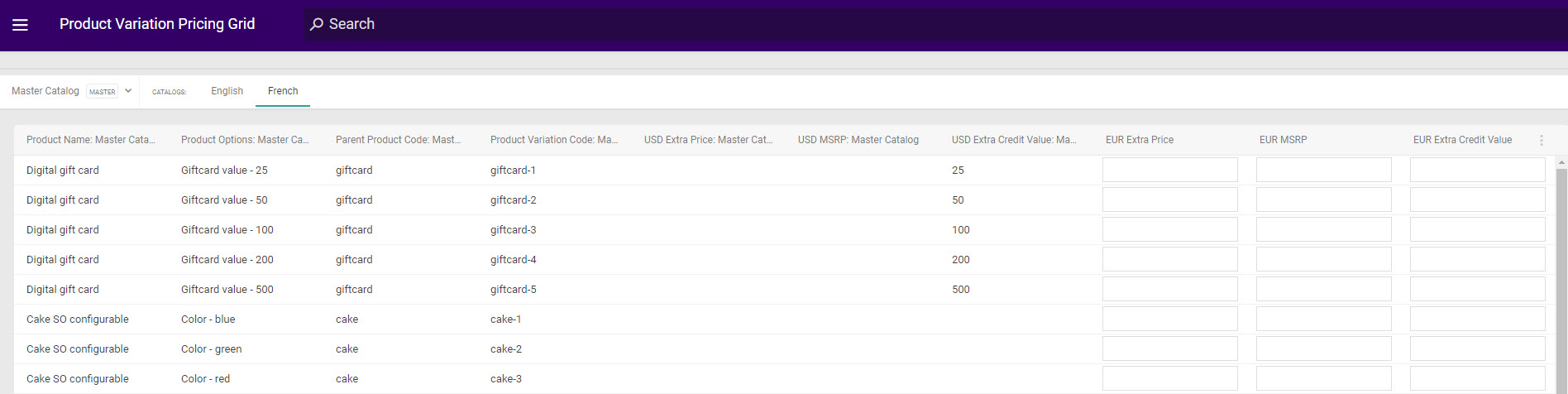
1. Go to **System** > **Localization** > **Product Variants**.
2. Select the master catalog that owns the products.
3. Switch to the child catalog whose currency you want to price in.
4. Enter the **List Price** for each variation, along with **Sale Price**, **MSRP**, **Extra Price**, and **Extra Credit Price** as needed. The master catalog values are displayed alongside for reference.
5. Save your changes.
 Refer to [Attribute Localization](/pages/attribute-localization "Attribute Localization") for details about the other Localization pages, including Product Extras.
### With the API
Use the [Update Product Variation Localized Price by Currency](/api-reference/productvariations/update-product-variation-localized-price-by-currency) endpoint once per variation, per currency:
```
PUT {baseUrl}/api/commerce/catalog/admin/products/{productCode}/variations/{variationKey}/localizedPrice/{currencyCode}
```
The `productCode` is the base product code, the `variationKey` is the variation key generated for that option combination (such as `15-21`), and the `currencyCode` is the child catalog's ISO currency code.
```bash theme={null}
curl -X PUT 'https://t1000000.sb.usc1.gcp.kibocommerce.com/api/commerce/catalog/admin/products/SNEAKER0001/variations/15-21/localizedPrice/CAD' \
--header 'Authorization: Bearer ' \
--header 'x-vol-master-catalog: 1' \
--header 'Content-Type: application/json' \
--data '{
"currencyCode": "CAD",
"listPrice": 119.00,
"salePrice": 99.00,
"msrp": 129.00
}'
```
Related endpoints on the same resource:
| Endpoint | Purpose |
| --------------------------------------------------------------------------------------------------------------------------------------------- | ------------------------------------------------------------------------------------------------- |
| [Get Product Variation Localized Prices](/api-reference/productvariations/get-product-variation-localized-prices) | Return every localized price on a variation, so you can audit which currencies are covered. |
| [Add Product Variation Localized Price](/api-reference/productvariations/add-product-variation-localized-price) | Add a price in a currency the variation does not have yet. |
| [Update Product Variation Localized Prices](/api-reference/productvariations/update-product-variation-localized-prices) | Replace the full set of localized prices on a variation in one call. |
| [Get Product Variation Localized Price by Currency](/api-reference/productvariations/get-product-variation-localized-price-by-currency) | Read the price for a single currency. |
| [Delete Product Variation Localized Price by Currency](/api-reference/productvariations/delete-product-variation-localized-price-by-currency) | Remove the price for a single currency. Doing so makes the variation unsellable in that currency. |
To find the variations that need pricing, call [Get Product Variations](/api-reference/productvariations/get-product-variations) for the base product and use the returned `variationKey` values.
Plan for one call per variation, per currency. A product with 12 sizes and 3 colors has 36 variations, so covering it in two additional currencies is 72 calls. Batch these into your product onboarding process rather than running them ad hoc, and re-run them whenever you generate new variations. Refer to [API Best Practices](/pages/api-best-practices "API Best Practices") for rate limit and batching guidance.
## Import and Export
Localized variation prices are carried on the [ProductOptionLocalization](/pages/catalogs-template#productoptionlocalization "Catalogs Template") sheet of the [Catalogs template](/pages/catalogs-template "Catalogs Template"), which is usually the fastest way to price a large variation set in a new currency. Each row sets the price for one variation in one currency using **MasterCatalogName**, **ProductCode**, **VariationCode**, **Currency**, and the **Fixed List Price** and **Fixed Sale Price** columns, so the sheet is the bulk equivalent of the API calls above.
Export the child catalog first to see which variations are already priced, then import the sheet with the rows you are missing.
## Troubleshooting
### A configurable product does not appear on the storefront
Check these in order:
1. **Confirm the currencies actually differ.** Compare the **Currency Code** on the child catalog with the one on its master catalog under **System** > **Structure** > **Catalogs**. If they match, this is not the cause.
2. **Check for missing localized variation prices.** Call [Get Product Variation Localized Prices](/api-reference/productvariations/get-product-variation-localized-prices) for one of the product's variations, or open **System** > **Localization** > **Product Variants** in the child catalog context. If there is no entry for the child catalog's currency, that is the cause.
3. **Confirm coverage is complete.** Variations added after the initial pricing pass, including any generated when you added a new option value, need their own localized prices.
4. **Verify the product is in the child catalog** and is active, in stock, and within its [scheduled](/pages/schedule-products "Schedule Products") date range.
5. **Allow for cache refresh.** Storefront catalog data is cached, so allow time for changes to propagate before retesting.
### Prices display in the wrong currency
The storefront uses the currency of the catalog associated with the site. Confirm the site is pointed at the intended child catalog under **System** > **Structure** > **Sites**, and that any [price lists](/pages/price-lists "Price Lists") applied to the site define prices in that catalog's currency.
Refer to [Attribute Localization](/pages/attribute-localization "Attribute Localization") for details about the other Localization pages, including Product Extras.
### With the API
Use the [Update Product Variation Localized Price by Currency](/api-reference/productvariations/update-product-variation-localized-price-by-currency) endpoint once per variation, per currency:
```
PUT {baseUrl}/api/commerce/catalog/admin/products/{productCode}/variations/{variationKey}/localizedPrice/{currencyCode}
```
The `productCode` is the base product code, the `variationKey` is the variation key generated for that option combination (such as `15-21`), and the `currencyCode` is the child catalog's ISO currency code.
```bash theme={null}
curl -X PUT 'https://t1000000.sb.usc1.gcp.kibocommerce.com/api/commerce/catalog/admin/products/SNEAKER0001/variations/15-21/localizedPrice/CAD' \
--header 'Authorization: Bearer ' \
--header 'x-vol-master-catalog: 1' \
--header 'Content-Type: application/json' \
--data '{
"currencyCode": "CAD",
"listPrice": 119.00,
"salePrice": 99.00,
"msrp": 129.00
}'
```
Related endpoints on the same resource:
| Endpoint | Purpose |
| --------------------------------------------------------------------------------------------------------------------------------------------- | ------------------------------------------------------------------------------------------------- |
| [Get Product Variation Localized Prices](/api-reference/productvariations/get-product-variation-localized-prices) | Return every localized price on a variation, so you can audit which currencies are covered. |
| [Add Product Variation Localized Price](/api-reference/productvariations/add-product-variation-localized-price) | Add a price in a currency the variation does not have yet. |
| [Update Product Variation Localized Prices](/api-reference/productvariations/update-product-variation-localized-prices) | Replace the full set of localized prices on a variation in one call. |
| [Get Product Variation Localized Price by Currency](/api-reference/productvariations/get-product-variation-localized-price-by-currency) | Read the price for a single currency. |
| [Delete Product Variation Localized Price by Currency](/api-reference/productvariations/delete-product-variation-localized-price-by-currency) | Remove the price for a single currency. Doing so makes the variation unsellable in that currency. |
To find the variations that need pricing, call [Get Product Variations](/api-reference/productvariations/get-product-variations) for the base product and use the returned `variationKey` values.
Plan for one call per variation, per currency. A product with 12 sizes and 3 colors has 36 variations, so covering it in two additional currencies is 72 calls. Batch these into your product onboarding process rather than running them ad hoc, and re-run them whenever you generate new variations. Refer to [API Best Practices](/pages/api-best-practices "API Best Practices") for rate limit and batching guidance.
## Import and Export
Localized variation prices are carried on the [ProductOptionLocalization](/pages/catalogs-template#productoptionlocalization "Catalogs Template") sheet of the [Catalogs template](/pages/catalogs-template "Catalogs Template"), which is usually the fastest way to price a large variation set in a new currency. Each row sets the price for one variation in one currency using **MasterCatalogName**, **ProductCode**, **VariationCode**, **Currency**, and the **Fixed List Price** and **Fixed Sale Price** columns, so the sheet is the bulk equivalent of the API calls above.
Export the child catalog first to see which variations are already priced, then import the sheet with the rows you are missing.
## Troubleshooting
### A configurable product does not appear on the storefront
Check these in order:
1. **Confirm the currencies actually differ.** Compare the **Currency Code** on the child catalog with the one on its master catalog under **System** > **Structure** > **Catalogs**. If they match, this is not the cause.
2. **Check for missing localized variation prices.** Call [Get Product Variation Localized Prices](/api-reference/productvariations/get-product-variation-localized-prices) for one of the product's variations, or open **System** > **Localization** > **Product Variants** in the child catalog context. If there is no entry for the child catalog's currency, that is the cause.
3. **Confirm coverage is complete.** Variations added after the initial pricing pass, including any generated when you added a new option value, need their own localized prices.
4. **Verify the product is in the child catalog** and is active, in stock, and within its [scheduled](/pages/schedule-products "Schedule Products") date range.
5. **Allow for cache refresh.** Storefront catalog data is cached, so allow time for changes to propagate before retesting.
### Prices display in the wrong currency
The storefront uses the currency of the catalog associated with the site. Confirm the site is pointed at the intended child catalog under **System** > **Structure** > **Sites**, and that any [price lists](/pages/price-lists "Price Lists") applied to the site define prices in that catalog's currency.