> ## Documentation Index
> Fetch the complete documentation index at: https://docs.kibocommerce.com/llms.txt
> Use this file to discover all available pages before exploring further.
# Manage Locations
After creating a [location type](/pages/location-types), you can create a location and associate it with the location type(s) you defined. A location should only belong to one location type. You can also manage locations via Kibo's [Location Administration APIs](/api-overviews/openapi_location_admin_overview).
Learn how to create and configure locations in Kibo
## The Locations Page
A list of all locations is displayed on the initial Locations view at **Main** > **Orders** > **Locations**. Click **Create New Location** in the top right to add a new location to the list, or expand the drop-down actions menu to the right of an existing location to edit, duplicate, or disable it.
 ## Configure a Location
To configure a location:
1. Go to **Main** > **Orders** > **Locations**.
2. Either click **Create New Location** or select an existing one from the table.
3. Select the **Location Type**. Locations should only be set to one location type on most implementations.
## Configure a Location
To configure a location:
1. Go to **Main** > **Orders** > **Locations**.
2. Either click **Create New Location** or select an existing one from the table.
3. Select the **Location Type**. Locations should only be set to one location type on most implementations.
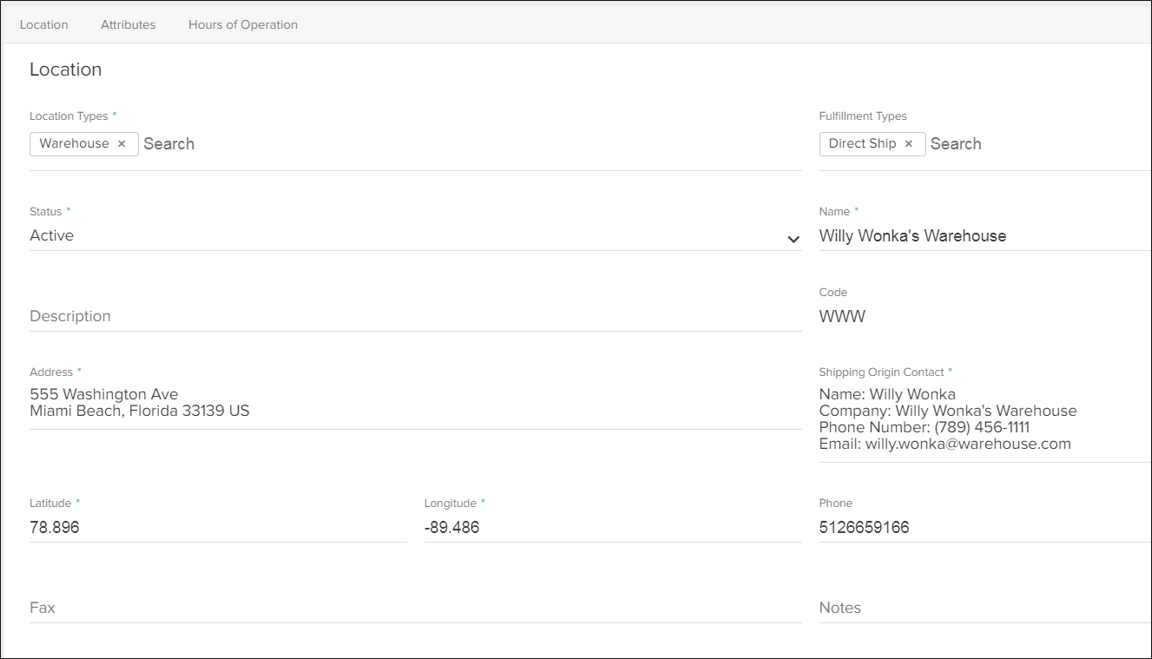 4. From the **Fulfillment Types** drop-down menu, select one or more fulfillment types the location supports.
5. Select a **Status** for the location.
6. Enter a **Name**.
7. Enter a **Code**.
8. Enter a physical **Address**.
9. Enter a **Shipping Origin Contact** and contact **Phone.**
10. Enter the **Latitude** and **Longitude** of the location.
11. Enter an optional **Fax** number.
12. Enter any internal **Notes** about this location as needed.
13. Fill out any other optional details that are appropriate for your location:
* Enable inventory tracking, express orders, and [transfer shipments and/or consolidation](/pages/fulfillment-method-types "Fulfillment Method Types") as desired.
* Toggle whether you want to include this location in [aggregate inventory levels](/pages/inventory-export-file "Inventory Export File") and location exports.
* Indicate whether the location is integrated with a warehouse or requires [a shipping manifest](/pages/shipping-manifests "Shipping Manifests").
* If you are using [Estimated Delivery Dates](/pages/estimated-delivery-dates "Accurate Fulfillment Dates"), enter the **Time Zone** and **Processing Time** settings for each fulfillment type used by location.
* If you enter a number of shipments and unit of time (hours, days, weeks, or months) for **Fulfillment Capacity**, then Order Routing will use this as a constraint when assigning shipments. Once the limit is reached, Order Routing will exclude the location from assignment when evaluating orders for the time period. This does not apply to returns.
4. From the **Fulfillment Types** drop-down menu, select one or more fulfillment types the location supports.
5. Select a **Status** for the location.
6. Enter a **Name**.
7. Enter a **Code**.
8. Enter a physical **Address**.
9. Enter a **Shipping Origin Contact** and contact **Phone.**
10. Enter the **Latitude** and **Longitude** of the location.
11. Enter an optional **Fax** number.
12. Enter any internal **Notes** about this location as needed.
13. Fill out any other optional details that are appropriate for your location:
* Enable inventory tracking, express orders, and [transfer shipments and/or consolidation](/pages/fulfillment-method-types "Fulfillment Method Types") as desired.
* Toggle whether you want to include this location in [aggregate inventory levels](/pages/inventory-export-file "Inventory Export File") and location exports.
* Indicate whether the location is integrated with a warehouse or requires [a shipping manifest](/pages/shipping-manifests "Shipping Manifests").
* If you are using [Estimated Delivery Dates](/pages/estimated-delivery-dates "Accurate Fulfillment Dates"), enter the **Time Zone** and **Processing Time** settings for each fulfillment type used by location.
* If you enter a number of shipments and unit of time (hours, days, weeks, or months) for **Fulfillment Capacity**, then Order Routing will use this as a constraint when assigning shipments. Once the limit is reached, Order Routing will exclude the location from assignment when evaluating orders for the time period. This does not apply to returns.
 14. In the **Attributes** section of the configurations, enter values for any [location attributes](/pages/location-attributes "Location Attributes") that you have created.
15. In the **Hours of Operation** section, define the time zone that this location operates in and set its opening and closing hours. Your site's theme controls whether this information is exposed on the site storefront.
14. In the **Attributes** section of the configurations, enter values for any [location attributes](/pages/location-attributes "Location Attributes") that you have created.
15. In the **Hours of Operation** section, define the time zone that this location operates in and set its opening and closing hours. Your site's theme controls whether this information is exposed on the site storefront.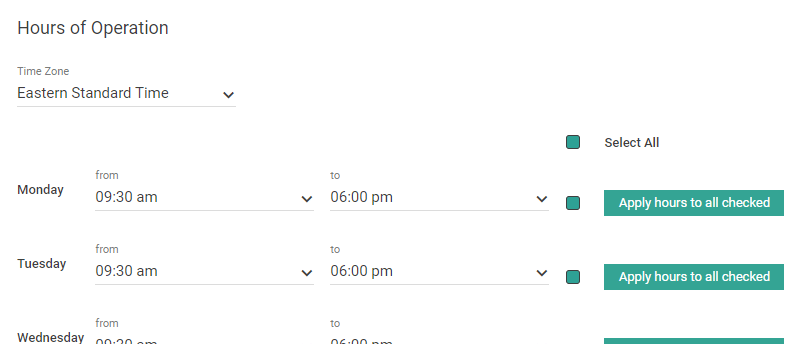 16. If you are using [Estimated Delivery Dates](/pages/estimated-delivery-dates "Accurate Fulfillment Dates"), enter the **Fulfillment Cutoff Time** settings for each fulfillment type used by location. See the linked guide for the full details of these settings.
17. In the **Carrier Accounts** section, identify which account credentials should be used when that location is fulfilling a shipment with that carrier. Type the account name for each listed carrier and select it from the results that appear.
* This is useful when there are multiple accounts for one carrier that are dependent on location. However, note that more extensive carrier settings such as a default carrier and supported shipping methods are configured at the [location group](/pages/location-groups#configure-a-location-group) level.
* When shipping labels are being generated, carrier account credentials are automatically inherited from a higher level if not specified in the priority of location, then location group, and then site. The "No Carrier Credentials Selected" option here means that this location will fall back to [the location group credentials](/pages/location-groups#configure-a-location-group "Location Groups"), and then [the default site credentials](/pages/shipping-carriers "Shipping Carriers") if no location group credentials are specified.
16. If you are using [Estimated Delivery Dates](/pages/estimated-delivery-dates "Accurate Fulfillment Dates"), enter the **Fulfillment Cutoff Time** settings for each fulfillment type used by location. See the linked guide for the full details of these settings.
17. In the **Carrier Accounts** section, identify which account credentials should be used when that location is fulfilling a shipment with that carrier. Type the account name for each listed carrier and select it from the results that appear.
* This is useful when there are multiple accounts for one carrier that are dependent on location. However, note that more extensive carrier settings such as a default carrier and supported shipping methods are configured at the [location group](/pages/location-groups#configure-a-location-group) level.
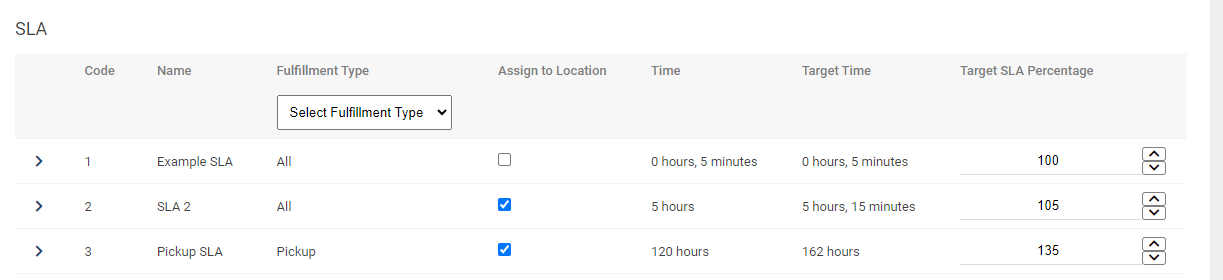
* When shipping labels are being generated, carrier account credentials are automatically inherited from a higher level if not specified in the priority of location, then location group, and then site. The "No Carrier Credentials Selected" option here means that this location will fall back to [the location group credentials](/pages/location-groups#configure-a-location-group "Location Groups"), and then [the default site credentials](/pages/shipping-carriers "Shipping Carriers") if no location group credentials are specified. 18. If [Fulfillment SLAs](/pages/fulfillment-slas "Fulfillment SLAs") are enabled for your implementation, then the **SLAs** section will be displayed at the bottom of the page. Use the checkboxes to assign one or more SLAs to this location, and use the up and down arrows to adjust the target percentage for each assigned SLA.
 19. Click **Save**.
## Duplicate a Location
You can duplicate a location to quickly create new locations that are based off of existing locations.
To duplicate a location:
1. Go **Main** > **Orders** > **Locations**.
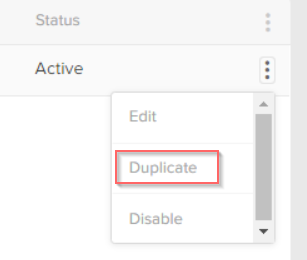
2. Expand the actions menu next to the location you want to duplicate, and select **Duplicate**:
19. Click **Save**.
## Duplicate a Location
You can duplicate a location to quickly create new locations that are based off of existing locations.
To duplicate a location:
1. Go **Main** > **Orders** > **Locations**.
2. Expand the actions menu next to the location you want to duplicate, and select **Duplicate**:
 3. In the new location, complete all required fields according to the [Create a Location](#create-a-new-location) steps.
## Disable a Location
You can disable locations from the same More Actions menu shown above. At this time, there is no way to disable locations in bulk or via an automatic process—you should manually disable each location individually.
If you want to disable a location that happens to be set as the default Shipping From location in your site settings, then an error message will be displayed. You should first go to your [Shipping Carrier settings](/pages/shipping-carriers "Shipping Carriers") and change the Shipping From option to a different location, after which you will be able to successfully disable the original location.
## Best Practices
* You can select more than one location type if more than one type applies.
* You can select more than one fulfillment type if your location supports both direct ship and in-store pick up.
* Create a unique code for each location.
* Enter latitude and longitude coordinates in numerical format.\
For example, latitude = 38.8897 and longitude = 77.0089.
* Select the **Location supports inventory** checkbox if the location maintains merchandise.\
Optionally, if you want to be able to fulfill items from the location without sufficient on hand stock select **Allow fulfillment without stock on hand**. Refer to [Inventory Management](/concept-guides/inventory) for more information.
3. In the new location, complete all required fields according to the [Create a Location](#create-a-new-location) steps.
## Disable a Location
You can disable locations from the same More Actions menu shown above. At this time, there is no way to disable locations in bulk or via an automatic process—you should manually disable each location individually.
If you want to disable a location that happens to be set as the default Shipping From location in your site settings, then an error message will be displayed. You should first go to your [Shipping Carrier settings](/pages/shipping-carriers "Shipping Carriers") and change the Shipping From option to a different location, after which you will be able to successfully disable the original location.
## Best Practices
* You can select more than one location type if more than one type applies.
* You can select more than one fulfillment type if your location supports both direct ship and in-store pick up.
* Create a unique code for each location.
* Enter latitude and longitude coordinates in numerical format.\
For example, latitude = 38.8897 and longitude = 77.0089.
* Select the **Location supports inventory** checkbox if the location maintains merchandise.\
Optionally, if you want to be able to fulfill items from the location without sufficient on hand stock select **Allow fulfillment without stock on hand**. Refer to [Inventory Management](/concept-guides/inventory) for more information.