> ## Documentation Index
> Fetch the complete documentation index at: https://docs.kibocommerce.com/llms.txt
> Use this file to discover all available pages before exploring further.
# Manage Customer Accounts
While you can't create new accounts from the Customers UI (as that must be done while checking out an order or via API), you can view and edit existing customers. For more details about changing a customer's account password or updating its access level, see the [Customer Account Access guide](/pages/customer-account-access "Customer Account Access").
See how to create new B2C customer accounts through the storefront and admin UI
Learn how to manage B2C customer accounts
To permanently erase a customer's personal data in response to a data subject erasure or right-to-deletion request under GDPR, CCPA, or similar privacy regulations, use the [Redaction Services](/developer-guides/redaction-services "Redaction Services") workflow rather than editing or deleting the account here. Redaction removes PII across orders, payments, shipments, and the account record itself.
## Customers Grid
When viewing the list of customers at **Main** > **Customers** > **Customers**, you can sort the table by clicking a column header.
 Some columns do not display by default. To view additional columns:
1. In the right-hand corner of the customer grid, select the options button (represented by three dots).
2. From the drop-down menu, select the fields that you want to view on the Customers grid.
Some columns do not display by default. To view additional columns:
1. In the right-hand corner of the customer grid, select the options button (represented by three dots).
2. From the drop-down menu, select the fields that you want to view on the Customers grid.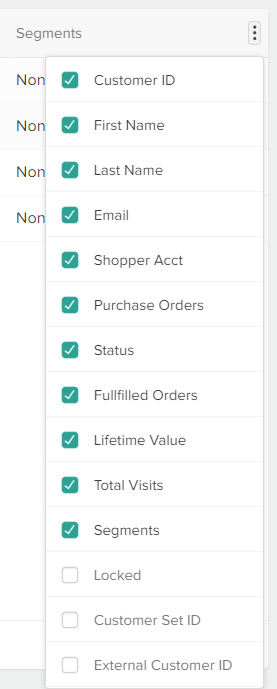 ## Search for Customers
You can search for customers using the quick search bar to enter keywords and/or the dropdown Advanced Filter menu. This supports searching by customer first and last name, phone number, customer segment, and customer set. Neither search is case-sensitive.
#### Quick Search
In the quick search bar, entering a number with no other data such as "22" will bring up the customer with that customer number. Entering text with no other data will bring up customers with that first or last name.
Characters such as asterisks will be removed, so using them as "wildcards" is not necessary. Searching for ga\* will have the same result as searching for ga.
#### Advanced Filters
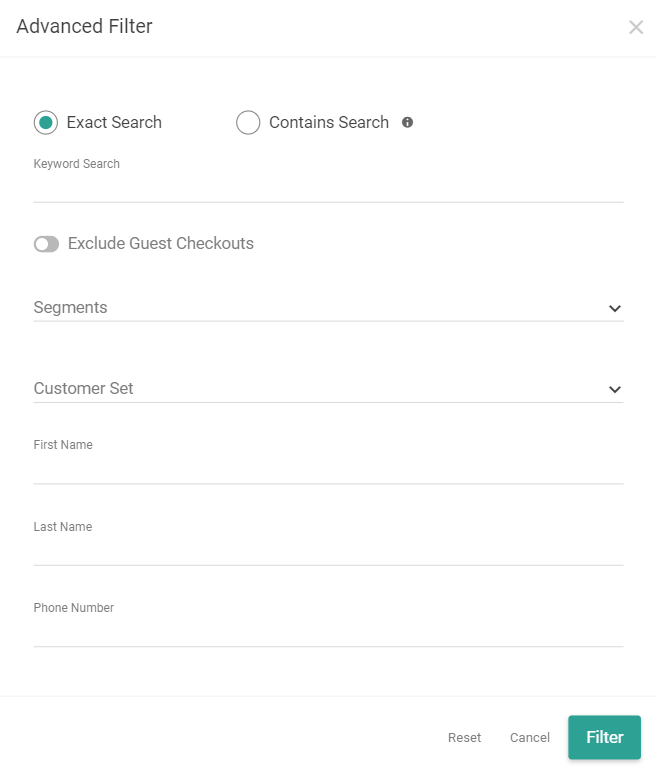
When using advanced filters to search for customers based on specific criteria, you can choose between performing an Exact Search (which is the default behavior) or a Contains Search. An Exact Search will return only results that exactly match your input value, while a Contains Search will return any results that include your input (such as Customer 12345 when you search for 234). In either case, multiple filters can be applied at once. However, note that the Contains search is not supported for phone numbers. When searching for a phone number, only exact results will be returned.
You can also enter a text value to perform a keyword search (which is not changed by your Exact Search or Contains Search selection).
## Search for Customers
You can search for customers using the quick search bar to enter keywords and/or the dropdown Advanced Filter menu. This supports searching by customer first and last name, phone number, customer segment, and customer set. Neither search is case-sensitive.
#### Quick Search
In the quick search bar, entering a number with no other data such as "22" will bring up the customer with that customer number. Entering text with no other data will bring up customers with that first or last name.
Characters such as asterisks will be removed, so using them as "wildcards" is not necessary. Searching for ga\* will have the same result as searching for ga.
#### Advanced Filters
When using advanced filters to search for customers based on specific criteria, you can choose between performing an Exact Search (which is the default behavior) or a Contains Search. An Exact Search will return only results that exactly match your input value, while a Contains Search will return any results that include your input (such as Customer 12345 when you search for 234). In either case, multiple filters can be applied at once. However, note that the Contains search is not supported for phone numbers. When searching for a phone number, only exact results will be returned.
You can also enter a text value to perform a keyword search (which is not changed by your Exact Search or Contains Search selection).
 If you attempt a contains search from the Advanced Filter menu where one field has three characters and another field has less than three, such as if you enter "Smi" for the last name and "Jo" for the first name, then the system will only search based on the three-character field.
## View/Edit Existing Accounts
To view or edit an account, select its entry in the Customers table or click **Edit** from the drop-down menu on the far right. In either case, this will open a details page. The top of the page displays an overview of the customer's lifetime value, the date the account was created, the current purchase order amount, and more.
If you attempt a contains search from the Advanced Filter menu where one field has three characters and another field has less than three, such as if you enter "Smi" for the last name and "Jo" for the first name, then the system will only search based on the three-character field.
## View/Edit Existing Accounts
To view or edit an account, select its entry in the Customers table or click **Edit** from the drop-down menu on the far right. In either case, this will open a details page. The top of the page displays an overview of the customer's lifetime value, the date the account was created, the current purchase order amount, and more.
 ### Account Status
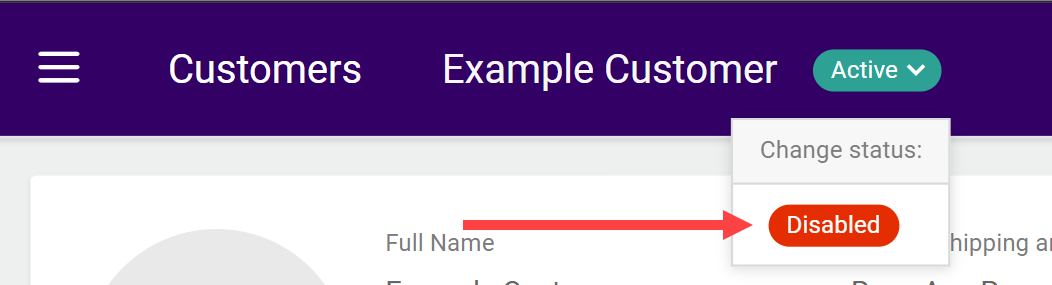
The account's current status (**Active** or **Disabled**) is also displayed in the top header. To change this status, click the dropdown button and select the new status.
### Account Status
The account's current status (**Active** or **Disabled**) is also displayed in the top header. To change this status, click the dropdown button and select the new status.
 ### General Information
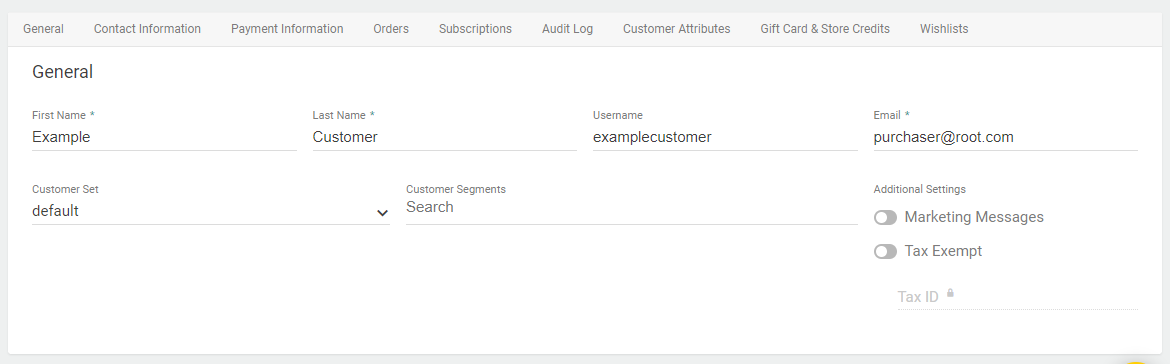
This is the basic information that was set when creating an account, including the name, email (which has a maximum length of 254 characters), tax status, and any [segments](/pages/customer-segments "Customer Segments") or [customer sets](/pages/customer-sets "Customer Sets"). See the [Customer Segments](/pages/customer-segments "Customer Segments") and [Customer Sets](/pages/customer-sets "Customer Sets") documentation for more details about creating and assigning those groups. You can edit any of that information (except for the Tax ID) here.
Customer normalization is the recommended way of preventing customers from accidentally creating multiple shopper accounts under the same email address. If you want to use this approach to avoid multiple shopper accounts per email address, you can implement it with an [API Extension application](/pages/api-extension-examples#customer-normalization "API Extension Examples").
### General Information
This is the basic information that was set when creating an account, including the name, email (which has a maximum length of 254 characters), tax status, and any [segments](/pages/customer-segments "Customer Segments") or [customer sets](/pages/customer-sets "Customer Sets"). See the [Customer Segments](/pages/customer-segments "Customer Segments") and [Customer Sets](/pages/customer-sets "Customer Sets") documentation for more details about creating and assigning those groups. You can edit any of that information (except for the Tax ID) here.
Customer normalization is the recommended way of preventing customers from accidentally creating multiple shopper accounts under the same email address. If you want to use this approach to avoid multiple shopper accounts per email address, you can implement it with an [API Extension application](/pages/api-extension-examples#customer-normalization "API Extension Examples").
 ### Contact Information
This section contains all of the available addresses and other contact information that can be used with this customer account. Click the pencil icon next to an Address ID to edit an existing address, or click the X icon to remove it instead.
### Contact Information
This section contains all of the available addresses and other contact information that can be used with this customer account. Click the pencil icon next to an Address ID to edit an existing address, or click the X icon to remove it instead.
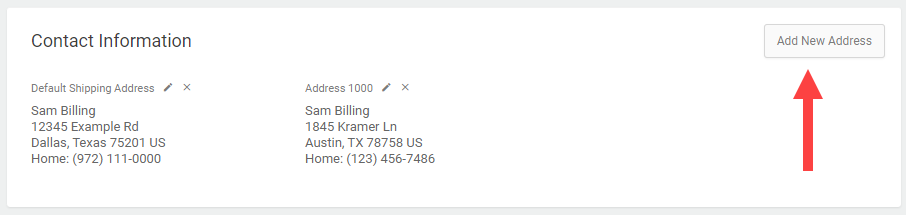 Click **Add New Address** on the right to create a new contact, which will open the below modal for you to fill out. There is a maximum limit of 20 contacts per account. If a new contact is added when the limit has been reached, then the oldest contact that is not set as the primary billing or shipping address will be deleted and replaced by the new contact.
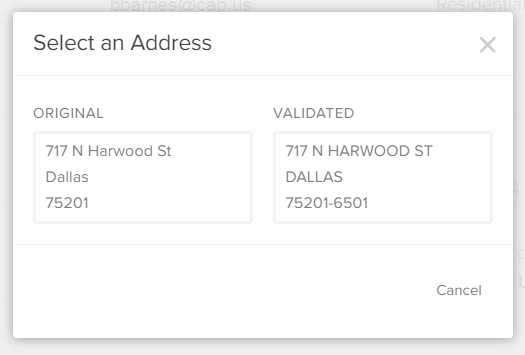
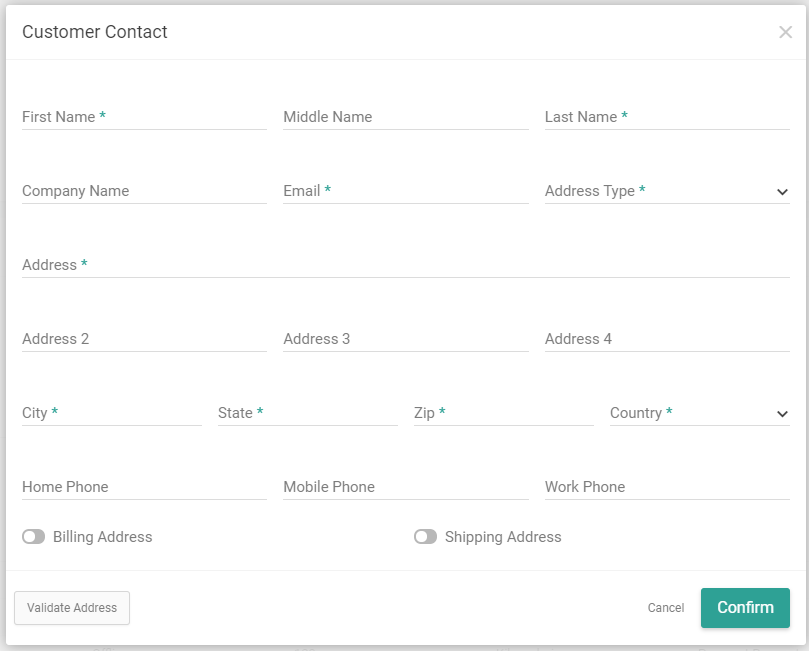 While doing so, you can click **Validate Address** to analyze the input. The Kibo Composable Commerce Platform will provide you with an automatically edited version that may be selected for use. This validation may capitalize words, expand the zip code, or otherwise standardize the formatting.
 ### Payment Information
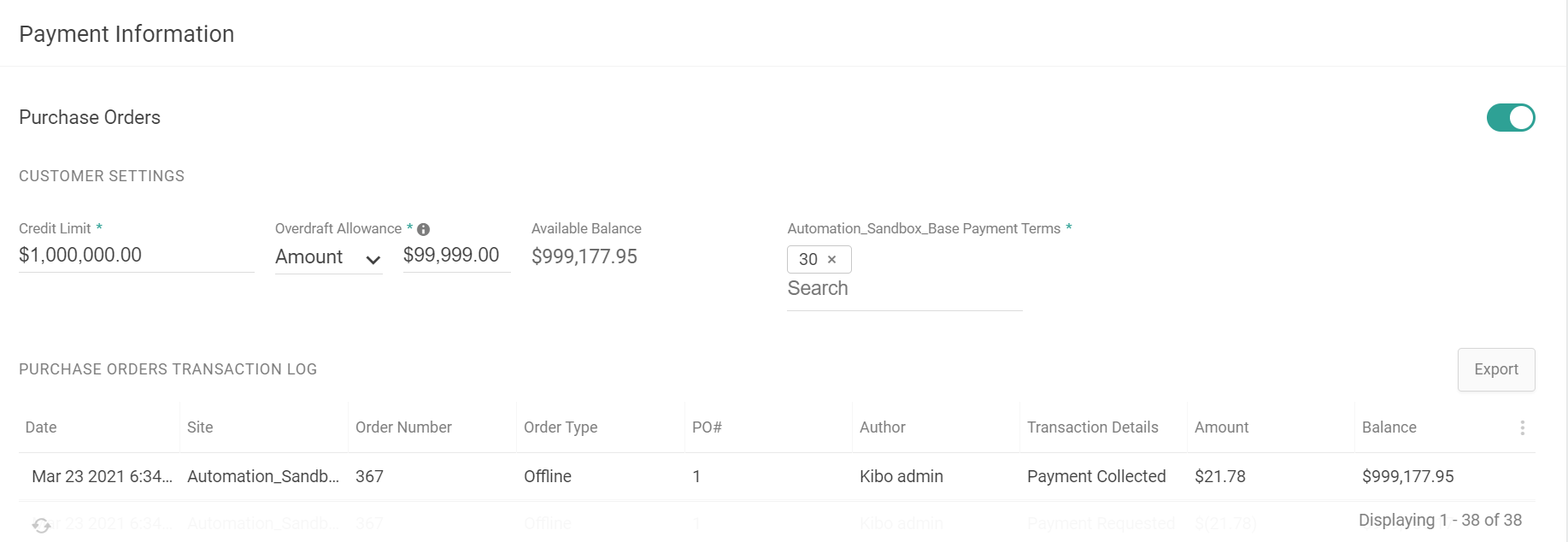
The payment information includes settings for the credit limit and overdraft allowance, and displays the current available purchase order balance of the account. A history of all purchase order transactions is also included. For more information, see the [Customer Purchase Orders](/pages/customer-purchase-orders "Customer Purchase Orders") guide.
### Payment Information
The payment information includes settings for the credit limit and overdraft allowance, and displays the current available purchase order balance of the account. A history of all purchase order transactions is also included. For more information, see the [Customer Purchase Orders](/pages/customer-purchase-orders "Customer Purchase Orders") guide.
 ### Orders
The order history displays all orders that have been submitted by this account. Either click an order in the table to view its details in the Orders UI or expand the dropdown menu on the far right and click **View Order.**
### Orders
The order history displays all orders that have been submitted by this account. Either click an order in the table to view its details in the Orders UI or expand the dropdown menu on the far right and click **View Order.**
 ### Subscriptions
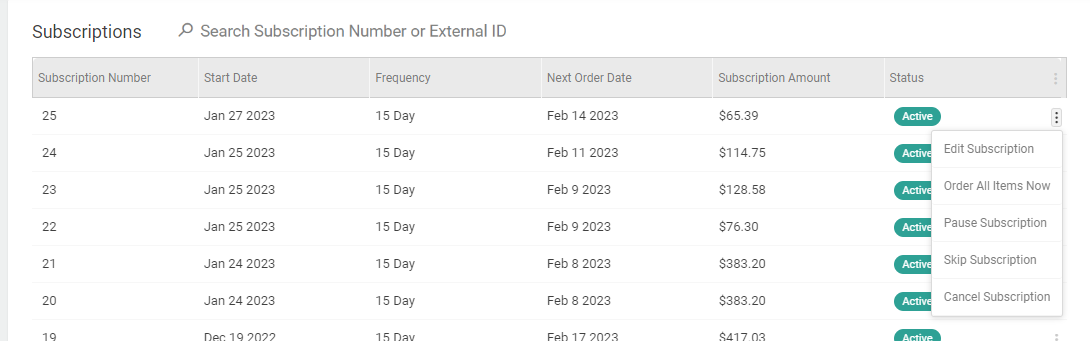
This section displays all [subscriptions](/concept-guides/subscriptions "Product Subscriptions Overview") that have been created for this account, regardless of whether they are currently active or not. Click a subscription in the table to view its details, or expand the dropdown menu on the right to perform other actions. See the [Manage Subscriptions guide](/pages/manage-product-subscriptions "Manage Subscriptions") for more information about these actions.
### Subscriptions
This section displays all [subscriptions](/concept-guides/subscriptions "Product Subscriptions Overview") that have been created for this account, regardless of whether they are currently active or not. Click a subscription in the table to view its details, or expand the dropdown menu on the right to perform other actions. See the [Manage Subscriptions guide](/pages/manage-product-subscriptions "Manage Subscriptions") for more information about these actions.
 ### Audit Log
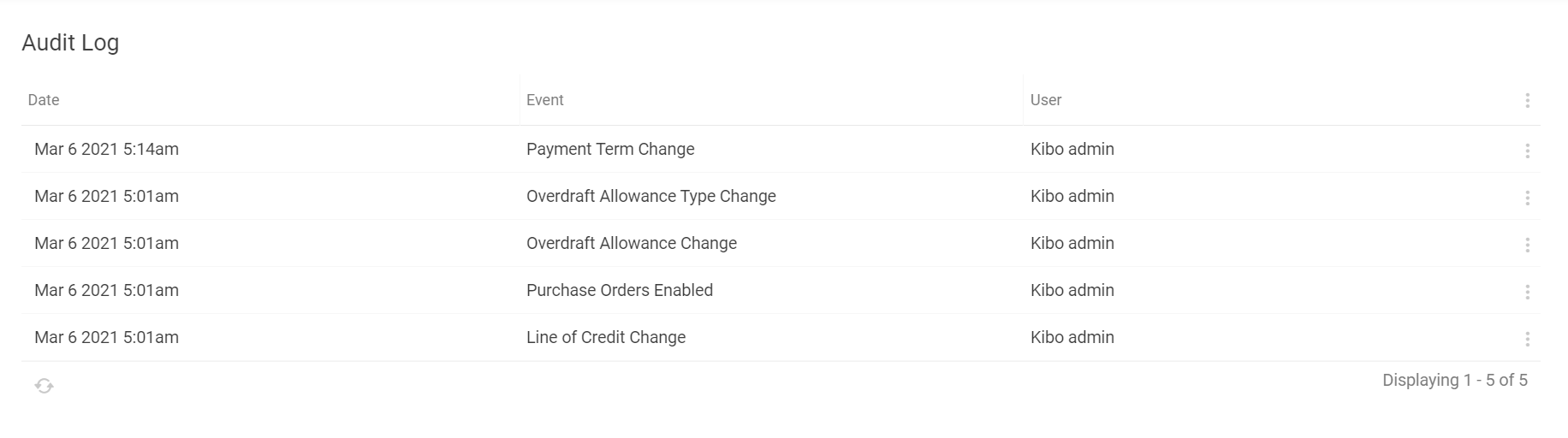
The audit log provides an audit history for the Purchase Order account settings.
### Audit Log
The audit log provides an audit history for the Purchase Order account settings.
 ### Customer Attributes
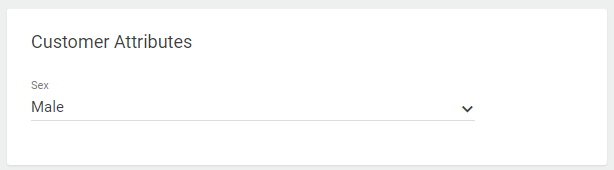
This section displays any available customer attributes and allows you to select a value for this account. See the [Customer Attributes documentation](/pages/customer-attributes "Customer Attributes") for more details.
### Customer Attributes
This section displays any available customer attributes and allows you to select a value for this account. See the [Customer Attributes documentation](/pages/customer-attributes "Customer Attributes") for more details.
 ### Gift Card & Store Credits
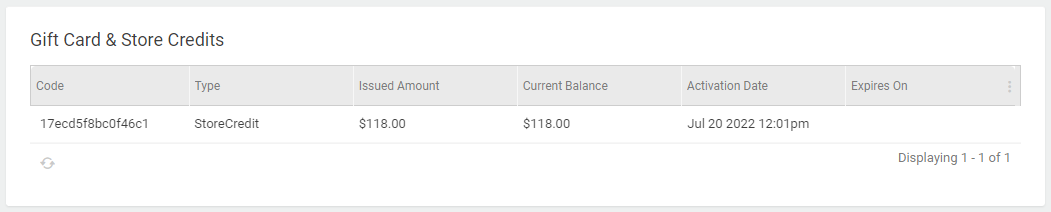
This sections displays any gift cards and store credits that have been created for this account and information on the issued amount, current balance, activation and expiration date. For more information, see the [Store Credit and Gift Cards guide](/pages/store-credit-and-gift-cards "Store Credit and Gift Cards") in the Order Payment category.
### Gift Card & Store Credits
This sections displays any gift cards and store credits that have been created for this account and information on the issued amount, current balance, activation and expiration date. For more information, see the [Store Credit and Gift Cards guide](/pages/store-credit-and-gift-cards "Store Credit and Gift Cards") in the Order Payment category.
 ### Wishlists
If the customer has created any wish lists, those lists are displayed in the final section with the title and creation date.
### Wishlists
If the customer has created any wish lists, those lists are displayed in the final section with the title and creation date.