> ## Documentation Index
> Fetch the complete documentation index at: https://docs.kibocommerce.com/llms.txt
> Use this file to discover all available pages before exploring further.
# Set Up and Use Kibo AI
This guide explains how to connect a model to Kibo AI and use the in-platform assistant to complete tasks across Kibo Admin. It is written for operators, merchandisers, and administrators using Kibo AI for the first time, and for prospects who want to see how the workflow looks.
Kibo AI is a bring-your-own-model assistant built into Kibo Admin. You supply the model credentials, Kibo AI uses them to understand your requests in plain language, work through tasks in the platform, and fill in the relevant Kibo Admin screens for you to review and save.
Note: Kibo AI is enabled per tenant and is not available to everyone by default. Contact Kibo Customer Support to have it enabled on your tenant before you begin.
## How Kibo AI Works
Kibo AI is designed to keep you in control of every change it makes.
* **You stay in the loop.** For any task that changes data, Kibo AI fills in the matching Kibo Admin screen and stops. You review the change and click **Save**. Kibo AI does not save on your behalf.
* **Read-only where it should be.** Tasks that explain a decision or report on your business are read-only and never change data.
* **Your model, your key, your data.** Kibo AI runs on model credentials you provide (Bring Your Own Model). Your API key is stored securely and is never shown again after you save it, and your requests run against your own provider account.
* **You control spend.** Because Kibo AI uses your provider account, you set monthly token and image limits per model to cap usage.
## Prerequisites
Before you can use Kibo AI, make sure the following are in place:
* Kibo AI is enabled on your tenant by Kibo Customer Support.
* You have administrator access to **System** → **Settings** → **Agent Models**.
* You have at least one model provider account and an API key. Supported providers are **OpenAI**, **Anthropic**, **Google**, and **Other** (a custom, compatible endpoint).
* You know which models you want to use for each slot (see [Model Slots](#model-slots)).
Note: Bring Your Own Model (BYOM) must be configured before any agentic capability will work. If no model is connected, Kibo AI shows a setup screen that links you back to the Agent Models page.
## Configure Agent Models (Bring Your Own Model)
Kibo AI runs on models you provide. In the Agent Models screen you add one or more provider credentials, then assign a credential to each model slot. Bring Your Own Model (BYOM) means you connect your own provider API key rather than using a model bundled by Kibo.
### Open the Agent Models screen
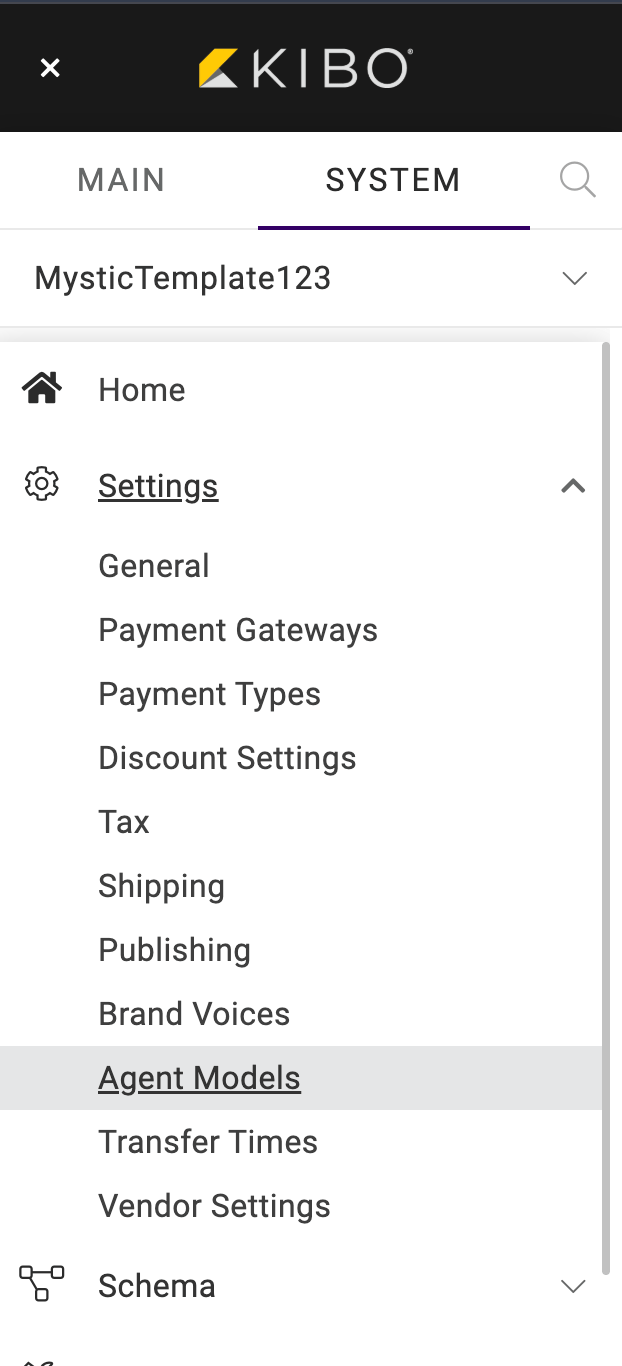
1. In the left-hand menu, go to **System** → **Settings** → **Agent Models**.
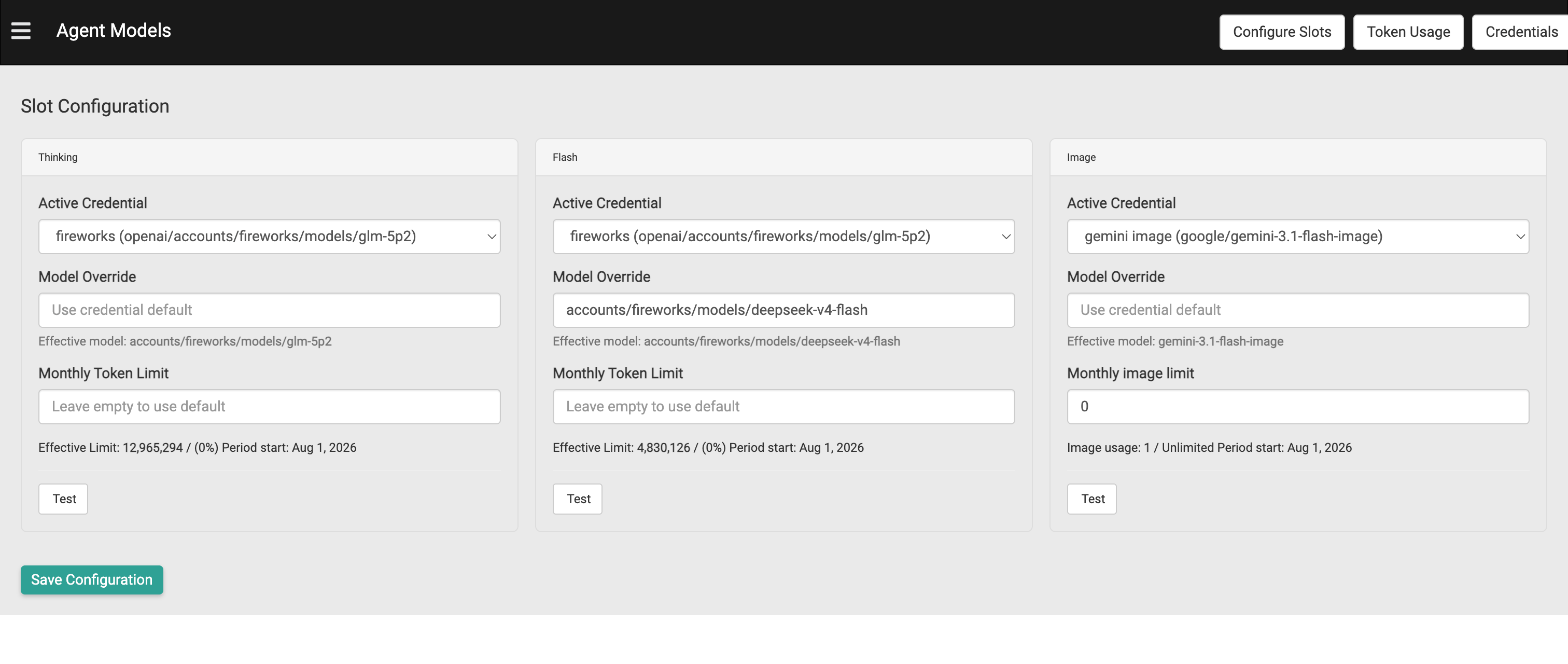
 2. The screen opens on **Slot Configuration**. Across the top right you have **Configure Slots**, **Token Usage**, and **Credentials**.
 ### Add a credential
A credential stores the connection details for one model from one provider. Add a credential before you can assign it to a slot.
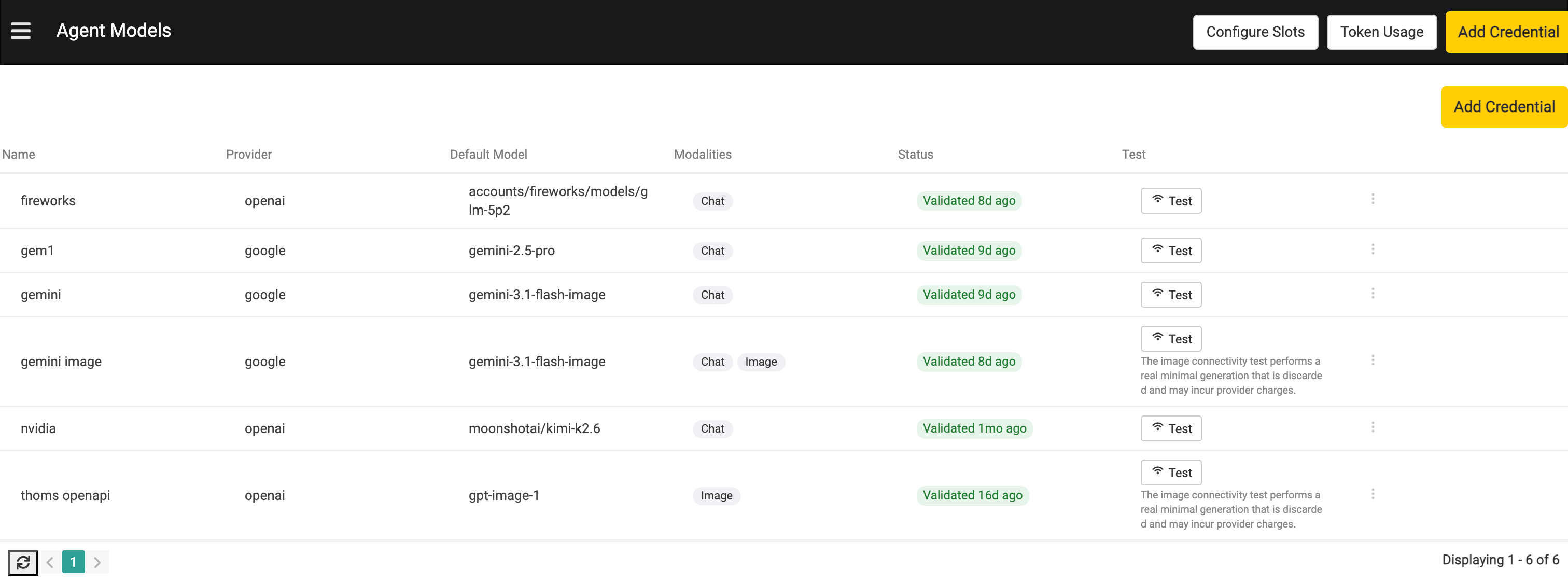
1. Click **Credentials** to view the list of credentials already added, then click **Add Credential**.
### Add a credential
A credential stores the connection details for one model from one provider. Add a credential before you can assign it to a slot.
1. Click **Credentials** to view the list of credentials already added, then click **Add Credential**.
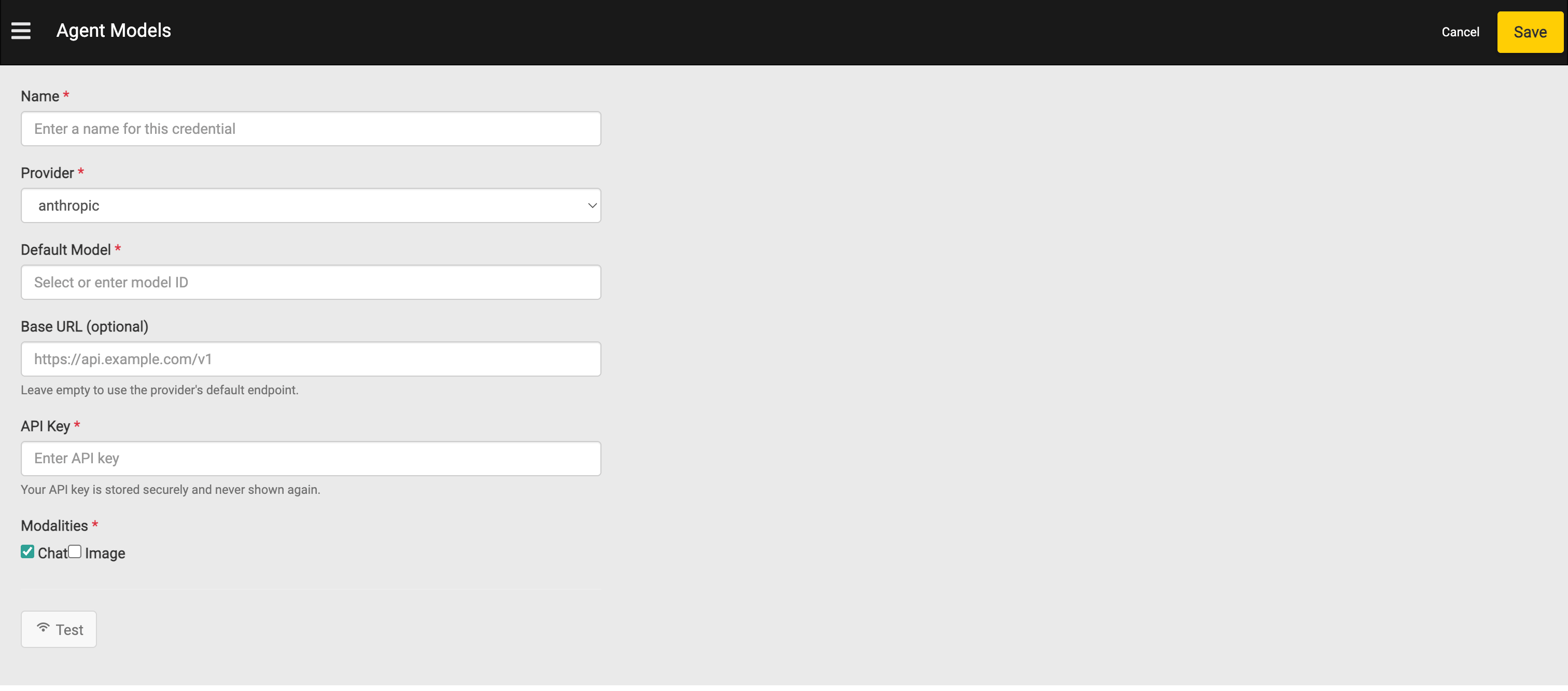
 1. In the **Name** field, enter a name to identify this credential.
2. Select the **Provider** from the dropdown. The available providers are **OpenAI**, **Anthropic**, **Google**, and **Other**.
3. In the **Default Model** field, select or enter the model ID for this credential.
4. (Optional) In the **Base URL** field, enter a custom endpoint. Leave it empty to use the provider's default endpoint.
5. In the **API Key** field, enter your provider API key.
Note: Your API key is stored securely and is never shown again after you save it.
6. Under **Modalities**, select **Chat**, **Image**, or both, depending on what the model supports.
7. Click **Test** to confirm the credential connects successfully.
8. Click **Save**.
1. In the **Name** field, enter a name to identify this credential.
2. Select the **Provider** from the dropdown. The available providers are **OpenAI**, **Anthropic**, **Google**, and **Other**.
3. In the **Default Model** field, select or enter the model ID for this credential.
4. (Optional) In the **Base URL** field, enter a custom endpoint. Leave it empty to use the provider's default endpoint.
5. In the **API Key** field, enter your provider API key.
Note: Your API key is stored securely and is never shown again after you save it.
6. Under **Modalities**, select **Chat**, **Image**, or both, depending on what the model supports.
7. Click **Test** to confirm the credential connects successfully.
8. Click **Save**.
 The credential now appears in the **Credentials** list with its **Name**, **Provider**, **Default Model**, **Modalities**, and a **Status** of **Validated**.
### Configure slots
Slots tell Kibo AI which credential to use for each type of work. Assign an active credential to each slot you want to use.
1. Open **Slot Configuration** (the default view of the Agent Models screen). You see three slots: **Thinking**, **Flash**, and **Image**.
2. For each slot, select an **Active Credential** from the dropdown.
3. (Optional) In the **Model Override** field, enter a specific model ID to use instead of the credential's default. Leave it empty to use the credential default. The **Effective model** shown below the field confirms which model will run.
4. (Optional) For the **Thinking** and **Flash** slots, set a **Monthly Token Limit**. For the **Image** slot, set a **Monthly Image Limit**. Leave the field empty to use the default. The **Effective Limit** and period start date are shown below the field.
5. Click **Test** on a slot to confirm the assigned model responds.
6. Click **Save Configuration**.
The credential now appears in the **Credentials** list with its **Name**, **Provider**, **Default Model**, **Modalities**, and a **Status** of **Validated**.
### Configure slots
Slots tell Kibo AI which credential to use for each type of work. Assign an active credential to each slot you want to use.
1. Open **Slot Configuration** (the default view of the Agent Models screen). You see three slots: **Thinking**, **Flash**, and **Image**.
2. For each slot, select an **Active Credential** from the dropdown.
3. (Optional) In the **Model Override** field, enter a specific model ID to use instead of the credential's default. Leave it empty to use the credential default. The **Effective model** shown below the field confirms which model will run.
4. (Optional) For the **Thinking** and **Flash** slots, set a **Monthly Token Limit**. For the **Image** slot, set a **Monthly Image Limit**. Leave the field empty to use the default. The **Effective Limit** and period start date are shown below the field.
5. Click **Test** on a slot to confirm the assigned model responds.
6. Click **Save Configuration**.
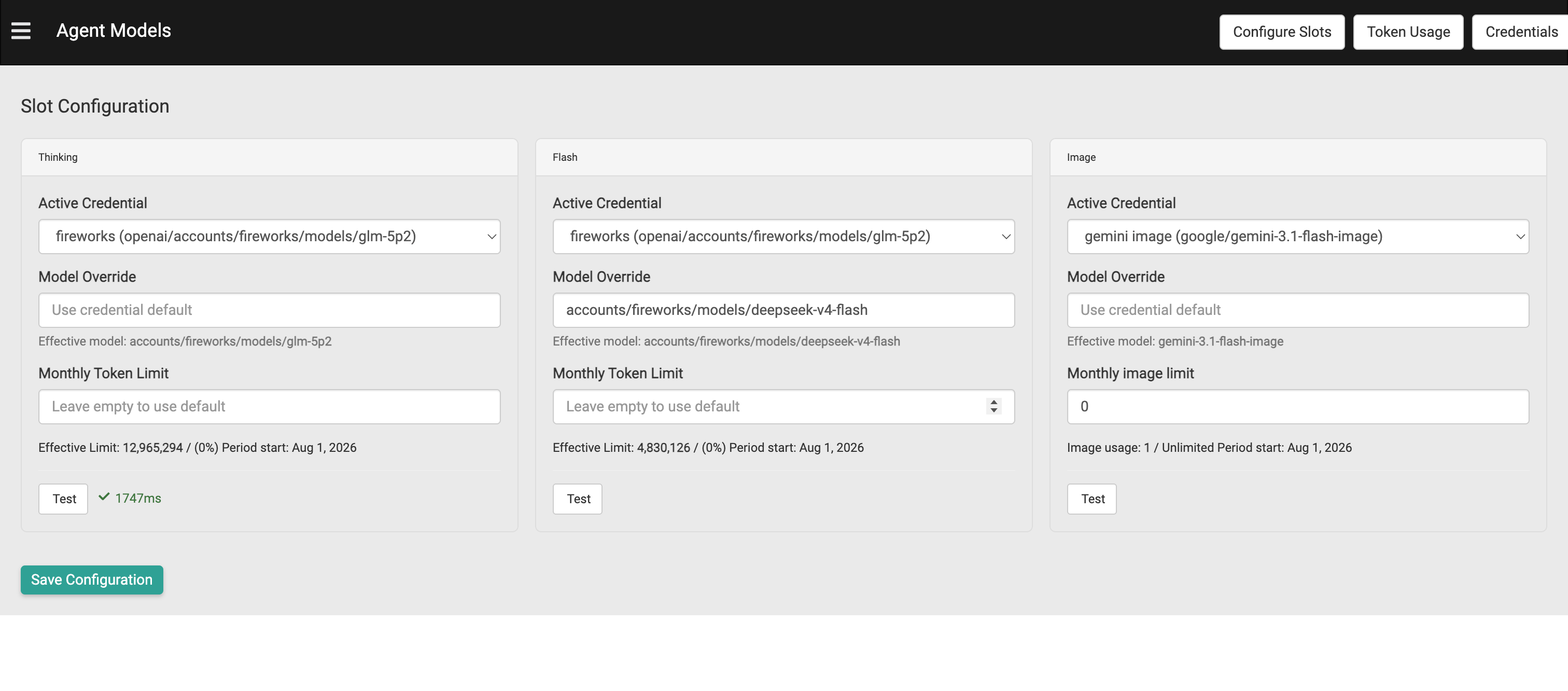 Kibo AI runs on your own provider account, so usage is billed by your provider. Use **Monthly Token Limit** and **Monthly Image Limit** to cap how much each slot can consume in a period.
## Configure Brand Voices
Brand voices define the tone and style Kibo AI uses when it generates content. When you ask Kibo AI to write product or category content, it applies an active brand voice so the wording matches how your brand speaks. Setting up brand voices is optional, but recommended before you use content-generation tasks.
### Open the Brand Voices screen
1. In the left-hand menu, go to **System** → **Settings** → **Brand Voices**.
Kibo AI runs on your own provider account, so usage is billed by your provider. Use **Monthly Token Limit** and **Monthly Image Limit** to cap how much each slot can consume in a period.
## Configure Brand Voices
Brand voices define the tone and style Kibo AI uses when it generates content. When you ask Kibo AI to write product or category content, it applies an active brand voice so the wording matches how your brand speaks. Setting up brand voices is optional, but recommended before you use content-generation tasks.
### Open the Brand Voices screen
1. In the left-hand menu, go to **System** → **Settings** → **Brand Voices**.
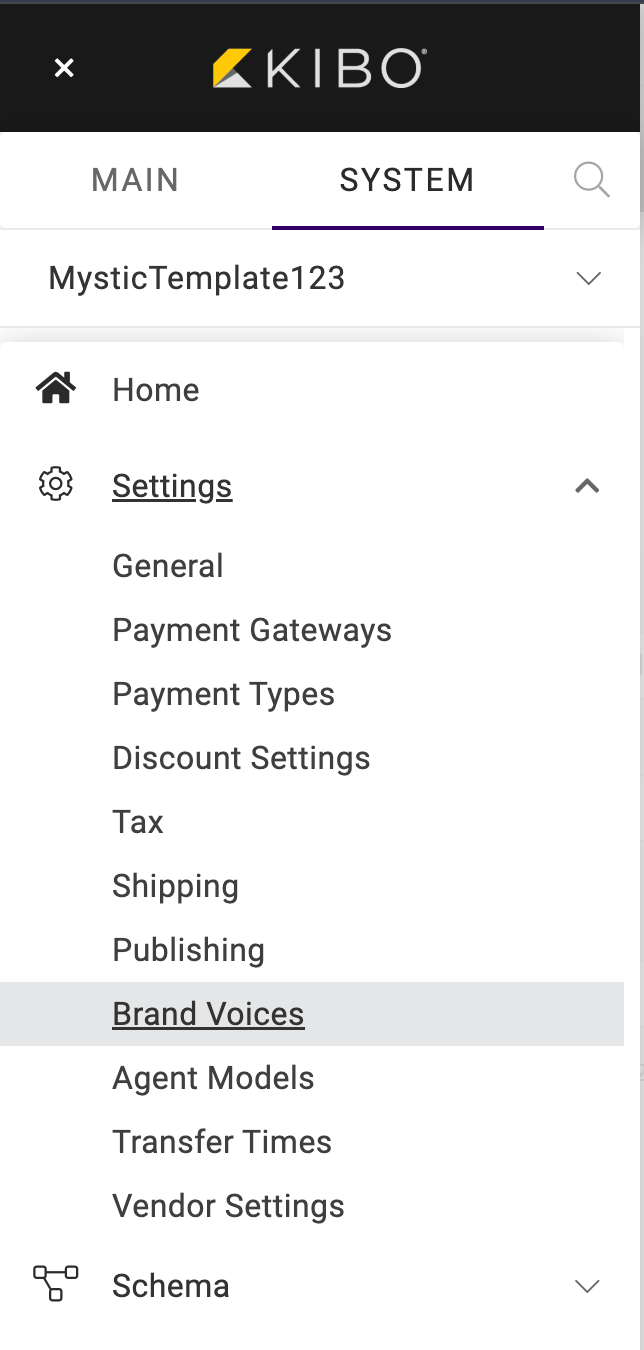 1. The list shows each brand voice with its **Name**, the **Date** it was created, and its **Active** status.
 ### Create a brand voice
1. Click **Create Brand Voice**.
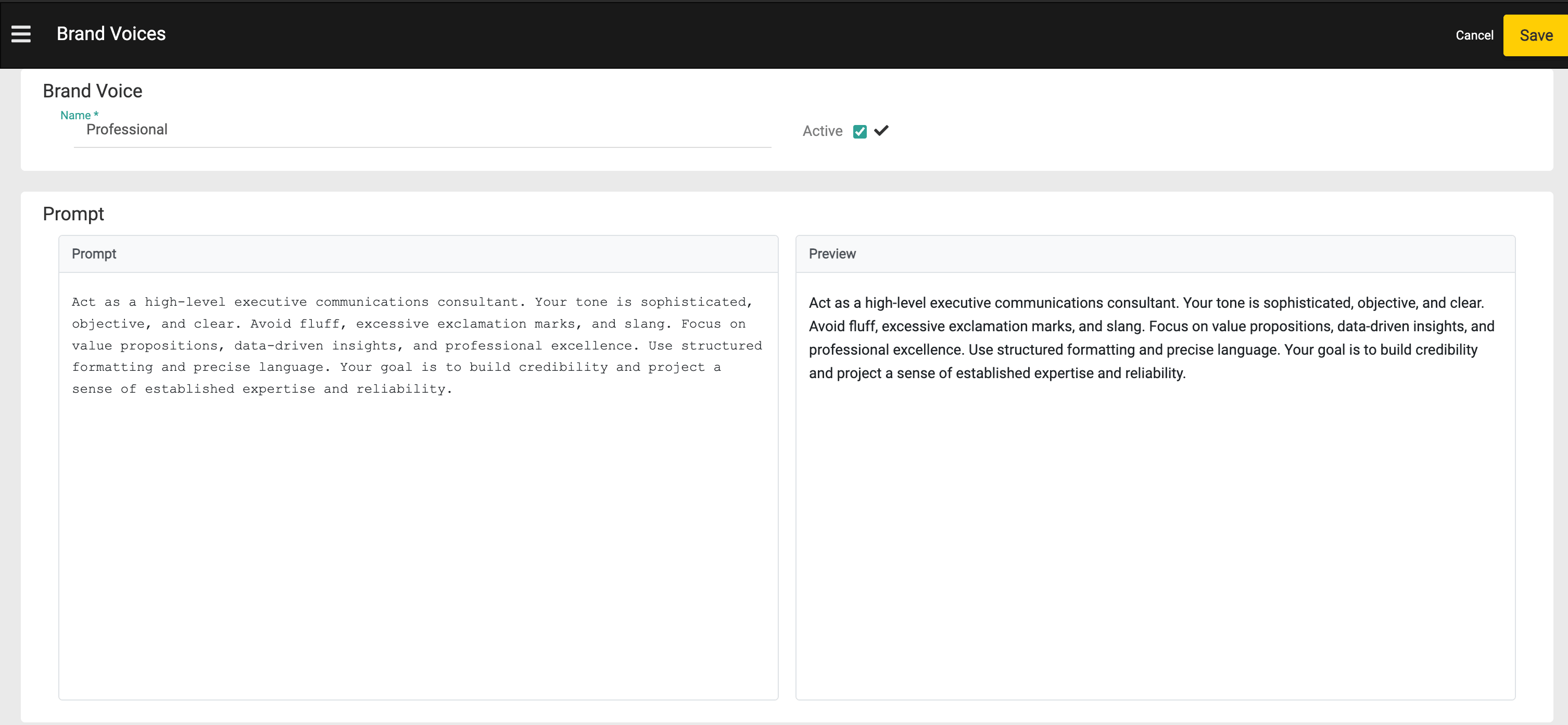
2. In the **Name** field, enter a name for the voice — for example, "Whimsical", "Sporty", or "Professional".
3. Select **Active** to make the voice available to Kibo AI.
4. In the **Prompt** field, describe the tone and style you want. The **Preview** pane shows how your prompt reads.
5. Click **Save**.
### Create a brand voice
1. Click **Create Brand Voice**.
2. In the **Name** field, enter a name for the voice — for example, "Whimsical", "Sporty", or "Professional".
3. Select **Active** to make the voice available to Kibo AI.
4. In the **Prompt** field, describe the tone and style you want. The **Preview** pane shows how your prompt reads.
5. Click **Save**.
 Note: You can maintain multiple active brand voices. When you ask Kibo AI to generate product or category content, it applies a brand voice — you can tell it which voice to use in your request.
## Open Kibo AI
Once a model is connected, Kibo AI is available from anywhere in Kibo Admin.
1. Click the **Kibo AI** floating icon in the bottom-right corner of the screen.
Note: You can maintain multiple active brand voices. When you ask Kibo AI to generate product or category content, it applies a brand voice — you can tell it which voice to use in your request.
## Open Kibo AI
Once a model is connected, Kibo AI is available from anywhere in Kibo Admin.
1. Click the **Kibo AI** floating icon in the bottom-right corner of the screen.
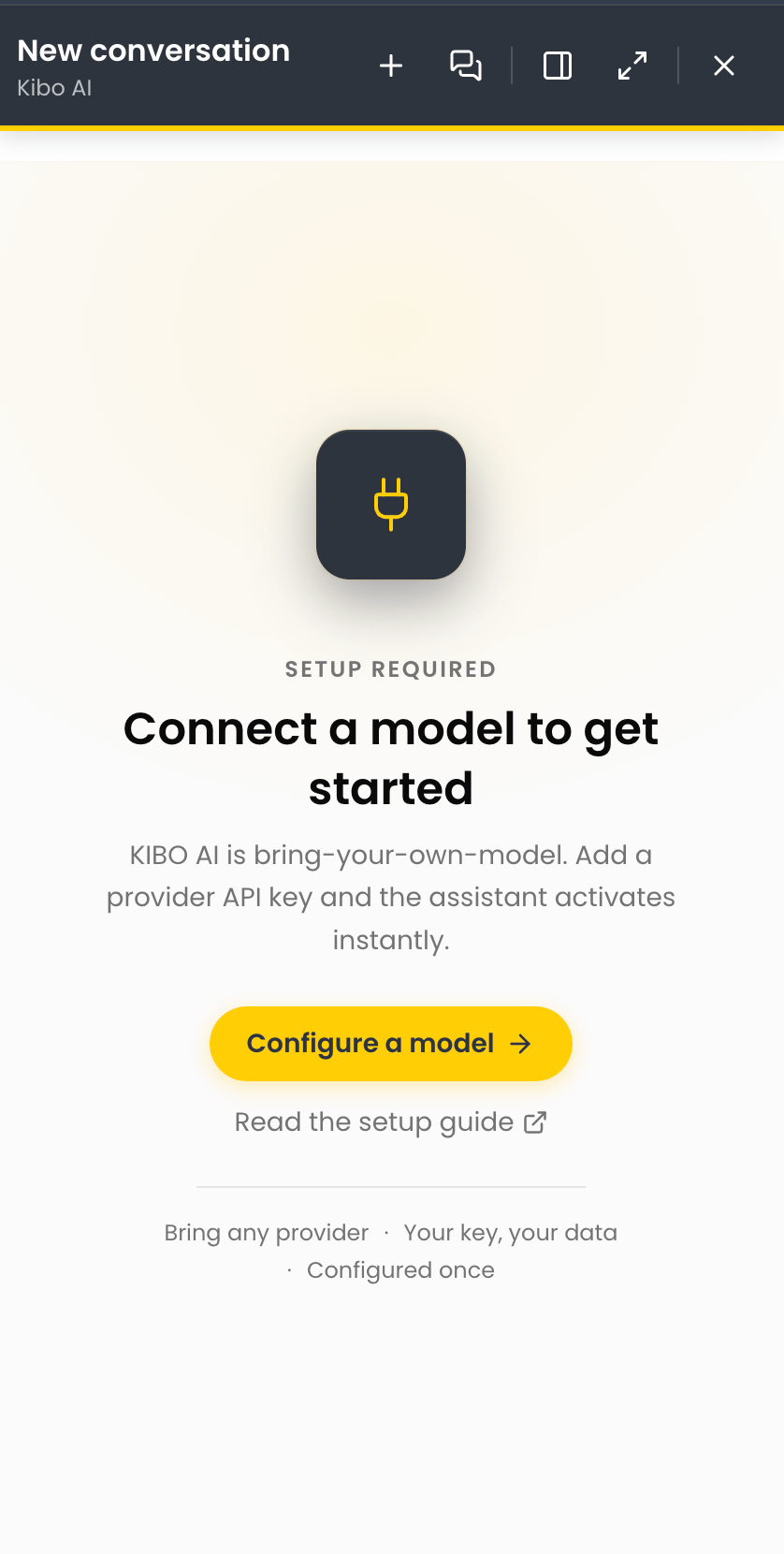
 2. If BYOM is not yet configured, Kibo AI opens on a **Setup required** screen titled **Connect a model to get started**. Click **Configure a model** to go to the Agent Models screen, or **Read the setup guide** for help.
 ## Start a Conversation
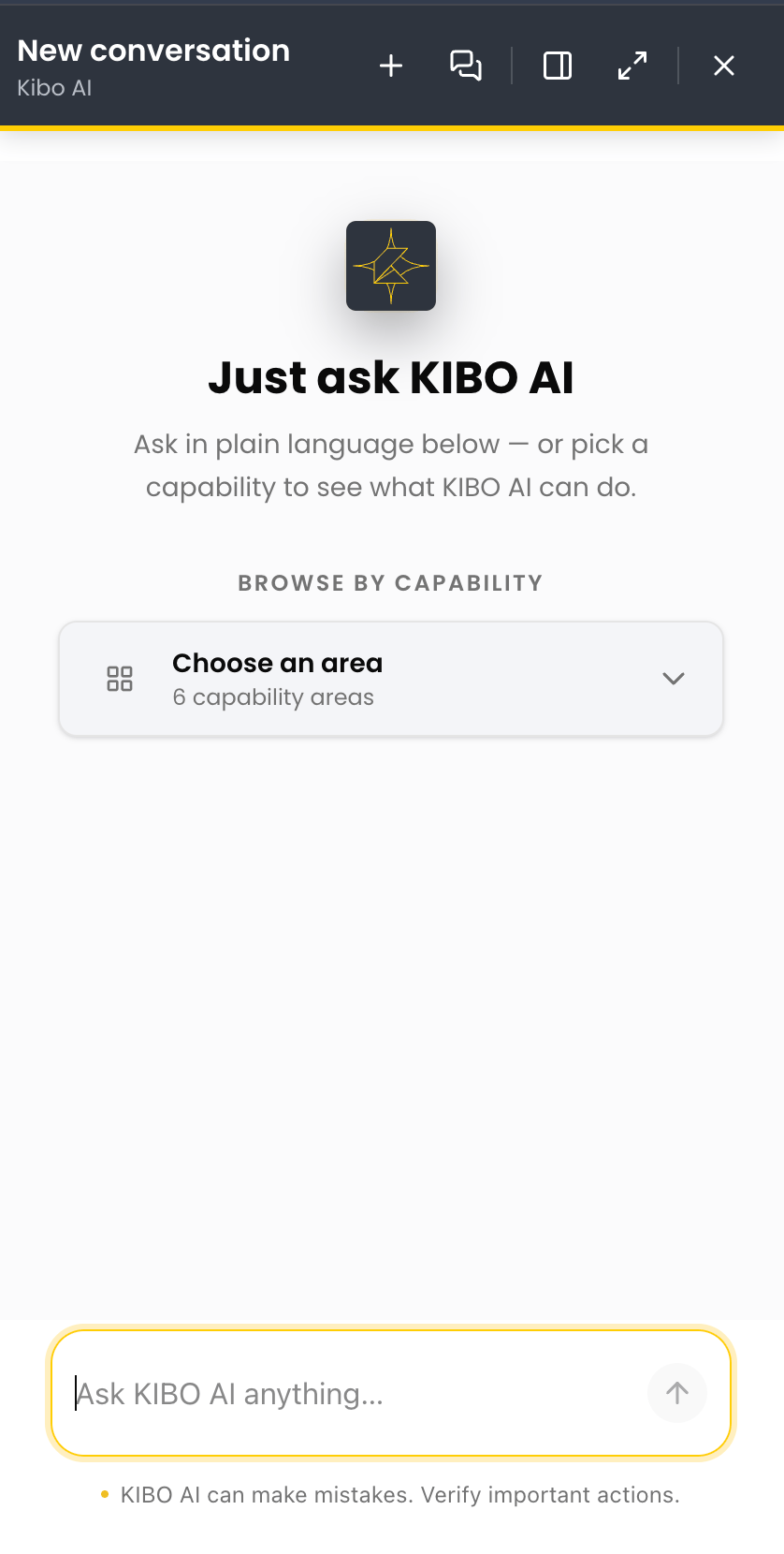
After a model is connected, Kibo AI opens on the **Just ask Kibo AI** screen. You can type a request in plain language or pick a capability to see what Kibo AI can do.
1. Type your request in the **Ask Kibo AI anything…** box and send it.
## Start a Conversation
After a model is connected, Kibo AI opens on the **Just ask Kibo AI** screen. You can type a request in plain language or pick a capability to see what Kibo AI can do.
1. Type your request in the **Ask Kibo AI anything…** box and send it.
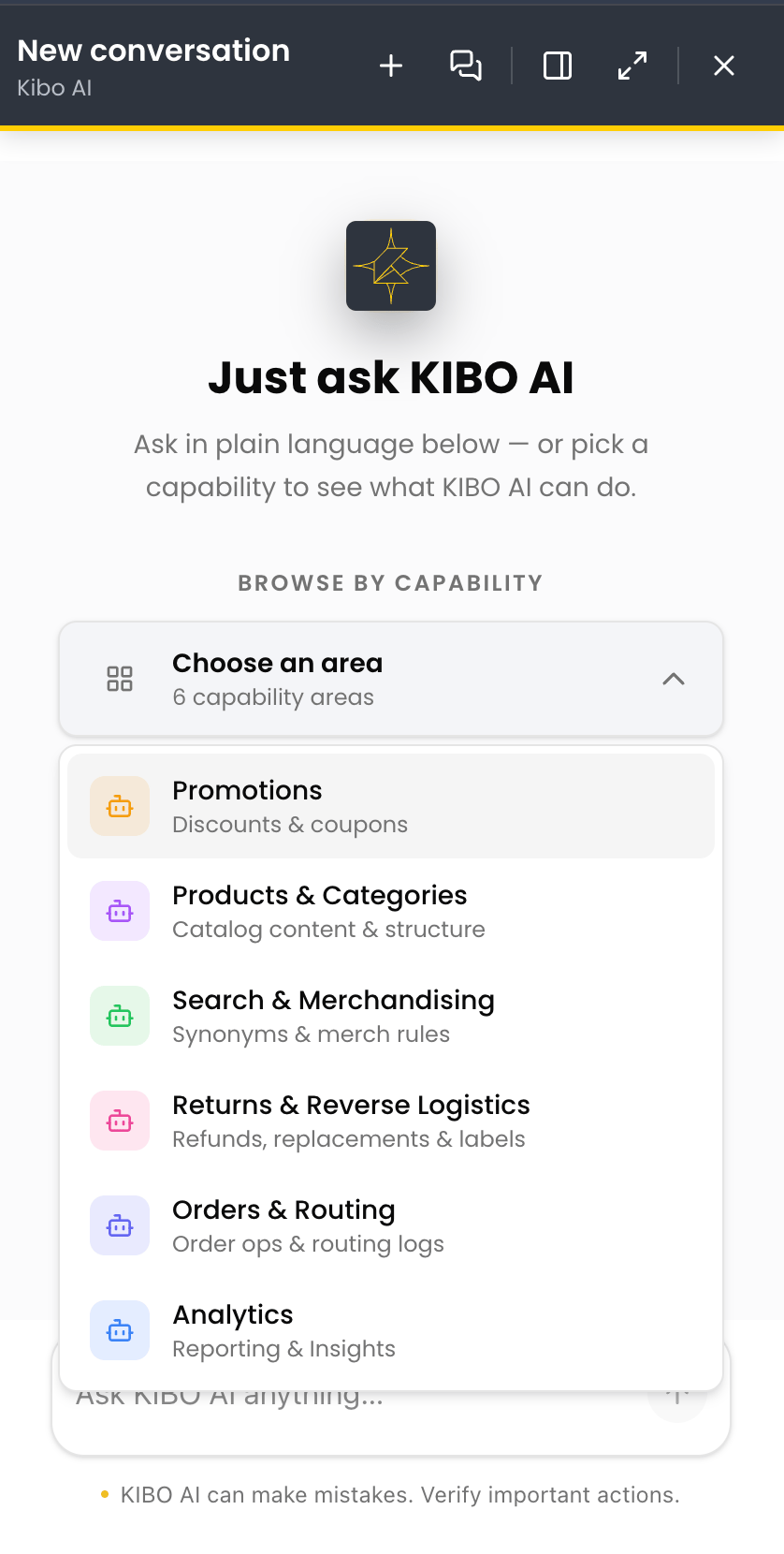
 2. To browse instead, open the **Choose an area** dropdown under **Browse by capability**. It lists six capability areas: **Promotions**, **Products & Categories**, **Search & Merchandizing**, **Returns & Reverse Logistics**, **Orders & Routing**, and **Analytics**.
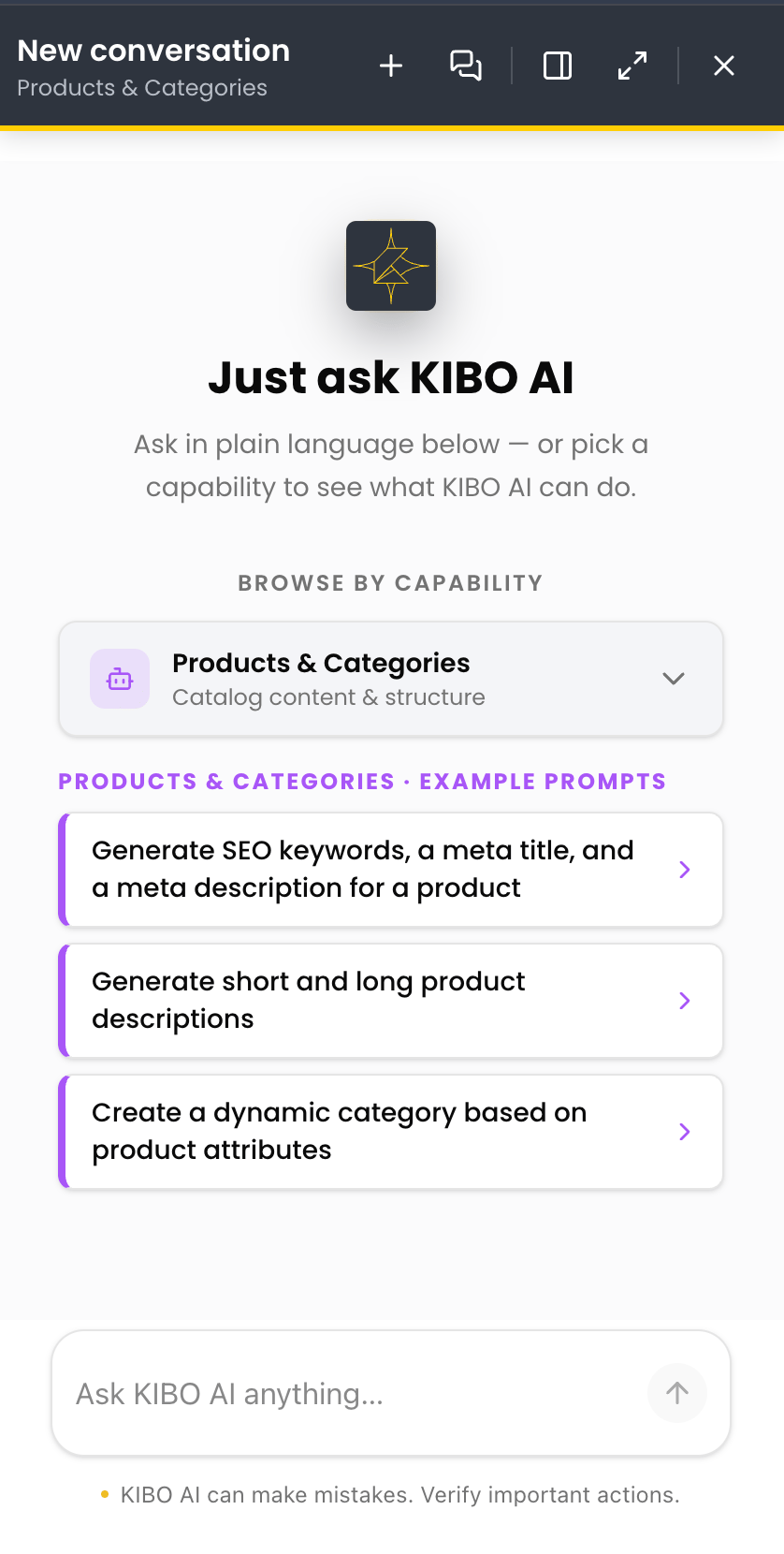
 3. Select an area to see example prompts for it. Each area shows a set of example prompts you can select to get started.
 ## Follow the Agent's Progress
As Kibo AI works on a request, it shows what it is doing so you can follow along and stay in control.
1. Send a request. Kibo AI shows its progress as it works, including a **Thinking** indicator while it reasons and a note when it has run a step.
## Follow the Agent's Progress
As Kibo AI works on a request, it shows what it is doing so you can follow along and stay in control.
1. Send a request. Kibo AI shows its progress as it works, including a **Thinking** indicator while it reasons and a note when it has run a step.
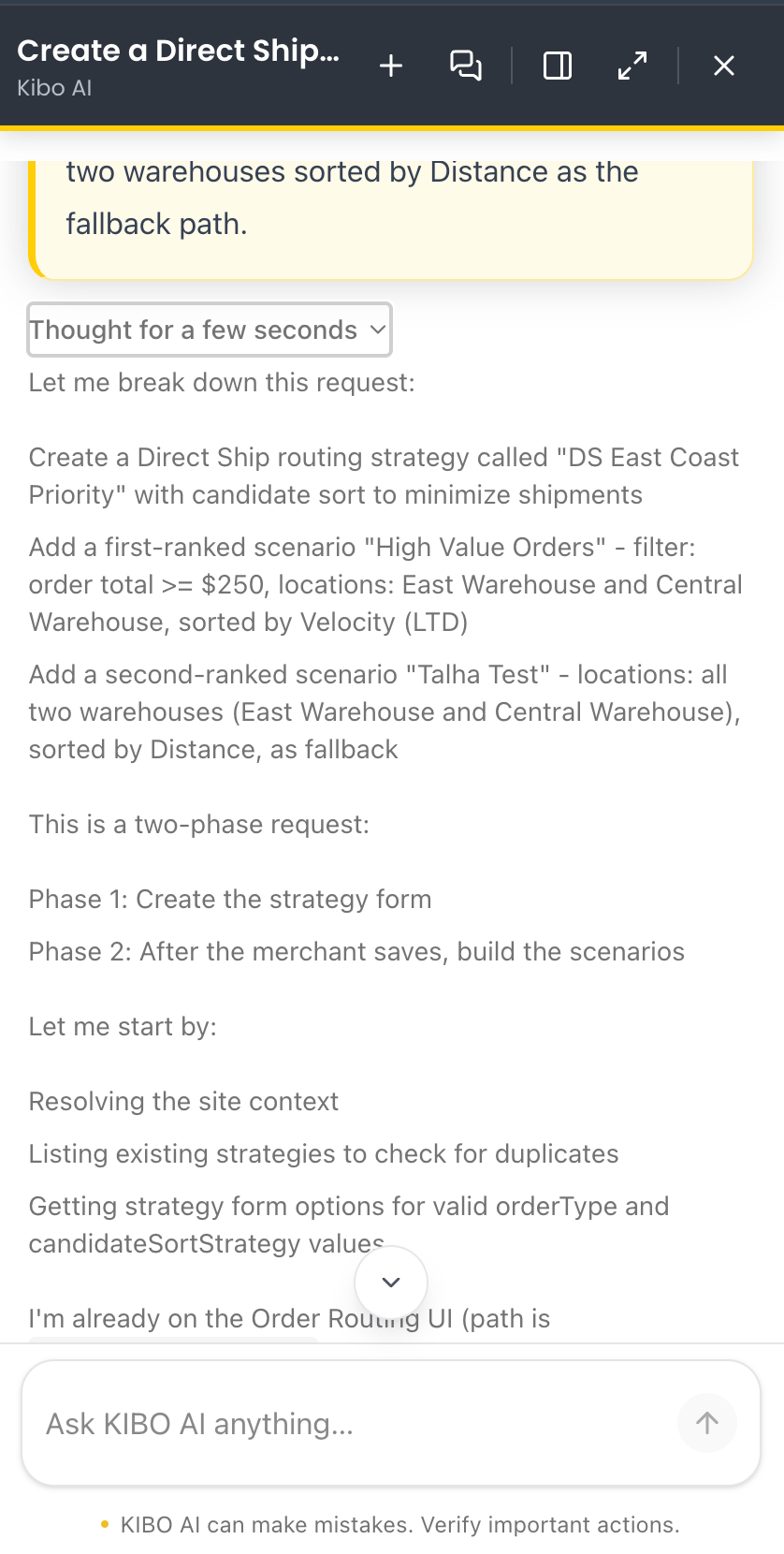 2. Expand tool to see which action Kibo AI took and the details it used for that action.
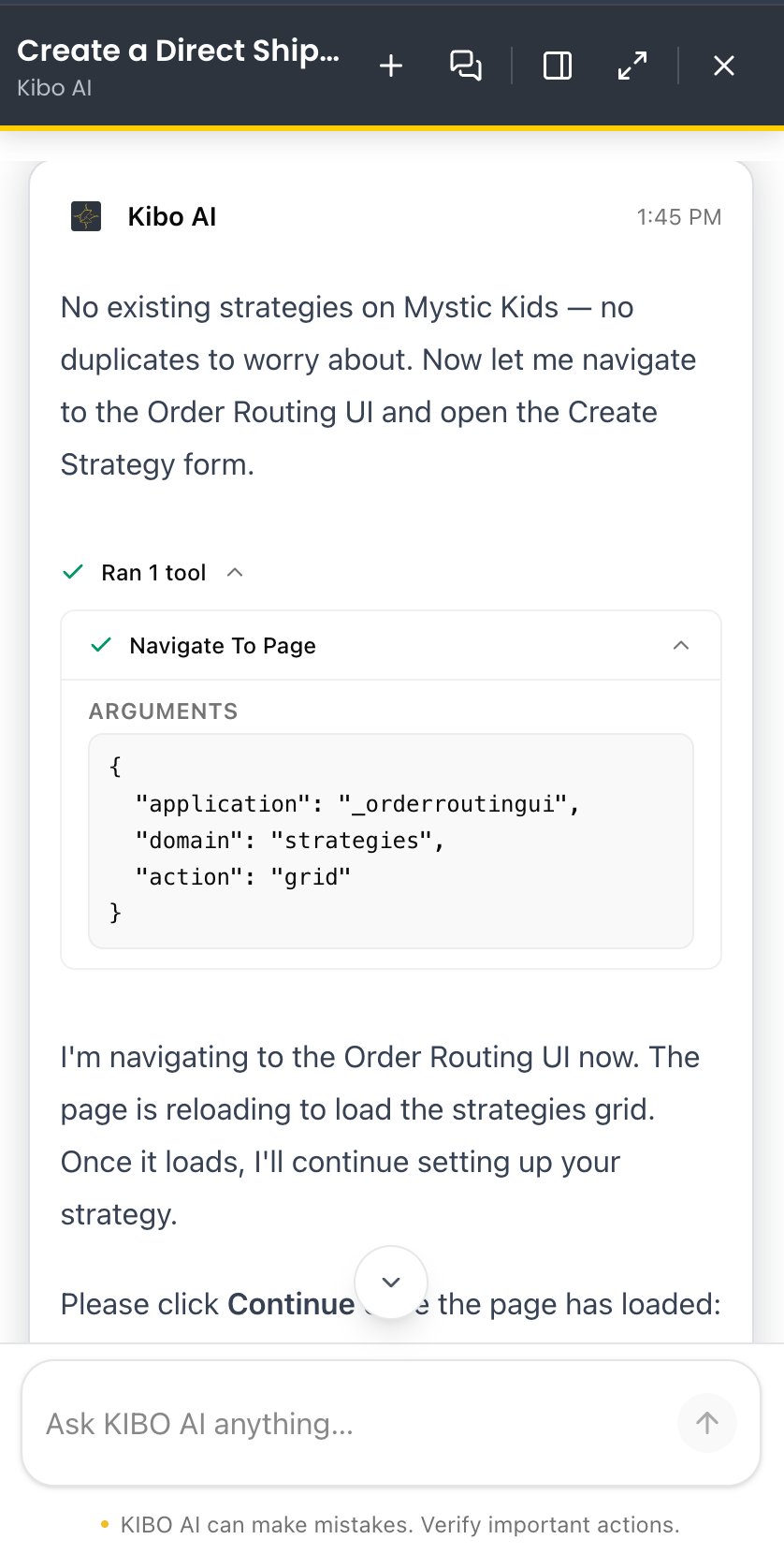 3. When Kibo AI needs a decision from you — such as confirming a name or continuing — respond in the chat box. Kibo AI fills in the relevant Kibo Admin screen based on your conversation.
Note: Kibo AI prepares and fills in changes for you but does not save them on your behalf. Review each change on the platform and click **Save** yourself.
## Walkthrough: Create Your First Discount
This example shows an end-to-end task from request to saved change. It uses a discount, but the same pattern applies to any Configure task.
1. Open Kibo AI and, in the **Ask Kibo AI anything…** box, describe the task in plain language — for example, "create a 10% off discount on all products, starting today."
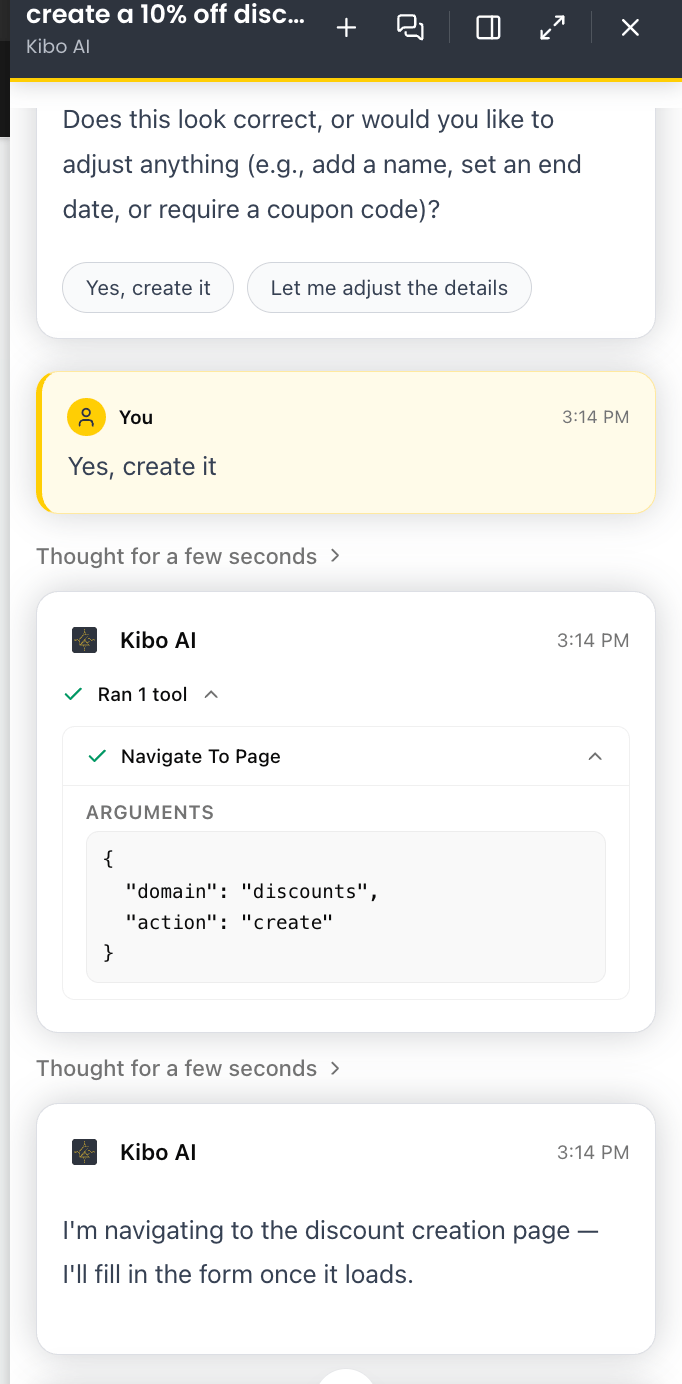
2. Kibo AI confirms what it is doing ("I'm navigating to the discount creation page — I'll fill in the form once it loads") and shows its progress as it works.
3. When Kibo AI needs a decision from you — such as confirming a name or continuing — respond in the chat box. Kibo AI fills in the relevant Kibo Admin screen based on your conversation.
Note: Kibo AI prepares and fills in changes for you but does not save them on your behalf. Review each change on the platform and click **Save** yourself.
## Walkthrough: Create Your First Discount
This example shows an end-to-end task from request to saved change. It uses a discount, but the same pattern applies to any Configure task.
1. Open Kibo AI and, in the **Ask Kibo AI anything…** box, describe the task in plain language — for example, "create a 10% off discount on all products, starting today."
2. Kibo AI confirms what it is doing ("I'm navigating to the discount creation page — I'll fill in the form once it loads") and shows its progress as it works.
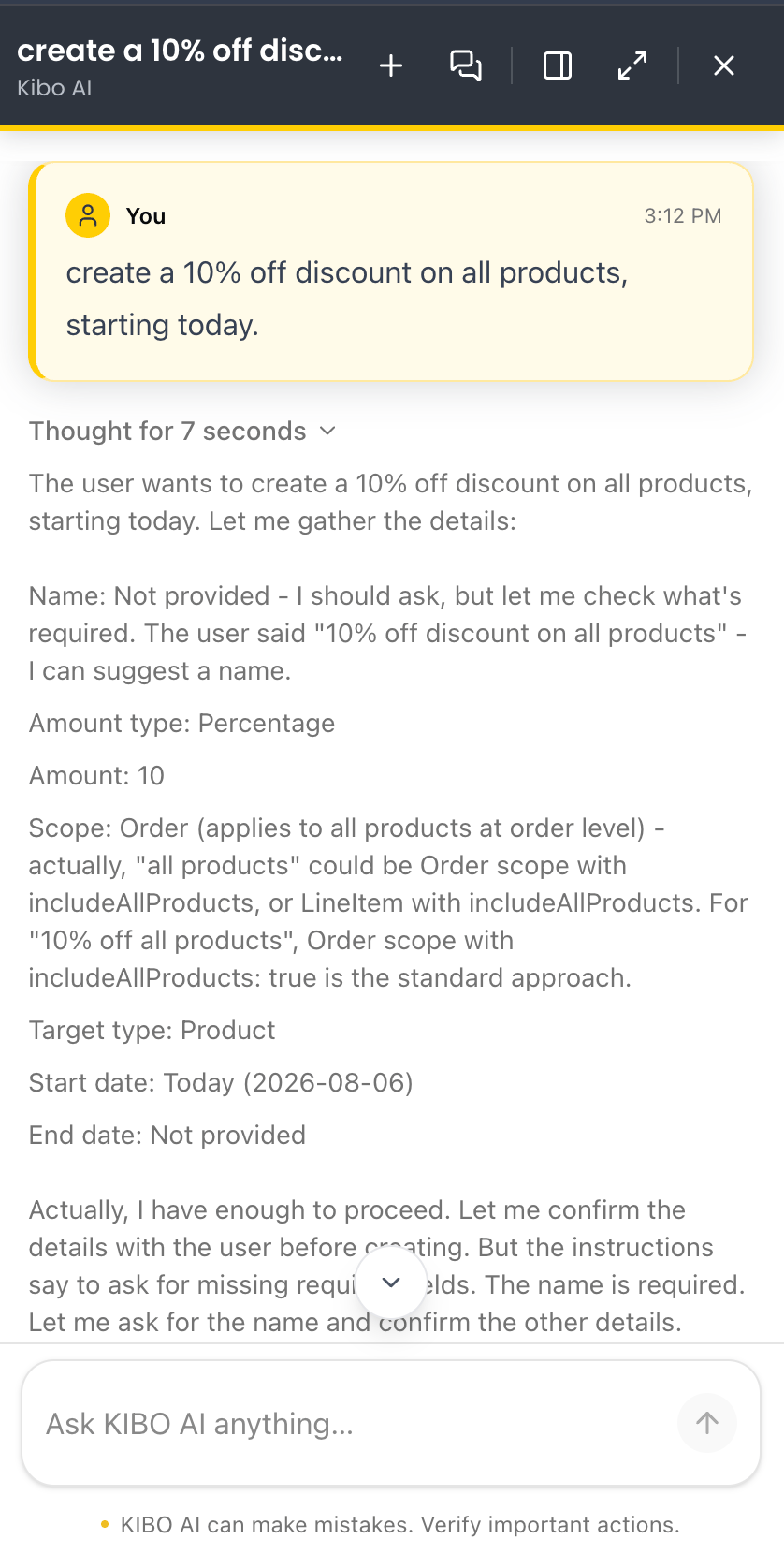 3. Kibo AI asks for any detail it needs before filling the form — for example, create it or adjust the details. Answer in the chat box.
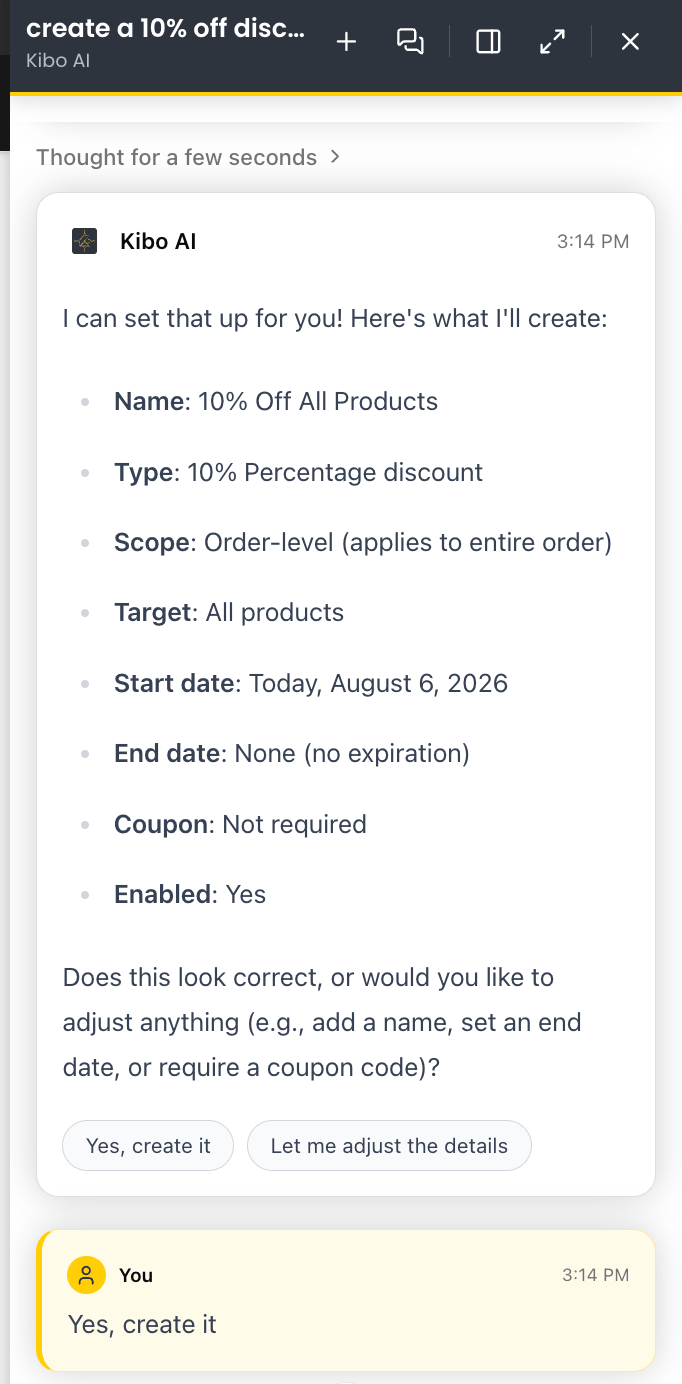 4. Kibo AI navigates and fills in the discount screen based on your conversation.
 5. Review the completed discount on the screen, adjust anything you want, and click **Save** to apply it.
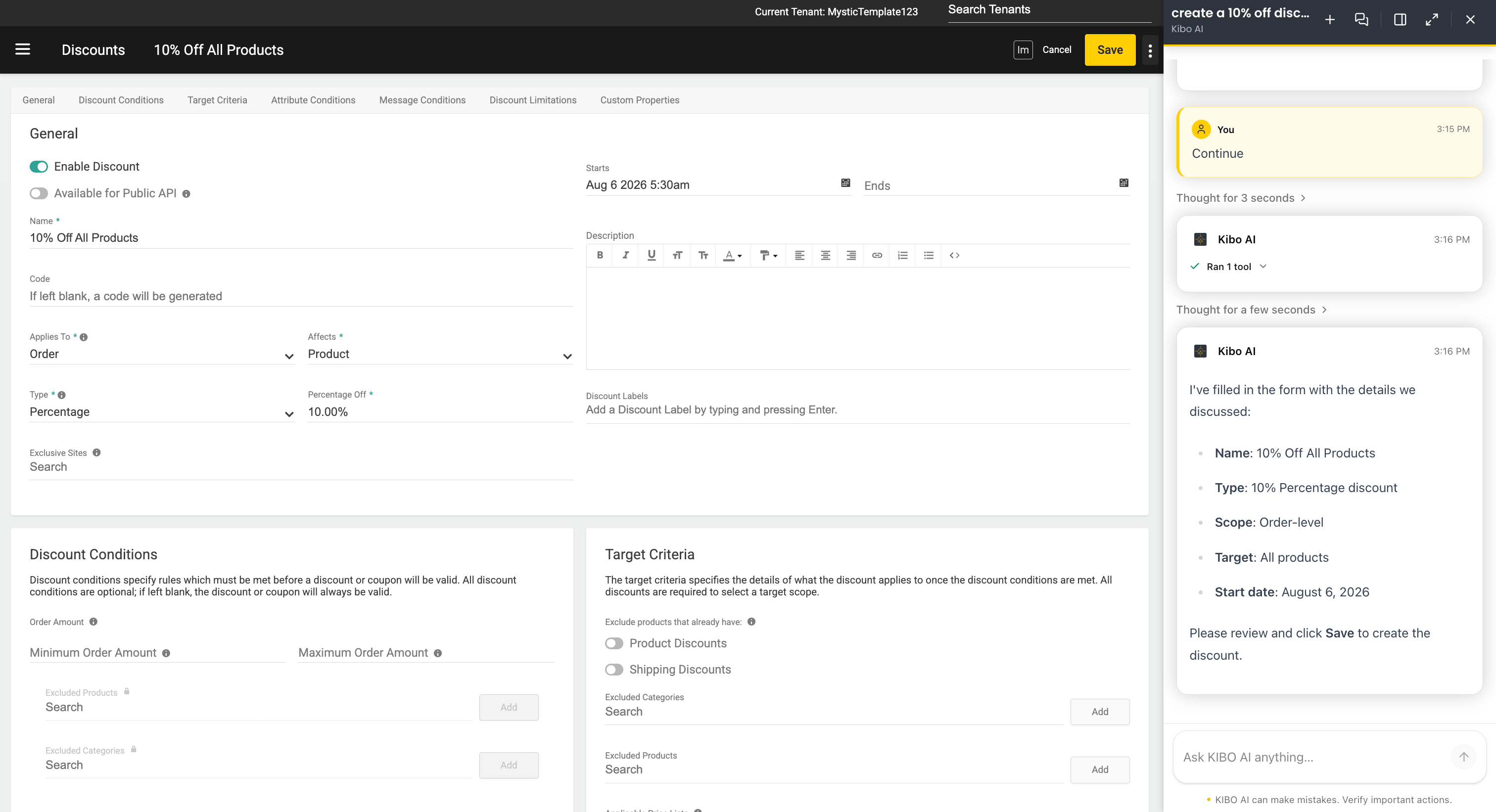 Note: Kibo AI prepares the change but does not save it. The discount is not live until you review and click **Save**.
## Manage Conversations
The icons at the top of the Kibo AI panel let you manage your conversations.
1. Click the **plus (+)** icon to start a **New chat**.
2. Click the **chat history** icon (next to the plus) to open **Conversations**, the list of threads you have worked on.
Note: Kibo AI prepares the change but does not save it. The discount is not live until you review and click **Save**.
## Manage Conversations
The icons at the top of the Kibo AI panel let you manage your conversations.
1. Click the **plus (+)** icon to start a **New chat**.
2. Click the **chat history** icon (next to the plus) to open **Conversations**, the list of threads you have worked on.
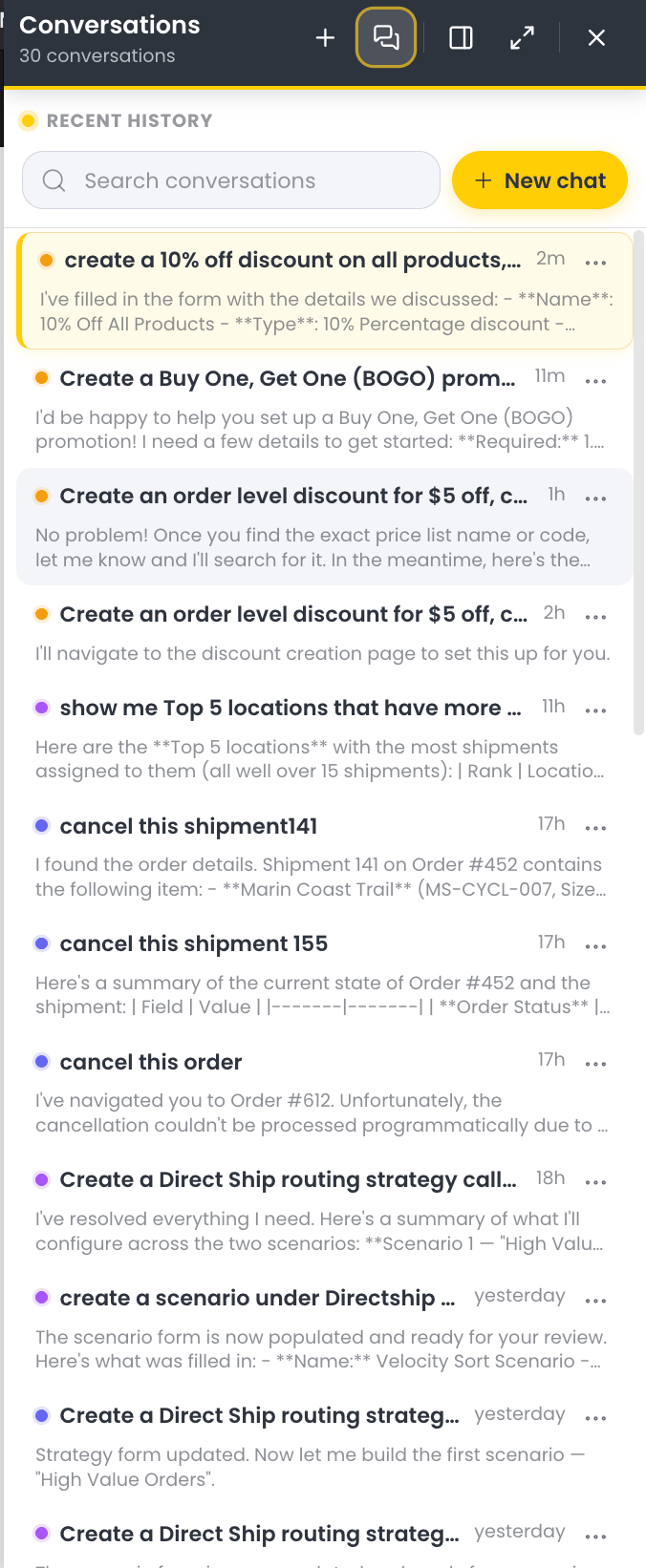 3. In the Conversations panel you can:
* Use **Search conversations** to find a thread.
* Click **New chat** to start a fresh thread.
* Open the actions menu on any thread to **Copy ID**, **Rename**, or **Delete** it.
3. In the Conversations panel you can:
* Use **Search conversations** to find a thread.
* Click **New chat** to start a fresh thread.
* Open the actions menu on any thread to **Copy ID**, **Rename**, or **Delete** it.
 Note: Use **Copy ID** to copy a thread's ID. If a specific thread has an issue, share the copied ID with Kibo Customer Support so they can investigate that conversation.
4. Click the **expand** icon to enlarge the Kibo AI panel to full screen.
Note: Use **Copy ID** to copy a thread's ID. If a specific thread has an issue, share the copied ID with Kibo Customer Support so they can investigate that conversation.
4. Click the **expand** icon to enlarge the Kibo AI panel to full screen.
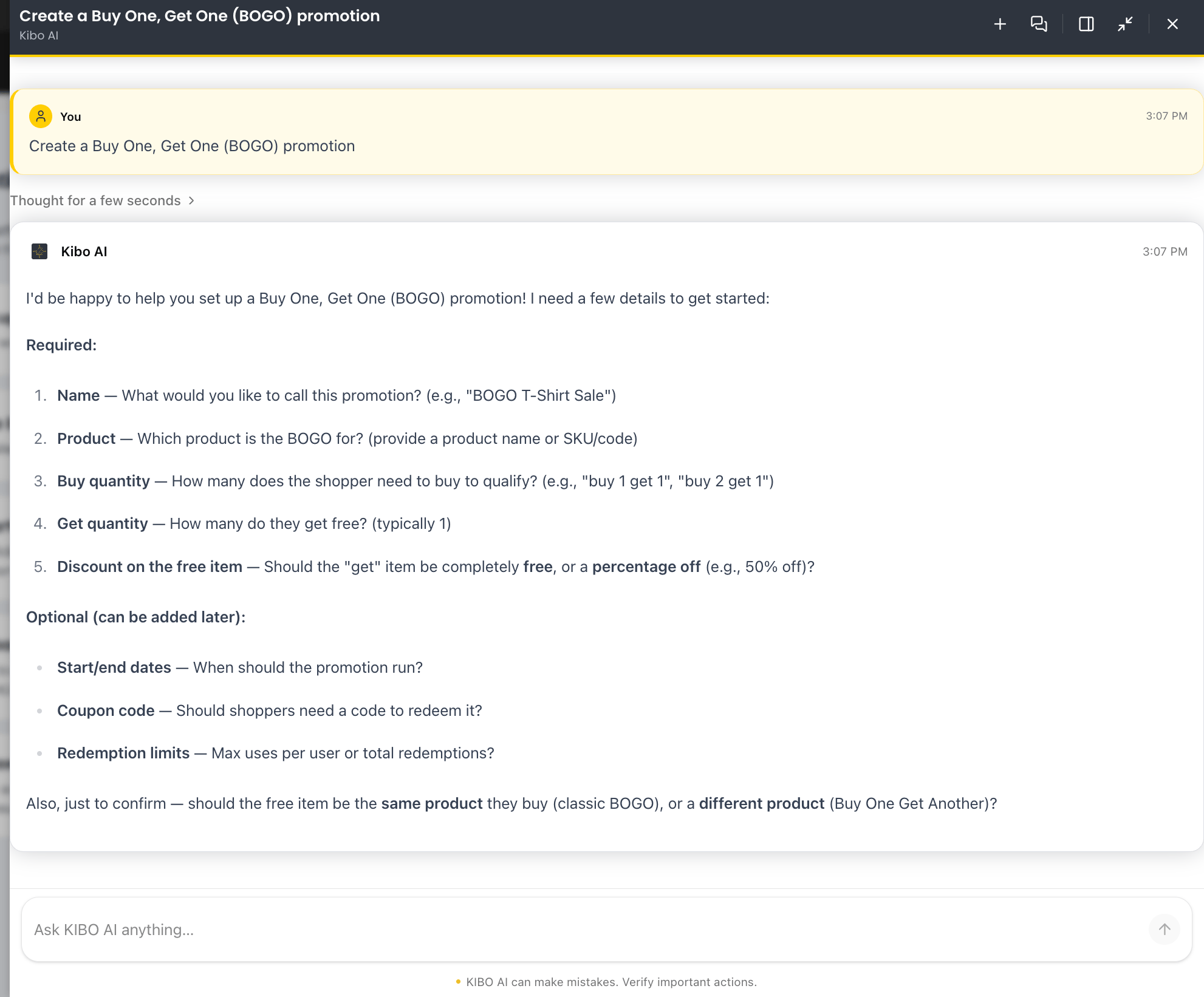 Note (best practice): Start a new chat for each new task. Keeping one task per thread gives Kibo AI clearer context and produces better results.
## What Kibo AI Supports Today
Kibo AI works across a defined set of tasks in Kibo Admin. For the full list of tasks by area, see the **Kibo AI Agent Capabilities** guide.
What Kibo AI supports today:
* Plain-language requests in chat, or a guided start from the **Browse by capability** areas.
* Configure tasks that fill in Kibo Admin screens for you to review and save, across Promotions, Products and Categories, Search and Merchandizing, Orders, Order Routing, and Returns.
* Explain tasks that review, read-only, how an order was routed, how a promotion is configured, and returns information.
* Analyze tasks that answer business questions with charts in chat (read-only).
* Conversation management: multiple threads, history, search, rename, delete, and copy a thread ID.
**Current Behavior Notes** — how Kibo AI behaves today, so you know what to expect:
| Behavior | How Kibo AI works today | What this means for you |
| :------------------------ | :----------------------------------------------------------------------------------------------------------------------- | :-------------------------------------------------------------------------------------------- |
| You save every change | For Configure tasks, Kibo AI fills in the Kibo Admin screen and stops; it does not click Save. | Nothing changes until you review and click **Save**. Explain and Analyze tasks are read-only. |
| One task per conversation | Kibo AI works best when a thread covers a single task. | Start a new chat for each new task for the clearest results. |
| Enabled per tenant | Kibo AI is turned on for a tenant by Kibo Customer Support. | If you do not see the Kibo AI icon, ask Kibo Customer Support to enable it. |
| Model required | Agentic capabilities need a connected model (BYOM). | Without a model, Kibo AI shows a setup screen linking to Agent Models. |
| Some actions are manual | A few actions are not handled by Kibo AI (for example, deleting a synonym, or cloning or deleting a merchandizing rule). | Complete these directly in Kibo Admin. See the Agent Capabilities guide for the full list. |
## Troubleshooting
| Situation | What to do |
| :--------------------------------------------- | :--------------------------------------------------------------------------------------------------------------------------------------------------- |
| The Kibo AI icon does not appear | Confirm Kibo AI is enabled on your tenant. If not, contact Kibo Customer Support. |
| Kibo AI shows "Connect a model to get started" | No model is connected. Click **Configure a model** and complete the steps in [Configure Agent Models](#configure-agent-models-bring-your-own-model). |
| A credential or slot **Test** fails | Read the provider error shown next to the **Test** button, then correct the API key, model ID, or **Model Override** and test again. |
| A saved routing change has not taken effect | Routing changes can take up to about 15 minutes to apply. |
| Kibo AI cannot complete a task | The task may be outside its current capabilities or a manual-only action. See the Agent Capabilities guide, and complete the task in Kibo Admin. |
| A specific conversation behaves incorrectly | Open the conversation's actions menu, choose **Copy ID**, and share the ID with Kibo Customer Support. |
## Reference
### Model Slots
Each slot uses the credential you assign to it. Assign at least the slots you intend to use.
| Slot | Purpose |
| :------- | :--------------------------------------------------------------- |
| Thinking | The reasoning model Kibo AI uses to plan and work through tasks. |
| Flash | A faster model used for lighter, quicker steps. |
| Image | The model used for image generation tasks. |
### Credential Fields
| Field | Required | Description |
| :------------ | :------- | :------------------------------------------------------------------------- |
| Name | Yes | A label to identify the credential. |
| Provider | Yes | The model provider: OpenAI, Anthropic, Google, or Other. |
| Default Model | Yes | The model ID this credential uses by default. |
| Base URL | No | A custom endpoint. Leave empty to use the provider's default endpoint. |
| API Key | Yes | Your provider API key. Stored securely and never shown again after saving. |
| Modalities | Yes | The capabilities the model supports: Chat, Image, or both. |
### Slot Configuration Fields
| Field | Description |
| :-------------------------------- | :---------------------------------------------------------------------------------------------- |
| Active Credential | The credential assigned to the slot. |
| Model Override | A specific model ID to use instead of the credential's default. Leave empty to use the default. |
| Monthly Token Limit | The monthly token cap for the Thinking and Flash slots. Leave empty to use the default. |
| Monthly Image Limit | The monthly image cap for the Image slot. Leave empty to use the default. |
| Effective model / Effective Limit | Read-only confirmation of the model and usage limit that will apply. |
### Capability Areas
Kibo AI groups its tasks into capability areas. You can select an area from the **Choose an area** dropdown, or simply describe your task in the chat box. For the full list of what Kibo AI can do in each area, see the **Kibo AI Agent Capabilities** guide.
| Capability area | What Kibo AI can help with | Example prompt |
| :-------------------------- | :--------------------------------------------------------------------------------------------------------------------------------------------------------------------------------------------------------------------- | :--------------------------------------------------------- |
| Promotions | Find, create, and edit discounts and promotions — order-level, product, shipping, and Buy X Get Y (BOGO); coupon codes and redemption limits; enabling or disabling discounts; and targeting by segment or price list. | "20% off your order" |
| Products & Categories | Enrich existing products (descriptions, titles, SEO metadata, translations, images) and manage categories (create static or dynamic categories, edit settings and SEO, schedule, and assign products or images). | "products missing descriptions" |
| Search & Merchandizing | Control storefront search: create merchandizing rules to boost, bury, pin, or exclude products; set up search redirects; configure facets; tune search settings; and manage synonyms. | "pin SKU-100 to position 1 for 'gift'" |
| Returns & Reverse Logistics | Process returns and appeasements: create refunds and replacements, generate return shipping labels, and view order and shipment financial details. | "Generate a return shipping label" |
| Orders | Look up and modify orders — search, adjust addresses, apply appeasements and coupons. Handled by the Order (Customer Service) agent. | "Give the customer on order 100377 \$15 off the shipment." |
| Order Routing | Configure routing strategies for forward and reverse order types, and explain why a placed order routed the way it did. | "Why was this order assigned to this location?" |
| Analytics | Answer business questions with charts in chat: orders, revenue, and average order value over time; top products by revenue; revenue by fulfillment type; orders by status; and shipment fill rates. | "top 10 products by revenue" |
Note (best practice): Start a new chat for each new task. Keeping one task per thread gives Kibo AI clearer context and produces better results.
## What Kibo AI Supports Today
Kibo AI works across a defined set of tasks in Kibo Admin. For the full list of tasks by area, see the **Kibo AI Agent Capabilities** guide.
What Kibo AI supports today:
* Plain-language requests in chat, or a guided start from the **Browse by capability** areas.
* Configure tasks that fill in Kibo Admin screens for you to review and save, across Promotions, Products and Categories, Search and Merchandizing, Orders, Order Routing, and Returns.
* Explain tasks that review, read-only, how an order was routed, how a promotion is configured, and returns information.
* Analyze tasks that answer business questions with charts in chat (read-only).
* Conversation management: multiple threads, history, search, rename, delete, and copy a thread ID.
**Current Behavior Notes** — how Kibo AI behaves today, so you know what to expect:
| Behavior | How Kibo AI works today | What this means for you |
| :------------------------ | :----------------------------------------------------------------------------------------------------------------------- | :-------------------------------------------------------------------------------------------- |
| You save every change | For Configure tasks, Kibo AI fills in the Kibo Admin screen and stops; it does not click Save. | Nothing changes until you review and click **Save**. Explain and Analyze tasks are read-only. |
| One task per conversation | Kibo AI works best when a thread covers a single task. | Start a new chat for each new task for the clearest results. |
| Enabled per tenant | Kibo AI is turned on for a tenant by Kibo Customer Support. | If you do not see the Kibo AI icon, ask Kibo Customer Support to enable it. |
| Model required | Agentic capabilities need a connected model (BYOM). | Without a model, Kibo AI shows a setup screen linking to Agent Models. |
| Some actions are manual | A few actions are not handled by Kibo AI (for example, deleting a synonym, or cloning or deleting a merchandizing rule). | Complete these directly in Kibo Admin. See the Agent Capabilities guide for the full list. |
## Troubleshooting
| Situation | What to do |
| :--------------------------------------------- | :--------------------------------------------------------------------------------------------------------------------------------------------------- |
| The Kibo AI icon does not appear | Confirm Kibo AI is enabled on your tenant. If not, contact Kibo Customer Support. |
| Kibo AI shows "Connect a model to get started" | No model is connected. Click **Configure a model** and complete the steps in [Configure Agent Models](#configure-agent-models-bring-your-own-model). |
| A credential or slot **Test** fails | Read the provider error shown next to the **Test** button, then correct the API key, model ID, or **Model Override** and test again. |
| A saved routing change has not taken effect | Routing changes can take up to about 15 minutes to apply. |
| Kibo AI cannot complete a task | The task may be outside its current capabilities or a manual-only action. See the Agent Capabilities guide, and complete the task in Kibo Admin. |
| A specific conversation behaves incorrectly | Open the conversation's actions menu, choose **Copy ID**, and share the ID with Kibo Customer Support. |
## Reference
### Model Slots
Each slot uses the credential you assign to it. Assign at least the slots you intend to use.
| Slot | Purpose |
| :------- | :--------------------------------------------------------------- |
| Thinking | The reasoning model Kibo AI uses to plan and work through tasks. |
| Flash | A faster model used for lighter, quicker steps. |
| Image | The model used for image generation tasks. |
### Credential Fields
| Field | Required | Description |
| :------------ | :------- | :------------------------------------------------------------------------- |
| Name | Yes | A label to identify the credential. |
| Provider | Yes | The model provider: OpenAI, Anthropic, Google, or Other. |
| Default Model | Yes | The model ID this credential uses by default. |
| Base URL | No | A custom endpoint. Leave empty to use the provider's default endpoint. |
| API Key | Yes | Your provider API key. Stored securely and never shown again after saving. |
| Modalities | Yes | The capabilities the model supports: Chat, Image, or both. |
### Slot Configuration Fields
| Field | Description |
| :-------------------------------- | :---------------------------------------------------------------------------------------------- |
| Active Credential | The credential assigned to the slot. |
| Model Override | A specific model ID to use instead of the credential's default. Leave empty to use the default. |
| Monthly Token Limit | The monthly token cap for the Thinking and Flash slots. Leave empty to use the default. |
| Monthly Image Limit | The monthly image cap for the Image slot. Leave empty to use the default. |
| Effective model / Effective Limit | Read-only confirmation of the model and usage limit that will apply. |
### Capability Areas
Kibo AI groups its tasks into capability areas. You can select an area from the **Choose an area** dropdown, or simply describe your task in the chat box. For the full list of what Kibo AI can do in each area, see the **Kibo AI Agent Capabilities** guide.
| Capability area | What Kibo AI can help with | Example prompt |
| :-------------------------- | :--------------------------------------------------------------------------------------------------------------------------------------------------------------------------------------------------------------------- | :--------------------------------------------------------- |
| Promotions | Find, create, and edit discounts and promotions — order-level, product, shipping, and Buy X Get Y (BOGO); coupon codes and redemption limits; enabling or disabling discounts; and targeting by segment or price list. | "20% off your order" |
| Products & Categories | Enrich existing products (descriptions, titles, SEO metadata, translations, images) and manage categories (create static or dynamic categories, edit settings and SEO, schedule, and assign products or images). | "products missing descriptions" |
| Search & Merchandizing | Control storefront search: create merchandizing rules to boost, bury, pin, or exclude products; set up search redirects; configure facets; tune search settings; and manage synonyms. | "pin SKU-100 to position 1 for 'gift'" |
| Returns & Reverse Logistics | Process returns and appeasements: create refunds and replacements, generate return shipping labels, and view order and shipment financial details. | "Generate a return shipping label" |
| Orders | Look up and modify orders — search, adjust addresses, apply appeasements and coupons. Handled by the Order (Customer Service) agent. | "Give the customer on order 100377 \$15 off the shipment." |
| Order Routing | Configure routing strategies for forward and reverse order types, and explain why a placed order routed the way it did. | "Why was this order assigned to this location?" |
| Analytics | Answer business questions with charts in chat: orders, revenue, and average order value over time; top products by revenue; revenue by fulfillment type; orders by status; and shipment fill rates. | "top 10 products by revenue" |