> ## Documentation Index
> Fetch the complete documentation index at: https://docs.kibocommerce.com/llms.txt
> Use this file to discover all available pages before exploring further.
# Configure Agent
Configure capabilities create and edit platform settings. Kibo AI populates the matching Kibo Admin form; you review and click **Save**. This page covers the Configure tasks by area. For read-only reviews, see [Explain with Kibo AI](/pages/kibo-ai-explain); for reporting, see [Analyze with Kibo AI](/pages/kibo-ai-analyze).
Note: For Configure tasks, Kibo AI prepares and fills in the change but does not save it for you. Review each change on the screen and click **Save** yourself.
## Search and Merchandizing
Control how products appear in storefront search and category browse.
You can ask Kibo AI to:
* Find existing merchandizing rules by name, code, search term, or ID.
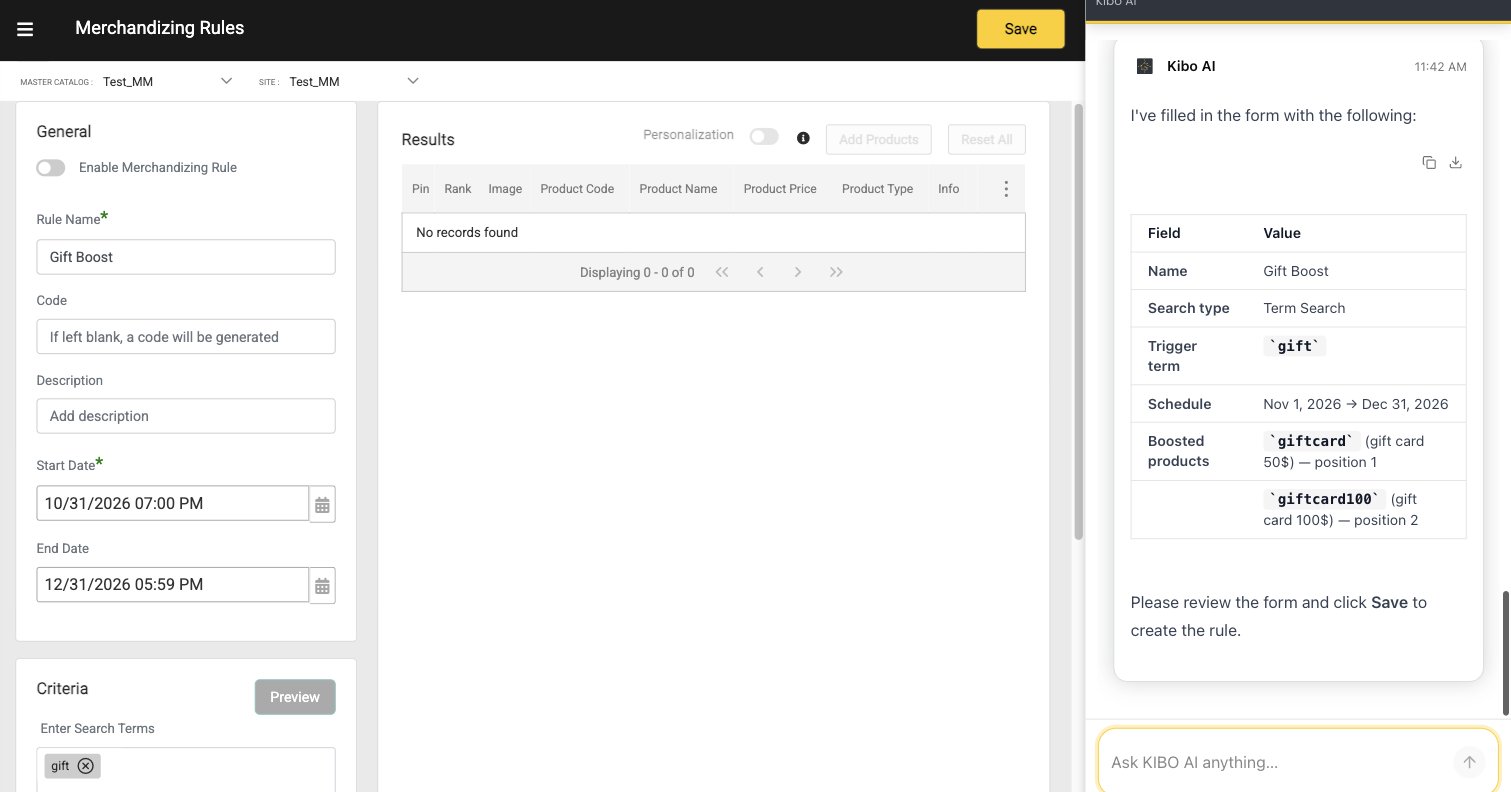
* Create rules that boost, bury, exclude, or pin products — for both typed search terms and category browsing.
* Edit a rule's name, schedule, conditions, ranked, buried, excluded, or pinned products, sort order, field boosts, and filters.
* Enable or disable merchandizing rules.
* Set up search redirects that send a search term to a specific URL.
* Configure search facets, including per-category overrides, reordering, hiding, and range facets.
* Tune search settings such as field weighting and typo tolerance.
* Find, create, and edit search synonyms (one-way or two-way).
 Note: Some actions are manual-only and are not handled by Kibo AI — deleting a synonym, cloning or deleting a merchandizing rule, and naming and saving a new search-configuration profile.
Example prompts:
* "Pin the AirMax 270 to the #1 position for the search 'running shoes' through the end of this month."
* "Bury the discontinued ACME brand products when customers search for 'chargers'."
* "Create a boost rule for the search term 'gift' that promotes our gift card products, active November 1 through December 31."
* "Add a synonym so searches for 'sneakers' also return 'running shoes', and vice versa."
* "When shoppers search 'TV', show 'television' results too — but not the other way around."
* "Add a Brand facet to search and enable typo tolerance for short queries."
## Categories
Create and manage product categories.
You can ask Kibo AI to:
* Find categories by name, code, or attributes, and view category details, hierarchy, SEO metadata, and status.
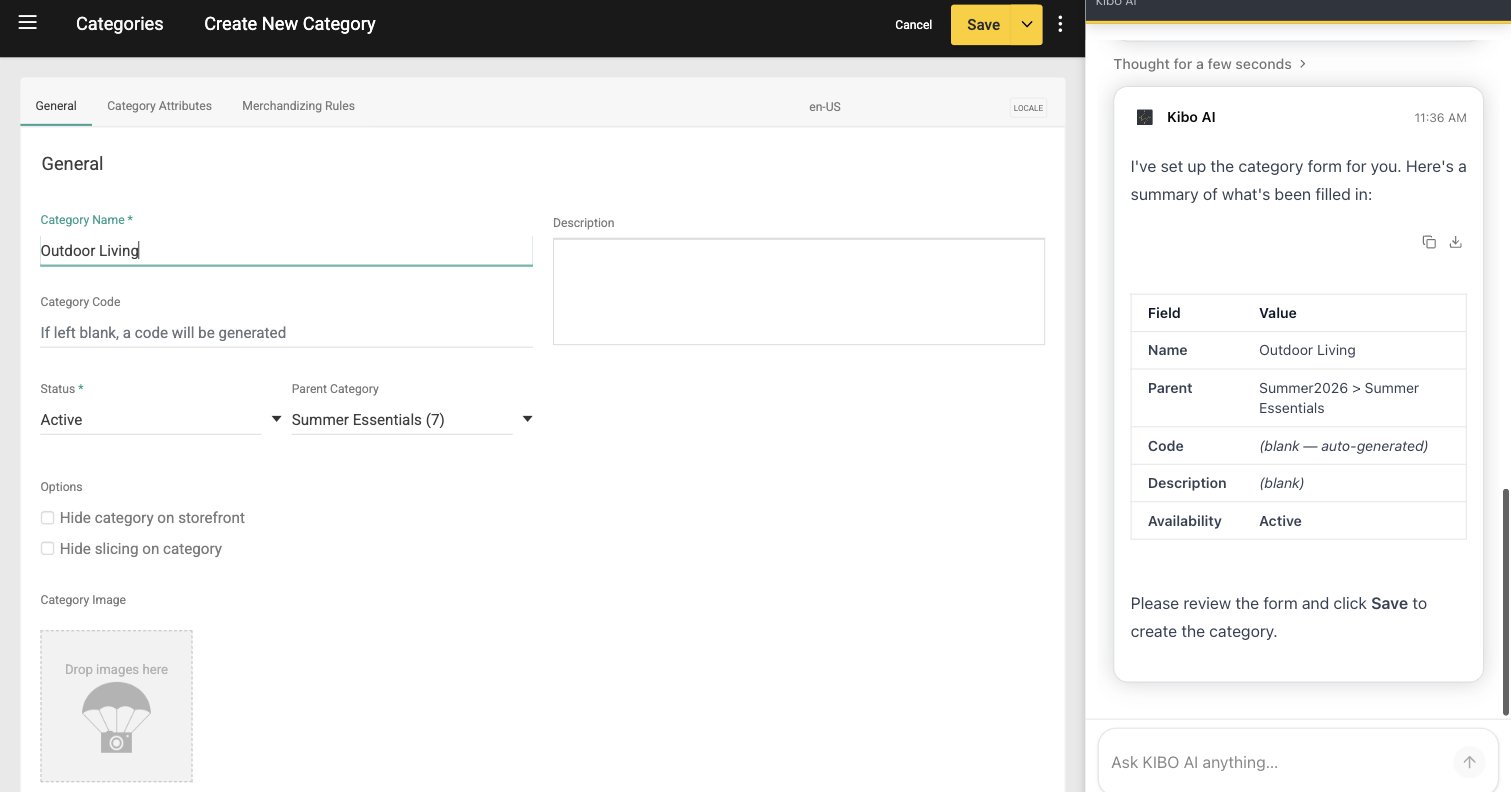
* Create static categories, where you assign products manually.
* Create dynamic categories, where membership is set by an expression (for example, all products under \$50). Kibo AI helps you choose between a precomputed category and a realtime category.
* Update a category's name, description, SEO metadata, and settings.
* Move a category to a different parent in the hierarchy.
* Hide a category from the storefront while keeping it enabled, or disable it entirely.
* Schedule a category with live start and end dates.
* Add or remove products from static categories.
* Manage category attributes.
* Generate category images from a text description or a reference image and assign them to the category.
Note: Some actions are manual-only and are not handled by Kibo AI — deleting a synonym, cloning or deleting a merchandizing rule, and naming and saving a new search-configuration profile.
Example prompts:
* "Pin the AirMax 270 to the #1 position for the search 'running shoes' through the end of this month."
* "Bury the discontinued ACME brand products when customers search for 'chargers'."
* "Create a boost rule for the search term 'gift' that promotes our gift card products, active November 1 through December 31."
* "Add a synonym so searches for 'sneakers' also return 'running shoes', and vice versa."
* "When shoppers search 'TV', show 'television' results too — but not the other way around."
* "Add a Brand facet to search and enable typo tolerance for short queries."
## Categories
Create and manage product categories.
You can ask Kibo AI to:
* Find categories by name, code, or attributes, and view category details, hierarchy, SEO metadata, and status.
* Create static categories, where you assign products manually.
* Create dynamic categories, where membership is set by an expression (for example, all products under \$50). Kibo AI helps you choose between a precomputed category and a realtime category.
* Update a category's name, description, SEO metadata, and settings.
* Move a category to a different parent in the hierarchy.
* Hide a category from the storefront while keeping it enabled, or disable it entirely.
* Schedule a category with live start and end dates.
* Add or remove products from static categories.
* Manage category attributes.
* Generate category images from a text description or a reference image and assign them to the category.
 Example prompts:
* "Create a new category called 'Summer Essentials' under the 'Seasonal' category."
* "Create a dynamic category of all accessories under \$50."
* "Make a 'Premium' category containing every product priced above \$1000."
* "Rename the 'Xmas' category to 'Holiday Gifts' and update its SEO meta title to match."
* "Hide the 'Holiday Gifts' category from the storefront, but keep it enabled."
* "Schedule the 'Back to School' category to go live August 1 and come down September 15."
* "Generate a banner image for the 'Outdoor Living' category based on its description."
## Discounts
Manage the full lifecycle of discounts and promotions.
You can ask Kibo AI to:
* Find existing discounts by name, code, or ID.
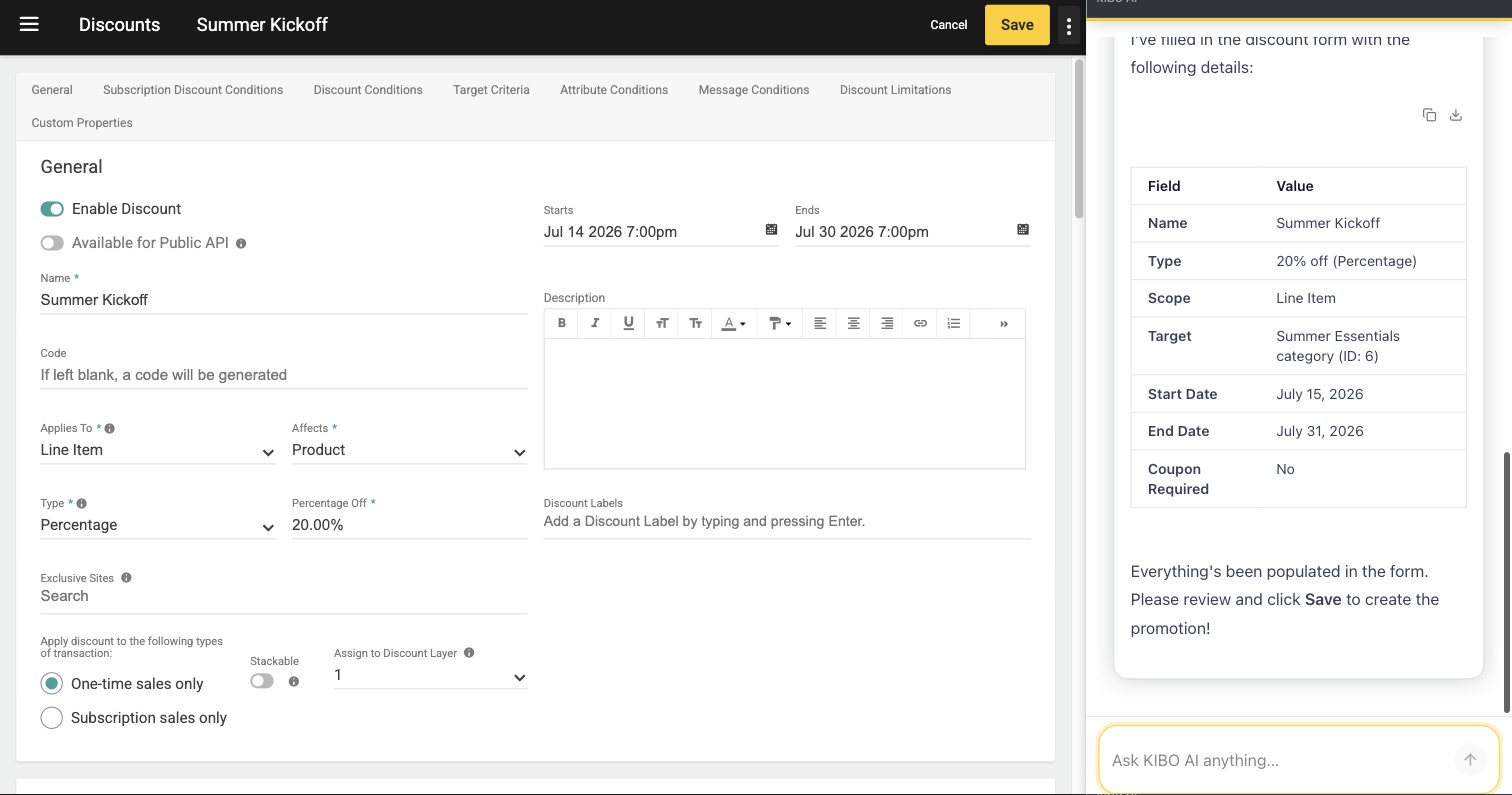
* Create order-level, product, shipping, and Buy X Get Y (BOGO) discounts.
* Edit a discount's name, amount, dates, targets, and conditions.
* Enable or disable a discount.
* Set up coupon codes and redemption limits (per-customer and total).
* Target discounts by customer segment or by price list.
* Set whether a discount can be combined (stacked) with other discounts.
Example prompts:
* "Create a new category called 'Summer Essentials' under the 'Seasonal' category."
* "Create a dynamic category of all accessories under \$50."
* "Make a 'Premium' category containing every product priced above \$1000."
* "Rename the 'Xmas' category to 'Holiday Gifts' and update its SEO meta title to match."
* "Hide the 'Holiday Gifts' category from the storefront, but keep it enabled."
* "Schedule the 'Back to School' category to go live August 1 and come down September 15."
* "Generate a banner image for the 'Outdoor Living' category based on its description."
## Discounts
Manage the full lifecycle of discounts and promotions.
You can ask Kibo AI to:
* Find existing discounts by name, code, or ID.
* Create order-level, product, shipping, and Buy X Get Y (BOGO) discounts.
* Edit a discount's name, amount, dates, targets, and conditions.
* Enable or disable a discount.
* Set up coupon codes and redemption limits (per-customer and total).
* Target discounts by customer segment or by price list.
* Set whether a discount can be combined (stacked) with other discounts.
 Example prompts:
* "Create a 20% off sitewide promotion called 'Summer Kickoff' running July 15 through July 31."
* "Set up a \$10-off coupon with code SAVE10 for orders over \$75, for the VIP customer segment."
* "Create a buy-one-get-one-free offer on the T-Shirts category."
* "Make a free shipping promotion that applies only to ground shipping, starting today."
* "Limit the WELCOME10 discount to one use per customer and 500 total redemptions."
* "Extend the 'Labor Day' discount so it ends September 15 instead."
* "Disable the 'Flash Sale' promo right now."
* "Change 'Summer Kickoff' so it can't be combined with any other discounts."
## Order Routing (Forward and Reverse)
Configure how orders are routed to fulfillment locations. This covers both forward routing and reverse routing in the same place, selected by order type.
You can ask Kibo AI to:
* Review existing routing strategies and their scenarios.
* Create a scenario, including locations, sort order, filter conditions, split-shipment behavior, and after-actions.
* Edit an existing scenario.
* Create or edit the parent strategy — its name, description, order type, candidate sort, and active state.
* Describe locations and conditions in plain language (for example, "warehouses within 50km of Austin") and have them applied to the form.
Forward routing uses order types such as **Direct Ship**, **Transfer**, **Ship-to-Home (Consolidated)**, **Delivery**, and **BOPIS** (Buy Online, Pick Up In Store). Reverse routing uses the **Return** and **Disposition** order types.
Example prompts:
* "Create a 20% off sitewide promotion called 'Summer Kickoff' running July 15 through July 31."
* "Set up a \$10-off coupon with code SAVE10 for orders over \$75, for the VIP customer segment."
* "Create a buy-one-get-one-free offer on the T-Shirts category."
* "Make a free shipping promotion that applies only to ground shipping, starting today."
* "Limit the WELCOME10 discount to one use per customer and 500 total redemptions."
* "Extend the 'Labor Day' discount so it ends September 15 instead."
* "Disable the 'Flash Sale' promo right now."
* "Change 'Summer Kickoff' so it can't be combined with any other discounts."
## Order Routing (Forward and Reverse)
Configure how orders are routed to fulfillment locations. This covers both forward routing and reverse routing in the same place, selected by order type.
You can ask Kibo AI to:
* Review existing routing strategies and their scenarios.
* Create a scenario, including locations, sort order, filter conditions, split-shipment behavior, and after-actions.
* Edit an existing scenario.
* Create or edit the parent strategy — its name, description, order type, candidate sort, and active state.
* Describe locations and conditions in plain language (for example, "warehouses within 50km of Austin") and have them applied to the form.
Forward routing uses order types such as **Direct Ship**, **Transfer**, **Ship-to-Home (Consolidated)**, **Delivery**, and **BOPIS** (Buy Online, Pick Up In Store). Reverse routing uses the **Return** and **Disposition** order types.
Note: Kibo AI does not delete strategies or scenarios, and does not run routing itself. When editing a scenario, locations and filters are added to the existing ones; to remove or replace them, adjust the scenario in the form. Activating a strategy affects live orders, so Kibo AI asks you to confirm first, and saved routing changes can take up to about 15 minutes to take effect.
Example prompts:
* "Show me all our routing strategies and tell me which ones are active."
* "Create a new Direct Ship routing strategy called 'DS East Coast Priority', with primary sort by distance and secondary sort by inventory."
* "Add a scenario to our Direct Ship strategy that routes to the nearest location."
* "On the Default scenario, add a condition so it only applies if the order total is greater than \$100."
* "Set up split-shipment handling so partial matches ship whatever is available."
* "Rename the Return strategy to 'Returns Routing v2' and update its description to cover all return flows."
Note: To understand why an order routed the way it did, see Order Routing in [Explain with Kibo AI](/pages/kibo-ai-explain).
## Orders (Appeasements and Adjustments)
Look up and modify existing orders.
Note: These tasks are mostly handled by the Order (Customer Service) agent — the CSR-facing order operations. This is different from **Order Routing**, which configures how orders are routed to fulfillment locations.
You can ask Kibo AI to:
* Find orders using multiple search parameters, including by shipment number, and view order details.
* Look up, assign, or create the customer account on an order.
* Apply appeasements — on subtotal, tax, shipping subtotal, or shipping tax — per shipment, with a reason.
* Apply coupons and order, shipping, or handling adjustments, and remove adjustments.
* Update shipping and billing addresses.
Example prompts:
* "Find order number 12345 for customer Jane Doe."
* "Cancel the second line item on order 100518."
* "Give the customer on order 100377 \$15 off the shipment as a goodwill gesture."
* "Add a coupon to order 100299."
* "Update the shipping address on this order."
## Returns and Refunds
Process returns and related customer service tasks.
You can ask Kibo AI to:
* Process returns as refunds or replacements.
* Process a partial return of specific items or quantities.
* Generate return shipping labels.
* Create shipment appeasements, including a shipping-only credit.
* View order and shipment financial details.
Example prompts:
* "The customer on order 100234 wants to return the headphones for a refund — they arrived damaged."
* "Process a replacement for the blender on order 100518 — same item, it stopped working."
* "Generate a return shipping label for the return on order 100640."
* "Return two of the three shirts on order 100455 — the customer is keeping one."
* "Refund just the shipping charge on order 100299 — keep the product charges as-is."
* "The customer wants to swap the medium jacket on order 100822 for a large."
## Products
Enrich and edit existing products. Kibo AI applies your brand voice when generating content.
You can ask Kibo AI to:
* Search products by name, code, or attributes.
* Generate or update short and long product descriptions.
* Generate or update the product title.
* Generate or update SEO metadata — meta description, meta keywords, meta title, and slug.
* Translate product content into supported languages.
* Generate product images from a description or a reference image and assign them to the product.
Note:
1. The Products capability enriches and edits existing products. Creating a brand-new product is not part of this capability — create the product in Kibo Admin first, then use Kibo AI to enrich it.
2. Kibo AI applies an active brand voice when it generates product content. Set up brand voices in [Set Up and Use Kibo AI](/pages/kibo-ai-setup).
Example prompts:
* "Write a new short description for product Backpack Aspen — make it punchier."
* "Generate a long description for Backpack Aspen using our brand voice."
* "Update the SEO meta title and meta description for Backpack Aspen to target 'trail running'."
* "Change the URL slug of Backpack Aspen to 'organic-cotton-tee'."
* "Translate the product description of Backpack Aspen into French."
* "Generate a new product image for Backpack Aspen based on its existing description."
* "Find all products that are missing a short description."
## Current Behavior Notes
| Behavior | How Kibo AI works today | What this means for you |
| :--------------------------------- | :----------------------------------------------------------------------------------------------------------------------------------------------------------------- | :-------------------------------------------------------------------------- |
| You save every change | For Configure tasks, Kibo AI fills in the Kibo Admin screen; it does not click Save. Search synonyms are the exception and save immediately. | Review each change and click **Save**. Nothing else goes live until you do. |
| Products are enriched, not created | The Products capability edits and enriches existing products; it does not create new ones. | Create the product in Kibo Admin first, then use Kibo AI to enrich it. |
| Some actions are manual only | Kibo AI does not delete synonyms, clone or delete merchandizing rules, name or save a new search-configuration profile, or delete routing strategies or scenarios. | Complete these directly in Kibo Admin. |
| Routing changes are not instant | Saved order-routing changes rely on a cache refresh. | Allow up to about 15 minutes for a saved routing change to take effect. |