> ## Documentation Index
> Fetch the complete documentation index at: https://docs.kibocommerce.com/llms.txt
> Use this file to discover all available pages before exploring further.
# Getting Started with Postman
Postman is an API development application that makes it easy to test Kibo APIs. This guide explains how to set up the Kibo Postman collection, which handles authentication automatically through a pre-request script.
See how to set up Postman for testing Kibo APIs
## Setup
1. Download the [Postman collection](/postman/postman-collection.json) and [sample environment](/postman/example.postman_environment.json) files.
2. Open the [Postman desktop application](https://www.postman.com/downloads/). Note: You must use the desktop version as the web version does not support pre-request scripts.
3. Click **Import**, then drag and drop both files to import them.
4. Click the **Environments** tab on the left sidebar.
5. Select the imported environment and fill in the following variables:
| Variable | Description |
| ----------- | ---------------------------------------------------------------------- |
| `appKey` | Your application key from Dev Center |
| `appSecret` | Your shared secret from Dev Center |
| `baseUrl` | Your tenant URL (e.g., `https://t10000.sb.usc1.gcp.kibocommerce.com/`) |
### Finding Your Credentials
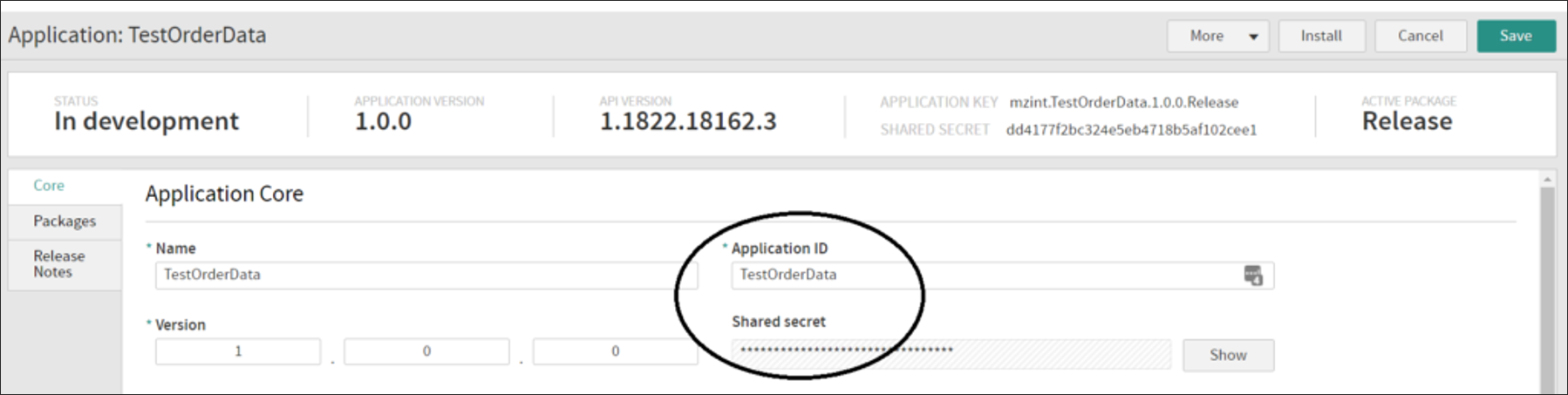
**Application Key and Shared Secret:** Open your application in Dev Center to find these values.
 **Base URL:** Open the tenant you want to connect to and copy the URL from your browser.
## Making API Calls
1. Select the imported Kibo collection in the left sidebar.
2. Browse or search for the API you want to use.
3. Click **Send**.
The pre-request script handles authentication automatically. The response will be returned without any manual token management.
## Troubleshooting
### Remove New Lines in Variables
The light gray symbol shown below means you copied a new line into your environment variable, which will cause authentication to fail. Remove this new line to fix the error.
**Base URL:** Open the tenant you want to connect to and copy the URL from your browser.
## Making API Calls
1. Select the imported Kibo collection in the left sidebar.
2. Browse or search for the API you want to use.
3. Click **Send**.
The pre-request script handles authentication automatically. The response will be returned without any manual token management.
## Troubleshooting
### Remove New Lines in Variables
The light gray symbol shown below means you copied a new line into your environment variable, which will cause authentication to fail. Remove this new line to fix the error.
 ### Refresh Token After Adding Behaviors
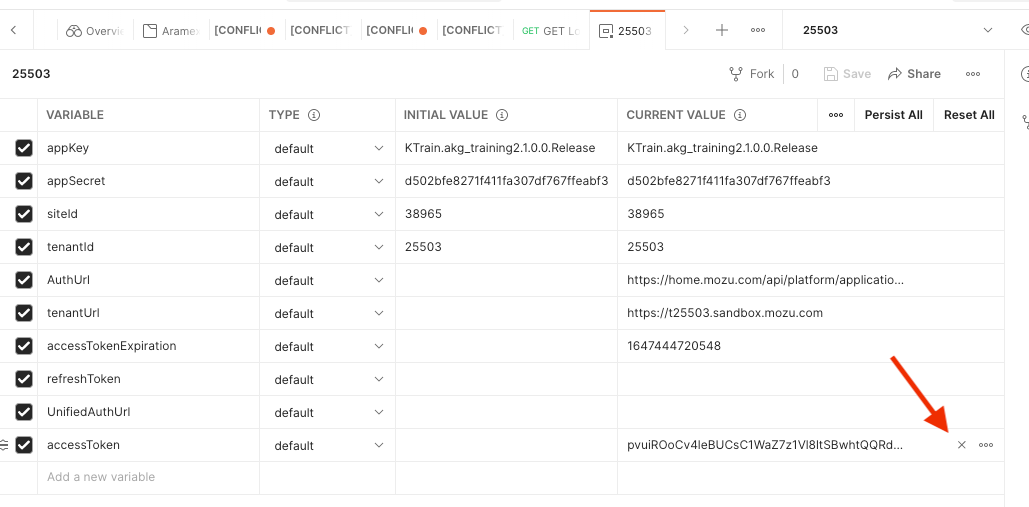
If you added a new behavior to your application, clear the `accessToken` value in your environment variables to generate a new one. The token caches behaviors when it is generated.
### Refresh Token After Adding Behaviors
If you added a new behavior to your application, clear the `accessToken` value in your environment variables to generate a new one. The token caches behaviors when it is generated.
 ### Wait After Installing Application
It takes a few minutes after installing an application before it will be fully accepted by Reverse Proxy, so wait a short time before attempting authentication.
### Clear Cookies if Requests Fail
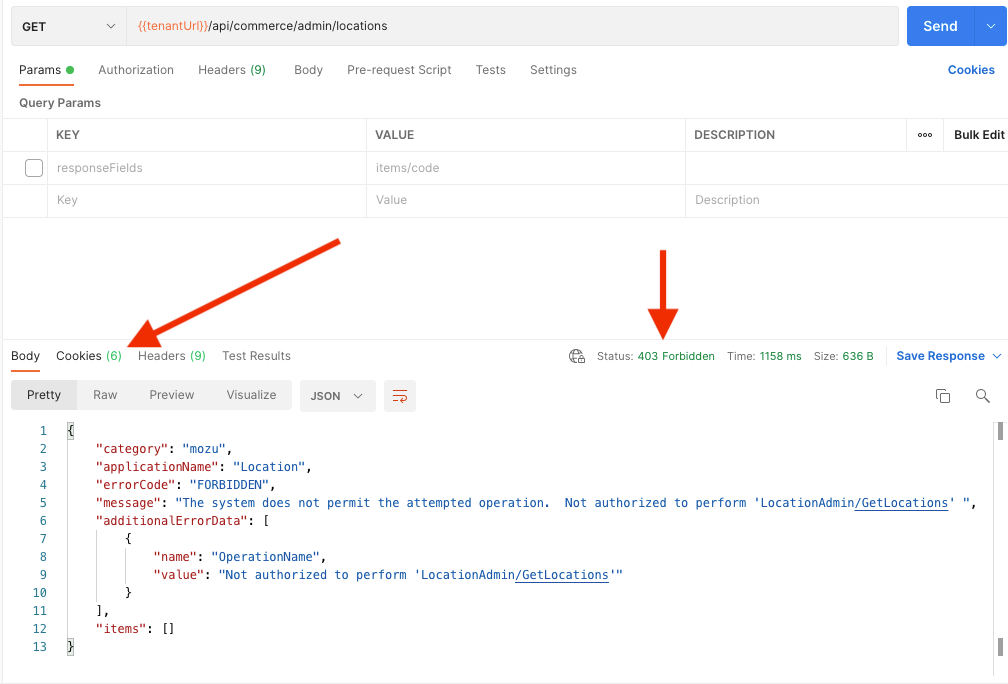
If you type in the wrong URL and receive a response from the storefront, cookies may interfere with subsequent requests. Click **Cookies** in the top right of Postman to clear them.
### Wait After Installing Application
It takes a few minutes after installing an application before it will be fully accepted by Reverse Proxy, so wait a short time before attempting authentication.
### Clear Cookies if Requests Fail
If you type in the wrong URL and receive a response from the storefront, cookies may interfere with subsequent requests. Click **Cookies** in the top right of Postman to clear them.
 ### Specify Site for Some APIs
Some APIs require site context. If you experience a 400 Bad Request error or a message about missing context level, add the `x-vol-site` header with your site ID.
### Provide cURL Request When Requesting Help
To debug issues or request help, copy your API request as a cURL request:
1. Click the **Code** button on the right side of Postman.
2. Select **cURL** for the code snippet type.
3. Copy and paste this when requesting support.
### Specify Site for Some APIs
Some APIs require site context. If you experience a 400 Bad Request error or a message about missing context level, add the `x-vol-site` header with your site ID.
### Provide cURL Request When Requesting Help
To debug issues or request help, copy your API request as a cURL request:
1. Click the **Code** button on the right side of Postman.
2. Select **cURL** for the code snippet type.
3. Copy and paste this when requesting support.