> ## Documentation Index
> Fetch the complete documentation index at: https://docs.kibocommerce.com/llms.txt
> Use this file to discover all available pages before exploring further.
# Geography-Based User Access
With geography-based user access, you can specify which country and state data a user has access to and prevent them from viewing customers, orders, subscriptions, or returns outside of their jurisdiction. By default, all internal users will have access to data for all countries. However, you can use a set of custom user permissions to limit the countries or the specific states/regions someone has access to in their user settings.
## The Access Grid
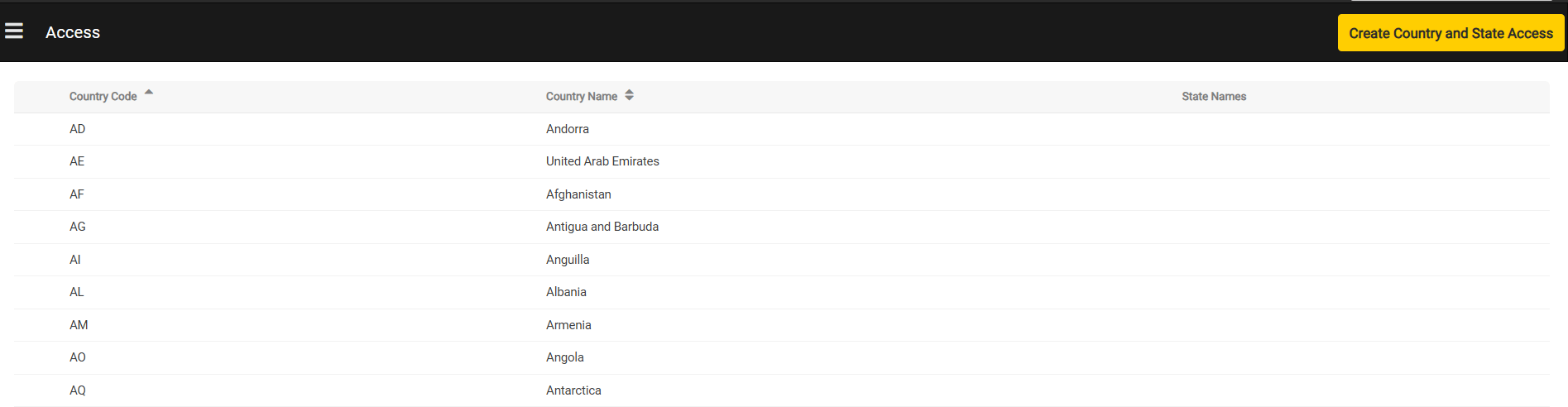
To view your current geographic configurations, navigate to **System > Permissions > Access**. The **Access** grid provides an overview of all geographic restrictions, displaying the country code, country name, and the assigned states.
 ### Creating Country and State Access
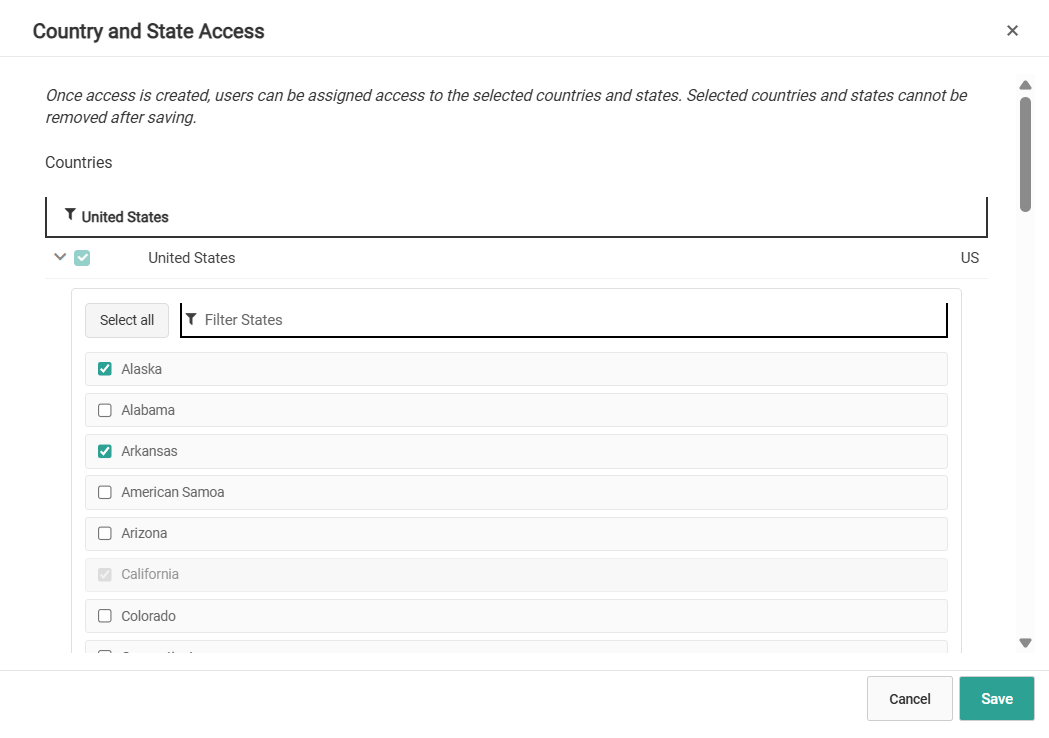
Administrators can add geographic access configurations by clicking the **Create Country and State Access** button on the dashboard. This interface allows you to set rules at the country level or drill down into individual states/regions.
Selecting individual states is optional. If a country is enabled without any specific states selected, the configuration defaults to full, country-wide data access. For more granular control, you can choose to check one or more states within that country to restrict access to specific states (such as Texas-only). Users can use the search capability to search for a country or a state within a specific country.
### Creating Country and State Access
Administrators can add geographic access configurations by clicking the **Create Country and State Access** button on the dashboard. This interface allows you to set rules at the country level or drill down into individual states/regions.
Selecting individual states is optional. If a country is enabled without any specific states selected, the configuration defaults to full, country-wide data access. For more granular control, you can choose to check one or more states within that country to restrict access to specific states (such as Texas-only). Users can use the search capability to search for a country or a state within a specific country.
 ### Assigning Geographic Access to Users
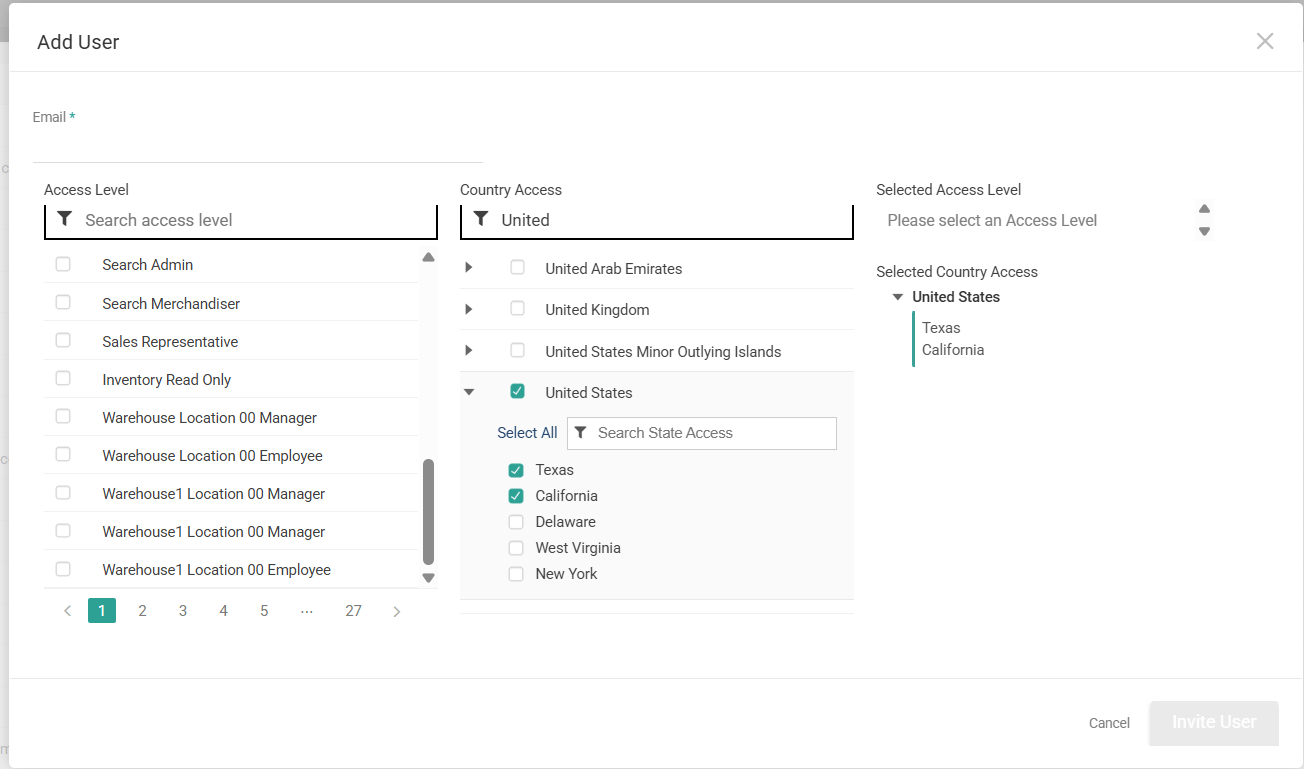
When adding a new user or editing an existing user profile under **System > Permissions > Users**, you can assign the specific geographic boundaries created on the Access page.
A geographic access selection area is displayed next to the list of general user permissions. From here, you can select the specific countries, or country and state configurations, the user should be allowed to view. If no specific geographic boundaries are selected, the user retains access to all countries and states by default. You can also use the built-in search bar within the selection column to quickly locate a specific country or state.
### Assigning Geographic Access to Users
When adding a new user or editing an existing user profile under **System > Permissions > Users**, you can assign the specific geographic boundaries created on the Access page.
A geographic access selection area is displayed next to the list of general user permissions. From here, you can select the specific countries, or country and state configurations, the user should be allowed to view. If no specific geographic boundaries are selected, the user retains access to all countries and states by default. You can also use the built-in search bar within the selection column to quickly locate a specific country or state.
 ## User Access Restrictions
Restricting access to a particular country, or a country and state, affects which customers (including B2B accounts), orders, subscriptions, and returns the user can view. If a user does not have access to a country or state, those records will not be visible. This applies to main data grids as well as localized lists, such as order history or subscriptions within a customer profile.
The system uses specific address checks to determine whether a user can see a record:
* **Orders and Subscriptions:** Access is determined by the shipping address. If the shipping address is missing, the system checks the billing address instead. If an address is marked as both shipping and billing, the shipping address rule takes precedence.
* **Returns:** If a user does not have access to an order, they will not have any access to returns associated with that order. Additionally, if a user does not have access to a location, that location is restricted during return creation and return processing.
* **Customers:** Access to B2C and B2B customer accounts is allowed if at least one shipping address matches the user's permitted geography. If the account has no shipping addresses on file (such as a new account or an account with only a billing address), it remains accessible to the user.
For example, when a user is restricted to the United States and the state of Texas:
* If a customer only has a shipping address in California, the user will not be able to view or manage the customer.
* If a customer has one shipping address in California and one in Texas, the user will be able to view and manage the customer, but will only be able to see the address they have access to (Texas).
* If an order has a shipping address in Texas, the user will be able to view and manage the order.
* If an order has a shipping address in California, the user will not be able to view or manage the order.
### Shipping Address Restrictions
When adding a new shipping address in Admin UI, the user can only add a shipping address for a country or state they have access to. When editing an existing shipping address, the user can only select a country or state that they have access to. If they try to select an invalid country or state, an error will be displayed instead
### Order Creation Restrictions
The user cannot create orders with a shipping address to a country or state that they do not have access to through either the Admin UI or API. Invalid addresses will be hidden from the address selection list, and the user will not be able to add any new addresses belonging to a geography outside their jurisdiction. If they attempt to select an invalid country or state, the shipping options will be reset to the defaults and greyed out as non-interactable.
## User Access Restrictions
Restricting access to a particular country, or a country and state, affects which customers (including B2B accounts), orders, subscriptions, and returns the user can view. If a user does not have access to a country or state, those records will not be visible. This applies to main data grids as well as localized lists, such as order history or subscriptions within a customer profile.
The system uses specific address checks to determine whether a user can see a record:
* **Orders and Subscriptions:** Access is determined by the shipping address. If the shipping address is missing, the system checks the billing address instead. If an address is marked as both shipping and billing, the shipping address rule takes precedence.
* **Returns:** If a user does not have access to an order, they will not have any access to returns associated with that order. Additionally, if a user does not have access to a location, that location is restricted during return creation and return processing.
* **Customers:** Access to B2C and B2B customer accounts is allowed if at least one shipping address matches the user's permitted geography. If the account has no shipping addresses on file (such as a new account or an account with only a billing address), it remains accessible to the user.
For example, when a user is restricted to the United States and the state of Texas:
* If a customer only has a shipping address in California, the user will not be able to view or manage the customer.
* If a customer has one shipping address in California and one in Texas, the user will be able to view and manage the customer, but will only be able to see the address they have access to (Texas).
* If an order has a shipping address in Texas, the user will be able to view and manage the order.
* If an order has a shipping address in California, the user will not be able to view or manage the order.
### Shipping Address Restrictions
When adding a new shipping address in Admin UI, the user can only add a shipping address for a country or state they have access to. When editing an existing shipping address, the user can only select a country or state that they have access to. If they try to select an invalid country or state, an error will be displayed instead
### Order Creation Restrictions
The user cannot create orders with a shipping address to a country or state that they do not have access to through either the Admin UI or API. Invalid addresses will be hidden from the address selection list, and the user will not be able to add any new addresses belonging to a geography outside their jurisdiction. If they attempt to select an invalid country or state, the shipping options will be reset to the defaults and greyed out as non-interactable.