> ## Documentation Index
> Fetch the complete documentation index at: https://docs.kibocommerce.com/llms.txt
> Use this file to discover all available pages before exploring further.
# Estimated Delivery Dates
Before ordering a product, a shopper may appreciate visibility as to when they would receive it. The Kibo Composable Commerce Platform can calculate estimated delivery dates for any STH, BOPIS, and Delivery items that allow you to offer promised dates to your shoppers. These dates and the inputs used to calculate them are provided for you to use as needed and display on the storefront's product details, cart, and checkout pages.
This can help with cases such as when a large item such as a couch may have a further-out delivery date. This is supported for all OMS (with or without a catalog) and eComm+OMS implementations.
## Estimated Delivery Date Calculations
The system calculates both a Fulfillment Date and the total Estimated Delivery Date, which can then be displayed on your storefront's product details, cart, and checkout pages. These dates are independently calculated for each item in the cart, allowing you to give the shopper the option to ship them separately or not.
The rest of this guide will explain how to configure processing times, transfer times, and location cut off times. If you want to quickly refer to parameter definitions and calculations, you can expand the collapsible table below.
### Parameters and Calculations
| Field | Description |
| -------------------------------------------------------- | ---------------------------------------------------------------------------------------------------------------------------------------------------------------------------------------------------------------------------------------------------------------------------------------------------------------------------------------------------------------------- |
| Shopper Location | The shopper's address or zip code, required for any Direct Ship (Ship-to-Home) or Delivery Estimated Delivery Date calculation. |
| Processing Time | Time taken to fulfill shipments at a location, measured in hours. Set separately on locations for Direct Ship, BOPIS, Transfer, and Delivery. |
| Cut Off Time | The start and end times of a given day during which a location is fulfilling Direct Ship, BOPIS, Transfer, and/or Delivery shipments. If the current time or processing time is past the cut off time for the location, the item's processing time will start the next day that the location is open. This is optional and if not set, it is considered unconstrained. |
| Order Cut Off Date | The latest time at which the order can be placed and still meet the Estimated Delivery Date, calculated as Closing Cut Off Time - Processing Time. |
| Transfer Time | The time taken to transfer a Direct Ship, BOPIS, or Delivery shipment from a Transfer Location to a Receiving Location, measured in hours. Default transfer times between location types can be set up, as well as overrides for transfers between specific locations. |
| Carrier Shipping Time | The time it takes for the carrier to get a Direct Ship order to the shopper, based on their address or zip code. This is determined by the carrier and shipping method, such as FedEx 2 Day shipping. |
| Delivery Time | The time it takes for the delivery provider to get a Delivery order to the shopper. This is determined by the provider. |
| Remorse Period | A period of time, measured in minutes, in which orders can be cancelled before shipments are created. This is configured with the [Configurable Shipments feature](/pages/configure-shipment-creation). |
| Fulfillment Date (Current Inventory) | Current Date + Processing Time |
| Fulfillment Date (Future Inventory) | Last Future Date + Processing Time |
| Fulfillment Date (Current Inventory) with Remorse Period | Current Date + Remorse Period + Processing Time |
| Fulfillment Date (Future Inventory) with Remorse Period | Future Date + Remorse Period + Processing Time |
| Transfer Fulfillment Date | Current Date + Transfer Processing Time |
| Fulfillment Date (with Consolidation) | Current Date + Last (Transfer Fulfillment Date + Transfer Time) across transfer locations + Processing Time |
| Estimated Delivery Date (BOPIS) | Current Date + Processing Time |
| Estimated Delivery Date (Direct Ship / STH) | Fulfillment Date + Carrier Shipping Time |
| Estimated Delivery Date (Delivery) | Fulfillment Date + Delivery Time |
### Fulfillment Date
The Fulfillment Date is calculated for each item and fulfillment type. For BOPIS, this is the date that the item is ready to be picked up. For Direct Ship, also known as Ship-to-Home, this is the date that the item is ready to be shipped (i.e. picked up by carrier). For Delivery, this is the date that the item is ready to be Delivered (i.e. picked up by Delivery Provider).
* Fulfillment Date for Current Inventory = Current Date + Processing Time
* Fulfillment Date for Future Inventory = Future Date + Processing Time
In the case of bundles and products with extras, the system will compare the Fulfillment Dates for each item and use the latest date for the entire bundle or product with extras.
If you are using the [Configurable Shipment feature](/pages/configure-shipment-creation), such as to provide a remorse period, then that time is also added into the Fulfillment Date calculation. This is the amount configured in the **Release orders \_ mins after order submit** site setting.
This means that the calculation for configurable shipments is Fulfillment Date = Current Date + Remorse Period + Processing Time.
### Estimated Delivery Date
The Estimated Delivery Date for BOPIS shipments will be the same as the Fulfillment Date calculated above, because pickup does not require additional carrier or delivery time.
* BOPIS Estimated Delivery Date = Current Date + Processing Time
The Estimated Delivery Date for STH and Delivery shipments will be the sum of the Fulfillment Date and a Carrier Shipping Time or Delivery Time, both of which are determined by the carrier or delivery provider. The Carrier Shipping Time is based on the item's shipping method such as FedEx's 2 Day, Standard, and Express methods.
* STH Estimated Delivery Date = Fulfillment Date + Carrier Shipping Time
* Delivery Estimated Delivery Date = Fulfillment Date + Delivery Time
### Special Case: Shipment Consolidation
Transfer times are considered when using shipment consolidation for STH, Delivery, or BOPIS. An additional Transfer Fulfillment Date field indicates when an item is fulfilled at a transfer location and ready to be transferred to the receiving location. This field is not displayed externally, only used in calculations.
* Transfer Fulfillment Date = Current Date + Transfer Processing Time
The Fulfillment Date at the receiving consolidation location accounts for transfer times to determine when it will have received all transfers. The processing time for the consolidation location will start from the time the last incoming transfer is received. Thus, the calculation for the final Fulfillment Date at the receiving consolidation location would be:
* Fulfillment Date = Current Date + Last (Transfer Fulfillment Date + Transfer Time) across transfer locations + Processing Time
* Note that the last incoming transfer is used for the item displayed on the product details page, while the last incoming transfer across all items is used on the cart and checkout pages.
The Estimated Delivery Date would then be calculated as expected for the fulfillment type, such as Fulfillment Date + Carrier Shipping Time for STH. If [multiple location consolidation](/pages/sth-and-delivery-consolidation#multiple-location-consolidation) is being used, then the Estimated Delivery Date utilizes the latest date across all consolidation path.
## Configure Delivery Date Parameters
This section describes how to configure a location's processing and cut off times, as well as the transfer times between specific locations and/or location types.
### Set Processing Times
The Processing Time is the time taken at a location to fulfill shipments, measured in hours. This can be set at the location level for Direct Ship, BOPIS, Transfer, and Delivery fulfillment types.
**How Processing Time Works Across Multiple Days**
Processing time is measured in hours and may span multiple days depending on when the location is open. The system automatically accounts for a location's operating schedule when calculating how long processing will take.
* **Processing continues across open days.** If a location cannot complete processing within the same day, the remaining hours carry over to the next day the location is open.
* **Closed days are skipped.** If a location is closed on weekends or holidays, those days are not counted toward processing time.
* **Orders placed after cut off start processing the next open day.** If an order comes in after the location's cut off time, processing begins the following business day.
* **Remorse period adds to processing start.** If a remorse period is configured, processing won't begin until that period ends.
**Example:** A location is open 5 hours/day (Mon–Fri), and an order requires 20 hours of processing starting on Thursday at location A:
| Day | Hours Available | Hours Used | Hours Remaining |
| :---------- | :-------------- | :--------- | :-------------------------- |
| Thursday | 5 | 5 | 15 |
| Friday | 5 | 5 | 10 |
| Saturday | Closed | 0 | 10 |
| Sunday | Closed | 0 | 10 |
| Monday | 5 | 5 | 5 |
| **Tuesday** | 5 | 5 | **0 — Processing Complete** |
**Note:** To have a behavior where processing time will always decremented in 24-hour blocks regardless of location cutt off hours can be renabled via the tenant attribute `EDD_24_HOUR_PROCESSING_HOURS_LOGIC_ENABLED=true`. Contact [Kibo Suppor](https://help.kibocommerce.com/)t if you need this enabled for your tenant.
In the above example, the order is ready for shipment on **Tuesday**.
To set a location's processing times:
1. Go to **Main** > **Orders** > **Locations**.
2. Either select an existing location or [create a new location](/pages/manage-locations#create-a-new-location).
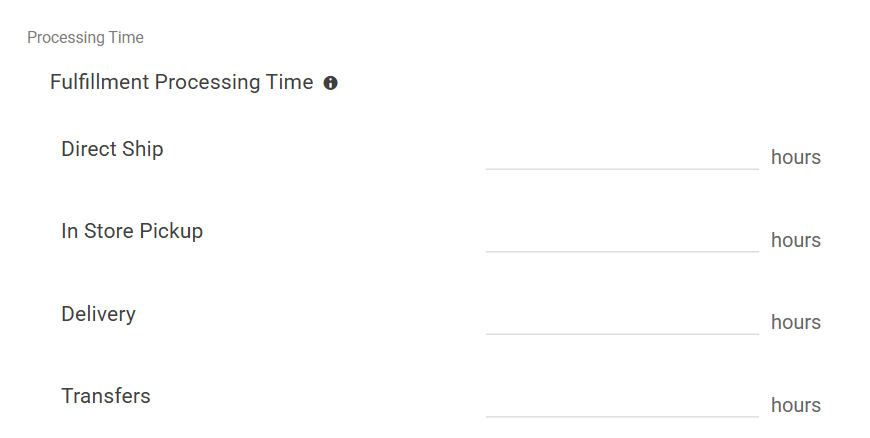
3. Enter the processing time in hours for **Direct Ship**, **In Store Pickup**, **Delivery**, and/or **Transfers** as applicable depending on what your implementation is enabled for. The Transfers time entered here is the processing time only at the transfer location. \\
 4. Click **Save**.
### Set Transfer Times
The Transfer Time is the time taken to transfer a shipment from a Transfer Location to the Receiving Location. For example, if the Transfer Time between Location A and Location B is three hours, then that means it takes three hours to transfer a shipment from Transfer Location A to Receiving Location B.
The system will consider transfer times set up between location types as defaults. Overrides can be set up between specific locations, in which case the system will apply the override instead of the default. For instance, you could set a default time for transfers between two location types (a Warehouse and a Store) and override if needed between two specific locations (Location A and Location B). This will apply to all fulfillment types.
1. Go to **System** > **Settings** > **Transfer Times**.
2. Click the **Default Transfer Times by Location Type** tab. This tab displays a list of any existing location type-based transfer times, indicating the "from" and "to" location types and their associated time period.
3. Click **Add Transfer Time**.
4. Click **Save**.
### Set Transfer Times
The Transfer Time is the time taken to transfer a shipment from a Transfer Location to the Receiving Location. For example, if the Transfer Time between Location A and Location B is three hours, then that means it takes three hours to transfer a shipment from Transfer Location A to Receiving Location B.
The system will consider transfer times set up between location types as defaults. Overrides can be set up between specific locations, in which case the system will apply the override instead of the default. For instance, you could set a default time for transfers between two location types (a Warehouse and a Store) and override if needed between two specific locations (Location A and Location B). This will apply to all fulfillment types.
1. Go to **System** > **Settings** > **Transfer Times**.
2. Click the **Default Transfer Times by Location Type** tab. This tab displays a list of any existing location type-based transfer times, indicating the "from" and "to" location types and their associated time period.
3. Click **Add Transfer Time**.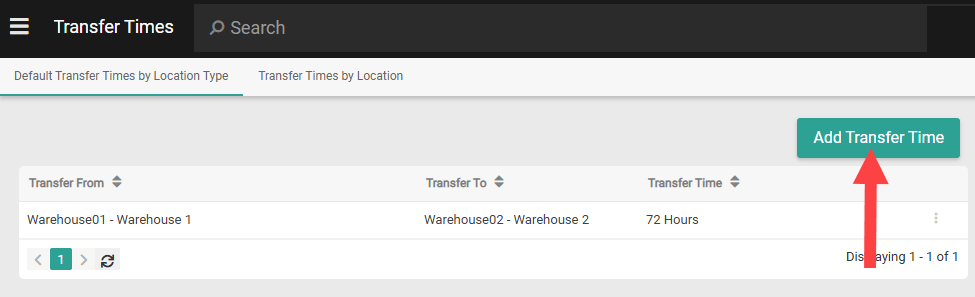 4. Select the **From Location Type** and the **To Location Type**. While you can't duplicate a setting for the same permutation (such as "from: Warehouse, to: Store"), the inverse scenario will still be valid if a setting for it doesn't already exist ("from: Store, to: Warehouse").
5. Enter the **Transfer time** (a whole number that is at least 0) and **Transfer time unit** (hours or days). If you enter the time in days, it will be converted into hours upon saving.
4. Select the **From Location Type** and the **To Location Type**. While you can't duplicate a setting for the same permutation (such as "from: Warehouse, to: Store"), the inverse scenario will still be valid if a setting for it doesn't already exist ("from: Store, to: Warehouse").
5. Enter the **Transfer time** (a whole number that is at least 0) and **Transfer time unit** (hours or days). If you enter the time in days, it will be converted into hours upon saving.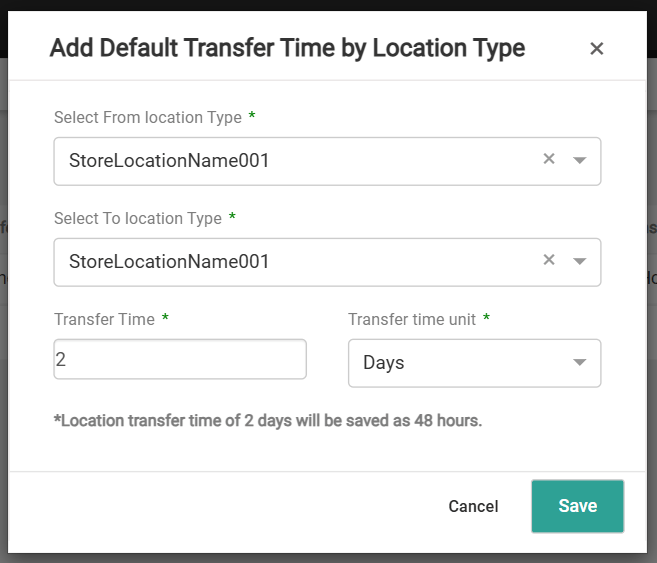 6. Click **Save**.
7. Repeat Steps 3-6 for any other location type defaults you want to add.
8. If you need to set up overrides, click the **Transfer Times by Location** tab. This tab displays a list of any existing location-based transfer times, indicating the "from" and "to" locations and their associated time period.
9. Click **Add Transfer Time**.
6. Click **Save**.
7. Repeat Steps 3-6 for any other location type defaults you want to add.
8. If you need to set up overrides, click the **Transfer Times by Location** tab. This tab displays a list of any existing location-based transfer times, indicating the "from" and "to" locations and their associated time period.
9. Click **Add Transfer Time**.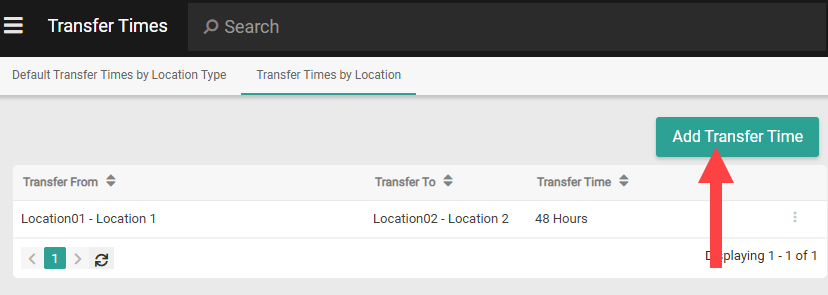 10. Select the **From Location** and the **To Location**. While you can't duplicate a setting for the same permutation (such as "from: Austin, to: Boston"), the inverse scenario will still be valid if a setting for it doesn't already exist ("from: Boston, to: Austin").
While locations can only be [set to one location type](/pages/manage-locations) by default, certain implementations may be enabled to set multiple location types. If this is the case, the Estimated Delivery Date calculation will only consider the first set location type while determining the location's transfer time.
11. Enter the **Transfer time** (a whole number that is at least 0) and **Transfer time unit** (hours or days). If you enter the time in days, it will be converted into hours upon saving.
10. Select the **From Location** and the **To Location**. While you can't duplicate a setting for the same permutation (such as "from: Austin, to: Boston"), the inverse scenario will still be valid if a setting for it doesn't already exist ("from: Boston, to: Austin").
While locations can only be [set to one location type](/pages/manage-locations) by default, certain implementations may be enabled to set multiple location types. If this is the case, the Estimated Delivery Date calculation will only consider the first set location type while determining the location's transfer time.
11. Enter the **Transfer time** (a whole number that is at least 0) and **Transfer time unit** (hours or days). If you enter the time in days, it will be converted into hours upon saving.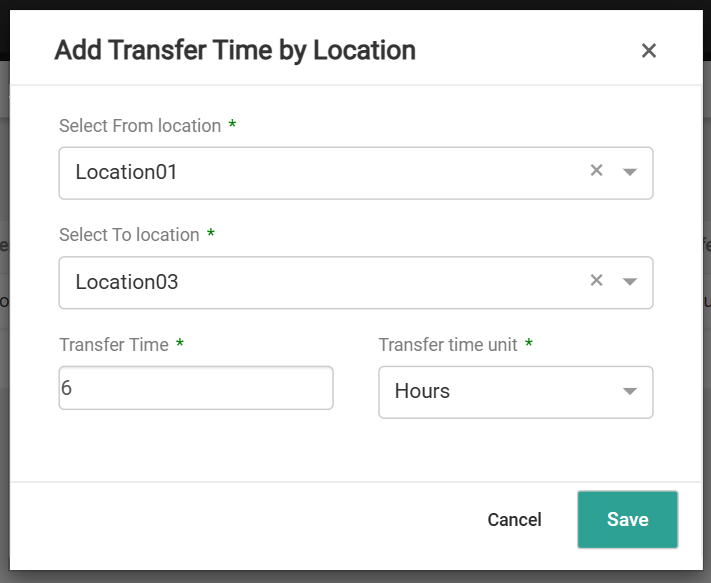 12. Click **Save**.
13. Repeat Steps 9-12 for any other location overrides you want to add.
The search bar on the Transfer Times page allows you to do a keyword search on the Transfer From and Transfer To fields using either location or location type names and codes. For example, you can find all transfer time settings that relate to Austin—Warehouse01 by looking up either "Austin" or "Warehouse01."
### Set Cut Off Times
Fulfillment Cut Off Times define when a location is able to fulfill on each given day of the week, and may or may not be the same as the location's Hours of Operations (which are a different section of the [location configurations](/pages/manage-locations)). You can set daily Direct Ship, BOPIS, Transfer, and Delivery cut off times in the location configurations with calendar-based overrides.
Fulfillment Date and Estimated Delivery Date calculations factor in these cut off times. If the current time or processing time is past the cut off time for the location, the item's processing time will start the next day that the location is open.
Additionally, the system will use this information to calculate an Order Cut Off Date (Closing Cut Off Time - Processing Time). This indicates the latest time at which the order can be placed and still meet the Estimated Delivery Date, allowing you to display messaging such as "Receive by February 28th if order placed by 3:00 PM today" on your storefront.
1. Go to **Main** > **Orders** > **Locations**.
2. Click a location or create a new one.
3. In the Fulfillment Cut Off Time section, set the **Time Zone**.
12. Click **Save**.
13. Repeat Steps 9-12 for any other location overrides you want to add.
The search bar on the Transfer Times page allows you to do a keyword search on the Transfer From and Transfer To fields using either location or location type names and codes. For example, you can find all transfer time settings that relate to Austin—Warehouse01 by looking up either "Austin" or "Warehouse01."
### Set Cut Off Times
Fulfillment Cut Off Times define when a location is able to fulfill on each given day of the week, and may or may not be the same as the location's Hours of Operations (which are a different section of the [location configurations](/pages/manage-locations)). You can set daily Direct Ship, BOPIS, Transfer, and Delivery cut off times in the location configurations with calendar-based overrides.
Fulfillment Date and Estimated Delivery Date calculations factor in these cut off times. If the current time or processing time is past the cut off time for the location, the item's processing time will start the next day that the location is open.
Additionally, the system will use this information to calculate an Order Cut Off Date (Closing Cut Off Time - Processing Time). This indicates the latest time at which the order can be placed and still meet the Estimated Delivery Date, allowing you to display messaging such as "Receive by February 28th if order placed by 3:00 PM today" on your storefront.
1. Go to **Main** > **Orders** > **Locations**.
2. Click a location or create a new one.
3. In the Fulfillment Cut Off Time section, set the **Time Zone**.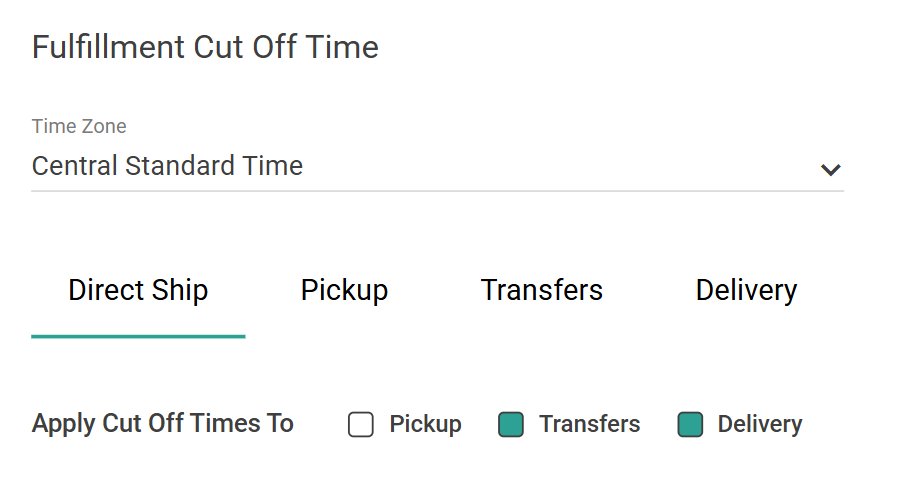 4. Click the tab of the fulfillment type you want to configure hours for.
5. If you want your settings here to apply to any other fulfillment types as well, such as if the location operates with the same time block for Direct Ship and Pickup, then check the appropriate options in **Apply Cut Off Times to** setting. This will copy your selections to the checked fulfillment type.
6. For at least one day of the week, set the **from** and **to** times (which may also be Closed instead of a specific time of day) to indicate when the location is actively fulfilling orders. If any days are left blank, that means that there is no cut off for that day.
* If you want to set the same times across multiple days, then you can set the times for one day and check the others you want to copy to using the boxes on the right. Then click **Apply hours to all checked**.
4. Click the tab of the fulfillment type you want to configure hours for.
5. If you want your settings here to apply to any other fulfillment types as well, such as if the location operates with the same time block for Direct Ship and Pickup, then check the appropriate options in **Apply Cut Off Times to** setting. This will copy your selections to the checked fulfillment type.
6. For at least one day of the week, set the **from** and **to** times (which may also be Closed instead of a specific time of day) to indicate when the location is actively fulfilling orders. If any days are left blank, that means that there is no cut off for that day.
* If you want to set the same times across multiple days, then you can set the times for one day and check the others you want to copy to using the boxes on the right. Then click **Apply hours to all checked**.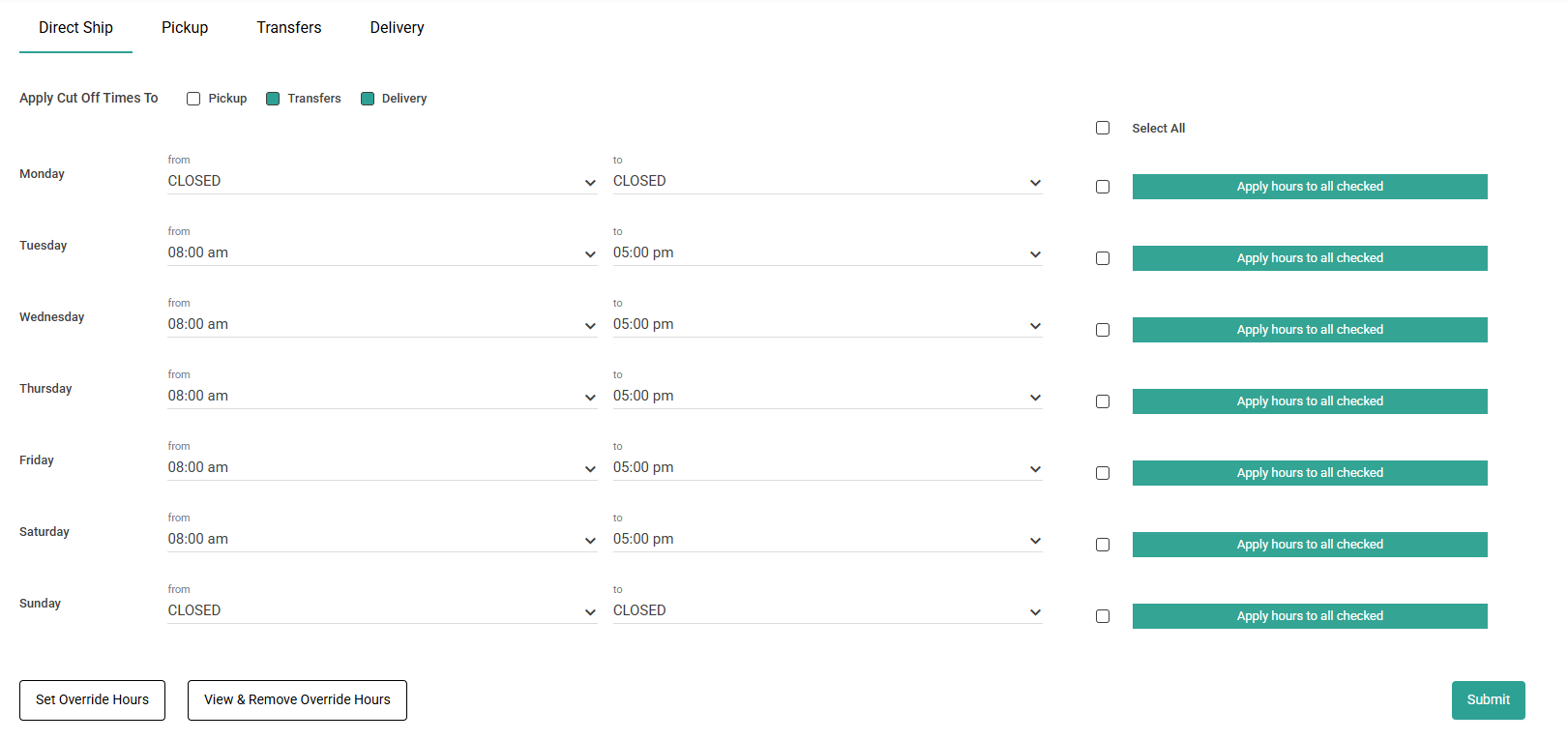 7. If you want to set different cut off times on specific calendar dates, such as holidays, click **Set** **Override Hours**.
1. Enter the **From** and **To** times, and check which fulfillment types you want these times to. Click **Add**.
2. Repeat these steps to add more override dates as needed. You can remove any by clicking the **X** on the far right.
3. Click **Save**.
7. If you want to set different cut off times on specific calendar dates, such as holidays, click **Set** **Override Hours**.
1. Enter the **From** and **To** times, and check which fulfillment types you want these times to. Click **Add**.
2. Repeat these steps to add more override dates as needed. You can remove any by clicking the **X** on the far right.
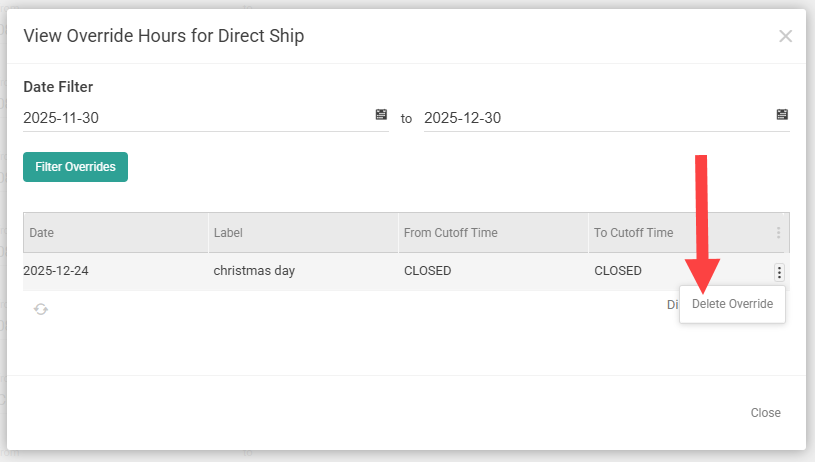
3. Click **Save**.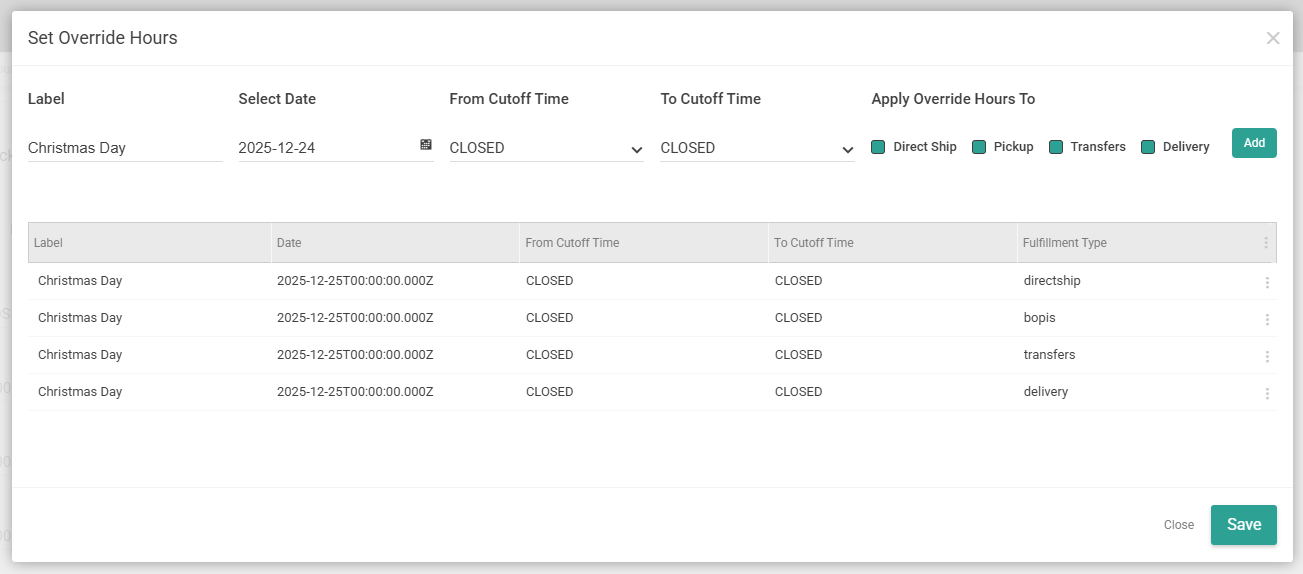 4. Click **View & Remove Override Hours** to see a list of all existing overrides and filter the list by date. To remove one, expand the drop-down menu on the far right of the table row and click **Delete Override**.
 8. When you are done, click **Submit** in the bottom right of the Fulfillment Cut Off Time section.
9. If you are done configuring all location configurations, click **Save** in the top right of the page.
## Shipping Extensibility Applications
In order for Kibo to retrieve estimated transit times and delivery windows from your shipping carriers or delivery providers, you must install the appropriate STH or Delivery application.
The Delivery application requires you to have a [Delivery Solutions account](/pages/delivery-solutions-integration#configure-delivery-solutions) configured with locations and their time windows.
### Install or Develop Applications
If you want to use either of Kibo's default applications, ask [Kibo Support](https://help.kibocommerce.com/) to install it for you and skip to the [Configure Carriers](#configure-carriers) section.
Alternatively, you can develop your own application(s) based on our open source code. This is an Estimated Delivery Date-specific variant of a [Shipping Extensibility application](/pages/shipping-extensibility). To do so:
1. Log in to Dev Center.
2. Go to **Develop** > **Applications**.
3. Click **Create Application**.
4. Enter an appropriate name and ID, such as the following examples.
* Name: "STH EDD Extensibility" or "Delivery EDD Extensibility"
* Application ID: "STHEddExtensibility" or "DeliveryEddExtensibility"
5. Click **Save**.
6. While viewing the new application, click **Packages** > **Capabilities** > **Add Capability**.
8. When you are done, click **Submit** in the bottom right of the Fulfillment Cut Off Time section.
9. If you are done configuring all location configurations, click **Save** in the top right of the page.
## Shipping Extensibility Applications
In order for Kibo to retrieve estimated transit times and delivery windows from your shipping carriers or delivery providers, you must install the appropriate STH or Delivery application.
The Delivery application requires you to have a [Delivery Solutions account](/pages/delivery-solutions-integration#configure-delivery-solutions) configured with locations and their time windows.
### Install or Develop Applications
If you want to use either of Kibo's default applications, ask [Kibo Support](https://help.kibocommerce.com/) to install it for you and skip to the [Configure Carriers](#configure-carriers) section.
Alternatively, you can develop your own application(s) based on our open source code. This is an Estimated Delivery Date-specific variant of a [Shipping Extensibility application](/pages/shipping-extensibility). To do so:
1. Log in to Dev Center.
2. Go to **Develop** > **Applications**.
3. Click **Create Application**.
4. Enter an appropriate name and ID, such as the following examples.
* Name: "STH EDD Extensibility" or "Delivery EDD Extensibility"
* Application ID: "STHEddExtensibility" or "DeliveryEddExtensibility"
5. Click **Save**.
6. While viewing the new application, click **Packages** > **Capabilities** > **Add Capability**.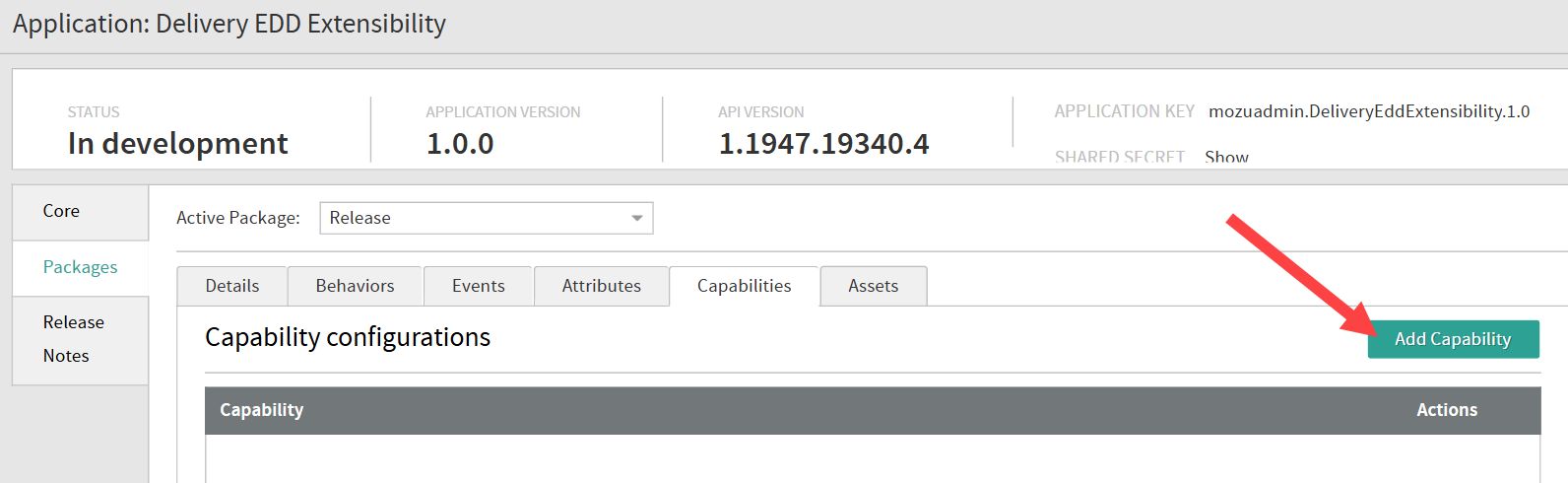 7. Select **Shipping Adapter**.
8. Click **Ok**. This displays the Shipping Adapter screen.
9. Leave the **Endpoint URL** blank and edit the default **Shipping Adapter Configuration** code to include the necessary features and configurations.
* STH Configuration Example:
```
{
"definition": {
"description": "Extensible Carrier",
"features": [ "ship" ],
"logoUrl": null,
"configFields": [
]
},
"serviceTypes": [
{
"serviceTypeCodeSuffix": "Standard",
"deliveryDuration": "Standard",
"localizations": [
{
"localeCode": "en-US",
"name": "Standard"
}
]
},
{
"serviceTypeCodeSuffix": "3_Day",
"deliveryDuration": "ThreeDay",
"localizations": [
{
"localeCode": "en-US",
"name": "3 Day"
}
]
},
{
"serviceTypeCodeSuffix": "2_Day",
"deliveryDuration": "TwoDay",
"localizations": [
{
"localeCode": "en-US",
"name": "2 Day"
}
]
},
{
"serviceTypeCodeSuffix": "1_Day",
"deliveryDuration": "OneDay",
"localizations": [
{
"localeCode": "en-US",
"name": "1 Day"
}
]
}
]
}
```
* Delivery Configuration Example:
```
{
"definition": {
"description": "Delivery Edd Application",
"features": [ "delivery" ],
"logoUrl": null,
"configFields": [
{
"name": "apiKey",
"dataType": "string",
"required": true,
"localizations": [
{
"localeCode": "en-US",
"label": "API Key",
"description": "API Key"
}
]
},
{
"name": "tenantId",
"dataType": "string",
"required": true,
"localizations": [
{
"localeCode": "en-US",
"label": "Tenant Id",
"description": "Tenant Id"
}
]
}
]
},
"serviceTypes": [
{
"serviceTypeCodeSuffix": "Standard",
"deliveryDuration": "Standard",
"localizations": [
{
"localeCode": "en-US",
"name": "Standard"
}
]
},
{
"serviceTypeCodeSuffix": "3_Day",
"deliveryDuration": "ThreeDay",
"localizations": [
{
"localeCode": "en-US",
"name": "3 Day"
}
]
},
{
"serviceTypeCodeSuffix": "2_Day",
"deliveryDuration": "TwoDay",
"localizations": [
{
"localeCode": "en-US",
"name": "2 Day"
}
]
}
]
}
```
10. Click **Save**.
7. Select **Shipping Adapter**.
8. Click **Ok**. This displays the Shipping Adapter screen.
9. Leave the **Endpoint URL** blank and edit the default **Shipping Adapter Configuration** code to include the necessary features and configurations.
* STH Configuration Example:
```
{
"definition": {
"description": "Extensible Carrier",
"features": [ "ship" ],
"logoUrl": null,
"configFields": [
]
},
"serviceTypes": [
{
"serviceTypeCodeSuffix": "Standard",
"deliveryDuration": "Standard",
"localizations": [
{
"localeCode": "en-US",
"name": "Standard"
}
]
},
{
"serviceTypeCodeSuffix": "3_Day",
"deliveryDuration": "ThreeDay",
"localizations": [
{
"localeCode": "en-US",
"name": "3 Day"
}
]
},
{
"serviceTypeCodeSuffix": "2_Day",
"deliveryDuration": "TwoDay",
"localizations": [
{
"localeCode": "en-US",
"name": "2 Day"
}
]
},
{
"serviceTypeCodeSuffix": "1_Day",
"deliveryDuration": "OneDay",
"localizations": [
{
"localeCode": "en-US",
"name": "1 Day"
}
]
}
]
}
```
* Delivery Configuration Example:
```
{
"definition": {
"description": "Delivery Edd Application",
"features": [ "delivery" ],
"logoUrl": null,
"configFields": [
{
"name": "apiKey",
"dataType": "string",
"required": true,
"localizations": [
{
"localeCode": "en-US",
"label": "API Key",
"description": "API Key"
}
]
},
{
"name": "tenantId",
"dataType": "string",
"required": true,
"localizations": [
{
"localeCode": "en-US",
"label": "Tenant Id",
"description": "Tenant Id"
}
]
}
]
},
"serviceTypes": [
{
"serviceTypeCodeSuffix": "Standard",
"deliveryDuration": "Standard",
"localizations": [
{
"localeCode": "en-US",
"name": "Standard"
}
]
},
{
"serviceTypeCodeSuffix": "3_Day",
"deliveryDuration": "ThreeDay",
"localizations": [
{
"localeCode": "en-US",
"name": "3 Day"
}
]
},
{
"serviceTypeCodeSuffix": "2_Day",
"deliveryDuration": "TwoDay",
"localizations": [
{
"localeCode": "en-US",
"name": "2 Day"
}
]
}
]
}
```
10. Click **Save**.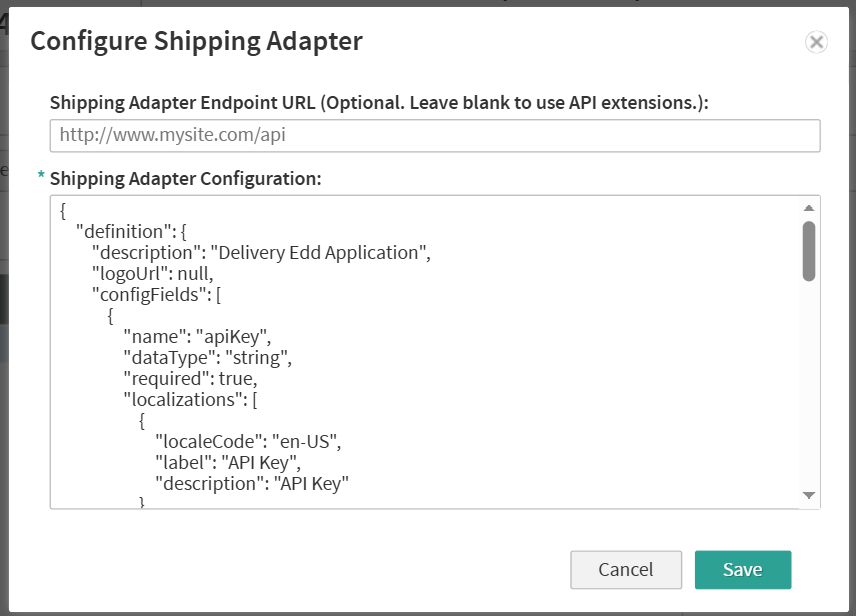 Then upload assets to the application:
1. Clone the [STH](https://github.com/Mozu/Kibo.STH_EDD) or [Delivery](https://github.com/Mozu/Kibo.Delivery_EDD) repository.
2. Add the appropriate mozu.config.json file to the directory.
3. Run `grunt` to upload.
And set the EasyPost API Key for applications to use:
1. Make a POST call to `.../api/platform/applications/authtickets` with the payload `{“appId”:””,”sharedSecret”:””}`
2. Make a POST call to `.../api/platform/secureappdata//easypostConfig` with the payload `{"apiKey": "123456"}`
Finally, submit your application for certification, install it, and enable it on your tenant(s) per the [Shipping Extensibility application instructions](/pages/shipping-extensibility#submit-your-app-for-certification).
### Configure Carriers
After an application is installed, create a carrier account with its credentials and connect it to your shipping methods:
1. Go to **System** > **Settings** > **Shipping** > **Carrier Accounts**.
2. Click **Create New Carrier Account**.
Then upload assets to the application:
1. Clone the [STH](https://github.com/Mozu/Kibo.STH_EDD) or [Delivery](https://github.com/Mozu/Kibo.Delivery_EDD) repository.
2. Add the appropriate mozu.config.json file to the directory.
3. Run `grunt` to upload.
And set the EasyPost API Key for applications to use:
1. Make a POST call to `.../api/platform/applications/authtickets` with the payload `{“appId”:””,”sharedSecret”:””}`
2. Make a POST call to `.../api/platform/secureappdata//easypostConfig` with the payload `{"apiKey": "123456"}`
Finally, submit your application for certification, install it, and enable it on your tenant(s) per the [Shipping Extensibility application instructions](/pages/shipping-extensibility#submit-your-app-for-certification).
### Configure Carriers
After an application is installed, create a carrier account with its credentials and connect it to your shipping methods:
1. Go to **System** > **Settings** > **Shipping** > **Carrier Accounts**.
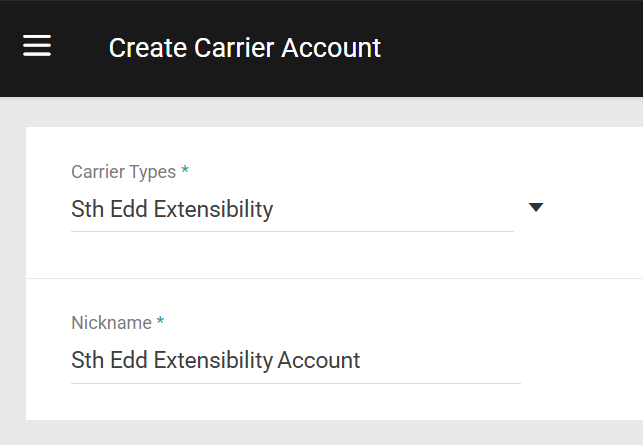
2. Click **Create New Carrier Account**. 3. Select the Delivery or STH application in the **Carrier Types** drop-down menu.
4. Enter an appropriate **Nickname** for the carrier.
5. If using Delivery, enter the **API Key**. This can be found in your [Delivery Solutions admin portal](https://sandbox.portal.deliverysolutions.co/#/login) under **Settings** > **Integrations** > **API Keys**.
3. Select the Delivery or STH application in the **Carrier Types** drop-down menu.
4. Enter an appropriate **Nickname** for the carrier.
5. If using Delivery, enter the **API Key**. This can be found in your [Delivery Solutions admin portal](https://sandbox.portal.deliverysolutions.co/#/login) under **Settings** > **Integrations** > **API Keys**.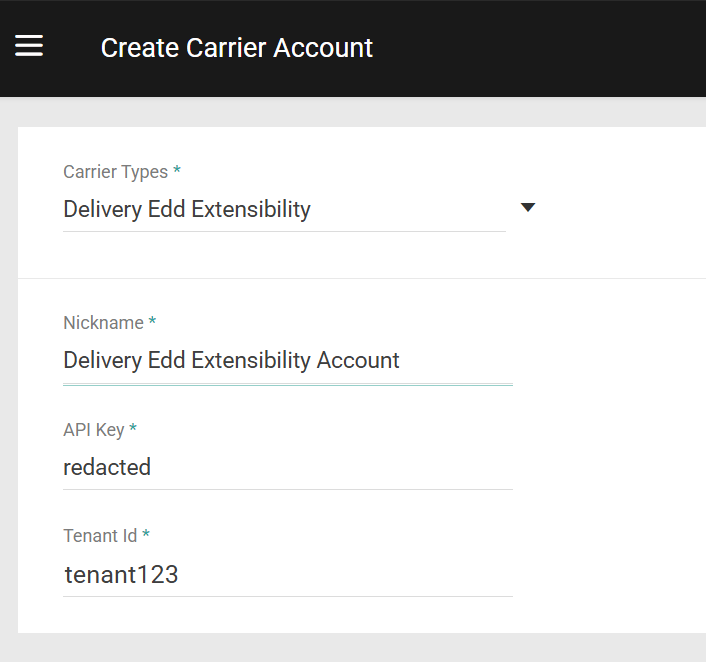 * If using STH, note that you do not have to enter an API Key as Kibo's account key will be used automatically.
 6. If using Delivery, also enter your Delivery Solutions **Tenant Id** from the admin portal.
7. Click **Save**.
8. Go to **System** > **Settings** > **Shipping** > **Carriers** > **Shipping Methods and Rates**.
9. Select the appropriate carrier from the drop-down menu.
10. Select the matching carrier account to link it.
6. If using Delivery, also enter your Delivery Solutions **Tenant Id** from the admin portal.
7. Click **Save**.
8. Go to **System** > **Settings** > **Shipping** > **Carriers** > **Shipping Methods and Rates**.
9. Select the appropriate carrier from the drop-down menu.
10. Select the matching carrier account to link it.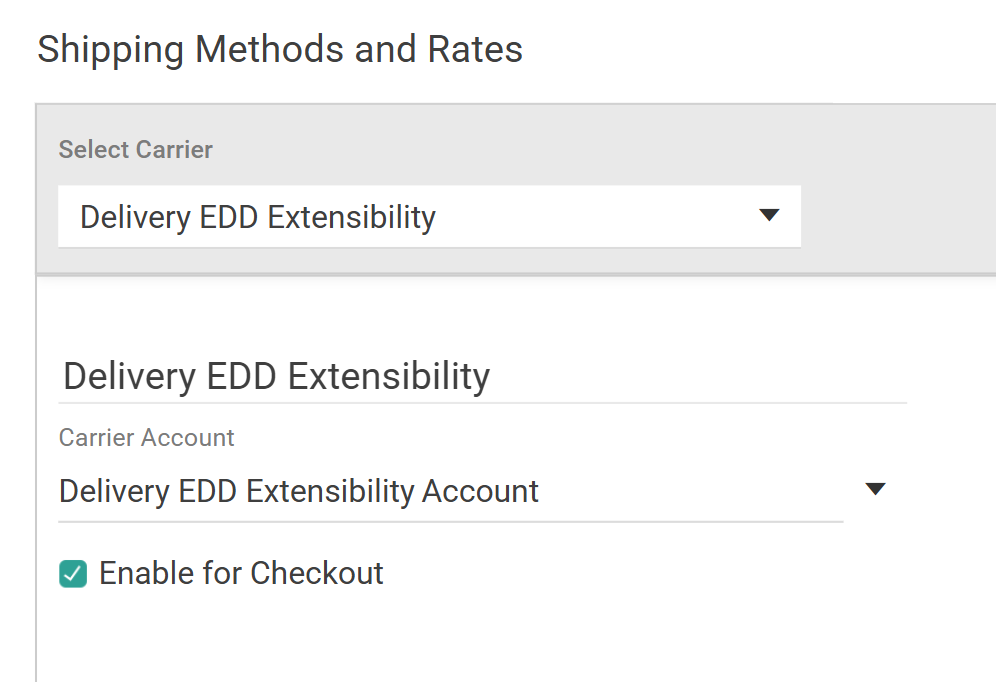 11. Check **Enable for Checkout**.
12. Click **Save**.
### Add API Extension
The API Extension used by both applications should have been automatically added to your tenant upon install:
1. Go to **System** > **Customization** > **API Extensions**.
2. Verify that embedded.commerce.catalog.storefront.shipping.shippingExtensibility.main appears in the list and contains the custom function below. If not present, add it manually.
```
{
"actionId": "embedded.commerce.catalog.storefront.shipping.shippingExtensibility.main",
"contexts": [
{
"customFunctions": [
{
"applicationKey": "",
"functionId": "embedded.commerce.catalog.storefront.shipping.shippingExtensibility.main",
"enabled": true
},
{
"applicationKey": "",
"functionId": "embedded.commerce.catalog.storefront.shipping.shippingExtensibility.main",
"enabled": true
}
]
}
]
}
```
Kibo will now be able to retrieve all of the shipping and delivery information for calculating Estimated Delivery Dates.
## View on Fulfiller UI
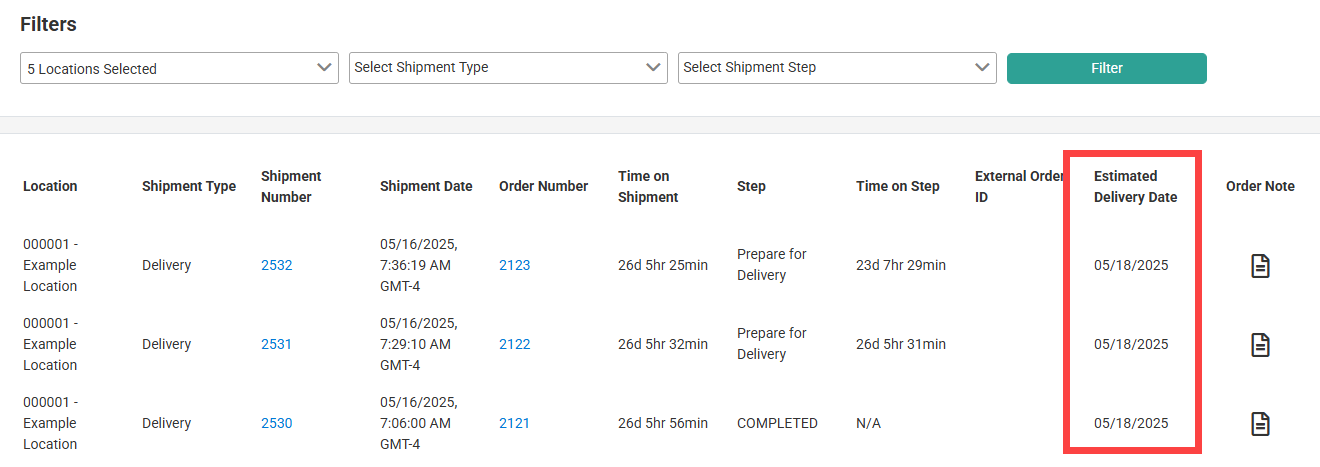
Once everything is set up, the Estimated Delivery Dates for current and future Direct Ship (Ship-to-Home), BOPIS, and Delivery shipments are displayed while viewing shipment lists in the Fulfiller UI. Click this column header to sort shipments in ascending or descending order, with those that don't have an Estimated Delivery Date sorted to the end of the list.
11. Check **Enable for Checkout**.
12. Click **Save**.
### Add API Extension
The API Extension used by both applications should have been automatically added to your tenant upon install:
1. Go to **System** > **Customization** > **API Extensions**.
2. Verify that embedded.commerce.catalog.storefront.shipping.shippingExtensibility.main appears in the list and contains the custom function below. If not present, add it manually.
```
{
"actionId": "embedded.commerce.catalog.storefront.shipping.shippingExtensibility.main",
"contexts": [
{
"customFunctions": [
{
"applicationKey": "",
"functionId": "embedded.commerce.catalog.storefront.shipping.shippingExtensibility.main",
"enabled": true
},
{
"applicationKey": "",
"functionId": "embedded.commerce.catalog.storefront.shipping.shippingExtensibility.main",
"enabled": true
}
]
}
]
}
```
Kibo will now be able to retrieve all of the shipping and delivery information for calculating Estimated Delivery Dates.
## View on Fulfiller UI
Once everything is set up, the Estimated Delivery Dates for current and future Direct Ship (Ship-to-Home), BOPIS, and Delivery shipments are displayed while viewing shipment lists in the Fulfiller UI. Click this column header to sort shipments in ascending or descending order, with those that don't have an Estimated Delivery Date sorted to the end of the list.
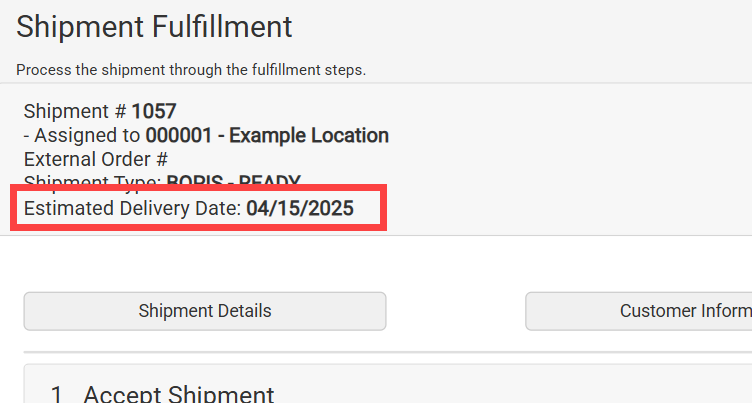
 These dates will also be displayed when viewing a specific shipment's details, such as during the fulfillment workflow.
 ## View on Admin UI
You can now view and update the Estimated Delivery Date for current and future shipments on the Admin UI. An event is emitted when the Estimated Delivery Date is updated.
## API Integration
The Kibo APIs include a dedicated endpoint to retrieve Estimated Delivery Dates, as well as the ability to offer different shipping methods on different items in an order which may be useful to display to your shoppers alongside the estimated dates.
### Estimated Delivery Date API
The Estimated Delivery Date Suggestion API retrieves the Estimated Delivery Date (EDD) calculation for order items to display to customers on your storefront. In the case of STH and Delivery items, this request will suggest the optimal fulfillment location to assign it to based on your configured order routing rules and calculate its associated EDD. In the case of BOPIS items in which the customer has chosen a pickup location, the system will not go through routing logic to suggest an assignment location and will instead return the EDD for the chosen location.
The POST endpoint `/commerce/orders/orderRouting/api/v1/routing/edd/suggestion` accepts the order item information and customer shipping address, as shown in the example request below.
```
{
"eddItems": [
{
"orderItemID": 1,
"partNumber": null,
"sku": null,
"quantity": 3,
"customItemData": null,
"itemDependency": null,
"backorderable": false,
"upc": "L0693614"
}
],
"shippingAddress": {
"addressID": null,
"customerID": null,
"addressLine1": "100 First Avenue",
"phone": "(111) 222-3333",
"city": "Calgary",
"state": "AB",
"postalCode": "AB T1Y 6M6",
"countryCode": "CA",
"latitude": 51.081550,
"longitude": -113.990430
},
"orderType": "DIRECTSHIP",
"futureDateLimit": "2026-08-22T00:00:00Z",
"orderID": 20782,
"total": 29.95
}
```
The `orderType` field accepts the following values for the EDD Suggestion endpoint: `DIRECTSHIP`, `TRANSFER`, `DELIVERY`, and `BOPIS`.
The system will perform its fulfillment calculations and return an `estimatedDeliveryDate` object for each order item and location, as shown in the below example. Use the [http.commerce.routing.eddsuggestion API Extensions](/pages/extensible-order-routing) to customize these responses if needed, such as to display the optimal estimated fulfillment date or time on your storefront.
The `estimatedDeliveryDates` object includes the following fields:
1. **estimatedDeliveryDate (EDD):** The expected date by which the order is anticipated to reach the customer.
2. **orderCutoffDate:** Indicates the latest time at which the order can be placed and still meet the expected EDD. This allows you to display messaging such as *"Receive by February 28th if order placed by 3:00 PM today"* on your storefront.
3. **fulfillmentDate:** Represents the date and time by which the shipment is expected to be ready for fulfillment (pickup or carrier handoff)
For Delivery items, an estimated `deliveryWindow` will be returned as well.
```
{
"assignmentSuggestions": {
"1": [
{
"orderItemID": 1,
"locationID": 12345,
"locationCode": "123",
"quantity": 3,
"route": "DIRECTSHIP",
"futureDate": null,
"futureDateString": null,
"shipmentGroup": null,
"data": null,
"estimatedDeliveryDates": [
{
"estimatedDeliveryDate": "2025-02-28T00:00:00Z",
"estimatedFulfillmentDate": "2025-02-26T00:00:00Z",
"carrier": "UPS",
"serviceType": "2Day",
"orderCutoffDate": "2025-02-05T00:53:22Z"
}
]
}
]
},
"futureAssignmentSuggestions": {},
"stateChangeSuggestions": {},
"availableLocations": [],
"emptyResponse": false
}
```
### Item-Level Shipping Methods
As Estimated Delivery Dates evaluate carrier and shipping method options at the item level, you can set multiple shipping methods across different items in the same order. For instance, you can configure your storefront to allow the shopper to select 2-Day shipping for a specific item because they want its faster Estimated Delivery Date, while waiting longer for their other items.
If you want to do this as part of an eCommerce implementation, then shipping options can be updated on individual order items (as well as passing the Estimated Delivery Date and Order Routing location suggestion) during checkout via the [Update Shipping and Suggestions endpoint](/api-reference/order/update-shipping-and-suggestions) with a request similar to the example below.
```
{
"shippingMethodCode": "be609bb3ed9e436493f7ac67007f91ce",
"shippingMethodName": "Flat Rate-$15",
"expectedDeliveryDate": "2025-04-25T00:00:00.000Z",
"suggestions": [
{
"locationCode": "Warehouse002",
"quantity": "1",
"productCode": "product_02"
}
]
}
```
Recall that all items in a product bundle will use the same Expected Delivery Date, such as in the below example:
```
{
"shippingMethodCode": "be609bb3ed9e436493f7ac67007f91ce",
"shippingMethodName": "Flat Rate-$15",
"expectedDeliveryDate": "2025-04-30T00:00:00.000Z",
"suggestions": [
{
"locationCode": "Warehouse001",
"quantity": "1",
"productCode": "component_01"
},
{
"locationCode": "Warehouse001",
"quantity": "1",
"productCode": "component_02"
}
]
}
```
If updating a Delivery item, the delivery window returned by the EDD Suggestion endpoint should be included as well.
```
{
"shippingMethodCode": "be609bb3ed9e436493f7ac67007f91ce",
"shippingMethodName": "Flat Rate-$15",
"expectedDeliveryDate": "2025-04-25T00:00:00.000Z",
"deliveryWindow": {
"startTime": "2025-04-25T13:00:00.000Z",
"endTime": "2025-04-25T14:00:00.000Z",
},
"suggestions": [
{
"locationCode": "Warehouse002",
"quantity": "1",
"productCode": "product_02"
}
]
}
```
In OMS-Only implementations, the same information can be supplied in the [Create Order](/api-reference/order/create-order) request as line item data.
## View on Admin UI
You can now view and update the Estimated Delivery Date for current and future shipments on the Admin UI. An event is emitted when the Estimated Delivery Date is updated.
## API Integration
The Kibo APIs include a dedicated endpoint to retrieve Estimated Delivery Dates, as well as the ability to offer different shipping methods on different items in an order which may be useful to display to your shoppers alongside the estimated dates.
### Estimated Delivery Date API
The Estimated Delivery Date Suggestion API retrieves the Estimated Delivery Date (EDD) calculation for order items to display to customers on your storefront. In the case of STH and Delivery items, this request will suggest the optimal fulfillment location to assign it to based on your configured order routing rules and calculate its associated EDD. In the case of BOPIS items in which the customer has chosen a pickup location, the system will not go through routing logic to suggest an assignment location and will instead return the EDD for the chosen location.
The POST endpoint `/commerce/orders/orderRouting/api/v1/routing/edd/suggestion` accepts the order item information and customer shipping address, as shown in the example request below.
```
{
"eddItems": [
{
"orderItemID": 1,
"partNumber": null,
"sku": null,
"quantity": 3,
"customItemData": null,
"itemDependency": null,
"backorderable": false,
"upc": "L0693614"
}
],
"shippingAddress": {
"addressID": null,
"customerID": null,
"addressLine1": "100 First Avenue",
"phone": "(111) 222-3333",
"city": "Calgary",
"state": "AB",
"postalCode": "AB T1Y 6M6",
"countryCode": "CA",
"latitude": 51.081550,
"longitude": -113.990430
},
"orderType": "DIRECTSHIP",
"futureDateLimit": "2026-08-22T00:00:00Z",
"orderID": 20782,
"total": 29.95
}
```
The `orderType` field accepts the following values for the EDD Suggestion endpoint: `DIRECTSHIP`, `TRANSFER`, `DELIVERY`, and `BOPIS`.
The system will perform its fulfillment calculations and return an `estimatedDeliveryDate` object for each order item and location, as shown in the below example. Use the [http.commerce.routing.eddsuggestion API Extensions](/pages/extensible-order-routing) to customize these responses if needed, such as to display the optimal estimated fulfillment date or time on your storefront.
The `estimatedDeliveryDates` object includes the following fields:
1. **estimatedDeliveryDate (EDD):** The expected date by which the order is anticipated to reach the customer.
2. **orderCutoffDate:** Indicates the latest time at which the order can be placed and still meet the expected EDD. This allows you to display messaging such as *"Receive by February 28th if order placed by 3:00 PM today"* on your storefront.
3. **fulfillmentDate:** Represents the date and time by which the shipment is expected to be ready for fulfillment (pickup or carrier handoff)
For Delivery items, an estimated `deliveryWindow` will be returned as well.
```
{
"assignmentSuggestions": {
"1": [
{
"orderItemID": 1,
"locationID": 12345,
"locationCode": "123",
"quantity": 3,
"route": "DIRECTSHIP",
"futureDate": null,
"futureDateString": null,
"shipmentGroup": null,
"data": null,
"estimatedDeliveryDates": [
{
"estimatedDeliveryDate": "2025-02-28T00:00:00Z",
"estimatedFulfillmentDate": "2025-02-26T00:00:00Z",
"carrier": "UPS",
"serviceType": "2Day",
"orderCutoffDate": "2025-02-05T00:53:22Z"
}
]
}
]
},
"futureAssignmentSuggestions": {},
"stateChangeSuggestions": {},
"availableLocations": [],
"emptyResponse": false
}
```
### Item-Level Shipping Methods
As Estimated Delivery Dates evaluate carrier and shipping method options at the item level, you can set multiple shipping methods across different items in the same order. For instance, you can configure your storefront to allow the shopper to select 2-Day shipping for a specific item because they want its faster Estimated Delivery Date, while waiting longer for their other items.
If you want to do this as part of an eCommerce implementation, then shipping options can be updated on individual order items (as well as passing the Estimated Delivery Date and Order Routing location suggestion) during checkout via the [Update Shipping and Suggestions endpoint](/api-reference/order/update-shipping-and-suggestions) with a request similar to the example below.
```
{
"shippingMethodCode": "be609bb3ed9e436493f7ac67007f91ce",
"shippingMethodName": "Flat Rate-$15",
"expectedDeliveryDate": "2025-04-25T00:00:00.000Z",
"suggestions": [
{
"locationCode": "Warehouse002",
"quantity": "1",
"productCode": "product_02"
}
]
}
```
Recall that all items in a product bundle will use the same Expected Delivery Date, such as in the below example:
```
{
"shippingMethodCode": "be609bb3ed9e436493f7ac67007f91ce",
"shippingMethodName": "Flat Rate-$15",
"expectedDeliveryDate": "2025-04-30T00:00:00.000Z",
"suggestions": [
{
"locationCode": "Warehouse001",
"quantity": "1",
"productCode": "component_01"
},
{
"locationCode": "Warehouse001",
"quantity": "1",
"productCode": "component_02"
}
]
}
```
If updating a Delivery item, the delivery window returned by the EDD Suggestion endpoint should be included as well.
```
{
"shippingMethodCode": "be609bb3ed9e436493f7ac67007f91ce",
"shippingMethodName": "Flat Rate-$15",
"expectedDeliveryDate": "2025-04-25T00:00:00.000Z",
"deliveryWindow": {
"startTime": "2025-04-25T13:00:00.000Z",
"endTime": "2025-04-25T14:00:00.000Z",
},
"suggestions": [
{
"locationCode": "Warehouse002",
"quantity": "1",
"productCode": "product_02"
}
]
}
```
In OMS-Only implementations, the same information can be supplied in the [Create Order](/api-reference/order/create-order) request as line item data.