> ## Documentation Index
> Fetch the complete documentation index at: https://docs.kibocommerce.com/llms.txt
> Use this file to discover all available pages before exploring further.
# Create or Edit a Search Configuration
## Create a New Search Configuration
Learn how to create and configure search settings
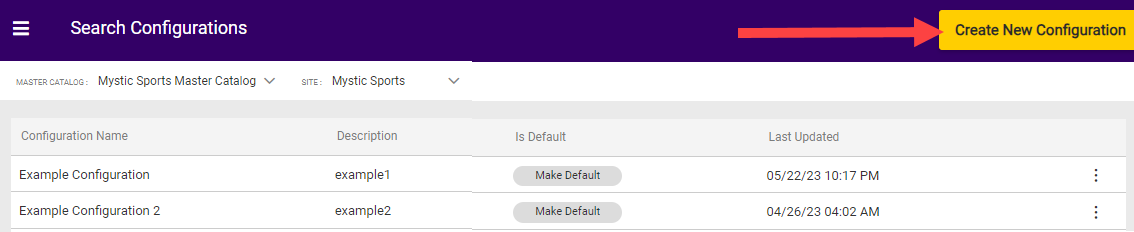
1. To add a new entry, click **Create New Configuration**.\\
 2. Enter a **Name** and **Description** for the configuration under the General tab. You will not be able to click the other tabs until the configuration is saved.\\
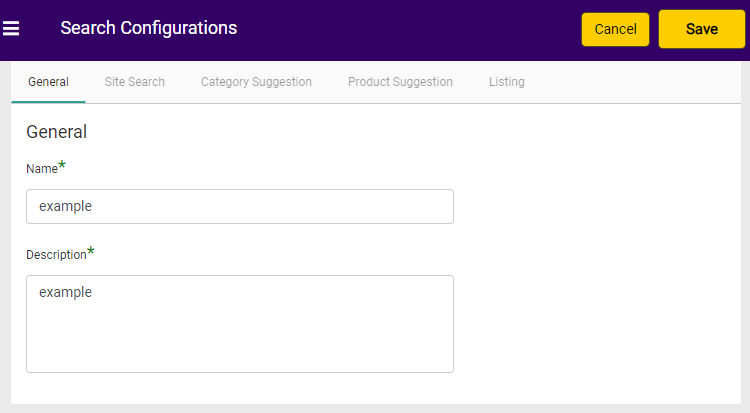 3. Click **Save**. To continue setting it up, refer to the Edit a Search Configuration steps below.
## Edit a Search Configuration
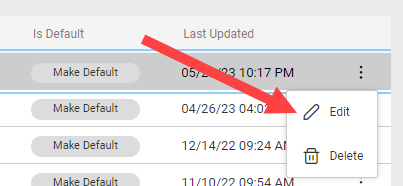
Now that the new setting entry is created, you can adjust it further by clicking **Edit** at the end of the row.
3. Click **Save**. To continue setting it up, refer to the Edit a Search Configuration steps below.
## Edit a Search Configuration
Now that the new setting entry is created, you can adjust it further by clicking **Edit** at the end of the row.
 Follow the below steps to fully configure a new configuration, or update just a particular field if you only want to edit an existing configuration.
* The settings in the **Site Search** tab manage the Site Search API results:
1. Enable **Show Product Slicing** if you want product variants to be displayed separately in the API results. For example, if enabled then a red shirt and a blue shirt would be listed as separate products. If disabled, then the shirt will be listed as one product with color options for red and blue. See the [Slicing documentation](/pages/product-slicing) for more information about this feature.
2. Set the [**MinMatch**](/pages/minmatch) to determine how much of the search query needs to match a product. Kibo recommends three options: 100%, 75%, and 50%.
3. Set the [**Phrase Slop**](/pages/phrase-slop) to determine how many other words are permitted between a search query. Kibo recommends a value of 1 or 2.
4. Enable [**Auto Correct**](/pages/spell-correction#auto-correct) if you want to automatically switch to an auto-corrected search term if there are no results for MinMatch.
5. Use [**Did You Mean**](/pages/spell-correction#did-you-mean) to offer corrections for misspellings.
6. Add or edit desired [**Field Weights**](/pages/field-weights).
7. Create [**Boost and Bury**](/pages/boost-and-bury) conditions based on product attributes for all Site Search results. This can help boost popular products or bury low margin products.
8. Click **Save** in the top right.
* The settings in the **Category Suggestion** tab manage the Suggest2 API category suggestion results:
1. Add or edit desired [**Field Weights**](/pages/field-weights) for categories.
2. Select what [**Return Fields**](/pages/return-fields) should be included in the API response.
3. Click **Save** in the top right.
* The settings in the **Product Suggestion** tab manage the Suggest2 API product suggestion results:
1. Add or edit desired [**Field Weights**](/pages/field-weights) for products.
2. Select what [**Return Fields**](/pages/return-fields) should be included in the API response.
3. Create [**Boost and Bury**](/pages/boost-and-bury) conditions based on product attributes.
4. Click **Save** in the top right.
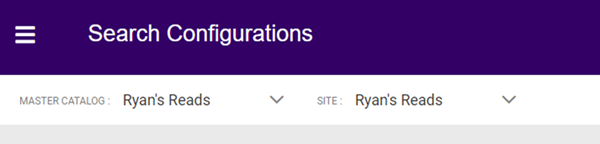
Note that Search Configurations are part of your catalog and site hierarchy. Always check that you are editing settings for the correct catalog and site in the page header.
Follow the below steps to fully configure a new configuration, or update just a particular field if you only want to edit an existing configuration.
* The settings in the **Site Search** tab manage the Site Search API results:
1. Enable **Show Product Slicing** if you want product variants to be displayed separately in the API results. For example, if enabled then a red shirt and a blue shirt would be listed as separate products. If disabled, then the shirt will be listed as one product with color options for red and blue. See the [Slicing documentation](/pages/product-slicing) for more information about this feature.
2. Set the [**MinMatch**](/pages/minmatch) to determine how much of the search query needs to match a product. Kibo recommends three options: 100%, 75%, and 50%.
3. Set the [**Phrase Slop**](/pages/phrase-slop) to determine how many other words are permitted between a search query. Kibo recommends a value of 1 or 2.
4. Enable [**Auto Correct**](/pages/spell-correction#auto-correct) if you want to automatically switch to an auto-corrected search term if there are no results for MinMatch.
5. Use [**Did You Mean**](/pages/spell-correction#did-you-mean) to offer corrections for misspellings.
6. Add or edit desired [**Field Weights**](/pages/field-weights).
7. Create [**Boost and Bury**](/pages/boost-and-bury) conditions based on product attributes for all Site Search results. This can help boost popular products or bury low margin products.
8. Click **Save** in the top right.
* The settings in the **Category Suggestion** tab manage the Suggest2 API category suggestion results:
1. Add or edit desired [**Field Weights**](/pages/field-weights) for categories.
2. Select what [**Return Fields**](/pages/return-fields) should be included in the API response.
3. Click **Save** in the top right.
* The settings in the **Product Suggestion** tab manage the Suggest2 API product suggestion results:
1. Add or edit desired [**Field Weights**](/pages/field-weights) for products.
2. Select what [**Return Fields**](/pages/return-fields) should be included in the API response.
3. Create [**Boost and Bury**](/pages/boost-and-bury) conditions based on product attributes.
4. Click **Save** in the top right.
Note that Search Configurations are part of your catalog and site hierarchy. Always check that you are editing settings for the correct catalog and site in the page header.