> ## Documentation Index
> Fetch the complete documentation index at: https://docs.kibocommerce.com/llms.txt
> Use this file to discover all available pages before exploring further.
# Coupon Sets
Coupon sets are collections of coupons that you can associate with one or more discounts. For example, you may want to create 1,000 coupons to use for a free shipping promotion on your site. To accomplish this, you create a generated coupon set and specify to create 1,000 coupons and then associate the coupon set with a free shipping discount.
Learn how to create and manage coupon sets for discounts
You can create a coupon set before creating a discount. You can first create a coupon set, and then create a discount and associate the coupon set you created with the discount. Refer to the [Configure Discounts documentation](/pages/configure-discounts) for more information about associating coupon sets with discounts in the Discounts module.
You can use the import/export tools to quickly import and export your coupon sets. Refer to the [Marketing Template](/pages/marketing-best-practices) for more information.
## Coupon Set Types
There are two types of coupon sets:
* **Manual Coupon Sets:** Allow you to specify the entire coupon code for every coupon in the coupon set.
* **Generated Coupon Sets:** Allow you to specify only a coupon code prefix that every coupon code in the coupon set starts with.
For example, you want to create 1,000 coupons for a free shipping promotion on your site and you don't want to manually enter the entire coupon code for all 1,000 coupons. To accomplish this, you create a generated coupon set and you specify to create 1,000 coupons that all start with a custom prefix.
## Create a Manual Coupon Set
To create a manual coupon set:
1. Go to **Main** > **Marketing** > **Coupon Sets**.
2. Click **Create New Coupon Set** > **Manual Coupon Set**.
3. Specify a **Name** for the coupon set.
4. (**Optional**) Specify a **Start Date** and an **End Date** for the coupon set.
The **Start Date** and **End Date** fields specify when the coupons in the coupon set are active and in effect. You can specify either a Start Date, an End Date, or both.
5. Specify the **Max Redemptions (Per Code)** and **Max Redemptions Per Customer (Per Code)**.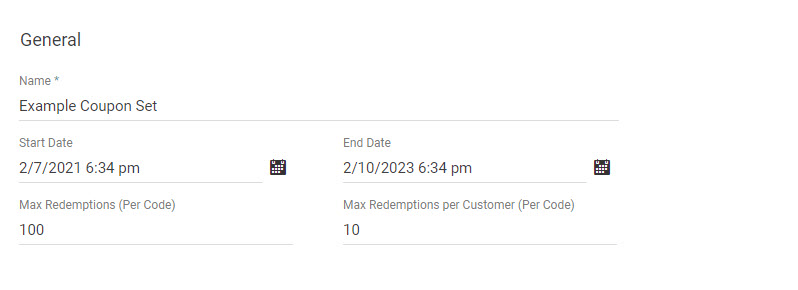 You can also set maximum redemption amounts [at the discount level](/pages/configure-discounts#discount-limitations). If you have only selected a maximum here at the coupon set level, then the discount code will work regardless of whether the shopper is logged into their customer account or not. If you have set a maximum at the discount level, then the code will only work if the shopper is logged in.
6. Click **Save & Continue**. The modal will expand to include the **Codes** and **Discounts** sections.
7. In the **Codes** section, enter your desired coupon code(s) and click **Add**.
If you already have coupon codes created, you can use the search box and the filter to find and add your coupon codes to the coupon set.
8. (**If applicable**) If you want to associate the coupon set with discount(s) that you've already created:
* In the **Discounts** section, either search for the discount(s) for which you want the coupon set to be associated with or use the drop-down menu to select the discount(s).
* Click **Enter**.
You can also set maximum redemption amounts [at the discount level](/pages/configure-discounts#discount-limitations). If you have only selected a maximum here at the coupon set level, then the discount code will work regardless of whether the shopper is logged into their customer account or not. If you have set a maximum at the discount level, then the code will only work if the shopper is logged in.
6. Click **Save & Continue**. The modal will expand to include the **Codes** and **Discounts** sections.
7. In the **Codes** section, enter your desired coupon code(s) and click **Add**.
If you already have coupon codes created, you can use the search box and the filter to find and add your coupon codes to the coupon set.
8. (**If applicable**) If you want to associate the coupon set with discount(s) that you've already created:
* In the **Discounts** section, either search for the discount(s) for which you want the coupon set to be associated with or use the drop-down menu to select the discount(s).
* Click **Enter**.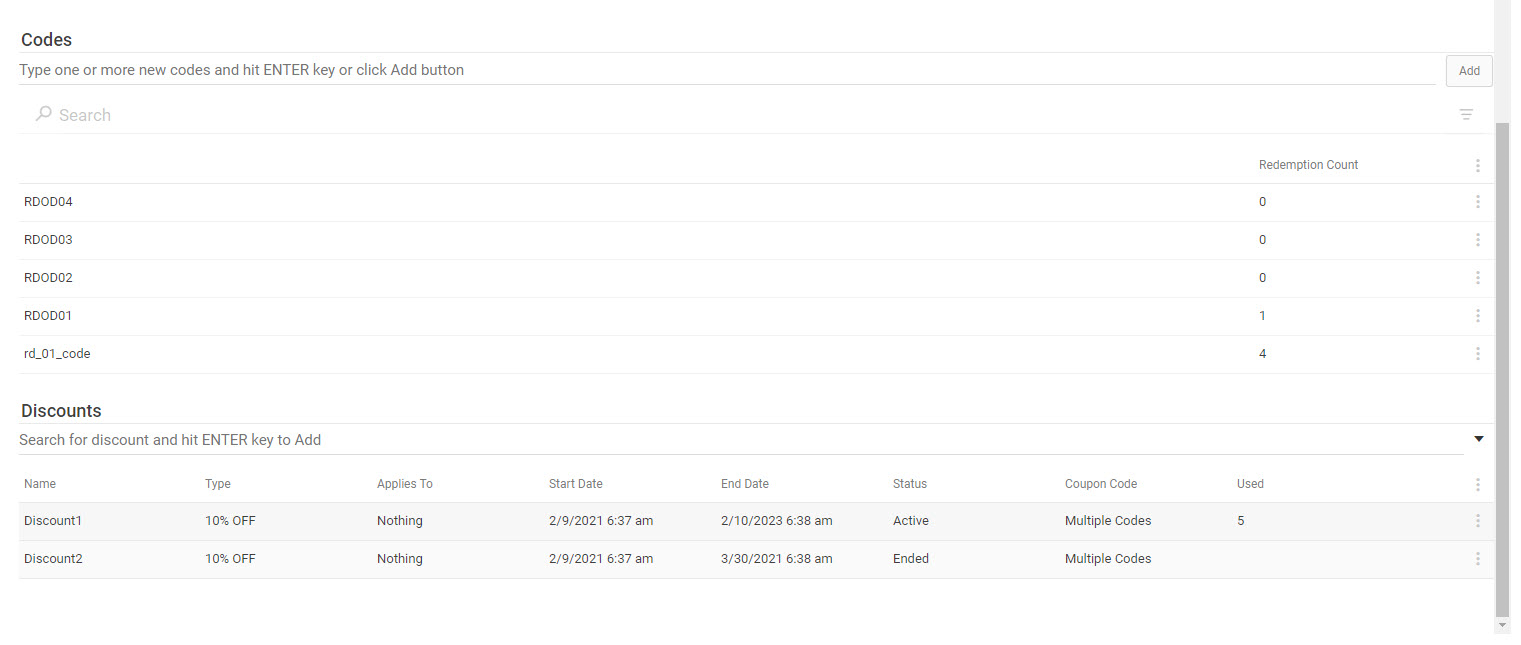 9. Click **Save.**
## Create a Generated Coupon Set
To create a generated coupon set:
1. Go to **Main** > **Marketing** > **Coupon Sets**.
2. Click **Create New Coupon Set** > **Generated Coupon Set**.
3. Specify a **Name** for the coupon set.
4. (**Optional**) Specify a **Start Date** and an **End Date** for the coupon set.
The **Start Date** and **End Date** fields specify when the coupons in the coupon set are active and in effect. You can specify either a Start Date, an End Date, or both.
5. Specify the **Max Redemptions per Code** and **Max Redemptions per Customer**.
6. In the **Code Configuration** section, enter the **Number of Codes** you wish to generate.
7. Enter a **Code Prefix**. The **Code Prefix** specifies the prefix of all the coupon codes in the coupon set. Click **Suggest** to have Kibo eCommerce suggest a code prefix for you. You can preview what the coupon codes will look like in the **Preview** window.
9. Click **Save.**
## Create a Generated Coupon Set
To create a generated coupon set:
1. Go to **Main** > **Marketing** > **Coupon Sets**.
2. Click **Create New Coupon Set** > **Generated Coupon Set**.
3. Specify a **Name** for the coupon set.
4. (**Optional**) Specify a **Start Date** and an **End Date** for the coupon set.
The **Start Date** and **End Date** fields specify when the coupons in the coupon set are active and in effect. You can specify either a Start Date, an End Date, or both.
5. Specify the **Max Redemptions per Code** and **Max Redemptions per Customer**.
6. In the **Code Configuration** section, enter the **Number of Codes** you wish to generate.
7. Enter a **Code Prefix**. The **Code Prefix** specifies the prefix of all the coupon codes in the coupon set. Click **Suggest** to have Kibo eCommerce suggest a code prefix for you. You can preview what the coupon codes will look like in the **Preview** window. 8. Click **Save & Continue**. The modal window expands to now include the **Discounts** section.
9. (**If applicable**) If you want to associate the coupon set with discount(s) that you've already created, in the **Discounts** section click **Add** and select the discount(s) for which you want the coupon set to be associated with.
8. Click **Save & Continue**. The modal window expands to now include the **Discounts** section.
9. (**If applicable**) If you want to associate the coupon set with discount(s) that you've already created, in the **Discounts** section click **Add** and select the discount(s) for which you want the coupon set to be associated with. ## Remove a Coupon Set
You can delete manual and generated coupons set through either the UI or Catalog API. To remove a coupon set via API, simply make a DELETE call to the [Delete Coupon Set API](/api-reference/couponsets/delete-coupon-set) endpoint with the appropriate coupon set code in the path.
To remove a coupon set via the interface:
1. Go to **Main** > **Marketing** > **Coupon Sets**.
2. Expand the dropdown menu on the right of a coupon set in the table and click **Delete**.
## Remove a Coupon Set
You can delete manual and generated coupons set through either the UI or Catalog API. To remove a coupon set via API, simply make a DELETE call to the [Delete Coupon Set API](/api-reference/couponsets/delete-coupon-set) endpoint with the appropriate coupon set code in the path.
To remove a coupon set via the interface:
1. Go to **Main** > **Marketing** > **Coupon Sets**.
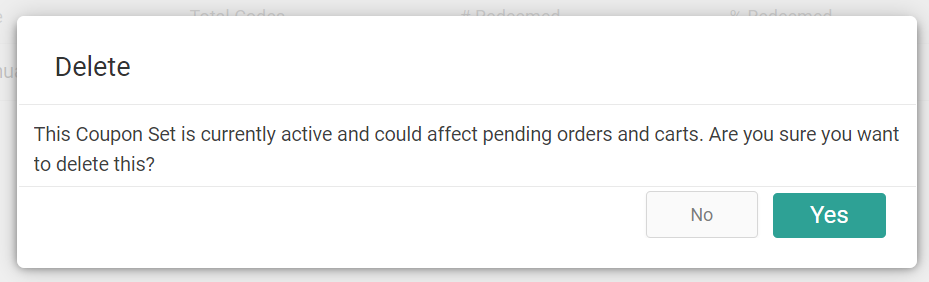
2. Expand the dropdown menu on the right of a coupon set in the table and click **Delete**.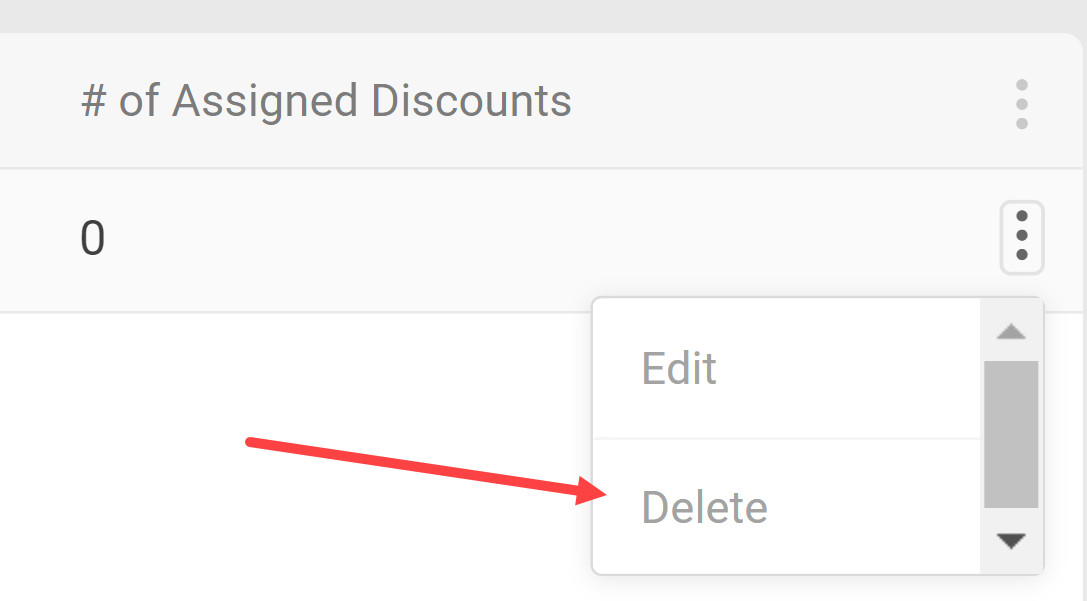 3. If the coupon set is currently in its active date range, a pop-up will ask you to confirm. Click **Yes**.
* You do not have to deactivate the coupon before deleting, but Kibo recommends making sure a coupon is no longer in use first. You can access coupon settings by clicking **Edit** instead of **Delete** in the previous step.
3. If the coupon set is currently in its active date range, a pop-up will ask you to confirm. Click **Yes**.
* You do not have to deactivate the coupon before deleting, but Kibo recommends making sure a coupon is no longer in use first. You can access coupon settings by clicking **Edit** instead of **Delete** in the previous step.