> ## Documentation Index
> Fetch the complete documentation index at: https://docs.kibocommerce.com/llms.txt
> Use this file to discover all available pages before exploring further.
# Contentstack Integration
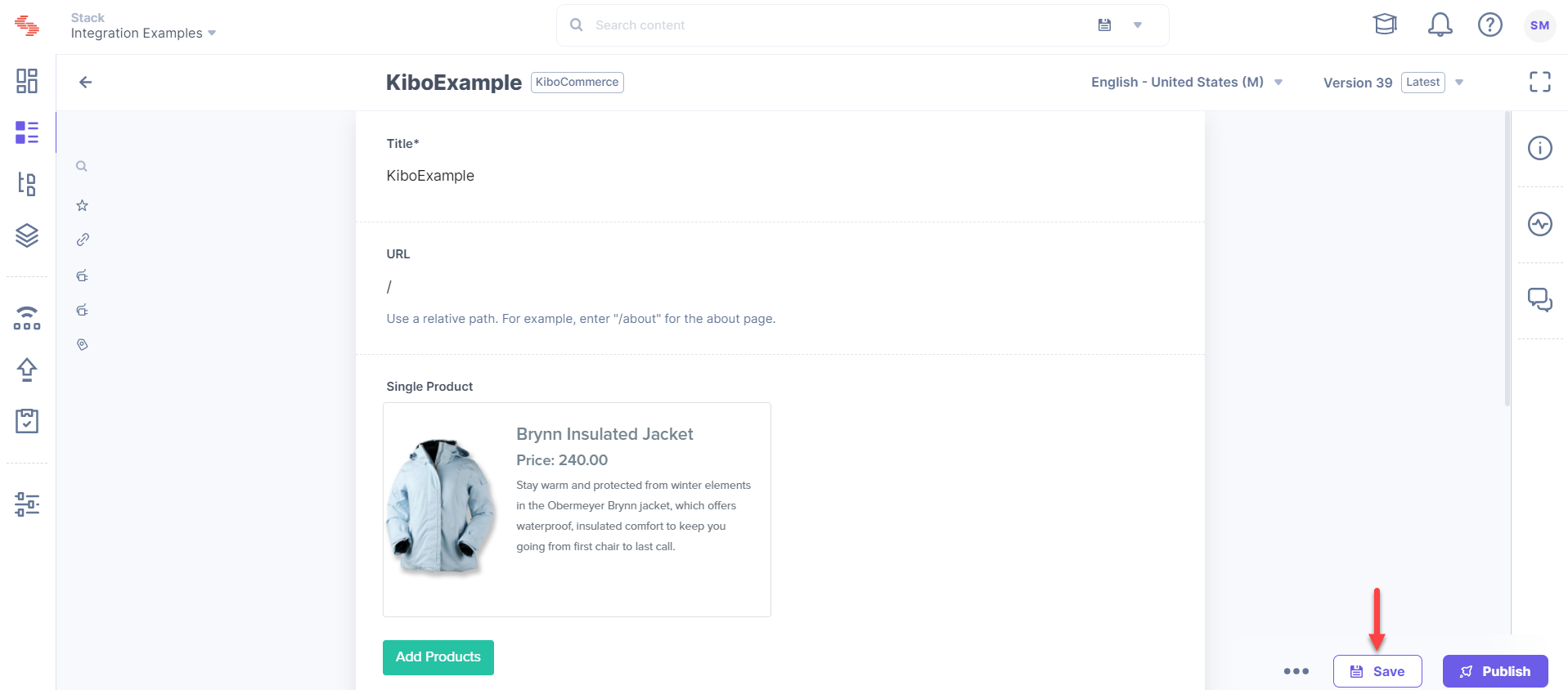
The Kibo Commerce extension with Contentstack lets you search and fetch products from your Kibo catalog and display them on your entry page via a custom field. This step-by-step guide explains how to create the custom field extension for your [content types](https://www.contentstack.com/docs/developers/create-content-types/about-content-types/). For more information on Contentstack, see their [website](https://app.contentstack.com/) and [developer portal](https://www.contentstack.com/docs/developers/).
 ## Prerequisites
You must have the following accounts:
* Kibo Commerce Account
* Contentstack Account
## Install the App
For installation instructions, email the Contentstack support team and request access to the Kibo Commerce Contentstack integration source code.
## Configure the Integration
The following sections of this guide will walk through the different steps that must be performed to create a Kibo Commerce custom field extension:
1. Retrieve your Kibo Commerce App API credentials.
2. Add the Kibo Commerce custom field extension to your account.
3. Use the custom field.
4. Add products in the custom field.
### Retrieve API Credentials
To obtain your Kibo API credentials:
1. Log in to your Kibo Commerce [Dev Center](http://developer.mozu.com/login).
2. Click **Develop** > **Applications**.
## Prerequisites
You must have the following accounts:
* Kibo Commerce Account
* Contentstack Account
## Install the App
For installation instructions, email the Contentstack support team and request access to the Kibo Commerce Contentstack integration source code.
## Configure the Integration
The following sections of this guide will walk through the different steps that must be performed to create a Kibo Commerce custom field extension:
1. Retrieve your Kibo Commerce App API credentials.
2. Add the Kibo Commerce custom field extension to your account.
3. Use the custom field.
4. Add products in the custom field.
### Retrieve API Credentials
To obtain your Kibo API credentials:
1. Log in to your Kibo Commerce [Dev Center](http://developer.mozu.com/login).
2. Click **Develop** > **Applications**.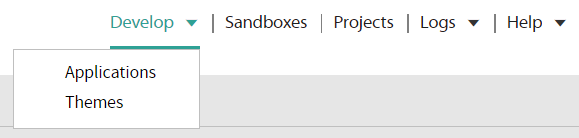 3. Select an existing application or create an application for your sandbox or production environment.
4. Click **Create Application** on the top right corner.
3. Select an existing application or create an application for your sandbox or production environment.
4. Click **Create Application** on the top right corner.  5. Enter a **Name** and **Application ID**.
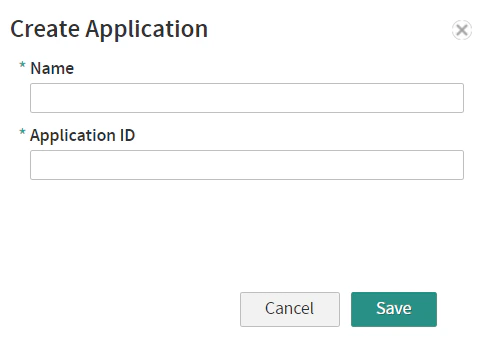 6. Click **Save**.
7. Copy the **Application ID** and **Shared Secret** to use later in your application.
6. Click **Save**.
7. Copy the **Application ID** and **Shared Secret** to use later in your application. ### Add the Custom Field Extension
The root folder of the source code that you get from the support team contains a redirect HTML file.
1. Upload this file as an asset in Contentstack by following steps mentioned in the [Create/Upload](https://www.contentstack.com/docs/content-managers/working-with-assets/create-upload-assets/) asset article.
2. After uploading the file, you'll get a URL in the [asset details](https://www.contentstack.com/docs/content-managers/working-with-assets/create-upload-assets/#asset-details) section, make note of this URL.
To add the extension to your stack:
1. Log in to your Contentstack account.
2. Click the **Settings** icon on the left navigation panel.
3. Select **Extensions**.
4. Click **+ New Extension** in the top right, then **Create New**.
### Add the Custom Field Extension
The root folder of the source code that you get from the support team contains a redirect HTML file.
1. Upload this file as an asset in Contentstack by following steps mentioned in the [Create/Upload](https://www.contentstack.com/docs/content-managers/working-with-assets/create-upload-assets/) asset article.
2. After uploading the file, you'll get a URL in the [asset details](https://www.contentstack.com/docs/content-managers/working-with-assets/create-upload-assets/#asset-details) section, make note of this URL.
To add the extension to your stack:
1. Log in to your Contentstack account.
2. Click the **Settings** icon on the left navigation panel.
3. Select **Extensions**.
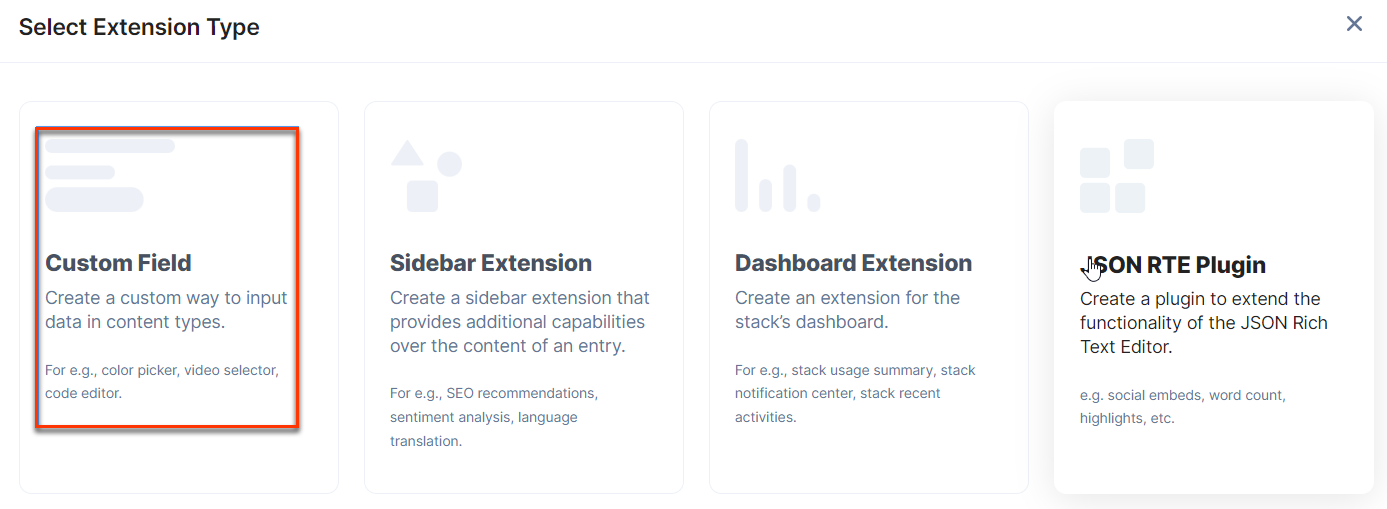
4. Click **+ New Extension** in the top right, then **Create New**.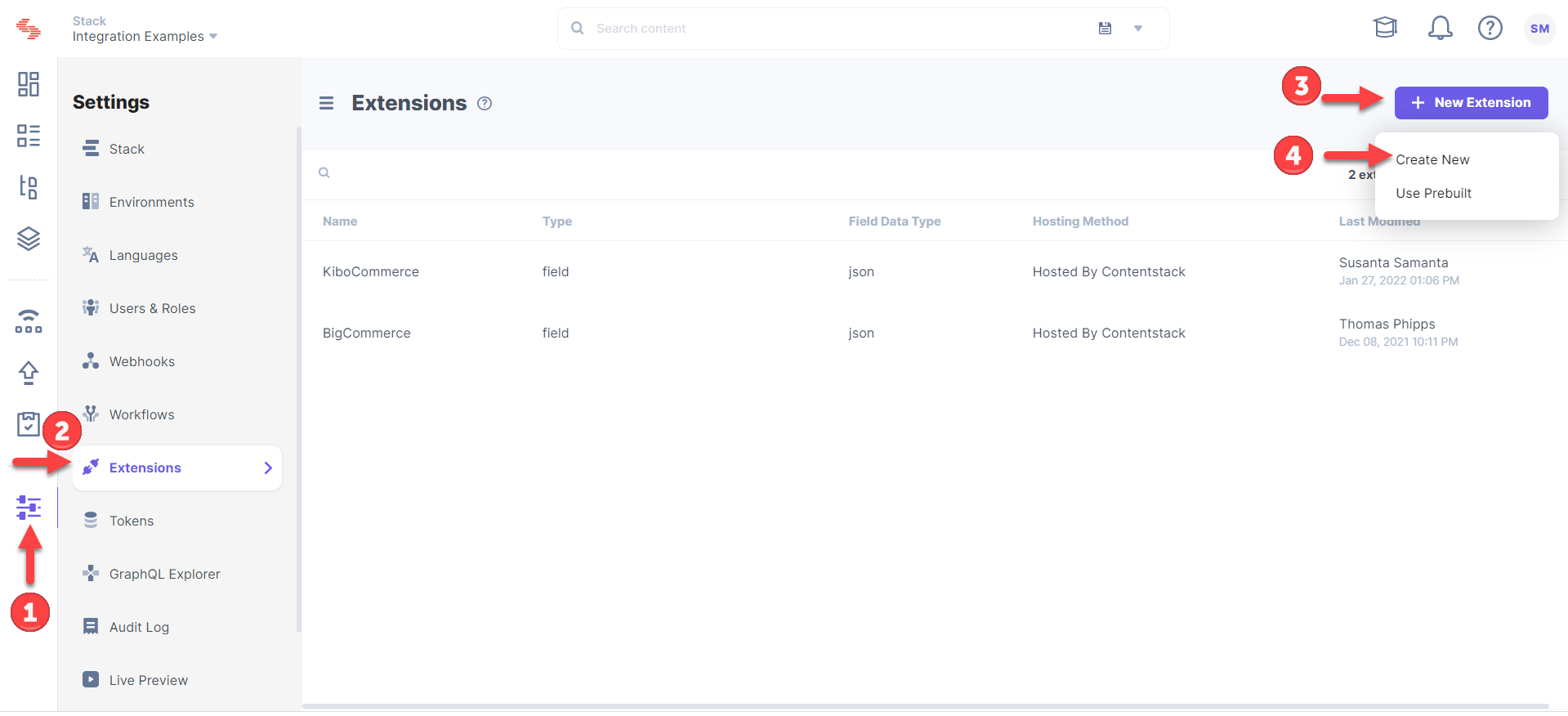 5. In the **Select Extension Type** window, select **Custom Field**.
  6. On the Create New Extension page, enter the following values.
* **Title** (Required): Enter a title such as “Kibo Commerce” for your custom field.
* **Field Data Type** (Required): Select "JSON" as the data type in which the field input will be saved in Contentstack.
* **Multiple** (Optional): Leave this field unchecked.
* **Hosting Method** (Required): Select "Hosted by Contentstack" for this content type.
* **Extension Source Code:** Specify the extension code here. Copy the source code from the index.html file located in the root folder that you get from our Support team and paste it into the Extension source code field.
6. On the Create New Extension page, enter the following values.
* **Title** (Required): Enter a title such as “Kibo Commerce” for your custom field.
* **Field Data Type** (Required): Select "JSON" as the data type in which the field input will be saved in Contentstack.
* **Multiple** (Optional): Leave this field unchecked.
* **Hosting Method** (Required): Select "Hosted by Contentstack" for this content type.
* **Extension Source Code:** Specify the extension code here. Copy the source code from the index.html file located in the root folder that you get from our Support team and paste it into the Extension source code field.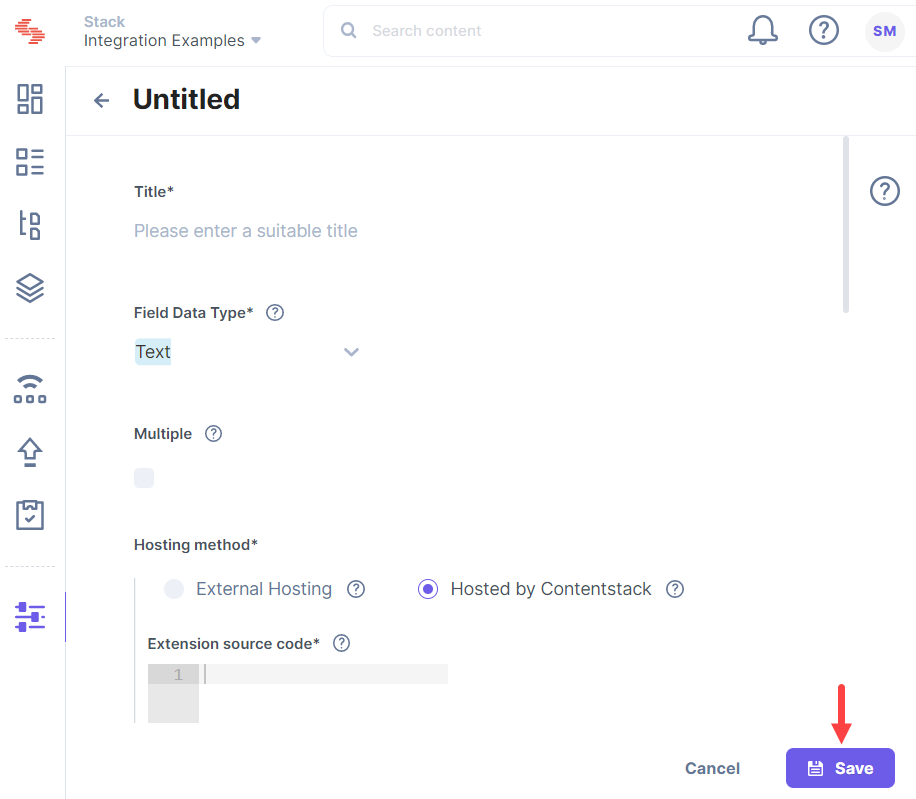 7. Set up the **Configuration Parameter** such as in the below example:
```
{
"apiHost": "https://t1234.sandbox.mozu.com",
"authHost": "https://t1234.sandbox.mozu.com",
"applicationId": "kibo.example-app-name.1.0.0.Release",
"sharedSecret": "12345_Secret",
"type": "product_multiple",
"pageCount": "10",
"redirectUrl": "https://assets.contentstack.io/v3/assets/123/123/123/redirect.html"
}
```
These parameters are:
* **apiHost**\*\*:\*\* Host of your Kibo API environment.
* **authHost:** Host for Kibo API authentication, either a production ([https://t00000.tp0.mozu.com](https://t00000.tp0.mozu.com)) or sandbox ([https://t00000.sandbox.mozu.com](https://t00000.sandbox.mozu.com)) environment. Replace the numeric placeholders with your Tenant ID and production pod.
* **applicationId:** The Application ID [found in your Developer Console](/pages/getting-started#view-application-credentials "Getting Started").
* **sharedSecret:** The Application Secret [found in your Developer Console](/pages/getting-started#view-application-credentials "Getting Started").
* **type:** The Kibo Data Object being fetched (which should be a product).
* **pageCount:** The number of items that the API will return for each page of your query (default is 10).
* **redirectUrl:** The URL to redirect.
8. Click **Save**.
### Use the Custom Field
Once you have added a custom field, you can use it in your content type.
1. Click the **Content Models** icon on the left navigation panel.
2. Click **+ New Content Type** in the top right.
7. Set up the **Configuration Parameter** such as in the below example:
```
{
"apiHost": "https://t1234.sandbox.mozu.com",
"authHost": "https://t1234.sandbox.mozu.com",
"applicationId": "kibo.example-app-name.1.0.0.Release",
"sharedSecret": "12345_Secret",
"type": "product_multiple",
"pageCount": "10",
"redirectUrl": "https://assets.contentstack.io/v3/assets/123/123/123/redirect.html"
}
```
These parameters are:
* **apiHost**\*\*:\*\* Host of your Kibo API environment.
* **authHost:** Host for Kibo API authentication, either a production ([https://t00000.tp0.mozu.com](https://t00000.tp0.mozu.com)) or sandbox ([https://t00000.sandbox.mozu.com](https://t00000.sandbox.mozu.com)) environment. Replace the numeric placeholders with your Tenant ID and production pod.
* **applicationId:** The Application ID [found in your Developer Console](/pages/getting-started#view-application-credentials "Getting Started").
* **sharedSecret:** The Application Secret [found in your Developer Console](/pages/getting-started#view-application-credentials "Getting Started").
* **type:** The Kibo Data Object being fetched (which should be a product).
* **pageCount:** The number of items that the API will return for each page of your query (default is 10).
* **redirectUrl:** The URL to redirect.
8. Click **Save**.
### Use the Custom Field
Once you have added a custom field, you can use it in your content type.
1. Click the **Content Models** icon on the left navigation panel.
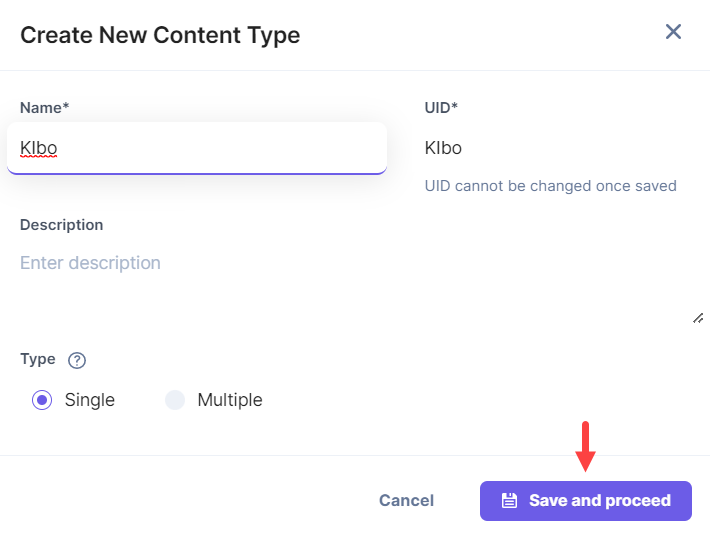
2. Click **+ New Content Type** in the top right.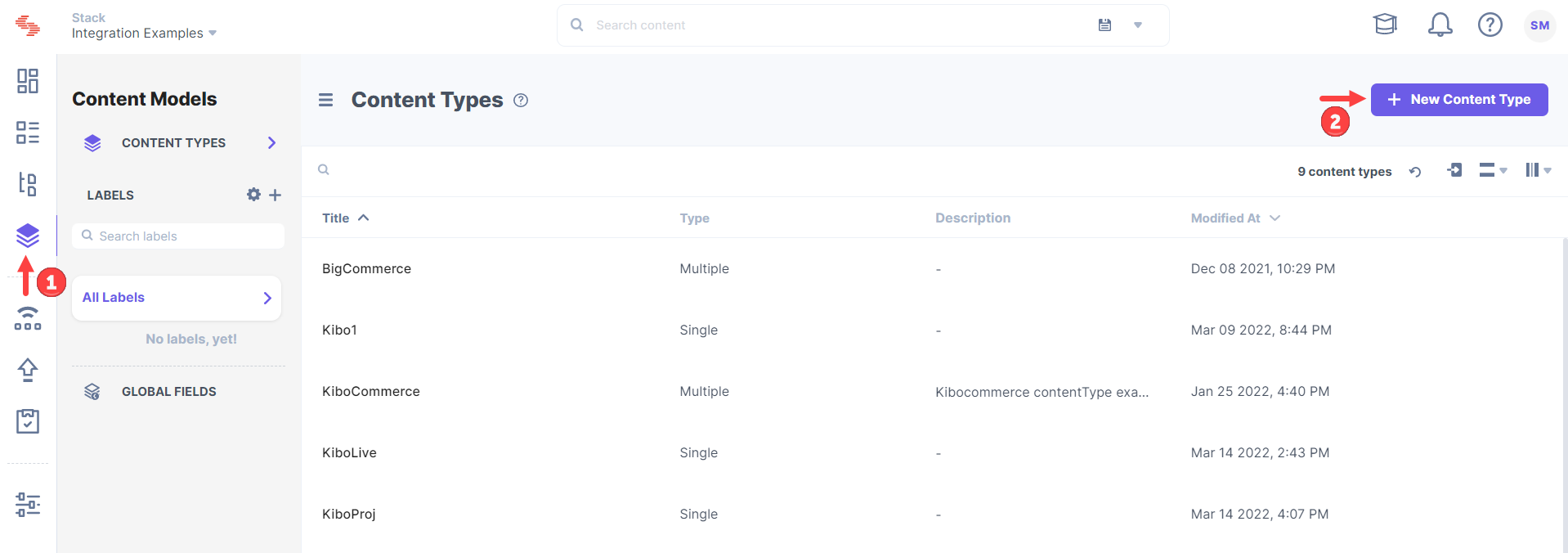 3. Enter a **Name**, **UID**, and then click **Save and proceed**.
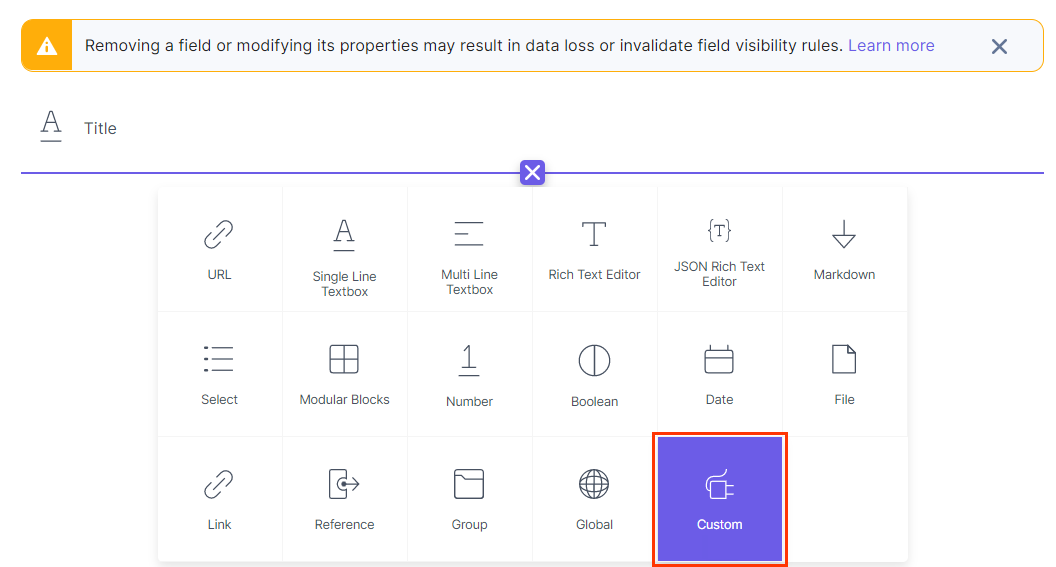
 4. Click **Insert a field** link (the **+** sign) and add the **Custom** field to it.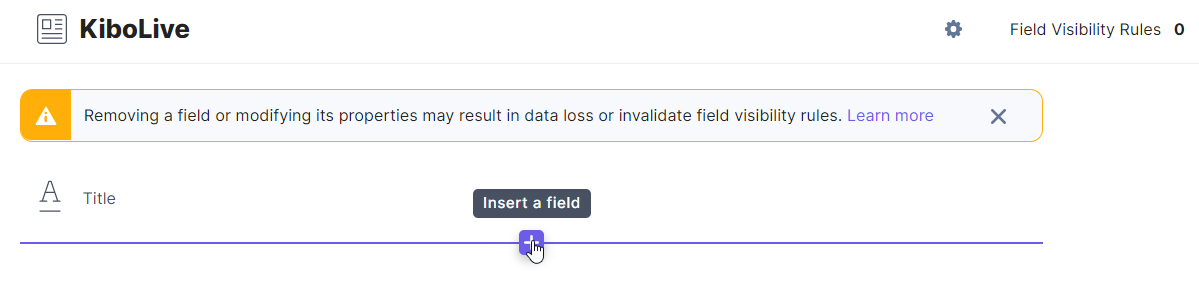
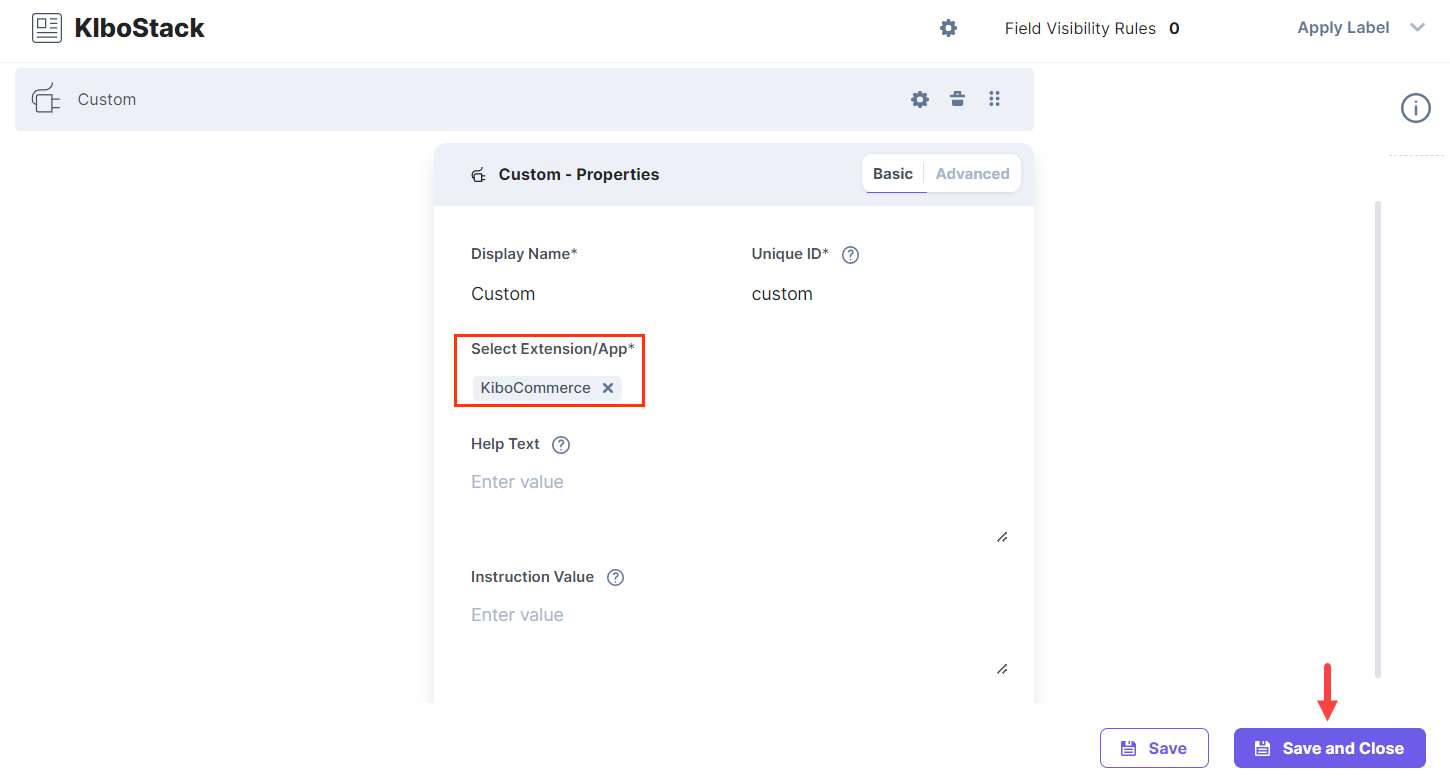
 5. Click **Select Extension/App** from the drop-down menu in Basic properties.
6. Check the KiboCommerce extension field that you created and click **Proceed**.
5. Click **Select Extension/App** from the drop-down menu in Basic properties.
6. Check the KiboCommerce extension field that you created and click **Proceed**.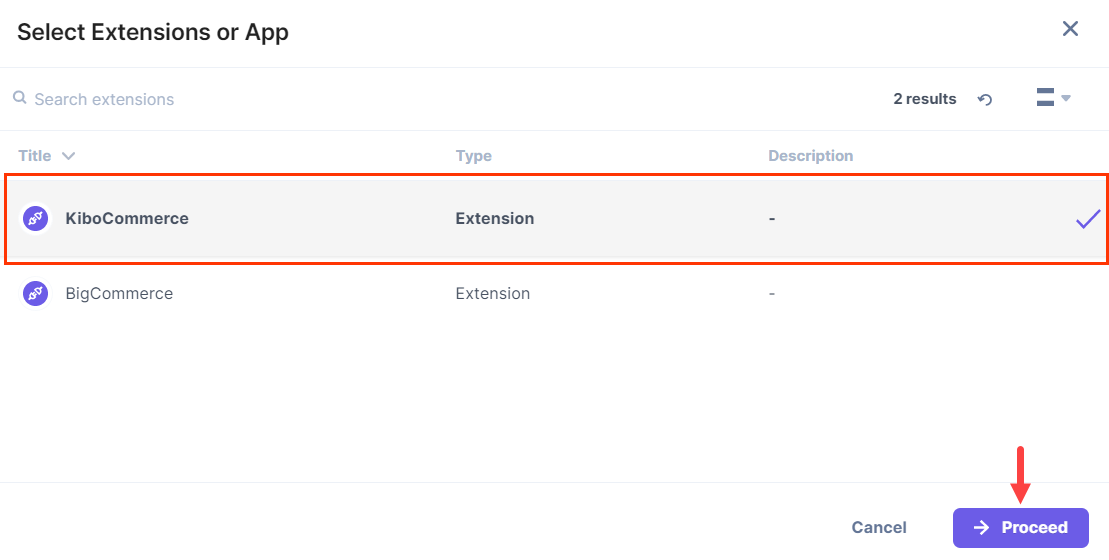 7. Click **Save and Close.
 **
8. Create an entry for this content type and you will see the **Kibo Commerce** custom field.
### Add Products in the Custom Field
To add products to the custom field:
1. Click the **Entities** icon on the left navigation panel.
2. Click **All Entries** and then **+ New Entry** in the top right.
**
8. Create an entry for this content type and you will see the **Kibo Commerce** custom field.
### Add Products in the Custom Field
To add products to the custom field:
1. Click the **Entities** icon on the left navigation panel.
2. Click **All Entries** and then **+ New Entry** in the top right.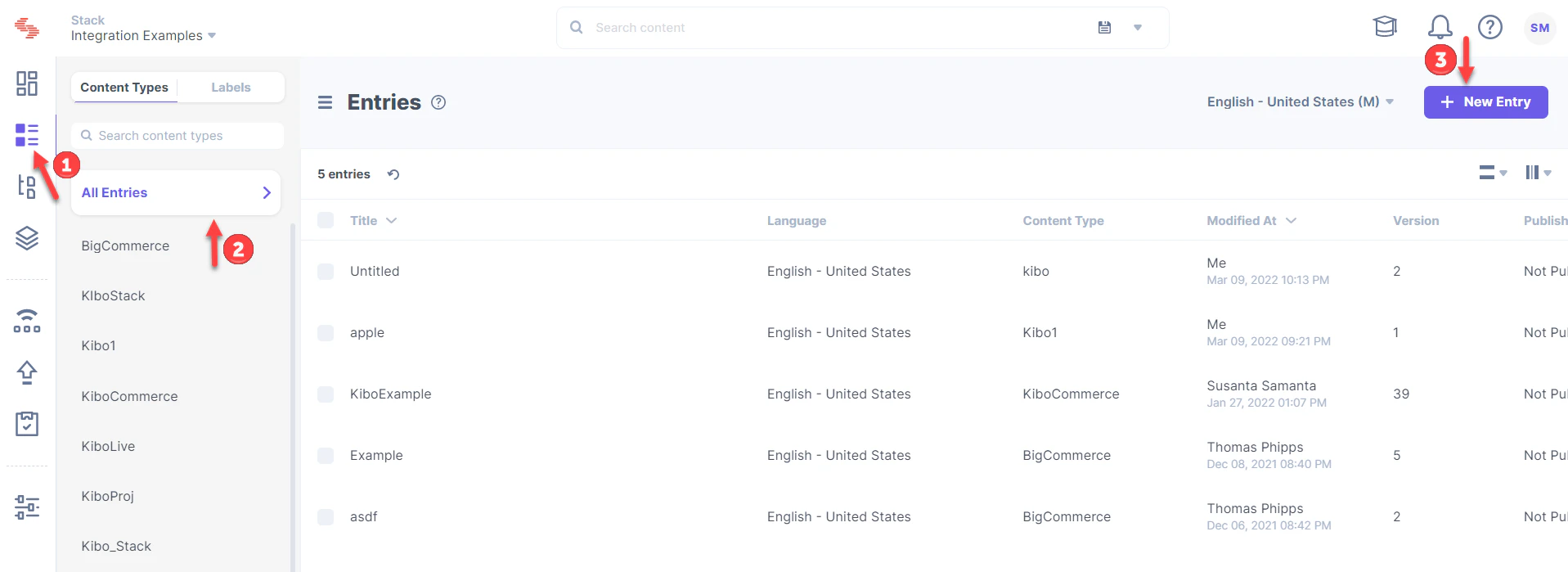 3. Select the custom field and click **Proceed**.
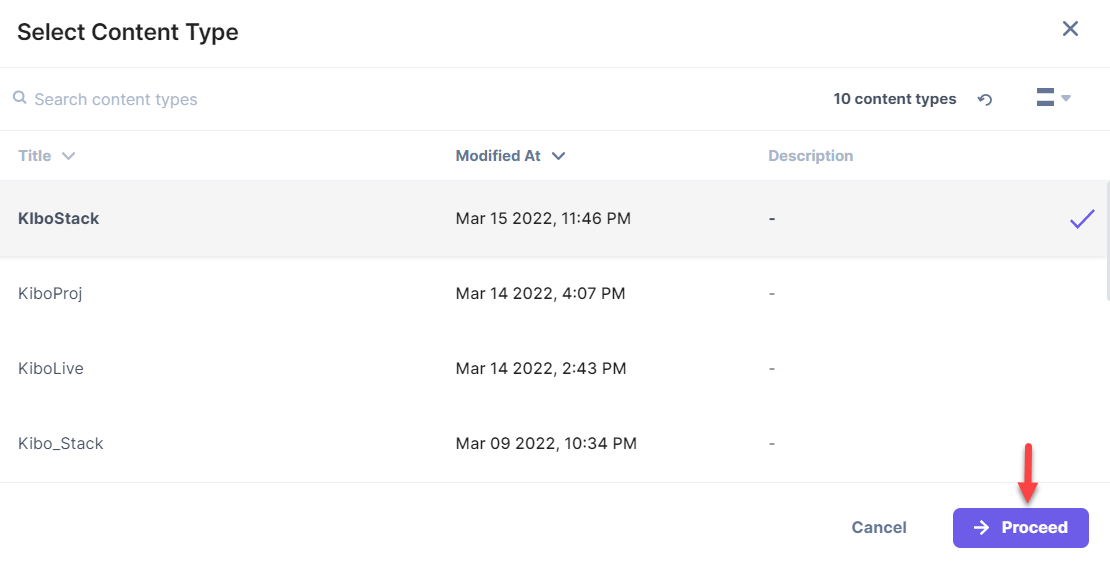 4. Select the corresponding **Add Products** to either add single or multiple products.
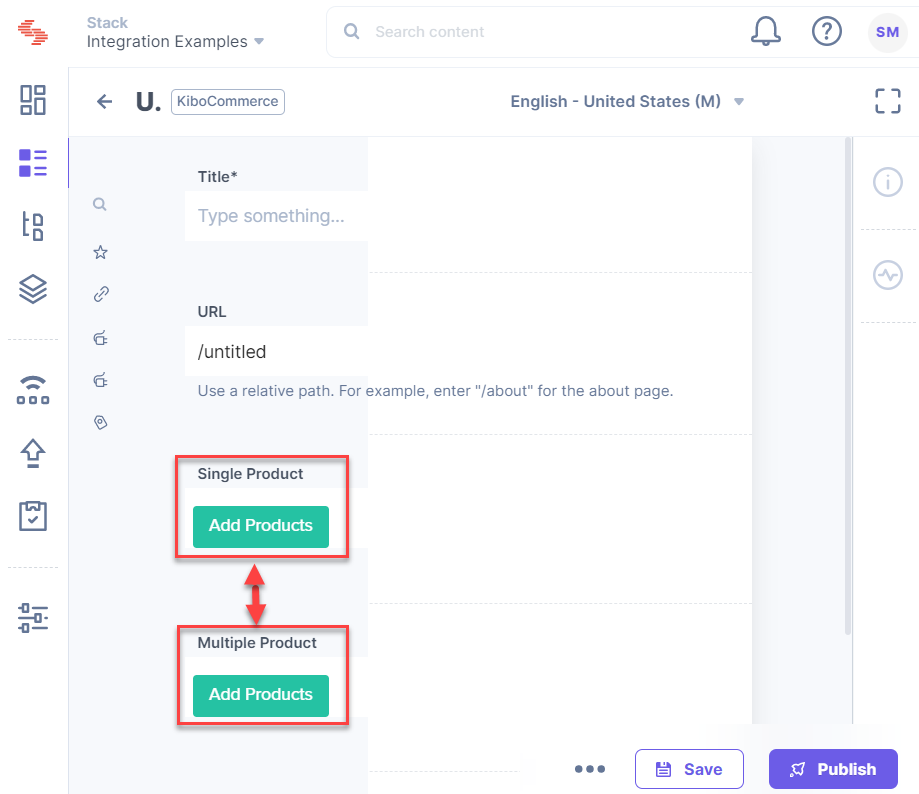 5. Click **Add Products** to go to the KiboCommerce Extension window.
6. Use the search bar at the top to search for the product of your choice.
7. Select one or more products and click **Add Product(s)**.
5. Click **Add Products** to go to the KiboCommerce Extension window.
6. Use the search bar at the top to search for the product of your choice.
7. Select one or more products and click **Add Product(s)**.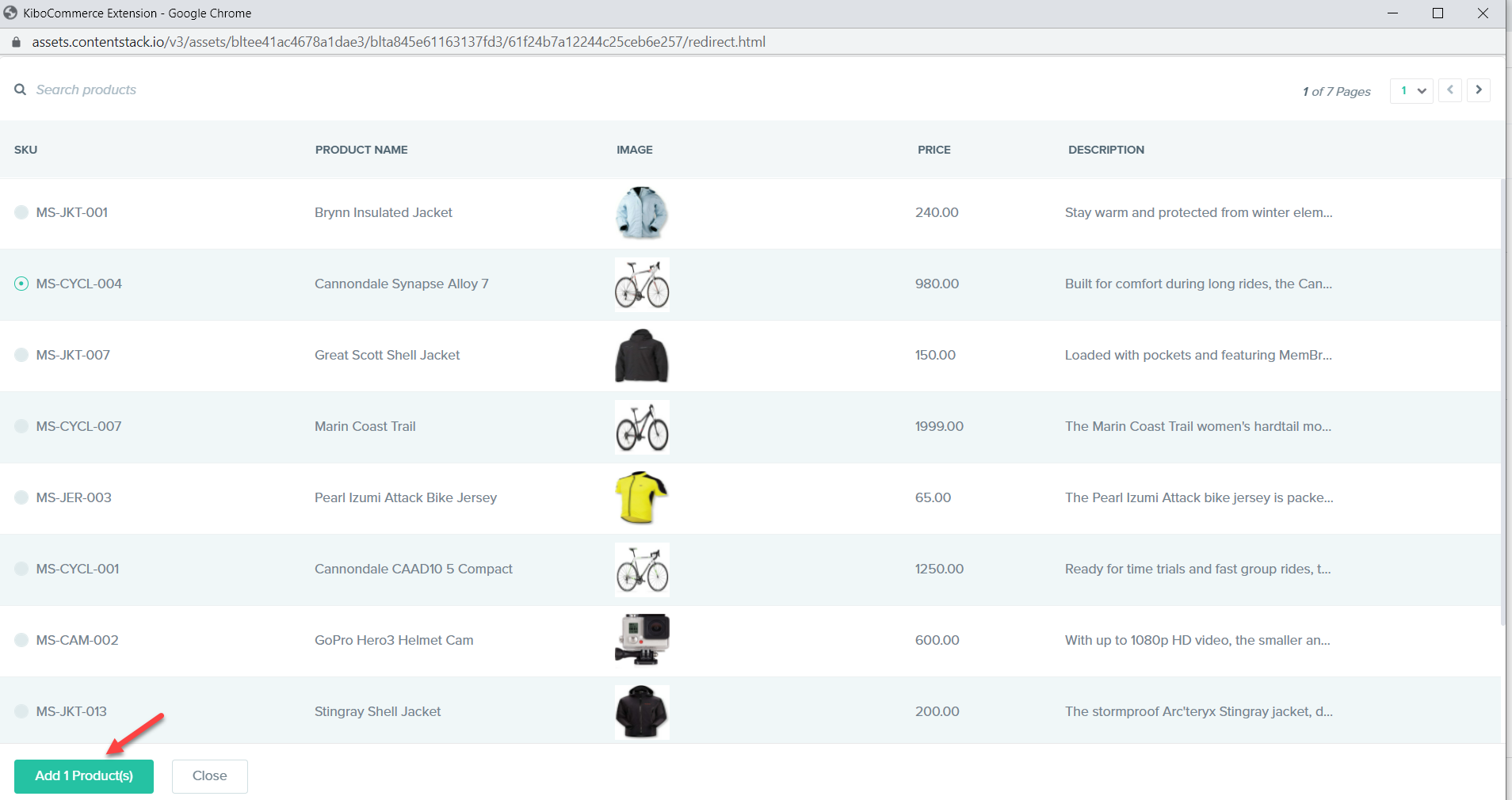 8. Click **Save**.