> ## Documentation Index
> Fetch the complete documentation index at: https://docs.kibocommerce.com/llms.txt
> Use this file to discover all available pages before exploring further.
# Contentful Integration
Kibo provides an application to integrate between Contentful, a leading Content Management System (CMS), and the Kibo Catalog service. This application connects your catalog to reference your products inside of Contentful and streamline your content management to ensure a consistent shopping experience across all of your sites, marketplaces, and points of sale.
For more information on Contentful, see their [website](https://www.contentful.com/) and [developer portal](https://www.contentful.com/developers/).
 ## Requirements
You must have a Contentful account, as the application is installed and managed within Contentful rather than Kibo's Dev Center.
To authorize the application, you will also need to know your Kibo Client ID and secret.
## Install the App
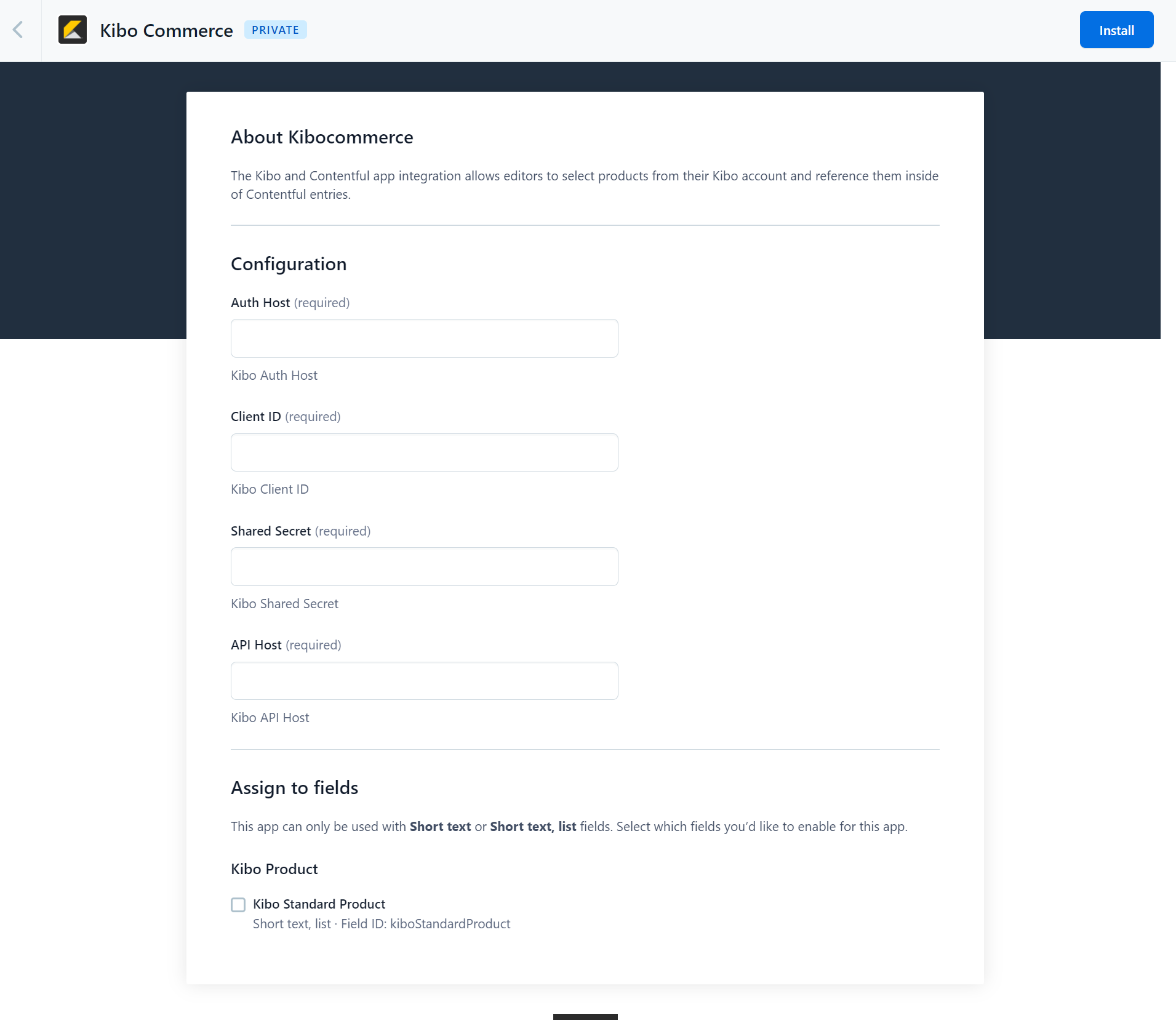
Navigate to **Apps** > **Manage Apps** in the Contentful interface. This page will include a list of all available applications in which you can find Kibo Commerce. Click this application to view more information and install it. Clicking **Install** will open a configuration screen.
## Configure the App
To configure the application in Contentful:
1. Contentful will prompt you to provide your Auth Host, Kibo Client ID, Shared Secret, and API Host. These values should be the same as you would use for any other Kibo application; the Client ID and Shared Secret can be [found in your Developer Console](/pages/getting-started#view-application-credentials "Getting Started").
2. You must assign your products to Contentful fields in order to enable products. Check the **Kibo Standard Product** and **Product** options in this section. Note that all products will be displayed as the "Kibo" product type in Contentful.
## Requirements
You must have a Contentful account, as the application is installed and managed within Contentful rather than Kibo's Dev Center.
To authorize the application, you will also need to know your Kibo Client ID and secret.
## Install the App
Navigate to **Apps** > **Manage Apps** in the Contentful interface. This page will include a list of all available applications in which you can find Kibo Commerce. Click this application to view more information and install it. Clicking **Install** will open a configuration screen.
## Configure the App
To configure the application in Contentful:
1. Contentful will prompt you to provide your Auth Host, Kibo Client ID, Shared Secret, and API Host. These values should be the same as you would use for any other Kibo application; the Client ID and Shared Secret can be [found in your Developer Console](/pages/getting-started#view-application-credentials "Getting Started").
2. You must assign your products to Contentful fields in order to enable products. Check the **Kibo Standard Product** and **Product** options in this section. Note that all products will be displayed as the "Kibo" product type in Contentful.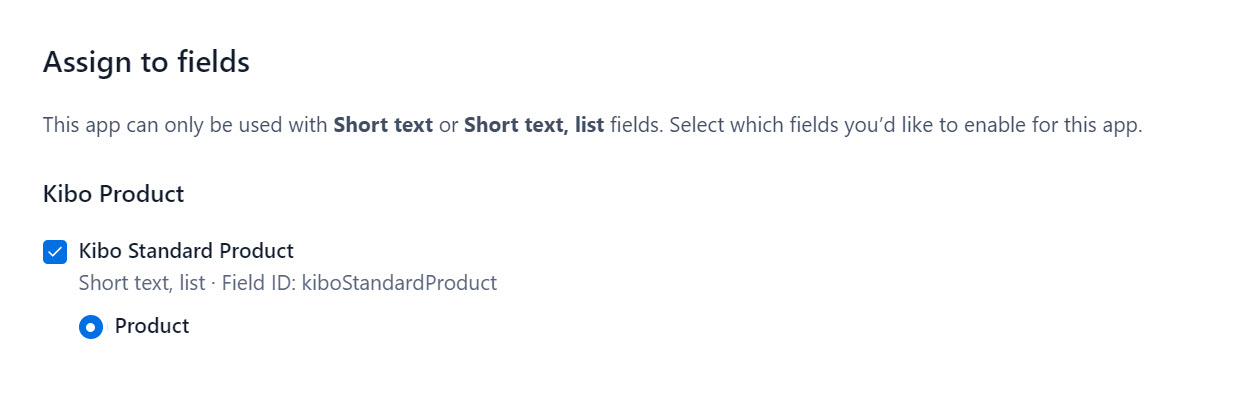 3. Click **Install** in the top right to confirm your settings and complete the installation process. You can return to **Apps** > **Manage Apps** again at any time to view your Kibo application and edit these configurations.
 ## The Content Page
The **Content Model** page allows you to manage your content types. As mentioned above, "Kibo Products" will be the only type supported for products imported via the application.
## The Content Page
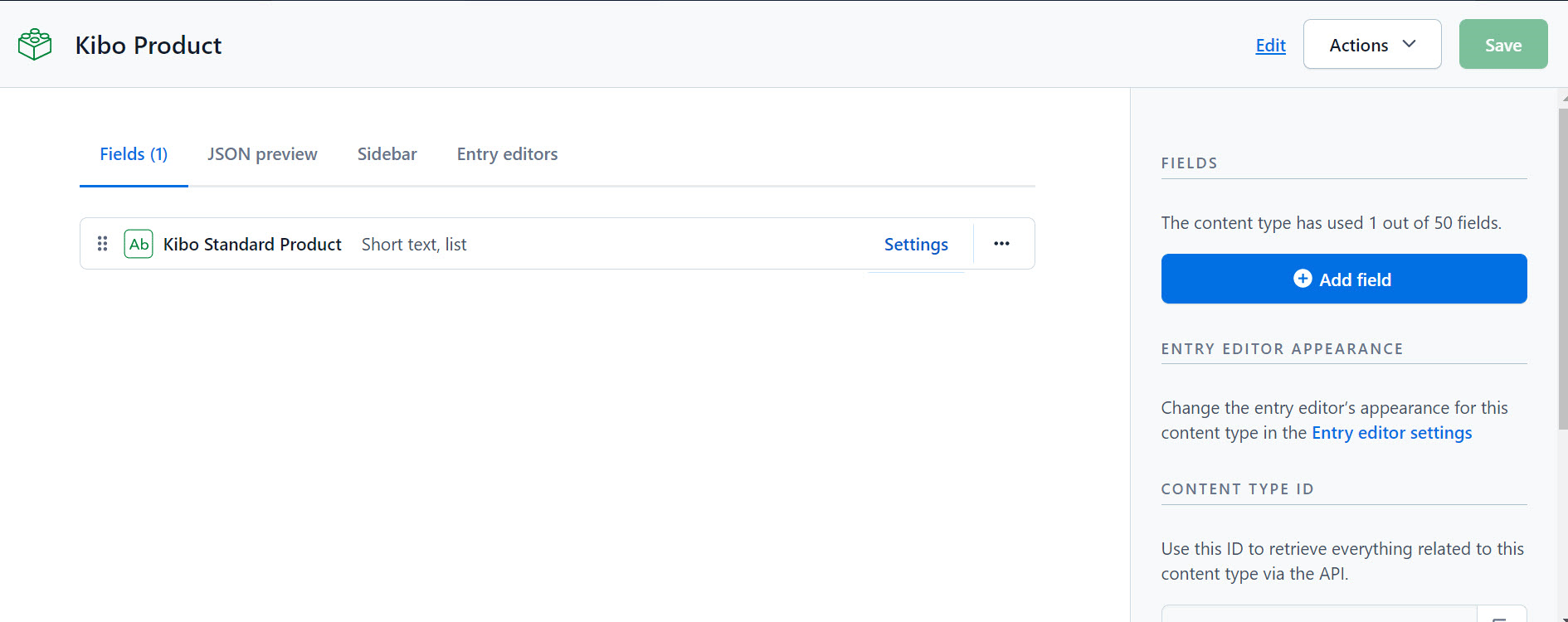
The **Content Model** page allows you to manage your content types. As mentioned above, "Kibo Products" will be the only type supported for products imported via the application. If you click the Kibo Product, then the UI will open the below page where you can access additional settings. However, Kibo recommends that you do not make any changes here as they will not work as expected with Kibo products.
  ## Add Kibo Products
On the **Content** page, you can add selected products from your Kibo catalog to Contentful.
1. If you have other content types in your account, then you must select "Kibo Product" from the dropdown list in the search bar. If you do not have any other content, then Kibo Product will be automatically populated.
2. Click **Add Kibo Product** in the top right.
## Add Kibo Products
On the **Content** page, you can add selected products from your Kibo catalog to Contentful.
1. If you have other content types in your account, then you must select "Kibo Product" from the dropdown list in the search bar. If you do not have any other content, then Kibo Product will be automatically populated.
2. Click **Add Kibo Product** in the top right. 3. From this page, click **Select products** in the left pane.
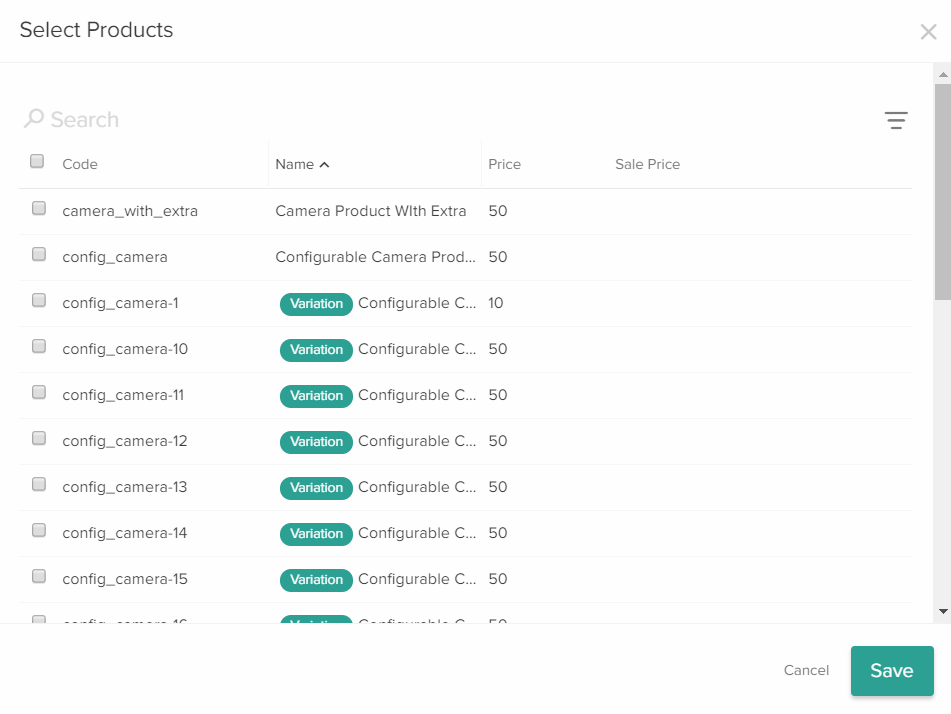
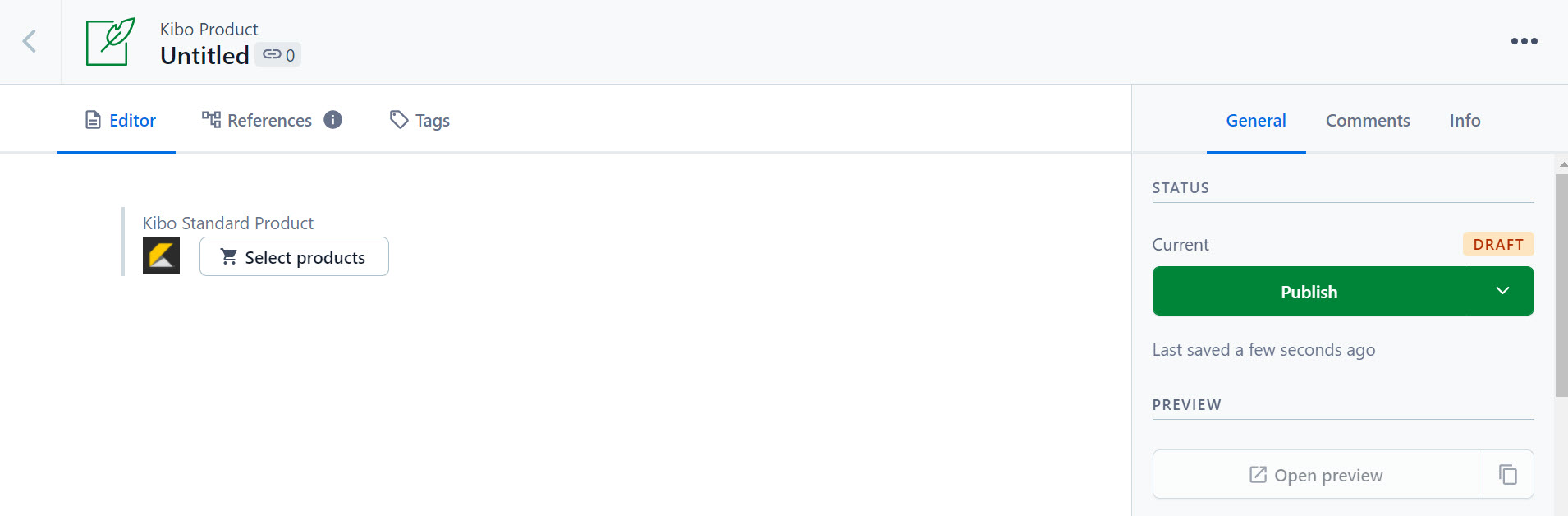 4. This will open a navigation module allowing you to view your catalog. Select one or more products that you want to add and click **Save # products** in the top right.
 5. Your selections will now display on the page and this update will be saved in draft status. To remove any selections, click the **X** in the corner of the product listing. You can also drag and drop them to change their order.
6. When satisfied, click **Publish** on the right to publish your content entry. Alternatively, you can archive it instead or schedule it for publishing at a later date.
5. Your selections will now display on the page and this update will be saved in draft status. To remove any selections, click the **X** in the corner of the product listing. You can also drag and drop them to change their order.
6. When satisfied, click **Publish** on the right to publish your content entry. Alternatively, you can archive it instead or schedule it for publishing at a later date.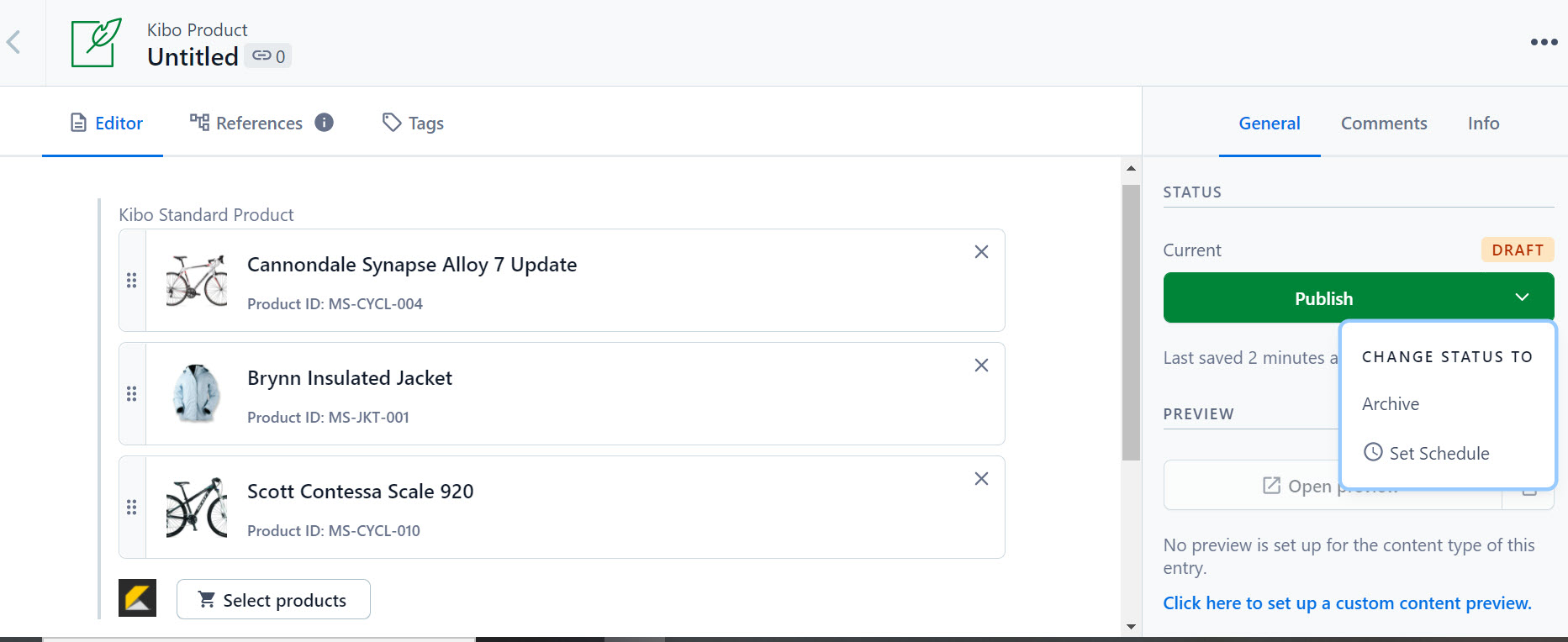 ## Next Steps
For more information about managing products and content entries, see [Contentful's guides and tutorials](https://www.contentful.com/guides/).
## Next Steps
For more information about managing products and content entries, see [Contentful's guides and tutorials](https://www.contentful.com/guides/).