> ## Documentation Index
> Fetch the complete documentation index at: https://docs.kibocommerce.com/llms.txt
> Use this file to discover all available pages before exploring further.
# Configure Substitutions
You must first contact [Kibo Support](https://kibotechsupport.zendesk.com/) to have this feature enabled in your tenant settings. Then you will be able to proceed with this guide to enable repricing and email notifications, add the substitute attribute to product types, and select the substitutes on products. If you also want to offer shoppers the ability to opt in or out of substitutions, refer to the [Shopper Preferences](/pages/shopper-preferences "Shopper Preferences") guide.
Learn how to create and manage product substitution rules
## Enable Repricing
Repricing on substitutions is optional. When a reprice occurs, the substitute's item price will be applied but discounts will not be re-evaluated. Any discounts on the original item will be copied to the substitute item as-is. Shipping and handling will be copied from the original item to the substitute item, tax will be refreshed, and the shipment total will be recalculated.
Payment may or may not be affected, depending on the difference between the substitute item and original item's pricing:
* If the substitute item's price is lower than the original item, then the difference will be credited to the customer. If [Auto Capture](/pages/payment-ranking-and-auto-capture#auto-capture "Payment Ranking and Auto Capture") is enabled, then the system will do this automatically as long as a payment has already been captured. If Auto Capture is not enabled, you will have to credit the amount manually.
* If the substitute item's price is higher than the original item, the payment status will be set to Errored and all shipments on the order will be blocked from fulfillment until an additional payment for the difference is authorized. An email notification can be sent to the shopper informing them of this and directing them to Customer Care for more details.
* If the substitute item's price is the same as the original item, there will be no impact to payment.
* If a bundled item is substituted, pricing was distributed across all items in the bundle before the substitution is made. When repricing is enabled, the substitute item's catalog price will replace the original item's distributed price without affecting other items in the original bundle. If repricing was not enabled, then the original item's distributed price would still be applied to the substitute item.
* If a single item is substituted by a bundle, the bundle's catalog price will simply replace the original item's price. This may require additional payment collection if the bundle costs more than the original product. If repricing was not enabled, then the original item's price would be distributed across all substituted bundle components in a weighted ratio based on the price (which would not require additional payment collection).
Repricing is disabled by default. To enable repricing on all substitutions:
1. Go to **System** > **Settings** > **General** > **Site.**
2. Locate the **Fulfillment Settings** section.
3. Toggle **Reprice on Substitution**.  4. Click **Save**.
## Enable Email Notifications
In order to send optional email notifications to shoppers, enable them under [your email settings](/pages/general-settings#email "General Settings"):
1. Go to **System** > **Settings** > **General** > **Email**.
2. Scroll down to Shipment Emails and toggle on **Substitution - payment required** to send an email notification when the substitute item's price is higher than the original item after repricing. This prompts the customer to provide additional payment before the order can be fulfilled.
4. Click **Save**.
## Enable Email Notifications
In order to send optional email notifications to shoppers, enable them under [your email settings](/pages/general-settings#email "General Settings"):
1. Go to **System** > **Settings** > **General** > **Email**.
2. Scroll down to Shipment Emails and toggle on **Substitution - payment required** to send an email notification when the substitute item's price is higher than the original item after repricing. This prompts the customer to provide additional payment before the order can be fulfilled. 3. Scroll down to Order Emails and toggle on **Item Substituted** to send an email notification when an automatic substitution takes place.
4. Click **Save**.
## Add Attribute to Product Types
Enable substitutions in your catalog using the substitute property in the [product type configurations](/pages/product-types-overview).
1. Go to **System** > **Schema** > **Product Types**.
2. Select a product type. All usage types are supported.
3. In the **Properties** tab of the product type settings, select the **Substitute Products** attribute.
* If the product is a Configurable Product, then substitutes must be set up at the variant level as each of its product variants has its own product code. In this case, select the **Substitute Variants** attribute instead.
3. Scroll down to Order Emails and toggle on **Item Substituted** to send an email notification when an automatic substitution takes place.
4. Click **Save**.
## Add Attribute to Product Types
Enable substitutions in your catalog using the substitute property in the [product type configurations](/pages/product-types-overview).
1. Go to **System** > **Schema** > **Product Types**.
2. Select a product type. All usage types are supported.
3. In the **Properties** tab of the product type settings, select the **Substitute Products** attribute.
* If the product is a Configurable Product, then substitutes must be set up at the variant level as each of its product variants has its own product code. In this case, select the **Substitute Variants** attribute instead.
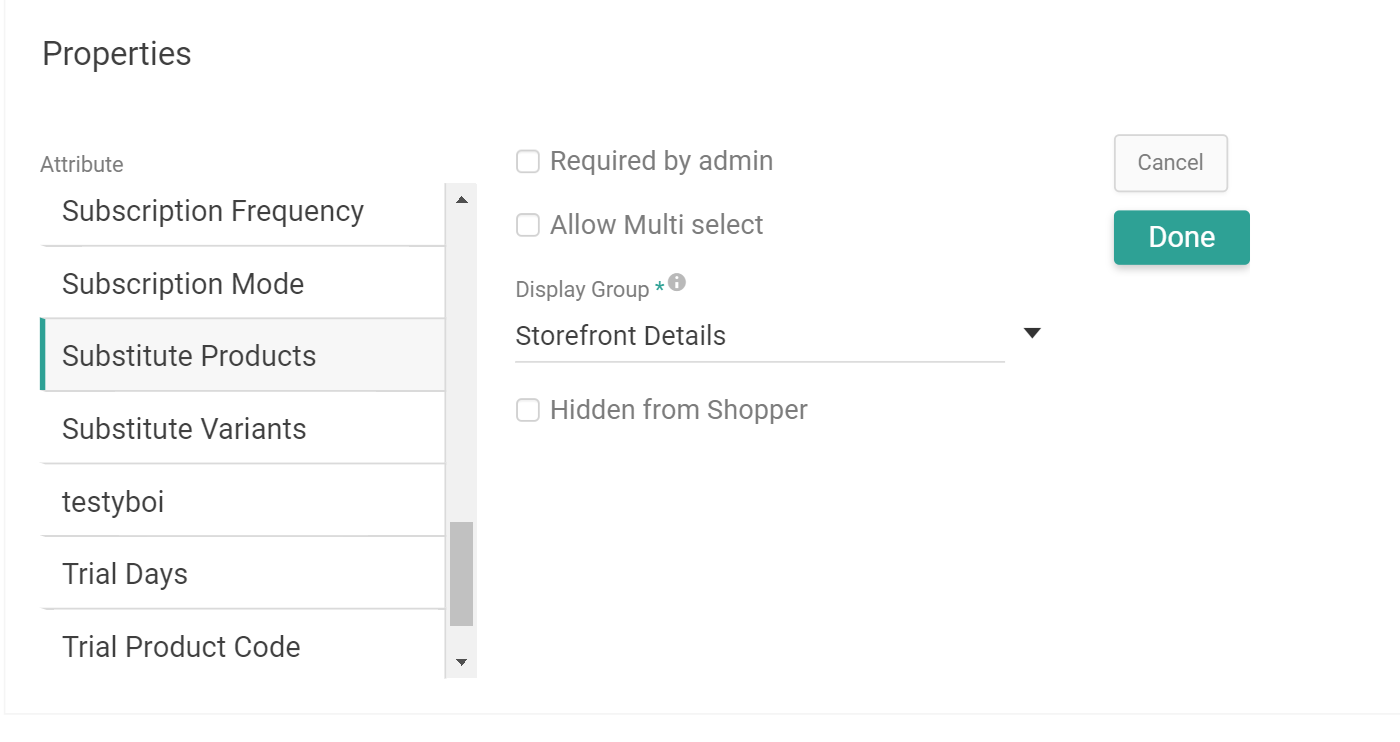 4. Click **Done** to add it to the product type.
5. If you want the system to perform automatic substitutions on this product type, also add the **Allow Auto Substitutions** attribute. If this attribute is not added, then substitutions can only be performed manually by fulfillers.
4. Click **Done** to add it to the product type.
5. If you want the system to perform automatic substitutions on this product type, also add the **Allow Auto Substitutions** attribute. If this attribute is not added, then substitutions can only be performed manually by fulfillers.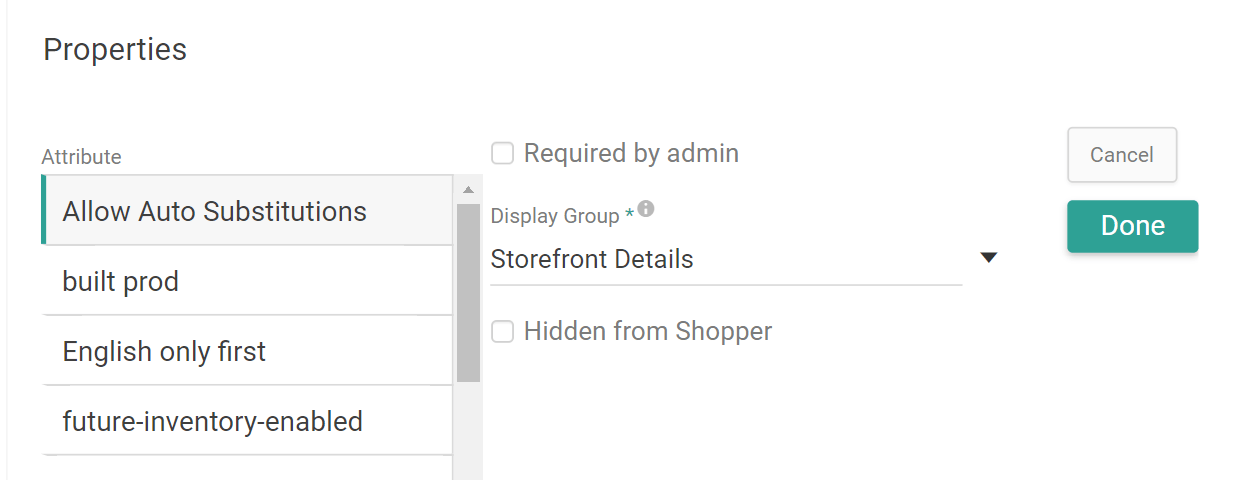 6. If you want to set up any products (or product bundles) of this type that are only used for substitutions and should not be displayed on the storefront for purchase, also add the **Hide Product** attribute and select Substitute Only as the only value option.
 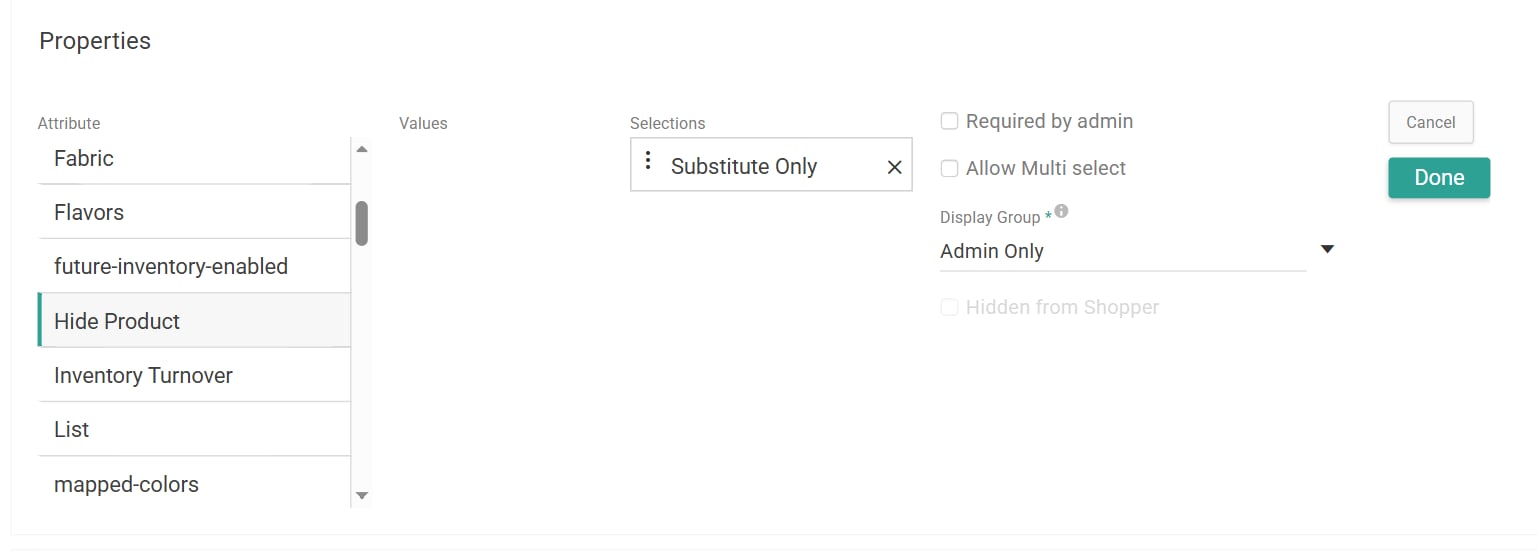 7. Click **Save**.
8. If you are using the Hide Product attribute, go to the [property configurations](/pages/property-attributes#assign-property-values-to-products "Property Attributes") of the product(s) you want to hide and set the attribute to "Substitute Only." This product will then only be available when performing a substitution. If no value is set, it will continue to be displayed on the storefront.
## Select Substitutes on Products
After adding the attribute to product types, select any product of that type in your master catalog and set up its substitute(s). Substitutions may be made for any standard products, variant products, product extras, bundles, bundle components, items in collections, and digital items, with the exception of service items.
1. Go to **Main** > **Catalog** > **Products**.
2. Click the product that you want to configure substitutes for.
3. In the **Properties** tab of the product settings, enter eligible substitutes in the **Substitute Products** field. If the product usage is Configurable Product with Options, use the **Substitute Variants** field to select eligible variants as substitutes instead.
* These may be individual products or product bundles.
* The order in which you add these substitutes will be the order of priority used by automatic substitutions, from highest to lowest.\\
7. Click **Save**.
8. If you are using the Hide Product attribute, go to the [property configurations](/pages/property-attributes#assign-property-values-to-products "Property Attributes") of the product(s) you want to hide and set the attribute to "Substitute Only." This product will then only be available when performing a substitution. If no value is set, it will continue to be displayed on the storefront.
## Select Substitutes on Products
After adding the attribute to product types, select any product of that type in your master catalog and set up its substitute(s). Substitutions may be made for any standard products, variant products, product extras, bundles, bundle components, items in collections, and digital items, with the exception of service items.
1. Go to **Main** > **Catalog** > **Products**.
2. Click the product that you want to configure substitutes for.
3. In the **Properties** tab of the product settings, enter eligible substitutes in the **Substitute Products** field. If the product usage is Configurable Product with Options, use the **Substitute Variants** field to select eligible variants as substitutes instead.
* These may be individual products or product bundles.
* The order in which you add these substitutes will be the order of priority used by automatic substitutions, from highest to lowest.\\
 4. If you want to perform automatic substitutions, toggle on **Allow Automatic Substitutions**.
 5. Click **Save** when you have finished adding all desired substitutes to your product.
There is a limit of 10 substitutes per product. If you don't want to use substitutes for a particular product, then you do not have to select any in its product configurations (even if it belongs to a product type enabled for substitutions).
5. Click **Save** when you have finished adding all desired substitutes to your product.
There is a limit of 10 substitutes per product. If you don't want to use substitutes for a particular product, then you do not have to select any in its product configurations (even if it belongs to a product type enabled for substitutions).