> ## Documentation Index
> Fetch the complete documentation index at: https://docs.kibocommerce.com/llms.txt
> Use this file to discover all available pages before exploring further.
# Configure Product Types
To create a new product type:
See how to create and manage product types
1. Go to **System** > **Schema** > **Product Types**.
2. Click **Create New Product Type**.
3. Enter a **Name**.
4. In the **Support Usage Types** list, select the options that apply to your product type:
* Standard Product
* Configurable Product With Options
* Product Bundle
* Bundle Component
* Collection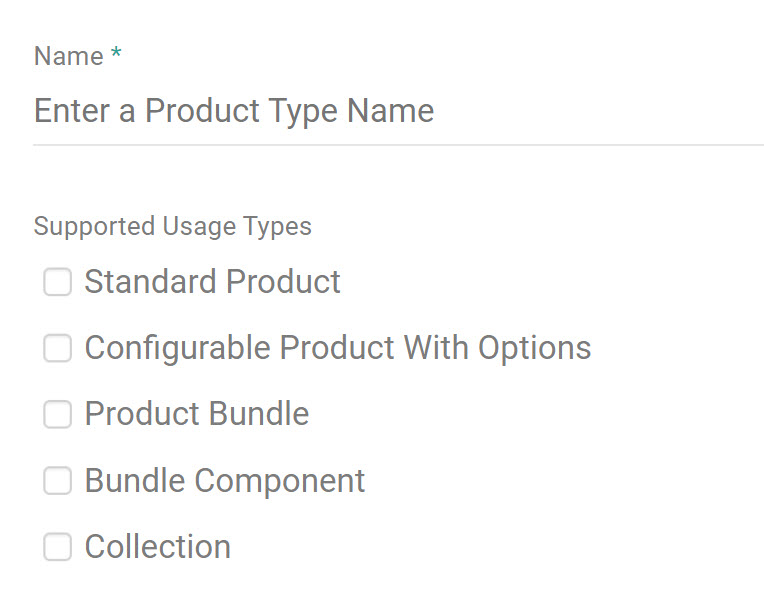 5. Under each attribute type, click **Add** to associate attributes with this product type.
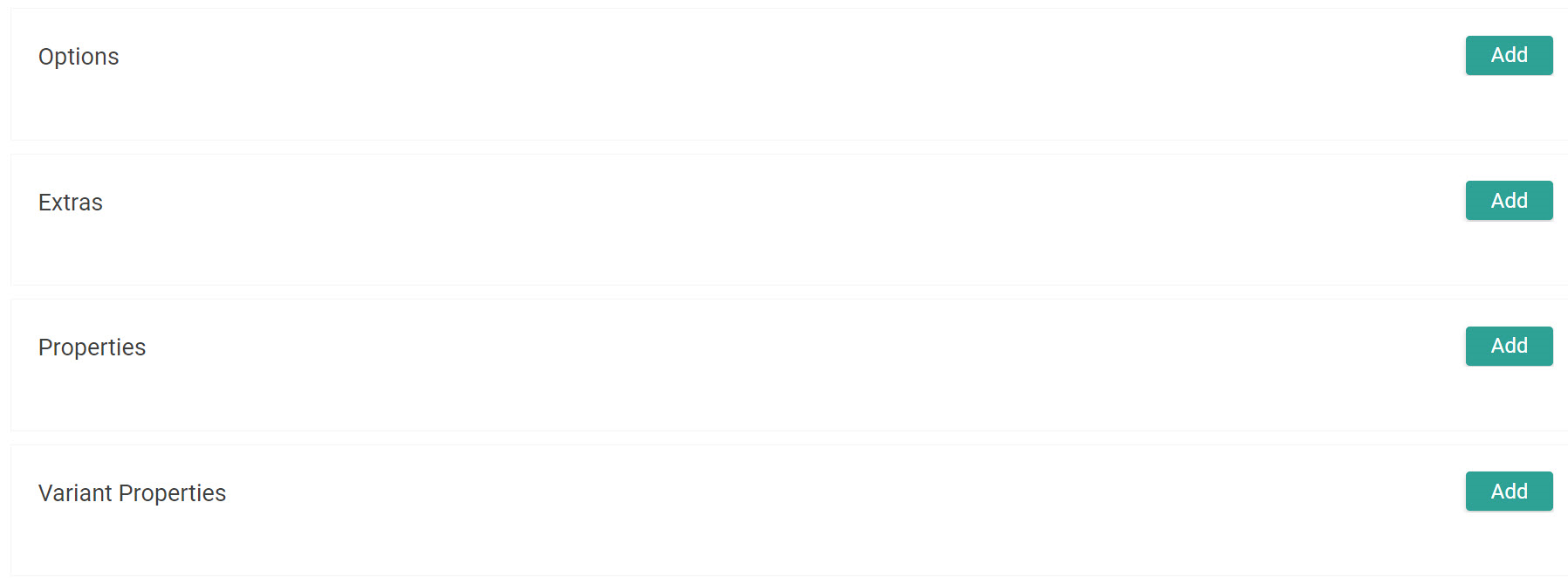
Depending on the attribute type that you add to the product type and the attribute's input values, you might be required to select specific configurations of the attribute. Refer to [Product Attributes](/pages/product-attributes-overview) for more information about adding attributes to a product type.
5. Under each attribute type, click **Add** to associate attributes with this product type.
Depending on the attribute type that you add to the product type and the attribute's input values, you might be required to select specific configurations of the attribute. Refer to [Product Attributes](/pages/product-attributes-overview) for more information about adding attributes to a product type.
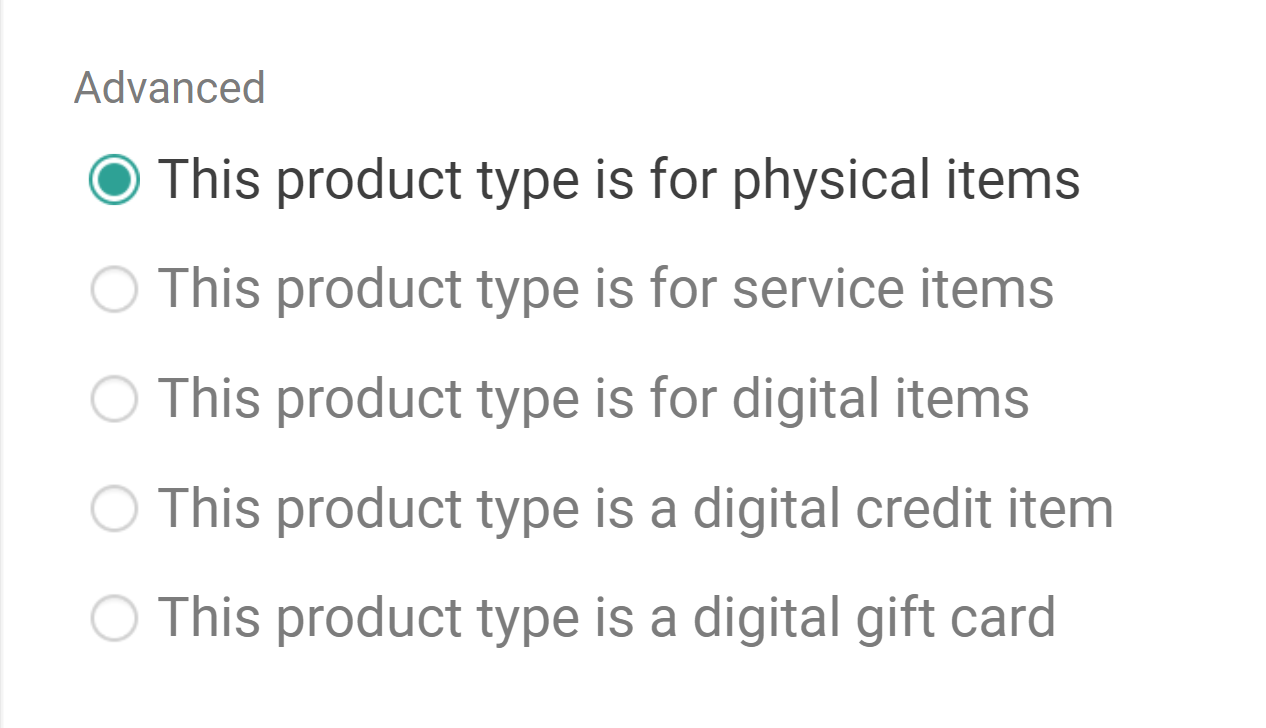
 6. In the **Advanced** section, select whether this product type is a physical item, service item, digital item, digital credit item, or digital gift card. This will determine the product type's "goods type" which is an irreversible setting and will impact the workflow of shipments with items of that product type.
* **Physical:** This is the default goods type used by most products. They can be associated with inventory which will be referenced when creating, assigning, and fulfilling shipments with these items.
* **Service:** Used only for [service items such as assembly](/pages/fulfillment-service-items "Fulfillment Service Items").
* **Digital**: Used for [digital items](/pages/fulfillment-method-types#digital-item-fulfillment "Fulfillment Method Types") other than gift cards or store credit, such as warranties or service fees. This does not include digital art, books, music, printable documents, or software. These items will be immediately fulfilled and captured upon order placement.
* **Digital Credit:** Creates a [store credit](/pages/store-credit-and-gift-cards "Store Credit and Gift Cards") record assigned to the customer who placed the order. These items will be immediately fulfilled and captured upon order placement.
* **Digital Gift Card:** Used when a customer purchases a [digital gift card](/pages/digital-gift-card-overview "Digital Gift Card Overview"). These items will be immediately fulfilled and captured upon order placement.\\
6. In the **Advanced** section, select whether this product type is a physical item, service item, digital item, digital credit item, or digital gift card. This will determine the product type's "goods type" which is an irreversible setting and will impact the workflow of shipments with items of that product type.
* **Physical:** This is the default goods type used by most products. They can be associated with inventory which will be referenced when creating, assigning, and fulfilling shipments with these items.
* **Service:** Used only for [service items such as assembly](/pages/fulfillment-service-items "Fulfillment Service Items").
* **Digital**: Used for [digital items](/pages/fulfillment-method-types#digital-item-fulfillment "Fulfillment Method Types") other than gift cards or store credit, such as warranties or service fees. This does not include digital art, books, music, printable documents, or software. These items will be immediately fulfilled and captured upon order placement.
* **Digital Credit:** Creates a [store credit](/pages/store-credit-and-gift-cards "Store Credit and Gift Cards") record assigned to the customer who placed the order. These items will be immediately fulfilled and captured upon order placement.
* **Digital Gift Card:** Used when a customer purchases a [digital gift card](/pages/digital-gift-card-overview "Digital Gift Card Overview"). These items will be immediately fulfilled and captured upon order placement.\\
 7. Click **Save**.
You can update a product or multiple products' product types at once using the [Quick Edits](/pages/quick-edits "Quick Edits") tool.
7. Click **Save**.
You can update a product or multiple products' product types at once using the [Quick Edits](/pages/quick-edits "Quick Edits") tool.