> ## Documentation Index
> Fetch the complete documentation index at: https://docs.kibocommerce.com/llms.txt
> Use this file to discover all available pages before exploring further.
# Close a Return
Close a return by canceling or rejecting it:
Understand return processing and reverse logistics
1. Go to **Main** > **Orders** > **Returns**.
2. Click the return you want to cancel or reject.
3. In the **Items** tab, click the **Close** drop-down menu.
4. Choose to **Cancel** or **Reject** the return.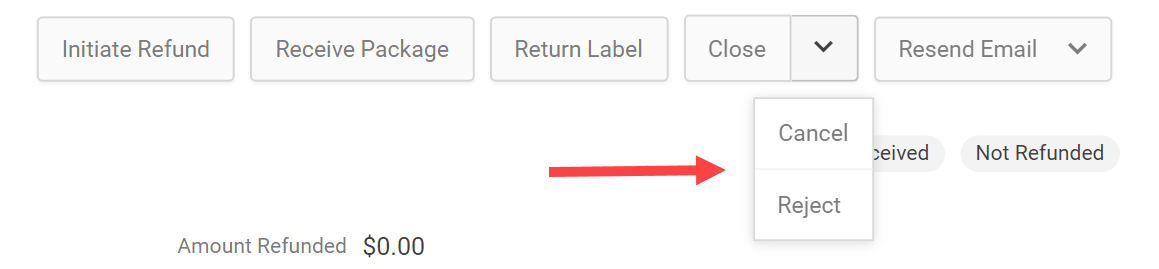 ## Cancelled Return Limitations
After a return has been cancelled, you will be unable to perform the following actions on it:
* Receive Package
* Print Return Label
* Resend Email
* Refund to New Gift Card
## Rejected Item Quantity
Note that when a return is rejected, those items are no longer considered "returnable" on the order. Where the Returns tab of order details lists item quantities, items will be moved from the Qty Returnable column to the Qty Rejected column after a return is rejected. This means that a new return will not be able to be made for that quantity.
## Cancelled Return Limitations
After a return has been cancelled, you will be unable to perform the following actions on it:
* Receive Package
* Print Return Label
* Resend Email
* Refund to New Gift Card
## Rejected Item Quantity
Note that when a return is rejected, those items are no longer considered "returnable" on the order. Where the Returns tab of order details lists item quantities, items will be moved from the Qty Returnable column to the Qty Rejected column after a return is rejected. This means that a new return will not be able to be made for that quantity.
