> ## Documentation Index
> Fetch the complete documentation index at: https://docs.kibocommerce.com/llms.txt
> Use this file to discover all available pages before exploring further.
# Cart Takeover
The cart takeover feature enables customer service representatives (CSRs) to take over an online cart and make changes so that the cart has the shopper's desired products and options. For instance, a shopper may need help ordering several custom products with complex configurations. A CSR can take control of the shopper's cart, browse for products, select options, and add/remove them from the cart.
Learn about shopping cart and checkout workflows
See the Cart API documentation for programmatic access
This feature is supported for both single- and multi-ship tenants, but a CSR must be assigned to a role that has the Customer Update behavior.
## How to Use Cart Takeover
In order to view a shopper's cart, a new order must be made first. CSRs can do this for both anonymous and registered shoppers. However, keep in mind that viewing an anonymous user's cart pulls up an empty cart. For a logged-in user, viewing the cart pulls up the shopper's online cart.
The following example uses an eCommerce storefront. See the [Cart Takeover for Kibo Headless Storefronts section](#cart-takeover-for-kibo-headless-storefronts) for details on how the process differs for headless implementations.
1. Go to **Main** > **Orders** > **Orders**.
2. Click **Create New Order** in the top right. This opens the below page.
 3. Select the customer from the **Customer Search** drop-down menu on the right.
4. Now that the order is created, click **View User's Cart** in the header.
3. Select the customer from the **Customer Search** drop-down menu on the right.
4. Now that the order is created, click **View User's Cart** in the header.
 5. This will open the cart page, where no items will be displayed initially. To add an item, first search for a keyword or use the drop-down list of products.
The cart will always display the CSR logged in as the shopper even though that is not the case. The CSR should not be confused or try to click Log Out.
5. This will open the cart page, where no items will be displayed initially. To add an item, first search for a keyword or use the drop-down list of products.
The cart will always display the CSR logged in as the shopper even though that is not the case. The CSR should not be confused or try to click Log Out.
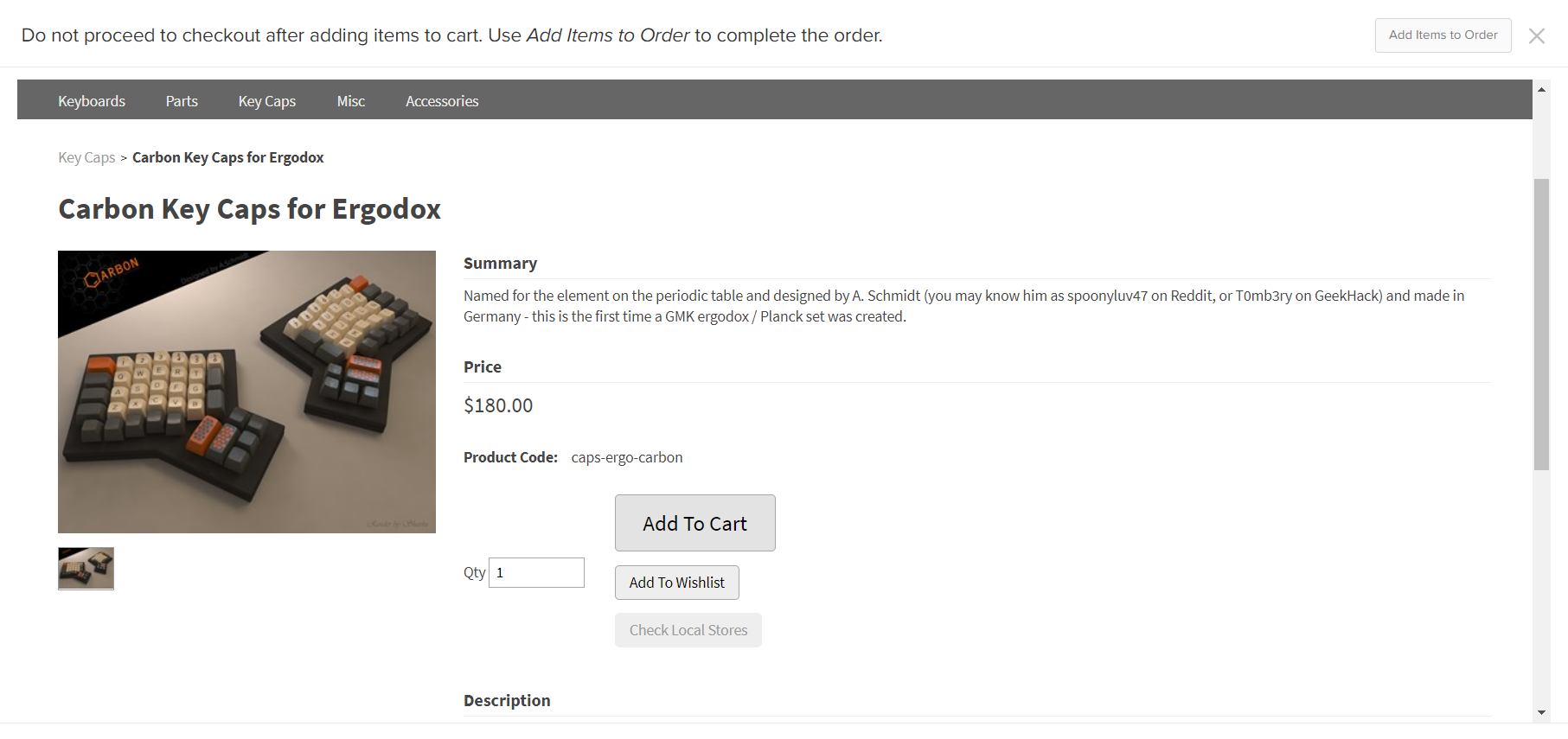
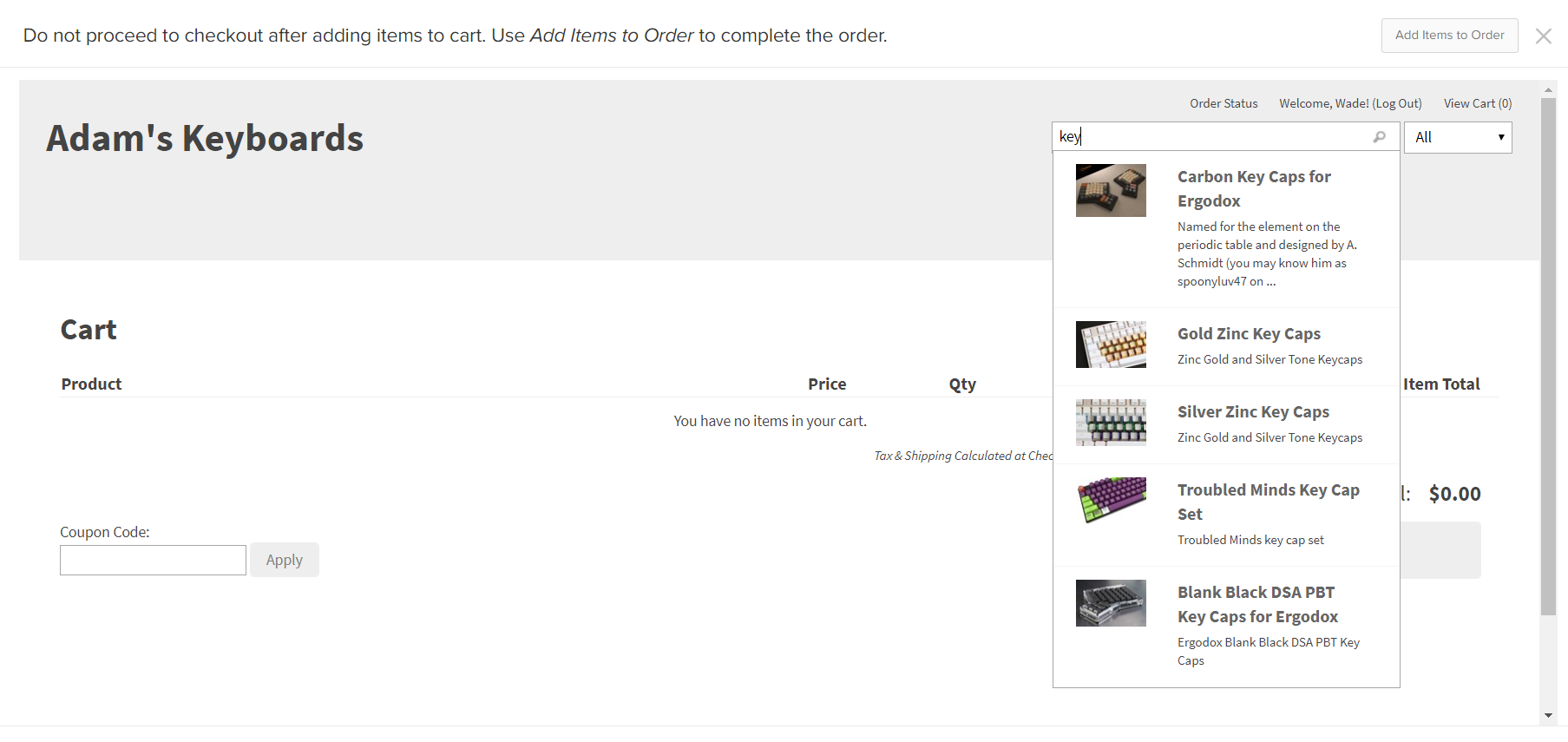 6. Clicking on an item opens its details page. Select any options (if applicable) and click **Add to Cart**.
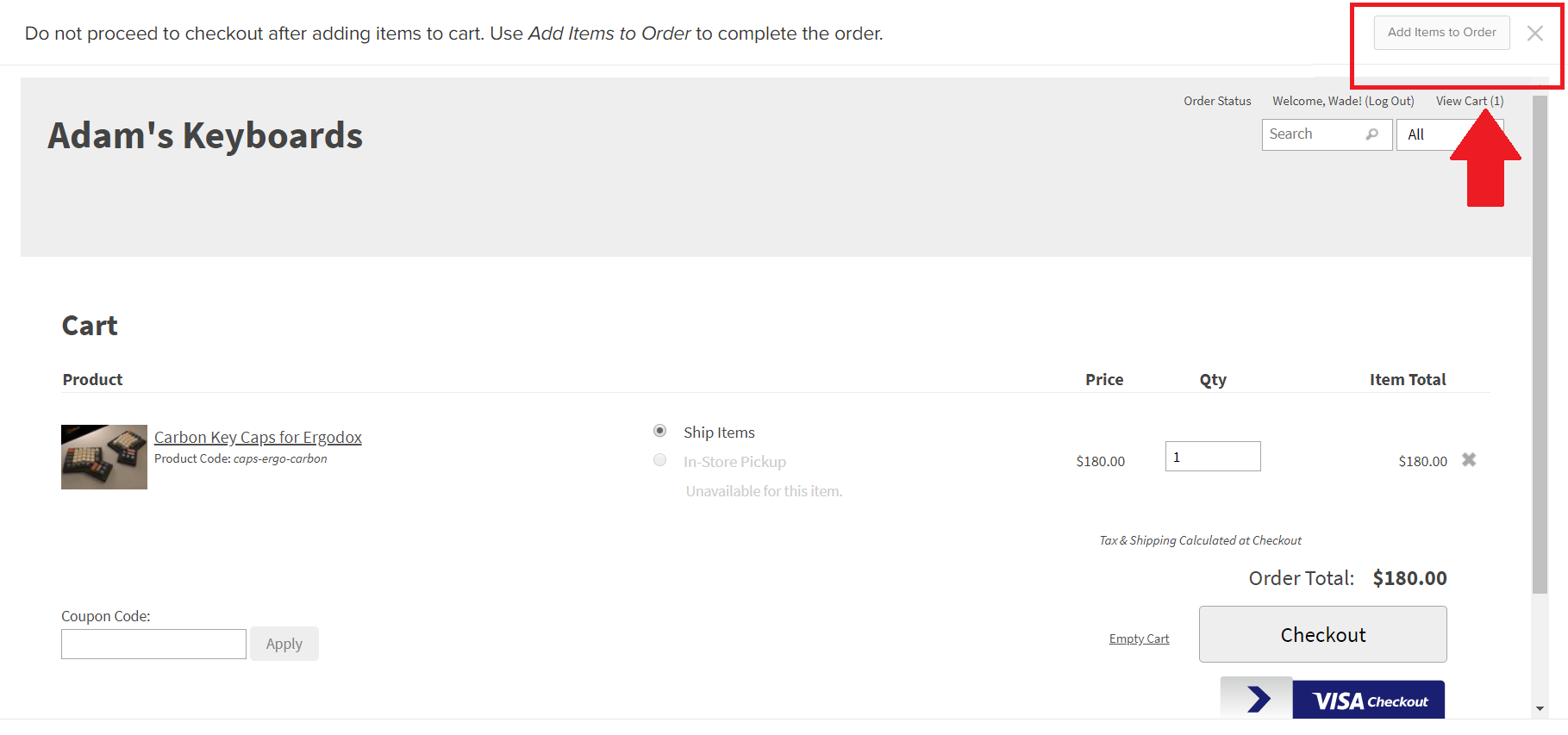
 7. When all items have been added, click **Add Items to Order** in the top right to exit the takeover and allow the shopper to complete checkout on their own.
Do not click Checkout while doing a cart takeover, unless you intend to enter the customer's payment information yourself as an offline order.
7. When all items have been added, click **Add Items to Order** in the top right to exit the takeover and allow the shopper to complete checkout on their own.
Do not click Checkout while doing a cart takeover, unless you intend to enter the customer's payment information yourself as an offline order.
 ## Cart Takeover for Kibo Headless Storefronts
[Headless integrations](/pages/getting-started "Headless Integrations") can use cart takeover with external storefronts. Admin users can either follow a link on the Customers page to access the storefront directly, or submit an offline order populated with items from the shopper's cart. External cart takeover is not supported for anonymous shoppers.
Contact [Kibo Support](https://help.kibocommerce.com/) to enable this feature.
### View the Kibo Headless Storefront
In addition to the offline order page as shown above for non-headless cases, headless integrations will also display **View User's Cart** buttons on the **Main** > **Customers** > **Customers** table and the customer details page. Clicking either of these buttons will prompt you to select a site before continuing to the external storefront to edit the cart there.
## Cart Takeover for Kibo Headless Storefronts
[Headless integrations](/pages/getting-started "Headless Integrations") can use cart takeover with external storefronts. Admin users can either follow a link on the Customers page to access the storefront directly, or submit an offline order populated with items from the shopper's cart. External cart takeover is not supported for anonymous shoppers.
Contact [Kibo Support](https://help.kibocommerce.com/) to enable this feature.
### View the Kibo Headless Storefront
In addition to the offline order page as shown above for non-headless cases, headless integrations will also display **View User's Cart** buttons on the **Main** > **Customers** > **Customers** table and the customer details page. Clicking either of these buttons will prompt you to select a site before continuing to the external storefront to edit the cart there.

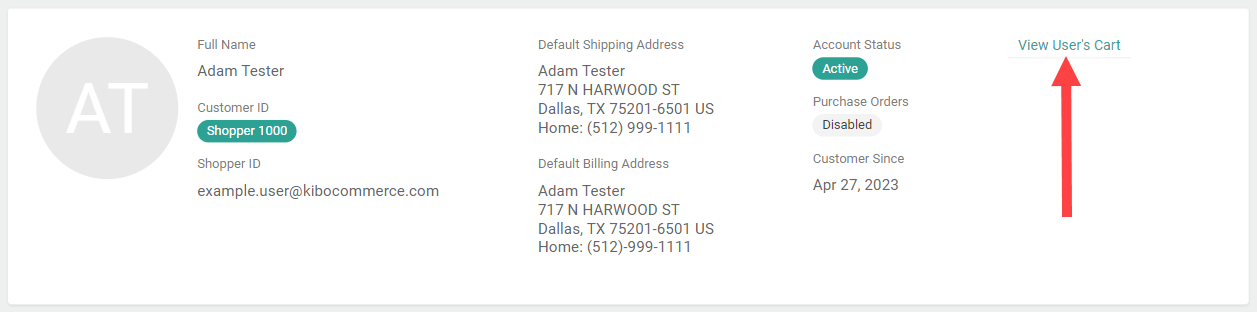 When viewing [a B2B account,](/pages/manage-b2b-accounts "Manage B2B Accounts") clicking any user in the table will redirect you to the above customer details page. From there, you can view the user's cart and perform a takeover using the same process as documented here.
### Create Order in Admin UI
If creating a new order in the Admin UI, any changes will not be reflected on the external storefront. This means that you will have to submit it as an offline order, instead of releasing it for the shopper to checkout on their own.
1. After creating a new order and selecting the customer, click **Populate Items from Cart** in the actions menu. This will add all items from the shopper's external cart to the order.
When viewing [a B2B account,](/pages/manage-b2b-accounts "Manage B2B Accounts") clicking any user in the table will redirect you to the above customer details page. From there, you can view the user's cart and perform a takeover using the same process as documented here.
### Create Order in Admin UI
If creating a new order in the Admin UI, any changes will not be reflected on the external storefront. This means that you will have to submit it as an offline order, instead of releasing it for the shopper to checkout on their own.
1. After creating a new order and selecting the customer, click **Populate Items from Cart** in the actions menu. This will add all items from the shopper's external cart to the order. 2. Click **Edit Details** to add/remove items, select a shipping method, or perform adjustments.
3. Click **Save** on the Edit Details modal when complete.
4. Enter the customer's payment information in the **Payments** tab.
5. Click **Submit Order** in the top right of the page.
2. Click **Edit Details** to add/remove items, select a shipping method, or perform adjustments.
3. Click **Save** on the Edit Details modal when complete.
4. Enter the customer's payment information in the **Payments** tab.
5. Click **Submit Order** in the top right of the page.