> ## Documentation Index
> Fetch the complete documentation index at: https://docs.kibocommerce.com/llms.txt
> Use this file to discover all available pages before exploring further.
# Call Off Reservation Rules
Call Off reservation Rules define which Call-Off Orders are eligible for inventory reservation and in what priority order. When the Reservation batch job runs, it evaluates all Call-Off Orders in **Hold** or **Partially Reserved** status against your configured rules — ranked by priority — and invokes the Reservation Service to soft-allocate inventory for matched orders. Rules that rank higher receive inventory first; lower-ranked rules only see what remains after higher-priority rules have completed their allocation pass.
Call Off reservation Rules follow the same composable rule structure used across Kibo for other rule types such as [Purchase Limit Rules](/pages/purchase-limit-rules) and [Call-Off Release Rules](/pages/call-off-release-rules), using the same expression-based criteria framework for product, customer, and Call off order-level conditions.
In addition to the UI detailed here, you can create and manage Call Off reservation Rules with the Reservation Rules API endpoints. The [Product Rules](https://docs.kibocommerce.com/api-reference/productrules/create-product-rule) , [Customer Rules](https://docs.kibocommerce.com/api-reference/accountrankingrule/create-customer-rule) and [**Call Off Order Rule**](https://docs.kibocommerce.com/api-reference/calloffreleaserules/create-call-off-release-rule) APIs can also be used to manage supporting product , customer rules and call off order rules.
## **Prerequisites**
Before configuring Reservation Rules, ensure the following:
* The **B2B Wholesale OMS** feature is enabled for your tenant. Contact [Kibo Support](https://help.kibocommerce.com/) to enable this capability.
* You have the **Admin** or **Super Admin** role, or a role with the following behaviors assigned:
* Product Rule: Read, Create, Update, Delete
* Customer Rule: Read, Create, Update, Delete
* Reservation Rule: Read, Create, Update, Delete
* At least one [**Call-Off Order**](/pages/call-off-orders) exists in **Hold** status as input to the engine.
## **How Reservation Rules Work**
### **Rule Evaluation Order**
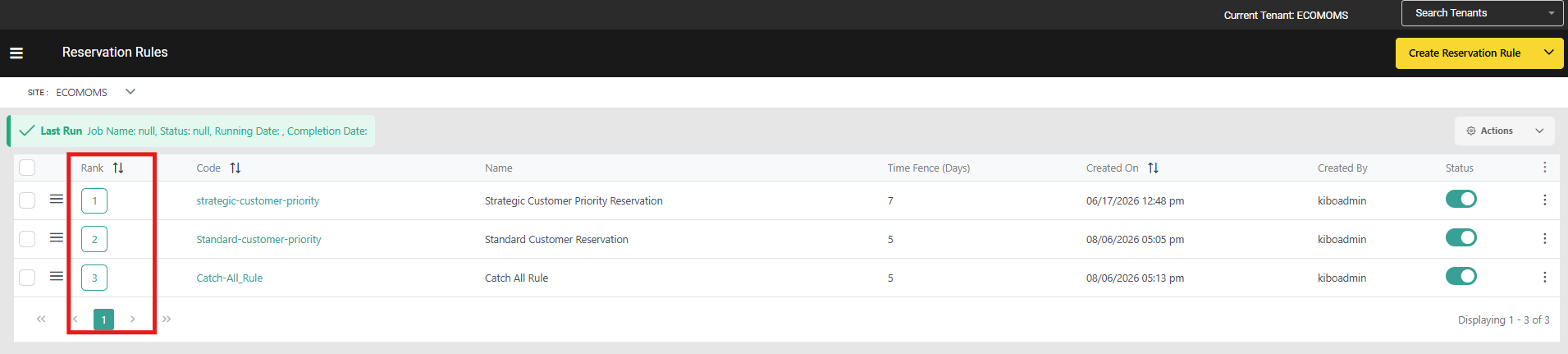
Call Off reservation Rules are evaluated in **ascending rank order** — the rule with **Rank 1** has the highest priority and runs first. All Call-Off Orders matched by Rank 1 are allocated inventory before Rank 2 runs. Rank 2 only sees inventory remaining after Rank 1 has completed its full pass.
A Call-Off Order line matched by a higher-priority rule is excluded from lower-priority rules in the same batch cycle. This prevents double-allocation and ensures deterministic, priority-based inventory distribution.
**Note:** All enabled Call Off reservation Rules run as a group in each batch cycle. There is no option to trigger an individual rule in isolation.
### **Rule Matching Logic**
A Call-Off Order must satisfy **all** criteria types defined on a rule (AND logic across criteria types) to be eligible under that rule. Within a single criteria type — for example, within Product Criteria — conditions can be combined using **AND** or **OR** logic as configured in the expression editor.
If a rule defines a simple criteria for a particular type which will match all the call off orders (e.g Total Amount ≥ 1\$), all orders automatically pass that criterion. This makes it straightforward to configure a **catch-all rule** at the lowest rank to ensure every Call-Off Order receives an allocation pass.
### **Priority Enforcement**
The rule engine processes rules as the **outer loop**. Rule N+1 only receives the inventory left after Rule N has fully completed allocation across all its matched Call-Off Orders. This architecture ensures that high-priority buyers always receive their inventory preference before lower-priority segments are served.
 ## **Rule Criteria**
A Call Off reservation Rules is a composite rule made up of up to three criteria types. **All** types present on a rule must match (AND logic across types) for a Call-Off Order to qualify:
| **Criteria Type** | **What It Filters** | **Notes** |
| :------------------------------ | :--------------------------------------------------------------------------------------------------------------- | :------------------------------------------------------------------------------------------------------------------------------------------------------------------------------------------------------------------------------------------------------------------------------ |
| **Product Criteria** | Which products the rule applies to | Uses the existing Product Rule infrastructure . Supports first-class fields(like-Product Code, Variant Product Code, UPC, Mfg Part Number ,Product Type, Category Code, Category List Price, Fulfilment Types Supported, Height, Length, Weight, Width), attributes properties |
| **Customer / Account Criteria** | Which B2B buyer accounts qualify | Uses the existing Customer Rule infrastructure. Supports Customer & Customer Segment. |
| **Call-Off Order Criteria** | Call-Off Order header and line-level attributes such as channel, order type, total amount, and custom attributes | Expression-based criteria type specific to B2B Wholesale OMS. Like Call-Off Order Total Amount, Account ID, Channel Code, Item Product Code, and Item Requested Ship Date, as well as custom Order Attributes (header level) and Item Attributes (line level). |
**Note:** Product Rules , Customer Rules and call off order rules created for Call Off reservation Rules are exclusive to Call Off reservation Rules and cannot be shared with other rule types such as [Purchase Limit Rules](/pages/purchase-limit-rules) or [Return Rules](/pages/return-rules).
## **Time Fence Configuration**
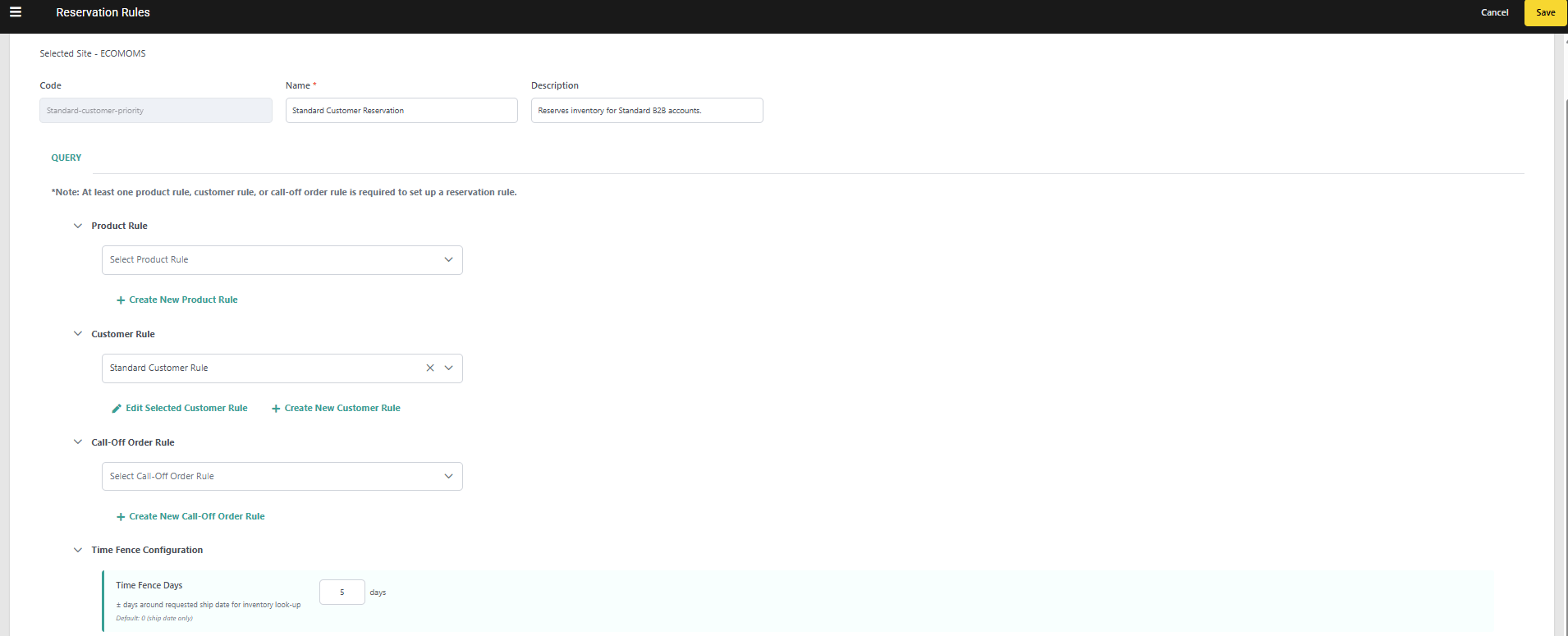
Each Reservation Rule includes a **Time Fence Days** parameter that controls the inventory search window used when performing Order Routing for matched Call-Off Order lines.
The time fence is calculated symmetrically around the line's **Requested Ship Date**:
* `deliveryDateAfter = requestedShipDate − timeFenceDays`
* `deliveryDateBefore = requestedShipDate + timeFenceDays`
Only inventory available within this window is considered during Order Routing. A value of `0` means only inventory available exactly on the requested ship date is considered.
**Note:** Requested Ship Date is mandatory on every Call-Off Order line. The time fence has no site-level fallback default.
## **Rule Criteria**
A Call Off reservation Rules is a composite rule made up of up to three criteria types. **All** types present on a rule must match (AND logic across types) for a Call-Off Order to qualify:
| **Criteria Type** | **What It Filters** | **Notes** |
| :------------------------------ | :--------------------------------------------------------------------------------------------------------------- | :------------------------------------------------------------------------------------------------------------------------------------------------------------------------------------------------------------------------------------------------------------------------------ |
| **Product Criteria** | Which products the rule applies to | Uses the existing Product Rule infrastructure . Supports first-class fields(like-Product Code, Variant Product Code, UPC, Mfg Part Number ,Product Type, Category Code, Category List Price, Fulfilment Types Supported, Height, Length, Weight, Width), attributes properties |
| **Customer / Account Criteria** | Which B2B buyer accounts qualify | Uses the existing Customer Rule infrastructure. Supports Customer & Customer Segment. |
| **Call-Off Order Criteria** | Call-Off Order header and line-level attributes such as channel, order type, total amount, and custom attributes | Expression-based criteria type specific to B2B Wholesale OMS. Like Call-Off Order Total Amount, Account ID, Channel Code, Item Product Code, and Item Requested Ship Date, as well as custom Order Attributes (header level) and Item Attributes (line level). |
**Note:** Product Rules , Customer Rules and call off order rules created for Call Off reservation Rules are exclusive to Call Off reservation Rules and cannot be shared with other rule types such as [Purchase Limit Rules](/pages/purchase-limit-rules) or [Return Rules](/pages/return-rules).
## **Time Fence Configuration**
Each Reservation Rule includes a **Time Fence Days** parameter that controls the inventory search window used when performing Order Routing for matched Call-Off Order lines.
The time fence is calculated symmetrically around the line's **Requested Ship Date**:
* `deliveryDateAfter = requestedShipDate − timeFenceDays`
* `deliveryDateBefore = requestedShipDate + timeFenceDays`
Only inventory available within this window is considered during Order Routing. A value of `0` means only inventory available exactly on the requested ship date is considered.
**Note:** Requested Ship Date is mandatory on every Call-Off Order line. The time fence has no site-level fallback default.
 ## **Rule Attributes**
| **Attribute** | **Type** | **Required** | **Description** |
| :-------------------------- | :------- | :----------- | :---------------------------------------------------------------------------------------------------------- |
| **Code** | String | Yes | Unique identifier for the rule, scoped to the tenant. Auto-generated if left blank. |
| **Name** | String | Yes | Display name shown in the Admin UI. |
| **Description** | String | No | Optional free-text description of the rule's intent. |
| **Rank** | Integer | Yes | Priority order. Lower value = higher priority. Rank 1 runs before Rank 2. Rank values must be unique. |
| **Enabled** | Boolean | Yes | When disabled, the rule is skipped during batch evaluation but remains saved for future use. |
| **Time Fence Days** | Integer | Yes | Symmetric window (±N days) around `requestedShipDate` for inventory search. Must be a non-negative integer. |
| **Product Criteria** | List | No | References to Product Rule codes defining which products this rule covers. |
| **Customer Criteria** | List | No | References to Customer Rule codes defining which accounts qualify. |
| **Call-Off Order Criteria** | List | No | References to Call-Off Order Rule codes defining order-level filters. |
At least one Criteria is mandatory out of Product Criteria , Customer Criteria & Call-Off criteria
## **Configure Call Off Reservation Rules**
To create a new Call Off Reservation Rule:
1. Go to **Main > Supply> Rules > Call Off Reservation Rules**.
2. Select a **Site** from the site selector.
## **Rule Attributes**
| **Attribute** | **Type** | **Required** | **Description** |
| :-------------------------- | :------- | :----------- | :---------------------------------------------------------------------------------------------------------- |
| **Code** | String | Yes | Unique identifier for the rule, scoped to the tenant. Auto-generated if left blank. |
| **Name** | String | Yes | Display name shown in the Admin UI. |
| **Description** | String | No | Optional free-text description of the rule's intent. |
| **Rank** | Integer | Yes | Priority order. Lower value = higher priority. Rank 1 runs before Rank 2. Rank values must be unique. |
| **Enabled** | Boolean | Yes | When disabled, the rule is skipped during batch evaluation but remains saved for future use. |
| **Time Fence Days** | Integer | Yes | Symmetric window (±N days) around `requestedShipDate` for inventory search. Must be a non-negative integer. |
| **Product Criteria** | List | No | References to Product Rule codes defining which products this rule covers. |
| **Customer Criteria** | List | No | References to Customer Rule codes defining which accounts qualify. |
| **Call-Off Order Criteria** | List | No | References to Call-Off Order Rule codes defining order-level filters. |
At least one Criteria is mandatory out of Product Criteria , Customer Criteria & Call-Off criteria
## **Configure Call Off Reservation Rules**
To create a new Call Off Reservation Rule:
1. Go to **Main > Supply> Rules > Call Off Reservation Rules**.
2. Select a **Site** from the site selector.
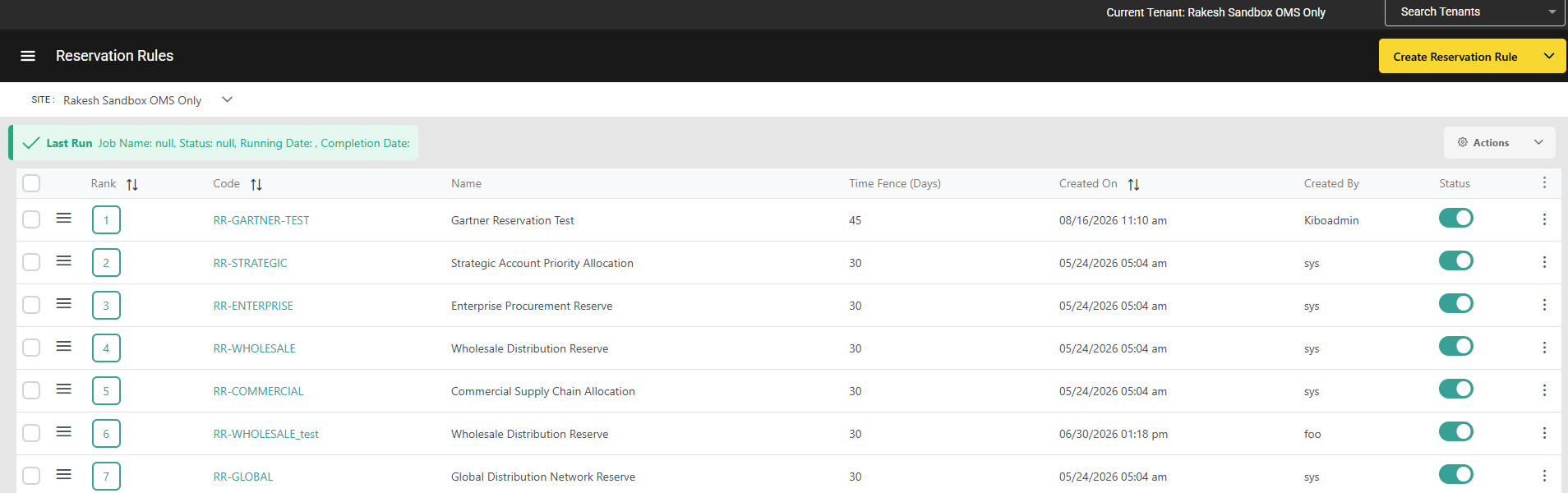 3. Click **Create Reservation Rule**.
4. Enter a **Code**. If left blank, the system generates one automatically.
5. Enter a **Name** and an optional **Description**.
6. Enter a **Rank** value. The lower the number, the higher the priority.
7. Enter a **Time Fence Days** value. Enter `0` to restrict the inventory lookup to the exact requested ship date only.
8. Toggle the rule **Enabled** to activate it for batch processing.
3. Click **Create Reservation Rule**.
4. Enter a **Code**. If left blank, the system generates one automatically.
5. Enter a **Name** and an optional **Description**.
6. Enter a **Rank** value. The lower the number, the higher the priority.
7. Enter a **Time Fence Days** value. Enter `0` to restrict the inventory lookup to the exact requested ship date only.
8. Toggle the rule **Enabled** to activate it for batch processing.
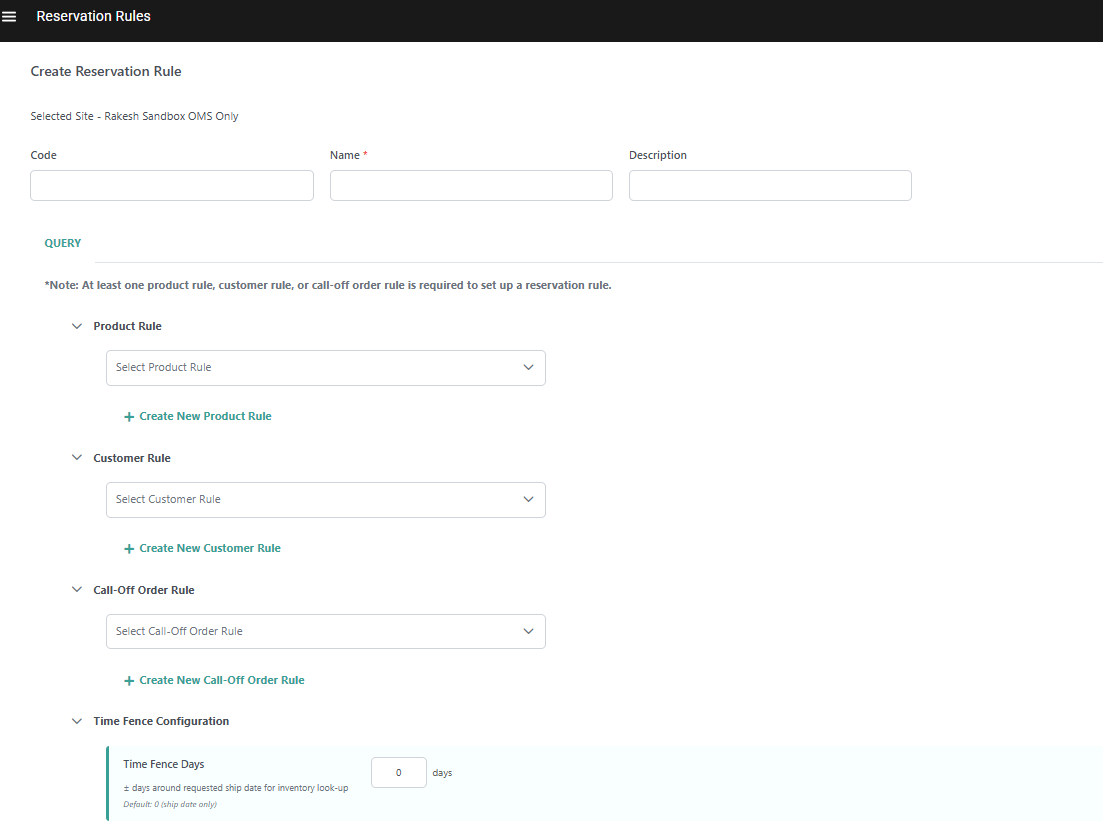 9. Optionally, add **Product Criteria**:
* Click **Add Product Rule** to select an existing product rule or create a new one.
* Use the expression editor to define product-level conditions. Click **Preview** to view a list of products that would be matched by the expression.
9. Optionally, add **Product Criteria**:
* Click **Add Product Rule** to select an existing product rule or create a new one.
* Use the expression editor to define product-level conditions. Click **Preview** to view a list of products that would be matched by the expression.
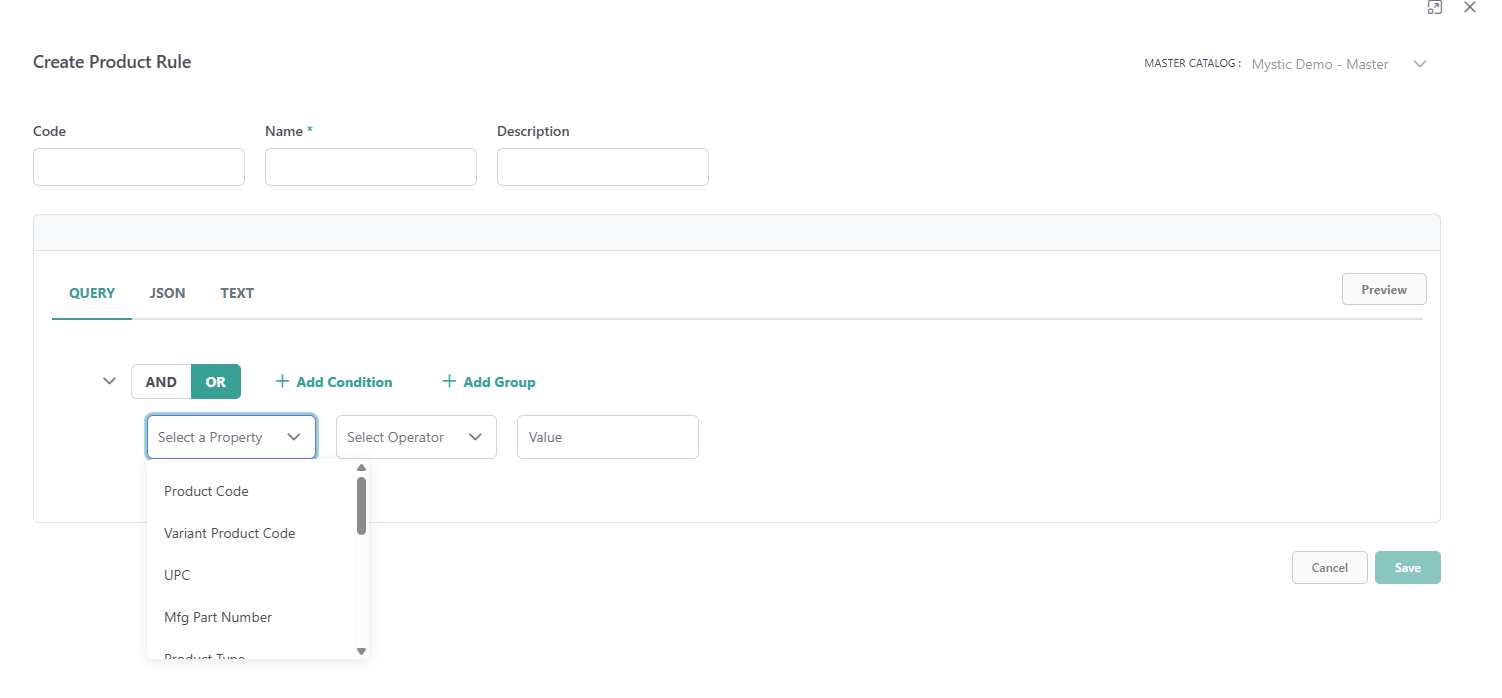 10. Optionally, add **Customer / Account Criteria**:
* Click **Add Customer Rule** to select an existing customer rule or create a new one.
* Use the expression editor to define account-level conditions such as segment, priority, ID, or custom attributes.
10. Optionally, add **Customer / Account Criteria**:
* Click **Add Customer Rule** to select an existing customer rule or create a new one.
* Use the expression editor to define account-level conditions such as segment, priority, ID, or custom attributes.
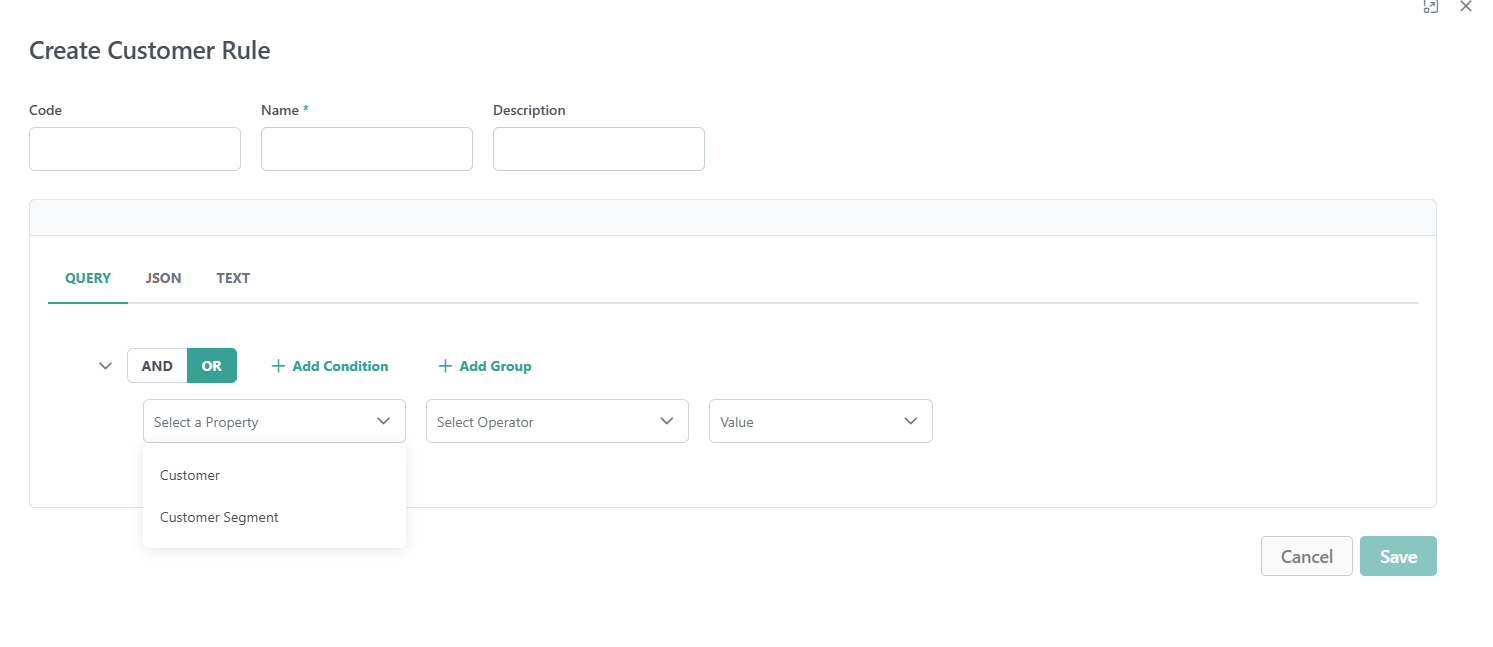 11. Optionally, add **Call-Off Order Criteria**:
* Click **Add Call-Off Order Rule** to create a new expression for order-level conditions such as channel, total amount, custom attributes, or requested ship date.
11. Optionally, add **Call-Off Order Criteria**:
* Click **Add Call-Off Order Rule** to create a new expression for order-level conditions such as channel, total amount, custom attributes, or requested ship date.
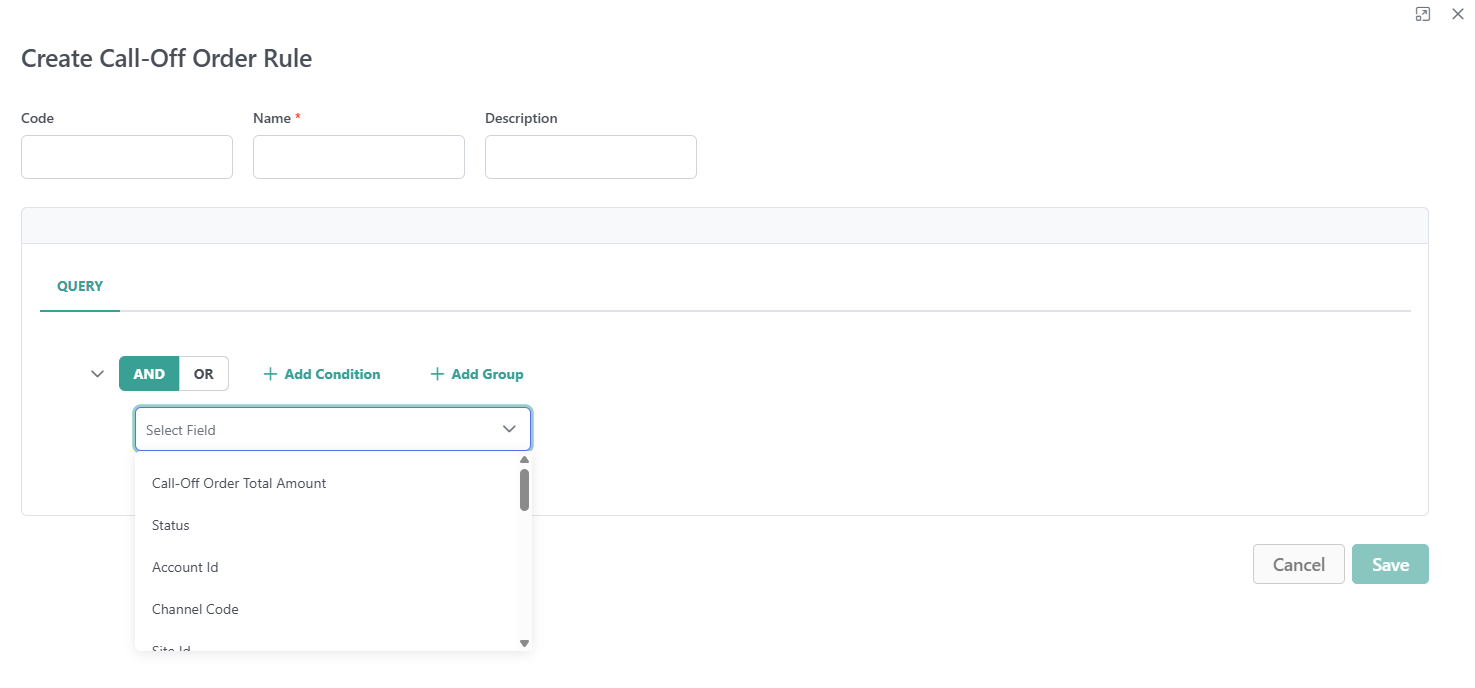 At least one Criteria is mandatory out of Product Criteria , Customer Criteria & Call-Off criteria
12. Click **Save**.
**Note:** Rules are scoped to the site level. A rule configured for one site applies only to Call-Off Orders processed under that site.
## **Manage Call Off Reservation Rules**
The dashboard at **Main** > **Supply**> **Rules** >**Reservation Rules** displays all existing rules and allows you to manage them with the following actions:
* Toggle the **Status** icon on a rule to activate or deactivate it without deleting it. Disabled rules are skipped during batch processing.
* Click on the Kebab icon on a rule to **Edit** or **Delete** it.
* Check multiple rules and then use the **Actions** menu in the top right to enable, disable, or delete them in bulk.
* Edit the **Rank** of a rule directly in the table, or click and drag to reorder. Rules are always evaluated from highest to lowest rank, with Rank 1 running first.
At least one Criteria is mandatory out of Product Criteria , Customer Criteria & Call-Off criteria
12. Click **Save**.
**Note:** Rules are scoped to the site level. A rule configured for one site applies only to Call-Off Orders processed under that site.
## **Manage Call Off Reservation Rules**
The dashboard at **Main** > **Supply**> **Rules** >**Reservation Rules** displays all existing rules and allows you to manage them with the following actions:
* Toggle the **Status** icon on a rule to activate or deactivate it without deleting it. Disabled rules are skipped during batch processing.
* Click on the Kebab icon on a rule to **Edit** or **Delete** it.
* Check multiple rules and then use the **Actions** menu in the top right to enable, disable, or delete them in bulk.
* Edit the **Rank** of a rule directly in the table, or click and drag to reorder. Rules are always evaluated from highest to lowest rank, with Rank 1 running first.
 ## **Example Rule Configurations**
### **Priority Allocation for Strategic Accounts**
Configure two rules to ensure platinum-tier buyers always receive inventory before standard-tier buyers:
| **Rule** | **Rank** | **Customer Criteria** | **Expected Behavior** |
| :------- | :------- | :---------------------------------- | :------------------------------------------------------- |
| Rule 1 | 1 | `account.segment equals "platinum"` | All platinum-tier Call-Off Orders are allocated first. |
| Rule 2 | 2 | `account.segment equals "standard"` | Standard-tier orders receive whatever inventory remains. |
### **Channel-Based Reservation Priority**
Prioritize wholesale channel orders over outlet channel orders:
| **Rule** | **Rank** | **Call-Off Order Criteria** | **Expected Behavior** |
| :------- | :------- | :-------------------------- | :------------------------------------------------- |
| Rule 1 | 1 | `channel eq "wholesale"` | All wholesale Call-Off Orders are allocated first. |
| Rule 2 | 2 | `channel eq "outlet"` | Outlet orders receive remaining inventory. |
## **Example Rule Configurations**
### **Priority Allocation for Strategic Accounts**
Configure two rules to ensure platinum-tier buyers always receive inventory before standard-tier buyers:
| **Rule** | **Rank** | **Customer Criteria** | **Expected Behavior** |
| :------- | :------- | :---------------------------------- | :------------------------------------------------------- |
| Rule 1 | 1 | `account.segment equals "platinum"` | All platinum-tier Call-Off Orders are allocated first. |
| Rule 2 | 2 | `account.segment equals "standard"` | Standard-tier orders receive whatever inventory remains. |
### **Channel-Based Reservation Priority**
Prioritize wholesale channel orders over outlet channel orders:
| **Rule** | **Rank** | **Call-Off Order Criteria** | **Expected Behavior** |
| :------- | :------- | :-------------------------- | :------------------------------------------------- |
| Rule 1 | 1 | `channel eq "wholesale"` | All wholesale Call-Off Orders are allocated first. |
| Rule 2 | 2 | `channel eq "outlet"` | Outlet orders receive remaining inventory. |