> ## Documentation Index
> Fetch the complete documentation index at: https://docs.kibocommerce.com/llms.txt
> Use this file to discover all available pages before exploring further.
# Application Asset Management
You manage application assets in the Application Editor, which contains the following tabs.
* **Core:** This tab displays all metadata associated with your application and all the sandboxes where the application has been installed. Application metadata is shared with all packages.
* **Packages:** This tab displays configuration options specific to an application package. You can create individual packages so multiple developers can work on the same application. Package configurations are not shared between packages. You must download application files from each package and merge them using your own source control system. Refer to [Applications](/pages/applications-1a6c791-introduction) for more information about configuration options. The Release package is created by default when you create an application and cannot be deleted.
* **Release Notes:** This tab displays release notes for a selected package. You can add notes to record changes, describe development workflows, or provide instructions for working with applications.
Make sure you’ve selected the correct package before you start making changes so that you don’t overwrite another developer’s package configuration.
At the top of all Application Editor pages is a dashboard that displays important information about your application, such as:
* Status
* Version
* API version
* Application key
* Shared secret
* Active package
Kibo uses an application key and shared secret for authenticating your application. The application key is composed of four elements: `<_Dev Account namespace_>` . `<_Application ID_>` . `<_Version number_>` . `<_Release package_>`. The dashboard lets you show or hide the shared secret.
The credentials described above apply to the original (V1) security model, in which a single application key and shared secret are used everywhere. Apps that use the enhanced (V2) security model manage environment-specific credentials instead. See [Application Credentials and Security](#application-credentials-and-security) for details.
When you’re finished testing a custom application, you must submit it to Kibo for the certification process. Only certified applications can be deployed to a production tenant.
## Application Credentials and Security
**V1 security is being deprecated.** All applications will need to move to the V2 security model for enhanced security. Existing V1 applications continue to work for now, but you should plan to [upgrade to V2](#upgrade-an-application-to-v2) and rotate your credentials. New applications should adopt V2 from the start.
Kibo supports two security models for applications.
| | V1 (original) | V2 (enhanced) |
| ----------------- | -------------------------------------------- | ----------------------------------------------- |
| Credentials | One application key and shared secret | Separate credentials per environment |
| Secret visibility | Always visible in Dev Center | Shown once when generated |
| Environments | Same secret for Sandbox and Production | Sandbox and Production credentials are separate |
| Key rotation | Not supported without disrupting connections | Multiple active keys; rotate with zero downtime |
| Webhook signing | Uses the shared secret | Uses a dedicated webhook signing secret |
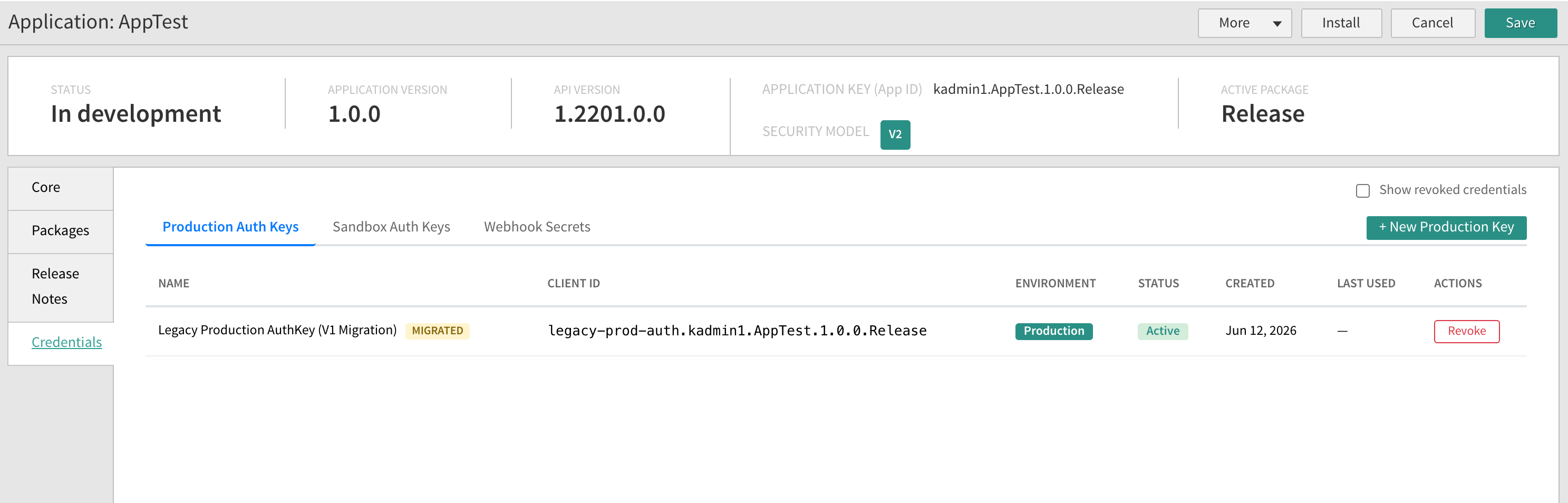
After an app is upgraded, its **Security Model** shows **V2** in the Application Editor dashboard, and a **Credentials** tab is added where you manage environment-specific auth keys and webhook secrets.
### Environment-Separated Credentials
In the V2 model, an application has distinct authentication keys for each environment, managed on separate tabs in the **Credentials** view:
* **Production Auth Keys** authenticate only against Production tenants.
* **Sandbox Auth Keys** authenticate only against Sandbox tenants.
Because the credentials are separate, a developer who has access to Sandbox credentials does not automatically have Production credentials. This lets you give teams the access they need without exposing production systems.
### Application Key vs. Client ID
A V2 application uses two related identifiers:
* **Application Key (App ID):** The immutable identifier for the app (for example, `kadmin1.AppTest.1.0.0.Release`). It never changes and is used for logging, reporting, and permissions.
* **Client ID:** The identifier for a specific credential. Each credential has its own Client ID that can be rotated or revoked independently. The Client ID is formed by prefixing the key's name to the Application Key, for example `NewKey.kadmin1.AppTest.1.0.0.Release`. The environment a credential belongs to is shown in its own column and by the Production and Sandbox tabs, rather than in the Client ID itself.
Usage reporting always aggregates by Application Key, regardless of which Client ID was used to authenticate.
### Upgrade an Application to V2
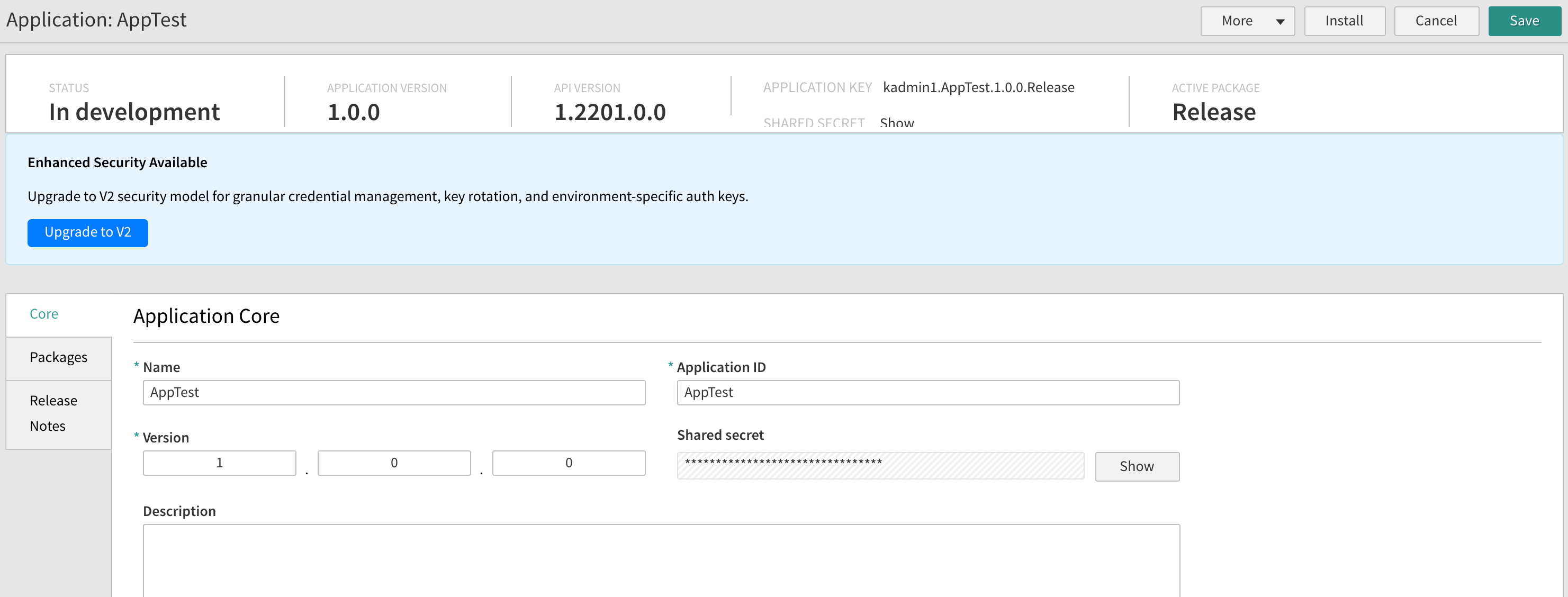
When you are ready to adopt the enhanced security model, use the **Upgrade to V2** action in the Enhanced Security Available banner on the application's **Core** tab.
Upgrading V1 shared credentials to V2 will permanently and irrevocably hide the V1 Shared Secret. Store your V1 credentials safely before you upgrade. The V1 credentials will continue to function. To comply with security guidelines you must migrate from V1 to V2 credentials, issue new V2 credentials for all your apps, and adopt the V2 credentials.
 * Upgrading is a **one-way** operation. After an app is upgraded to V2, it cannot return to the V1 shared-secret model.
* Existing integrations keep working during the upgrade. Your current V1 application key and shared secret are migrated into the V2 structure as **Legacy** credentials, so running connections are not interrupted.
* After upgrading, the Legacy credentials are independent of one another. To complete the security improvements, rotate each one to a new, unique value. Rotating one credential does not affect the others, so you can migrate piece by piece.
To upgrade an application:
1. Log in to Dev Center.
2. Click **Develop** > **Applications**.
3. Double-click the application you want to upgrade.
4. Reveal and note the current V1 Shared Secret, and store it via a safe method.
5. On the **Core** tab, in the Enhanced Security Available banner, click **Upgrade to V2**. This hides the V1 Shared Secret. The V1 secret is permanently and irrevocably hidden, and continues to function.
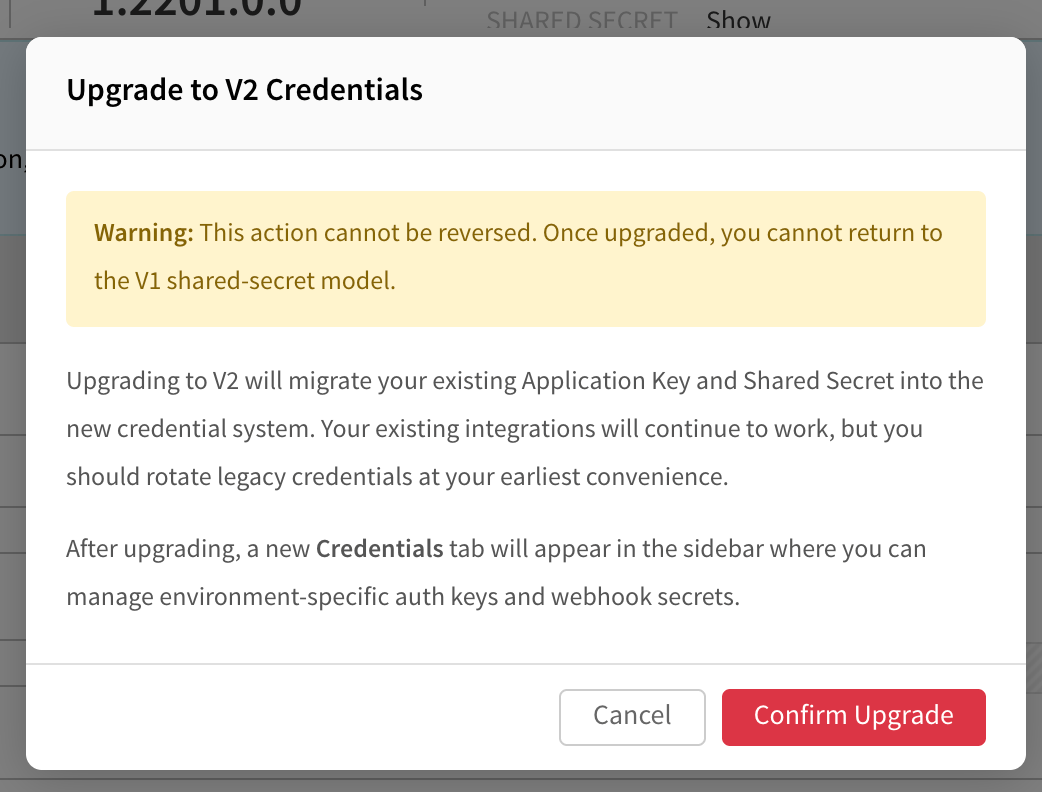
6. In the **Upgrade to V2 Credentials** dialog, review the warning that the action cannot be reversed, then click **Confirm Upgrade**.
* Upgrading is a **one-way** operation. After an app is upgraded to V2, it cannot return to the V1 shared-secret model.
* Existing integrations keep working during the upgrade. Your current V1 application key and shared secret are migrated into the V2 structure as **Legacy** credentials, so running connections are not interrupted.
* After upgrading, the Legacy credentials are independent of one another. To complete the security improvements, rotate each one to a new, unique value. Rotating one credential does not affect the others, so you can migrate piece by piece.
To upgrade an application:
1. Log in to Dev Center.
2. Click **Develop** > **Applications**.
3. Double-click the application you want to upgrade.
4. Reveal and note the current V1 Shared Secret, and store it via a safe method.
5. On the **Core** tab, in the Enhanced Security Available banner, click **Upgrade to V2**. This hides the V1 Shared Secret. The V1 secret is permanently and irrevocably hidden, and continues to function.
6. In the **Upgrade to V2 Credentials** dialog, review the warning that the action cannot be reversed, then click **Confirm Upgrade**.
 After upgrading, open the new **Credentials** tab. Your former V1 shared secret appears as a migrated Legacy credential, marked **MIGRATED**, so existing integrations keep working while you transition.
 ### Generate a Credential
Each environment can have more than one active key, which is what enables zero-downtime rotation. To add a credential:
1. On the **Credentials** tab, select the **Production Auth Keys**, **Sandbox Auth Keys**, or **Webhook Secrets** tab.
2. Click **+ New Production Key** (or the equivalent button for the selected tab).
3. Enter a **Name** and an optional **Label**, then click **Create**.
### Generate a Credential
Each environment can have more than one active key, which is what enables zero-downtime rotation. To add a credential:
1. On the **Credentials** tab, select the **Production Auth Keys**, **Sandbox Auth Keys**, or **Webhook Secrets** tab.
2. Click **+ New Production Key** (or the equivalent button for the selected tab).
3. Enter a **Name** and an optional **Label**, then click **Create**.
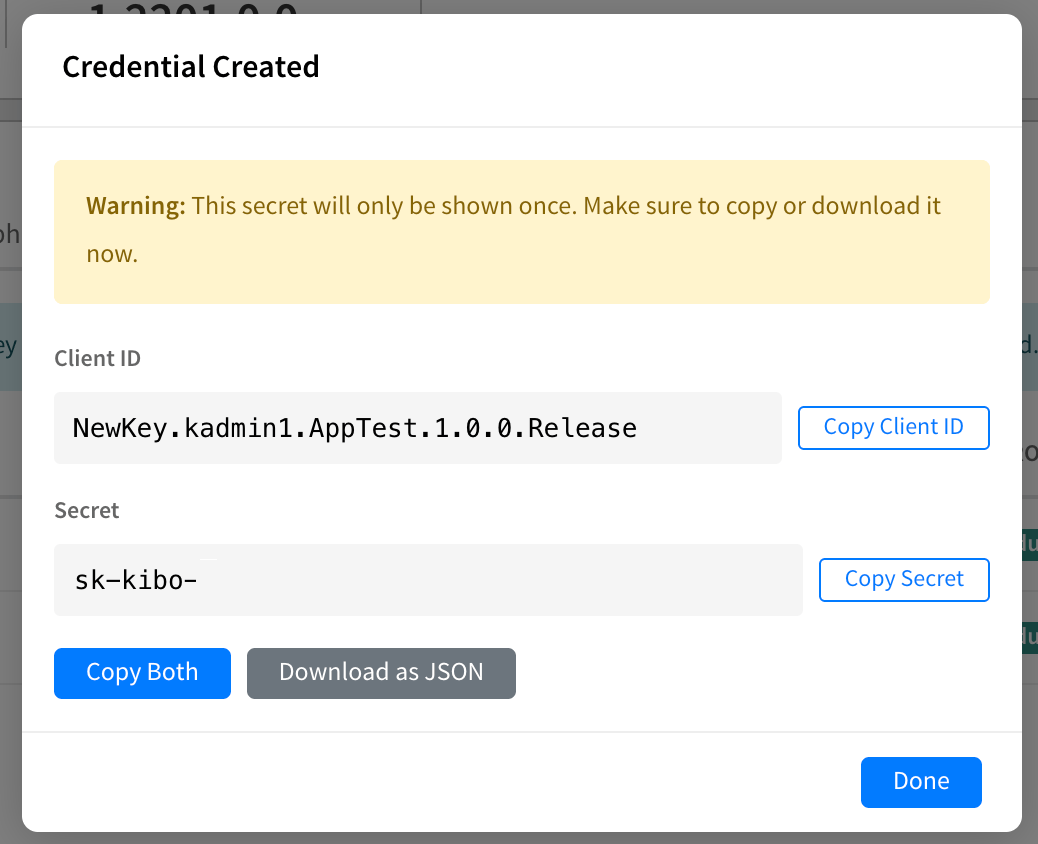
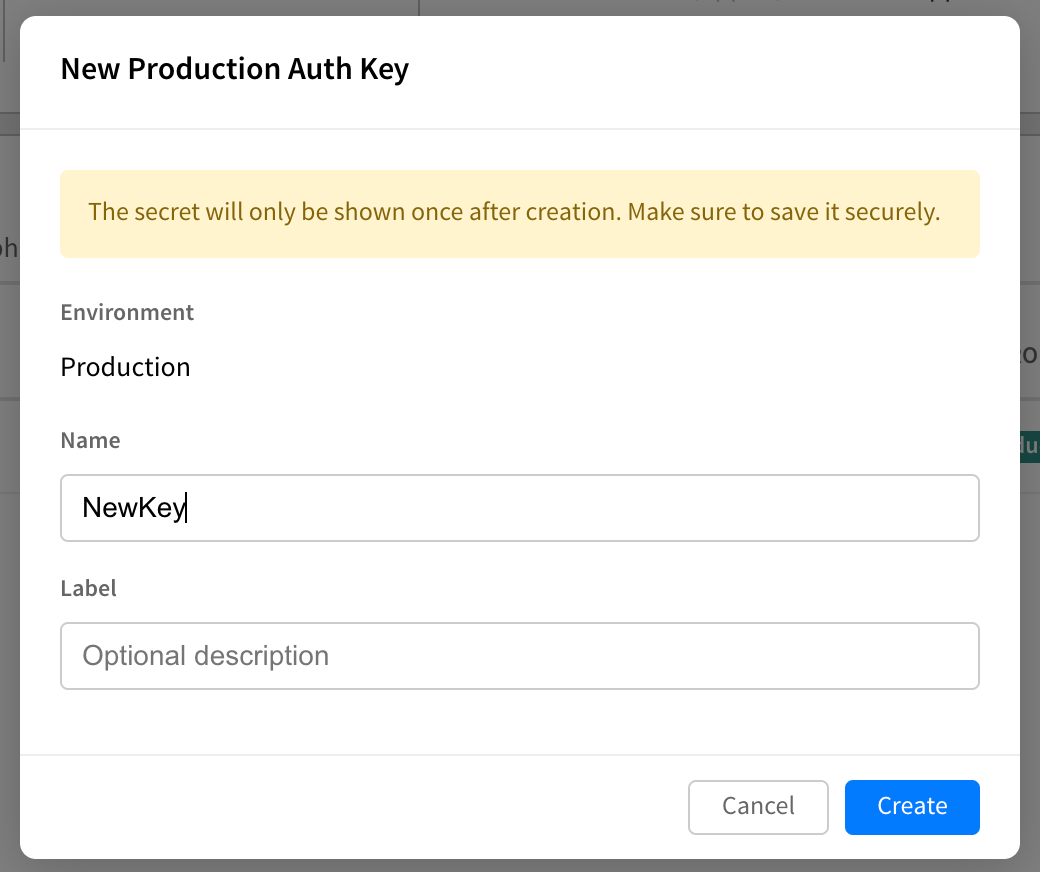 The secret is displayed **one time only**. Use **Copy Secret**, **Copy Both**, or **Download as JSON** to save it securely, then click **Done**. Kibo does not store secrets in a recoverable form, so a secret cannot be shown again or retrieved later. If you lose a secret, generate a new credential to replace it.
 ### Rotate and Revoke Keys
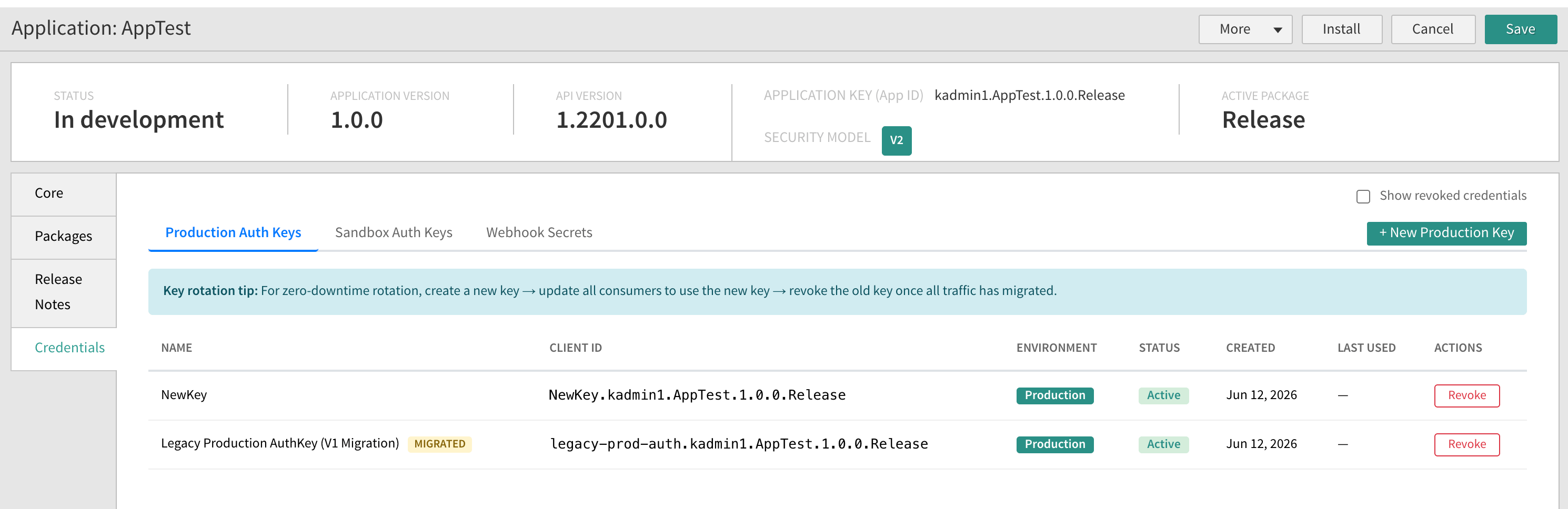
Each credential in the key list shows the following details:
| Field | Description |
| ----------- | ------------------------------------------------------------------------------------------------ |
| Name | The label you assigned to identify the key's purpose (for example, "NewKey"). |
| Client ID | The full Client ID for the credential. |
| Environment | The environment the credential authenticates against (Production or Sandbox). |
| Status | Whether the credential is Active or Revoked. |
| Created | When the credential was generated. |
| Last used | When the credential last authenticated, which helps you identify keys that are no longer in use. |
Select **Show revoked credentials** to include previously revoked keys in the list.
To rotate a key with zero downtime:
1. Create a new key for the environment and save its secret.
2. Update your application or service to use the new Client ID and secret.
3. Revoke the old key once all traffic has moved to the new one.
### Rotate and Revoke Keys
Each credential in the key list shows the following details:
| Field | Description |
| ----------- | ------------------------------------------------------------------------------------------------ |
| Name | The label you assigned to identify the key's purpose (for example, "NewKey"). |
| Client ID | The full Client ID for the credential. |
| Environment | The environment the credential authenticates against (Production or Sandbox). |
| Status | Whether the credential is Active or Revoked. |
| Created | When the credential was generated. |
| Last used | When the credential last authenticated, which helps you identify keys that are no longer in use. |
Select **Show revoked credentials** to include previously revoked keys in the list.
To rotate a key with zero downtime:
1. Create a new key for the environment and save its secret.
2. Update your application or service to use the new Client ID and secret.
3. Revoke the old key once all traffic has moved to the new one.
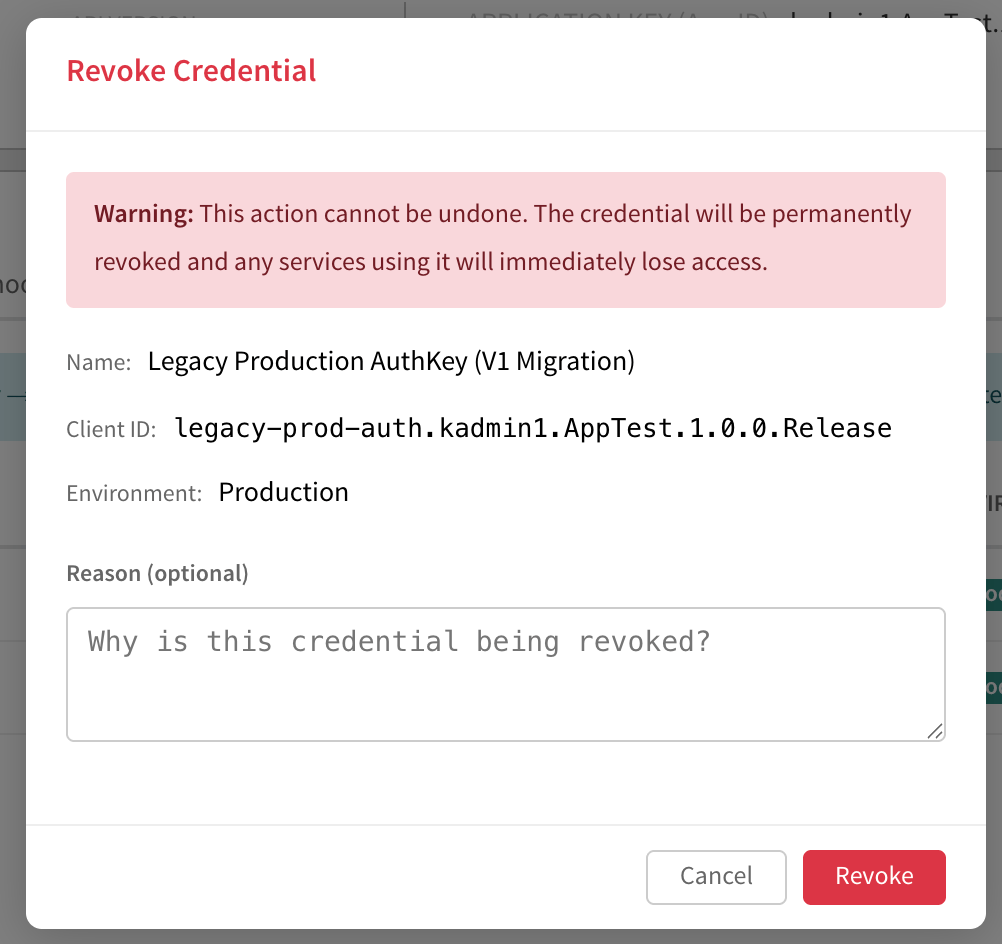
 To revoke a key, click **Revoke** in its row, optionally enter a reason, and confirm. Revoking cannot be undone, and any service still using the credential immediately loses access, so confirm the new key is in use first.
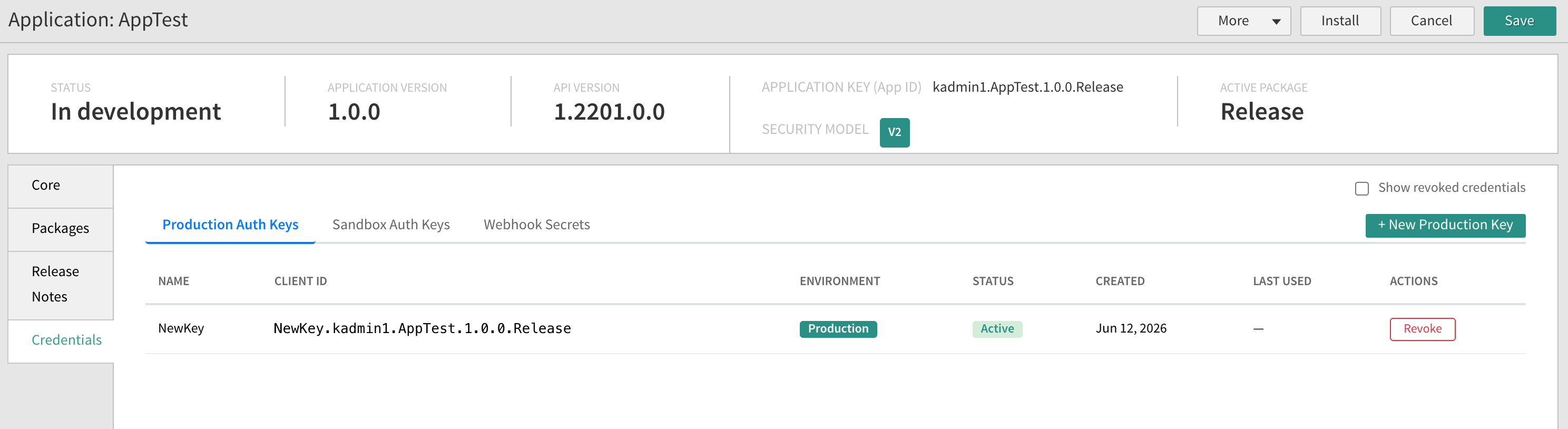
 After you revoke the legacy credential, only your new, securely stored keys remain active.
 ### Webhook Signing Secret
V2 provides a dedicated signing secret for verifying webhooks, managed on the **Webhook Secrets** tab and separate from your authentication credentials. Each environment has its own webhook signing secret, and it can be rotated independently of your auth keys. For details on verifying webhook signatures, see [Verify Event Authenticity](/pages/application-development-best-practices#verify-event-authenticity).
## IP Filtering
IP filtering lets a Developer Account owner restrict where application credentials can authenticate from. If a key is leaked, it is useless from any network or country that is not on the allow list. You define reusable **IP Policies** at the account level and then assign them to one or more applications.
IP filtering protects application (API) credentials in Dev Center. To restrict access to Admin and storefronts by IP address instead, see [IP Restrictions](/pages/ip-restrictions).
### Account-Level Policies
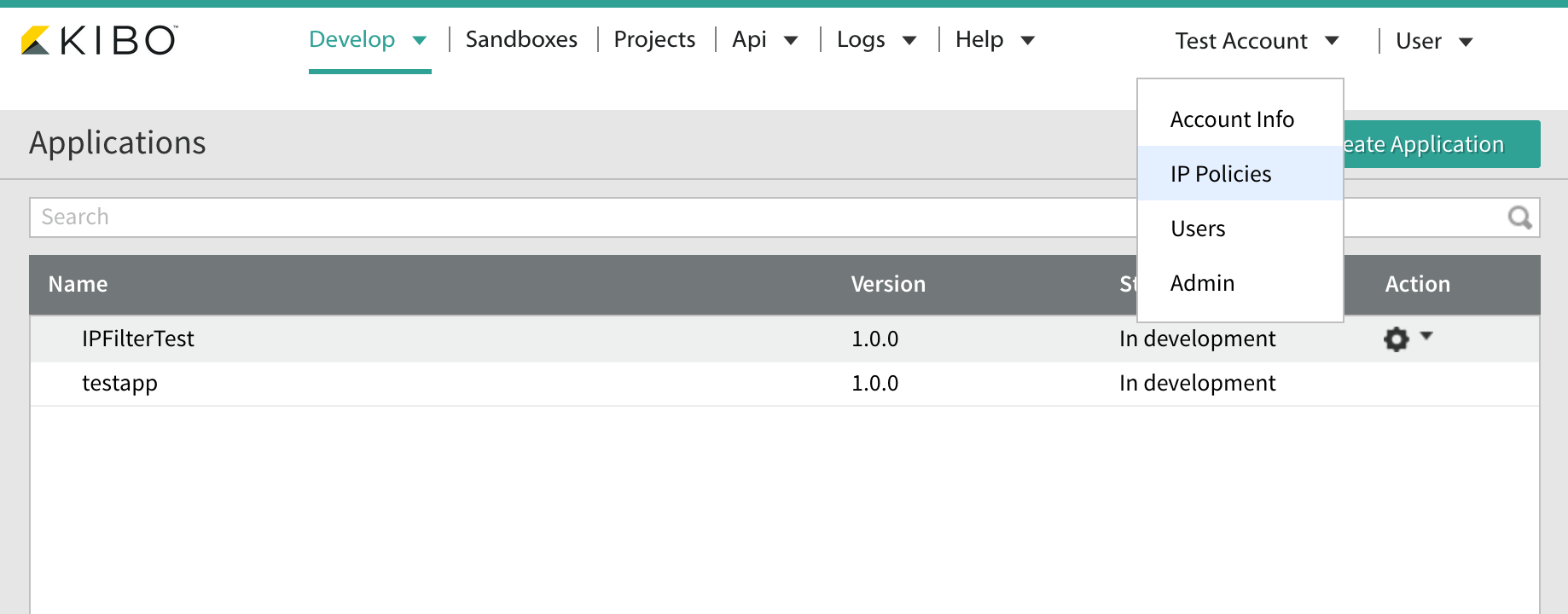
An IP Policy is a named set of allow rules that you can reuse across applications. To manage policies, in Dev Center click the account name drop-down menu (top-right) and select **IP Policies**.
### Webhook Signing Secret
V2 provides a dedicated signing secret for verifying webhooks, managed on the **Webhook Secrets** tab and separate from your authentication credentials. Each environment has its own webhook signing secret, and it can be rotated independently of your auth keys. For details on verifying webhook signatures, see [Verify Event Authenticity](/pages/application-development-best-practices#verify-event-authenticity).
## IP Filtering
IP filtering lets a Developer Account owner restrict where application credentials can authenticate from. If a key is leaked, it is useless from any network or country that is not on the allow list. You define reusable **IP Policies** at the account level and then assign them to one or more applications.
IP filtering protects application (API) credentials in Dev Center. To restrict access to Admin and storefronts by IP address instead, see [IP Restrictions](/pages/ip-restrictions).
### Account-Level Policies
An IP Policy is a named set of allow rules that you can reuse across applications. To manage policies, in Dev Center click the account name drop-down menu (top-right) and select **IP Policies**.
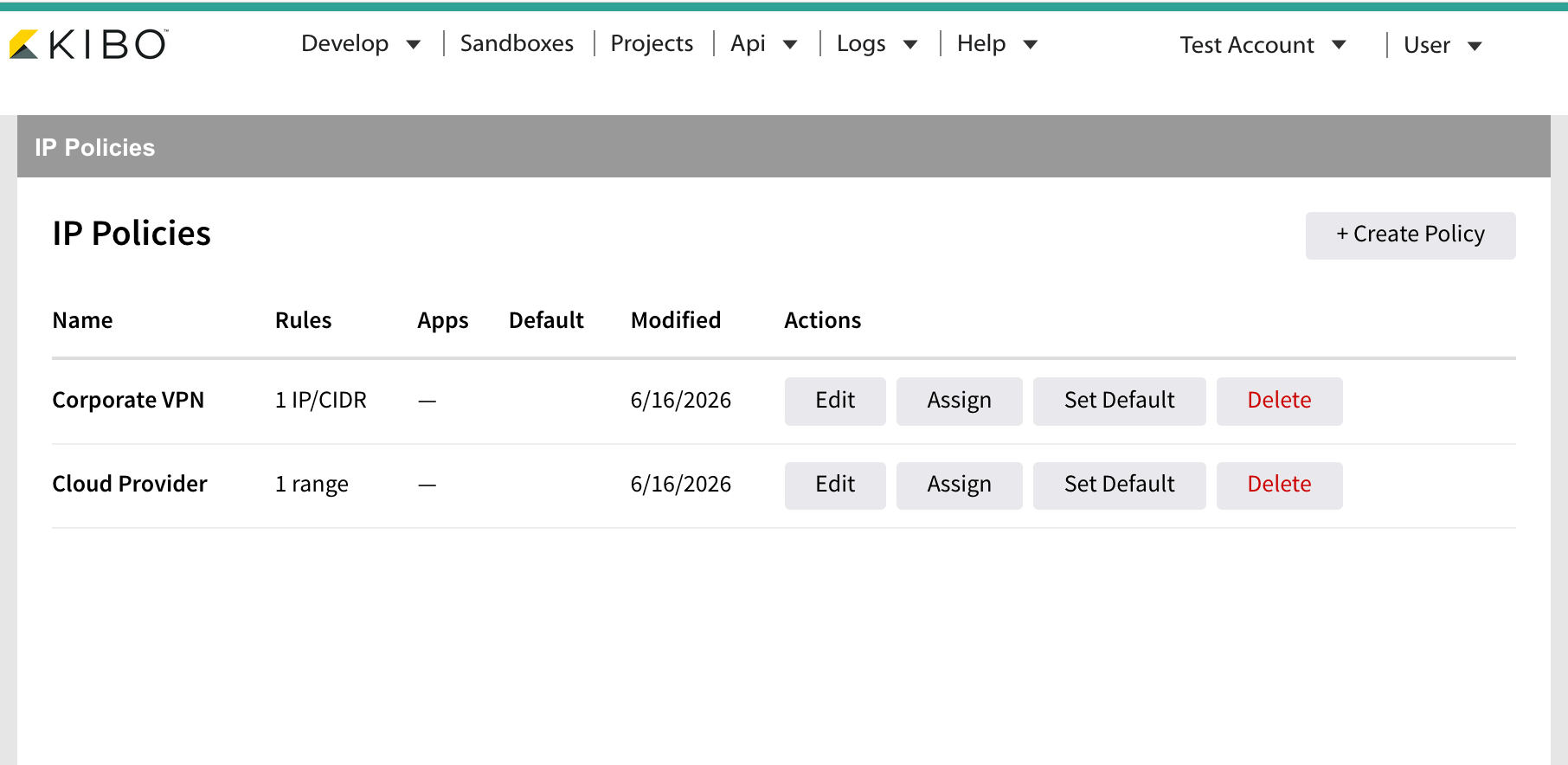
 The IP Policies page lists your existing policies, the rules and assigned apps for each, and the actions available to manage them.
 #### Create a Policy
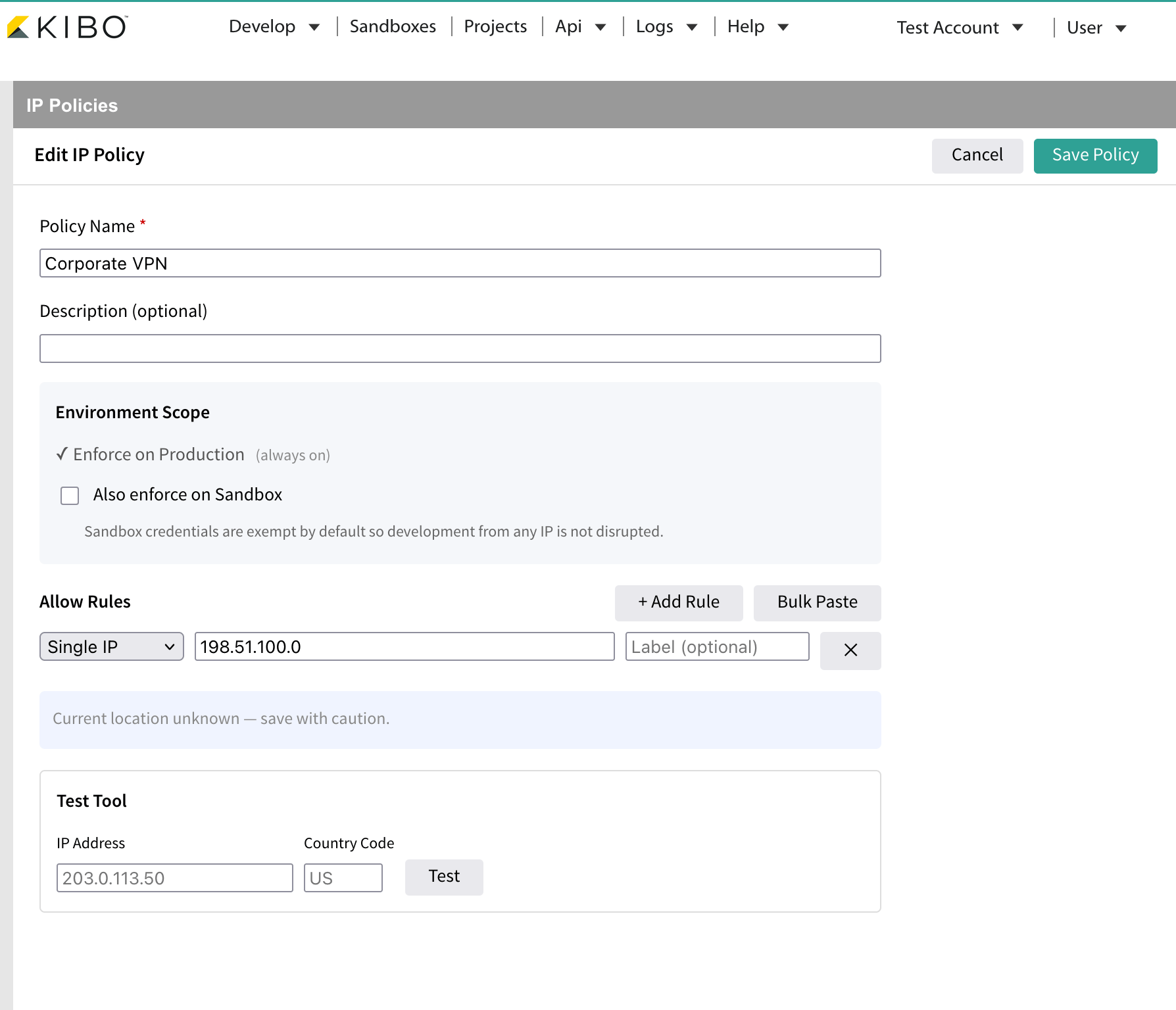
1. Click **+ Create Policy** (or **Create Your First Policy** on an empty account).
2. Enter a **Policy Name** (required) and an optional description.
3. Under **Environment Scope**, enforcement on Production is always on. Select **Also enforce on Sandbox** if you want the policy to apply to Sandbox credentials too. This is off by default so that development from any IP is not disrupted.
4. Add at least one allow rule with **+ Add Rule**. Each rule can be one of the following types:
| Rule type | Format | Example |
| --------- | ------------------ | ----------------------------------- |
| Single IP | IPv4 or IPv6 | `203.0.113.7` |
| CIDR | IP/prefix | `203.0.113.0/24` or `2001:db8::/32` |
| IP Range | start – end | `203.0.113.10 - 203.0.113.50` |
| Country | ISO 3166-1 alpha-2 | `US` |
You can also paste a list of IPs, CIDRs, ranges, or country codes at once with **Bulk Paste**.
5. Use the **Test Tool** at the bottom of the editor to verify whether a given IP or country code would be allowed before you save.
6. Click **Save Policy**. If your current IP would be blocked by the rules you are saving, a lockout warning appears and requires explicit confirmation before saving.
#### Create a Policy
1. Click **+ Create Policy** (or **Create Your First Policy** on an empty account).
2. Enter a **Policy Name** (required) and an optional description.
3. Under **Environment Scope**, enforcement on Production is always on. Select **Also enforce on Sandbox** if you want the policy to apply to Sandbox credentials too. This is off by default so that development from any IP is not disrupted.
4. Add at least one allow rule with **+ Add Rule**. Each rule can be one of the following types:
| Rule type | Format | Example |
| --------- | ------------------ | ----------------------------------- |
| Single IP | IPv4 or IPv6 | `203.0.113.7` |
| CIDR | IP/prefix | `203.0.113.0/24` or `2001:db8::/32` |
| IP Range | start – end | `203.0.113.10 - 203.0.113.50` |
| Country | ISO 3166-1 alpha-2 | `US` |
You can also paste a list of IPs, CIDRs, ranges, or country codes at once with **Bulk Paste**.
5. Use the **Test Tool** at the bottom of the editor to verify whether a given IP or country code would be allowed before you save.
6. Click **Save Policy**. If your current IP would be blocked by the rules you are saving, a lockout warning appears and requires explicit confirmation before saving.
 #### Manage Policies
| Action | How |
| --------------------- | ----------------------------------------------------------------- |
| Edit rules | Click **Edit** on a policy row. |
| Assign to apps | Click **Assign**, select apps, then click **Assign to N apps**. |
| Set account default | Click **Set Default**, review the impact count, then confirm. |
| Clear account default | Click **Clear Default** on the default policy. |
| Delete | Click **Delete** (disabled if the policy is the account default). |
Applications with no explicit policy assignment inherit the **account default**. Setting a new default is a high-impact action, so the UI shows how many currently-open apps will start enforcing before you confirm.
### Per-App IP Filtering
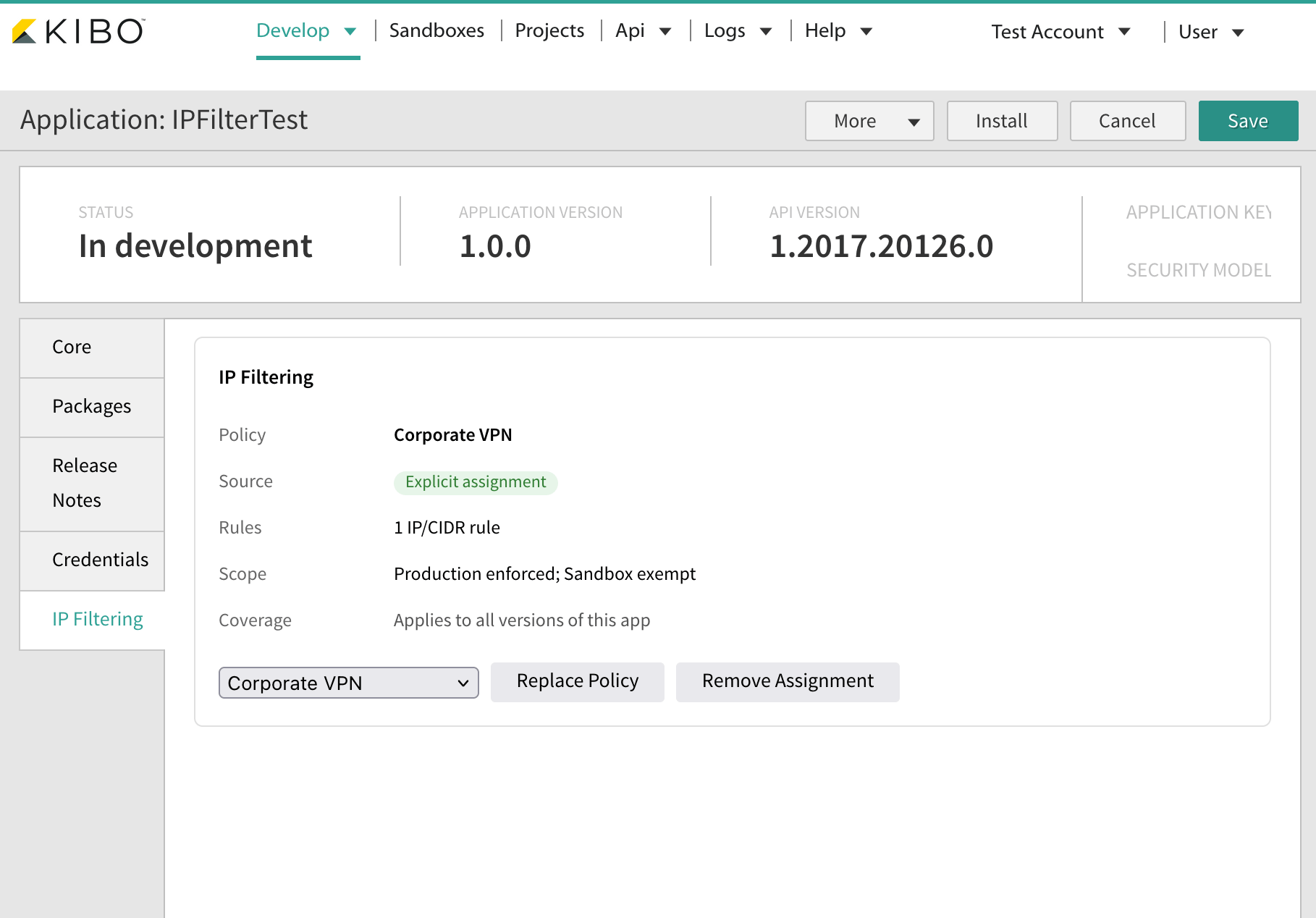
On any application's edit page, click the **IP Filtering** tab in the left sidebar to see the policy in effect for that app:
* **Policy** is the effective policy name.
* **Source** is either `Explicit assignment` (set directly on this app) or `Inherited from account default`.
* **Rules** summarizes the rules (for example, "2 IP/CIDR, 1 range").
* **Scope** shows that Production is enforced and Sandbox is exempt unless the policy opts in.
* **Coverage** confirms the policy applies to all versions of the app automatically.
To assign or replace a policy, select it from the drop-down menu and click **Assign Policy** or **Replace Policy**. To remove an explicit assignment so the app falls back to the account default (or to open access), click **Remove Assignment**.
#### Manage Policies
| Action | How |
| --------------------- | ----------------------------------------------------------------- |
| Edit rules | Click **Edit** on a policy row. |
| Assign to apps | Click **Assign**, select apps, then click **Assign to N apps**. |
| Set account default | Click **Set Default**, review the impact count, then confirm. |
| Clear account default | Click **Clear Default** on the default policy. |
| Delete | Click **Delete** (disabled if the policy is the account default). |
Applications with no explicit policy assignment inherit the **account default**. Setting a new default is a high-impact action, so the UI shows how many currently-open apps will start enforcing before you confirm.
### Per-App IP Filtering
On any application's edit page, click the **IP Filtering** tab in the left sidebar to see the policy in effect for that app:
* **Policy** is the effective policy name.
* **Source** is either `Explicit assignment` (set directly on this app) or `Inherited from account default`.
* **Rules** summarizes the rules (for example, "2 IP/CIDR, 1 range").
* **Scope** shows that Production is enforced and Sandbox is exempt unless the policy opts in.
* **Coverage** confirms the policy applies to all versions of the app automatically.
To assign or replace a policy, select it from the drop-down menu and click **Assign Policy** or **Replace Policy**. To remove an explicit assignment so the app falls back to the account default (or to open access), click **Remove Assignment**.
 ### Enforcement
* Enforcement is **immediate and a hard block** — there is no monitor-only mode.
* All credentials of every version of an assigned app are covered. There is no per-version or per-credential override.
* **Sandbox credentials** are exempt unless the policy's **Also enforce on Sandbox** option is set.
* Internal and service-to-service authentication paths are exempt from enforcement.
* Country rules apply only to traffic that transits Cloudflare, whereas IP rules apply on all paths.
### Tips
* Use the **Test Tool** before you assign a policy to production apps.
* Always review the **lockout warning** — it shows whether your current IP or country would be blocked by the rules you are saving.
* After you change the rules on an existing policy, the lockout banner indicates the check is stale until you save and re-open the editor.
## App Documentation
The [Apps & Integrations documentation](/pages/applications-1a6c791-introduction) provides a library of integrations for the Kibo Composable Commerce Platform, including applications developed by both Kibo and third parties to extend the functionality of your site and evaluate the capabilities of solution partners to enhance the functionality of your storefront.
If you already have a Dev Center account, you can install licensed applications on a sandbox by selecting them in the Dev Center. You can also install them from another Developer Account to which you’ve been granted access. Refer to [Install an Application](#install_an_application) for more information.
Note that:
* Some applications require [API Extensions](/pages/what-you-can-do-with-api-extensions "What You Can Do With API Extensions"). You cannot install these applications if your tenant doesn't have API Extensions enabled.
* Some Kibo-developed applications and integrations need to be configured after installation. Refer to the application's documentation for more information.
* Contact [Kibo Support](https://help.kibocommerce.com/) for assistance installing and configuring apps as needed.
## Collaborative Application Development
Dev Center lets you work collaboratively to create applications. Kibo uses the concept of "file-based applications" which means you can download a file-based representation of the application definition to work on collaboratively with your team using your own source control process.
There are two types of packages:
**Release packages**: Release packages contain all the files the developer intends to upload when submitting a theme for final certification.
**Development packages**: Adding a development package lets you have your own unique workspace with your own details, behaviors, events, attributes, and capabilities. If you want to share package elements between packages, you can clone a package.
Here is how this works:
1. Download the Release Package set of files and managed these file locally using a source control system.
2. Create packages on the Packages tab for each developer.
3. Divide the files and assign individual packages between developers within the same Dev account. Each package represents an individual work space where a developer can upload and download his files as needed for application development.
4. Each developer works on the assigned files individually within the developer's package.
5. When the developer finishes, the developer works with the local source control system to merge his work into the source control system.
6. Upload the files that compose the Release Package back into Dev Center.
7. Because this is a fluid process, work continues in this fashion until the application is complete.
## Create an Application
You must give an application a unique name and ID.
1. Log in to Dev Center.
2. Click **Develop** > **Applications** > **Create Application**.
3. Enter a unique application name and ID.
4. Click **Save**.
## Configure Package Details
1. Log in to Dev Center.
2. Click **Develop** > **Applications**.
3. Double-click the application you want to configure.
4. Click the **Packages** tab.
5. If your application includes a graphical interface that the client must user to configure the application, enter the URL in the **Configuration URL** text box.
6. Provide a description of the application’s purpose in the **Package Description** text box.
7. Click **Save**.
Depending on what you want your application to do, additional configuration may be required:
* Select application behaviors
* Subscribe to an event
* Import application attributes
* Create and configure capabilities
### Create a New Package
Whether you create a package to work on an application using the Dev Center user interface or to create a collaborate developer environment, a new package lets you work on an application without affecting the Release package.
A new package does not contain any package details from the Release Package. If you want to create a new package that contains previously created details, behaviors, events, attributes, and capabilities, you need to clone the package. Complete the following procedure to create a new package.
1. Log in to Dev Center
2. Click **Develop** > **Applications**.
3. Double-click the application you want to open.
4. Click the **Packages** tab.
5. Click **New**.
6. Enter a name for the package.
7. Click **Save**.
The new package is listed in the **Active Package** drop-down menu. Always verify you are working in the right package.
### Clone a Package
To copy the details, behaviors, events, attributes, and capabilities of another package:
1. Log in to Dev Center.
2. Click **Develop** > **Applications**.
3. Double-click the application you want to open.
4. Click the **Packages** tab.
5. Select the package you want to clone from the **Active Package** drop-down menu.
6. Click **Clone**.
7. Enter a name for the package.
8. Click **Save**.
The new package is listed in the **Active Package** drop-down menu.
### Rename a Package
You can rename any package, except for the Release Package.
1. Log in to Dev Center.
2. Click **Develop** > **Applications**.
3. Double-click the application you want to rename.
4. Click the **Packages** tab.
5. Select the package you want to rename from the **Active Package** drop-down menu.
6. Click **Rename**.
7. Rename the package.
8. Click **Save**.
The renamed package is listed in the **Active Package** drop-down menu.
### Delete a Package
You can delete any package, except for the Release Package.
1. Log in to Dev Center.
2. Click **Develop** > **Applications**.
3. Double-click the application you want to delete.
4. Click the **Packages** tab.
5. Select the package you want to delete from the **Active Package** drop-down menu.
6. Click **Delete**.
The package is no longer listed in the **Active Package** drop-down menu.
## Select Application Behaviors
[Behaviors](/pages/application-behaviors "Application Behaviors") represent the functions of your application.
1. Log in to Dev Center.
2. Click **Develop** > **Applications**.
3. Double-click the application you want to configure.
4. Click the **Packages** tab.
5. Select the package you want to configure from the **Active Package** drop-down menu.
6. Click the **Behaviors** tab
7. Click **Select Behaviors**.
8. Select a **Behavior category**.
9. Select a **Behavior name**.
10. Repeat for as many behavior categories as necessary.
11. Click **Save**.
The selected behaviors appear in the Behaviors area of the Application Editor. The authentication ticket encrypts the set of application behaviors in the access token.
## Subscribe to an Event
When you configure an endpoint, you can subscribe to one or many events. To view these endpoints after configuration, expand the endpoint from the Events grid on the Events tab. To understand events and why you may want to configure them, refer to [Event Subscription](/pages/event-subscription).
To configure an application endpoint and subscribe to events in Dev Center to receive push notifications:
Only applications in the "In Development" state can be configured.
1. Log in to Dev Center.
2. Click **Develop** > **Applications**.
3. Double-click the application to which you want to add an event subscription.
4. Click the **Packages** tab.
5. Select the package you want to configure from the **Active Package** drop-down menu.
6. Click the **Events** tab.
7. Click **Add Event Subscription**.
8. In the Add Event Subscription dialog box, do the following actions:
1. In the **Endpoint** text box, enter the URL to which push notifications of the event will post.
2. In the **Event category** list, select a category.
3. In the **Event** list, select an event.
4. Repeat for as many event categories as necessary.
5. Click **Save**.
9. Test the event to verify push notifications are sent to the associated endpoint.
When the subscribed event occurs, a notification is sent to the specified endpoint.
## Remove a Registered Event
To remove a registered event from a subscribing application in Dev Center:
Only applications in the "In Development" state can be configured.
1. Log in to Dev Center.
2. Click **Develop** > **Applications**.
3. Double-click the application you want to configure.
4. Select the package you want to configure from the **Active Package** drop-down menu.
5. Click the **Events** tab
6. Select the event you want to delete and then right-click and select **Delete**.
7. Click **Save**.
The subscribed event no longer appears in the grid.
## Import Application Attributes
As you develop your application, you might discover that you require a customer, order, or product attribute for your application's implementation to work. For example, if you are developing a tax capability, you might require each product in a site's catalog to have a defined "tax code" attribute. After you create the custom attributes necessary for your application in your development tenant, you can import them into your application configuration in Dev Center.
When a client installs the application, the installation automatically configures all attributes associated with the application so that the client does not have to recreate them in Admin For example, if an application includes a Boolean product property attribute called "Taxable" and a customer attribute called "Tax exempt," after installing the application, the attribute definitions appear in Admin
When an attribute is configured in Admin and the application which contains the attribute is installed in a sandbox, you can import existing attributes into an application using Dev Center. The Attribute tab lets you import attributes from a sandbox and display the attribute values in the Attributes grid.
| Label | Description |
| --------------- | ------------------------------------------------------------------------------------------------------------------------------------------------------ |
| Attribute name | The attribute name created in Admin |
| Attribute FQN | Either `<_namespace_>`\~`<_attribute name_>` or `<_Dev Account Namespace_>`*`<_Namespace value_>`*`<_Attribute name_>`. |
| Entity | The entity is the attribute category, which is Product, Customer, or Order. |
| Input type | When you create an input type in Admin during the attribute creation process, you can select from List, Text box, Text area, Yes/No, Date. |
| Data type | When you create an input type in Admin during the attribute creation process, you can select from text, number. dateTime, or string. |
| Attribute value | This displays the attribute value set up in Admin when the attribute was configured. These values vary depending on the selected input and data types. |
| Actions | Use the Gear icon to select a Delete action. |
When you import attributes from a sandbox, the sandbox you select has an impact on what displays in the form. If you change the selected sandbox, then the attributes that were previously listed are lost. When you select "Import," it always overwrites whatever is currently in the application with whatever you choose in this task. The attribute namespace lets you configure either a unique namespace or lets you share a namespace with other applications or attributes. When you use the same attribute namespace, you share data. Complete the following procedure to import the customer, order, and product attributes required for your application into the application's configuration.
Attributes must have unique names. Importing attributes with names that match attribute names that already exist in your application will fail. Depending on what release you are using, your options may vary.
You must define the attributes in Admin and you must have a configured sandbox that includes attributes that you can import.
To import application attributes:
1. Log in to Dev Center.
2. Click **Develop** > **Applications**.
3. Double-click the application where you want to import attributes.
4. Click the **Packages** tab.
5. Select the package you want to configure from the **Active Package** drop-down menu.
6. Click the **Attributes** tab.
7. Enter a namespace in the **Attribute Namespace** text box.
8. Click **Import from Sandbox**.
9. In the Import from Sandbox dialog box:
1. Click **Select Sandbox**.
2. Select a sandbox and click **OK**.
3. Select a category from the **Attribute Category** drop-down menu.
4. Select the attributes to import from the Attributes list.
10. Click **Import**.
The attributes imported from the tenant display in the Application editor under Attributes. Previously, if you imported attributes the Attribute FQN would consist of the `<_namespace_>` \~`<_attribute name_>`. Now, applications use `<_Dev Account namespace_>`*`<_namespace value_>`*`<_attribute name_>`.
## Download Application Files
If you want to manage your application development using files rather than the Application Editor, you can download and configure the following files:
* attributes.xml
* behaviors.xml
* capabilities.xml
* core.xml
* events.xml
* packageconfig.xml
To download application files:
1. Log in to Dev Center.
2. Click **Develop** > **Application**.
3. Double-click the application you want to download.
4. Click the **Packages** tab.
5. Select the package you want to download from the **Active Package** drop-down menu.
6. Click **More** > **Download**.
## Manage Capabilities
In Dev Center, you can configure a capability, determine the types of functionality it performs, and configure the endpoints that let Kibo send requests to the capability. The capability configuration process begins after you have created an application and configured the Configuration URL in the Packages tab . When the capability is installed, the merchant can select the countries to enable from the list of supported countries, based on the merchant's implementation. You can edit a capability at anytime by double-clicking it on the Capability configurations grid.
### Create a Capability
In this task, you configure the type of capability and the endpoints to which the capability sends requests.
You must have created an application and configured the Configuration URL prior to configuring the capability.
1. Log in to Dev Center.
2. Click **Develop** > **Applications**.
3. Double-click the application in which you want to configure a capability.
4. Click the **Packages** tab.
5. Select the package you want to configure from the **Active Package** drop-down menu.
6. Click the **Capabilities** tab,
7. Click **Add Capability**.
8. Select a capability from the drop-down menu and click **OK**.
9. In the specific capability dialog box, enter the endpoint for the capability in the **`` endpoint URL** text box.
10. Configure other capability options (if required).
11. Click **Save**.
This automatically creates the first version of your capability.
### Remove a Capability
To remove a capability:
1. Log in to Dev Center.
2. Click **Develop** > **Applications**.
3. Double-click the application that contains the capability you want to remove.
4. Click the **Packages** tab.
5. Select the package you want to configure from the **Active Package** drop-down menu.
6. Click the **Capabilities** tab.
7. Right-click the capability you want to remove and select **Remove**.
The capability no longer displays in the Capability list on the Capability tab.
### Install a Capability
To install a capability in a sandbox:
1. Log in to Dev Center.
2. Click **Develop** > **Applications**.
3. Double-click the application that contains the capability you want to install in a sandbox.
4. Click **Install**.
5. Select a sandbox from the list and click **OK**.
Installing the capability in a sandbox lets you configure, initialize, and enable the capability the same way a merchant would after installing it in their tenant or site environment.
### Select Active Settings
Complete the following procedure to select the active capability settings from a subset of values supported by the capability.
1. Log in to Dev Center.
2. Click **Sandboxes**.
3. Right-click the sandbox in which you installed the capability and click **View**.
4. In Admin, click **Settings** > **Applications**.
5. Expand the capability type category and click the capability.
6. For each country, shipping carrier, or credit type you want to enable for the capability (depending on its capability mode), select the item to highlight it. If it is highlighted in blue, it is active.
7. Click **Save**.
### Configure a Capability
Complete the following procedure to access the capability configuration page you defined in Dev Center and configure the capability settings. The configuration URL must be defined in Dev Center.
1. In Admin, for the capability, click **Configure**.
2. Define the settings for the capability and click **Save**.
### Initialize a Capability
Complete the following procedure to initialize a capability with active settings and configuration.
1. Log in to Dev Center.
2. Click **Sandboxes**.
3. Right-click the sandbox where you installed the capability and select **View**.
4. In Admin, click **Settings** > **Applications**.
5. Click the application that contains the capability you want to initialize.
6. Click **Configuration**.
7. Use the custom code provided by the third-party capability provider to initialize your capability. When the capability initializes, the Enable App button activates.
8. Click **Enable App**.
Your capability is initialized and your application is enabled for use.
### Enable a Capability
To enable the capability to perform functionality for the installed sandbox tenant or site, complete the following procedure. If the **Enable App** button is grayed out, you must first [initialize](#initialize-a-capability) your application.
1. In Admin, click **Settings** > **Applications** and click the application.
2. Verify the application Initialized status is set to "Yes".
3. Click **Enable App**.
After completing this procedure, the capability is ready to use.
## Upload File-Based Applications
You can create and define an application using the Dev Center user interface, or you can [download](#download-application-files) a file-based representation of the application definition, edit the files in your local development environment, and upload them to Dev Center.
When you are ready to upload application files, you must:
* Ensure you include *core.xml* and *packageconfig.xml* in every upload.
* Create a zipped package of your files.
* Include only one package. If not, your upload fails and you are prompted to fix your package.
* Match the package to which you are uploading.
* Ensure the package to which you want to upload currently exists.
The upload process ensures that the XML syntax is valid. If the XML is not valid, the upload fails and displays an error. If the validation and upload succeeds, the new settings are displayed in Packages.
You can upload applications using XML files.
You must have a compressed archive of at least one file plus *core.xml* and *packageconfig.xml* ready to upload for this task.
1. Log in to Dev Center.
2. Click **Develop** > **Applications**.
3. Double-click the application to which you want to upload files.
4. Click the **Packages** tab.
5. Select the package you want to upload files to from the **Active Package** drop-down menu.
6. Click **More** > **Upload**.
7. In the file manager, browse to the compressed archive that includes your files.
8. Click **OK**.
9. Click **Upload**.
Your application details are now part of the package to which you uploaded the compressed archive.
## Create a Change Note
As you make changes to your application or theme, it’s a good idea to note the changes you make or any special instructions for working with application.
1. Log in to Dev Center.
2. Click **Develop** > **Applications**.
3. Double-click the application to which you want to add a change note.
4. Click the **Packages** tab.
5. Select the package to which you want to add a change note from the **Active Package** drop-down menu.
6. Click the **Release Notes** tab.
7. Click **Create Change Note**.
8. Enter comments about the change you made.
9. Click **Save**.
Each note displays the change comment, lists the account that made the change, and displays the date the change was made.
## Create a New Version of a Certified Application
When you create an application for the first time in Dev Center, this is the first available version of the application. When coding is finished, you submit the application version for certification. If the application passes certification, it can be promoted to a production environment (in the case of tenant-specific custom applications).
After you certify an application, you can create a new version. Kibo allows for semantic versioning (Major.Minor.Revision). How you version your application is up to your in-house versioning practices. New versions must use a unique number. Complete the following procedure to create a new version. Versioning is not automatic, it is a manual process.
1. Log in to Dev Center.
2. Click **Develop** > **Applications**.
3. Right-click the application you want to version and select **Create new version**.
4. In the Application editor, enter the new version number.
5. Click **Save**.
You now have a new version of your application that is in the “In development” state and must be resubmitted for certification.
## Install an Application
There’s more than one way to install an application on a sandbox. The most common way is to select from a list of applications in your Developer Account, but you can also install some licensed applications directly from another Developer Account to which you’ve been granted access.
To select an application to install from your Developer Account:
1. Click **Develop** > **Applications**.
2. Double-click the application you want to install.
3. Click **Install**.
4. Select the sandbox where you want to install the application and click **OK**.
5. Click **Sandboxes**.
6. Select your sandbox.
7. Click **View Sandbox**.
8. In Admin, to enable your application, click **Settings** > **Applications**.
9. In the Applications page, verify the your application appears in the list.
10. Double-click the application.
11. Click **Enable App**.
Your application is now installed and enabled.
To select a licensed application from another Developer Account:
1. Log in to Dev Center.
2. Click **Sandboxes**.
3. Double-click the sandbox where you want to install an application.
4. Click the **Installed Assets** tab.
5. Click **Install App**.
6. Select an account from the **Developer Account** drop-down menu.
7. Select the application you want to install and click **OK**.
8. Select your sandbox.
9. Click **View Sandbox**.
10. In Admin, to enable your application, click **Settings** > **Applications**.
11. In the Applications page, verify the your application appears in the list.
12. Double-click the application.
13. Click **Enable App**.
Your application is now installed and enabled.
## Submit an Application for Certification
When you finish developing your application and have completed the store profile, you can submit your application to the certification process. Once you submit your application for certification, the team reviews and certifies that it meets the criteria.
When you submit your application, the application version is locked. You cannot modify this version once you submit it. If you have questions about the certification process, please consult with your Account Executive or your Partner Manager.
1. Log in to Dev Center.
2. Click **Develop** > **Applications**.
3. Double-click the application you want to submit for certification.
4. Click **More** > **Submit for certification**.
5. Click **Submit for Certification**.
The application moves into the “Pending certification” state. The following diagram represents the application certification lifecycle:
### Enforcement
* Enforcement is **immediate and a hard block** — there is no monitor-only mode.
* All credentials of every version of an assigned app are covered. There is no per-version or per-credential override.
* **Sandbox credentials** are exempt unless the policy's **Also enforce on Sandbox** option is set.
* Internal and service-to-service authentication paths are exempt from enforcement.
* Country rules apply only to traffic that transits Cloudflare, whereas IP rules apply on all paths.
### Tips
* Use the **Test Tool** before you assign a policy to production apps.
* Always review the **lockout warning** — it shows whether your current IP or country would be blocked by the rules you are saving.
* After you change the rules on an existing policy, the lockout banner indicates the check is stale until you save and re-open the editor.
## App Documentation
The [Apps & Integrations documentation](/pages/applications-1a6c791-introduction) provides a library of integrations for the Kibo Composable Commerce Platform, including applications developed by both Kibo and third parties to extend the functionality of your site and evaluate the capabilities of solution partners to enhance the functionality of your storefront.
If you already have a Dev Center account, you can install licensed applications on a sandbox by selecting them in the Dev Center. You can also install them from another Developer Account to which you’ve been granted access. Refer to [Install an Application](#install_an_application) for more information.
Note that:
* Some applications require [API Extensions](/pages/what-you-can-do-with-api-extensions "What You Can Do With API Extensions"). You cannot install these applications if your tenant doesn't have API Extensions enabled.
* Some Kibo-developed applications and integrations need to be configured after installation. Refer to the application's documentation for more information.
* Contact [Kibo Support](https://help.kibocommerce.com/) for assistance installing and configuring apps as needed.
## Collaborative Application Development
Dev Center lets you work collaboratively to create applications. Kibo uses the concept of "file-based applications" which means you can download a file-based representation of the application definition to work on collaboratively with your team using your own source control process.
There are two types of packages:
**Release packages**: Release packages contain all the files the developer intends to upload when submitting a theme for final certification.
**Development packages**: Adding a development package lets you have your own unique workspace with your own details, behaviors, events, attributes, and capabilities. If you want to share package elements between packages, you can clone a package.
Here is how this works:
1. Download the Release Package set of files and managed these file locally using a source control system.
2. Create packages on the Packages tab for each developer.
3. Divide the files and assign individual packages between developers within the same Dev account. Each package represents an individual work space where a developer can upload and download his files as needed for application development.
4. Each developer works on the assigned files individually within the developer's package.
5. When the developer finishes, the developer works with the local source control system to merge his work into the source control system.
6. Upload the files that compose the Release Package back into Dev Center.
7. Because this is a fluid process, work continues in this fashion until the application is complete.
## Create an Application
You must give an application a unique name and ID.
1. Log in to Dev Center.
2. Click **Develop** > **Applications** > **Create Application**.
3. Enter a unique application name and ID.
4. Click **Save**.
## Configure Package Details
1. Log in to Dev Center.
2. Click **Develop** > **Applications**.
3. Double-click the application you want to configure.
4. Click the **Packages** tab.
5. If your application includes a graphical interface that the client must user to configure the application, enter the URL in the **Configuration URL** text box.
6. Provide a description of the application’s purpose in the **Package Description** text box.
7. Click **Save**.
Depending on what you want your application to do, additional configuration may be required:
* Select application behaviors
* Subscribe to an event
* Import application attributes
* Create and configure capabilities
### Create a New Package
Whether you create a package to work on an application using the Dev Center user interface or to create a collaborate developer environment, a new package lets you work on an application without affecting the Release package.
A new package does not contain any package details from the Release Package. If you want to create a new package that contains previously created details, behaviors, events, attributes, and capabilities, you need to clone the package. Complete the following procedure to create a new package.
1. Log in to Dev Center
2. Click **Develop** > **Applications**.
3. Double-click the application you want to open.
4. Click the **Packages** tab.
5. Click **New**.
6. Enter a name for the package.
7. Click **Save**.
The new package is listed in the **Active Package** drop-down menu. Always verify you are working in the right package.
### Clone a Package
To copy the details, behaviors, events, attributes, and capabilities of another package:
1. Log in to Dev Center.
2. Click **Develop** > **Applications**.
3. Double-click the application you want to open.
4. Click the **Packages** tab.
5. Select the package you want to clone from the **Active Package** drop-down menu.
6. Click **Clone**.
7. Enter a name for the package.
8. Click **Save**.
The new package is listed in the **Active Package** drop-down menu.
### Rename a Package
You can rename any package, except for the Release Package.
1. Log in to Dev Center.
2. Click **Develop** > **Applications**.
3. Double-click the application you want to rename.
4. Click the **Packages** tab.
5. Select the package you want to rename from the **Active Package** drop-down menu.
6. Click **Rename**.
7. Rename the package.
8. Click **Save**.
The renamed package is listed in the **Active Package** drop-down menu.
### Delete a Package
You can delete any package, except for the Release Package.
1. Log in to Dev Center.
2. Click **Develop** > **Applications**.
3. Double-click the application you want to delete.
4. Click the **Packages** tab.
5. Select the package you want to delete from the **Active Package** drop-down menu.
6. Click **Delete**.
The package is no longer listed in the **Active Package** drop-down menu.
## Select Application Behaviors
[Behaviors](/pages/application-behaviors "Application Behaviors") represent the functions of your application.
1. Log in to Dev Center.
2. Click **Develop** > **Applications**.
3. Double-click the application you want to configure.
4. Click the **Packages** tab.
5. Select the package you want to configure from the **Active Package** drop-down menu.
6. Click the **Behaviors** tab
7. Click **Select Behaviors**.
8. Select a **Behavior category**.
9. Select a **Behavior name**.
10. Repeat for as many behavior categories as necessary.
11. Click **Save**.
The selected behaviors appear in the Behaviors area of the Application Editor. The authentication ticket encrypts the set of application behaviors in the access token.
## Subscribe to an Event
When you configure an endpoint, you can subscribe to one or many events. To view these endpoints after configuration, expand the endpoint from the Events grid on the Events tab. To understand events and why you may want to configure them, refer to [Event Subscription](/pages/event-subscription).
To configure an application endpoint and subscribe to events in Dev Center to receive push notifications:
Only applications in the "In Development" state can be configured.
1. Log in to Dev Center.
2. Click **Develop** > **Applications**.
3. Double-click the application to which you want to add an event subscription.
4. Click the **Packages** tab.
5. Select the package you want to configure from the **Active Package** drop-down menu.
6. Click the **Events** tab.
7. Click **Add Event Subscription**.
8. In the Add Event Subscription dialog box, do the following actions:
1. In the **Endpoint** text box, enter the URL to which push notifications of the event will post.
2. In the **Event category** list, select a category.
3. In the **Event** list, select an event.
4. Repeat for as many event categories as necessary.
5. Click **Save**.
9. Test the event to verify push notifications are sent to the associated endpoint.
When the subscribed event occurs, a notification is sent to the specified endpoint.
## Remove a Registered Event
To remove a registered event from a subscribing application in Dev Center:
Only applications in the "In Development" state can be configured.
1. Log in to Dev Center.
2. Click **Develop** > **Applications**.
3. Double-click the application you want to configure.
4. Select the package you want to configure from the **Active Package** drop-down menu.
5. Click the **Events** tab
6. Select the event you want to delete and then right-click and select **Delete**.
7. Click **Save**.
The subscribed event no longer appears in the grid.
## Import Application Attributes
As you develop your application, you might discover that you require a customer, order, or product attribute for your application's implementation to work. For example, if you are developing a tax capability, you might require each product in a site's catalog to have a defined "tax code" attribute. After you create the custom attributes necessary for your application in your development tenant, you can import them into your application configuration in Dev Center.
When a client installs the application, the installation automatically configures all attributes associated with the application so that the client does not have to recreate them in Admin For example, if an application includes a Boolean product property attribute called "Taxable" and a customer attribute called "Tax exempt," after installing the application, the attribute definitions appear in Admin
When an attribute is configured in Admin and the application which contains the attribute is installed in a sandbox, you can import existing attributes into an application using Dev Center. The Attribute tab lets you import attributes from a sandbox and display the attribute values in the Attributes grid.
| Label | Description |
| --------------- | ------------------------------------------------------------------------------------------------------------------------------------------------------ |
| Attribute name | The attribute name created in Admin |
| Attribute FQN | Either `<_namespace_>`\~`<_attribute name_>` or `<_Dev Account Namespace_>`*`<_Namespace value_>`*`<_Attribute name_>`. |
| Entity | The entity is the attribute category, which is Product, Customer, or Order. |
| Input type | When you create an input type in Admin during the attribute creation process, you can select from List, Text box, Text area, Yes/No, Date. |
| Data type | When you create an input type in Admin during the attribute creation process, you can select from text, number. dateTime, or string. |
| Attribute value | This displays the attribute value set up in Admin when the attribute was configured. These values vary depending on the selected input and data types. |
| Actions | Use the Gear icon to select a Delete action. |
When you import attributes from a sandbox, the sandbox you select has an impact on what displays in the form. If you change the selected sandbox, then the attributes that were previously listed are lost. When you select "Import," it always overwrites whatever is currently in the application with whatever you choose in this task. The attribute namespace lets you configure either a unique namespace or lets you share a namespace with other applications or attributes. When you use the same attribute namespace, you share data. Complete the following procedure to import the customer, order, and product attributes required for your application into the application's configuration.
Attributes must have unique names. Importing attributes with names that match attribute names that already exist in your application will fail. Depending on what release you are using, your options may vary.
You must define the attributes in Admin and you must have a configured sandbox that includes attributes that you can import.
To import application attributes:
1. Log in to Dev Center.
2. Click **Develop** > **Applications**.
3. Double-click the application where you want to import attributes.
4. Click the **Packages** tab.
5. Select the package you want to configure from the **Active Package** drop-down menu.
6. Click the **Attributes** tab.
7. Enter a namespace in the **Attribute Namespace** text box.
8. Click **Import from Sandbox**.
9. In the Import from Sandbox dialog box:
1. Click **Select Sandbox**.
2. Select a sandbox and click **OK**.
3. Select a category from the **Attribute Category** drop-down menu.
4. Select the attributes to import from the Attributes list.
10. Click **Import**.
The attributes imported from the tenant display in the Application editor under Attributes. Previously, if you imported attributes the Attribute FQN would consist of the `<_namespace_>` \~`<_attribute name_>`. Now, applications use `<_Dev Account namespace_>`*`<_namespace value_>`*`<_attribute name_>`.
## Download Application Files
If you want to manage your application development using files rather than the Application Editor, you can download and configure the following files:
* attributes.xml
* behaviors.xml
* capabilities.xml
* core.xml
* events.xml
* packageconfig.xml
To download application files:
1. Log in to Dev Center.
2. Click **Develop** > **Application**.
3. Double-click the application you want to download.
4. Click the **Packages** tab.
5. Select the package you want to download from the **Active Package** drop-down menu.
6. Click **More** > **Download**.
## Manage Capabilities
In Dev Center, you can configure a capability, determine the types of functionality it performs, and configure the endpoints that let Kibo send requests to the capability. The capability configuration process begins after you have created an application and configured the Configuration URL in the Packages tab . When the capability is installed, the merchant can select the countries to enable from the list of supported countries, based on the merchant's implementation. You can edit a capability at anytime by double-clicking it on the Capability configurations grid.
### Create a Capability
In this task, you configure the type of capability and the endpoints to which the capability sends requests.
You must have created an application and configured the Configuration URL prior to configuring the capability.
1. Log in to Dev Center.
2. Click **Develop** > **Applications**.
3. Double-click the application in which you want to configure a capability.
4. Click the **Packages** tab.
5. Select the package you want to configure from the **Active Package** drop-down menu.
6. Click the **Capabilities** tab,
7. Click **Add Capability**.
8. Select a capability from the drop-down menu and click **OK**.
9. In the specific capability dialog box, enter the endpoint for the capability in the **`` endpoint URL** text box.
10. Configure other capability options (if required).
11. Click **Save**.
This automatically creates the first version of your capability.
### Remove a Capability
To remove a capability:
1. Log in to Dev Center.
2. Click **Develop** > **Applications**.
3. Double-click the application that contains the capability you want to remove.
4. Click the **Packages** tab.
5. Select the package you want to configure from the **Active Package** drop-down menu.
6. Click the **Capabilities** tab.
7. Right-click the capability you want to remove and select **Remove**.
The capability no longer displays in the Capability list on the Capability tab.
### Install a Capability
To install a capability in a sandbox:
1. Log in to Dev Center.
2. Click **Develop** > **Applications**.
3. Double-click the application that contains the capability you want to install in a sandbox.
4. Click **Install**.
5. Select a sandbox from the list and click **OK**.
Installing the capability in a sandbox lets you configure, initialize, and enable the capability the same way a merchant would after installing it in their tenant or site environment.
### Select Active Settings
Complete the following procedure to select the active capability settings from a subset of values supported by the capability.
1. Log in to Dev Center.
2. Click **Sandboxes**.
3. Right-click the sandbox in which you installed the capability and click **View**.
4. In Admin, click **Settings** > **Applications**.
5. Expand the capability type category and click the capability.
6. For each country, shipping carrier, or credit type you want to enable for the capability (depending on its capability mode), select the item to highlight it. If it is highlighted in blue, it is active.
7. Click **Save**.
### Configure a Capability
Complete the following procedure to access the capability configuration page you defined in Dev Center and configure the capability settings. The configuration URL must be defined in Dev Center.
1. In Admin, for the capability, click **Configure**.
2. Define the settings for the capability and click **Save**.
### Initialize a Capability
Complete the following procedure to initialize a capability with active settings and configuration.
1. Log in to Dev Center.
2. Click **Sandboxes**.
3. Right-click the sandbox where you installed the capability and select **View**.
4. In Admin, click **Settings** > **Applications**.
5. Click the application that contains the capability you want to initialize.
6. Click **Configuration**.
7. Use the custom code provided by the third-party capability provider to initialize your capability. When the capability initializes, the Enable App button activates.
8. Click **Enable App**.
Your capability is initialized and your application is enabled for use.
### Enable a Capability
To enable the capability to perform functionality for the installed sandbox tenant or site, complete the following procedure. If the **Enable App** button is grayed out, you must first [initialize](#initialize-a-capability) your application.
1. In Admin, click **Settings** > **Applications** and click the application.
2. Verify the application Initialized status is set to "Yes".
3. Click **Enable App**.
After completing this procedure, the capability is ready to use.
## Upload File-Based Applications
You can create and define an application using the Dev Center user interface, or you can [download](#download-application-files) a file-based representation of the application definition, edit the files in your local development environment, and upload them to Dev Center.
When you are ready to upload application files, you must:
* Ensure you include *core.xml* and *packageconfig.xml* in every upload.
* Create a zipped package of your files.
* Include only one package. If not, your upload fails and you are prompted to fix your package.
* Match the package to which you are uploading.
* Ensure the package to which you want to upload currently exists.
The upload process ensures that the XML syntax is valid. If the XML is not valid, the upload fails and displays an error. If the validation and upload succeeds, the new settings are displayed in Packages.
You can upload applications using XML files.
You must have a compressed archive of at least one file plus *core.xml* and *packageconfig.xml* ready to upload for this task.
1. Log in to Dev Center.
2. Click **Develop** > **Applications**.
3. Double-click the application to which you want to upload files.
4. Click the **Packages** tab.
5. Select the package you want to upload files to from the **Active Package** drop-down menu.
6. Click **More** > **Upload**.
7. In the file manager, browse to the compressed archive that includes your files.
8. Click **OK**.
9. Click **Upload**.
Your application details are now part of the package to which you uploaded the compressed archive.
## Create a Change Note
As you make changes to your application or theme, it’s a good idea to note the changes you make or any special instructions for working with application.
1. Log in to Dev Center.
2. Click **Develop** > **Applications**.
3. Double-click the application to which you want to add a change note.
4. Click the **Packages** tab.
5. Select the package to which you want to add a change note from the **Active Package** drop-down menu.
6. Click the **Release Notes** tab.
7. Click **Create Change Note**.
8. Enter comments about the change you made.
9. Click **Save**.
Each note displays the change comment, lists the account that made the change, and displays the date the change was made.
## Create a New Version of a Certified Application
When you create an application for the first time in Dev Center, this is the first available version of the application. When coding is finished, you submit the application version for certification. If the application passes certification, it can be promoted to a production environment (in the case of tenant-specific custom applications).
After you certify an application, you can create a new version. Kibo allows for semantic versioning (Major.Minor.Revision). How you version your application is up to your in-house versioning practices. New versions must use a unique number. Complete the following procedure to create a new version. Versioning is not automatic, it is a manual process.
1. Log in to Dev Center.
2. Click **Develop** > **Applications**.
3. Right-click the application you want to version and select **Create new version**.
4. In the Application editor, enter the new version number.
5. Click **Save**.
You now have a new version of your application that is in the “In development” state and must be resubmitted for certification.
## Install an Application
There’s more than one way to install an application on a sandbox. The most common way is to select from a list of applications in your Developer Account, but you can also install some licensed applications directly from another Developer Account to which you’ve been granted access.
To select an application to install from your Developer Account:
1. Click **Develop** > **Applications**.
2. Double-click the application you want to install.
3. Click **Install**.
4. Select the sandbox where you want to install the application and click **OK**.
5. Click **Sandboxes**.
6. Select your sandbox.
7. Click **View Sandbox**.
8. In Admin, to enable your application, click **Settings** > **Applications**.
9. In the Applications page, verify the your application appears in the list.
10. Double-click the application.
11. Click **Enable App**.
Your application is now installed and enabled.
To select a licensed application from another Developer Account:
1. Log in to Dev Center.
2. Click **Sandboxes**.
3. Double-click the sandbox where you want to install an application.
4. Click the **Installed Assets** tab.
5. Click **Install App**.
6. Select an account from the **Developer Account** drop-down menu.
7. Select the application you want to install and click **OK**.
8. Select your sandbox.
9. Click **View Sandbox**.
10. In Admin, to enable your application, click **Settings** > **Applications**.
11. In the Applications page, verify the your application appears in the list.
12. Double-click the application.
13. Click **Enable App**.
Your application is now installed and enabled.
## Submit an Application for Certification
When you finish developing your application and have completed the store profile, you can submit your application to the certification process. Once you submit your application for certification, the team reviews and certifies that it meets the criteria.
When you submit your application, the application version is locked. You cannot modify this version once you submit it. If you have questions about the certification process, please consult with your Account Executive or your Partner Manager.
1. Log in to Dev Center.
2. Click **Develop** > **Applications**.
3. Double-click the application you want to submit for certification.
4. Click **More** > **Submit for certification**.
5. Click **Submit for Certification**.
The application moves into the “Pending certification” state. The following diagram represents the application certification lifecycle:
 | Status | Description |
| -------------------------------------------------------------------------------------------------------------------------------------------------------------------------------------------------------------------------------------------------------------------------------------------------------------------------------------------------------------------------------------------------------------------------------------------------------------------------------------------------------------------------------------------------------------------------------------------------------------------- | --------------------------------------------------------------------------------------------------------------------------------------------------------------------------------------------------------------------------------------------------------------------------------------------------------------------------------------------------- |
| In Development | This is the initial status of all applications or themes. Applications and themes remain in this state until they are submitted for certification. While an application is in this status, define the application name or application version name, define pricing and licensing, and code and test applications and themes in a development store. |
| Pending Certification | Applications and themes enter this status after being submitted for certification, and remain in this state until the review and certification process is complete and the application or theme is accepted or rejected. After you submit, the version of the application or theme submitted is locked as well as the namespace associated with it. |
| As the code complexity and number of applications and themes to certify increases, so does the amount of time required to complete the review and certification process. You cannot change any code or perform any actions for the application or theme while it is in this status. During this process, someone from Kibo will contact you to go over the process and to inform you whether your application or theme is certified. The end result of the certification process is either Certified or back to In Development. Once certified, your application or theme can be installed in the production tenant. | |
| Certified | This status appears when Kibo certifies the application or theme. Depending on your implementation, the application may be ready for release into the app or theme store or ready to promote to a production environment if it is a custom application or theme. While an application or theme is in this state, you can only define pricing. |
| Deleted | This status appears after you [delete an application](#delete-an-application). A deleted application is no longer available to install on any sandbox or production tenant, and any attempt to authenticate against it is rejected. Existing installations stop working once the application is deleted. |
## Delete an Application
When you no longer need an application, you can delete it from Dev Center. Deleting an application moves it to the **Deleted** status, after which:
* The application is no longer available to install on any sandbox or production tenant.
* Any attempt to authenticate against the application is rejected, so existing integrations that rely on its credentials stop working.
Because deletion affects any tenant where the application is currently installed, confirm the application is no longer in use before you delete it.
To delete an application:
1. Log in to Dev Center.
2. Click **Develop** > **Applications**.
3. Double-click the application you want to delete.
4. Click **More** > **Delete application**.
| Status | Description |
| -------------------------------------------------------------------------------------------------------------------------------------------------------------------------------------------------------------------------------------------------------------------------------------------------------------------------------------------------------------------------------------------------------------------------------------------------------------------------------------------------------------------------------------------------------------------------------------------------------------------- | --------------------------------------------------------------------------------------------------------------------------------------------------------------------------------------------------------------------------------------------------------------------------------------------------------------------------------------------------- |
| In Development | This is the initial status of all applications or themes. Applications and themes remain in this state until they are submitted for certification. While an application is in this status, define the application name or application version name, define pricing and licensing, and code and test applications and themes in a development store. |
| Pending Certification | Applications and themes enter this status after being submitted for certification, and remain in this state until the review and certification process is complete and the application or theme is accepted or rejected. After you submit, the version of the application or theme submitted is locked as well as the namespace associated with it. |
| As the code complexity and number of applications and themes to certify increases, so does the amount of time required to complete the review and certification process. You cannot change any code or perform any actions for the application or theme while it is in this status. During this process, someone from Kibo will contact you to go over the process and to inform you whether your application or theme is certified. The end result of the certification process is either Certified or back to In Development. Once certified, your application or theme can be installed in the production tenant. | |
| Certified | This status appears when Kibo certifies the application or theme. Depending on your implementation, the application may be ready for release into the app or theme store or ready to promote to a production environment if it is a custom application or theme. While an application or theme is in this state, you can only define pricing. |
| Deleted | This status appears after you [delete an application](#delete-an-application). A deleted application is no longer available to install on any sandbox or production tenant, and any attempt to authenticate against it is rejected. Existing installations stop working once the application is deleted. |
## Delete an Application
When you no longer need an application, you can delete it from Dev Center. Deleting an application moves it to the **Deleted** status, after which:
* The application is no longer available to install on any sandbox or production tenant.
* Any attempt to authenticate against the application is rejected, so existing integrations that rely on its credentials stop working.
Because deletion affects any tenant where the application is currently installed, confirm the application is no longer in use before you delete it.
To delete an application:
1. Log in to Dev Center.
2. Click **Develop** > **Applications**.
3. Double-click the application you want to delete.
4. Click **More** > **Delete application**.
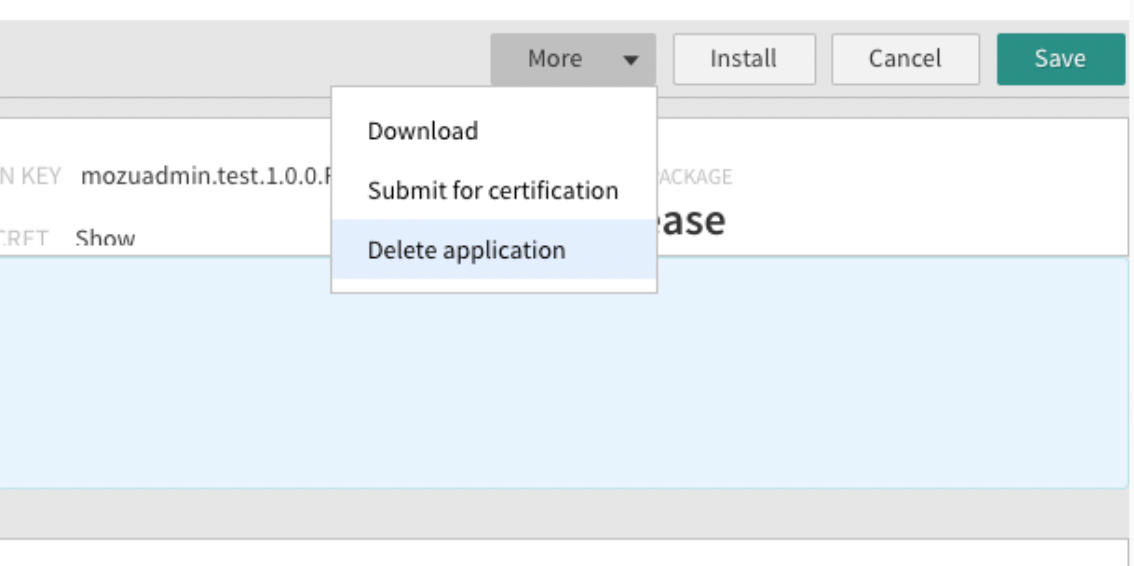 After you confirm, the application moves to the **Deleted** status.