> ## Documentation Index
> Fetch the complete documentation index at: https://docs.kibocommerce.com/llms.txt
> Use this file to discover all available pages before exploring further.
# Allocation Rebalancer
The Allocation Rebalancer is an event-driven inventory rebalancing capability within the Kibo B2B Wholesale OMS that detects supply and demand changes and automatically reprioritizes future shipments and backorder queues in response. In wholesale distribution, inventory conditions change constantly — purchase orders are delayed, quantities are cut, and orders are cancelled. Without automated rebalancing, these changes go unaddressed until the fulfillment team discovers the shortfall at pick time.
The Allocation Rebalancer closes this gap by detecting supply and demand change events at the Product-location level and executing a sequential rebalancing flow that re-secures inventory for the right shipments in the right priority order.
## **How the Allocation Rebalancer Works**
The Allocation Rebalancer processes two types of change events:
**Supply Change Events**
| **Event** | **Description** | **Impacts** |
| :------------------- | :----------------------------------------------------------------------- | :--------------------------------------- |
| **PO Delayed** | A purchase order's expected arrival date is pushed beyond the time fence | Future Shipments Queue |
| **PO Short-Shipped** | A purchase order arrives with fewer units than expected | Future Shipments Queue |
| **PO Cancelled** | A purchase order is cancelled entirely | Future Shipments Queue → Backorder Queue |
**Demand Change Events**
| **Event** | **Description** | **Impacts** |
| :--------------------- | :------------------------------------------------------------------------ | :-------------- |
| **Order Cancelled** | An order is cancelled, freeing previously allocated inventory | Backorder Queue |
| **Order Line Reduced** | An order line quantity is reduced, freeing previously allocated inventory | Backorder Queue |
**Note:** Demand Up events (new orders placed, quantities increased) are not tracked by the Allocation Rebalancer. New orders follow the standard order placement flow and result in new future or backorder shipments as appropriate.
**Note:** All references to purchase order changes in the Kibo platform translate to changes on **Future Inventory Records** — `On Inventory` records keyed by UPC, expected delivery date, and destination location. Kibo OMS does not generate purchase orders directly; PO generation is handled in middleware between your ERP and the OMS.
### **Rebalancing Flow**
When a supply or demand change event is detected, the Allocation Rebalancer executes the following sequential flow:
**Step 1 — Capture and Accumulate Events.** Change events are detected and stored. To prevent excessive processing from rapid successive events (for example, a purchase order receipt posting many line items individually), events are accumulated within a configurable debounce window (default: 60 seconds). All events for the same UPC-location within the window are collapsed into a single re-evaluation before the flow proceeds.
**Step 2 — Identify Impacted Future Shipments.** The system identifies all future shipments allocated against the affected future inventory record at the location. Only shipments in **Future** status are eligible. Shipments in **Ready** status are never touched.
**Step 3 — Prioritize Future Shipments.** The [Future Shipment Rules](/pages/future-shipment-rules) run against the impacted future shipments to assign each a priority rank. Shipments matching higher-priority rules are protected first during reallocation.
**Step 4 — Reallocate Future Shipments.** The system attempts to re-secure inventory for each impacted future shipment (processed in priority order) from alternate future inventory records within the configured time fence, by calling Order Routing. If reallocation cannot be preserved for a shipment, it is de-allocated and moved to the after-action queue (Backorder, Customer Care, or Cancel) as determined by Order Routing configuration. When supply decreases, the lowest-priority shipments lose their allocation first.
**Step 5 — Prioritize Backorder Queue.** The [Backorder Shipment Rules](/pages/backorder-shipment-rules) run against the **full** backorder queue — not only the newly affected shipments — to re-rank all backorder shipments against the revised inventory position.
**Step 6 — Release Backorders.** Backorder shipments are released in priority order. Shipments that can be fulfilled from available inventory are released into the fulfillment pipeline. Shipments that cannot be satisfied remain on backorder.
**Note:** If a change event produces no impacted future shipments (for example, a demand event such as an order cancellation), Steps 2–4 are skipped and the flow proceeds directly to Step 5.
**EDD on Re-pegged and Released Shipments**
Every shipment produced by the Allocation Rebalancer — whether re-pegged to an alternate PO, moved to backorder, released from backorder to a new future or ready shipment, or split — has its EDD automatically recalculated from the new location and date. A shipment moved to backorder has its EDD cleared, as no delivery can be promised until inventory is secured. A backorder shipment subsequently released by the Allocation Rebalancer receives a freshly calculated EDD from the newly allocated location and date.
This recalculation is part of the existing EDD behavior for future inventory changes — the Allocation Rebalancer is one of the triggering pathways. See [EDD Recalculation on Future Inventory Changes](/pages/estimated-delivery-dates#edd-recalculation-on-future-inventory-changes) on the Estimated Delivery Dates page for the full scenario matrix.
## **Trigger Mode**
An admin can configure how the rebalancing flow is initiated at the site level:
| **Mode** | **Behavior** |
| :------------------ | :------------------------------------------------------------------------------------------------------------------------------------------------------------------------------- |
| **Fully Automated** | The system automatically executes the full sequential rebalance flow at configured intervals without waiting for user action. The **Run Rebalancer** button is hidden in the UI. |
| **Manual Only** | The rebalancer executes only when a user clicks **Run Rebalancer** in the Balancer Run Audit UI. |
To configure the trigger mode:
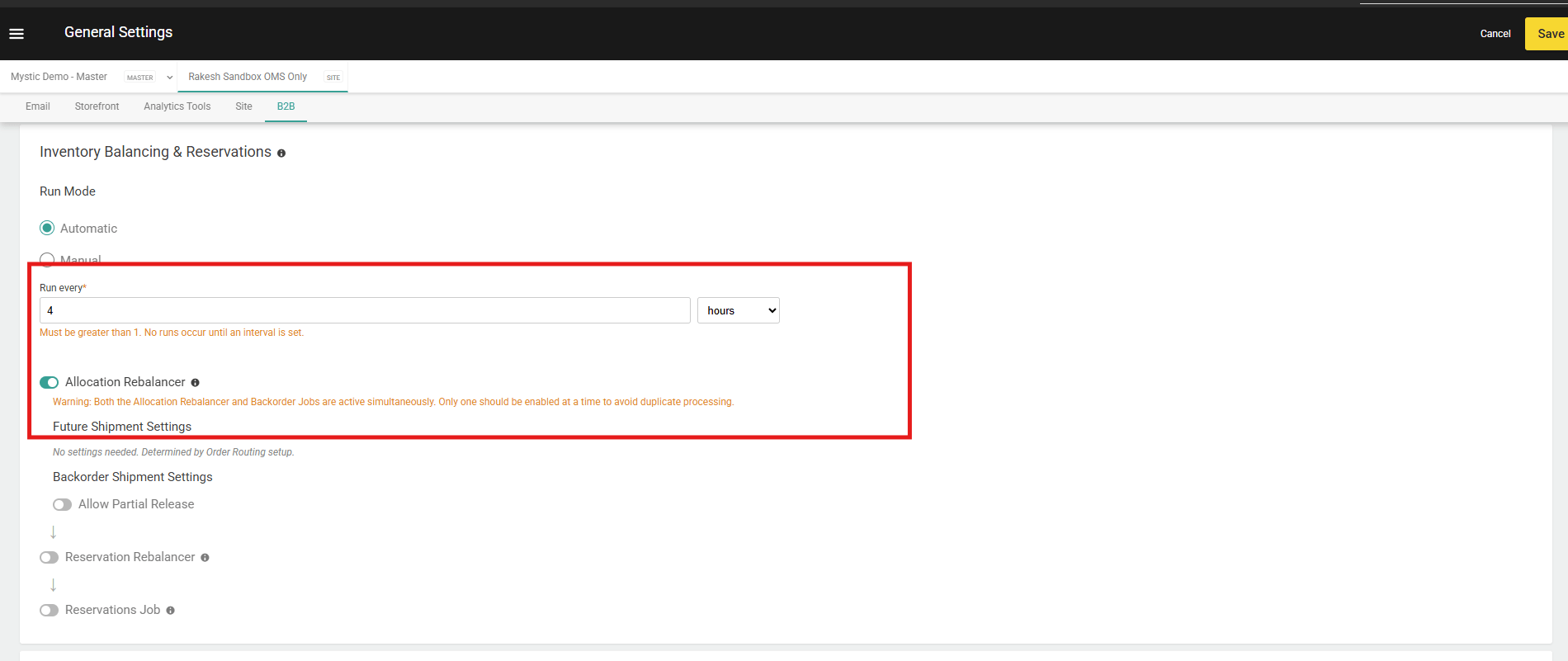
1. Go to **Main** > **System** > **Settings** > **Site**
2. Select the **B2B** tab.
3. Under **Inventory Balancing & Reservations** , set the **Trigger Mode** to **Fully Automated** or **Manual Only**.
4. Make Sure Allocation Rebalancer is Enabled
5. Click **Save**.
 **Note:** The Allocation Rebalancer, Reservation Rebalancer, and Reservation Rules job are orchestrated as part of a single site-level scheduling configuration. See [Orchestrator Settings](/pages/general-settings#inventory-balancing-&-reservations) for details on sequencing and enabling or disabling individual components.
## **Time Fence**
The time fence determines the window of future inventory that the rebalancer considers when reallocating future shipments or releasing backorders. It is calculated symmetrically around the shipment's requested ship date:
* `Start of Time Fence = requestedShipDate − timeFenceDays`
* `End of Time Fence = requestedShipDate + timeFenceDays`
Only inventory available within this window is eligible for reallocation.
A purchase order change that falls outside the time fence triggers rebalancing. A change that arrives within the time fence (early or late) does not require rebalancing, as the supply still meets the shipment's timing requirements.
## **Segmentation**
If your tenant uses inventory segmentation, the Allocation Rebalancer respects segment tags during reallocation and backorder release. Inventory is only allocated from within the designated segment for each shipment.
## **Prerequisites**
Before using the Allocation Rebalancer, ensure the following:
* The **B2B Wholesale OMS** feature is enabled for your tenant. Contact [Kibo Support](https://help.kibocommerce.com/) to enable this capability.
* Supply Demand UI(new Inventory UI) should be enabled for your tenant. Contact [Kibo Support](https://help.kibocommerce.com/) to enable this capability.
* At least one **Future Shipment Rule** is configured and enabled. See [Future Shipment Rules](/pages/future-shipment-rules).
* At least one **Backorder Shipment Rule** is configured and enabled. See [Backorder Shipment Rules](/pages/backorder-shipment-rules).
* The **Trigger Mode** is configured at the site level.
* You have **Admin** or **Super Admin** role permissions, or a role with Allocation Rebalancer access.
## **Rebalancer Run Audit**
Every rebalancing run produces a full audit trail accessible on the **Rebalancer Run Audit** page. The audit trail is the primary tool for reviewing what changed in a given run, understanding why specific shipments were prioritized, and tracing outcomes back to the triggering supply or demand event.
To open the Rebalancer Run Audit:
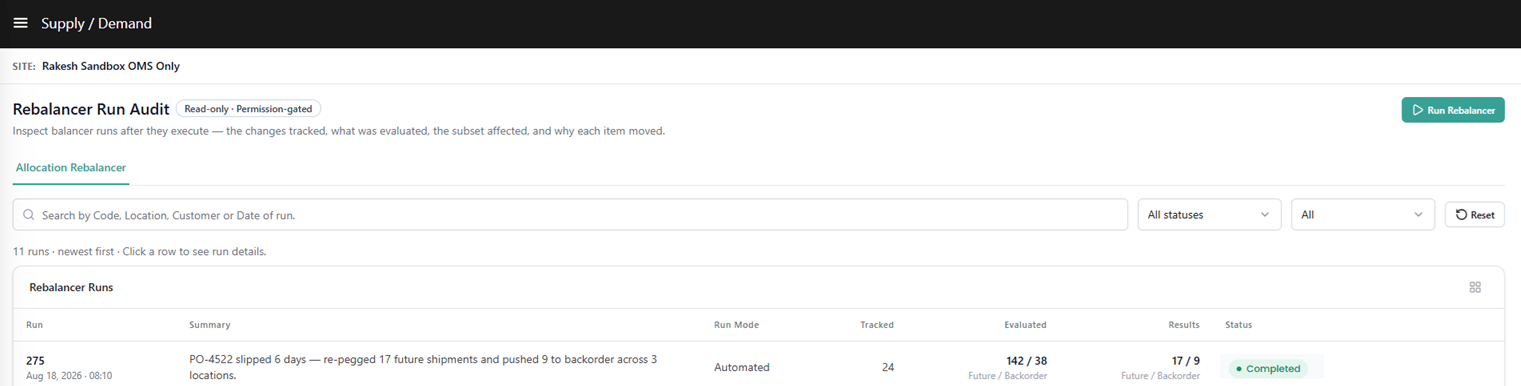
1. Go to **Main** > **Fulfillment** > **Allocation Rebalancer**.
2. The **Rebalancer Run Audit** page opens with the **Allocation Rebalancer** tab selected by default.
3. Select a **Site** from the site selector to filter runs for that site.
**Note:** The Allocation Rebalancer, Reservation Rebalancer, and Reservation Rules job are orchestrated as part of a single site-level scheduling configuration. See [Orchestrator Settings](/pages/general-settings#inventory-balancing-&-reservations) for details on sequencing and enabling or disabling individual components.
## **Time Fence**
The time fence determines the window of future inventory that the rebalancer considers when reallocating future shipments or releasing backorders. It is calculated symmetrically around the shipment's requested ship date:
* `Start of Time Fence = requestedShipDate − timeFenceDays`
* `End of Time Fence = requestedShipDate + timeFenceDays`
Only inventory available within this window is eligible for reallocation.
A purchase order change that falls outside the time fence triggers rebalancing. A change that arrives within the time fence (early or late) does not require rebalancing, as the supply still meets the shipment's timing requirements.
## **Segmentation**
If your tenant uses inventory segmentation, the Allocation Rebalancer respects segment tags during reallocation and backorder release. Inventory is only allocated from within the designated segment for each shipment.
## **Prerequisites**
Before using the Allocation Rebalancer, ensure the following:
* The **B2B Wholesale OMS** feature is enabled for your tenant. Contact [Kibo Support](https://help.kibocommerce.com/) to enable this capability.
* Supply Demand UI(new Inventory UI) should be enabled for your tenant. Contact [Kibo Support](https://help.kibocommerce.com/) to enable this capability.
* At least one **Future Shipment Rule** is configured and enabled. See [Future Shipment Rules](/pages/future-shipment-rules).
* At least one **Backorder Shipment Rule** is configured and enabled. See [Backorder Shipment Rules](/pages/backorder-shipment-rules).
* The **Trigger Mode** is configured at the site level.
* You have **Admin** or **Super Admin** role permissions, or a role with Allocation Rebalancer access.
## **Rebalancer Run Audit**
Every rebalancing run produces a full audit trail accessible on the **Rebalancer Run Audit** page. The audit trail is the primary tool for reviewing what changed in a given run, understanding why specific shipments were prioritized, and tracing outcomes back to the triggering supply or demand event.
To open the Rebalancer Run Audit:
1. Go to **Main** > **Fulfillment** > **Allocation Rebalancer**.
2. The **Rebalancer Run Audit** page opens with the **Allocation Rebalancer** tab selected by default.
3. Select a **Site** from the site selector to filter runs for that site.
 ### **Run Modes**
If the site is configured for **Manual Only** trigger mode, a **Run Rebalancer** button is visible in the header. Click it to manually initiate a rebalancing run. Use the dropdown to choose:
* **Run Rebalancer** — Runs both the Allocation Rebalancer and Reservation Rebalancer together.
* **Run Allocation Rebalancer** — Runs only the Allocation Rebalancer.
If the site is configured for **Fully Automated** mode, this button is hidden. Runs are auto-initiated on the configured schedule and listed in the run table as they complete.
### **Run List**
The Run List is the default landing view within the Rebalancer Run Audit page. It displays a paginated list of all rebalancing runs for the selected site, ordered newest first. A live row count is shown above the table — for example, *"5 runs · newest first"* — and is always backend-computed.
#### **Search & Filters**
| **Control** | **Values** | **Behavior** |
| :----------- | :------------------------------------------ | :--------------------------------------------------------------------------------------- |
| **Search** | Free text | Server-side match on Code, Location, Customer, or date across the run's tracked changes. |
| **Status** | All statuses / Completed / Partial / Failed | Server-side filter. |
| **Run Mode** | All / Automated / Manual | Server-side filter. |
| **Reset** | — | Clears all active filters and restores the full newest-first run list. |
#### **Data Table Columns**
| **Column** | **Description** |
| :-------------------- | :------------------------------------------------------------------------------------------------------------------------------------------------------------------------------------------------------------------------------------------------------------------ |
| **Run** | The unique Run ID and the date/timestamp the run was initiated. |
| **Summary** | A one-line, human-readable description of what the run processed — for example, *"2 supply changes · 14 future shipments evaluated · 8 backorders released."* |
| **Run Mode** | Indicates whether the run was user-initiated (**Manual**) or system-initiated (**Automated**). For Manual runs, the trigger reference is shown (for example, `PO-4522`). For Automated runs, displays *"Automated."* |
| **Tracked** | The total count of supply and demand change events captured and tracked in this run. |
| **Evaluated · F / B** | A split count of the shipments evaluated during the run. **F** = number of Future Shipments impacted by the tracked events. **B** = number of Backorder shipments in the backorder queue at the time of the run. |
| **Results · F / B** | A split count of the shipments produced as final outputs of the run. **F** = total Future Shipments as results. **B** = total Backorder Shipments as results. Results can exceed Evaluated counts when the run produces newly created split or re-pegged shipments. |
| **Status** | A badge indicating the run outcome: **Completed**, **Partial**, or **Failed**. |
#### **Run Status Values**
| **Status** | **Meaning** |
| :------------ | :----------------------------------------------------------------------------------------------------------------------------------------------------------------------------------------------------------------------------------------------------------------------------- |
| **Completed** | The full rebalancing flow executed without interruption. All events were processed, future shipments were evaluated and reallocated, and the backorder queue was prioritized and released as applicable. |
| **Partial** | The run was interrupted before completing all steps. Some data was processed and is visible in the Run Detail tabs — what you see reflects the subset of work completed before the halt. The status badge in both the Run List and Run Detail header clearly reflects Partial. |
| **Failed** | The run encountered a fault and could not complete. A fault reason consistent with backend fault states (`SKIPPED` / `FAULTED` / `ABORTED`) is surfaced in the Run Detail view. Whatever subset of data was processed before the failure is visible in the Run Detail tabs. |
### **Run Detail**
Click any run in the Run List to open its detail view. The Run Detail page provides a full breakdown of what the rebalancer evaluated and what outcomes it produced for that specific run.
#### **Header**
The Run Detail header displays key metadata for the selected run at a glance:
| **Element** | **Description** |
| :--------------------- | :------------------------------------------------------------------------------------------- |
| **Run ID + Timestamp** | Unique identifier and date/time the run was initiated. |
| **Status badge** | Completed, Partial, or Failed — matches the badge shown in the Run List. |
| **Trigger** | The event type and reference that initiated the run (for example, "PO date slip / PO-4522"). |
| **Summary** | A one-line plain-English description of what the run did. |
| **Metric tiles** | Changes tracked; Evaluated shipments (Future/Backorder split); Status. |
**Note:** If a run has a **Partial** or **Failed** status, the header badge prominently reflects this. All three tabs still render whatever subset of data was processed before the run halted — data is never silently shown as Completed. A Failed run additionally surfaces a fault reason consistent with backend fault states (`SKIPPED` / `FAULTED` / `ABORTED`).
#### **Tab Bar**
The Run Detail page contains three tabs, each with a count badge showing the number of records in that tab:
* **Supply/Demand Changes** *(default landing tab)*
* **Shipments · Future**
* **Shipments · Backorder**
#### **Supply/Demand Changes Tab**
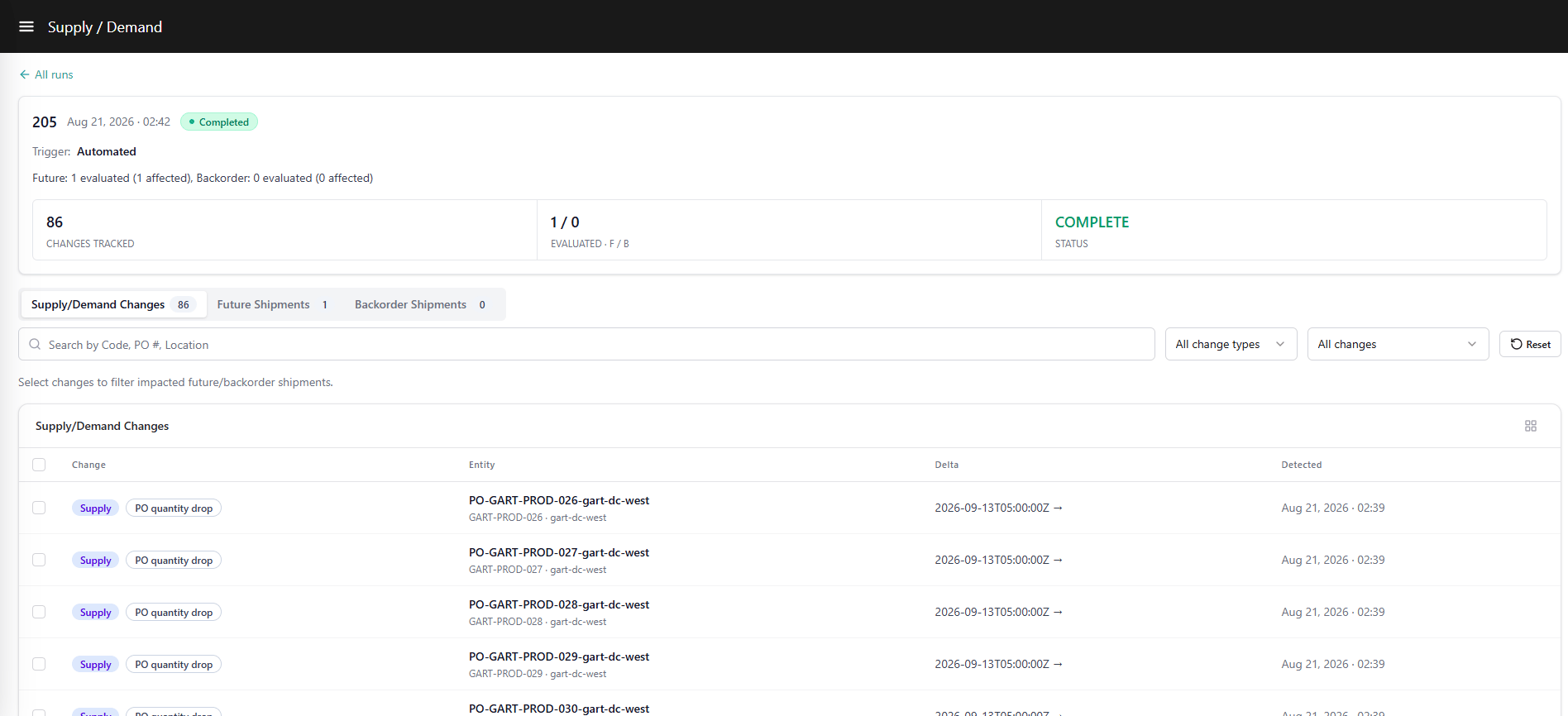
The Supply/Demand Changes tab is the starting point for understanding *why* a rebalancing run was triggered. It lists every tracked change event detected during the run — supply decreases (PO date slips, PO quantity drops) and demand decreases (cancellations) — and lets you trace forward to see exactly which shipments were impacted.
### **Run Modes**
If the site is configured for **Manual Only** trigger mode, a **Run Rebalancer** button is visible in the header. Click it to manually initiate a rebalancing run. Use the dropdown to choose:
* **Run Rebalancer** — Runs both the Allocation Rebalancer and Reservation Rebalancer together.
* **Run Allocation Rebalancer** — Runs only the Allocation Rebalancer.
If the site is configured for **Fully Automated** mode, this button is hidden. Runs are auto-initiated on the configured schedule and listed in the run table as they complete.
### **Run List**
The Run List is the default landing view within the Rebalancer Run Audit page. It displays a paginated list of all rebalancing runs for the selected site, ordered newest first. A live row count is shown above the table — for example, *"5 runs · newest first"* — and is always backend-computed.
#### **Search & Filters**
| **Control** | **Values** | **Behavior** |
| :----------- | :------------------------------------------ | :--------------------------------------------------------------------------------------- |
| **Search** | Free text | Server-side match on Code, Location, Customer, or date across the run's tracked changes. |
| **Status** | All statuses / Completed / Partial / Failed | Server-side filter. |
| **Run Mode** | All / Automated / Manual | Server-side filter. |
| **Reset** | — | Clears all active filters and restores the full newest-first run list. |
#### **Data Table Columns**
| **Column** | **Description** |
| :-------------------- | :------------------------------------------------------------------------------------------------------------------------------------------------------------------------------------------------------------------------------------------------------------------ |
| **Run** | The unique Run ID and the date/timestamp the run was initiated. |
| **Summary** | A one-line, human-readable description of what the run processed — for example, *"2 supply changes · 14 future shipments evaluated · 8 backorders released."* |
| **Run Mode** | Indicates whether the run was user-initiated (**Manual**) or system-initiated (**Automated**). For Manual runs, the trigger reference is shown (for example, `PO-4522`). For Automated runs, displays *"Automated."* |
| **Tracked** | The total count of supply and demand change events captured and tracked in this run. |
| **Evaluated · F / B** | A split count of the shipments evaluated during the run. **F** = number of Future Shipments impacted by the tracked events. **B** = number of Backorder shipments in the backorder queue at the time of the run. |
| **Results · F / B** | A split count of the shipments produced as final outputs of the run. **F** = total Future Shipments as results. **B** = total Backorder Shipments as results. Results can exceed Evaluated counts when the run produces newly created split or re-pegged shipments. |
| **Status** | A badge indicating the run outcome: **Completed**, **Partial**, or **Failed**. |
#### **Run Status Values**
| **Status** | **Meaning** |
| :------------ | :----------------------------------------------------------------------------------------------------------------------------------------------------------------------------------------------------------------------------------------------------------------------------- |
| **Completed** | The full rebalancing flow executed without interruption. All events were processed, future shipments were evaluated and reallocated, and the backorder queue was prioritized and released as applicable. |
| **Partial** | The run was interrupted before completing all steps. Some data was processed and is visible in the Run Detail tabs — what you see reflects the subset of work completed before the halt. The status badge in both the Run List and Run Detail header clearly reflects Partial. |
| **Failed** | The run encountered a fault and could not complete. A fault reason consistent with backend fault states (`SKIPPED` / `FAULTED` / `ABORTED`) is surfaced in the Run Detail view. Whatever subset of data was processed before the failure is visible in the Run Detail tabs. |
### **Run Detail**
Click any run in the Run List to open its detail view. The Run Detail page provides a full breakdown of what the rebalancer evaluated and what outcomes it produced for that specific run.
#### **Header**
The Run Detail header displays key metadata for the selected run at a glance:
| **Element** | **Description** |
| :--------------------- | :------------------------------------------------------------------------------------------- |
| **Run ID + Timestamp** | Unique identifier and date/time the run was initiated. |
| **Status badge** | Completed, Partial, or Failed — matches the badge shown in the Run List. |
| **Trigger** | The event type and reference that initiated the run (for example, "PO date slip / PO-4522"). |
| **Summary** | A one-line plain-English description of what the run did. |
| **Metric tiles** | Changes tracked; Evaluated shipments (Future/Backorder split); Status. |
**Note:** If a run has a **Partial** or **Failed** status, the header badge prominently reflects this. All three tabs still render whatever subset of data was processed before the run halted — data is never silently shown as Completed. A Failed run additionally surfaces a fault reason consistent with backend fault states (`SKIPPED` / `FAULTED` / `ABORTED`).
#### **Tab Bar**
The Run Detail page contains three tabs, each with a count badge showing the number of records in that tab:
* **Supply/Demand Changes** *(default landing tab)*
* **Shipments · Future**
* **Shipments · Backorder**
#### **Supply/Demand Changes Tab**
The Supply/Demand Changes tab is the starting point for understanding *why* a rebalancing run was triggered. It lists every tracked change event detected during the run — supply decreases (PO date slips, PO quantity drops) and demand decreases (cancellations) — and lets you trace forward to see exactly which shipments were impacted.
 ##### **Search & Filters**
| **Control** | **Values** |
| :-------------------- | :--------------------------------------------------------- |
| **Search** | Free text — ProductCode, PO number (External ID), Location |
| **Change Type** | All change types / Supply / Demand |
| **Sub-type (Supply)** | All (Supply) / PO date slip / PO quantity drop |
| **Sub-type (Demand)** | All (Demand) / Cancellation |
| **Reset** | Clears all filters on this tab |
##### **Table Columns**
| **Column** | **Description** |
| :----------- | :----------------------------------------------------------------------------------------------------------------------------------------------------------------------------------------------------------------------------- |
| **Change** | Change type and sub-type chip (for example, Supply — PO date slip). |
| **Entity** | Three fields identifying the affected future inventory record: **PO number** (the External ID of the future inventory record); **UPC** (the product UPC on the record); **Location** (the destination location on the record). |
| **Delta** | What changed, expressed as before → after. For example: PO date moved from April 5 to April 19, or quantity changed from 1,000 to 700. |
| **Detected** | The date and time the system detected the change event. |
**Note:** The **PO number** displayed in the Entity column is the External ID of the future inventory record — not a Kibo-native PO number. Kibo OMS does not generate purchase orders. Clients are responsible for interfacing the correct External ID value for each future inventory record so that it maps back to their PO reference in their ERP or middleware system.
##### **Supply Down Event Sub-types**
| **UI Label** | **What It Means** |
| :------------------- | :---------------------------------------------------------------------------------------------------------------------------------------------------------------------------------------------------- |
| **PO date slip** | The PO is arriving later than expected and its new date falls outside the time fence — *or* the PO is arriving earlier than expected and its early date also falls outside the (negative) time fence. |
| **PO quantity drop** | The PO's expected quantity has been reduced. |
##### **Demand Down Events**
| **UI Label** | **What It Means** |
| :--------------- | :------------------------------------------------------------------------------------------------ |
| **Cancellation** | An order cancellation or order line quantity reduction that freed previously allocated inventory. |
##### **Selection & Cross-Tab Pre-filter**
Selecting a row (single-select) shows a banner at the top of the table:
> *"1 change selected · open Shipments · Future or Backorder to see impacted shipments."*
The selected change pre-filters both **Shipments · Future** and **Shipments · Backorder** to display only the shipments whose affected shipment IDs include this event. Select "Clear change filter" or uncheck the row to restore both tabs to the unfiltered view.
**Note:** Selecting a **Demand (Cancellation)** event and then switching to **Shipments · Future** displays an empty state — not an error. Demand events never impact future shipments. The same event *does* feed the **Shipments · Backorder** tab.
#### **Shipments · Future Tab**
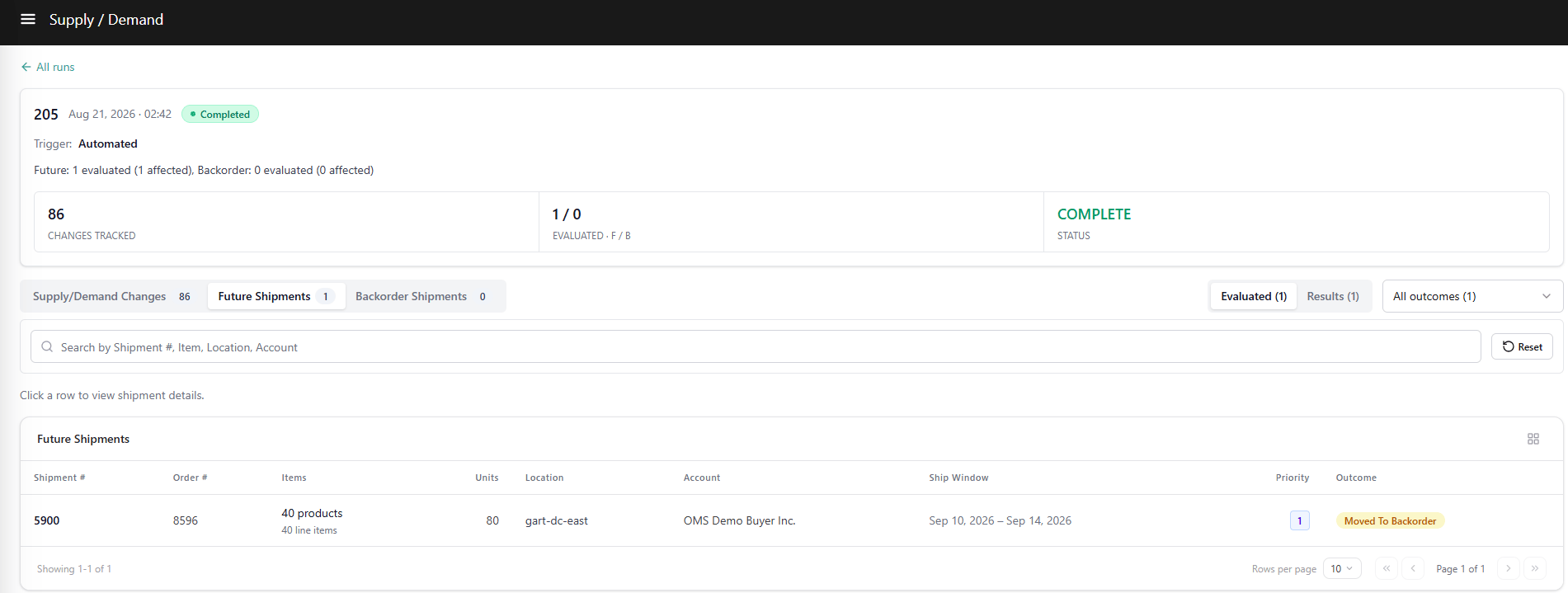
The Shipments · Future tab shows every future shipment the rebalancer considered during the run. Use this tab to understand which shipments were evaluated, what priority they were assigned, and what happened to each one.
The tab supports two views, toggled at the top of the tab:
* **Evaluated** *(default)* — The original shipments assessed during the run and their individual outcomes.
* **Results** — The final state of every shipment touched by the run, including newly created shipments produced by splits, re-pegs, or backorder moves.
##### **Search & Filters**
| **Control** | **Values** |
| :-------------------- | :--------------------------------------------------------- |
| **Search** | Free text — ProductCode, PO number (External ID), Location |
| **Change Type** | All change types / Supply / Demand |
| **Sub-type (Supply)** | All (Supply) / PO date slip / PO quantity drop |
| **Sub-type (Demand)** | All (Demand) / Cancellation |
| **Reset** | Clears all filters on this tab |
##### **Table Columns**
| **Column** | **Description** |
| :----------- | :----------------------------------------------------------------------------------------------------------------------------------------------------------------------------------------------------------------------------- |
| **Change** | Change type and sub-type chip (for example, Supply — PO date slip). |
| **Entity** | Three fields identifying the affected future inventory record: **PO number** (the External ID of the future inventory record); **UPC** (the product UPC on the record); **Location** (the destination location on the record). |
| **Delta** | What changed, expressed as before → after. For example: PO date moved from April 5 to April 19, or quantity changed from 1,000 to 700. |
| **Detected** | The date and time the system detected the change event. |
**Note:** The **PO number** displayed in the Entity column is the External ID of the future inventory record — not a Kibo-native PO number. Kibo OMS does not generate purchase orders. Clients are responsible for interfacing the correct External ID value for each future inventory record so that it maps back to their PO reference in their ERP or middleware system.
##### **Supply Down Event Sub-types**
| **UI Label** | **What It Means** |
| :------------------- | :---------------------------------------------------------------------------------------------------------------------------------------------------------------------------------------------------- |
| **PO date slip** | The PO is arriving later than expected and its new date falls outside the time fence — *or* the PO is arriving earlier than expected and its early date also falls outside the (negative) time fence. |
| **PO quantity drop** | The PO's expected quantity has been reduced. |
##### **Demand Down Events**
| **UI Label** | **What It Means** |
| :--------------- | :------------------------------------------------------------------------------------------------ |
| **Cancellation** | An order cancellation or order line quantity reduction that freed previously allocated inventory. |
##### **Selection & Cross-Tab Pre-filter**
Selecting a row (single-select) shows a banner at the top of the table:
> *"1 change selected · open Shipments · Future or Backorder to see impacted shipments."*
The selected change pre-filters both **Shipments · Future** and **Shipments · Backorder** to display only the shipments whose affected shipment IDs include this event. Select "Clear change filter" or uncheck the row to restore both tabs to the unfiltered view.
**Note:** Selecting a **Demand (Cancellation)** event and then switching to **Shipments · Future** displays an empty state — not an error. Demand events never impact future shipments. The same event *does* feed the **Shipments · Backorder** tab.
#### **Shipments · Future Tab**
The Shipments · Future tab shows every future shipment the rebalancer considered during the run. Use this tab to understand which shipments were evaluated, what priority they were assigned, and what happened to each one.
The tab supports two views, toggled at the top of the tab:
* **Evaluated** *(default)* — The original shipments assessed during the run and their individual outcomes.
* **Results** — The final state of every shipment touched by the run, including newly created shipments produced by splits, re-pegs, or backorder moves.
 ##### **Search & Filters**
Free-text search by **Shipment #**, **Item**, **Location**, or **Account**.
##### **Evaluated View — Columns**
| **Column** | **Description** |
| :----------------------- | :------------------------------------------------------------------------------------------------------------------------------------------------------------------------------------------------------------------------------------------------------------------------------------------------------------------------ |
| **Shipment # / Order #** | The shipment ID and its associated order number. Only original shipments considered for rebalancing appear here — newly created split or reassigned shipments appear in Results only. Shipments whose PO delay stayed within the time fence never appear here at all (they were not impacted and required no evaluation). |
| **Line Items** | All line items in the shipment (not only the impacted lines). Displays up to three products inline; if there are more, a **+N** overflow indicator is shown. Also displays the total unit count across all line items. |
| **Location** | The location name the shipment is assigned to. |
| **Account** | The buyer account name. |
| **Requested Ship Date** | The requested ship date on the shipment. |
| **Ship Window** | The time fence window (requested ship date ± time fence days) used for inventory search during the run. |
| **Priority** | The rank assigned to this shipment by the Future Shipment Rules. Hover over the rank to see a tooltip explaining which rule assigned it and why. Shipments with no matching rule show null priority. |
| **Evaluation Outcome** | The outcome determined for this shipment during the run. See the outcome values table below. |
##### **Evaluated Outcome Values**
| **Evaluation Outcome** | **Meaning** |
| :------------------------------ | :--------------------------------------------------------------------------------------------------------------------------------------------------------------------------------------------------------------------------------------------------------------------------------------------------------------------------------------------- |
| **No change** | The shipment was impacted by the PO change but retained its original allocation — a suitable alternate inventory source was found within the time fence. |
| **Pegged to another PO (Full)** | The entire shipment was re-allocated to a single alternate PO. All line items moved together. |
| **Moved to Backorder (Full)** | The entire shipment could not be reallocated and moved to the backorder queue. No alternate PO could satisfy any line item. |
| **Partially Reallocated** | A mixed outcome across lines. Click the row to open the Shipment Detail Panel for line-level breakdown. Possible combinations: some lines remained on the original shipment and some were pegged to other POs; some lines remained and some were backordered; or a combination of all three — some remained, some re-pegged, some backordered. |
##### **Results View — Columns**
The Results view shows the final state of every future shipment touched by the run, including newly created shipments from splits, re-pegs, or backorder moves that are not visible in the Evaluated view.
| **Column** | **Description** |
| :----------------------- | :-------------------------------------------------------------------------------------------------------- |
| **Shipment # / Order #** | Includes both original shipments and any newly created shipments resulting from the run (tagged **NEW**). |
| **Line Items** | Same display pattern as Evaluated view. |
| **Location** | Location name. |
| **Account** | Buyer account name. |
| **Requested Ship Date** | Requested ship date. |
| **Ship Window** | Time fence window. |
| **Result Type** | The final classification for this shipment record. See result type values below. |
##### **Results View — Result Type Values**
| **Result Type** | **Meaning** |
| :------------------------ | :----------------------------------------------------------------------------------------------------------------------- |
| **No change** | The shipment retained its original allocation with no modification. |
| **Backorder (New)** | A new backorder shipment was created as a result of the run — the original shipment could not be fully reallocated. |
| **Pegged to a PO (New)** | A newly created future shipment resulting from a re-peg, reassignment, or split. |
| **Partially Reallocated** | The original shipment retained some lines after a split — other lines were moved to backorder or re-pegged to other POs. |
#### **Shipments · Backorder Tab**
The Shipments · Backorder tab shows the full backorder queue evaluated during the run. Unlike the Shipments · Future tab — which only shows shipments newly impacted by the triggering event — this tab always shows the **entire** tenant backorder queue, because the Backorder Shipment Rules re-rank all backorders together against the revised inventory position on every run.
The same **Evaluated / Results** toggle pattern applies.
##### **Search & Filters**
Free-text search by **Shipment #**, **Item**, **Location**, or **Account**.
***
##### **Evaluated View — Columns**
| **Column** | **Description** |
| :----------------------- | :------------------------------------------------------------------------------------------------------------------------------------------------------------------------------------- |
| **Priority** | The rank assigned by the Backorder Shipment Rules for this run. Hover to view a tooltip showing which rule assigned the rank and why. Null-priority shipments are shown at the bottom. |
| **Shipment # / Order #** | Shipment ID and associated order number. |
| **Line Items** | All line items in the shipment. Displays up to three products inline; overflow shown as **+N**. Total unit count shown. |
| **Location** | Location name. |
| **Account** | Buyer account name. |
| **Requested Ship Date** | Requested ship date on the shipment. |
| **Ship Window** | Time fence window (requested ship date ± time fence days from the matched Backorder Shipment Rule). |
| **Evaluation Outcome** | The outcome for this backorder shipment during the run. See outcome values below. |
##### **Evaluated Outcome Values**
| **Evaluation Outcome** | **Meaning** |
| :------------------------------------------- | :------------------------------------------------------------------------------------------------------------------------------------------------------------------- |
| **Pegged to a PO (Full)** | The entire backorder shipment was fully pegged to an incoming PO / future inventory record. |
| **Released as Ready (Full)** | The entire backorder shipment was fully released using available on-hand inventory and moved to Ready status. |
| **Remain in Backorder with Partial Release** | Some lines were released (either pegged to a PO or released as ready), while others remain in backorder. This can result from a line-item split or a quantity split. |
| **No change** | The shipment remained fully in backorder — no inventory was available to fulfill it during this run. |
##### **Results View — Columns**
| **Column** | **Description** |
| :----------------------- | :-------------------------------------------------------------------------- |
| **Priority** | Priority rank assigned during this run. |
| **Shipment # / Order #** | Includes both original backorder shipments and any newly created shipments. |
| **Line Items** | Same display as Evaluated view. |
| **Location** | Location name. |
| **Account** | Buyer account name. |
| **Requested Ship Date** | Requested ship date. |
| **Ship Window** | Time fence window. |
| **Result Type** | Final classification for this shipment. See result type values below. |
##### **Results View — Result Type Values**
| **Result Type** | **Meaning** |
| :------------------------------------------- | :----------------------------------------------------------------------------------------------------------------------------------- |
| **Pegged to a PO (New)** | A newly created future shipment was produced by releasing this backorder shipment against an incoming PO. |
| **Ready Shipment (New)** | A newly created Ready shipment produced by releasing this backorder against current on-hand inventory. |
| **Remain in Backorder with Partial Release** | Some lines were released, producing new shipments; remaining lines stay in backorder. Can result from a line-item or quantity split. |
| **No change** | The shipment remained fully in backorder with no inventory allocated during this run. |
***
### **Shipment Detail Panel**
Clicking any row in **Shipments · Future** or **Shipments · Backorder** opens the Shipment Detail Panel — a side drawer that provides a full breakdown of a single shipment's evaluation context, outcome, and line-level detail. The panel is read-only.
The panel layout and fields are consistent across both tabs, with minor differences in outcome terminology between future and backorder contexts.
##### **Search & Filters**
Free-text search by **Shipment #**, **Item**, **Location**, or **Account**.
##### **Evaluated View — Columns**
| **Column** | **Description** |
| :----------------------- | :------------------------------------------------------------------------------------------------------------------------------------------------------------------------------------------------------------------------------------------------------------------------------------------------------------------------ |
| **Shipment # / Order #** | The shipment ID and its associated order number. Only original shipments considered for rebalancing appear here — newly created split or reassigned shipments appear in Results only. Shipments whose PO delay stayed within the time fence never appear here at all (they were not impacted and required no evaluation). |
| **Line Items** | All line items in the shipment (not only the impacted lines). Displays up to three products inline; if there are more, a **+N** overflow indicator is shown. Also displays the total unit count across all line items. |
| **Location** | The location name the shipment is assigned to. |
| **Account** | The buyer account name. |
| **Requested Ship Date** | The requested ship date on the shipment. |
| **Ship Window** | The time fence window (requested ship date ± time fence days) used for inventory search during the run. |
| **Priority** | The rank assigned to this shipment by the Future Shipment Rules. Hover over the rank to see a tooltip explaining which rule assigned it and why. Shipments with no matching rule show null priority. |
| **Evaluation Outcome** | The outcome determined for this shipment during the run. See the outcome values table below. |
##### **Evaluated Outcome Values**
| **Evaluation Outcome** | **Meaning** |
| :------------------------------ | :--------------------------------------------------------------------------------------------------------------------------------------------------------------------------------------------------------------------------------------------------------------------------------------------------------------------------------------------- |
| **No change** | The shipment was impacted by the PO change but retained its original allocation — a suitable alternate inventory source was found within the time fence. |
| **Pegged to another PO (Full)** | The entire shipment was re-allocated to a single alternate PO. All line items moved together. |
| **Moved to Backorder (Full)** | The entire shipment could not be reallocated and moved to the backorder queue. No alternate PO could satisfy any line item. |
| **Partially Reallocated** | A mixed outcome across lines. Click the row to open the Shipment Detail Panel for line-level breakdown. Possible combinations: some lines remained on the original shipment and some were pegged to other POs; some lines remained and some were backordered; or a combination of all three — some remained, some re-pegged, some backordered. |
##### **Results View — Columns**
The Results view shows the final state of every future shipment touched by the run, including newly created shipments from splits, re-pegs, or backorder moves that are not visible in the Evaluated view.
| **Column** | **Description** |
| :----------------------- | :-------------------------------------------------------------------------------------------------------- |
| **Shipment # / Order #** | Includes both original shipments and any newly created shipments resulting from the run (tagged **NEW**). |
| **Line Items** | Same display pattern as Evaluated view. |
| **Location** | Location name. |
| **Account** | Buyer account name. |
| **Requested Ship Date** | Requested ship date. |
| **Ship Window** | Time fence window. |
| **Result Type** | The final classification for this shipment record. See result type values below. |
##### **Results View — Result Type Values**
| **Result Type** | **Meaning** |
| :------------------------ | :----------------------------------------------------------------------------------------------------------------------- |
| **No change** | The shipment retained its original allocation with no modification. |
| **Backorder (New)** | A new backorder shipment was created as a result of the run — the original shipment could not be fully reallocated. |
| **Pegged to a PO (New)** | A newly created future shipment resulting from a re-peg, reassignment, or split. |
| **Partially Reallocated** | The original shipment retained some lines after a split — other lines were moved to backorder or re-pegged to other POs. |
#### **Shipments · Backorder Tab**
The Shipments · Backorder tab shows the full backorder queue evaluated during the run. Unlike the Shipments · Future tab — which only shows shipments newly impacted by the triggering event — this tab always shows the **entire** tenant backorder queue, because the Backorder Shipment Rules re-rank all backorders together against the revised inventory position on every run.
The same **Evaluated / Results** toggle pattern applies.
##### **Search & Filters**
Free-text search by **Shipment #**, **Item**, **Location**, or **Account**.
***
##### **Evaluated View — Columns**
| **Column** | **Description** |
| :----------------------- | :------------------------------------------------------------------------------------------------------------------------------------------------------------------------------------- |
| **Priority** | The rank assigned by the Backorder Shipment Rules for this run. Hover to view a tooltip showing which rule assigned the rank and why. Null-priority shipments are shown at the bottom. |
| **Shipment # / Order #** | Shipment ID and associated order number. |
| **Line Items** | All line items in the shipment. Displays up to three products inline; overflow shown as **+N**. Total unit count shown. |
| **Location** | Location name. |
| **Account** | Buyer account name. |
| **Requested Ship Date** | Requested ship date on the shipment. |
| **Ship Window** | Time fence window (requested ship date ± time fence days from the matched Backorder Shipment Rule). |
| **Evaluation Outcome** | The outcome for this backorder shipment during the run. See outcome values below. |
##### **Evaluated Outcome Values**
| **Evaluation Outcome** | **Meaning** |
| :------------------------------------------- | :------------------------------------------------------------------------------------------------------------------------------------------------------------------- |
| **Pegged to a PO (Full)** | The entire backorder shipment was fully pegged to an incoming PO / future inventory record. |
| **Released as Ready (Full)** | The entire backorder shipment was fully released using available on-hand inventory and moved to Ready status. |
| **Remain in Backorder with Partial Release** | Some lines were released (either pegged to a PO or released as ready), while others remain in backorder. This can result from a line-item split or a quantity split. |
| **No change** | The shipment remained fully in backorder — no inventory was available to fulfill it during this run. |
##### **Results View — Columns**
| **Column** | **Description** |
| :----------------------- | :-------------------------------------------------------------------------- |
| **Priority** | Priority rank assigned during this run. |
| **Shipment # / Order #** | Includes both original backorder shipments and any newly created shipments. |
| **Line Items** | Same display as Evaluated view. |
| **Location** | Location name. |
| **Account** | Buyer account name. |
| **Requested Ship Date** | Requested ship date. |
| **Ship Window** | Time fence window. |
| **Result Type** | Final classification for this shipment. See result type values below. |
##### **Results View — Result Type Values**
| **Result Type** | **Meaning** |
| :------------------------------------------- | :----------------------------------------------------------------------------------------------------------------------------------- |
| **Pegged to a PO (New)** | A newly created future shipment was produced by releasing this backorder shipment against an incoming PO. |
| **Ready Shipment (New)** | A newly created Ready shipment produced by releasing this backorder against current on-hand inventory. |
| **Remain in Backorder with Partial Release** | Some lines were released, producing new shipments; remaining lines stay in backorder. Can result from a line-item or quantity split. |
| **No change** | The shipment remained fully in backorder with no inventory allocated during this run. |
***
### **Shipment Detail Panel**
Clicking any row in **Shipments · Future** or **Shipments · Backorder** opens the Shipment Detail Panel — a side drawer that provides a full breakdown of a single shipment's evaluation context, outcome, and line-level detail. The panel is read-only.
The panel layout and fields are consistent across both tabs, with minor differences in outcome terminology between future and backorder contexts.
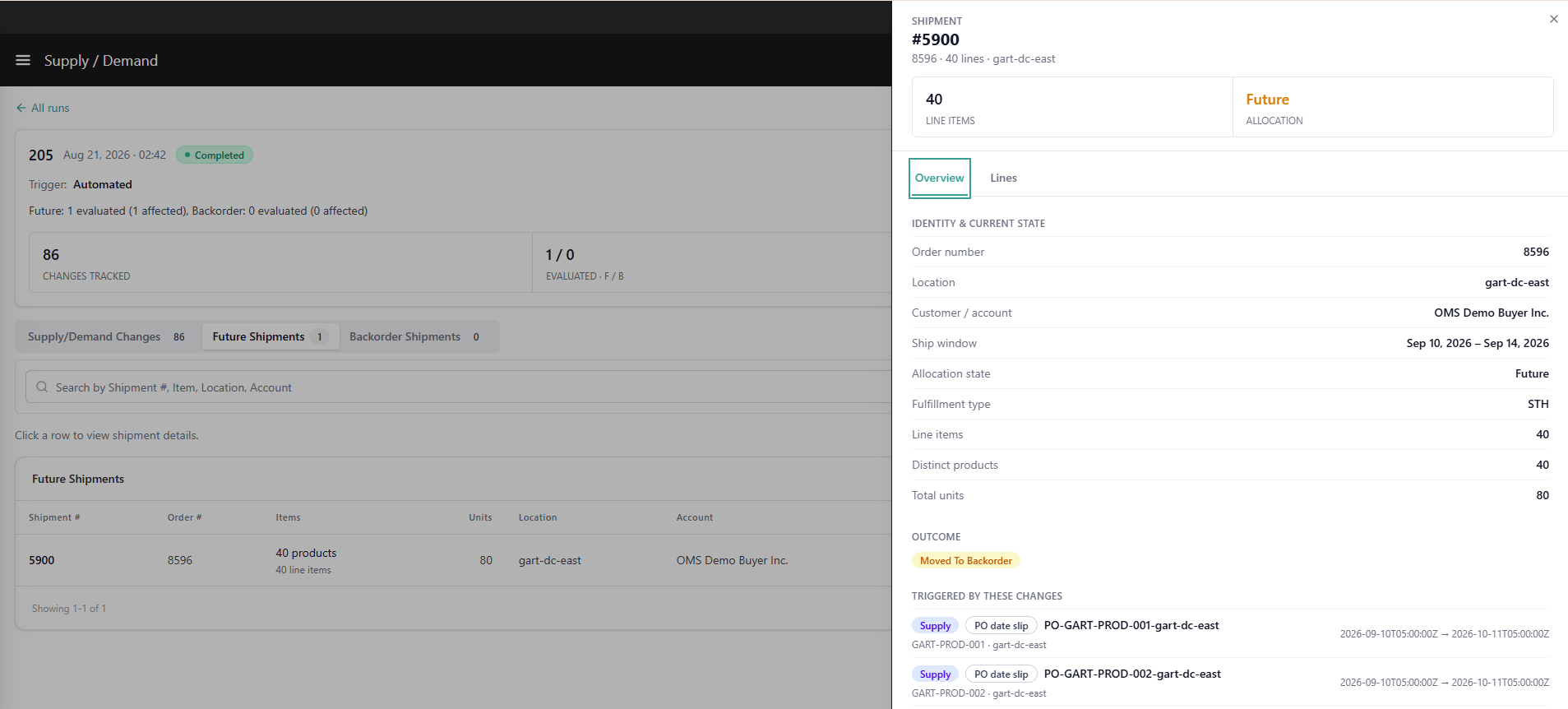 #### **Panel Header**
| **Element** | **Description** |
| :------------------------- | :------------------------------------------ |
| **Shipment #** | Shipment identifier. |
| **Order #** | Associated order number. |
| **Line count** | Total number of line items in the shipment. |
| **Location** | The location the shipment is assigned to. |
| **Allocation state badge** | Current allocation state of the shipment. |
#### **Overview Tab**
The Overview tab provides a summary of the shipment's evaluation context and outcome, organized into four blocks:
##### **Status Block**
| **Field** | **Description** |
| :---------------------------- | :------------------------------------------------------------------------------------------------------------------------------------------------------------------------------------------------------------------------------------- |
| **Affected chip** | A chip indicating the shipment was affected by the rebalancing run. |
| **Reason-code chip** | A machine-readable reason code describing what happened to the shipment during the run (for example, `re-peg-on-slip`, `moved-to-backorder`, `gain-on-release`). The text is data-driven from the Rule Snapshot API — never hardcoded. |
| **Plain-English explanation** | A one-line description of the outcome in plain language, generated from the reason code. |
##### **Identity & Current State Block**
| **Field** | **Description** |
| :--------------------- | :----------------------------------------------------------------------- |
| **Order number** | The sales order number associated with this shipment. |
| **Location** | The fulfillment location. |
| **Customer / Account** | The buyer account name. |
| **Ship window** | The time fence window (requested ship date ± time fence days). |
| **Allocation state** | The current allocation state of the shipment (Future, Backorder, Ready). |
| **Fulfillment type** | The fulfillment type (for example, Direct Ship, Delivery). |
| **Line items** | Total number of line items. |
| **Total units** | Sum of all unit quantities across line items. |
##### **Outcome Block**
Shows the original shipment and every shipment that resulted from the run:
| **Entry** | **Description** |
| :-------- | :-------------------------------------------------------------------------------------------------------------------------------------------------------------------------- |
| **THIS** | The original demand shipment evaluated by the run, with its unit quantity. |
| **NEW** | Every resulting shipment created from this shipment during the run (re-pegged shipments, backorder shipments, ready shipments), each tagged with NEW and its unit quantity. |
For shipments that were not split — for example, a shipment fully re-pegged as a whole or fully moved to backorder — the Outcome block still shows a one-line summary rather than an empty state. For example: *"Original demand #1163 · 420 units — Fully re-pegged into one shipment"* or *"Moved to Backorder (Fully)."*
##### **Triggered by These Changes Block**
Lists every supply or demand change event that caused this shipment to be evaluated during the run:
| **Field** | **Description** |
| :----------------------- | :------------------------------------------------------------------------ |
| **Change type** | Supply or demand change (for example, PO date slip, Cancellation). |
| **PO / Order reference** | The External ID of the future inventory record or the order number. |
| **Location** | The location of the affected inventory. |
| **Before → After** | The delta — what changed (date moved, quantity reduced, order cancelled). |
**Note:** For shipments on the **Shipments · Backorder** tab, the Triggered by these changes block can include both Supply events (PO date slip, PO quantity drop) and Demand events (Cancellation) — unlike the Future tab where only Supply events apply.
***
#### **Lines Tab**
The Lines tab provides a line-by-line breakdown of every item in the shipment, including the supply source assigned to each line.
#### **Panel Header**
| **Element** | **Description** |
| :------------------------- | :------------------------------------------ |
| **Shipment #** | Shipment identifier. |
| **Order #** | Associated order number. |
| **Line count** | Total number of line items in the shipment. |
| **Location** | The location the shipment is assigned to. |
| **Allocation state badge** | Current allocation state of the shipment. |
#### **Overview Tab**
The Overview tab provides a summary of the shipment's evaluation context and outcome, organized into four blocks:
##### **Status Block**
| **Field** | **Description** |
| :---------------------------- | :------------------------------------------------------------------------------------------------------------------------------------------------------------------------------------------------------------------------------------- |
| **Affected chip** | A chip indicating the shipment was affected by the rebalancing run. |
| **Reason-code chip** | A machine-readable reason code describing what happened to the shipment during the run (for example, `re-peg-on-slip`, `moved-to-backorder`, `gain-on-release`). The text is data-driven from the Rule Snapshot API — never hardcoded. |
| **Plain-English explanation** | A one-line description of the outcome in plain language, generated from the reason code. |
##### **Identity & Current State Block**
| **Field** | **Description** |
| :--------------------- | :----------------------------------------------------------------------- |
| **Order number** | The sales order number associated with this shipment. |
| **Location** | The fulfillment location. |
| **Customer / Account** | The buyer account name. |
| **Ship window** | The time fence window (requested ship date ± time fence days). |
| **Allocation state** | The current allocation state of the shipment (Future, Backorder, Ready). |
| **Fulfillment type** | The fulfillment type (for example, Direct Ship, Delivery). |
| **Line items** | Total number of line items. |
| **Total units** | Sum of all unit quantities across line items. |
##### **Outcome Block**
Shows the original shipment and every shipment that resulted from the run:
| **Entry** | **Description** |
| :-------- | :-------------------------------------------------------------------------------------------------------------------------------------------------------------------------- |
| **THIS** | The original demand shipment evaluated by the run, with its unit quantity. |
| **NEW** | Every resulting shipment created from this shipment during the run (re-pegged shipments, backorder shipments, ready shipments), each tagged with NEW and its unit quantity. |
For shipments that were not split — for example, a shipment fully re-pegged as a whole or fully moved to backorder — the Outcome block still shows a one-line summary rather than an empty state. For example: *"Original demand #1163 · 420 units — Fully re-pegged into one shipment"* or *"Moved to Backorder (Fully)."*
##### **Triggered by These Changes Block**
Lists every supply or demand change event that caused this shipment to be evaluated during the run:
| **Field** | **Description** |
| :----------------------- | :------------------------------------------------------------------------ |
| **Change type** | Supply or demand change (for example, PO date slip, Cancellation). |
| **PO / Order reference** | The External ID of the future inventory record or the order number. |
| **Location** | The location of the affected inventory. |
| **Before → After** | The delta — what changed (date moved, quantity reduced, order cancelled). |
**Note:** For shipments on the **Shipments · Backorder** tab, the Triggered by these changes block can include both Supply events (PO date slip, PO quantity drop) and Demand events (Cancellation) — unlike the Future tab where only Supply events apply.
***
#### **Lines Tab**
The Lines tab provides a line-by-line breakdown of every item in the shipment, including the supply source assigned to each line.
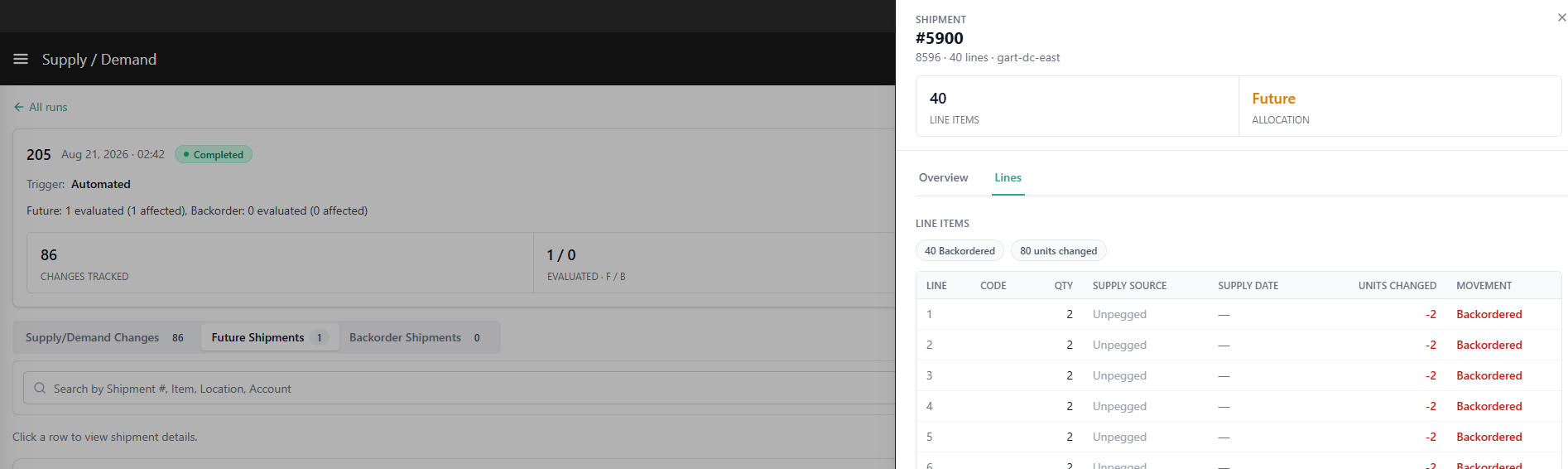 ##### **Lines Tab Columns**
| **Column** | **Description** |
| :---------------- | :------------------------------------------------------------------------------------------------------------------------------------------------------------------------------------- |
| **Line #** | The line item number within the shipment. |
| **Line Item ID** | The product UPC or SKU identifier. |
| **Supply Source** | The PO reference (External ID) of the future inventory record the line is pegged to. For backorder shipments released from on-hand inventory, this shows the on-hand inventory record. |
| **Supply Date** | The expected delivery date of the pegged PO — the date the supply is expected to arrive at the location. |
##### **Summary Chips**
Summary chips at the top of the Lines table (for example, "2 re-pegged," "2 unchanged," "126 units re-pegged") also act as clickable filters. Clicking a chip filters the Lines table to show only the lines matching that outcome category.
##### **Lines Tab Columns**
| **Column** | **Description** |
| :---------------- | :------------------------------------------------------------------------------------------------------------------------------------------------------------------------------------- |
| **Line #** | The line item number within the shipment. |
| **Line Item ID** | The product UPC or SKU identifier. |
| **Supply Source** | The PO reference (External ID) of the future inventory record the line is pegged to. For backorder shipments released from on-hand inventory, this shows the on-hand inventory record. |
| **Supply Date** | The expected delivery date of the pegged PO — the date the supply is expected to arrive at the location. |
##### **Summary Chips**
Summary chips at the top of the Lines table (for example, "2 re-pegged," "2 unchanged," "126 units re-pegged") also act as clickable filters. Clicking a chip filters the Lines table to show only the lines matching that outcome category.