> ## Documentation Index
> Fetch the complete documentation index at: https://docs.kibocommerce.com/llms.txt
> Use this file to discover all available pages before exploring further.
# Add Payments to Orders
Use the **Payments** tab of order details to view and add the customer’s payment information. Shoppers can pay with a credit card, check, gift card, or store credit. If you process a payment outside of the platform, such as through a third-party like PayPal or at a brick-and-mortar location, you can associate the payment details using the manual credit card option.
See how to manage payments on orders
You can only add payment methods that have been enabled for the site. You can view the enabled payment methods at **System** > **Settings** > **Payment Types**. Refer to [Payment Types](/pages/payment-types) for more information.
## Add Payment Method
When adding a new payment method to an existing order, you will be able to either add a new credit card or apply another payment to an existing credit card that was already used on the order.
1. Go to **Main** > **Orders** > **Orders**.
2. Click the order you want to add a payment to.
3. Click the **Payments** tab of the order details.
4. Use the **Add Payment** drop-down menu to select a payment method. You can use any payment method that's enabled on the applicable site. For purchase orders, refer to [Purchase Orders](/pages/purchase-orders) for more information.
### Add New Credit Card
Click **Add Payment** or **Credit Card (Manual)** to open a dialogue box that lists all billing information fields as shown below. They must all be populated before the payment can be created. If the details of a new credit need to be added:
1. Check **New Credit Card** in the Add Payment dialogue window.
2. Enter the payment information for all fields. Those marked with an asterisk are required.
3. Click **Save** to authorize the transaction.
### Add Existing Credit Card
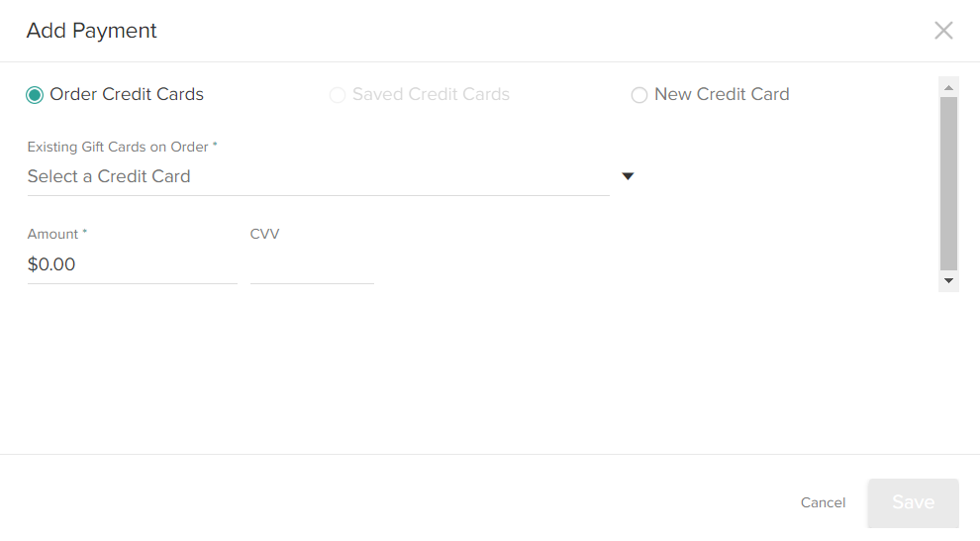
However, if a credit card already exists for the order then the dialogue box will offer an **Order Credit Cards** option that will allow the new payment to reference the existing card information in the order. Use this option to quickly create a new payment method in a case where the same card and billing information is being charged again.
1. Check **Order Credit Cards** in the Add Payment dialogue window.
2. Select an credit card from the **Existing Gift Cards on Order** drop-down.
3. Set the **Amount** to charge to the card.
4. Click **Save** to authorize the transaction.