> ## Documentation Index
> Fetch the complete documentation index at: https://docs.kibocommerce.com/llms.txt
> Use this file to discover all available pages before exploring further.
# Add Custom Attributes
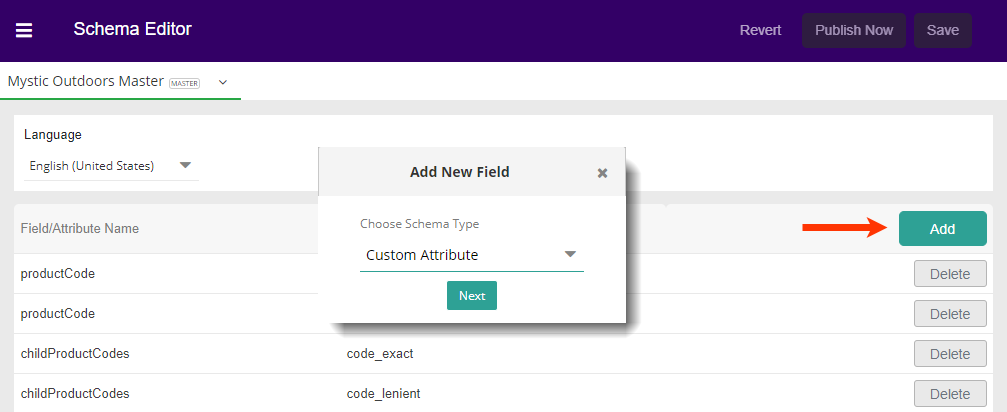
1. From the list, click **Add**.
2. Choose **Custom Attribute** from the Schema Type drop-down menu and then click **Next**.\\
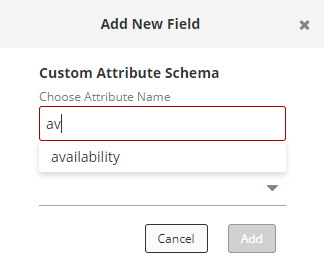
 3. Search for the field you need by typing and then selecting from the available choices. Because these are more numerous than Core Fields, there is no drop-down to scroll to your selection.\\
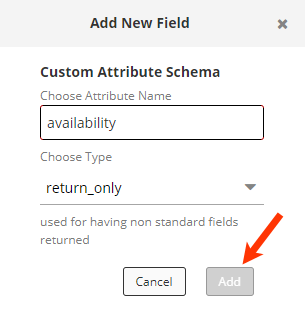
 4. Choose the Type and then click **Add**. The popup will close, and the new entry will be visible in the list.\\
 Learn how to create and configure product attributes
### Saving Changes
Any changes made to the Schema Editor will enable the **Save** button.
Learn how to create and configure product attributes
### Saving Changes
Any changes made to the Schema Editor will enable the **Save** button.
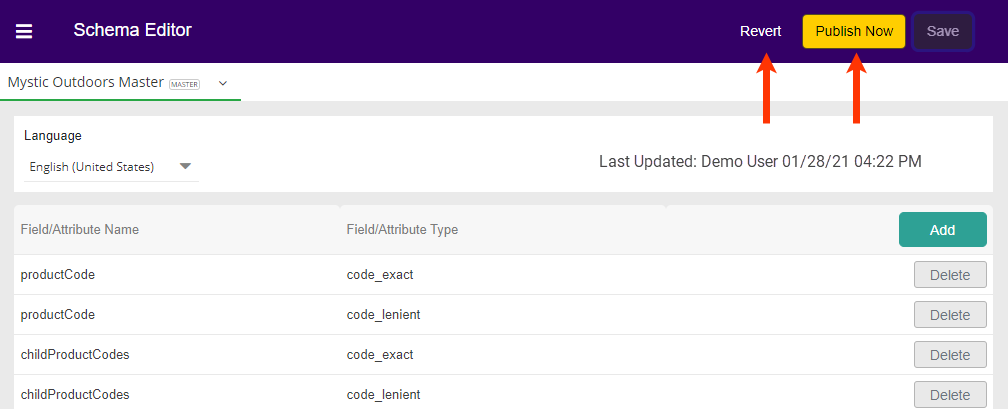
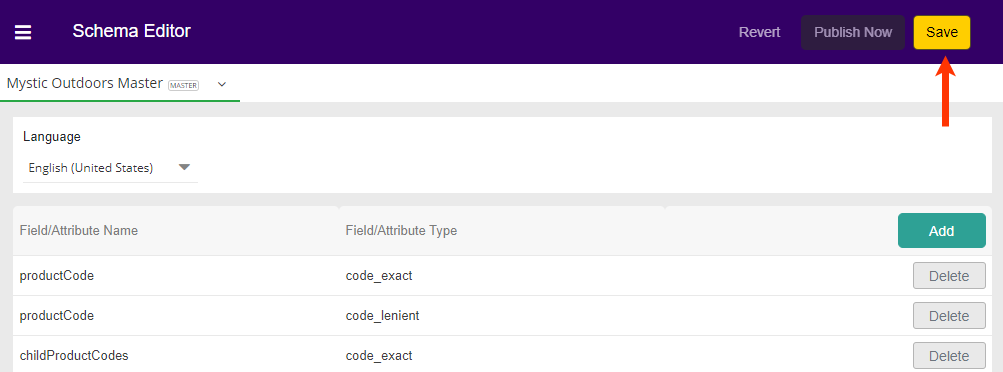 Once you have saved any changes, you have two options.
* To have your changes reflected in your site, click **Publish Now**.
* If you have made and saved changes in error (but not yet published), then you may click **Revert** to go back the prior saved changes. This will *not* revert to a former published version unless there have been no other saved changes.
Once you have saved any changes, you have two options.
* To have your changes reflected in your site, click **Publish Now**.
* If you have made and saved changes in error (but not yet published), then you may click **Revert** to go back the prior saved changes. This will *not* revert to a former published version unless there have been no other saved changes.