> ## Documentation Index
> Fetch the complete documentation index at: https://docs.kibocommerce.com/llms.txt
> Use this file to discover all available pages before exploring further.
# Add a Core Field
1. To add a new entry to the list of available fields, click **Add** above the list.\
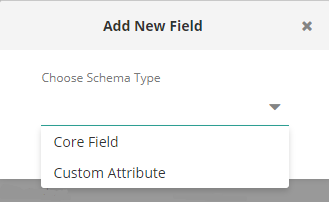
 Once you've clicked Add, a popup will appear with a drop-down menu where you can choose schema type, Core Field or Custom Attribute.
2. Select the Schema Type and then click **Next**.\\
Once you've clicked Add, a popup will appear with a drop-down menu where you can choose schema type, Core Field or Custom Attribute.
2. Select the Schema Type and then click **Next**.\\
 3. Choose a **Core Field Type**, either product or category.\\
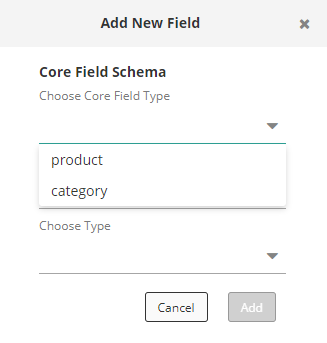 Depending on your catalog, you may elect to create a schema that uses both product and category field names. For example, a clothing retailer who chooses Product > ShortDescription will show only individual product listings in their search results for the term "jacket." By also choosing category as a Core Field Type, however, searches can also include results such as "Women's Jackets" or "Long Jackets" in addition to a listing of individual jackets.
### Available Fields
| Product | Category |
| --------------------------------------------------- | -------------------- |
| Code | Code |
| Child Code | Name |
| Name | Description |
| Short Description | Meta Tag Keywords |
| Full Description | Meta Tag Title |
| UPC | Meta Tag Description |
| Mfg Part Number | SEO Slug |
| Category Names | Image URL |
| Meta Tag Keywords | |
| Meta Tag Title | |
| Meta Tag Description | |
| Product Type Name | |
| SEO Slug | |
| Image URL | |
| Margin | |
| First Available Date | |
| Sales Rank (Short Term, Medium Term, and Long Term) | |
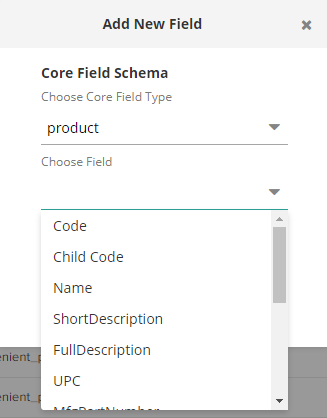
4. Select a field from the drop-down menu. This list is mapped to data in your uploaded catalog.\\
Depending on your catalog, you may elect to create a schema that uses both product and category field names. For example, a clothing retailer who chooses Product > ShortDescription will show only individual product listings in their search results for the term "jacket." By also choosing category as a Core Field Type, however, searches can also include results such as "Women's Jackets" or "Long Jackets" in addition to a listing of individual jackets.
### Available Fields
| Product | Category |
| --------------------------------------------------- | -------------------- |
| Code | Code |
| Child Code | Name |
| Name | Description |
| Short Description | Meta Tag Keywords |
| Full Description | Meta Tag Title |
| UPC | Meta Tag Description |
| Mfg Part Number | SEO Slug |
| Category Names | Image URL |
| Meta Tag Keywords | |
| Meta Tag Title | |
| Meta Tag Description | |
| Product Type Name | |
| SEO Slug | |
| Image URL | |
| Margin | |
| First Available Date | |
| Sales Rank (Short Term, Medium Term, and Long Term) | |
4. Select a field from the drop-down menu. This list is mapped to data in your uploaded catalog.\\
 5. Select a type from the drop-down menu. These are various analyzers for the field.\\
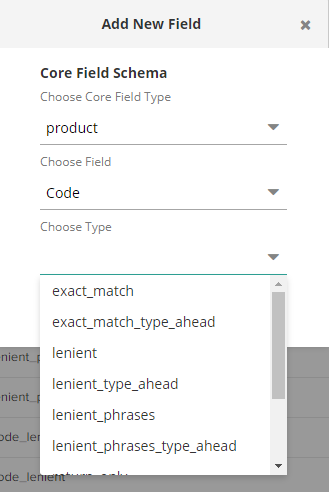 ### Example Analyzers
| Analyzer | Definition |
| ----------------------------- | -------------------------------------------- |
| exact\_match | The search term must be an exact match |
| exact\_match\_type\_ahead | Exact matches only for type ahead |
| lenient | Allows synonyms and stemming |
| lenient\_type\_ahead | Lenient for type ahead |
| lenient\_phrases | Lenient with phrase boosting |
| lenient\_phrases\_type\_ahead | Lenient with phrase boosting for type ahead |
| return\_only | Used for having non-standard fields returned |
| code\_exact | Used for product codes |
| code\_lenient | Split on dashes and dots |
| code\_lenient\_type\_ahead | Code lenient for type ahead |
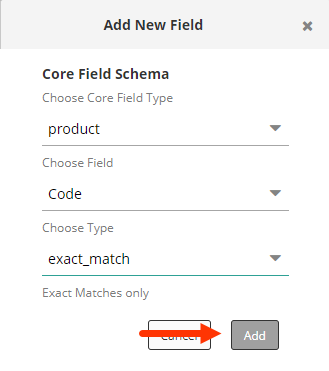
6. Once you have made this final selection, click **Add**. The popup window will close, and you will see your new entry in the list.\\
### Example Analyzers
| Analyzer | Definition |
| ----------------------------- | -------------------------------------------- |
| exact\_match | The search term must be an exact match |
| exact\_match\_type\_ahead | Exact matches only for type ahead |
| lenient | Allows synonyms and stemming |
| lenient\_type\_ahead | Lenient for type ahead |
| lenient\_phrases | Lenient with phrase boosting |
| lenient\_phrases\_type\_ahead | Lenient with phrase boosting for type ahead |
| return\_only | Used for having non-standard fields returned |
| code\_exact | Used for product codes |
| code\_lenient | Split on dashes and dots |
| code\_lenient\_type\_ahead | Code lenient for type ahead |
6. Once you have made this final selection, click **Add**. The popup window will close, and you will see your new entry in the list.\\
 7. To remove a list entry, click **Delete** at the end of the row.
## Saving Changes
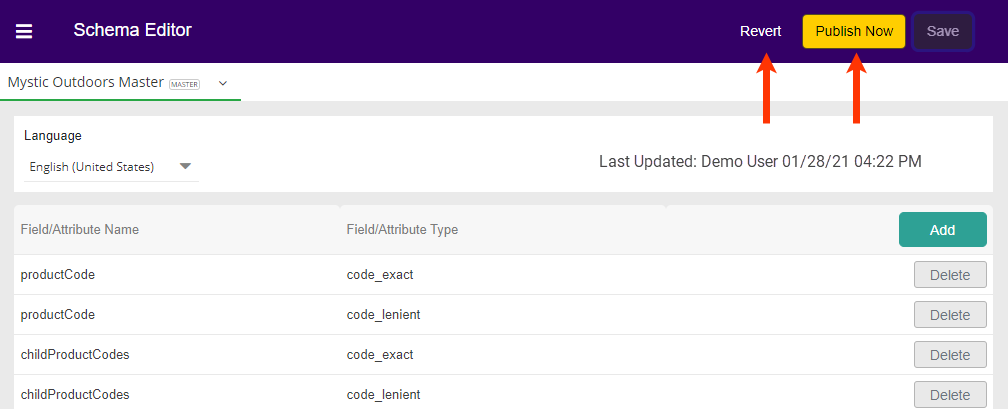
Any changes made to the Schema Editor will enable the **Save** button.
7. To remove a list entry, click **Delete** at the end of the row.
## Saving Changes
Any changes made to the Schema Editor will enable the **Save** button.
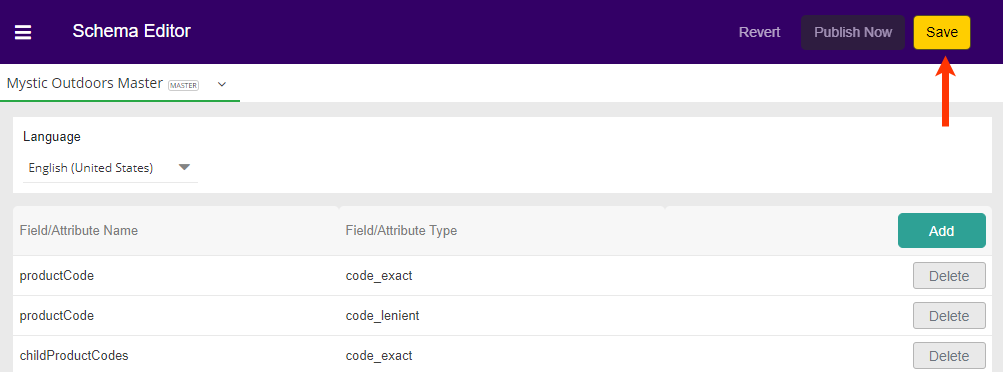 Once you have saved any changes, you have two options.
* To have your changes reflected in your site, click **Publish Now**.
* If you have made and saved changes in error (but not yet published), then you may click **Revert** to go back the prior saved changes. This will *not* revert to a former published version unless there have been no other saved changes.
Once you have saved any changes, you have two options.
* To have your changes reflected in your site, click **Publish Now**.
* If you have made and saved changes in error (but not yet published), then you may click **Revert** to go back the prior saved changes. This will *not* revert to a former published version unless there have been no other saved changes.